
Your customers expect more than plain text responses. They want to swipe through product options, tap buttons to navigate conversations, and interact with your support experience visually. Zendesk's messaging carousel templates deliver exactly that, but setting them up requires navigating scattered documentation and understanding which implementation method fits your team's technical resources.
This guide walks you through creating carousel templates step by step. You'll learn the JSON structure, API calls, and best practices, plus how eesel AI's Zendesk integration can handle rich messaging automatically if you want to skip the technical setup.

What are Zendesk messaging carousel templates?
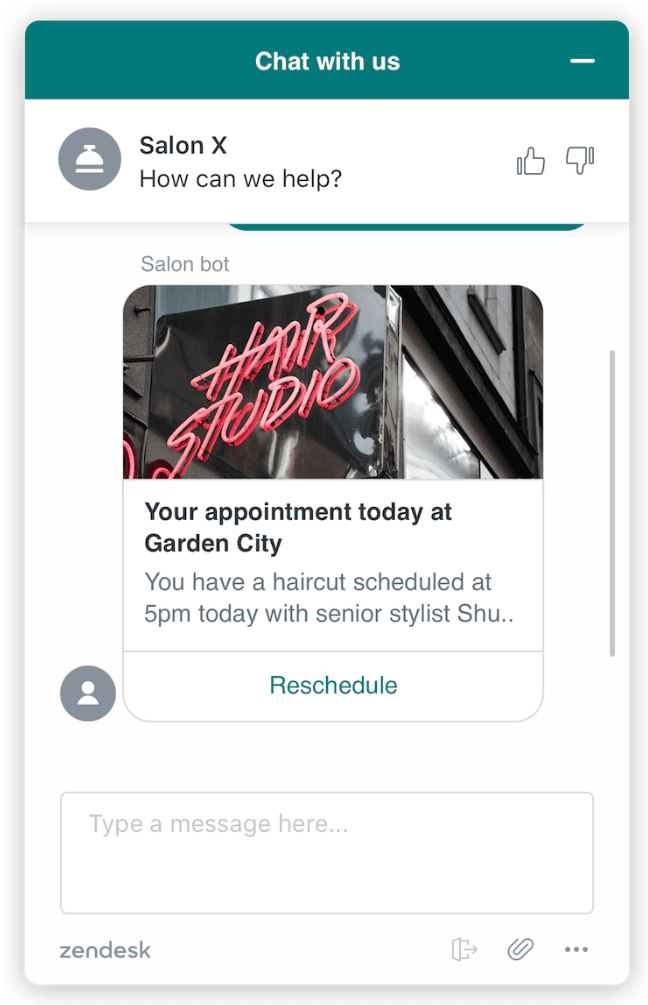
Zendesk messaging carousel templates are interactive message types that display horizontally scrollable cards in a conversation. Each card can include an image, title, description, and up to three action buttons. Instead of typing out product descriptions or service options, you present them visually, letting customers tap to learn more, make selections, or navigate to external pages.
Carousels work well for:
- Product showcases - Display multiple items with images and pricing
- Appointment booking - Show available time slots or services
- FAQ navigation - Guide customers to relevant help articles
- Multi-option displays - Present choices without overwhelming the conversation
The key limitation to understand upfront: not all messaging channels support carousels equally. When a channel doesn't support them, your carousel falls back to raw text without images or interactive buttons. We'll cover the channel compatibility matrix later so you can plan accordingly.
What you'll need to get started
Before building your first carousel, make sure you have:
| Requirement | Details |
|---|---|
| Zendesk account | Enterprise or Premium plan for Chat; Sunshine Conversations access for API method |
| API access | Chat Conversations API credentials or Sunshine Conversations API key |
| Channel support | Web Widget, Facebook Messenger, LINE, Telegram, Viber, or mobile SDKs |
| Image assets | URLs for carousel card images (hosted on your CDN or Zendesk) |
| Basic JSON knowledge | Understanding of JSON structure for API calls |
For image assets, Zendesk doesn't host your carousel images. You'll need to provide publicly accessible URLs. Recommended image specs: 1.91:1 aspect ratio (Facebook Messenger standard), under 8MB, ideally JPG or PNG format.
Step 1: Choose your implementation method for Zendesk messaging carousel templates
Zendesk offers four ways to implement carousel templates. Your choice depends on technical resources and how much control you need.
| Method | Technical Level | Best For |
|---|---|---|
| Sunshine Conversations API | Developer | Full control, custom integrations |
| AI Agents - Advanced | Low-code | Teams using Zendesk's AI agent builder |
| Template shortcuts | Agent-level | Reusable messages sent by agents |
| Third-party apps | No-code | Marketplace solutions like Interactive Messaging Templates |
Sunshine Conversations API gives you the most flexibility. You build the JSON payload, make the API call, and handle responses programmatically. This works best when you want to trigger carousels based on external events, like showing product recommendations from your e-commerce platform.
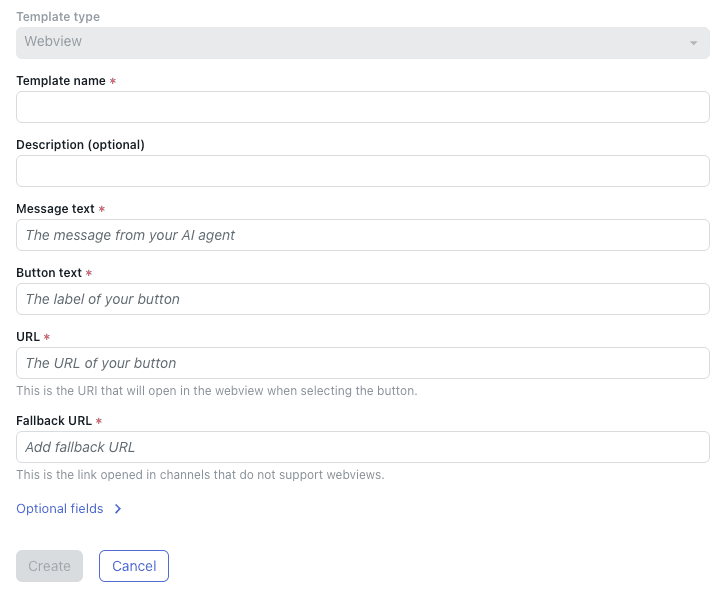
AI Agents - Advanced lets you create templates through Zendesk's UI and insert them into conversation flows. You don't write JSON directly; the interface builds it for you. This fits teams already using Zendesk's AI agent features for automated conversations.
Template shortcuts are the simplest option. You create reusable templates once, then agents send them using shorthand syntax in the composer. No development work required after the initial template setup.
Step 2: Create your Zendesk messaging carousel template
The carousel JSON structure follows a consistent pattern across all implementation methods. Here's a working example you can adapt:
{
  "type": "carousel",
  "items": [
    {
      "title": "Premium Support Plan",
      "description": "24/7 priority support with 1-hour response time",
      "mediaUrl": "https://yoursite.com/images/premium-plan.jpg",
      "actions": [
        {
          "type": "link",
          "text": "Learn More",
          "uri": "https://yoursite.com/premium"
        },
        {
          "type": "reply",
          "text": "Sign Up",
          "payload": "sign_up_premium"
        }
      ]
    },
    {
      "title": "Standard Plan",
      "description": "Business hours support with 4-hour response time",
      "mediaUrl": "https://yoursite.com/images/standard-plan.jpg",
      "actions": [
        {
          "type": "link",
          "text": "View Details",
          "uri": "https://yoursite.com/standard"
        }
      ]
    }
  ]
}
Key structure elements:
- type: Must be set to
"carousel" - items: Array of card objects (maximum 10 cards)
- title: Card headline (128 characters for Sunshine, 150 for Chat)
- description: Card body text (128 characters for Sunshine, 150 for Chat)
- mediaUrl: Publicly accessible image URL
- actions: Array of 1-3 buttons per card
Character limits matter. Exceed them and your message fails to send. Here's the complete reference:
| Platform | Max Cards | Title | Description | Button Text |
|---|---|---|---|---|
| Sunshine Conversations | 10 | 128 chars | 128 chars | 35 chars |
| Zendesk Chat | 10 | 150 chars | 150 chars | 20 chars |
Action types available:
- link: Opens URL in new tab
- reply: Sends predefined message back to the conversation
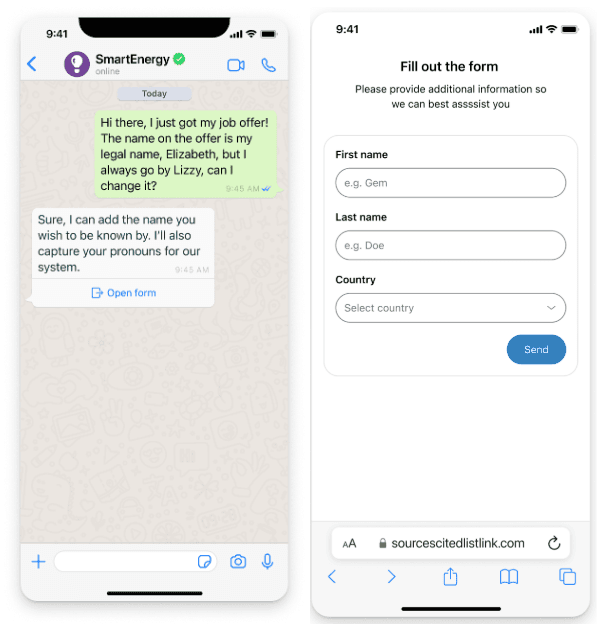
- webview: Opens Conversations Extension overlay
Step 3: Send your carousel via the Sunshine Conversations API
To send your carousel programmatically, use the Post Message endpoint. Here's the complete curl command:
curl https://{subdomain}.zendesk.com/sc/v2/apps/{app_id}/conversations/{conversation_id}/messages \
     -X POST \
     --user '{key_id}:{secret}' \
     -H 'content-type: application/json' \
     -d '{
        "author": {
          "type": "business"
        },
        "content": {
          "type": "carousel",
          "items": [
            {
              "title": "Your Card Title",
              "description": "Your card description here",
              "mediaUrl": "https://yoursite.com/image.jpg",
              "actions": [
                {
                  "type": "link",
                  "text": "Click Here",
                  "uri": "https://yoursite.com/page"
                }
              ]
            }
          ]
        }
      }'
Breaking down the authentication:
- Replace
{subdomain}with your Zendesk subdomain - Replace
{app_id}with your Sunshine Conversations app ID - Replace
{conversation_id}with the active conversation ID - Use your
{key_id}:{secret}from your Sunshine Conversations API credentials
Response codes to watch for:
- 201 Created: Message sent successfully
- 400 Bad Request: Check your JSON structure and character limits
- 401 Unauthorized: Verify your API credentials
- 404 Not Found: Conversation ID or app ID doesn't exist
Test in a development environment first. The API won't validate whether your image URLs are accessible until runtime, so broken images result in carousel cards without visuals.

Step 4: Use template shortcuts for reusable carousels
If your agents send the same carousels repeatedly, create a template once and reference it with shorthand syntax.
Creating a template via API:
curl https://{subdomain}.zendesk.com/sc/v1.1/apps/{app_id}/templates \
     -X POST \
     --user '{key_id}:{secret}' \
     -H 'content-type: application/json' \
     -d '{
       "name": "pricing_plans_carousel",
       "message": {
         "role": "appMaker",
         "type": "carousel",
         "items": [
           {
             "title": "Premium Plan",
             "description": "24/7 support",
             "mediaUrl": "https://yoursite.com/premium.jpg",
             "actions": [{"type": "link", "text": "View", "uri": "https://yoursite.com/premium"}]
           }
         ]
       }
     }'
Sending the template:
Agents type this in the composer:
%((template:pricing_plans_carousel))%
Zendesk automatically replaces the shorthand with your full carousel.
Alternative syntax (if you have templating conflicts):
%{{template:pricing_plans_carousel}}%
Sample templates for testing:
Zendesk provides pre-built templates you can use immediately:
| Template Syntax | What It Sends |
|---|---|
%((template:smooch_tmpl_things_to_do))% | Sample carousel with activity cards |
%((template:smooch_tmpl_family_basket))% | Compound message with multiple elements |
%((template:smooch_tmpl_lead_capture))% | Form for collecting contact information |
%((template:smooch_tmpl_rate_conversation))% | Quick reply for rating |
%((template:smooch_tmpl_nps_survey))% | NPS survey template |
Channel support and fallback behavior for Zendesk messaging carousel templates
Not every messaging channel renders carousels the same way. Plan your implementation around these compatibility levels:
| Channel | Carousel Support | Fallback Behavior |
|---|---|---|
| Web Messenger | Full | Native carousel rendering |
| Facebook Messenger | Full | Native carousel rendering |
| LINE | Full | Native carousel rendering |
| Telegram | Full | Native carousel rendering |
| Viber | Full | Native carousel rendering |
| Android SDK | Full | Native carousel rendering |
| iOS SDK | Full | Native carousel rendering |
| Chat Android SDK v2 | None | Not supported |
| Chat iOS SDK v2 | None | Not supported |
| SMS | None | Raw text fallback |
| None | Raw text fallback |
What happens in fallback?
When a channel doesn't support carousels, Zendesk sends the text property from your carousel message instead. If you didn't specify fallback text, customers won't see anything or will get a broken message. Always include the text field:
{
  "type": "carousel",
  "text": "View our pricing plans: Premium (24/7 support) or Standard (business hours). Reply PREMIUM or STANDARD to learn more.",
  "items": [...]
}
Testing recommendations:
Test your carousels on every channel you support before going live. The same JSON payload renders differently across platforms, and button styling varies significantly between Web Messenger and mobile SDKs.
Common mistakes when creating Zendesk messaging carousel templates
After working with dozens of implementations, here are the issues that come up most often:
Images not displaying
This usually means your image URL isn't publicly accessible or the format is unsupported. Check that your images load in an incognito browser window. Zendesk doesn't proxy or cache your images; the client's device fetches them directly.
Character limit violations
The API returns a 400 error when you exceed limits, but the error message doesn't specify which field is too long. Use a character counter during development and build in margins (aim for 20% under the limit) to account for URL encoding.
Button actions not working
Reply actions require your bot or integration to listen for the postback payload. If you send a carousel with reply buttons but have no handler for the payload, nothing happens when customers tap. Either use link actions (which work anywhere) or ensure your backend handles postbacks.
Channel incompatibility surprises
Teams often test in Web Messenger, then deploy to other channels where carousels fail silently. Build channel detection into your logic and send appropriate message types based on the conversation's channel.
Template syntax errors
A single missing parenthesis in %((template:name))% breaks the substitution. The shorthand appears as plain text to the customer. Copy-paste from working examples rather than typing from memory.
Authentication failures
Sunshine Conversations API uses different credentials than your main Zendesk account. You need a separate key ID and secret created in the Sunshine Conversations admin panel, not your regular Zendesk API token.
Advanced tips for better Zendesk messaging carousel templates
Once you have basic carousels working, optimize them with these practices:
Image optimization
Compress images before hosting them. Large images slow down carousel rendering, especially on mobile. Aim for under 100KB per image while maintaining acceptable quality. Use a CDN with edge caching for faster global delivery.
Button copy within limits
With only 20-35 characters for button text, every word matters. Use action verbs: "View Plans" beats "Click Here." Test abbreviations your audience understands: "FAQ" instead of "Frequently Asked Questions."
A/B testing layouts
Carousel order matters. Test whether your most popular option performs better first or last in the scroll. Some teams see higher engagement when the recommended option appears as the second card rather than the first.
E-commerce specific tips
For product carousels, include pricing in the description field. The character limit is tight, but "$49/month" fits and drives more qualified clicks than making customers tap to discover pricing.
Performance considerations
Each carousel API call counts against your rate limits. For high-volume scenarios, consider whether a simple quick reply (which uses fewer resources) could achieve the same outcome.
Simplify rich messaging with eesel AI
Building and maintaining carousel templates takes ongoing effort. Every product update requires template updates. Every new channel requires compatibility testing. For teams that want rich messaging without the technical overhead, we offer a different approach.

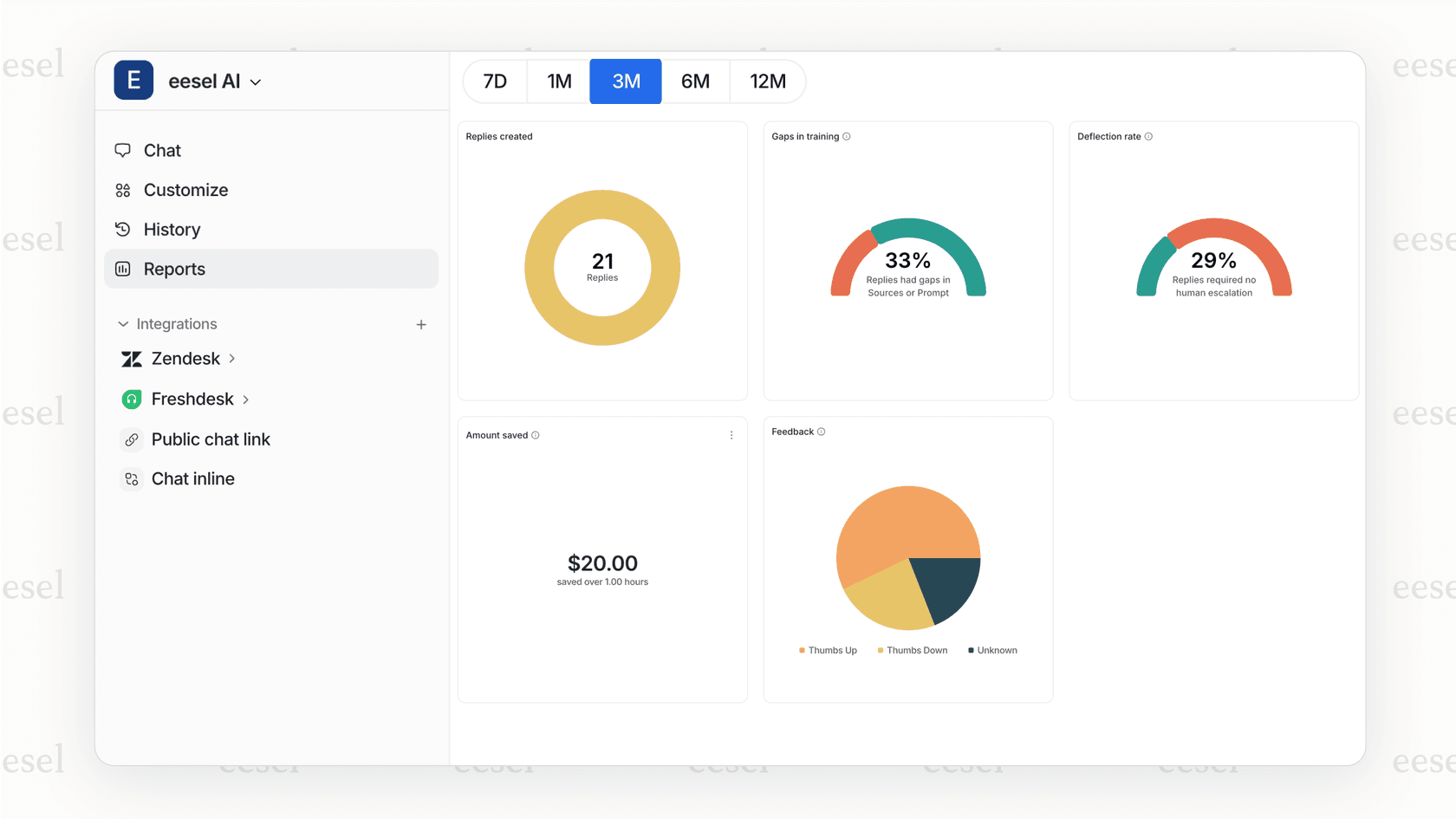
With eesel AI, you don't build templates manually. You connect us to your Zendesk, and our AI learns your products from your existing help center articles, past tickets, and macros. When customers ask about your offerings, we automatically generate appropriate carousels, buttons, and quick replies based on what they need.
The difference is in the workflow. With Zendesk's native approach, you:
- Write JSON templates for every product variation
- Update templates when offerings change
- Test across channels manually
- Monitor for rendering issues
With eesel AI, you:
- Connect your knowledge sources once
- We learn your products and pricing automatically
- We generate rich responses appropriate to each conversation
- You review and refine in plain English, not JSON
Our AI Agent handles frontline support autonomously, including rich messaging. Start with drafts for review, then expand scope as you see quality. Teams using eesel AI for Zendesk integration typically achieve up to 81% autonomous resolution on mature deployments.
Our pricing starts at $299 per month for the Team plan, with no per-seat fees. You pay for AI interactions, not headcount, which scales more predictably than adding agents.


