
When a customer sends a message through your website widget or mobile app, every second counts. If your agents don't get notified quickly, that customer waits. If the wrong agent gets notified, the ticket bounces around. If notifications get lost in the shuffle, response times suffer and CSAT scores drop.
Zendesk's messaging notifications underwent a major redesign in early 2026. The notification center now serves as a centralized event hub, giving agents clearer visibility into new assignments, customer replies, and team mentions. Whether you're setting up messaging for the first time or optimizing an existing configuration, understanding how agent reply notifications work is essential for delivering fast, effective support.
This guide walks you through everything you need to know about Zendesk messaging agent reply notifications. We'll cover the new 2026 notification center, the two different routing systems Zendesk offers, step-by-step configuration instructions, and how to troubleshoot common issues. We'll also look at how AI tools can reduce the notification burden on your team by handling routine tickets before they ever reach your queue.

Understanding Zendesk messaging agent reply notification systems
Before configuring anything, you need to understand how Zendesk handles messaging notifications. The platform actually offers two distinct approaches, and choosing the wrong one can leave you frustrated when settings don't work as expected.
The two routing approaches
Zendesk provides two systems for routing messaging notifications to agents:
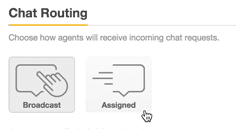
Chat routing is the original system, configured through the Chat Dashboard. It offers two basic modes: Broadcast (all agents see all incoming requests) and Assigned (requests distribute evenly to available agents). This system works well for smaller teams with straightforward needs.
Omnichannel routing is the newer, more sophisticated option, configured in the Admin Center. It considers agent status, capacity, skills, and ticket priority when making routing decisions. On Professional and Enterprise plans, you also get custom queues and skills-based routing.
Here's the critical point that trips up many teams: if you turn on omnichannel routing, it completely overrides any Chat routing settings you've configured. Your Chat Dashboard settings simply stop working. This surprises teams who enable omnichannel and wonder why their carefully tuned Chat routing rules no longer apply.
How agent reply notifications work
Agent notifications in Zendesk messaging trigger from several events:
- New conversation assignments - When a messaging ticket gets assigned to an agent
- Customer replies - When an end user responds to an existing conversation
- @mentions - When another agent mentions someone in an internal note
The notifications list in the Agent Workspace tracks these events. When a new message comes in on a ticket you don't currently have open, you get notified. The list shows messaging channel icons, sender names, timestamps, and message previews.
Notifications persist across sessions, so you won't miss something if you step away. However, notifications for a ticket stop once the messaging session ends, which happens when a ticket is closed or after a period of inactivity.
Browser notifications and mobile push notifications can supplement the in-app notification list, though these require proper permission settings on the agent's device.
The 2026 notification center redesign
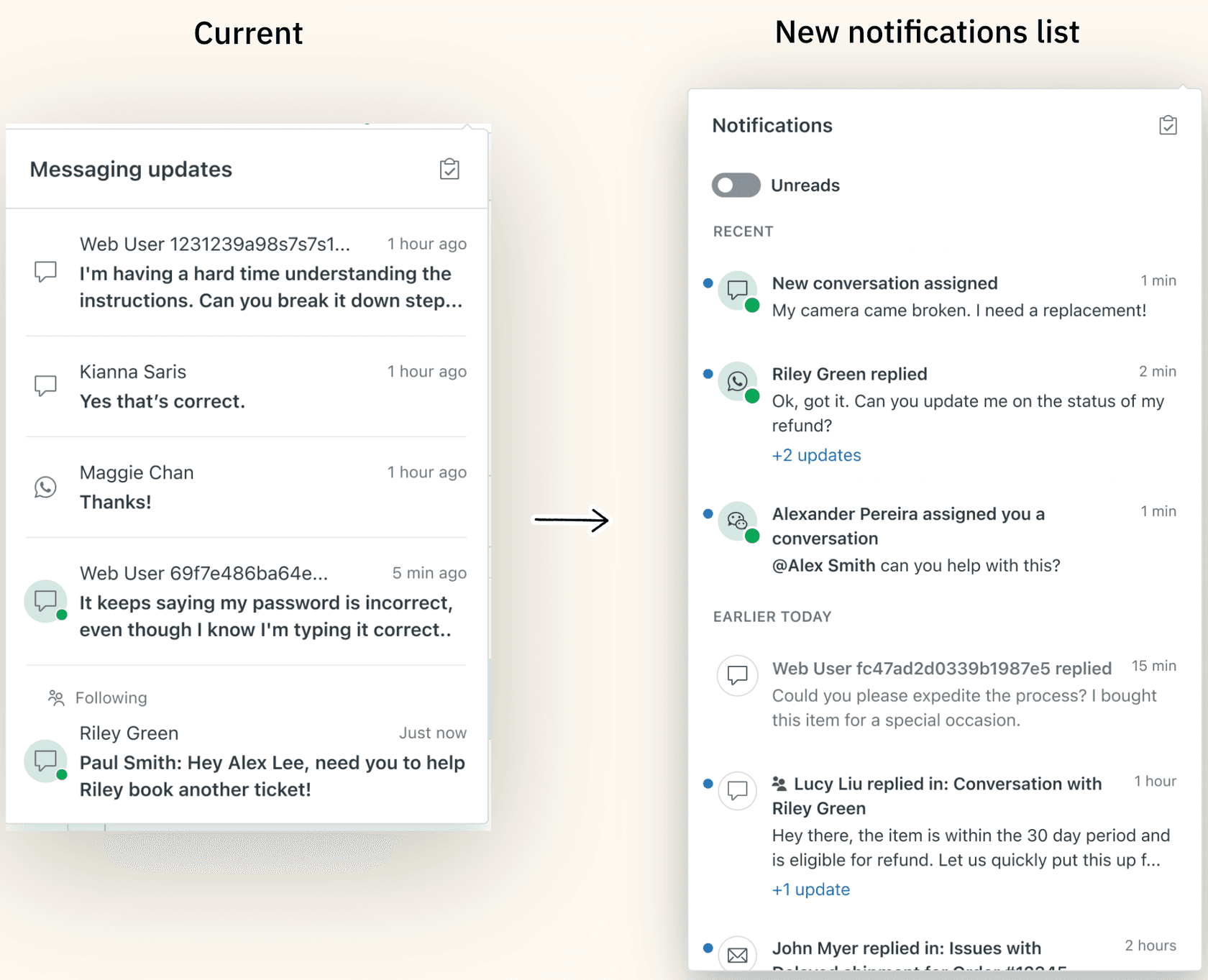
Zendesk rolled out a redesigned notification experience starting in January 2026. The notification tray in the bell icon transformed from a simple work list to a comprehensive record of relevant events.
Key changes include:
- Toggle to filter unread events - Focus on what needs attention
- Chronological order with time-based dividers - See when things happened at a glance
- Read and unread status indicators - Know what you've already reviewed
- Aggregated updates per ticket - Multiple updates to the same ticket group together
- Mark all as read button - Clear your list when you're caught up
The redesigned notifications serve all messaging tickets in the Agent Workspace. Zendesk plans to extend notifications to other channels and products in future releases, but for now, this is specifically for messaging customers.
Setting up Zendesk messaging agent reply notification routing
Now let's get into the actual configuration. The steps differ depending on whether you're using Chat routing or omnichannel routing.
Prerequisites
Before you start, ensure you have:
- Zendesk Agent Workspace activated on your account
- At least one messaging channel enabled (web widget, mobile SDK, or social messaging)
- Chat departments enabled (this is required for notification routing to function)
You can verify your messaging channels in Admin Center under Channels > Messaging and social. For Chat departments, check the Chat Dashboard under Settings > Departments.
Option 1: Chat routing (legacy)
If you're not using omnichannel routing, you'll configure notifications through the Chat Dashboard.
Step 1: Access routing settings
Navigate to your Chat Dashboard and select Settings > Routing. You'll see the Chat Routing section with options for notification method and chat limits.
Step 2: Choose your routing method
You have two options here:
| Method | How it works | Best for |
|---|---|---|
| Broadcast | All agents are notified of all incoming requests. Agents click "Serve Request" to claim a conversation. | Small teams where any agent can handle any request |
| Assigned | The system distributes requests evenly. Only one agent is notified per request at any time. | Larger teams that need fair distribution |
Broadcast is the default setting. It offers simplicity: everyone sees everything and self-selects which conversations to take. The downside is cherry-picking, where agents might grab easy tickets and leave complex ones waiting.
Assigned mode routes requests based on specific logic: first to the agent serving the fewest ongoing conversations, then by missed assignments, then by last assignment timestamp, and finally randomly if all else is equal.
Step 3: Configure chat limits
Chat limits cap how many concurrent conversations each agent can handle. This prevents any single agent from getting overwhelmed.
To enable limits:
- Next to Chat limit, select On
- Choose whether to apply limits at the Account level (same limit for everyone) or Agent level (individual limits per agent profile)
- If using Account limits, enter a value in the Maximum chats field
An agent's workload is calculated based on active requests. A request is considered "active" if it received a response in the past 10 minutes. Conversations older than that are considered inactive and, by default, don't count toward the limit.
Most teams start with 3-5 concurrent conversations per agent. You can adjust based on conversation complexity and your team's capacity.
Step 4: Set up reassignment (Assigned mode only)
With Assigned routing, you can configure automatic reassignment if an agent doesn't respond within a set time. This prevents conversations from getting stuck when an agent steps away.
To enable reassignment:
- Next to Reassignment, select On
- Enter a reassignment timeout in seconds (30-60 seconds is reasonable)
- Click Save Changes
If you enable reassignment, you can also enable Automatic Idle. This sets an agent's status to Away or Invisible after a specified number of reassignments, keeping non-responsive agents from blocking the queue.
Option 2: Omnichannel routing (recommended)
Omnichannel routing provides more sophisticated control over how messaging conversations reach your agents. It works across email, calls, and messaging from a single configuration.
Step 1: Enable omnichannel routing
Navigate to Admin Center, then click Objects and rules in the sidebar. Select Omnichannel routing > Routing configuration.
Click "Turn on omnichannel routing" to enable it. Remember: this will override any Chat routing settings you have configured.
Omnichannel routing works out of the box once enabled. It can start routing calls and messaging conversations immediately.
Step 2: Configure messaging-specific settings
Within your routing configuration, you'll find settings specific to messaging conversations:
- Wait until agent accepts vs. Auto-accept - With "Wait until agent accepts," agents must click to accept each conversation. With auto-accept, conversations are automatically assigned without requiring a click.
- Reassignment timing (Professional and Enterprise) - If an agent doesn't accept within X seconds, the conversation reassigns to the next agent. Default is 30 seconds.
- Inactive conversation capacity - Choose whether inactive conversations count toward agent capacity.
Auto-accept can reduce First Reply Time significantly. According to Zendesk, waiting for agents to click Accept represents around 40% of overall FRT numbers. Auto-accept also achieves near 100% acceptance rate since agents can't choose to ignore incoming work.
Step 3: Set up capacity rules
Capacity rules control how much work gets assigned to each agent. Navigate to Admin Center > Objects and rules > Omnichannel routing > Capacity rules.
When creating a capacity rule, you set maximums for each channel:
| Channel | Maximum | Notes |
|---|---|---|
| Up to 500 | Open email tickets assigned at one time | |
| Messaging | Up to 500 | Separate limits for messaging conversations and live chats |
| Talk | 0 or 1 | 0 means the agent cannot receive calls |
The messaging capacity applies to both messaging conversations and live chats separately. If you set a capacity of 3, an agent could have up to 3 messaging conversations AND 3 live chats simultaneously.
Step 4: Create custom queues (Professional and above)
Custom queues let you route specific ticket types to specific groups of agents. This is useful when you have specialized teams handling different product lines or customer segments.
To create a custom queue:
- Navigate to Admin Center > Objects and rules > Omnichannel routing > Queues
- Click Add queue
- Define conditions that match the tickets you want in this queue (for example, tickets from a specific organization or with a specific tag)
- Set primary and secondary (fallback) groups
Tickets that don't match any custom queue fall back to the standard omnichannel routing queue.

Using the Zendesk messaging agent reply notification list effectively
Configuration is only half the battle. Your agents need to know how to use the notifications list effectively.
Accessing notifications
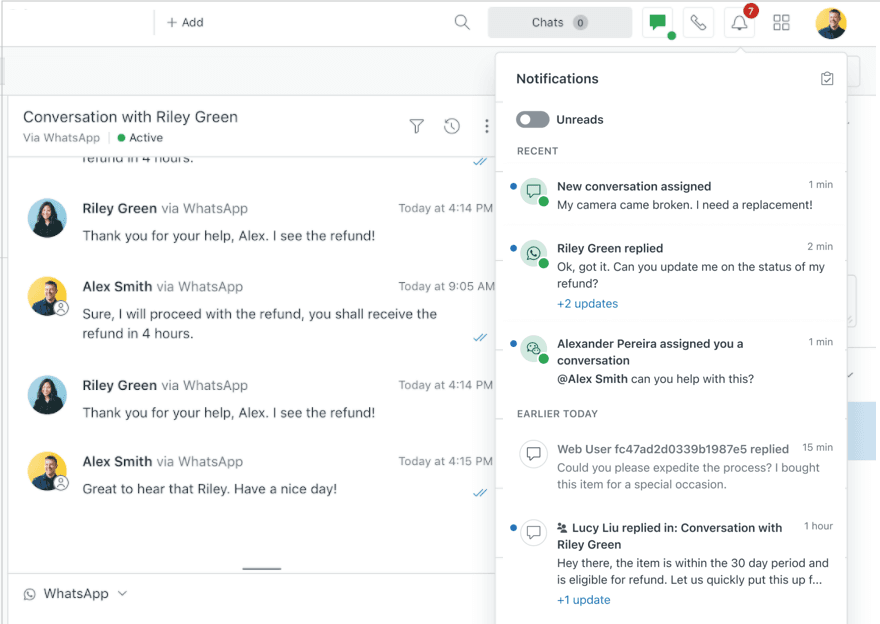
When one of your assigned messaging tickets receives a new message, you'll see a notification at the top of the workspace, and the notifications icon updates to show your count of unread messaging tickets. For example, if you have 10 unread messages spread across three tickets, the count shows as 3.
To open the notifications list:
- Click the notifications icon (bell) in the top-right of Agent Workspace
- A list of notifications appears showing unread messages
- Click a notification to open the ticket, view message details, and reply
- Once you click a notification and open the ticket, it's removed from the list
- Click the notifications icon again to close the list
Notifications in the list include an icon showing the messaging channel, the name (or ID) of the user sending the message, the time the message was sent, and the first line of the message.
Managing notifications
The redesigned notification center gives you more control:
- Toggle unread filter - Show only unread events to focus on what needs attention
- Mark all as read - Clear your list when you're caught up
- Aggregated updates - Multiple updates to the same ticket group together, reducing clutter
Clicking a notification takes you directly to the ticket. Once you open the ticket, the notification clears from your list automatically.
Notification list limitations
Keep these limitations in mind:
- Notifications for a ticket stop after the messaging session ends (ticket closed or inactivity timeout)
- Skills-based routing isn't available for messaging conversations
- Browser notifications require permission grants from each agent
- Mobile push notifications require the Zendesk mobile app with proper notification settings
Troubleshooting Zendesk messaging agent reply notification issues
Even with correct configuration, notification issues come up. Here are the most common problems and how to resolve them.
Agents not receiving notifications
If agents aren't getting notified about incoming messaging conversations, check these common causes:
-
Chat departments not enabled - Notification routing rules require Chat departments to be enabled. Verify this in your Chat settings.
-
Agent status - Agents must be Online to receive notifications. Check their status in Agent Workspace. Agents set to Away or Invisible won't get notified.
-
Capacity limits reached - If an agent is at capacity, they won't receive new notifications until they close some conversations. Check current workload in Agent Workspace.
-
Browser permissions - Browser notifications require the agent to grant permission. Check browser settings if in-app notifications work but browser notifications don't.
Routing not working after enabling omnichannel
Remember that omnichannel routing overrides Chat routing settings completely. If you enabled omnichannel but expected your Chat settings to still work, you'll need to reconfigure everything in Admin Center instead.
Check your routing configuration in Admin Center > Objects and rules > Omnichannel routing. Verify that your capacity rules, queues, and routing settings are configured correctly there.
Customer reply notifications not appearing
If agents aren't seeing notifications for customer replies to existing conversations:
- Verify the messaging session hasn't ended (check ticket status)
- Confirm the agent is still assigned to the ticket
- Check that the conversation hasn't been transferred to another agent
- Ensure messaging triggers for "when a message is sent" are configured correctly
Best practices for notification management
Based on common patterns successful teams follow:
Start conservative with capacity limits. Don't set agents up for 10 concurrent conversations on day one. Start with 3-5 and adjust based on performance. It's easier to increase limits than to deal with overwhelmed agents.
Enable reassignment to prevent stuck conversations. A 30-60 second timeout is usually reasonable. This gives agents enough time to acknowledge but doesn't leave customers waiting unnecessarily.
Use focus mode to reduce context-switching. If using omnichannel routing, focus mode limits agents to one real-time channel at a time, which can improve efficiency.
Monitor your metrics. Use Chat Analytics to track acceptance rates, queue times for messaging conversations, and agent utilization. Adjust your configuration based on what the data shows.
Reducing notification burden with eesel AI
Here's the reality: even perfectly configured notification routing can't solve the fundamental problem of too many tickets and not enough agents. When your team is drowning in notifications, the solution isn't better routing. It's fewer tickets reaching the queue in the first place.

This is where eesel AI changes the equation. Instead of trying to route notifications more efficiently, we help you reduce the volume of tickets that need routing at all.
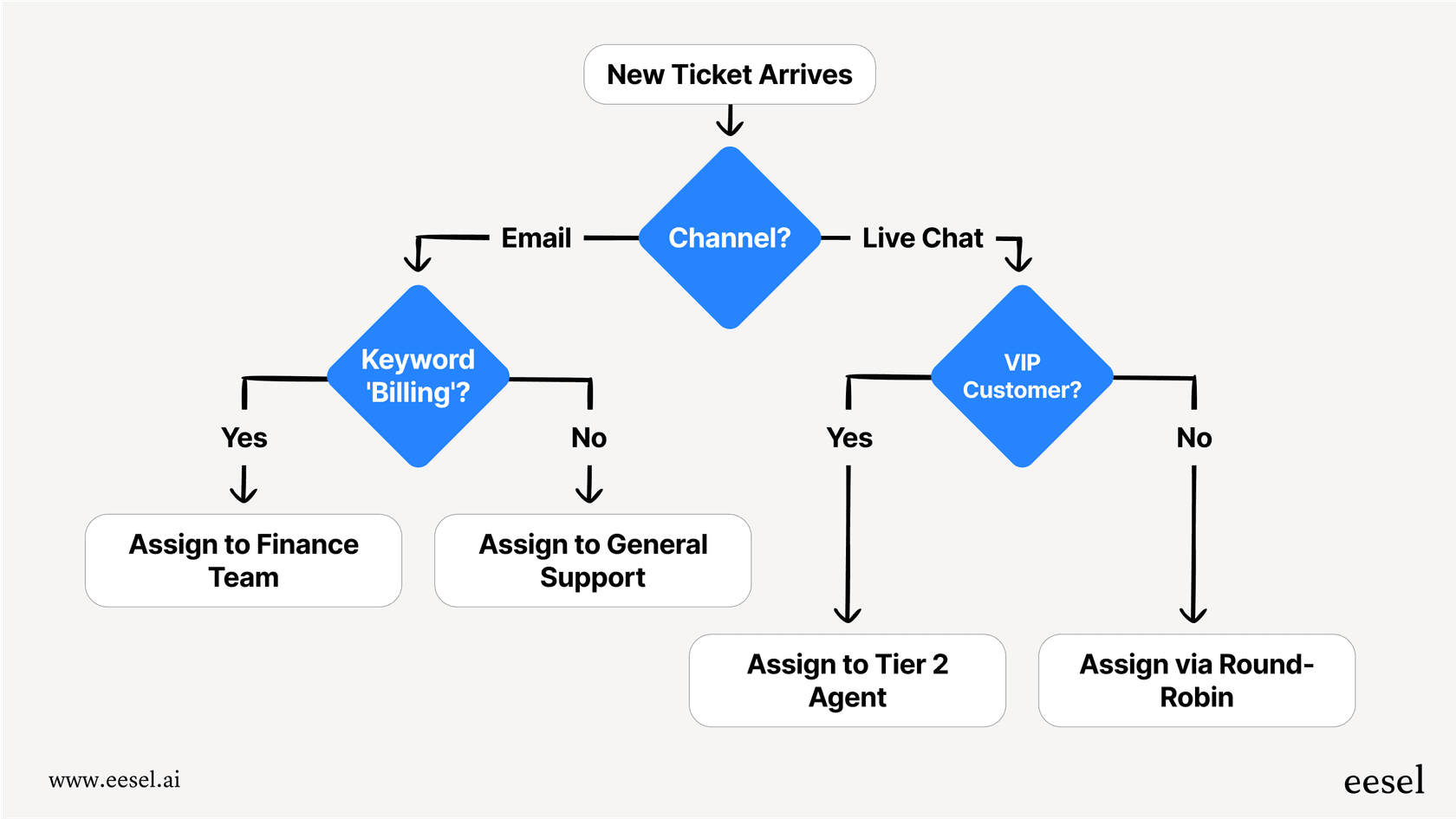
Our AI Agent handles frontline support tickets autonomously, resolving common questions without any agent involvement. For tickets that do need human attention, AI Triage automatically tags, routes, and prioritizes based on content, ensuring they reach the right team immediately with proper context.
We integrate directly with Zendesk, learning from your existing tickets, help center, and macros in minutes. Most teams start with AI Copilot, which drafts responses for agents to review. As confidence builds, you can progress to autonomous resolution.
The results speak for themselves. Mature deployments achieve up to 81% autonomous resolution, with a typical payback period under 2 months. When AI handles the routine tickets, your notification routing manages a smaller, more manageable volume, and the tickets that do reach agents are properly categorized and prioritized before they arrive.
Choosing the right Zendesk messaging agent reply notification setup
Let's bring this together with a practical decision framework.
Team size guidelines
Small teams (1-5 agents): Chat routing with Broadcast mode usually works fine. Everyone sees everything, and self-assignment is simple when any agent can handle any request.
Growing teams (5-20 agents): Consider Chat routing with Assigned mode or move to omnichannel routing. Fair distribution becomes important as team size increases.
Large or enterprise teams (20+ agents): Omnichannel routing is almost certainly the right choice. You need capacity rules, custom queues, and the ability to route based on skills and priority.
Key metrics to monitor
Whatever setup you choose, track these metrics:
- First Reply Time - How quickly customers get their first response
- Acceptance rates - If using manual accept, how often agents claim conversations
- Queue times - How long customers wait before an agent takes their ticket
- Agent utilization - Whether work is distributed fairly across the team
Implementation checklist
Before going live with your configuration:
- Verify Chat departments are enabled
- Confirm all agents have correct status and permissions
- Test routing with a few sample tickets
- Set up capacity limits appropriate for your team
- Configure reassignment if using Assigned mode
- Train agents on using the notifications list
- Monitor metrics for the first week and adjust as needed


