How to use Zendesk macros to start side conversations

Stevia Putri
Last edited February 24, 2026
Side conversations in Zendesk are a practical way to loop in colleagues, vendors, or other teams without cluttering the main ticket thread. But if your agents are creating the same side conversations over and over, there's a better way. Zendesk macros can automate this process, pre-filling recipients, subjects, and messages so your team can focus on solving problems instead of repetitive data entry.
This guide walks you through setting up macros that start side conversations via email, Slack, and child tickets. You'll learn the prerequisites, how to configure each type, and get ready-to-use templates you can adapt for your own workflows.
What you'll need to get started
Before you can create side conversation macros, a few things need to be in place.
Plan requirements
Side conversations require Zendesk Suite Professional, Enterprise, or Enterprise Plus. You'll also need the Collaboration add-on for Support. If you are not sure which plan you are on, check with your Zendesk admin.
Permissions
Anyone with agent access can create personal macros for their own use. To create shared macros that the whole team can access, you'll need administrator privileges.
Feature activation
Side conversations must be enabled in your Zendesk instance. Head to Admin Center > Workspaces > Agent tools > Side conversations and toggle on the channels you want to use (email, Slack, Microsoft Teams, or child tickets).
Integrations (optional)
If you plan to use Slack or Microsoft Teams side conversations, make sure those integrations are already configured in your Zendesk instance.
For teams looking to extend their Zendesk capabilities further, our Zendesk integration connects your helpdesk with AI-powered automation that works alongside your macros.

Understanding side conversation macro actions
When you add a side conversation action to a macro, you have three channel options. Each serves a different purpose, so choosing the right one matters.
Side conversation via email
Email side conversations work best when you need to contact people outside your organization or those who don't use your internal Slack workspace. Think vendors, shipping partners, or customers who need to be looped in.
Key details to know:
- You can pre-populate the "To" field with specific email addresses
- CC and BCC fields cannot be pre-filled in macros (this is a known limitation)
- Email side conversations support up to 100 recipients, with a maximum of 48 being non-agents
- Unlike regular Zendesk emails, side conversations don't use your email templates
Side conversation via Slack
Slack side conversations are ideal for quick internal collaboration. When your engineering team needs a heads-up or your billing department needs to weigh in, Slack gets faster responses than email.
Key details to know:
- You can pre-configure a specific Slack channel
- If you enter a partial channel name, Zendesk shows matching channels when the macro runs
- Replies in the Slack thread automatically sync back to the ticket
- Only one channel per side conversation
Side conversation via child ticket
Child tickets create formal, trackable handoffs to other teams. They're subordinate tickets linked to the parent ticket, making them perfect for escalations that need their own workflow.
Key details to know:
- You can pre-select a group to assign the child ticket to
- Agents can only select groups they have access to
- Child ticket replies sync back to the parent ticket's side conversation
- Public comments on the child ticket become part of the side conversation
Creating your first side conversation macro
Let's walk through building a macro that starts a side conversation. The process is similar regardless of which channel you choose.
Step 1: Navigate to macro settings
Go to Admin Center > Workspaces > Agent tools > Macros. This is where all macro management happens in Zendesk.
Step 2: Create a new macro
Click Create macro at the top right. Give it a clear, descriptive name that tells agents exactly what it does. Something like "Escalate to Engineering - Email" or "Request Billing Review - Child Ticket" works well.
Step 3: Add the side conversation action
In the Actions section, click the dropdown and select your channel:
- Side conversation via email
- Side conversation via Slack
- Side conversation via child ticket
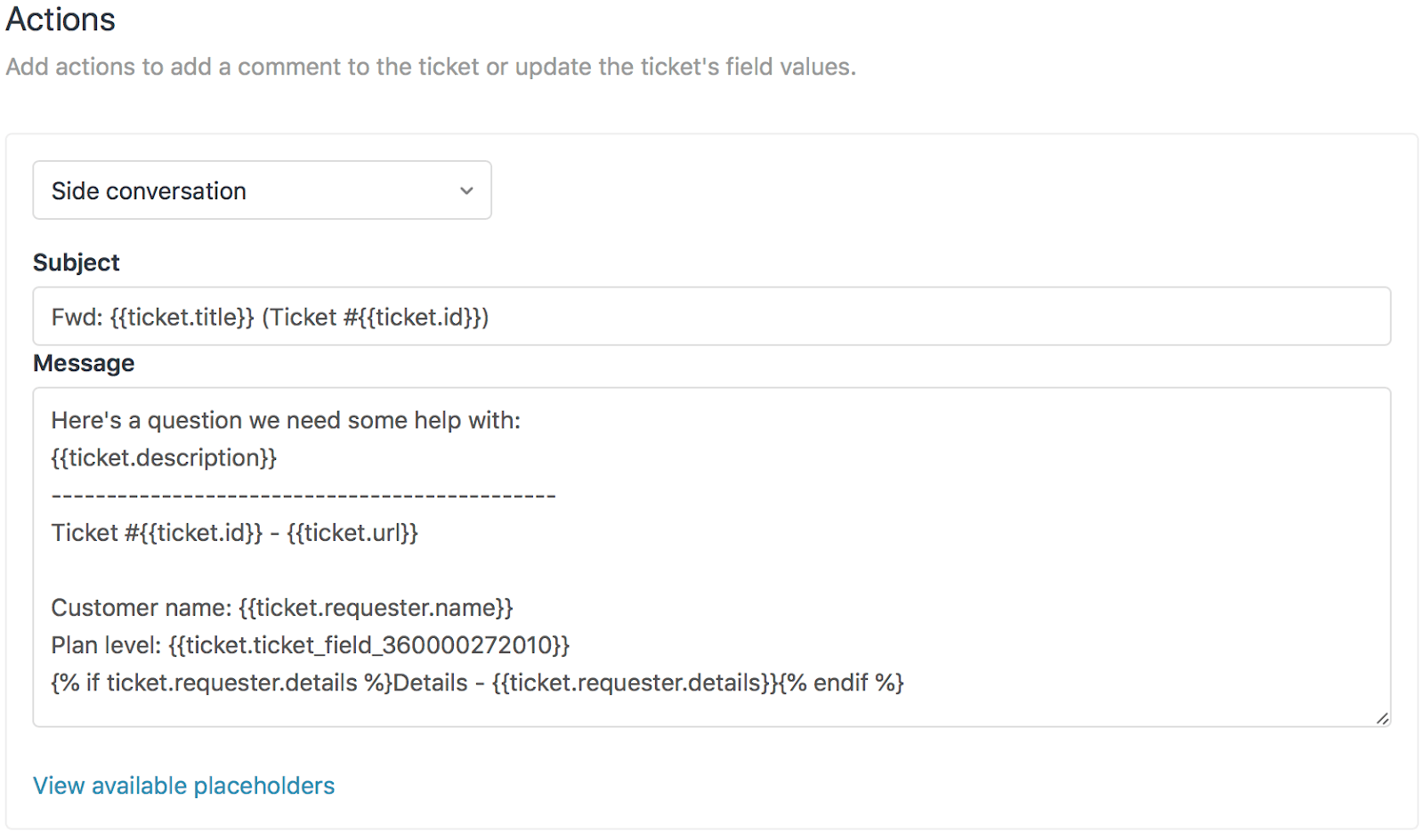
Step 4: Configure the message
Fill in the fields that appear:
To (email) / Channel (Slack) / Group (child ticket): Enter the recipient, channel name, or group you want to target. You can use placeholders here too.
Subject: Write a clear subject line. For email and child tickets, this is required.
Message: Compose your template message. This is where placeholders become powerful (more on that in the next section).
Step 5: Save and test
Click Create to save your macro. Before rolling it out to your team, test it on a sample ticket to make sure everything populates correctly.
Important: When an agent applies a macro with a side conversation action, the side conversation opens immediately but isn't sent until they add any missing recipients and click Send. If the macro also changes ticket fields, those changes won't save until the agent submits the ticket.
Using placeholders for dynamic content
Placeholders make your macros intelligent by pulling in live ticket data. Instead of static text, you can include information that updates automatically for each ticket.
Essential placeholders for side conversations
| Placeholder | What it inserts |
|---|---|
{{ticket.id}} | The ticket number |
{{ticket.url}} | Direct link to the ticket |
{{ticket.requester.name}} | Customer's name |
{{ticket.requester.email}} | Customer's email address |
{{ticket.description}} | The original ticket message |
{{ticket.comments_formatted}} | All ticket comments |
{{ticket.custom_field_xxxx}} | Any custom field value |
{{current_user.name}} | The agent applying the macro |
Real-world example: Engineering escalation
Here's a message template that combines multiple placeholders for a bug report escalation:
Hi Engineering Team,

We need your help investigating an issue reported by {{ticket.requester.name}}.

**Ticket:** #{{ticket.id}} - {{ticket.url}}
**Issue Summary:**
{{ticket.description}}

Can you take a look and let us know if this is a known issue or something new?

Thanks,
{{current_user.name}}
When an agent applies this macro, it automatically fills in the customer's name, ticket details, and the agent's name. No copy-pasting is required.
Limitations to keep in mind
- Images: You cannot attach images through macro side conversations
- Signatures: Markdown formatting in agent signatures doesn't render in side conversation emails
- CC/BCC: As noted earlier, macros cannot pre-populate CC or BCC fields (though agents can add them manually after they apply the macro)
Ready-to-use macro templates
Here are four templates you can adapt for common scenarios. Copy the structure, customize the details for your organization, and start saving time.
Template 1: Engineering escalation via email
Macro name: Escalate to Engineering - Bug Report
To: engineering@yourcompany.com
Subject: Bug investigation needed - Ticket #{{ticket.id}}
Message:
Hi Engineering,

We're escalating a potential bug reported by {{ticket.requester.name}} ({{ticket.requester.email}}).

**Ticket:** {{ticket.url}}
**Description:**
{{ticket.description}}

Please review and advise on next steps.

Thanks,
{{current_user.name}}
Template 2: Quick Slack ping for urgent issues
Macro name: Urgent - Alert #support Channel
Channel: #support
Message:
🚨 Urgent ticket needs attention

**Ticket:** #{{ticket.id}} - {{ticket.url}}
**Customer:** {{ticket.requester.name}}
**Issue:** {{ticket.description}}

Can someone from the team take a look ASAP?
Template 3: Billing team handoff via child ticket
Macro name: Escalate to Billing Team
Group: Billing
Subject: Billing review required - {{ticket.requester.name}}
Message:
Hi Billing Team,

This ticket requires billing expertise.

**Customer:** {{ticket.requester.name}} ({{ticket.requester.email}})
**Ticket:** {{ticket.url}}
**Details:**
{{ticket.description}}

Please review and handle directly with the customer.
Template 4: Vendor inquiry with full context
Macro name: Contact Shipping Vendor
Subject: Order inquiry - Ticket #{{ticket.id}}
Message:
Hi Support Team,

We're following up on behalf of our mutual customer, {{ticket.requester.name}}.

**Ticket Reference:** {{ticket.url}}
**Customer Email:** {{ticket.requester.email}}
**Issue:**
{{ticket.description}}

Could you please provide an update on this order?

Best regards,
{{current_user.name}}
Customer Support Team
Best practices for side conversation macros
A few habits will make your macros more effective and easier to maintain.
Naming conventions
Use clear, consistent names that tell agents exactly what the macro does:
- "Escalate to [Team] - [Channel]"
- "Request [Action] - [Team]"
- "Notify [Channel] - [Scenario]"
Group related macros with consistent prefixes so they appear together in the macro list.
Organization tips
- Create shared macros for workflows the whole team uses
- Let agents create personal macros for their own preferences
- Document which macro to use when (a simple internal wiki page helps)
- Review macros quarterly to remove outdated ones
Performance considerations
- Test macros on sample tickets before rolling out
- Remember that ticket field changes in macros require submitting the ticket to save
- Side conversations aren't actually sent until the agent clicks Send (even though they open immediately)
- Train agents to check that all placeholders populated correctly before sending
For teams ready to take automation even further, our customer support automation solutions can handle routine inquiries while your macros manage the escalations.
Taking automation further with eesel AI
Macros are a solid foundation for workflow efficiency, but they still require manual application. Every time an agent recognizes a scenario and clicks the macro, that is a decision point that takes time and mental energy.
This is where AI automation can complement your Zendesk setup. While macros standardize your team's manual actions, an AI agent can handle entire categories of tickets autonomously.
Here's how the two work together:
- Macros help agents work faster on tickets that need human judgment
- AI agents resolve routine tickets completely without human involvement
- Combined approach lets your team focus on complex issues while automation handles the rest
Our AI agent integrates directly with Zendesk and can be trained on your existing help center articles, past tickets, and macros. It learns your tone and processes, then handles frontline support while escalating only what truly needs a human touch.
The setup is straightforward: connect your Zendesk account, point the AI at your knowledge sources, and let it learn from your historical tickets. You can run it in simulation mode first to see how it would have handled past conversations, then activate it when you're confident in its performance.
Start streamlining your side conversations today
Macros that start side conversations are a simple way to save your team time and ensure consistent communication. By automating the repetitive parts of escalation and collaboration, you free up mental bandwidth for actually solving customer problems.
Your next steps:
- Audit your team's common side conversation patterns
- Create macros for the scenarios that happen most frequently
- Train your team on when to use each macro
- Track how much time you're saving (you'll be surprised)
Once you have got your macros dialed in, consider what else you could automate. The combination of smart macros for complex cases and AI for routine tickets creates a support operation that scales without proportionally increasing headcount.
Want to explore how AI could complement your Zendesk workflows? Visit eesel.ai to learn more, or check out our blog for more support automation tips.


Frequently Asked Questions
Share this article

Article by
Stevia Putri
Stevia Putri is a marketing generalist at eesel AI, where she helps turn powerful AI tools into stories that resonate. She’s driven by curiosity, clarity, and the human side of technology.



