How to use Zendesk Guide facets and search filters in 2026

Stevia Putri
Last edited February 25, 2026
When customers land on your help center, they're usually already frustrated. They have a problem, they want an answer, and every second they spend digging through articles tests their patience. That's where Zendesk Guide facets and search filters come in. They're not just nice-to-have features. They're the difference between a quick self-service resolution and another support ticket clogging your queue.
This guide breaks down everything you need to know about Zendesk Guide facets search filters. We'll cover how they work, how to configure them, and how to optimize your help center so customers find what they need faster. We'll also look at how AI teammates like eesel AI can complement your search setup by answering questions directly, not just returning links to articles.
What are Zendesk Guide facets and search filters?
Let's start with the basics. Filters and facets both help users narrow down search results, but they work differently.
Filters are used to narrow down results based on specific criteria. In Zendesk Guide, when a user searches and then selects "Articles only" or "Community posts only," they're using filters. Filters are typically binary choices (include/exclude) that immediately reduce the result set.
Facets are used to categorize results according to common attributes. They group similar items together, allowing users to navigate through related content. In Zendesk Guide, facets appear as filterable categories like "Category" or "Topic" that show up alongside search results.

Here's the key difference: filters remove content from view, while facets organize content for easier navigation. Both improve precision, but facets are particularly useful when users aren't sure exactly what they're looking for and need to explore related content.
In the help center, users can filter by content type first (articles vs. community posts), then by category or topic. This hierarchical approach makes sense because content type is usually the broadest distinction. Someone looking for an official answer wants an article, not a forum discussion.
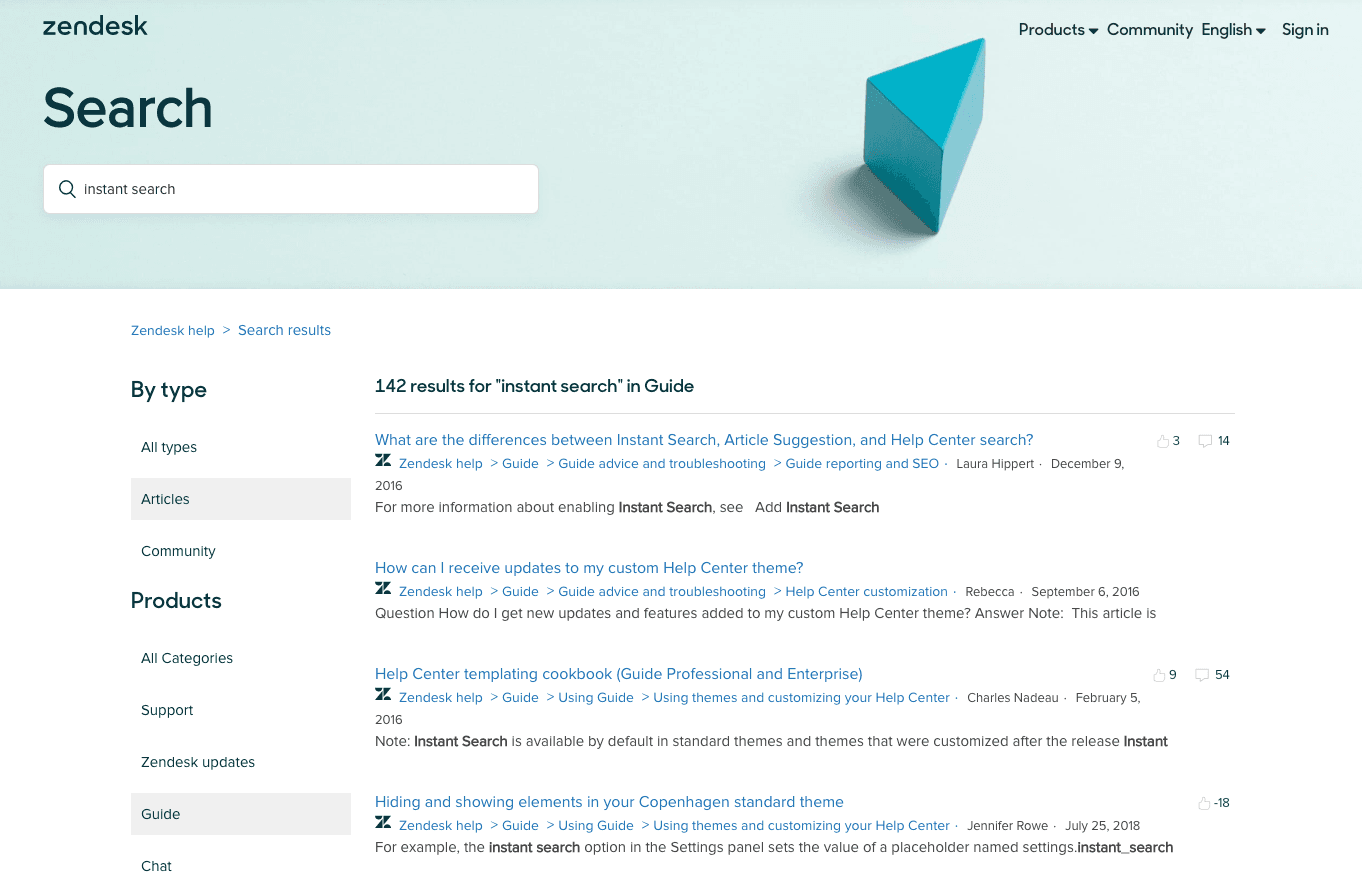
The relationship between your content organization and facet availability is direct. If your articles aren't categorized or labeled consistently, fewer filtering options will appear to users. This means your internal content structure directly impacts the customer search experience.
Native search methods that use facets
Zendesk Guide provides four distinct search methods, each with different facet and filter capabilities:
Instant search kicks in as soon as someone starts typing in your help center search box. It uses partial word matching against article titles only. The upside is speed. Results appear immediately, often before the user finishes their thought. The downside is scope. Instant search doesn't look at article body text, labels, or community posts, and it doesn't offer any facets or filters.
Native help center search activates when a user presses Enter. This is a full word search that scans article titles, body text, and labels. Results appear on a dedicated search results page with vote counts and comment numbers displayed next to each result. This is where facets matter most. Users can filter results by content type (knowledge base articles vs. community posts) and then by category or topic.
Article suggestion search activates when an end user starts submitting a support request. As they type in the Subject field, Zendesk suggests relevant articles based on title, content, and tags. The suggestions use a relevance score to order results. The goal here is ticket deflection. If a user clicks a suggested article and finds their answer, the ticket never gets created.
Knowledge in the context panel is for agents. The context panel in tickets includes a Knowledge section that automatically suggests relevant articles based on the ticket content. Agents can also manually search, then link or quote content directly in their responses.
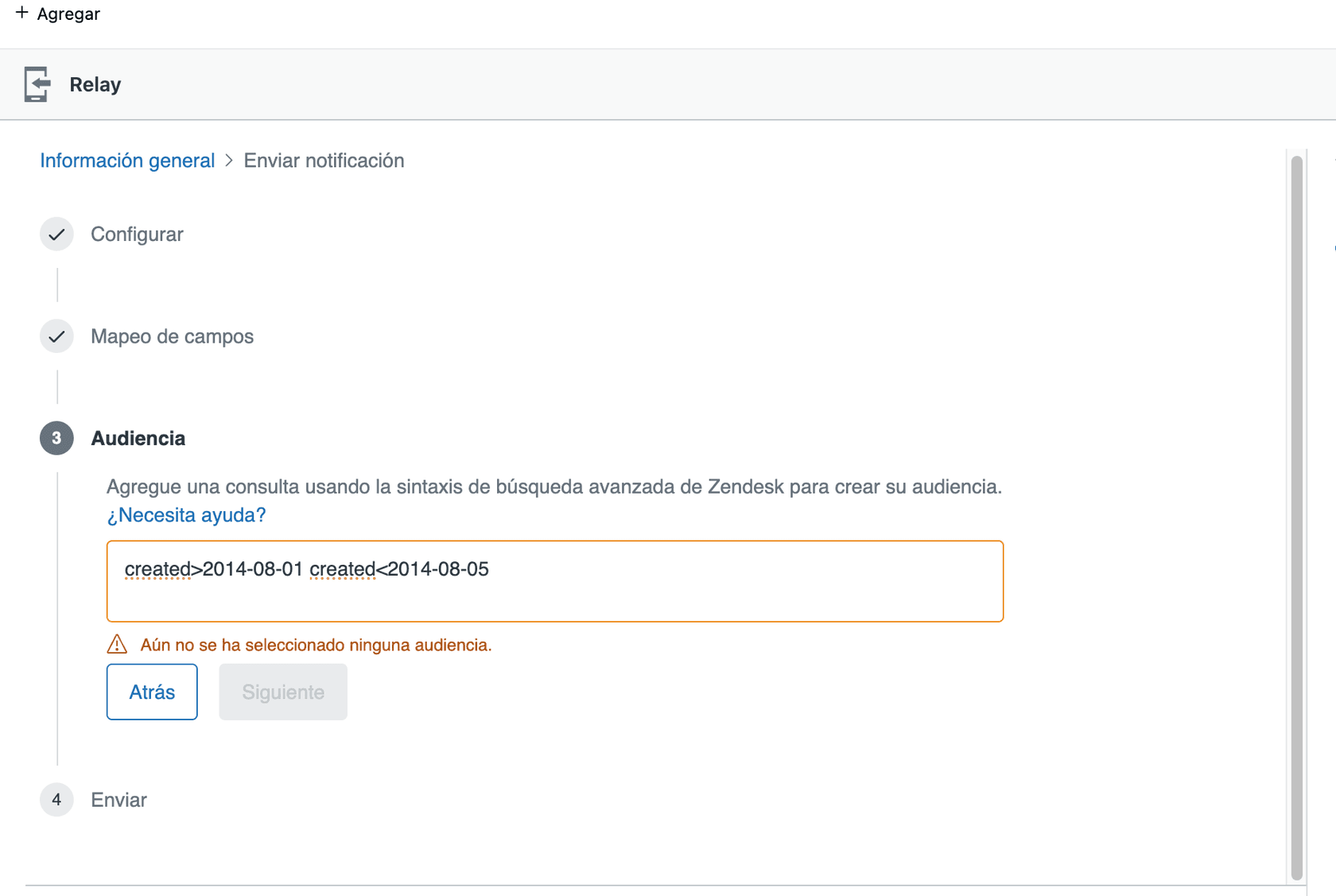
Facets improve precision across all these methods by helping users narrow down broad result sets without starting over. That speed translates directly to customer satisfaction and ticket deflection.
How to configure search facets in Zendesk Guide
Getting facets working properly requires some setup. Here's how to configure Zendesk Guide facets search filters for your help center.
Prerequisites: Most search features are available by default in Zendesk Guide, but advanced customization requires Guide Professional or Enterprise plans. Semantic search rolled out to all customers in 2023. Generative search requires Professional or Enterprise plans and theme configuration.
Step 1: Organize your content structure. Facets are built on your category and section hierarchy. Create clear, logical categories that match how customers think about your product. Avoid overly technical internal terminology. If customers think in terms of "Billing" and "Account Settings," use those labels, not internal department names.
Step 2: Apply consistent labels to articles. Labels act as additional facet dimensions. Use them consistently across related content. For example, label all articles about refunds with "refund" or "returns" so they can be grouped together. Consistency is key. If one article is labeled "refund" and another "returns," they won't appear together in facet filters.
Step 3: Configure theme settings for facet display. If you're using a custom theme, you may need to adjust how facets appear in your search results. The default Copenhagen theme handles this automatically, but custom themes may require updates to display facets properly.
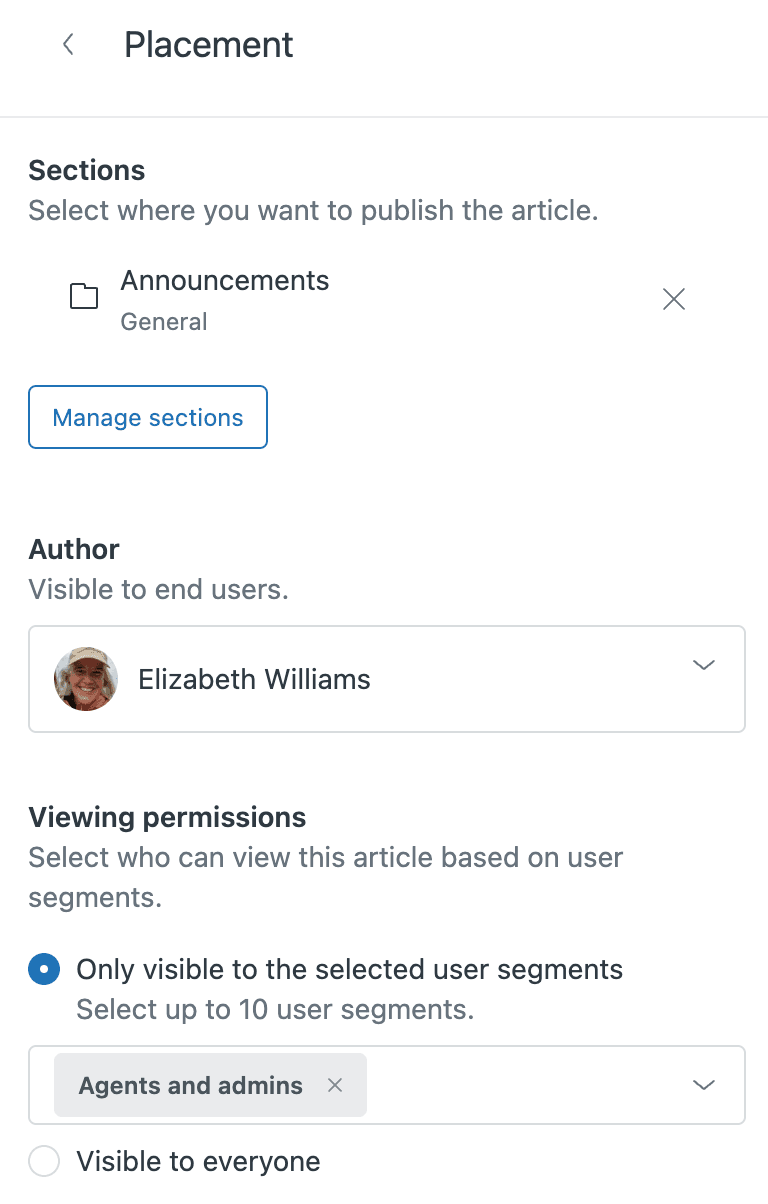
Step 4: Test search behavior across different user types. Search as a logged-out user, a logged-in customer, and an agent. Each role may see different results based on article visibility settings. Make sure your facet filters work correctly for each user type.
For multilingual help centers, ensure your categories and labels are translated consistently across all enabled locales. The analytics dashboard lets you filter by locale to see how search behavior varies by language.
Advanced search syntax and operators
Beyond basic facets, Zendesk Support offers advanced search capabilities using operators and property-based keywords. This is where power users (and administrators) can pinpoint exactly what they need.
Property-based keywords let you restrict searches to specific data fields:
| Keyword | Purpose | Example |
|---|---|---|
type: | Search specific record types | type:ticket or type:article |
status: | Filter by ticket status | status:open or status:solved |
tags: | Search by tags | tags:vip or tags:refund |
created: | Filter by creation date | created>2026-01-01 |
assignee: | Find tickets by assignee | assignee:none for unassigned |
priority: | Filter by priority level | priority:high |
Operators modify how these keywords work:
:equals (status:open)<less than (created<2026-01-01)>greater than (priority>normal)-excludes (-tags:invoice)*wildcard (subject:photo*)" "exact phrase ("upgrade my account")
You can combine multiple criteria to create complex queries. For example, type:ticket status:open tags:vip created>7days finds all open tickets tagged as VIP that were created in the last week.
Date searches support relative times too: created>4hours or updated<2days. This is useful for finding recent activity without specifying exact dates.
Here are a few common scenarios where advanced search saves time:
- Finding all tickets from VIP customers created in the last week
- Locating articles tagged with "deprecated" that need updating
- Identifying unassigned tickets older than 48 hours
- Searching custom fields like
customer_id:12345for account-specific issues
The syntax follows a predictable pattern: property:value. Once you learn the available properties, you can construct complex queries that would take minutes to find manually.
Analyzing search performance with Zendesk analytics
Zendesk includes a prebuilt Search dashboard in the Analytics section. This is where you move from guessing about search behavior to knowing exactly what users are looking for.
The headline metrics tell the story at a glance:
- Total searches: Volume of search activity
- Searches with no results: Content gaps you need to fill
- Average click-through rate: How often users find what they need
- Tickets created: The correlation between search and support volume
The dashboard lets you filter by time, brand, search channel, user role, and locale. This matters because a high no-results rate for one user segment might be acceptable for another.
The real optimization opportunity is in the no-results searches. When users search for something and get zero results, that's a signal. Either your content is missing, or your titles don't match the words customers actually use. Mining these failed searches gives you a prioritized list of articles to write or update.
You can also track whether search volume correlates with ticket creation. If searches spike and tickets spike with them, your help center isn't answering the questions people have. If searches spike but tickets stay flat, your content is doing its job.
When to consider enhanced search solutions
Native Zendesk search works well for many teams, but there are signs that indicate you've outgrown it:
- High no-results rate: If 20% or more of searches return nothing, your content strategy or search technology needs help
- Complex content libraries: When you have content across multiple platforms (Zendesk, Confluence, SharePoint), federated search becomes essential
- Need for result curation: Sometimes you want to manually boost certain articles for specific queries
- Advanced analytics requirements: When you need deeper insights than Zendesk's built-in dashboard provides
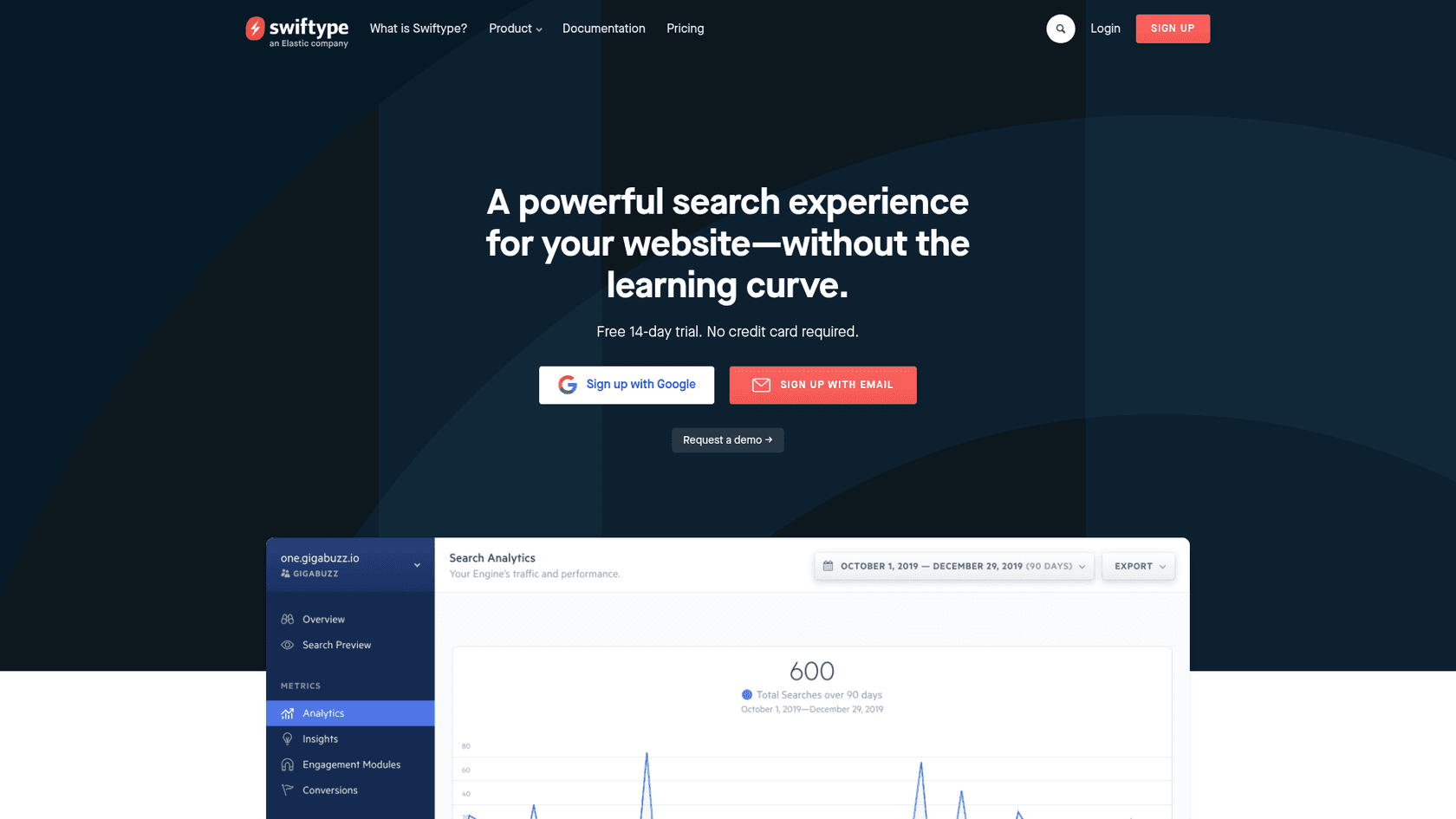
Third-party options like Swiftype address these gaps. Swiftype offers drag-and-drop result ranking and federated search across help centers, forums, and FAQs. Pricing starts at $79 per month for the Standard plan, with Pro at $199 per month for additional features like cross-domain search and PDF indexing.
Here's where the landscape gets interesting. Traditional search, whether native or third-party, follows the same pattern: user searches, system returns links, user clicks and reads. AI teammates like eesel AI flip that model. Instead of returning links to articles, eesel learns from your help center content and answers questions directly.

Our Zendesk integration connects to your existing knowledge base, past tickets, and connected documentation. From there, eesel can operate as an AI agent handling frontline tickets, an AI copilot drafting replies for agents, or an AI chatbot on your website. The difference is that eesel doesn't just find content. It understands it well enough to have conversations.
Best practices for optimizing Zendesk Guide search
Before adding complexity, make sure you're getting the most from what Zendesk provides:
-
Optimize article titles for instant search. Since instant search only looks at titles, make sure your most important keywords appear there. An article titled "How to reset your password" will surface for "password" searches. One titled "Account recovery procedures" might not.
-
Use consistent labeling across content. Labels directly impact facet availability. Create a labeling taxonomy and stick to it. Review labels quarterly to ensure consistency.
-
Structure categories logically. Think like a customer, not like your internal teams. Your category structure should match how customers describe their problems.
-
Monitor no-results searches weekly. Set a calendar reminder to review failed searches. Each one represents a customer who couldn't find what they needed.
-
Test search behavior from customer perspective. Regularly search for common terms as if you were a customer. See what comes up and whether it's helpful.
-
Keep content updated and remove outdated articles. Old content clutters search results and frustrates users. Archive or update articles that no longer reflect current reality.
Improve your help center search with eesel AI
Facets and filters help users find articles, but sometimes customers need more than a link to documentation. They need someone to walk them through the answer, clarify details, or handle the issue directly.
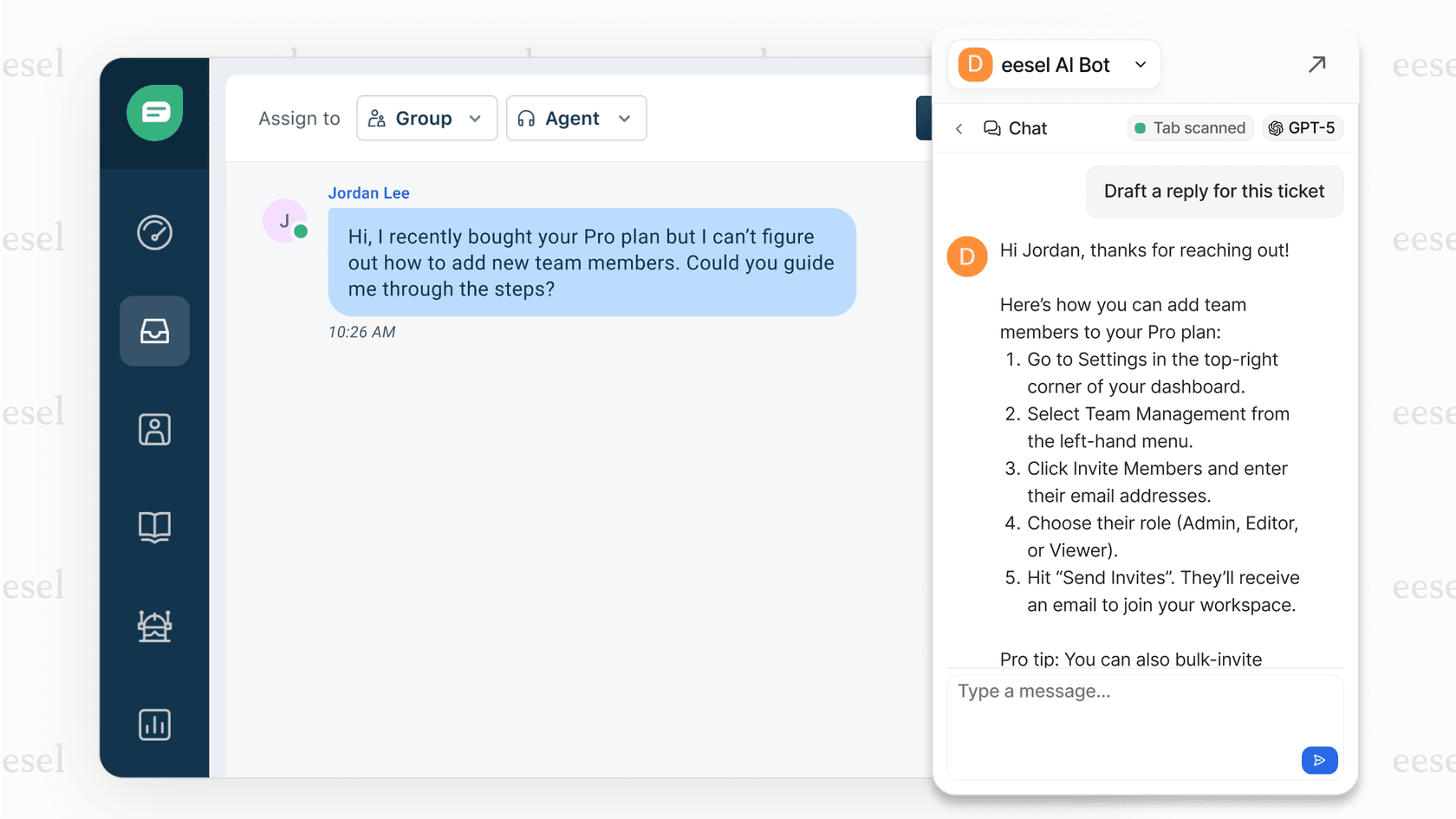
That's where eesel AI comes in. Instead of just helping customers find articles, we help them get answers. Our AI learns from your help center content, past tickets, and connected documentation to understand your business. Then it can answer questions directly through AI agents, copilots, or chatbots.
The approach is different. Traditional search says "here's where the answer might be." eesel says "here's your answer." For common questions, this means instant resolution without the customer ever reading an article. For complex issues, it means gathering context before escalating to a human agent.
We integrate directly with Zendesk, so you don't need to replace anything. eesel works alongside your existing help center, learning from the content you've already created. You can start with eesel handling specific ticket types or drafting replies for review, then expand as it proves itself.
If your help center search is optimized but customers still need more support, try eesel AI free or book a demo to see how we can help.


Frequently Asked Questions
Share this article

Article by
Stevia Putri
Stevia Putri is a marketing generalist at eesel AI, where she helps turn powerful AI tools into stories that resonate. She’s driven by curiosity, clarity, and the human side of technology.
