Article comments in Zendesk Guide can be a powerful way to engage with your customers. They let readers ask follow-up questions, provide feedback, and even help each other solve problems. But they also come with real limitations that can frustrate support teams. If you're looking to enhance your knowledge management strategy beyond native Zendesk features, exploring AI-powered knowledge management software can open up new possibilities.
This guide explains exactly how Zendesk Guide article comments work, how to set them up, and what to do when the native features fall short of what your team needs.
What you'll need
Before you start enabling comments across your help center, make sure you've got:
- Zendesk Suite or Support with Guide Professional/Enterprise - Article comments aren't available on Guide Lite
- Admin or Guide admin permissions - You'll need access to Guide admin to configure settings
- A moderation plan - Decide who on your team will monitor and respond to comments
- Clear user segment settings - Understand who can see your articles, since comment permissions follow article visibility
Bottom line? Comments can be valuable, but only if you have the resources to manage them properly.
How to enable comments on Zendesk Guide articles
Step 1: Access the article editor
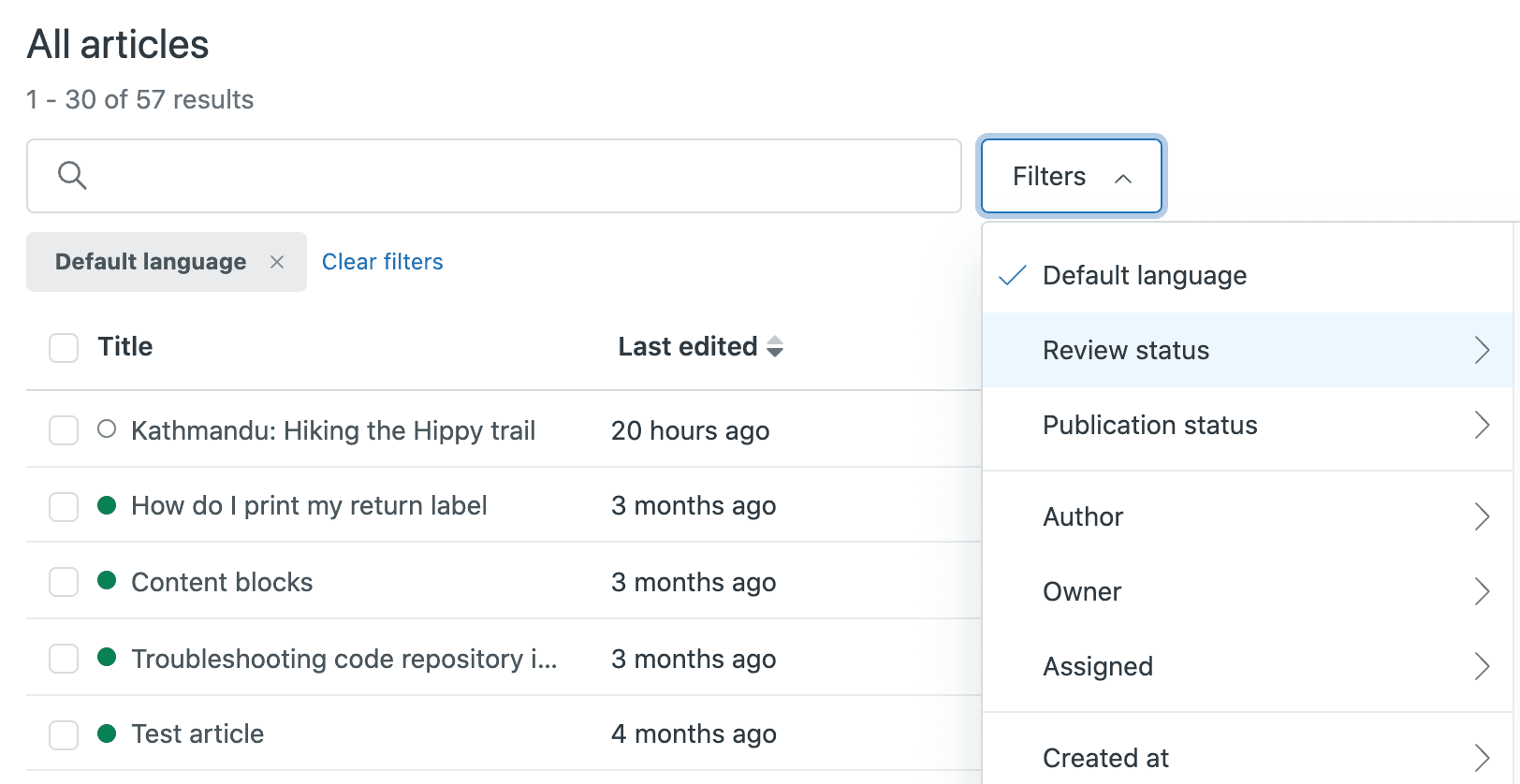
Start by navigating to Guide admin. From there, find the article you want to enable comments on and click to edit it.
If you're managing multiple articles, you can also access articles through the Knowledge admin interface by clicking Arrange content in the sidebar, then navigating to your target article.
Step 2: Open article settings
Once you're in the article editor, look for the Article settings panel on the right sidebar. If it's collapsed, click the Article settings icon to expand it.
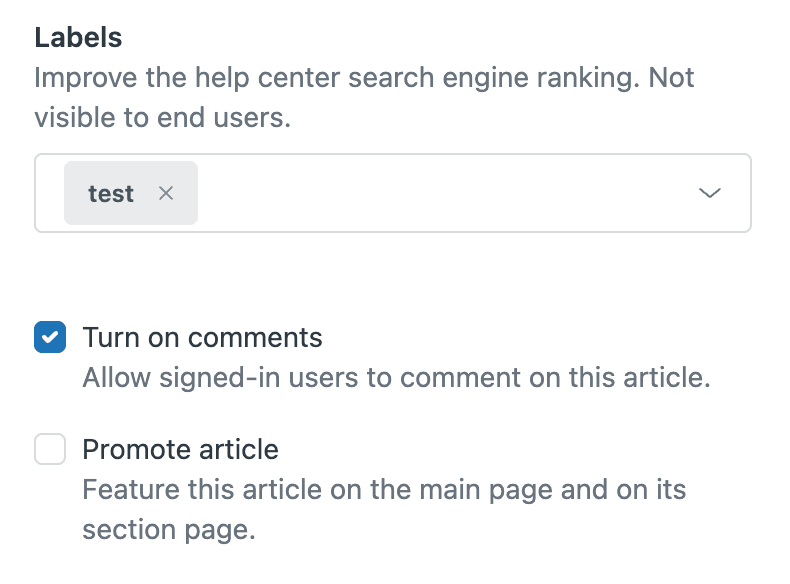
Next, click the Placement card to reveal comment options. Here's where you'll find the "Open for comments" checkbox that controls whether users can leave comments on this specific article.
Step 3: Enable comments
Check the "Open for comments" box to allow users to comment. Keep in mind that only users who can view the article based on your "Visible to" settings will be able to see or comment on it.
This means if an article's set to "Agents and admins only," your end users won't see it or be able to comment. If it's set to "Everyone," anyone who can access your help center can potentially leave a comment (provided they're signed in).
Important: Anonymous users cannot comment on articles. You must log in to a Zendesk Help Center user account to draft a comment.
Step 4: Save and publish
Click Update settings, then publish the article. Comments will now appear at the bottom of the article page for eligible users.
When someone posts a comment, it alerts the article's followers as well as your Zendesk team. This notification system helps ensure comments don't go unnoticed, but it also means you'll want to be thoughtful about which articles have comments enabled.
Managing and moderating article comments
Comment visibility and notifications
When a user leaves a comment on your article, several things happen:
- The comment appears at the bottom of the article
- Article followers receive notifications
- Your Zendesk team gets alerted
- The comment is visible to anyone who can view the article
This visibility is great for transparency, but it also means there's no "internal only" option for comments. Everything's public to the article's audience.
Handling spam and inappropriate comments
Here's a reality check from Zendesk consultants: unless you plan to actively manage comments, it's often better to turn them off. Comment sections frequently attract spam bots trying to create backlinks to irrelevant or harmful websites.
To minimize spam issues:
- Only enable comments on articles where discussion adds real value
- Regularly monitor comment sections and remove spam promptly
- Consider restricting comments to signed-in users only (though this limits engagement)
- Turn off comments on high-traffic FAQ pages that don't need discussion
Disabling comments when needed
If you need to turn off comments for an individual article, simply uncheck the "Open for comments" box in the article settings. The article will indicate that it's closed for comments at the bottom of the page.
Important limitation: There is no global setting to turn off comments for all articles at once. You must configure each article individually, or use the Help Center API to bulk update articles if you have many to modify.
For hiding existing comments without disabling the feature entirely, you can use Curlybars to customize your theme.
The internal comments limitation (and workarounds)
What Zendesk doesn't offer
Here's where things get frustrating for many support teams: Zendesk Guide doesn't support internal or agent-only comments on articles. This is a long-standing feature request with 58+ comments from users asking for this capability.
As one user explained:
Sometimes its useful to have an internal only text field available within articles where notes can be taken and no customer shall ever see it. Those internal notes might for example contain: A link to a Zendesk ticket whereas the investigation was done containing additional steps where the article was an outcome for, A link to an Jira for tracking purpose of an BUG or Enhancement, A link to an slack channel / thread, A special instruction when sharing this article to a customer, A note of why an Article is public / or internal for justification purpose

Another user added:
The commenting feature should really be something essential. A common use is that someone writes an article and then another reviews it. Right now, we have to try and add review comments through other channels. Imagine if you were collaborating on a Google doc, and it didn't have any comment features.
Zendesk has acknowledged this need and mentioned plans to add collaboration features like commenting and @mentions as part of their editor improvements, but no firm timeline has been provided.
Workarounds for internal collaboration
Until native internal comments arrive, here are practical alternatives:
Content Blocks with visibility permissions
Zendesk's Content Blocks feature allows you to create reusable content snippets. While not perfect, you can place Content Blocks in articles and set visibility permissions to control which readers can see them. This lets you include agent-only notes within public articles.
Duplicate articles for internal use
Create two versions of content: one public article for customers and one internal article for agents. The internal version can include additional context, troubleshooting steps, or background information. Link between them so agents can easily reference both.
External collaboration tools
For article review and collaboration, use tools like Google Docs or Notion to draft and review content before publishing to Zendesk. While this adds a step to your workflow, it provides the commenting and collaboration features that Zendesk lacks.
Labels and internal documentation
Use article labels to flag articles that need updates or have associated tickets. Create a separate internal wiki or documentation system (like Confluence or Notion) where your team can maintain notes about articles, linked by article ID or URL. For teams already using Confluence, eesel AI's Confluence integration can help make that internal documentation searchable and accessible.
Best practices for using article comments effectively
When to enable comments
Comments make sense for:
- Beta features or new releases where you want user input
- Complex topics where customers might have follow-up questions
- Articles about integrations or customizations where users share their experiences
- Content that benefits from community discussion and peer support
When to disable comments
Consider turning comments off for:
- High-traffic FAQ pages that attract spam
- Simple how-to articles where discussion isn't needed
- Time-sensitive content like promotions or announcements
- Articles where inaccurate comments could cause confusion or harm
Creating a comment response workflow
If you're going to use comments, it's worth establishing clear ownership:
- Assign someone to monitor comments daily or weekly
- Set response time expectations (e.g., respond within 24-48 hours)
- Create a process for escalating issues mentioned in comments to tickets
- Document common questions that arise in comments and update articles accordingly
Alternatives for teams needing robust collaboration
Zendesk Guide's comment limitations might not work for teams that need extensive internal collaboration on knowledge base content. If you're finding the workarounds insufficient, it might be time to consider whether your knowledge management approach needs to evolve.
Modern AI-powered knowledge management solutions can offer features that Zendesk Guide lacks, such as internal commenting, @mentions, and streamlined review workflows. For example, eesel AI's Zendesk integration connects to your existing knowledge sources and allows teams to collaborate more effectively on support content, with an AI Internal Chat that enhances your existing help desk workflow.
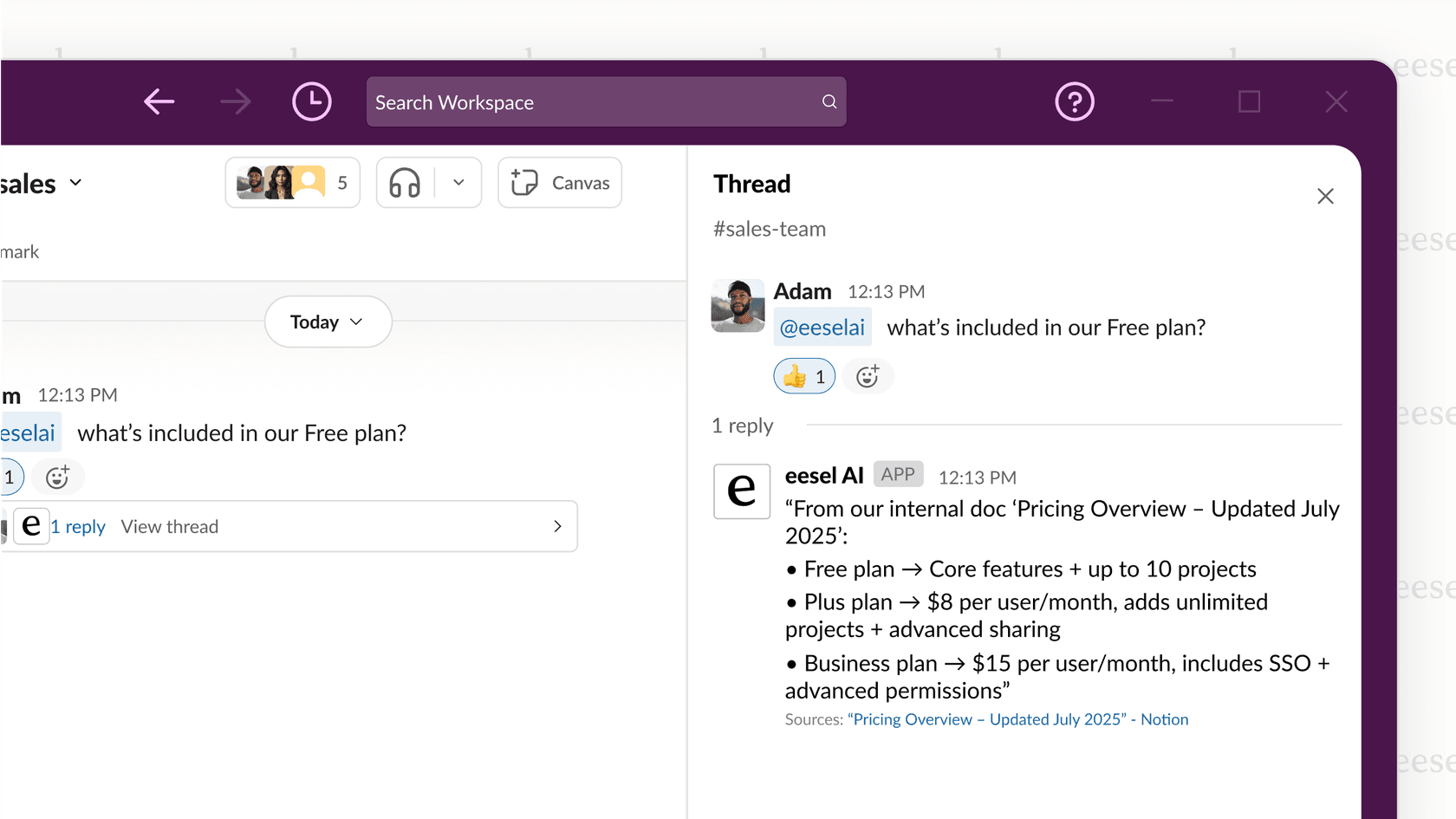
The key is finding a balance between customer-facing help centers and internal team collaboration that'll work for your specific workflow.
Start improving your knowledge base engagement today
Zendesk Guide article comments can enhance customer engagement when used thoughtfully. The key is being strategic about which articles have comments enabled and having a clear plan for moderation.
For teams struggling with the lack of internal collaboration features, the workarounds mentioned above can help bridge the gap until Zendesk delivers native solutions. And if Zendesk's limitations are slowing your team down, it may be worth exploring alternatives that better fit your collaboration needs.
The bottom line? Comments are just one piece of your knowledge base strategy. Focus on creating great content first, then use comments selectively to enhance the customer experience where they add real value.
Ready to explore AI-powered knowledge management? Try eesel AI free or book a demo to see how it can transform your support workflow.