
When your support team escalates a ticket to engineering, how long should that handoff take? When finance needs to approve a refund, what's a reasonable timeframe for them to respond? That's exactly what Zendesk group SLA policies are designed to track.
Group SLAs (also called Operational Level Agreements or OLAs) measure how long tickets stay with internal teams. Unlike regular SLAs that track customer-facing metrics like first reply time, group SLAs focus on internal accountability. They're particularly useful when tickets pass between departments on their way to resolution.
This guide walks through how to set them up, when to use them, and what to watch out for.
What are Zendesk group SLA policies and why do they matter?
Regular SLA policies in Zendesk measure your team's commitments to customers: how quickly you respond, how often you update them, and how fast you resolve their issues. Group SLA policies serve a different purpose. They track how long a ticket stays assigned to a specific internal group.
Here's the distinction:
| Metric Type | What it measures | Example |
|---|---|---|
| Regular SLA | Customer-facing response times | "First reply within 1 hour" |
| Group SLA | Internal team ownership time | "Tier 2 team resolves or reassigns within 4 hours" |
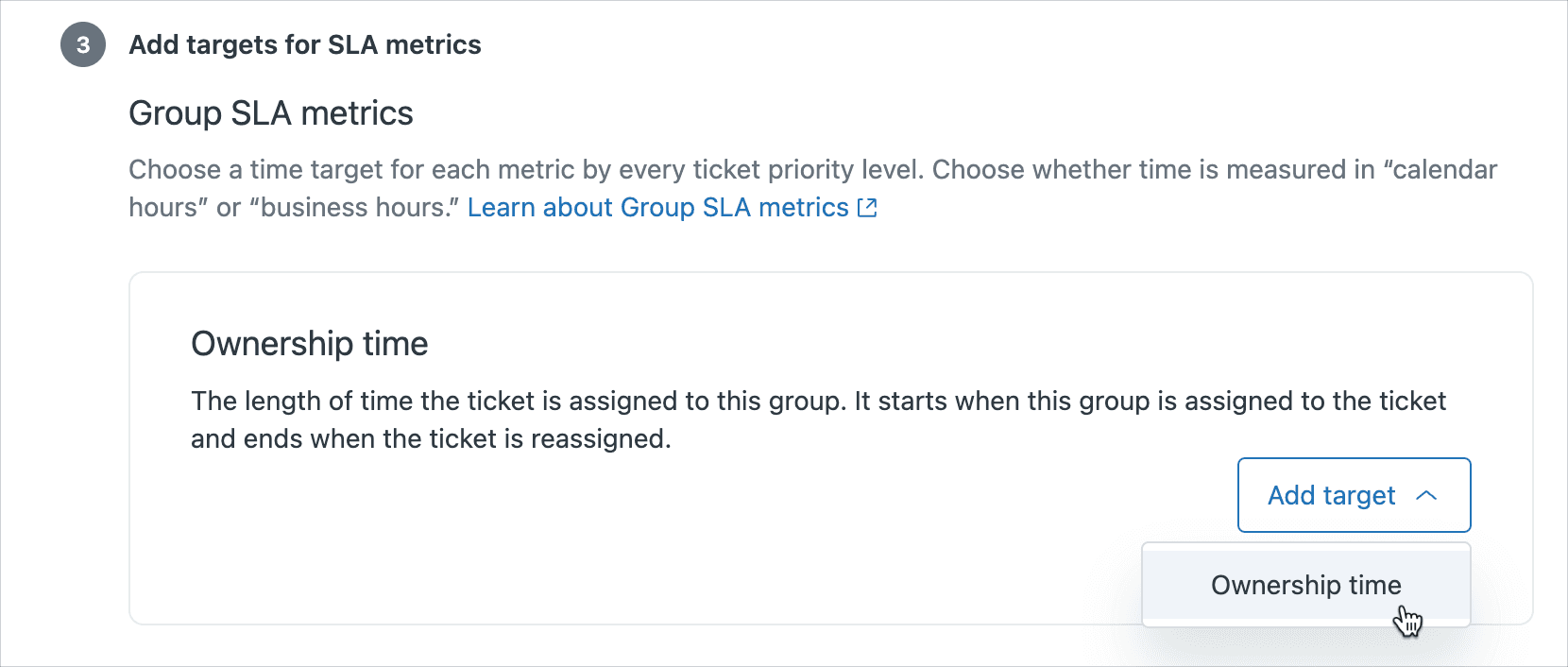
Group SLAs only track one metric: Ownership Time. This measures the length of time from when a ticket is assigned to a group until it's either reassigned to another group or solved. If the ticket gets reopened, a new ownership time clock starts for that group. According to Zendesk's documentation, ownership time is the core metric for all group SLA policies.
Why does this matter? When tickets move between teams (support to engineering, support to finance, Tier 1 to Tier 2), group SLAs create transparency about how long each team holds the ticket. This helps you:
- Identify bottlenecks in cross-functional workflows
- Set internal expectations separate from customer promises
- Hold teams accountable for their part of the resolution process
- Spot when a particular team is overwhelmed
Common use cases include:
- Escalation workflows: Tracking how long Tier 2 or engineering holds escalated tickets
- Approval processes: Measuring finance or legal team response times for requests
- Multi-region handoffs: Managing tickets passed between regional teams in different time zones
- Internal IT requests: Tracking HR or other departments' tickets assigned to IT
Prerequisites and setup requirements
Before you can create group SLA policies, you'll need:
Zendesk Enterprise plan Group SLAs are only available on Zendesk Suite Enterprise (custom pricing, Talk to Sales) or Enterprise Plus plans. If you're on Professional or lower, you won't see the Group SLAs tab in your admin settings.
Groups created in Zendesk You must have at least one group set up before creating a group SLA policy. Groups are the foundation of the entire system. If you haven't created groups yet, go to Admin Center > People > Groups first.
Priority field configuration All SLA policies, including group SLAs, depend on the system default Priority field. Custom priority fields won't work. If you're not setting priority on tickets, your SLAs won't apply. Most teams use triggers to automatically set priority when tickets are created.
Business hours (recommended) While not strictly required, setting up business hours ensures your SLA clocks only run when teams are actually working. You can set these in Admin Center > Objects and rules > Business rules > Schedules.
One note on schedules: if you have multiple schedules (for different regions or teams), you'll need triggers to assign the correct schedule to tickets. Otherwise, tickets may be created without a schedule and SLAs won't calculate properly. Learn more about setting up schedules in Zendesk.
Step-by-step guide to creating your first group SLA policy
Once you've met the prerequisites, setting up a group SLA policy is pretty straightforward.
Step 1: Navigate to Group SLAs in Admin Center
Log into your Zendesk account and go to:
Admin Center > Objects and rules > Business rules > Service level agreements
You'll see two tabs: "SLA policies" (for customer-facing SLAs) and "Group SLAs" (for internal team tracking). Click on Group SLAs.
Step 2: Create a new policy
Click Create policy. You'll need to provide:
- Policy Name: Use something descriptive like "Tier 2 Support - Ownership Time" or "Finance Approval - SLA"
- Description (optional): Add context about what this policy covers and which teams it applies to
Click Next to move to conditions.
Step 3: Set group conditions
Here's where you define which group this policy applies to. In the Group condition, select one or more groups.
A few important notes:
- If you don't select a group, the policy applies to all tickets and starts measuring whenever any group is assigned
- You can include multiple groups in a single policy if they share the same target times
- Policies are applied in order from top to bottom, so place specific policies above general ones

Add any additional conditions if needed, then click Next.
Step 4: Configure ownership time targets
In the Group SLA metrics section, click Add target and select Ownership time. Now set your targets for each priority level:
| Priority | Target Time | Hours of Operation |
|---|---|---|
| Urgent | [Your choice] | Business or Calendar |
| High | [Your choice] | Business or Calendar |
| Normal | [Your choice] | Business or Calendar |
| Low | [Your choice] | Business or Calendar |
Setting realistic targets: If you're not sure what to use, start with a 2-4-8-16 pattern for first-level ownership: 2 hours for urgent, 4 for high, 8 for normal, 16 for low. Run these for a month, check your actual performance in Zendesk Explore, then adjust.
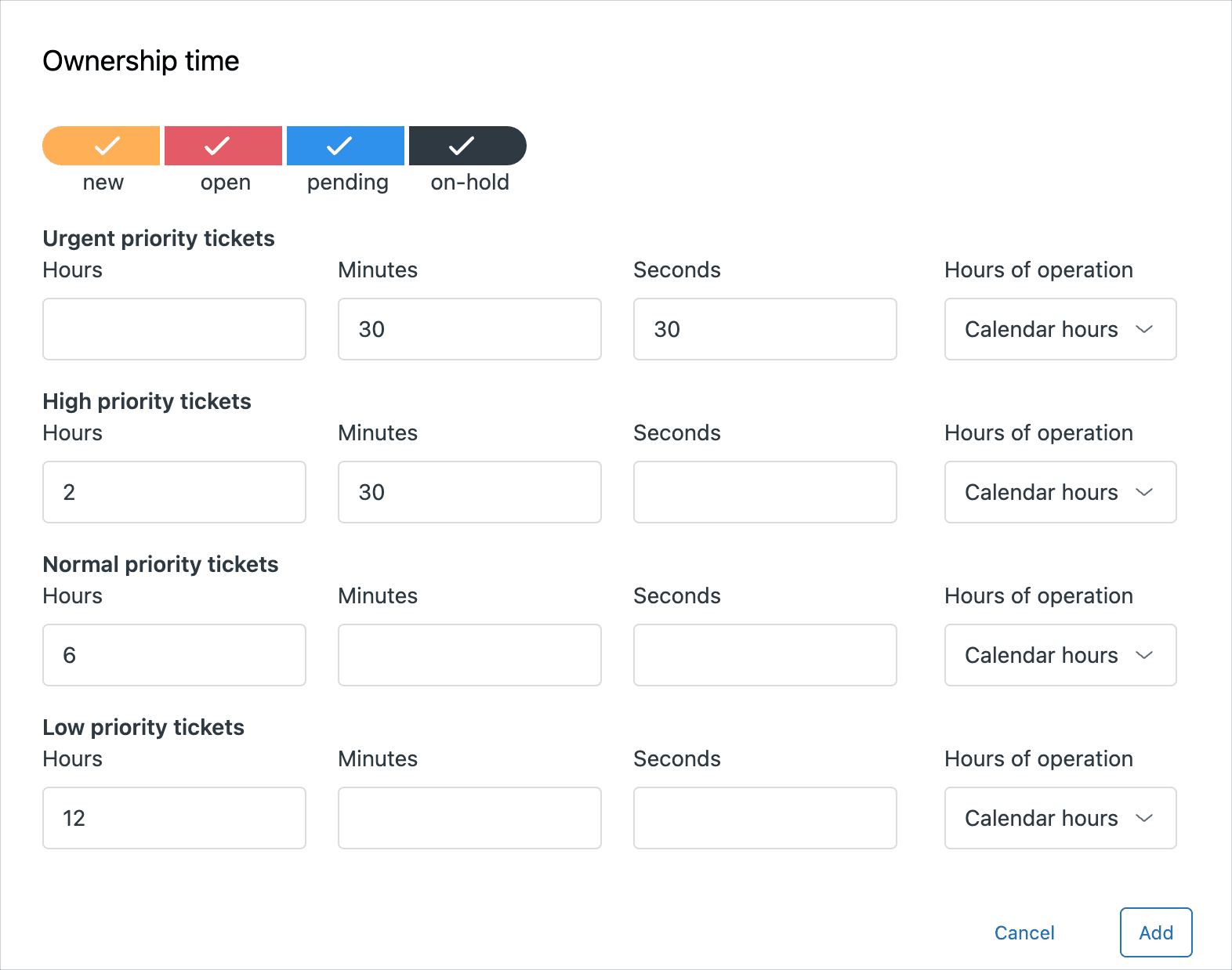
Click Add, then Save policy.
Step 5: Order your policies correctly
After saving, you'll see your policy in the list. Remember: policies are applied in order from top to bottom. The first policy whose conditions match a ticket is the one that applies.
If you have specific policies (like "Finance Group - High Priority") and general ones (like "All Groups - Default"), put the specific ones first.
Real-world examples and use cases
Let's look at how different teams actually use group SLAs.
Example 1: Tier 1 to Tier 2 escalation
A SaaS company has a two-tier support structure. Tier 1 handles basic questions and identifies technical issues that need deeper investigation. When Tier 1 escalates to Tier 2, they set a group SLA target of 30 minutes for urgent tickets and 2 hours for high priority.
This ensures Tier 2 acknowledges escalations quickly, even when they're heads-down on complex investigations. The group SLA is separate from the customer-facing SLA, which might promise a first reply within one hour.
Example 2: Finance approval workflow
An e-commerce company's support team can process standard refunds up to $100. Anything above that requires finance approval. When support assigns a high-value refund request to the Finance group, a group SLA starts measuring.
The finance team has 4 hours (during business hours) to either approve the refund and return the ticket to support, or request additional information. This creates accountability without exposing internal timelines to the customer.
Example 3: IT helpdesk handoffs
A mid-size company uses Zendesk for both customer support and internal IT. When HR submits a ticket to IT for new hire laptop setup, the group SLA measures how long IT holds that ticket.
Because IT also handles escalated customer issues, they have different policies for internal vs. external work. Group SLAs let them set different ownership time targets based on the type of request.
Example 4: Multi-region handoffs
A global company has support teams in the US, Europe, and Asia-Pacific. When a ticket created in Europe needs to be handled by the US team (due to specialized product knowledge), the handoff triggers a group SLA.
The receiving team has clear targets for taking ownership, ensuring smooth transitions across time zones and preventing tickets from falling through the cracks during handoffs.
Best practices for group SLA success
After reviewing how teams use group SLAs and what works (and what doesn't), here are the key recommendations:
Start simple Don't try to create policies for every group on day one. Pick one or two groups where handoff times matter most, set basic targets, and run them for a month. You can always add complexity later.
Use business hours consistently If your team isn't available 24/7, your SLAs should reflect that. Judging a team for not responding at 2 AM when they're not scheduled to work isn't helpful. Set business hours in your schedule and connect them to your SLA policies.
Set priority via triggers Group SLA conditions can only use priority (not other ticket fields). Set up triggers that automatically assign priority based on your criteria, then let your SLAs reference that priority. This keeps your SLA policies clean and consistent. The Zendesk documentation on automations and triggers offers additional guidance for configuring these workflows.
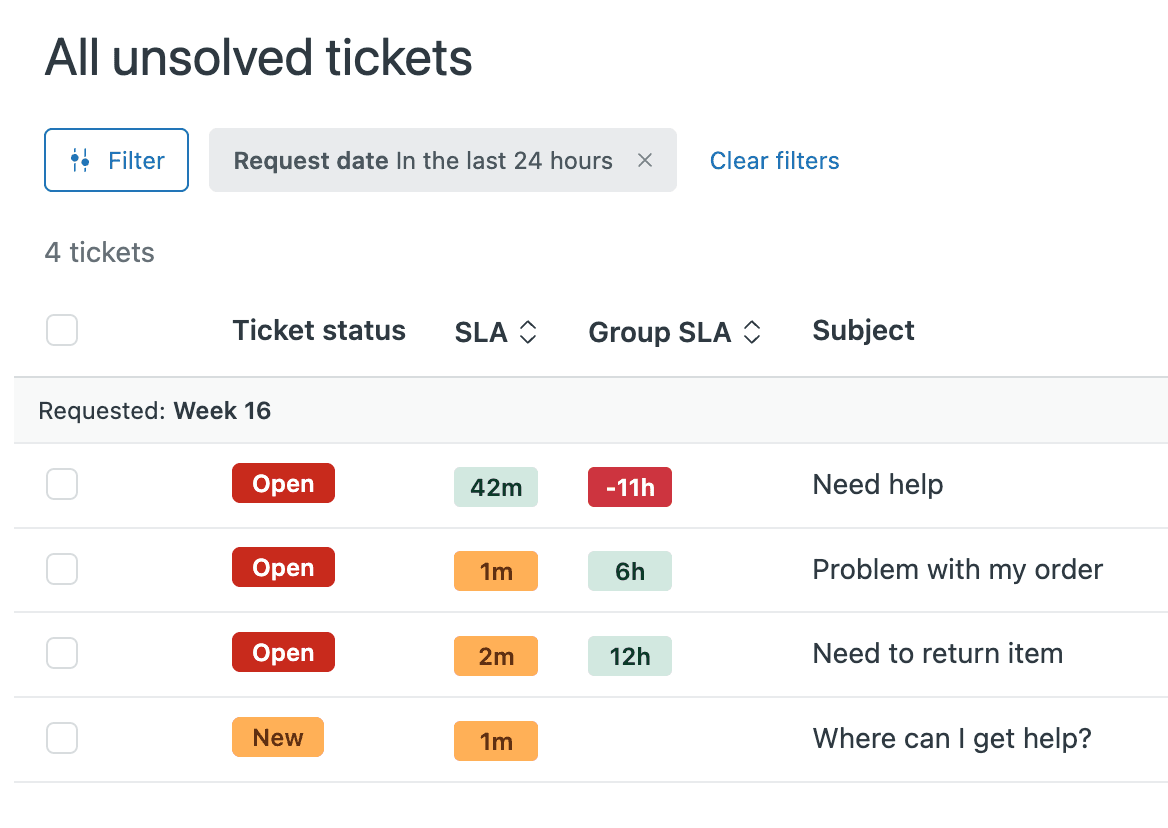
Create SLA-based views Add the "Group SLA" column to your agents' primary views and sort by it in ascending order. This surfaces tickets that are closest to breaching first, helping agents prioritize fairly across both urgent and normal priority tickets.
Review quarterly Your team's capacity and ticket complexity change over time. Set a calendar reminder to review your group SLA targets every three months. If you're consistently missing targets, they might be unrealistic. If you're always beating them by large margins, you can tighten expectations.
Pair with QA programs Group SLAs create time pressure. Make sure you have a quality assurance process that reviews the actual responses being sent. Otherwise, agents might rush replies just to beat the clock. The goal is faster and better support, not just faster.
Common limitations and workarounds
Group SLAs are useful, but they have important limitations you should understand before rolling them out.
Limitation: No escalation vs. primary ownership distinction
Group SLAs treat all assignments the same. A ticket escalated to a team and a ticket that team receives directly both start the same ownership time clock. This is a problem for tiered support structures.
Workaround: Create two groups for teams that both receive escalations and handle direct work. For example:
- "IT" for direct employee requests (no group SLA)
- "IT - Escalated" for tickets from other support teams (with group SLA)
This lets you apply ownership time targets only to escalated work.
Limitation: Can't track external escalations
If you escalate via Side Conversations to vendors, or through the Jira integration to engineering, or via Slack to marketing, group SLAs can't track those. They only work with Zendesk group assignments.
Workaround: Use placeholder groups for external escalations. When you escalate to Jira, assign the ticket to a "Pending - Engineering" group. When engineering responds, reassign to the actual Engineering group. It's manual, but it lets you track external wait times.
Limitation: Priority-only conditions
Group SLA policies can only use priority in their conditions. You can't set different targets based on ticket type, organization, or custom fields directly. The Zendesk SLA documentation explains how triggers and SLAs work together.
Workaround: Use triggers to set priority based on your criteria. For example:
- Trigger: "If ticket type is Bug and organization is VIP, set priority to Urgent"
- Group SLA: "For urgent tickets, Tier 2 ownership time is 1 hour"
This moves your complex logic to triggers and keeps SLA policies simple.
Limitation: Separate from regular SLAs
Group SLAs and customer-facing SLAs are completely separate systems. A ticket can have both applied, but they're measured independently. You can't create a single view that sorts by " whichever SLA breaches first."
Workaround: Design complementary policies. If a ticket hitting a 4-hour group SLA breach is a problem, set up automation to escalate or notify before that happens, even if the customer-facing SLA still has time remaining.
Monitoring and reporting on group SLAs
Setting up policies is only half the work. You also need to track how you're performing against them.
Group SLA dashboard in Zendesk Explore On Enterprise plans, you have access to a pre-built Group SLA dashboard in Explore. This shows:
- Percentage of tickets meeting group SLA targets
- Breach rates by group and priority
- Trends over time
The Zendesk Explore documentation covers how to build custom reports using the SLA metric instance attribute.
You can also build custom reports using the "SLA metric instance" attribute if you need more granular data. For programmatic access, the Group SLA Policies API lets you list, create, update, and delete policies.
Adding Group SLA columns to views In ticket views, you can add a "Group SLA" column that shows the calendar time remaining before the next target breach. Sort views by this column in ascending order to surface tickets that need attention first.
Understanding ownership time calculations Ownership time starts when a group is assigned and ends when the ticket is either:
- Reassigned to a different group
- Solved
- Closed
If the ticket is reopened, a new ownership time period starts for whatever group currently holds it.
Using breach data for capacity planning If a particular group is consistently breaching their ownership time targets, that's a signal. They might need:
- Additional staffing
- Training to handle tickets more efficiently
- Better documentation to reduce research time
- Process improvements to eliminate bottlenecks

Improving SLA performance with AI automation
Group SLAs help you measure internal handoff times, but they don't help you reduce them. That's where AI tools can complement your SLA strategy.
Here's how: when AI handles common frontline questions instantly, those tickets never need to escalate to Tier 2 or other groups in the first place. Your ownership time metrics improve because fewer tickets require internal handoffs.
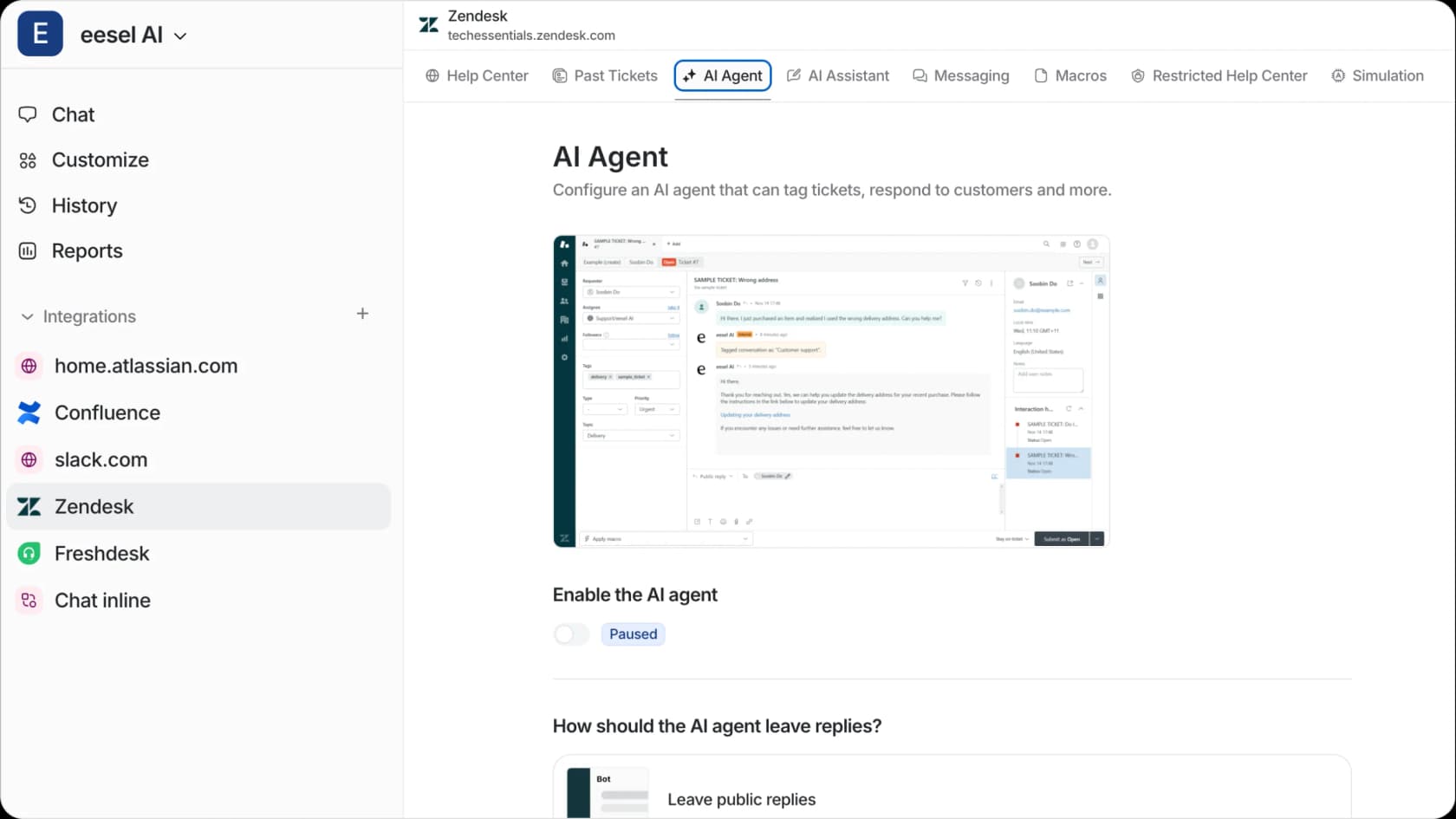
eesel AI integrates directly with Zendesk to help teams meet their SLA targets faster. The AI Agent can resolve common tickets (password resets, order status, basic troubleshooting) in seconds, without any human involvement. This improves both your customer-facing SLAs and reduces the volume of tickets that ever need group tracking.
For tickets that do need human attention, the AI Copilot drafts replies instantly by pulling from your help center articles, past tickets, and connected knowledge sources. This reduces the time agents spend researching and writing, helping them meet ownership time targets more consistently.
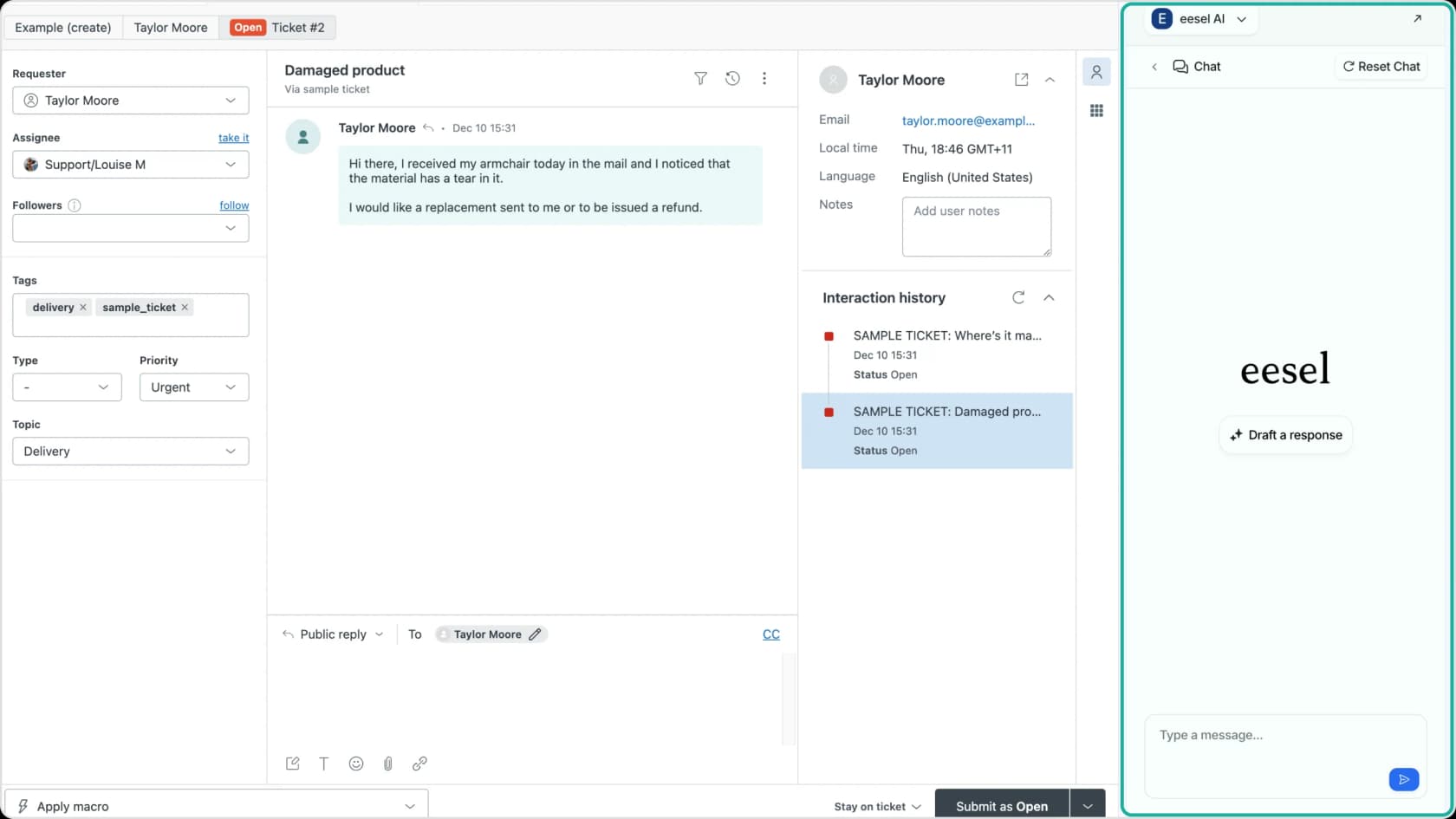
You can also use simulation mode to test how AI might impact your SLA performance before going live. Connect your Zendesk, run simulations on historical tickets, and see projected resolution rates alongside your existing SLA configuration. Learn more in our guide to Zendesk SLA tracking.