
Email notifications keep customer communication flowing in Zendesk. When a customer submits a ticket, receives a response, or gets a resolution update, triggers are what make those emails happen. Without properly configured triggers, your customers won't know what's happening with their requests, and your agents might miss critical updates.
Here's how Zendesk email triggers and notifications work, what the default triggers do, and how to set up custom notifications that match your team's workflow.

What are Zendesk email triggers and notifications?
In Zendesk, triggers are business rules that run automatically whenever a ticket is created or updated. Think of them as "if-then" statements: if certain conditions are met, then specific actions happen. One of the most common actions is sending an email notification.
All email notifications in Zendesk are generated through business rules, primarily triggers and automations. Triggers fire immediately when conditions are met, while automations run on a schedule (like checking every hour for tickets that have been pending for 24 hours).
Here's the key thing to remember: if you don't have any active triggers, no notifications are sent. Zendesk includes default triggers to handle common scenarios, but understanding how they work (and when to customize them) is essential for managing customer expectations.
The relationship between triggers and notifications is straightforward:
- Conditions define when the trigger runs (ticket created, priority changed, status updated)
- Actions define what happens (send email to requester, notify assignee, update ticket field)
When a ticket meets the conditions, the trigger fires and executes its actions. For email notifications, this means composing a message and sending it to the specified recipient.
Understanding Zendesk's default email triggers
Zendesk comes with several default triggers designed to handle the most common notification scenarios. These triggers are active out of the box and cover the basic communication needs between customers and support teams.
The main notification triggers you should know about:
Notify requester of received request sends a confirmation email to customers when they submit a new ticket. This lets them know their message was received and provides the ticket number for reference.
Notify requester of comment update alerts customers when an agent adds a public comment to their ticket. This is the primary way customers receive responses from your support team.
Notify requester of solved request informs customers when their ticket has been marked as solved. It typically includes a message inviting them to reply if they need further assistance.
Notify assignee of assignment alerts an agent when a ticket is assigned to them. This ensures agents know when new work is added to their queue.
Notify assignee of comment update notifies the assigned agent when a customer replies to their ticket. This keeps agents informed of customer responses without having to constantly check their queue.
Notify group of assignment sends a notification to all members of a group when a ticket is assigned to that group. This is useful for team-based workflows where multiple people might handle incoming tickets.
Each trigger has specific conditions that determine when it fires. For example, the "Notify requester of received request" trigger typically checks that the ticket is newly created and has a public comment (the customer's initial message). When these conditions are met, the trigger sends an email to the ticket requester confirming receipt.
You can view and modify these default triggers in the Admin Center under Objects and rules > Business rules > Triggers. Even if you don't plan to change them, it's worth reviewing how they're configured so you'll understand what your customers and agents are experiencing.
How to create custom email triggers in Zendesk
While the default triggers handle basic scenarios, most teams eventually need custom triggers for specific workflows. Maybe you want to notify a manager when a VIP customer submits a ticket, or send a different auto-response based on the ticket category.
Here's how to create a custom email trigger from scratch.
What you'll need
Before you start, make sure you've got:
- Admin access to your Zendesk account
- A clear understanding of what should trigger the notification
- The recipient(s) identified (specific user, group, or dynamic based on ticket data)
Step 1: Navigate to the triggers page
Go to Admin Center > Objects and rules > Business rules > Triggers. This shows your current trigger list, including all active and inactive triggers.

Step 2: Create a new trigger
Click Add trigger in the top right. Give your trigger a clear, descriptive name. Good naming matters when you have dozens of triggers, so use something like "Notify manager of VIP ticket" rather than "VIP notification."
Add a meaningful description explaining what the trigger does and why it exists. Future you (or your teammates) will thank you when you're troubleshooting.
Step 3: Set your conditions
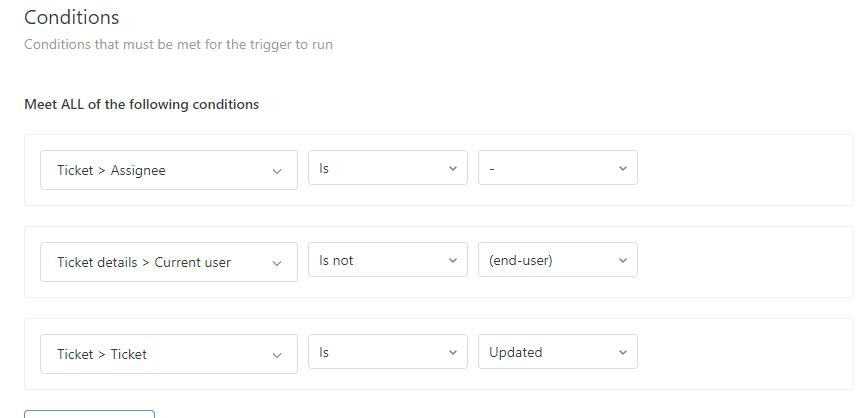
Conditions determine when the trigger fires. You can set "All" conditions (every one must be true) and "Any" conditions (at least one must be true).
For example, to notify a manager when a VIP customer submits an urgent ticket:
All conditions:
- Ticket > Is > Created
- Ticket > Priority > Is > Urgent
- Organization > Tags > Contains at least one of the following > vip
Step 4: Set your actions
Actions define what happens when conditions are met. For email notifications, you'll use either:
- Email user - sends to a specific user or dynamic recipient (ticket assignee, requester, etc.)
- Email group - sends to all members of a Zendesk group
Select Email user and choose your recipient. In the subject and body fields, you can use placeholders like {{ticket.id}}, {{ticket.requester.name}}, and {{ticket.description}} to include dynamic content.
Step 5: Test and activate
Before activating, test your trigger conditions using the preview feature. Create a test ticket that matches your conditions and verify the trigger would fire correctly.
Once you're confident, click Create to save the trigger. It'll be active immediately.
Example: Priority escalation notification
Let's say you want to notify a senior support team whenever a ticket is escalated to urgent priority. Here's the setup:
Conditions:
- Ticket > Priority > Changed to > Urgent
- Ticket > Status > Is not > Solved
Actions:
- Email group > Senior Support
- Subject: "URGENT: Ticket #{{ticket.id}} requires immediate attention"
- Body: Include ticket details, customer info, and a link to the ticket
This ensures your senior team knows about urgent issues without having to monitor the queue constantly.
Customizing email notification templates
The content of your email notifications comes from two places: the global email template and the trigger-specific message body.
The global email template (found in Admin Center > Channels > Email > Templates) provides the wrapper for all notifications. It includes your header, footer, and styling. The trigger's email body action provides the specific message content.
Using Liquid markup
Zendesk supports Liquid markup for dynamic content. This lets you include conditional logic and personalized information in your emails.
Common placeholders include:
{{ticket.requester.name}}- The customer's name{{ticket.id}}- The ticket number{{ticket.description}}- The ticket content{{ticket.url}}- A link to the ticket{{ticket.assignee.name}}- The assigned agent's name
You can also use conditionals:
{% if ticket.priority == 'urgent' %}
  This is an urgent request and will be handled immediately.
{% endif %}
HTML customization basics
For trigger email bodies, you can use HTML to format your messages. Keep it simple for maximum email client compatibility:
- Use inline CSS (not style blocks)
- Stick to basic HTML elements like
<p>,<strong>,<a>, and<br> - Test in multiple email clients before deploying
- Keep image use minimal (many email clients block images by default)
Best practices for email formatting
- Keep subject lines clear and under 60 characters
- Put the most important information at the top
- Include a clear call to action (reply to this email, view ticket online, etc.)
- Test your emails on mobile devices (many customers read support emails on their phones)
Best practices for organizing triggers
As your Zendesk setup grows, trigger organization becomes critical. A messy trigger list leads to conflicting rules, missed notifications, and debugging headaches.
One trigger does one job
Experienced Zendesk consultants recommend the "one trigger does one job" philosophy. Instead of creating a single trigger that sets priority, assigns to a group, and sends a notification, create three separate triggers:
- One that sets the priority based on conditions
- One that assigns to the appropriate group based on priority
- One that sends the notification after assignment is complete
This makes troubleshooting easier. When something isn't working, you can isolate which specific trigger is causing the issue.
Trigger ordering matters
Zendesk processes triggers from top to bottom. All matching triggers fire, not just the first one. This means order can affect the outcome.
Place triggers that set defaults and categorize tickets early in the list. Put notification triggers toward the end, after all ticket properties have been set. This ensures notifications include the correct, fully-updated information.
Recommended organization structure
Consider organizing your triggers into categories:
- Set defaults - Brand, priority, type, schedule
- Categorize - Set category, custom fields, tags
- Enrich - Add followers, update user data
- Route and assign - Assign to groups, set status
- Notify - Send emails (only after all context is set)
Use Zendesk's trigger categories feature to group related triggers visually. This makes your trigger list easier to navigate and maintain.
Naming conventions
Clear names save time. Use descriptive names that explain what the trigger does:
- ✅ "Notify requester - Brand A - Comment update"
- ❌ "Brand A trigger"
Include the action and the condition in the name when possible. This helps you quickly identify triggers when reviewing the list or troubleshooting.
Document your setup
Create internal documentation explaining your trigger structure. Include:
- Which triggers handle which scenarios
- The logic behind your trigger ordering
- Common troubleshooting steps
- Who to contact if something breaks
This is especially important if multiple admins are managing your Zendesk account.
Common issues and troubleshooting
Even with careful setup, trigger issues happen. Here are the most common problems and how to fix them.
Trigger not firing
If a trigger isn't firing when you expect it to:
- Check that the trigger is active (not in draft mode)
- Verify the conditions match exactly (case sensitivity matters for tags and text)
- Review trigger order - another trigger might be making changes that prevent this one from matching
- Check the ticket events log to see which triggers actually fired
Duplicate notifications
Customers receiving multiple emails for the same update usually means multiple notification triggers are firing. To prevent this:
- Use nullifying conditions (like checking that a tag is not present, then adding that tag in the action)
- Review trigger order - place specific triggers before generic ones
- Check for overlapping conditions between triggers
Email formatting problems
If emails look wrong in certain clients:
- Test in multiple email clients (Gmail, Outlook, Apple Mail)
- Use table-based layouts for complex formatting (old school but reliable)
- Avoid CSS shorthand and stick to inline styles
- Keep image widths under 600px
Guide notifications limitation
One important limitation to know: Zendesk Knowledge (formerly Guide) (Help Center) notifications don't respect trigger-based branding. Article comment notifications, subscription emails, and community posts use the global email template only. This is a known limitation that affects multi-brand setups.
Workarounds include keeping your global template neutral or accepting that Guide notifications won't match your ticket notifications perfectly.
Testing strategies
Before deploying triggers to production:
- Create test tickets for each scenario
- Check the ticket events log to verify the right triggers fired
- Send actual test emails and review them in different clients
- Have colleagues role-play as customers to catch issues
- Start with a small group of real tickets before rolling out broadly
Streamlining notifications with AI
Managing complex trigger setups for multi-brand or multi-team environments can become overwhelming. Each brand might need its own set of notification triggers, and maintaining consistency across dozens of triggers takes significant effort.
This is where AI-powered support tools can help. Instead of building complex trigger chains to handle brand-specific messaging, I can analyze incoming tickets and generate appropriate responses automatically.

I integrate directly with Zendesk and handle notifications differently:
- Automatic brand detection - I identify which brand the customer contacted based on email address, ticket fields, or request content
- Brand-appropriate responses - Instead of hard-coding HTML templates in triggers, I generate responses that match each brand's voice and requirements
- No trigger maintenance - Add a new brand by simply telling me about it, rather than cloning and customizing multiple triggers
- Consistent across channels - Whether customers email, chat, or use your help center, I maintain the right brand voice
For teams managing multiple brands or complex notification requirements, this approach can significantly reduce maintenance overhead while improving consistency.
If you're interested in exploring how AI can simplify your support workflows, check out eesel's AI agent for Zendesk to see how it handles notifications and brand routing automatically.