When a customer hits send on a support email, what happens next determines whether their issue gets resolved quickly or lost in the shuffle. Zendesk has built its reputation on making that handoff seamless, automatically converting emails into trackable tickets. But the real power lies in how you configure those tickets: what information gets captured, where it goes, and how it triggers the right actions.
This guide breaks down how Zendesk email to ticket mapping and fields work, from basic email channel setup to advanced custom field automation. Whether you're configuring your first support address or troubleshooting why certain data isn't populating where you expect, you'll find practical steps and real limitations you should know about.
How Zendesk converts emails into tickets
The email channel is the backbone of most Zendesk implementations. When a customer emails your support address, here's what happens behind the scenes:
- Ticket creation: Zendesk receives the email and creates a new ticket with the subject line as the ticket title and the email body as the description
- User lookup: The system checks if the sender's email address matches an existing user profile, creating a new user if needed
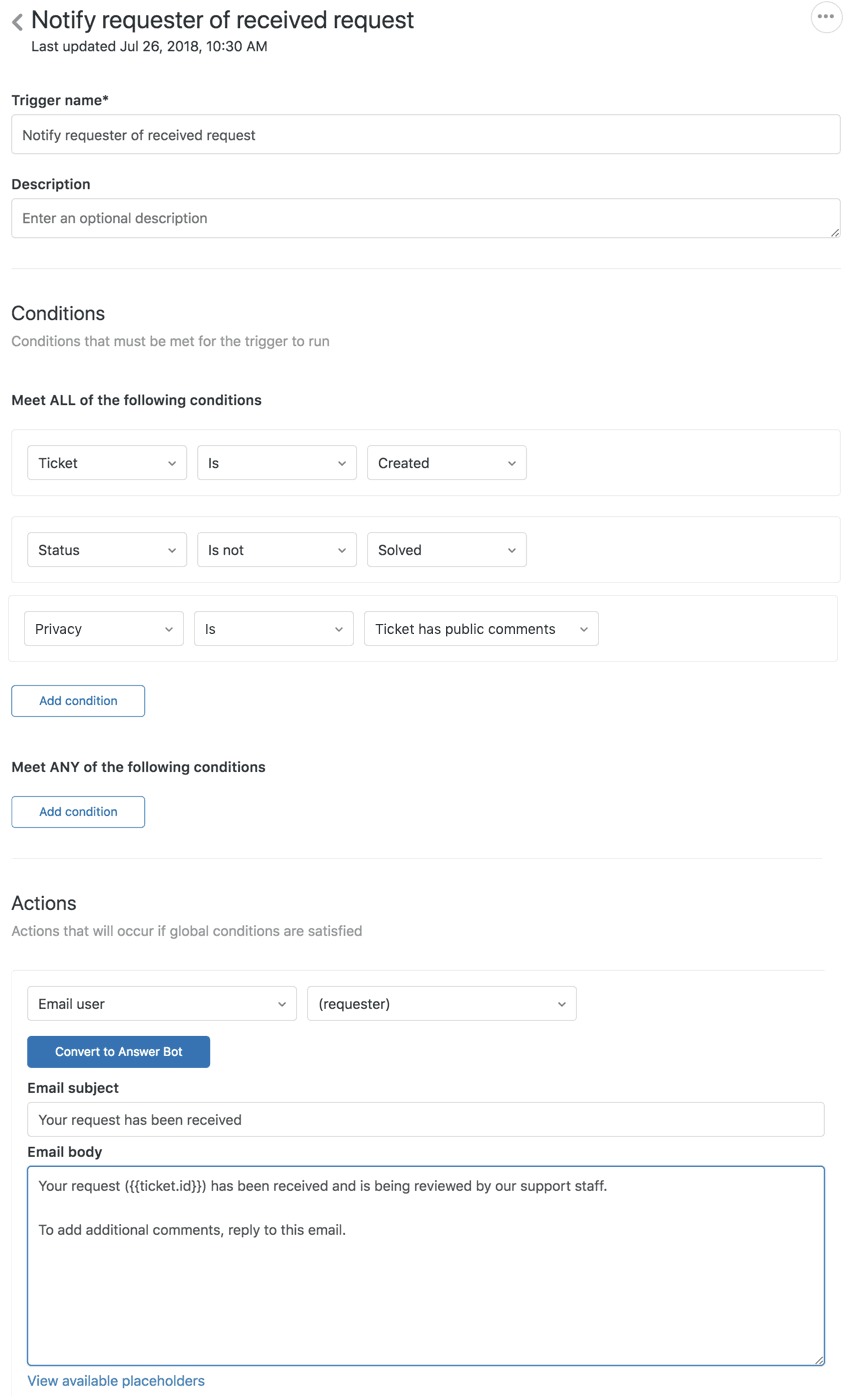
- Automated response: The customer receives a confirmation email letting them know their request was received
- Routing: Based on your triggers and business rules, the ticket gets assigned to a group, specific agent, or sits in a queue
- Threading: Replies from either side are automatically threaded into the same ticket conversation

This workflow happens without any manual intervention, which is why email remains the most popular support channel. But the default behavior only captures basic information: sender, subject, and body text. If you need to categorize tickets by product line, priority, or department based on which email address received the message, you'll need to configure custom fields and triggers.
The email channel also generates two types of notifications. Your support staff receive alerts when new tickets arrive, when assignments change, or when customers add comments. Customers receive confirmations, agent replies, and status updates. These notifications are controlled by triggers, which you can customize (though Zendesk recommends keeping the default notification triggers active to maintain communication flow).
Understanding Zendesk ticket fields
Every ticket in Zendesk contains a mix of system fields and optional custom fields. Understanding the difference helps you plan what data to capture and how to use it.
System fields come built-in and include essentials like Subject, Description, Requester, Priority (Low/Normal/High/Urgent), Status (New/Open/Pending/Solved/Closed), and Type (Question/Incident/Problem/Task). You can't delete these, and they're available on every ticket automatically.
Custom ticket fields are where you add your own data points. Zendesk supports numerous field types, each suited to different kinds of information:
| Field Type | Best For | Trigger Support |
|---|---|---|
| Text (single-line) | Short entries like order numbers | Cannot be set via triggers |
| Text (multi-line) | Detailed notes or descriptions | Cannot be set via triggers |
| Drop-down | Pre-defined categories (products, departments) | Sets associated tag |
| Multi-select | Multiple applicable options | Sets associated tags |
| Checkbox | Yes/no flags | Sets associated tag |
| Date | Deadlines or event dates | Can be set directly |
| Numeric | Quantities or ratings | Limited support |
| Regex | Pattern-validated entries (like phone numbers) | Limited support |
| Lookup relationship | Links to other Zendesk records | Supported in triggers/views |
Here's the critical detail that trips up many administrators: text fields cannot be populated via triggers. This is a hard limitation in Zendesk. If you're trying to extract information from an email (like a customer name or order ID) and put it into a custom text field automatically, triggers won't do it. You'd need the Zendesk API, third-party integrations, or alternative approaches like using tags instead of text fields.
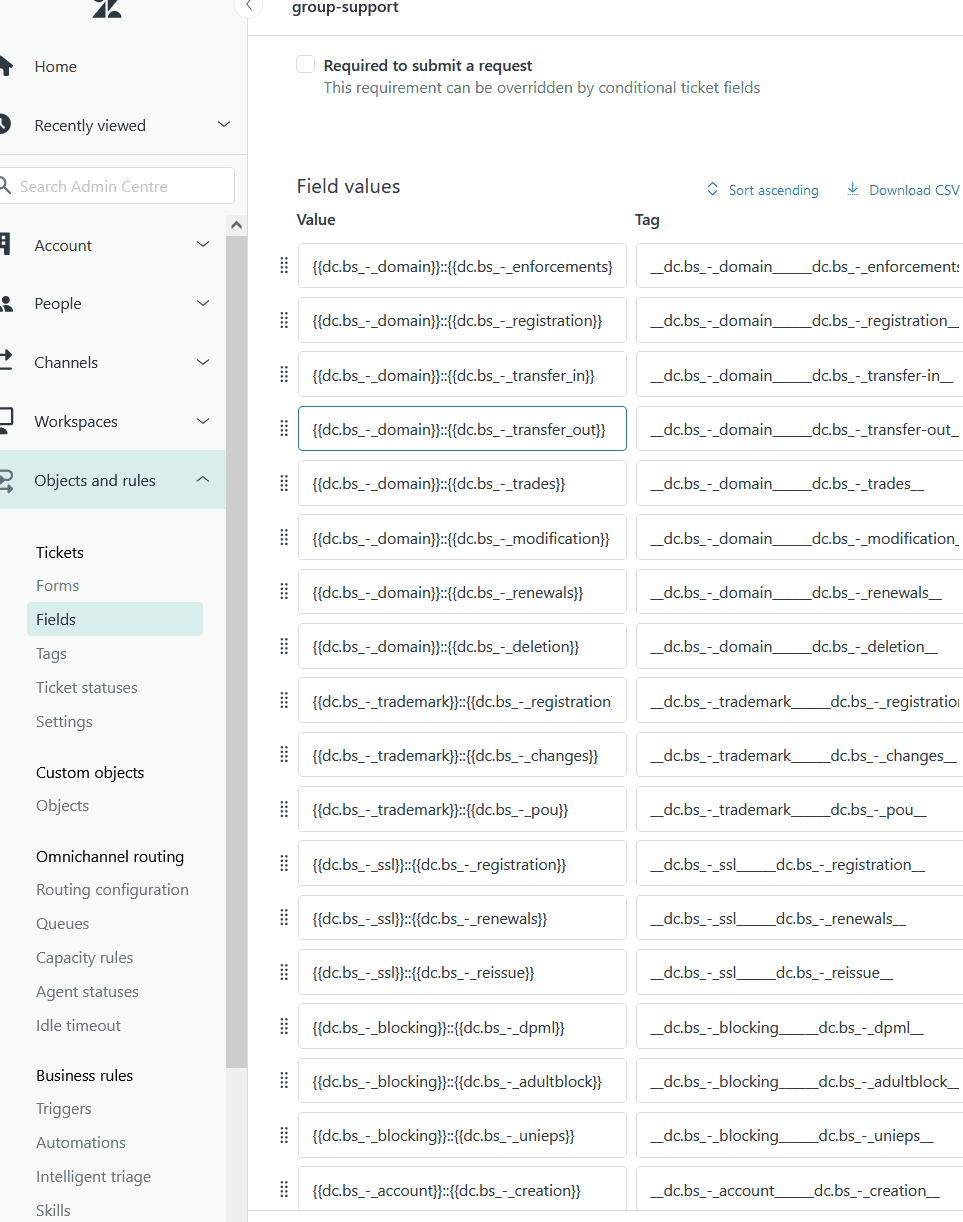
Drop-downs, checkboxes, and multi-select fields work differently. They generate tags when selected, and triggers can set these field values by adding the corresponding tags. This distinction becomes important when planning your email-to-field mapping strategy.
Creating custom ticket fields in Zendesk
Setting up custom fields happens in the Admin Center. You'll need administrator privileges to create or modify them.
To add a custom ticket field:
- Navigate to Admin Center > Objects and rules > Tickets > Fields
- Click Add field and select your field type
- Enter a Display name (avoid reserved words like "channel")
- Set Permissions:
- Agents can edit: Internal use only
- Customers can edit: Visible in tickets and support request forms
- Customers can view: Read-only for end users
- Configure field-specific options (values for drop-downs, regex patterns for validation)
- Click Save
For single ticket forms, new fields appear automatically. If you use multiple ticket forms (available on Enterprise plans), you'll need to manually add the field to each form where it should appear.
Naming conventions matter. Use consistent, descriptive names that make sense to agents. "Product_Category" is clearer than "Field_01." Also note that deleting a custom field removes its data from existing tickets unless it's a tag-generating field (drop-down, checkbox, or multi-select). Those persist as tags even after the field disappears.
Before creating fields, think about how you'll use them. Fields that work in triggers and automations are more valuable than fields that just sit on tickets. Plan for reporting too: if you want to analyze tickets by a certain dimension in Zendesk Explore, you'll need that data in a proper field, not just in ticket comments.
Mapping email data to ticket fields with triggers
Triggers are Zendesk's automation engine for ticket events. They let you define "when this happens, do that" rules. For email-to-ticket mapping, triggers can set field values based on conditions like which email address received the message.
How triggers work:
Triggers evaluate conditions when a ticket is created or updated. If all conditions match, the trigger fires and performs its actions. Multiple triggers can fire on the same ticket, running in the order you've arranged them.
Common email-based trigger conditions:
- Ticket > Ticket | Is | Created (fires on new tickets)
- Ticket > Received at | support@company.com (specific support address)
- Ticket > Requester email domain | example.com (for customer organization routing)
- Ticket > Subject text | Contains the following string | "urgent" (keyword detection)
Setting priority based on support address:
A practical example: you have separate email addresses for general support and VIP customers. You want VIP emails automatically marked as High priority.
- Create a new trigger
- Add conditions:
- Ticket > Ticket | Is | Created
- Ticket > Received at | vip@company.com
- Add action:
- Ticket > Priority | High
- Save the trigger
Now every ticket created from an email to vip@company.com starts with High priority.
The text field limitation (revisited):
You cannot create a trigger that extracts text from an email subject or body and puts it into a custom text field. If someone emails "Order #12345 needs refund," you can't automatically parse "12345" into an Order Number text field using native Zendesk triggers.
Workarounds include:
- Using tags instead (triggers can add tags based on email content, and tags are searchable)
- Training agents to manually copy information into fields
- Using third-party apps or the Zendesk API for advanced parsing
- Directing customers to ticket forms in your Help Center for structured data collection
Advanced field mapping with eesel AI
Manual trigger configuration works for simple routing rules, but it has limits. You can't extract unstructured data from emails, parse natural language, or automatically categorize tickets based on content without significant development work.
This is where we approach things differently at eesel AI. Instead of building complex trigger logic, our AI teammate learns from your past tickets to understand your business automatically.

When you connect eesel AI to your help desk, it reads your existing tickets, help center articles, and macros to understand your tone, common issues, and how you categorize requests. From there, it can:
- Parse email content automatically: Extract order numbers, product names, or issue types from unstructured email text without manual rules
- Populate fields intelligently: Set custom fields based on what it learns from your historical data
- Route tickets contextually: Send issues to the right team based on content, not just which email address received them
- Handle the full conversation: Draft responses, look up customer data in integrated systems like Shopify, and resolve tickets end-to-end
The key difference is that you don't configure eesel with rigid rules. You hire it like a new team member, start with oversight (reviewing drafts before they go out), and level up to full autonomy as it proves itself. When it makes mistakes, you correct them in plain English, and it learns for next time.
For teams struggling with Zendesk's native limitations around email parsing and field mapping, this approach eliminates the need for complex trigger chains or custom development. You can see how it works with your existing Zendesk setup or explore our AI Triage capabilities for automatic ticket field population.
Common challenges and solutions
Even with proper setup, email-to-ticket mapping creates friction. Here are the issues we see most often and how to address them.
Email signatures and disclaimers cluttering descriptions
Long email threads often include signatures, legal disclaimers, and previous conversation history. Zendesk attempts to strip some of this, but it's not perfect. The result is tickets where the actual issue is buried in noise.
Solution: Train users to put their actual message at the top of emails. For automated systems sending to Zendesk, use the API instead of email to have full control over ticket content.
Multiple email addresses creating duplicate users
Challenge: A customer emails from john@work.com today and john@gmail.com tomorrow. Zendesk creates two separate user profiles, fragmenting their support history.
Solution: Merge user profiles when discovered, or use SSO to ensure consistent identity. Some organizations add verification steps to confirm email ownership before merging.
Text extraction limitations
Challenge: You need to capture specific data from emails (like account numbers or product SKUs) and can't do it with triggers.
Solution: Use the Zendesk API with a middleware service that parses incoming emails, or switch to ticket forms for data collection instead of free-form email. Alternatively, AI-powered tools can handle this extraction without custom development.
HTML formatting issues
Challenge: Rich HTML emails don't render cleanly in Zendesk, or formatting gets stripped in ways that hurt readability.
Solution: Zendesk converts HTML to plain text for ticket descriptions. For complex formatted content, consider using the Help Center or attachments instead of inline email HTML.
Conditional field visibility
Challenge: You want certain fields to appear only when other fields have specific values (like showing a "Refund Reason" field only when Type is "Refund").
Solution: This requires conditional ticket fields, available on Suite Professional and above. Configure these in Admin Center > Objects and rules > Ticket forms.
Getting the most from Zendesk email mapping
Configuring email-to-ticket mapping isn't a one-time task. As your business evolves, your field strategy should too.
Plan before you build. Map out what data you need to capture, where it comes from, and how you'll use it. A field that no one reports on or uses in automation is just clutter.
Use consistent naming. Establish conventions early. "Product_Category" and "Department_Code" are clearer than "Field1" and "Custom2."
Test thoroughly. Create test tickets via email and verify your triggers fire as expected. Check that field values appear correctly and routing happens to the right groups.
Document your setup. When you have dozens of triggers and custom fields, even the person who built them forgets why certain rules exist. Keep a simple reference document.
Consider the alternative. If you find yourself building increasingly complex trigger chains to handle email parsing, or if agents spend significant time manually copying data into fields, it may be time to look at AI-powered alternatives. The goal is resolving customer issues, not managing ticket metadata.
Zendesk's email channel is powerful but has real limitations around data extraction and field population. Understanding those boundaries helps you design workflows that actually work, whether that means working within Zendesk's constraints or exploring tools that handle the heavy lifting automatically.