
Email threading might not be the flashiest feature in your help desk, but get it wrong and you will have confused customers, frustrated agents, and conversations that spiral into chaos. When a customer replies to a ticket, you need that message to land in the right place. Every time.
This guide breaks down everything you need to know about Zendesk email threading. We will cover how it works under the hood, the difference between simplified and original threading, and how to implement the modern approach without breaking your existing workflows. We will also look at common issues that trip up support teams and how to fix them.
If you are looking for a different approach to conversation management, eesel AI offers an alternative that works alongside Zendesk. More on that later.
What is email threading in Zendesk?
Email threading is how Zendesk groups related messages into a single ticket conversation. When a customer emails your support address and an agent replies, you want subsequent replies from that customer to stay in the same ticket. Not create a new one. Not attach to the wrong ticket. Just stay where they belong.
Here's the distinction that matters: an email thread is the technical mechanism (the chain of related messages), while an email conversation is the actual exchange between people. The thread keeps everything organized so the conversation makes sense.
Zendesk handles this automatically by looking for signals in incoming emails that link them to existing tickets. When it finds a match, the reply gets added as a comment. When it does not, a new ticket is created. Simple in theory, but the details matter.
The evolution here is worth noting. Traditional email systems relied heavily on subject lines for threading. Modern approaches (which we will get into) use more sophisticated signals that work better with how people actually use email today.
How Zendesk threads emails to tickets
Zendesk uses three methods to determine if an incoming email belongs to an existing ticket. Understanding these helps when you are troubleshooting threading issues.
Email headers (References and In-Reply-To)
Every email has headers that are not visible in the normal view. Two of these are critical for threading:
- Message-ID: A unique identifier assigned to every email sent
- In-Reply-To: Contains the Message-ID of the email being replied to
- References: A list of Message-IDs from earlier in the conversation
When Zendesk receives an email, it checks the In-Reply-To and References headers against Message-IDs from existing tickets. If there is a match, the email threads to that ticket.
Source: Zendesk Help Center
Encoded IDs in the message body
Zendesk includes an encoded ticket ID in outbound notification emails. It looks like [1G7EOR-0Q2J] and appears in the email body. When a customer replies and includes this ID (which happens automatically in most email clients), Zendesk uses it to route the reply to the correct ticket.
You can also manually include encoded IDs in emails to ensure they thread correctly.
Encoded IDs in the receiving address
Zendesk support email addresses can use aliases that include the encoded ticket ID. For example: support+id1G7EOR-0Q2J@company.zendesk.com. This structure ensures emails thread to the corresponding ticket even if no other references are present.
This method only works for Zendesk support addresses, not external forwarding addresses.
Simplified email threading explained
In June 2022, Zendesk introduced simplified email threading. If your account was created after June 15, 2022, you are already using it. If your account is older, you might still be on the original experience.
What's the difference?
The original threading experience repeats the full conversation history in every email notification. So if a ticket has 10 comments, the 11th notification includes all 10 previous comments. This made sense years ago when email clients were less sophisticated, but it is redundant today.
Simplified threading sends only the latest comment in each notification. Modern email clients like Gmail handle threading natively, so customers see the full conversation context through the client's interface, not through repeated content in each message.
Here's how they compare:
| Aspect | Original Experience | Simplified Experience |
|---|---|---|
| Message content | Repeats full thread history | Shows only latest comment |
| Email client compatibility | Basic | Optimized for Gmail, Outlook, Apple Mail |
| Default for new accounts | Pre-June 2022 accounts | Post-June 15, 2022 accounts |
| Redundant messages | Included in every notification | Removed |
| Mobile experience | Long emails to scroll | Concise, readable messages |
Source: Understanding Simplified Email Threading
Benefits of simplified threading
For end users, the experience feels more like a natural conversation. Each email contains just the new information, not a wall of repeated text. In Gmail, for example, the conversation view shows the thread natively without redundancy.
For agents, email notifications are cleaner and easier to scan. When you get a notification that a ticket has been updated, you see what changed, not the entire history you already know.
How to implement simplified email threading
If you are on an older Zendesk account and want to switch to simplified threading, here is how to do it without breaking things.
Prerequisites
Before you start:
- Review your active triggers and automations
- Back up your current email templates
- Plan the implementation during a low-volume period
- Understand that this affects all email notifications
Step 1: Identify triggers and automations to update
You need to find every active trigger and automation that sends email notifications using the old comment placeholders. Look for these in your email body content:
{{ticket.comments}}{{ticket.latest_comment}}{{ticket.comments_formatted}}{{ticket.latest_comment_formatted}}{{ticket.latest_comment_rich}}{{ticket.public_comments}}{{ticket.latest_public_comment}}{{ticket.public_comments_formatted}}{{ticket.latest_public_comment_formatted}}{{ticket.latest_public_comment_rich}}
Default triggers that typically need updating include:
- Notify requester and CCs of comment update
- Notify assignee of comment update
- Notify assignee of assignment
- Notify assignee of reopened ticket
- Notify all agents of received request
- Notify group of assignment
Source: Implementation Guide
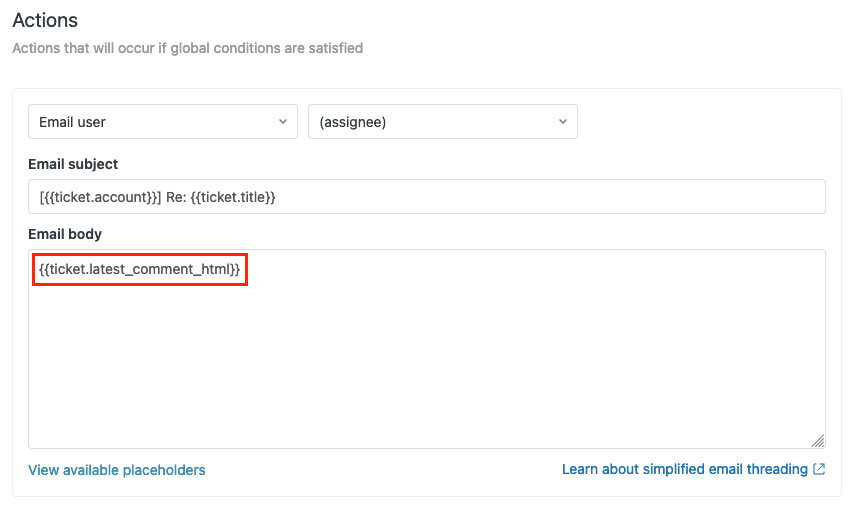
Step 2: Clone and update triggers with new placeholders
Do not edit your existing triggers directly. Instead:
- Clone each trigger that needs updating
- Rename the clone (add "(simplified)" to the name)
- Replace the old placeholder with the new one using this mapping:
| Original Placeholder | Simplified Placeholder |
|---|---|
{{ticket.comments}} | {{ticket.latest_comment_html}} |
{{ticket.latest_comment}} | {{ticket.latest_comment_html}} |
{{ticket.comments_formatted}} | {{ticket.latest_comment_html}} |
{{ticket.latest_comment_formatted}} | {{ticket.latest_comment_html}} |
{{ticket.latest_comment_rich}} | {{ticket.latest_comment_html}} |
{{ticket.public_comments}} | {{ticket.latest_public_comment_html}} |
{{ticket.latest_public_comment}} | {{ticket.latest_public_comment_html}} |
{{ticket.public_comments_formatted}} | {{ticket.latest_public_comment_html}} |
{{ticket.latest_public_comment_formatted}} | {{ticket.latest_public_comment_html}} |
{{ticket.latest_public_comment_rich}} | {{ticket.latest_public_comment_html}} |
- Create the cloned trigger, then immediately deactivate it
- Repeat for all triggers on your list
Step 3: Update email templates
You will need to update two templates:
- Follower or CC template (depending on your account settings)
- Account-level HTML and plain-text templates
Back up your current templates first. Then replace the content with the simplified threading versions from Zendesk's documentation.
Testing and verification
Before activating your simplified triggers:
- Test with a few internal tickets
- Verify emails thread correctly in Gmail, Outlook, and Apple Mail
- Check that attachments still work
- Confirm agent notifications look correct
- Activate your simplified triggers and deactivate the originals
Common threading issues and solutions
Even with proper setup, threading issues happen. Here are the most common ones and how to fix them.
Unrelated conversations threading together
The problem: Two different customer conversations end up in the same ticket.
The cause: Shared Message-ID or In-Reply-To headers. This typically happens when:
- An agent forwards an email from their inbox to Zendesk multiple times
- Someone replies to an existing Zendesk email but changes the subject and recipient
- Email templates with static Message-IDs are reused
The fix:
- Check the original email source to find the matching Message-ID
- Train agents to create new emails instead of forwarding existing ones
- Do not reuse email templates that originated from Zendesk notifications
Source: Troubleshooting Threading Issues
Subject line changes breaking threads
The problem: When an agent updates a ticket subject, subsequent emails create a new thread in the customer's email client.
The cause: Many email clients (including Gmail) use subject lines for threading, not just headers.
The workaround: You can modify notification triggers to use a static subject line with the ticket ID, though this removes subject context from notifications. Zendesk has acknowledged this as a feature request but has not implemented a fix yet.
Source: Zendesk Community
Forwarding emails causing threading problems
The problem: Forwarded emails thread to the wrong ticket or create unexpected behavior.
The cause: Forwarding preserves the original headers, so Zendesk sees it as a reply to the original conversation.
The fix: Instead of forwarding, copy the email content into a brand new email. Or save the original email as an attachment and attach it to a new message.
Best practices for email threading
A few habits that prevent threading headaches:
- Use simplified threading if you are not already. It is cleaner for modern email clients.
- Keep trigger hygiene. Review your email triggers quarterly to remove outdated ones.
- Train your team. Make sure agents understand how forwarding and templates affect threading.
- Monitor for issues. Set up a view or report for tickets with unexpectedly high comment counts (can indicate threading problems).
- Test after changes. Any time you modify email templates or triggers, test threading with a few tickets before rolling out fully.
eesel AI: A different approach to conversation management
If Zendesk's email threading feels like more complexity than you want to manage, there is another option. eesel AI handles conversations differently.

Instead of relying on email headers and encoded IDs, the AI reads and understands the content of each message. It can:
- Automatically route conversations to the right team based on content, not just addresses
- Draft responses that match your company's tone and policies
- Handle routine questions without creating tickets at all
- Escalate complex issues to humans with full context
The threading happens naturally because the AI understands the conversation flow. You do not need to worry about Message-IDs, header formats, or template updates.
For teams already using Zendesk, eesel AI integrates directly. The AI agent works inside your existing Zendesk setup, so you get smarter conversation handling without replacing your help desk.
Check out eesel AI pricing if you want to compare costs. eesel AI charges a fixed monthly price for a set number of credits (1 credit per ticket or chat), not per agent, which changes the math for high-volume support teams.
Getting the most from your email threading setup
Email threading in Zendesk works well once you understand the mechanics. The key takeaways:
- Simplified threading is the modern standard. Switch if you have not already.
- Threading issues usually stem from header problems or forwarding practices.
- Keep your triggers clean and test changes before deploying.
- Train your team on proper email handling to prevent threading mishaps.
If you are spending more time managing threading issues than solving customer problems, it might be time to look at alternatives. The eesel AI agent for Zendesk handles the conversation complexity so you can focus on actual support.
Ready to streamline your support workflow? See how eesel AI works with Zendesk or start a free trial to test it with your actual tickets.