Email bounces are one of those support issues that can quietly derail your customer experience. You think you've responded to a ticket, but the message never reaches the customer. They wait. They get frustrated. They think you're ignoring them.
In Zendesk, email bounce handling isn't always straightforward. The platform has solid deliverability tools, but it lacks one critical feature: automatic bounce notifications. This guide walks you through understanding bounces in Zendesk, troubleshooting delivery issues, and setting up workarounds for proactive monitoring.
Understanding email bounces in Zendesk
An email bounce happens when a message fails to reach its destination. In customer support, this means your carefully crafted response never reaches the customer, leaving them in the dark.
There are two types of bounces you need to know about:
Hard bounces
Hard bounces are permanent delivery failures. When you get a hard bounce, that email address isn't going to work no matter how many times you retry.
Common causes include:
- Invalid email addresses the address doesn't exist or has a typo
- Non-existent domains the domain portion (after the @) isn't registered
- Recipient server blocks the receiving server has permanently blocked emails from your domain
Hard bounces hurt your sender reputation. Email service providers track these, and too many can land your domain on blocklists.
Soft bounces
Soft bounces are temporary issues. The email address is valid, but something prevented delivery at that moment.
Common causes include:
- Full mailboxes the recipient's inbox has hit its storage limit
- Temporary server issues the receiving server is down or overloaded
- Email size limits your message (including attachments) exceeds the recipient's size limits
Most email providers will retry soft bounces automatically. If the issue persists after multiple attempts, it may be treated as a hard bounce.
Checking email delivery status in Zendesk
Before you can fix bounce issues, you need to know they exist. Here's how to check delivery status in Zendesk Support.
Viewing delivery status in the Agent Workspace
When you send an email from Zendesk, check the recipients section of the ticket. If a delivery fails, you'll see a warning icon next to the recipient's name.
Click the warning icon to see the specific error. Zendesk provides bounce reason codes that tell you whether it's a hard bounce, soft bounce, or another issue entirely.
Reviewing ticket events
For more detailed information, add /events to the end of any ticket URL. This shows you the complete history of actions taken on the ticket, including every email delivery attempt.
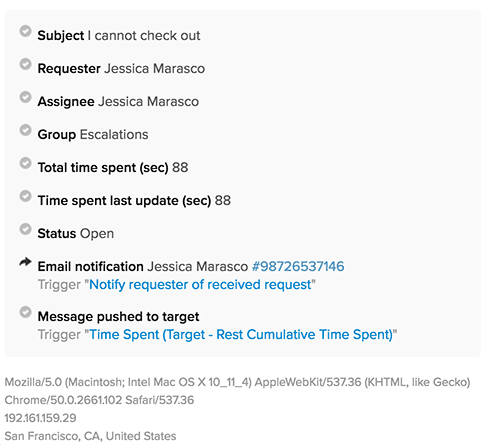
Look for entries related to "email notification" or "trigger" to see if your email actually went out. If a trigger failed to fire or an email bounced, you'll see it here.
The limitation? You have to check manually. Zendesk doesn't proactively alert you when emails bounce, which means problems can go unnoticed until a customer complains.
Fixing outbound email bounces
When customers aren't receiving your emails, work through these steps in order.
Step 1: Verify your SPF record
If you're using a custom email domain with Zendesk, you need an SPF record that authorizes Zendesk to send emails on your behalf. Without it, recipient servers may reject your messages.
Your SPF record should include: include:mail.zendesk.com
To check your current SPF record:
- Use a tool like MxToolbox to look up your domain
- Verify that
include:mail.zendesk.comappears in the record - If it's missing, contact your domain administrator to add it
There can only be one SPF record per domain. If you already have one, your administrator needs to edit the existing TXT record rather than creating a new one.
Step 2: Check notification triggers
Zendesk uses triggers to send email notifications. If the default triggers are deactivated, emails won't go out even if everything else is configured correctly.
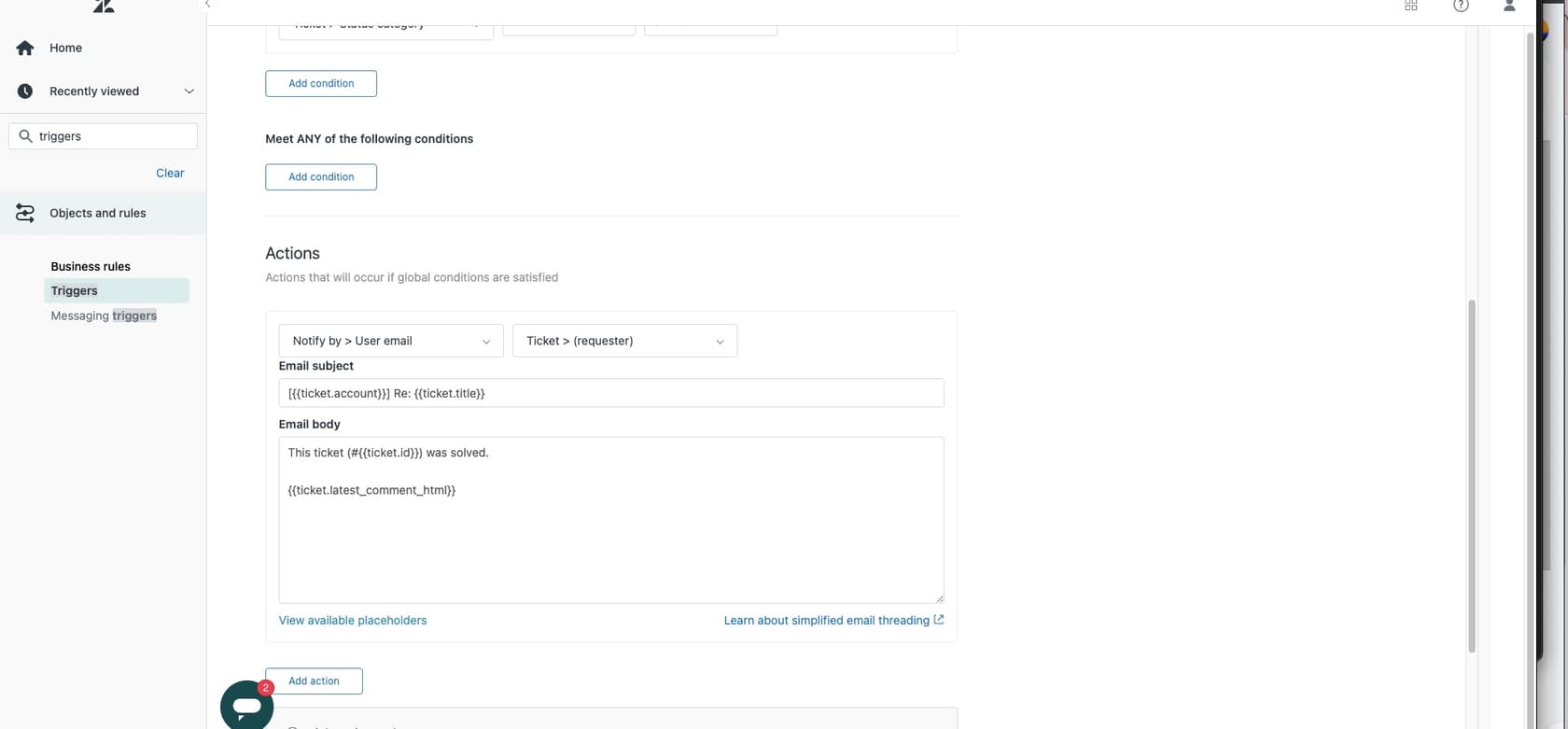
Check that triggers with "Notify requester" in the title are active. These are the standard triggers that send responses to customers. If they've been deactivated, reactivate them or create new ones that match the standard conditions.
You can verify trigger activity by checking the ticket events. If no trigger appears in the events list after an agent comments, that's your problem.
Step 3: Verify email forwarding
If you use a custom support email address (like support@yourcompany.com) that forwards to Zendesk, forwarding issues can cause delivery problems.
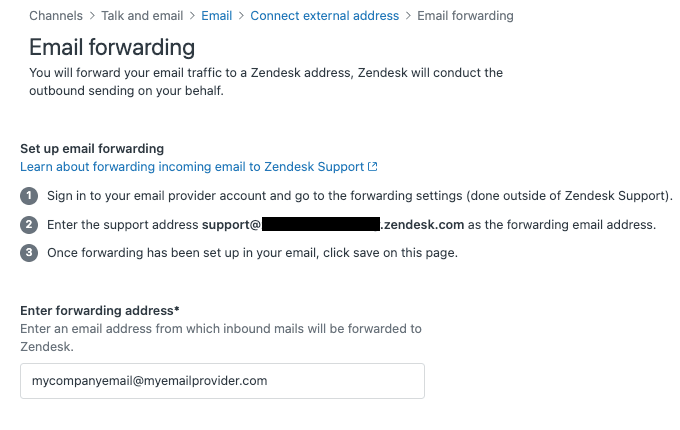
In your Zendesk Admin Center, check the email channel settings for any forwarding errors. Common issues include:
- SPF validation failures on the forwarding address
- DNS record misconfigurations
- Expired forwarding setups
Zendesk provides specific error messages for forwarding issues. Follow their documentation to resolve each type of error.
Step 4: Contact the recipient
If your SPF record is correct, triggers are active, and forwarding is working, the issue is likely on the recipient's end. Their server may be blocking emails from your domain.
Contact the customer through an alternative channel (phone, chat, or a different email address) and ask them to:
- Check their spam or junk folder
- Add your support email to their contacts or safe senders list
- Contact their IT team to whitelist your domain
Email delivery ultimately depends on the recipient's server configuration, which is outside Zendesk's control.
Handling inbound email issues
Sometimes the problem isn't outbound delivery but inbound receipt. Customer emails aren't creating tickets in Zendesk.
Check suspended tickets
Zendesk's spam filter can be aggressive. Legitimate emails sometimes get caught and placed in the Suspended tickets view.
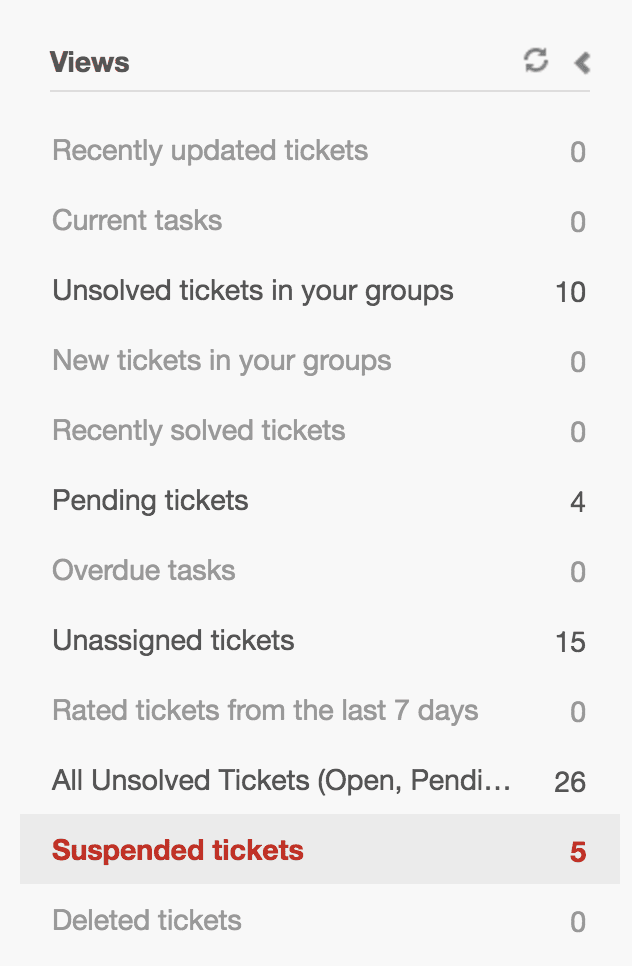
Check this view regularly. If you find legitimate emails there, recover them to train the filter. Common reasons for suspension include:
- SPF, DKIM, or DMARC failures from the sender's domain
- Suspicious formatting or content patterns
- Emails from unauthenticated sources
Verify the support email address
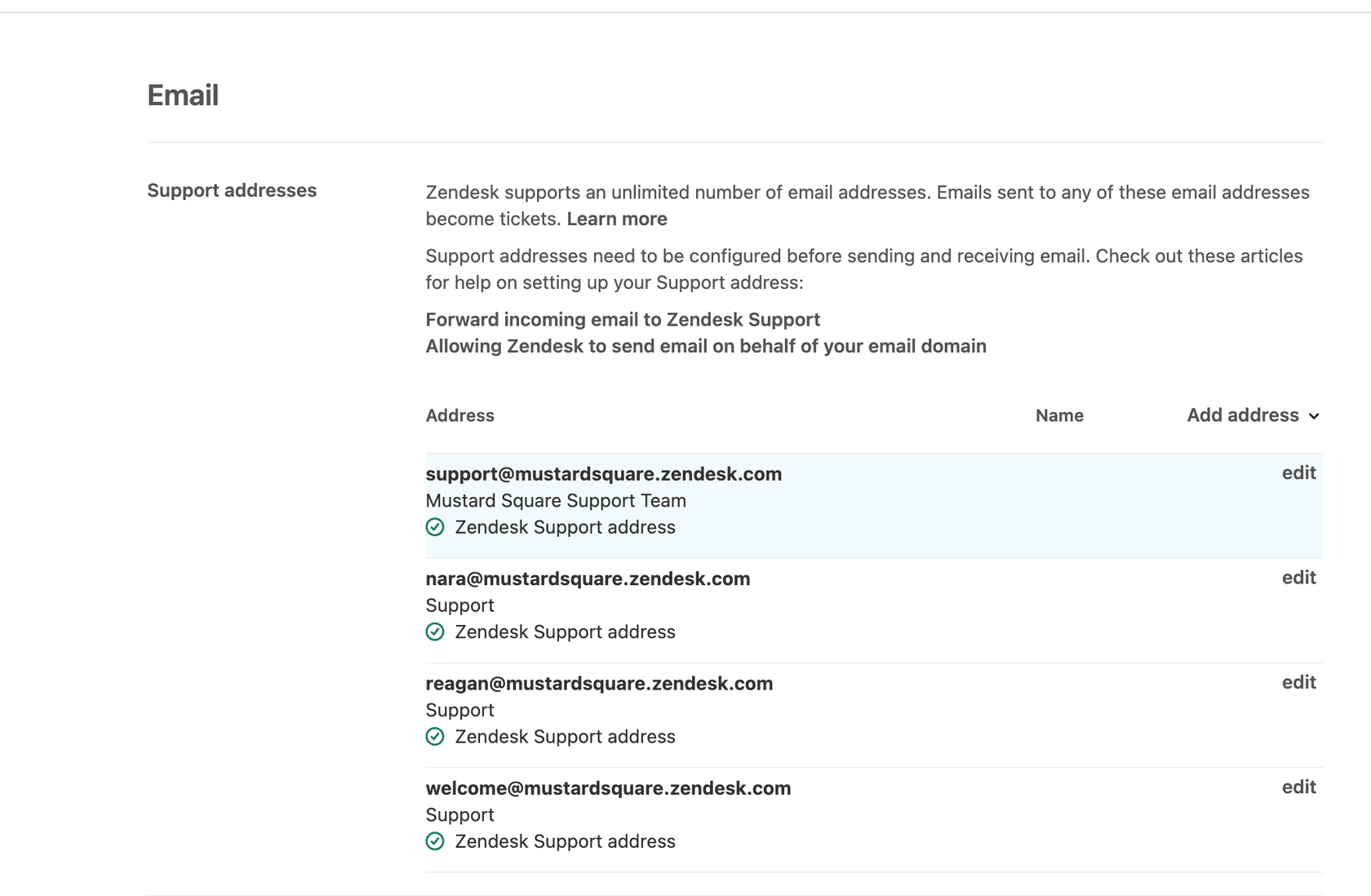
It sounds obvious, but make sure the customer is emailing the correct address. If they send to an alias or old support address that isn't configured in Zendesk, the email goes nowhere.
Double-check that the email address they used appears in your Zendesk email channel settings.
Review sender authentication
Emails from domains with strict SPF, DKIM, or DMARC policies can be rejected if the sender's authentication fails. This is especially common with corporate email systems.
If you notice patterns of emails from specific domains getting suspended, you may need to adjust your email channel settings or ask those senders to verify their authentication setup.
Automating bounce notifications
Here's the frustrating part: Zendesk doesn't natively notify agents when emails bounce. This feature request has been active since 2014 with no resolution.
But you have workarounds.
Using Zapier with MailerSend
One approach is to route your transactional emails through a service like MailerSend and connect it to Zendesk via Zapier.
When MailerSend detects a hard bounce, Zapier can automatically create a ticket in Zendesk or add a comment to an existing ticket. This gives you visibility into bounce issues without manual checking.
The downside? You're adding another service and cost to your stack.
Email validation with ZeroBounce
Prevention beats cure. ZeroBounce offers email validation that integrates with Zendesk Sell. Before an email address enters your system, it gets validated for deliverability.
This catches typos and invalid addresses at the point of entry, reducing your bounce rate before you even send.
Email tracking apps
Apps like GrowthDot's Email Tracking for Zendesk add open tracking to your emails. While not the same as bounce notifications, seeing that emails aren't being opened can alert you to potential delivery issues.
These apps create internal notes when customers open emails, giving you visibility into engagement patterns.
Best practices for preventing bounces
Proactive management keeps your bounce rates low and your sender reputation healthy.
- Keep bounce rates under 2% industry standard for acceptable bounce rates; higher rates trigger spam filters
- Regularly clean your email lists remove addresses that consistently bounce
- Validate emails at point of entry use double opt-in or validation services for new contacts
- Monitor delivery metrics track bounce rates, open rates, and response times
- Set up proper authentication ensure SPF, DKIM, and DMARC records are configured correctly
A smarter way to handle email issues with eesel AI
Here's the thing about email bounces: they're usually symptoms of bigger problems. Invalid email addresses, spam filter triggers, authentication failures these issues don't exist in isolation. They point to gaps in how you're managing customer communication.
That's where we come in. eesel AI works alongside Zendesk as an AI teammate that learns from your support patterns.

Instead of manually checking for bounces or setting up complex automation, eesel AI learns from your past tickets. It identifies patterns that lead to delivery issues: email addresses that have bounced before, response templates that trigger spam filters, timing that correlates with higher bounce rates.
Our AI Agent drafts responses that avoid common spam triggers. AI Triage flags tickets with problematic email addresses before you waste time crafting responses that won't be delivered.
The difference? You don't configure eesel AI like a traditional tool. You hire it like a teammate. It learns your business from your existing tickets, help center, and macros. No complex setup, no engineering resources required.
If you're tired of discovering bounce issues after customers have already churned, eesel AI offers a different approach: proactive, intelligent support that catches problems before they impact your customers.