
When you search for "Zendesk brand logo and favicon," you might be looking for one of two things: the official Zendesk brand assets to download, or instructions on how to add your own branding to your Zendesk help center. This guide covers both.
Whether you need Zendesk's official logos for a press release or want to customize your help center with your company's branding, here's everything you need to know.
What you'll need
Before you start customizing your Zendesk branding, gather these items:
- Admin access to your Zendesk account (Support or Guide admin rights)
- Your company logo in PNG, JPG, or SVG format
- A favicon file (ICO or PNG, square format)
- Your brand color hex codes
- About 15-20 minutes to complete the setup
How to customize your Zendesk brand logo and favicon
Step 1: Access your branding settings
The location of your branding settings depends on what you're customizing.
For your Help Center (customer-facing knowledge base):
- Go to Guide Admin (click the gear icon)
- Select Customize design in the sidebar
- Click Customize on the theme you want to edit
- Select the Brand section in the Settings panel
For your Support interface (agent workspace):
- Go to Admin Center
- Click Account in the sidebar
- Select Appearance > Branding
Here's the short version: Help Center branding affects what your customers see, while Support interface branding is more limited and mainly controls the favicon your agents see in their browser tabs.
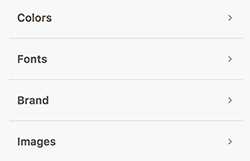
Step 2: Upload your logo
Once you're in the branding settings, uploading your logo is straightforward.
Click Replace under the Logo section and select your image file. The system will automatically scale your image while preserving the aspect ratio, but starting with the right dimensions helps.
Recommended logo specifications:
| Specification | Value |
|---|---|
| Recommended size | 200px by 50px |
| Max height (Copenhagen theme) | 37px |
| Background | Transparent or matching header color |
| Supported formats | PNG, JPG, SVG |
If your logo exceeds the recommended size, Zendesk scales it down automatically. The image background should be transparent or match your header background color for the cleanest look.
Bottom line? A horizontal logo with a transparent background works best.
Step 3: Add your favicon
Your favicon is the small icon that appears in browser tabs, bookmarks, and search results. It's a small detail that makes your help center look more professional.
Important limitation: Zendesk only supports .ico and .jpg formats for favicons. SVG files aren't supported for favicons.
To add your favicon:
- Under the Favicon section, click Replace
- Select your favicon file
- The favicon should be a square image
Recommended favicon specifications:
| Specification | Value |
|---|---|
| Supported formats | .ico, .jpg |
| Not supported | .svg |
| Recommended shape | Square |
| Example size | 20x20 or 32x32 pixels |
The key thing to remember is simplicity. Your favicon appears at very small sizes, so choose something simple and recognizable. A simplified version of your logo or just your brand's initial works well.
Step 4: Customize colors and fonts
Zendesk lets you customize five color categories to match your brand:
- Brand color - Your primary accent color
- Brand text color - Text that appears on your brand color
- Text color - General body text
- Link color - Hyperlink colors throughout
- Background color - Page background
For fonts, you can choose separate typefaces for headings and body text from Zendesk's built-in font library. If you need custom fonts, you'll need to edit your theme's code directly (not available on all plans).
Pro tip: Use the color picker to enter your exact brand hex codes rather than trying to match visually. This ensures consistency with your other branded materials.
Step 5: Publish your changes
After you've uploaded your logo, favicon, and set your colors:
- Click Publish to apply changes to your live help center
- Click Back to return to the Themes page
- Test your branding by viewing your help center in a browser
Changes typically appear immediately, though you might need to clear your browser cache or try an incognito window to see updates.
Format guide: choosing the right file type
Not sure which file format to use? Here's a quick comparison:
Logo file formats
| Format | Best For | Pros | Cons |
|---|---|---|---|
| SVG | Web, scalable graphics | Infinite scaling, small file size | Not supported for favicon |
| PNG | Digital with transparency | Transparency support, wide compatibility | Larger file size than SVG |
| JPG | Photos, no transparency needed | Small file size, universal support | No transparency |
Favicon recommendations
| Use Case | Recommended Format | Size |
|---|---|---|
| Browser tab | .ico or .png | 16x16, 32x32 |
| Retina displays | .png | 64x64 |
| iOS home screen | .png | 180x180 |
| Android | .png | 192x192 |
For most Zendesk users, a PNG logo with transparent background and an ICO or PNG favicon covers all the bases.
Troubleshooting common issues
Even with clear instructions, things don't always go as planned. Here are solutions to common branding problems:
Favicon not showing up
- Clear your browser cache (Ctrl+Shift+R or Cmd+Shift+R)
- Try viewing in an incognito/private window
- Check that your favicon is in .ico or .jpg format (not SVG)
Logo appears blurry or stretched
- Start with a higher resolution image (at least 400px wide)
- Ensure your logo has a transparent background
- Check that your original image isn't already compressed or low quality
Color changes not applying
- Make sure you clicked Publish after making changes
- Some colors only affect specific theme elements
- Try refreshing your browser cache
Mobile display issues
- Test on actual mobile devices, not just browser resizing
- Check that your logo is readable at smaller sizes
- Consider how your colors appear on different screen types
Best practices for Zendesk branding
Based on what works for successful Zendesk implementations:
- Keep it simple. Your logo should be recognizable even at small sizes.
- Maintain consistency. Use the same colors, fonts, and styling as your main website.
- Test everywhere. Check your branding on desktop, mobile, and different browsers.
- Consider accessibility. Ensure sufficient contrast between text and background colors.
- Plan for dark mode. If your customers use dark mode browsers, test how your branding appears.
Need professional help? Diziana offers a Zendesk branding service that includes logo and favicon implementation, color schemes, and banner images with 90-day support.
Where to find official Zendesk brand assets
If you need Zendesk's official logos for a press release, partnership announcement, or integration listing:
- Brandfetch provides official logos in SVG, PNG, and vector formats along with official brand color information
- Wikimedia Commons hosts the Zendesk logo SVG file for public domain use
- Icon repositories like Icon-Icons offer downloadable favicon files

Zendesk's official brand colors are:
| Color | Hex Code |
|---|---|
| Sulu (Primary Green) | #CAEC6C |
| Green Kelp | #213423 |
| White | #FFFFFF |
| Black | #000000 |

Enhance your support experience with AI
Customizing your Zendesk brand logo and favicon is just the beginning of creating a cohesive support experience. While branding helps with recognition, the quality of your support interactions is what builds customer loyalty.
If you're looking to enhance your Zendesk support with AI, we can help. Our AI agent for Zendesk works alongside your branded help center to provide instant, accurate responses to customer questions. We learn from your existing help center articles, past tickets, and documentation to answer questions in your brand voice.
Unlike basic chatbots, we handle complex queries, escalate when needed, and continuously improve from every interaction. The result is faster resolutions for your customers and less repetitive work for your team.

Learn more about our AI agent for Zendesk or explore how AI triage can automatically route and prioritize your incoming tickets.
