
Pending tickets are the quiet killers of support efficiency. A customer sends a request, you respond with a solution, and then... silence. The ticket sits in pending status for days, weeks, or even months. Your agents waste time manually following up. Customers get frustrated when they finally remember to reply, only to find the context lost and the conversation stale.
There's a better way. The "bump-bump-solve" workflow is an industry-standard pattern that automates these follow-ups. Here's how it works: send a gentle reminder after 24 hours, a final notice after 72 hours, and automatically solve the ticket if there's still no response. Your team stays focused on active issues. Customers get clear communication about response expectations. Everyone wins.
Whether you're managing a small support team or scaling a large operation, automating these reminders will save hours every week.

In this guide, you'll learn exactly how to build this workflow in Zendesk. We'll cover the three automations you need, how to prevent duplicate reminders, and some pro tips for troubleshooting common issues. We'll also look at how eesel AI can enhance this setup with context-aware intelligence.
If you're new to Zendesk automations, you might also want to check out our overview of Zendesk automation conditions for time-based workflows.
What you'll need to get started
Before diving into the setup, make sure you have the following in place:
Zendesk plan requirements. Automations are available on Team, Growth, Professional, and Enterprise plans. If you're on the Essential plan (legacy), you'll need to upgrade. The good news: even the Team plan at $19 per agent per month includes full automation capabilities.
Administrator access. Only admins can create and modify automations. If you're an agent, you'll need to request this from your Zendesk admin.
Your follow-up schedule. The classic bump-bump-solve pattern uses 24 hours and 72 hours, but you can adjust this based on your business needs. Some teams prefer 48/96 hours for B2B support, while others use 12/24 for urgent issues.
Optional: Custom ticket field. If you want some tickets to skip reminders (VIP customers, sensitive issues), create a checkbox field called "Skip auto-reminders" and we'll show you how to use it.
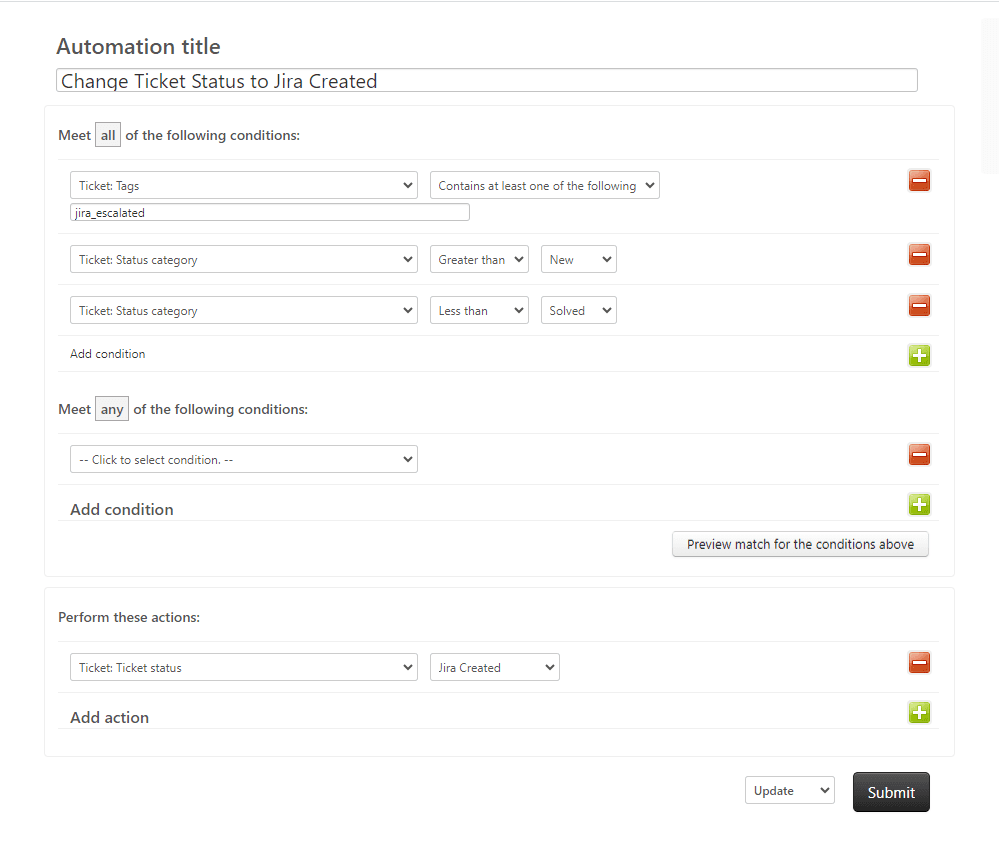
Understanding triggers vs automations
Zendesk has two types of business rules, and knowing the difference is crucial for this workflow.
Triggers are event-based. They fire instantly when something happens: a ticket is created, a status changes, or a tag is added. Think of triggers as reactive. They're perfect for immediate actions like routing new tickets or sending confirmation emails.
Automations are time-based. They run once per hour and check for conditions that have been true for a specific amount of time. Think of automations as patient. They're designed for follow-ups, escalations, and anything involving "wait X hours then do Y."
For pending ticket reminders, you need automations because you're waiting for time to pass. A trigger can't help you here. It doesn't know that 24 hours have elapsed since a ticket went pending. For more details on how time-based conditions work, see our guide on Zendesk automation conditions for acting after hours since status change.
Here's a quick comparison:
| Feature | Triggers | Automations |
|---|---|---|
| When they run | Instantly | Once per hour |
| Best for | Immediate actions | Time-based follow-ups |
| Can use time conditions? | No | Yes (hours since status) |
| Example use case | Route new tickets | Send pending reminders |
The key thing to remember: triggers handle the "when this happens," automations handle the "after this much time." For the bump-bump-solve workflow, you'll use both. Automations send the reminders. Triggers reset the system when customers reply.
Step 1: Create the first reminder automation (24 hours)
Let's build the first automation that sends a gentle reminder after 24 hours of pending status.
Navigate to the right place. Go to Admin Center, then Objects and rules, then Business rules, then Automations. Click the "Add automation" button in the top right.
Name your automation. Use something descriptive like "Send pending reminder after 24 hours." Future you (and your teammates) will thank you for clear naming.
Set up the conditions. These define which tickets get the reminder:
- Status Is Pending - Only run on tickets waiting for customer reply
- Hours since pending Greater than 24 - The core timing condition
- Tags contains none of pending_reminder_1 - Critical: prevents duplicate sends
That third condition is the secret sauce. Without it, Zendesk would send a reminder every hour until the customer replies. The tag acts as a flag saying "reminder already sent."
Configure the actions:
These actions define what happens when conditions are met:
-
Email user (requester) - Send your reminder email. Here's a template that works well:
Hi there,
We haven't heard back from you regarding ticket #{{ticket.id}}: {{ticket.title}}.
If you're still experiencing this issue, simply reply to this email and we'll continue helping you. If we don't hear back within 48 hours, we'll assume the issue is resolved and close this ticket.
Thanks, The Support Team
-
Add tag pending_reminder_1 - This marks the ticket as "reminder sent" so the automation won't fire again.
Save and activate. Click "Create automation" and make sure it's set to Active.
Step 2: Create the solve automation (72 hours)
Now for the final step in the sequence: automatically solving tickets that have been pending for 72 hours with no response.
Create a second automation. Go back to Admin Center, then Objects and rules, then Business rules, then Automations, and click "Add automation" again.
Name it clearly. Try "Solve pending ticket after 72 hours."
Set the conditions:
- Status Is Pending - Still waiting for customer reply
- Hours since pending Greater than 72 - Three days have passed
- Tags contains pending_reminder_1 - The first reminder was already sent
Notice how we're using the tag from step 1? This ensures we only solve tickets that went through the full workflow. If a ticket somehow skips the first reminder (maybe it was created already pending), it won't get auto-solved.
Configure the actions:
-
Email user (requester) - Send a final notice:
Hi there,
Since we haven't heard back from you in 72 hours, we're closing ticket #{{ticket.id}}: {{ticket.title}}.
If you still need help, just reply to this email and the ticket will reopen automatically. We're here whenever you need us.
Best regards, The Support Team
-
Set status to Solved - This closes the ticket from your active queue
Why 72 hours works well. It's long enough to feel fair to customers (three business days), but short enough to keep your queue clean. Some teams use 48 hours for faster-paced support, others use 96 or 120 for enterprise contexts. The key is consistency and clear communication.
Step 3: Create the reset trigger
There's one problem we haven't solved yet. What happens when a customer replies after receiving the first reminder? The ticket becomes open again, you respond, and it goes back to pending. But the pending_reminder_1 tag is still there.
Without a reset mechanism, that ticket will never get another reminder if the customer goes silent again. We need a trigger to remove the tag when the customer re-engages.
Navigate to Triggers. Go to Admin Center, then Objects and rules, then Business rules, then Triggers. Click "Add trigger."
Name it: "Reset pending reminder tags on reply"
Set the conditions:
- Status Changed to Open - The ticket just became open (someone replied)
- Current user Is (end-user) - The reply came from the customer, not an agent
Configure the action:
- Remove tag pending_reminder_1 - Clears the reminder flag
Why this matters. Imagine a customer replies to your first reminder, you send a follow-up solution, and they go silent again. With this trigger, the tag gets removed when they reply. If they don't respond to your second solution, the 24-hour automation will fire again because the tag is gone. The workflow resets naturally.
Best practices and pro tips
After setting up hundreds of these workflows, here are the lessons learned the hard way:
Use "Greater than" not "Is" for time conditions. Zendesk automations run hourly, but not at predictable intervals. If you set "Hours since pending Is 24," you might miss tickets because the automation checked at 23.9 hours. "Greater than 24" catches everything that's passed the threshold. Learn more in our guide on Zendesk automation conditions for time-based workflows.
Create a "do not disturb" tag. Some tickets shouldn't get automated reminders: VIP customers, sensitive issues, or cases where you're waiting on a third party. Create a tag like no_auto_reminders and add "Tags contains none of no_auto_reminders" as a condition to both automations. Train your team to apply this tag when needed.
Test on a small batch first. Before going live, add an extra condition like "Ticket ID is 12345" (use a real test ticket ID) to limit the automation to just that ticket. Watch it work. Then remove the restriction.
Monitor automation runs. Zendesk tracks how many tickets each automation processes. Go to Admin Center, then Objects and rules, then Business rules, then Automations, and look at the "Last 24 hours" column. If you see 0 runs when you expect activity, something's wrong.
Consider business hours vs calendar hours. By default, Zendesk counts calendar hours (including nights and weekends). If you have business hours configured, you can switch to those instead. This is especially useful for B2B support where customers don't expect weekend responses.
Troubleshooting common issues
Even with careful setup, things sometimes don't work as expected. Here's how to diagnose and fix the most common problems:
Automation not firing at all. Check the hourly limit. Zendesk processes a maximum of 1,000 tickets per hour across all automations according to their automation documentation. If you have a large backlog, some tickets might get skipped. The automation will catch them next hour, but if you're consistently hitting limits, you may need to optimize other automations or contact Zendesk about your plan.
Duplicate reminders going out. This is almost always a tag issue. Check that the "Add tag" action is actually firing (check the ticket events), the tag name matches exactly between the automation and the trigger (case-sensitive), and the "Tags contains none of" condition is using the right operator.
Timing seems off. Remember that automations don't run at the top of the hour. They run on a cycle that checks all active automations. A ticket that hits 24 hours at 2:15 PM might not get processed until 2:47 PM. This is normal. Automations run approximately once per hour according to Zendesk's documentation.
Automation doesn't run on some tickets. Automations cannot modify closed tickets. If a ticket gets closed (not solved, but closed) before the automation runs, it's too late. Also check that the ticket isn't in an on-hold status, which some teams use between pending and solved.
Enhancing with eesel AI
Zendesk automations are powerful, but they're fundamentally rule-based. They don't understand context. They can't tell the difference between "Thanks, that worked!" and "I'm still confused." Both look like customer replies that reset the timer.
That's where eesel AI comes in. We integrate directly with Zendesk to add intelligence to your workflow.

Context-aware follow-ups. Instead of sending the same reminder template to everyone, our AI Agent reads the ticket history and crafts personalized follow-ups. A customer asking about a complex integration gets a different tone than someone who just needed a password reset.
Intent recognition. Our AI can understand when a customer's "thanks" actually means the issue is resolved. Instead of resetting the reminder clock, we can automatically close the ticket and save everyone time.
Smart escalation. Define escalation rules in plain English: "Always escalate billing disputes over $500 to the finance team" or "VIP customers should never get automated reminders." No complex trigger logic required.
Test before going live. Our simulation mode lets you run the AI on thousands of past tickets to see exactly how it would have performed. Measure resolution rates. Identify edge cases. Gain confidence before touching real customers. You can try eesel AI free and see how it works with your existing tickets.
Pricing that scales. Our Team plan starts at $299 per month with up to 3 bots and 1,000 interactions. For larger teams, the Business plan at $799 per month includes unlimited bots and 3,000 interactions. See full pricing details. If you'd like a personalized walkthrough, book a demo with our team.
The best part? You don't have to choose. eesel AI works alongside your Zendesk automations. Keep the basic bump-bump-solve for simple cases. Let AI handle the complex ones. It's the best of both worlds.
Want to see how AI can transform your support workflow? Check out our guide to AI-powered customer support automation for more strategies.
Start automating your pending ticket reminders today
You now have everything you need to set up the bump-bump-solve workflow in Zendesk. Three automations. One trigger. A few best practices. That's all it takes to reclaim hours of agent time and give customers clearer communication.
The setup takes about 30 minutes. The savings are immediate. Your agents will spend less time on manual follow-ups. Your customers will know exactly what to expect. And your ticket queue will stay focused on active issues that actually need attention.
If you're ready to take it further, consider how AI-powered support automation could enhance your workflow. Context-aware responses. Intent-based routing. Natural language rules. The future of support isn't just automated. It's intelligent.
Ready to see what that looks like? Try eesel AI free and run a simulation on your past tickets. See exactly how much you could automate before making any changes to your live workflow.