
Service level agreements are the backbone of any serious support operation. They set clear expectations with customers and give your team measurable targets. But when a ticket is about to breach its SLA, you need the right people to know about it fast.
Here's the problem: Zendesk cannot natively trigger automations before an SLA breach. You can get notified after a breach happens, but by then it's too late to intervene. This limitation has frustrated support managers for years, with hundreds of upvotes on the official feature request.

The good news? There are workarounds. Some use native Zendesk features. Others bring in third-party tools. This guide walks through each approach so you can choose what works best for your team.
Understanding Zendesk's SLA automation notify manager on breach limitations
Here is what Zendesk can and can't do with SLA-based automations.
Zendesk offers two types of business rules: triggers and automations. Triggers fire immediately when a ticket is created or updated. Automations run hourly and can act on time-based conditions. But neither can directly trigger based on specific SLA target breaches.
The confusion often stems from a condition called "Hours since last SLA breach." This sounds promising, but it only tells you how much time has passed after an SLA's already breached. It can't tell you "this ticket will breach in 30 minutes."
Why does this matter? Because reactive notifications (after a breach) don't give your team time to intervene. Proactive escalations (before a breach) let you reassign, notify, or take action while there's still time to meet the commitment.
At eesel AI, we take a different approach. Rather than wrestling with time-based automation triggers, our AI teammate learns your escalation rules in plain English. You simply tell it things like "escalate tickets from Enterprise customers if they haven't been replied to in 2 hours" and it handles the rest. No complex workflows needed.

What you'll need to get started
Before setting up any escalation workflow, make sure you have the following:
Zendesk plan requirements
- Zendesk Suite Professional ($115/agent/month) or higher for SLA policies
- Zendesk Suite Enterprise (custom pricing, Talk to Sales) for Group SLAs
- Support Team plan ($19/agent/month) has automations and triggers but no SLA features
Permissions and knowledge
- Admin access to Zendesk (only admins can create business rules)
- Understanding of the difference between triggers and automations
- Familiarity with your team's escalation matrix (who should be notified when)
Optional integrations
- Slack workspace (for notification channels)
- PagerDuty account (for on-call escalation)
- n8n account (for advanced workflows, from $20/month)
Test everything in a sandbox environment first. Zendesk offers sandbox environments on Enterprise plans, or you can create a test view to monitor automation effects before rolling out to your main queue.
Step-by-step: Set up Zendesk automation notify manager on breach
This is the most reliable native workaround. Instead of triggering on "SLA about to breach," we use a combination of automations and triggers to move tickets into an escalation group when time conditions are met.
Step 1: Create your SLA policies
First, set up the SLA policies you want to enforce.
Navigate to Admin Center → Objects and rules → Service level agreements. Click "Create policy" and define your targets.
Key decisions you'll need to make:
- Which metrics to track (First Reply Time, Next Reply Time, or Resolution Time)
- Target times for each priority level (Urgent, High, Normal, Low)
- Business hours vs Calendar hours
Business hours only count during your set schedule. Calendar hours count 24/7. Most teams use business hours for First Reply Time and calendar hours for Resolution Time, but this depends on your customer commitments.
Once your SLA policies are active, Zendesk starts tracking targets on matching tickets. You can see SLA badges in ticket views and individual ticket pages.
Step 2: Create an escalation group
Next, create a dedicated group for escalated tickets.
Go to Admin Center → People → Groups and click "Add group." Name it something clear like "SLA Breach Escalations" or "Management Alerts." Assign managers and team leads who should receive notifications.
The group doesn't need many members. Its purpose is to flag tickets visually and enable trigger-based notifications. You can have as few as one agent in this group if that person manages all escalations.
Step 3: Build the automation
Now create the automation that moves tickets into your escalation group.
Navigate to Admin Center → Objects and rules → Automations. Click "Add automation."
Conditions to set:
- "Hours since requester update" is greater than X (set this based on your risk threshold)
- Status is Open (don't escalate Pending or On-hold tickets)
- Ticket is not in "SLA Breach Escalations" group (prevents re-running)
Actions to take:
- Add tag "sla_breach_risk" (for tracking)
- Change group to "SLA Breach Escalations"
This automation runs every hour. When it finds tickets matching your conditions, it moves them to the escalation group. The limitation? You're using "hours since update" as a proxy for "approaching SLA breach," which isn't exact. But it's the closest you can get with native Zendesk tools.
Step 4: Create the notification trigger
Finally, set up a trigger to notify people when tickets enter the escalation group.
Go to Admin Center → Objects and rules → Triggers. Click "Add trigger."
Conditions:
- Group changed to "SLA Breach Escalations"
- Tags contains "sla_breach_risk"
Actions:
- Email group "SLA Breach Escalations" (notifies assigned managers)
- Optionally: Notify target (Slack webhook or PagerDuty)
- Add internal note: "This ticket has been escalated due to approaching SLA breach"
Test this workflow thoroughly. Create a test ticket, let it sit, and verify the automation moves it and the trigger sends notifications. Adjust the "hours since update" threshold until it catches tickets at the right moment.
Step 5: Test your workflow
Before going live, test everything:
- Create a test ticket and apply your SLA policy
- Wait for the automation to run (hourly) or force a test run
- Verify notifications are received by the escalation group
- Check that internal notes are added correctly
- Adjust thresholds based on results
Alternative approaches for Zendesk automation notify manager on breach
Several third-party tools can fill Zendesk's SLA escalation gaps. Here's how they compare:
| Solution | Approach | Pricing | Best for |
|---|---|---|---|
| SweetHawk Timers | Native Zendesk app | $2/agent/month | Teams wanting native Zendesk functionality |
| n8n workflows | API-based automation | $20-50/month | Technical teams needing custom logic |
| PagerDuty | On-call escalation | $21-41/user/month | Teams with on-call rotations |
Using SweetHawk Timers for proactive SLA monitoring
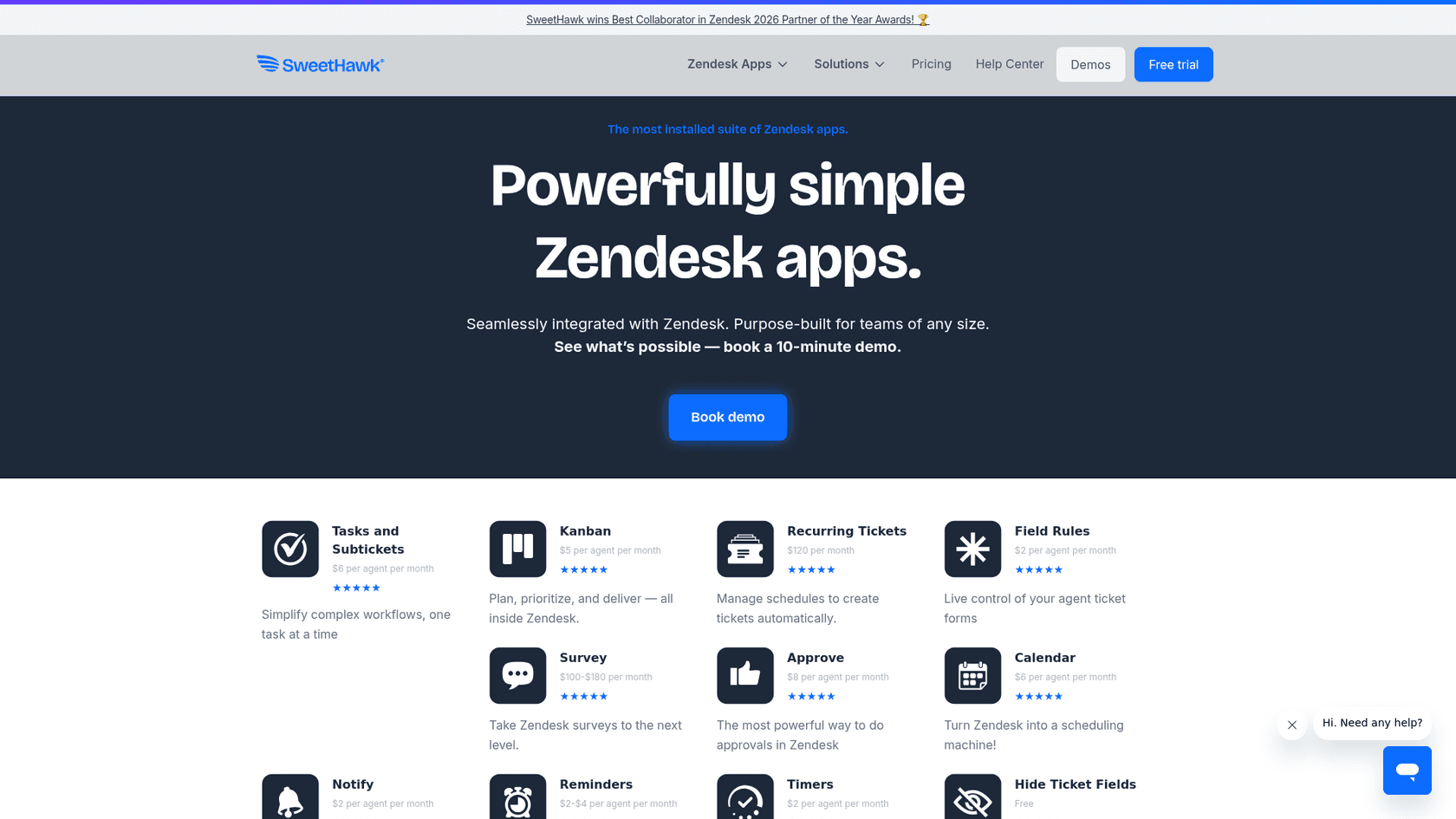
SweetHawk makes the most popular Zendesk apps for workflow automation. Their Timers app ($2/agent/month) adds enhanced SLA enforcement directly inside Zendesk.
Unlike native Zendesk, SweetHawk apps can create more sophisticated time-based rules. They're built exclusively for Zendesk, so setup takes minutes and the interface feels native. SweetHawk is trusted by 12,000+ organizations including Amazon, eBay, and Twilio.
The Timers app specifically addresses the proactive notification gap. It can alert you before an SLA breaches rather than after, track time in business hours or calendar time, and handle multiple timezones and schedules.
Using PagerDuty for on-call escalation
If your escalation process involves waking up on-call engineers, PagerDuty integrates directly with Zendesk. When tickets breach SLA or meet certain conditions, PagerDuty can page the on-call team via phone, SMS, or push notification.
PagerDuty plans start at $21/user/month for the Professional tier (annual billing), which includes Slack and Microsoft Teams integration, external status pages, and basic automation. The Business tier ($41/user/month) adds custom fields, advanced workflows, and ServiceNow integration.
Using n8n for precise SLA monitoring
For teams needing more precise control, n8n offers a powerful alternative. n8n is a workflow automation platform that can poll the Zendesk API hourly, calculate exact SLA percentages, and trigger notifications at precise thresholds.
The workflow runs every hour. It fetches all open tickets from Zendesk via the API, including their SLA timestamps. For each ticket, it calculates the percentage of SLA time elapsed. At 75% elapsed, it sends a warning. At 90% elapsed, it updates the ticket priority and alerts the team.
n8n's hosted plans start at $20/month for 2,500 executions. Each execution counts as one full workflow run, regardless of how many tickets it processes. For most support teams, this means you can monitor hundreds of tickets hourly on the Starter plan.
The main advantage over native Zendesk workarounds? Precision. You get notified at exactly 75% and 90% of SLA elapsed, not "sometime after X hours." The trade-off is complexity. You need to set up and maintain the workflow, manage API credentials, and monitor the n8n instance.
Best practices for SLA escalation workflows
Regardless of which method you choose, follow these practices to keep your escalations effective:
Set realistic SLA targets before automating. If your team consistently misses SLAs, escalating more aggressively won't help. Fix the root cause first.
Use SLA-based views for manual monitoring. Create views sorted by "Next SLA breach" ascending. Agents can see at-risk tickets at a glance, even without automation.
Test in sandbox first. Zendesk Enterprise includes sandbox environments. Test your automation logic there before affecting real tickets.
Document your escalation matrix. Write down who gets notified when, and for which ticket types. This prevents confusion and ensures coverage during vacations or turnover.
Monitor escalation rates. If 50% of tickets are escalating, your thresholds are too aggressive. If none are escalating, your SLAs might be too lenient. Aim for a small, actionable percentage.
Keep customers informed. Automated escalations shouldn't be invisible. Use triggers to send updates like "Your ticket has been escalated to our senior team for faster resolution."
Review and adjust quarterly. SLA needs change as your team and product evolve. Schedule quarterly reviews of your policies and automation rules.
Simplify escalations with eesel AI
Zendesk's native limitations around SLA-based automations are well-known. The workarounds we've covered (group-based workflows, n8n integrations, and third-party apps) each solve part of the problem, but they all require trade-offs between simplicity and precision.
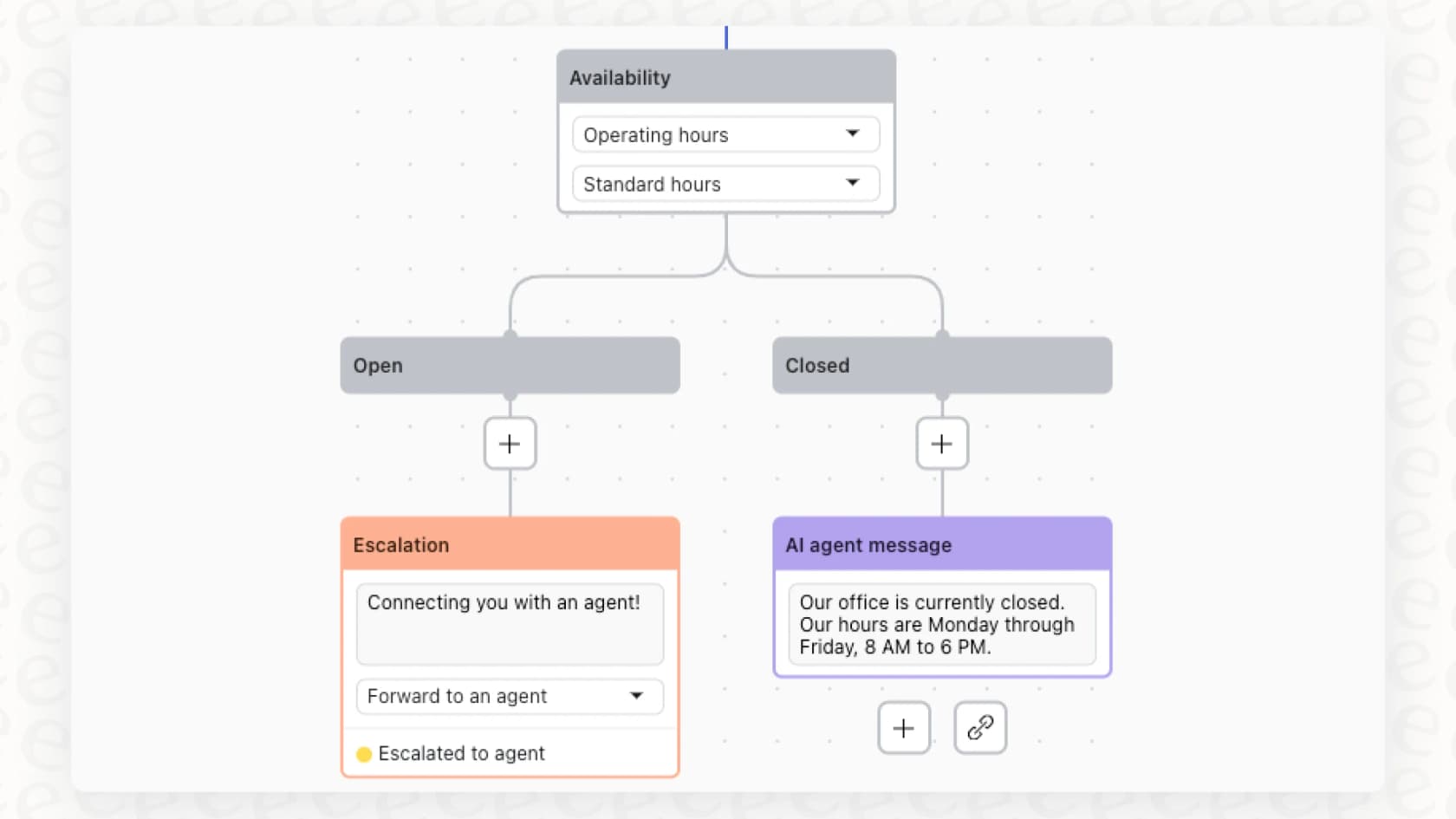
We believe escalation management should be simpler. Instead of configuring complex workflows, you should be able to define escalation rules the same way you'd explain them to a new team member: in plain English.
With eesel AI and our Zendesk integration, you can:
- Define escalation rules naturally: "Always escalate tickets from Enterprise customers after 2 hours"
- Simulate on past tickets before going live to verify the rules work
- Start with AI drafting responses for review, then level up to full autonomous handling
- Handle routine tickets end-to-end, escalating only what truly needs human attention
Our approach isn't about adding another layer of automation. It's about bringing intelligence to your escalation process. Our AI learns your business from your past tickets, macros, and help center. It understands context, not just timestamps.
If you're tired of wrestling with Zendesk workarounds and want to see how AI can handle escalations more intelligently, try eesel AI or book a demo to see it in action on your actual ticket history. Check out our guide on AI for customer service for more on intelligent ticket management.