
Tickets sitting in "pending" status are a silent productivity killer. Your agents have done their part, asked the right questions, and now they're waiting. Days pass. The ticket stays open. And eventually someone has to manually follow up or close it out.
There's a better way. With Zendesk automations, you can set up a workflow that automatically reminds customers when they haven't replied, then closes the ticket if they still don't respond. Support teams call this the "bump-bump-solve" method, and it's one of the most effective ways to keep your queue clean without constant manual work.
This guide walks you through building this workflow step by step. You'll learn how to create automations that send follow-up notifications, prevent duplicate reminders, and automatically solve tickets when customers go silent. We'll also look at how eesel AI can add a layer of intelligence to this process if you want context-aware follow-ups instead of static templates.

What you'll need
Before you start building, make sure you've got:
- A Zendesk Team plan or higher. Automations are available on Team, Growth, Professional, and Enterprise plans. The Support Essential plan does not include automations.
- Administrator access to your Zendesk account. You'll need to access the Admin Center to create business rules.
- A clear idea of your follow-up timing. Most teams start with 24 hours for the first reminder and 72 hours for the final close, but you can adjust this based on your SLAs and customer expectations.
Understanding triggers vs. automations in Zendesk
Zendesk gives you two types of business rules: triggers and automations. They sound similar, but they work differently.
Triggers are event-based. They fire the moment something happens, like when a ticket is created, updated, or assigned. If you need an immediate action, triggers are your tool.
Automations are time-based. They run once every hour and check if tickets meet specific time-based conditions. This is exactly what you need for pending ticket follow-ups because you want to wait a specific amount of time (24 hours, 72 hours) before taking action.
Here's why automations are the right choice for this workflow:
- They can check "hours since pending" conditions
- They run on a schedule, so you don't need to manually monitor tickets
- They can perform multiple actions (send email, add tag, change status) in sequence
A few limitations to keep in mind:
- Automations run hourly, not in real-time. A ticket that hits 24 hours pending at 10:15 AM might not get processed until the automation runs at 11:00 AM.
- Each automation can process a maximum of 1,000 tickets per hour. If you have a large backlog, it might take multiple hours to work through all tickets.
- Automations must be smaller than 65kb. This is rarely an issue unless you're building extremely complex conditions.
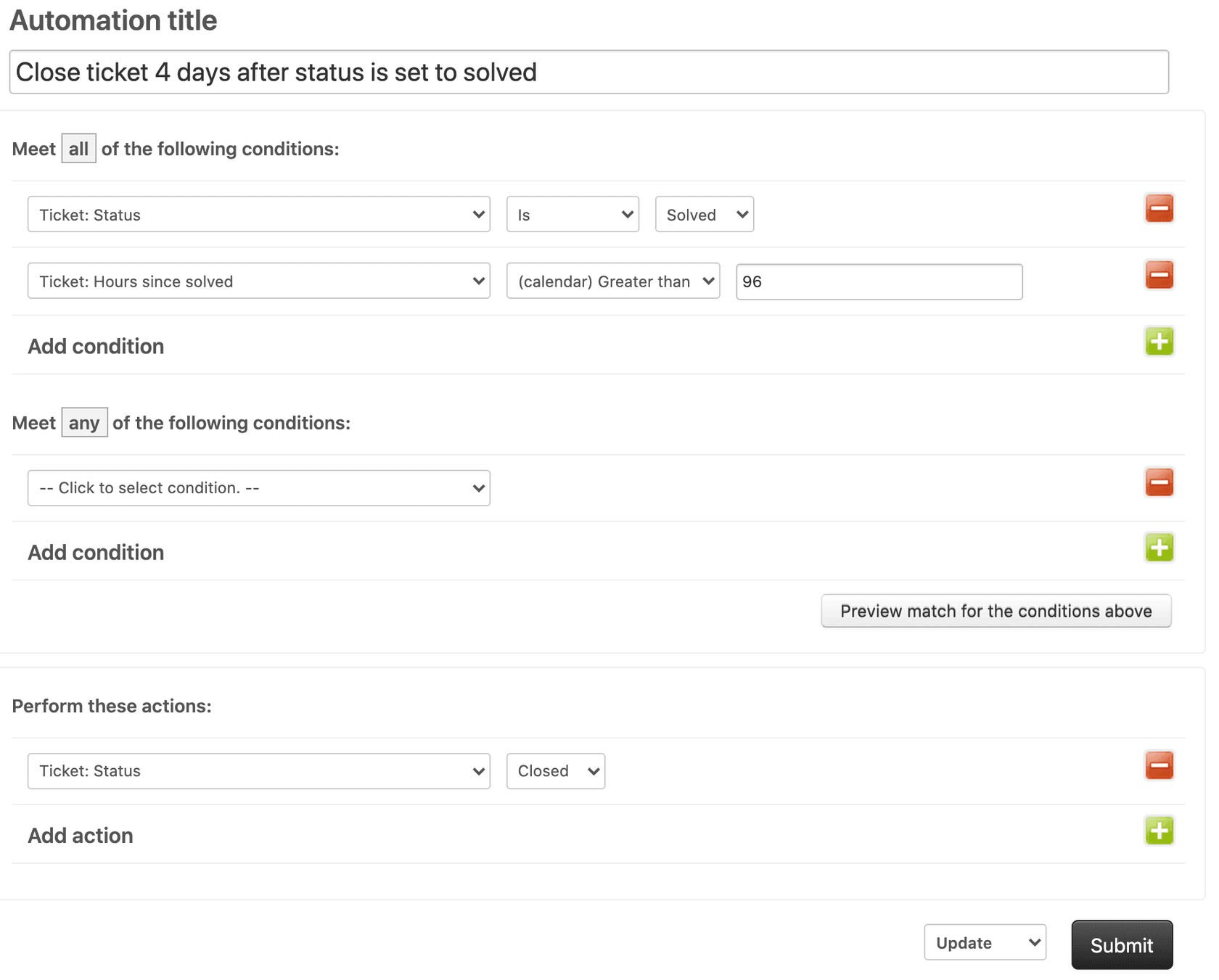
Step 1: Create the first reminder automation
Let's build the automation that sends your first follow-up reminder after 24 hours.
Navigate to the automations section:
- Go to Admin Center in Zendesk
- Click Objects and rules in the sidebar
- Select Business rules > Automations
- Click Add automation
Name your automation:
Use something descriptive like "Send pending reminder after 24 hours." You'll thank yourself later when you've got multiple automations and need to remember what each one does.
Set the conditions (Meet ALL):
| Condition | Operator | Value |
|---|---|---|
| Ticket: Status | Is | Pending |
| Ticket: Hours since pending | Greater than | 24 |
| Ticket: Tags | Contains none of the following | pending_reminder_1 |
The "Greater than" operator is important here. Zendesk automations don't run at the exact same minute every hour, so using "Is" might miss tickets that cross the threshold between automation runs.
The tag condition is critical. By checking that the ticket does NOT have the "pending_reminder_1" tag, you ensure this automation only runs once per ticket. Without this, your customer would get a reminder every hour.
Set the actions:
| Action | Value |
|---|---|
| Notifications: Email user | (requester) |
| Ticket: Add tags | pending_reminder_1 |
For the email notification, use a friendly but clear message:
Subject: Re: {{ticket.title}} - Just checking in
Hi there,
I wanted to quickly check in to see if you had a chance to look at our last message. We're waiting on your reply to move forward.
If you have any questions or need clarification on anything, just reply to this email and we'll be happy to help.
Thanks!
The {{ticket.title}} placeholder pulls in the ticket subject line, so the customer knows exactly which conversation this is about.
Click Create automation to save.
Step 2: Create the final reminder automation
Now let's create the automation that sends a final reminder and closes the ticket if there's still no response.
Create a new automation with these settings:
Name: "Solve pending ticket after 72 hours"
Conditions (Meet ALL):
| Condition | Operator | Value |
|---|---|---|
| Ticket: Status | Is | Pending |
| Ticket: Hours since pending | Greater than | 72 |
| Ticket: Tags | Contains at least one of the following | pending_reminder_1 |
Notice this automation checks that the ticket DOES have the "pending_reminder_1" tag. This ensures it only runs on tickets that have already received the first reminder.
Actions:
| Action | Value |
|---|---|
| Notifications: Email user | (requester) |
| Ticket: Status | Solved |
For the final email, be clear that the ticket is closing but easy to reopen:
Subject: Re: {{ticket.title}} - Closing this for now
Hi,
Since we haven't heard back, we're going to mark this ticket as solved for now. This helps us keep our support queue organized.
If you still need help, just reply to this email and we'll reopen your ticket right away. No need to create a new request.
Thanks for reaching out to us!
Click Create automation to save.
Step 3: Add a trigger to reset the workflow
There's one problem with our current setup: if a customer replies after receiving the first reminder, the ticket will still have the "pending_reminder_1" tag. If you set the ticket to pending again later, the automation won't send a reminder because the tag is already there.
We need a trigger to remove the tag when customers reply.
Navigate to triggers:
- Go to Admin Center > Objects and rules > Business rules > Triggers
- Click Add trigger
Name: "Reset pending reminder tags on reply"
Conditions (Meet ALL):
| Condition | Operator | Value |
|---|---|---|
| Ticket: Status | Changed to | Open |
| Ticket: Current user | Is | (end-user) |
The "Changed to" condition ensures this only fires when the status actually changes, not every time the ticket is updated.
Actions:
| Action | Value |
|---|---|
| Ticket: Remove tags | pending_reminder_1 |
Click Create trigger to save.
Now when a customer replies, the tag is removed. If you later set the ticket to pending again, the automation workflow starts fresh.
The bump-bump-solve workflow explained
Support teams have a name for what we just built: "bump-bump-solve." It's a simple pattern that gives customers multiple chances to respond before you close their ticket.
Here's how the timing typically works:
- First bump: Reminder sent after 24 hours of pending status
- Second bump: Final notice and ticket closure after 72 hours total
- Solve: Ticket automatically marked as solved
Why 24 and 72 hours? These intervals give customers a reasonable window to respond without letting tickets sit indefinitely. But you should adjust these based on your specific needs:
- B2B support: Might use 48/96 hours since business customers often need more time to gather information
- E-commerce: Might use 12/48 hours for faster-moving retail support
- Enterprise: Might extend to 72/168 hours for complex technical issues
The key is consistency. Once you set your intervals, stick to them so customers know what to expect.
Pro tips and best practices
After setting up hundreds of these workflows, here are the lessons learned:
Use "Greater than" for time conditions. Zendesk automations run hourly, but not at the exact same minute. If you use "Is 24 hours," you might miss tickets that hit 24 hours between automation runs. "Greater than 24" catches everything.
Create a "do_not_auto_remind" tag. Some tickets need personal handling. Add a condition to your automations that excludes tickets with this tag. Agents can apply it to sensitive or high-touch cases.
Test before you deploy. Create a test ticket, set it to pending, and wait. Or temporarily change your conditions to "Greater than 0" hours to see the automation fire immediately (just remember to change it back).
Build a view for auto-solved tickets. Create a view that shows tickets solved by your automation (filter by the "pending_reminder_1" tag and Solved status). Check it weekly to make sure you're not closing tickets that should have stayed open.
Consider business hours vs. calendar hours. Zendesk offers both options. Calendar hours count all time. Business hours only count your operating hours. If you promise 24-hour response times, business hours might be more accurate.
Public comments vs. private notes. The email notification action sends a public comment that the customer sees. If you want to add internal notes without notifying the customer, use a different action or add a private comment via the ticket interface.
For more automation ideas, check out our guide on Zendesk automations to send reminders after pending 24 hours.
Troubleshooting common issues
Even simple automations can have hiccups. Here's how to fix the most common problems:
Automation not firing at all:
Check that your conditions nullify each other. Every automation needs either a "true only once" condition (like "Hours since created is 4") OR an action that cancels a condition (like adding a tag that the automation checks for). Without this, Zendesk won't let you save the automation, or it will fire endlessly.
Customers getting multiple reminders:
Your tag system isn't working. Check that:
- The automation adds the tag "pending_reminder_1"
- The automation checks "Contains none of the following" for that tag
- The reset trigger is removing the tag when customers reply
Tickets not solving automatically:
Verify your "Hours since pending" condition. Remember that Zendesk counts from when the status changed to pending, not from the last comment. If an agent adds a private note while the ticket is pending, that doesn't reset the clock.
Automation stopped working suddenly:
Check if you hit the 65kb size limit. This is rare but can happen with complex conditions. Also verify you haven't reached the 500 active automations limit.
Conflicts with other automations:
Zendesk requires all active automations to be unique. If two automations have identical conditions, only one will run. Check your automation list for duplicates.
An alternative: AI-powered follow-ups with eesel AI
Zendesk automations work well for straightforward reminders. But what if you want follow-ups that actually reference the conversation? That's where AI comes in.
eesel AI integrates directly with Zendesk and can draft context-aware follow-up messages. Instead of sending the same template to everyone, the AI reads the ticket history and writes a personalized reminder that references the specific issue.

Here's how it compares:
| Feature | Zendesk Automations | eesel AI |
|---|---|---|
| Setup time | 30 minutes | 10 minutes (connects and learns automatically) |
| Message content | Static templates | Dynamic, context-specific |
| Personalization | None (placeholders only) | References ticket history |
| Testing | Live only | Simulation mode on historical tickets |
| Escalation | Rule-based | AI understands when to hand off |
The hybrid approach works well for many teams: use Zendesk automations for simple cases, and let eesel AI handle complex tickets that need more nuanced follow-ups.
If you're curious about AI for support, you can try eesel AI free for 7 days and see how it performs on your historical tickets before turning it on for customers.
Start automating your pending ticket follow-ups today
You now have a complete workflow that automatically reminds customers when they haven't replied, then closes tickets that go silent. This simple setup can save hours of manual work each week and keep your support queue focused on active conversations.
To recap what we built:
- An automation that sends a friendly reminder after 24 hours of pending status
- A second automation that sends a final notice and solves the ticket after 72 hours
- A trigger that resets the workflow when customers reply
Start with these default timings, then adjust based on your results. Check your auto-solved tickets weekly at first to make sure you're not closing anything prematurely. Once you're confident, you can extend the intervals or add more sophisticated conditions.
If you want to explore AI-powered follow-ups that reference conversation history and adapt to context, try eesel AI alongside your Zendesk setup. The simulation mode lets you test responses on past tickets before going live.