A practical guide to the Freshdesk multilingual kb in 2026

Kenneth Pangan

Stanley Nicholas
Last edited January 16, 2026
Expanding to a global audience is exciting, but it highlights the importance of bridging language barriers. When a customer needs help, they appreciate having resources available in their native tongue. A multilingual knowledge base is an excellent solution for this, letting customers help themselves in the language they are most comfortable with.
This guide will give you a practical look at the native Freshdesk multilingual KB feature. We'll walk through how it works, explore how to manage it effectively as you scale, and look at how modern AI-powered tools can complement your global support strategy.
What is a Freshdesk multilingual KB?
At its core, the Freshdesk multilingual KB is a mature feature that lets you store help articles in different languages inside your Freshdesk portal. It provides a seamless experience for customers, who can simply toggle to their preferred language and find what they need.
Freshdesk uses a couple of key terms to explain how this works:
-
Primary Language: This is your helpdesk's default language. It serves as the master version of your knowledge base articles. Every new article is typically created in this language first to maintain a source of truth.
-
Supported Languages: These are the additional languages you choose to offer. Freshdesk makes it easy to add supported languages and create corresponding translated versions of your articles.
The system is organized in a clear, three-level structure: Categories contain Folders, and Folders contain your Articles. Every translated article is linked directly to its primary language version, keeping your documentation neatly organized.
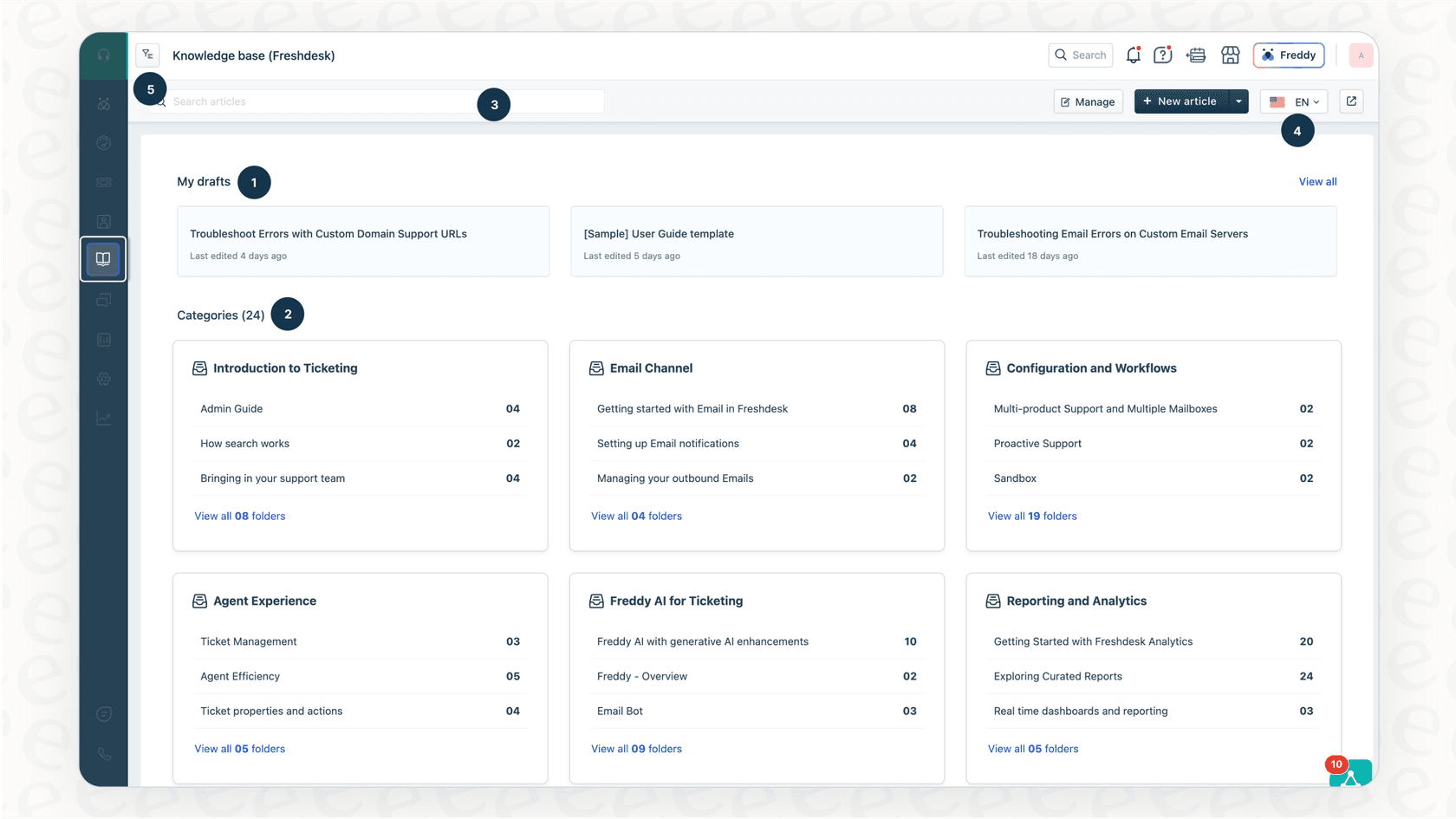
How to set up and manage your Freshdesk multilingual KB
Setting up your Freshdesk portal for multiple languages is a straightforward process. Let’s look at the standard workflow for managing content across different regions.
Enabling multiple languages
First, you'll need to enable the feature. You can find this by navigating to Admin > Account > Helpdesk Settings > Manage Languages. This is where you'll set your primary language and add any other languages you want to support. After you hit save, a convenient language switcher will appear on your customer portal.
The content management and translation workflow
Freshdesk provides a structured workflow to ensure your translations stay accurate. This manual process allows for high levels of quality control.
If you update an important article in English, your primary language, you can ensure your global support remains consistent by updating the other versions. You’d start by editing the English article and selecting the option to "Mark other translations as outdated." This helps your team identify which articles need attention.
The workflow typically looks like this:
-
An agent updates the primary English article and flags the other translations for review.
-
The French, Spanish, and German articles are flagged in the agent portal, signaling they need an update.
-
A team member fluent in the specific language reviews and updates the article to match the primary version.
-
Once the update is complete, they mark the article as "up-to-date."
This process ensures that every translation is vetted by a human, maintaining a high standard of accuracy for your customers.
Controlling article visibility
Freshdesk offers robust control over who sees which articles. You can set the visibility for entire folders, making them available to all visitors, logged-in users, or specific customer segments.
If you have region-specific content, such as a policy that only applies to the EU, you can create a dedicated folder structure for that region. This allows you to tailor the experience for different audiences while keeping your portal organized.
Considerations for the native Freshdesk multilingual KB
While the built-in Freshdesk multilingual KB is a powerful tool, it’s helpful to be aware of how the manual management process evolves as your company grows.
Managing updates at scale
As your knowledge base expands to hundreds or thousands of articles, the manual update process requires dedicated coordination. Keeping all languages in sync is a thorough task that ensures your global customers receive the same high-quality information as those using your primary language.
Maintaining consistency
With manual processes, teams must be diligent to ensure no article is overlooked during an update cycle. Maintaining a rigorous review schedule helps prevent conflicting information and ensures that your self-service resources remain a trusted source for your global audience.
Planning for growth
Expanding into new markets is an exciting milestone. When using the native KB, you’ll want to plan for the resources needed to translate your existing library. This investment ensures that your new customers have a localized experience from day one.
Expanding knowledge reach
The Freshdesk multilingual KB is an excellent repository for curated help articles. For teams that also want to leverage information from other sources, such as internal wikis in Confluence or specs in Google Docs, adding a complementary AI layer can help bridge any knowledge gaps.
A modern approach to global support
Many forward-thinking teams are looking at ways to complement their existing Freshdesk setup with AI to deliver even faster answers across multiple languages.
Enhancing your KB with AI-powered answers
Imagine maintaining your core knowledge base in one language while still serving a global audience. AI tools can act as a powerful extension to your Freshdesk portal.
Tools like eesel AI connect to your existing knowledge sources. When a customer asks a question, the AI can reference your primary English articles to provide an accurate, natural-sounding answer in the customer's language. This works alongside your Freshdesk KB to provide an additional layer of support.
Unifying knowledge for comprehensive support
The Freshdesk multilingual KB is a fantastic tool for customer-facing articles. To provide even more comprehensive answers, eesel AI can bring together knowledge from across all your team’s tools.
It can connect to your Freshdesk account to learn from past ticket resolutions, or plug into Notion, Confluence, and Slack. This creates an intelligent hub that complements your helpdesk, using the full context of your business to assist customers.
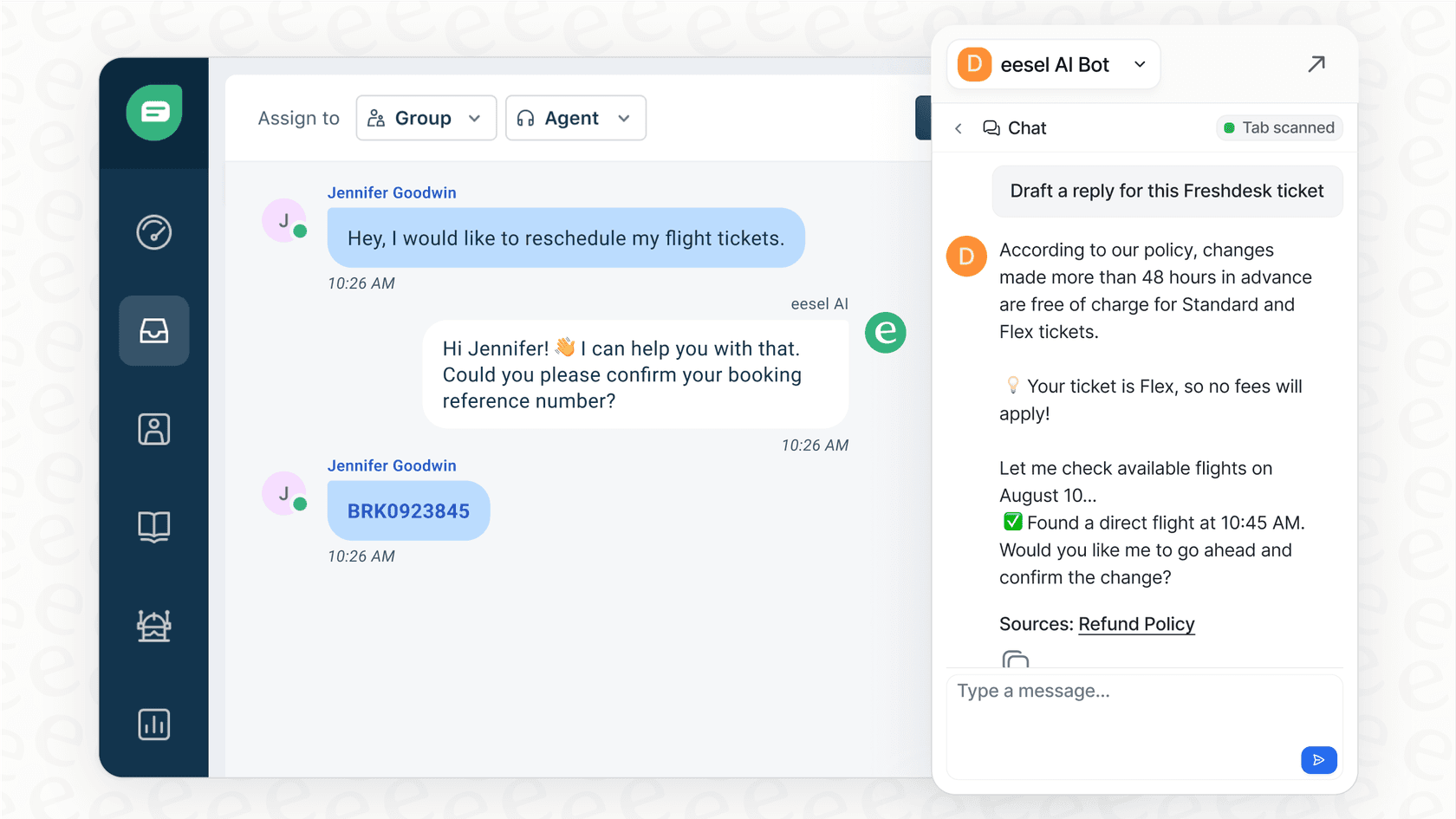
Automating support workflows
An AI solution can proactively assist your customers and agents. Tools like eesel AI's AI Agent and AI Triage work right inside Freshdesk to help manage frontline inquiries.
These tools can help answer common questions, tag tickets for better organization, and ensure that human agents can focus on the most complex issues - all while supporting the customer in their native language. Since eesel AI is designed to be self-serve, you can enhance your Freshdesk setup in minutes.
Freshdesk multilingual KB: Pricing and plans
To access the multilingual knowledge base feature, you’ll need to be on one of Freshdesk's higher-tier plans. These plans offer incredible value and scalability for growing support teams.
Here’s a breakdown of the plans that include the multilingual KB:
| Plan | Price (Billed Annually) | Multilingual KB Included? | Freddy AI Copilot |
|---|---|---|---|
| Growth | $15/agent/month | Yes | $29/agent/month add-on |
| Pro | $49/agent/month | Yes | $29/agent/month add-on |
| Enterprise | $79/agent/month | Yes | $29/agent/month add-on |
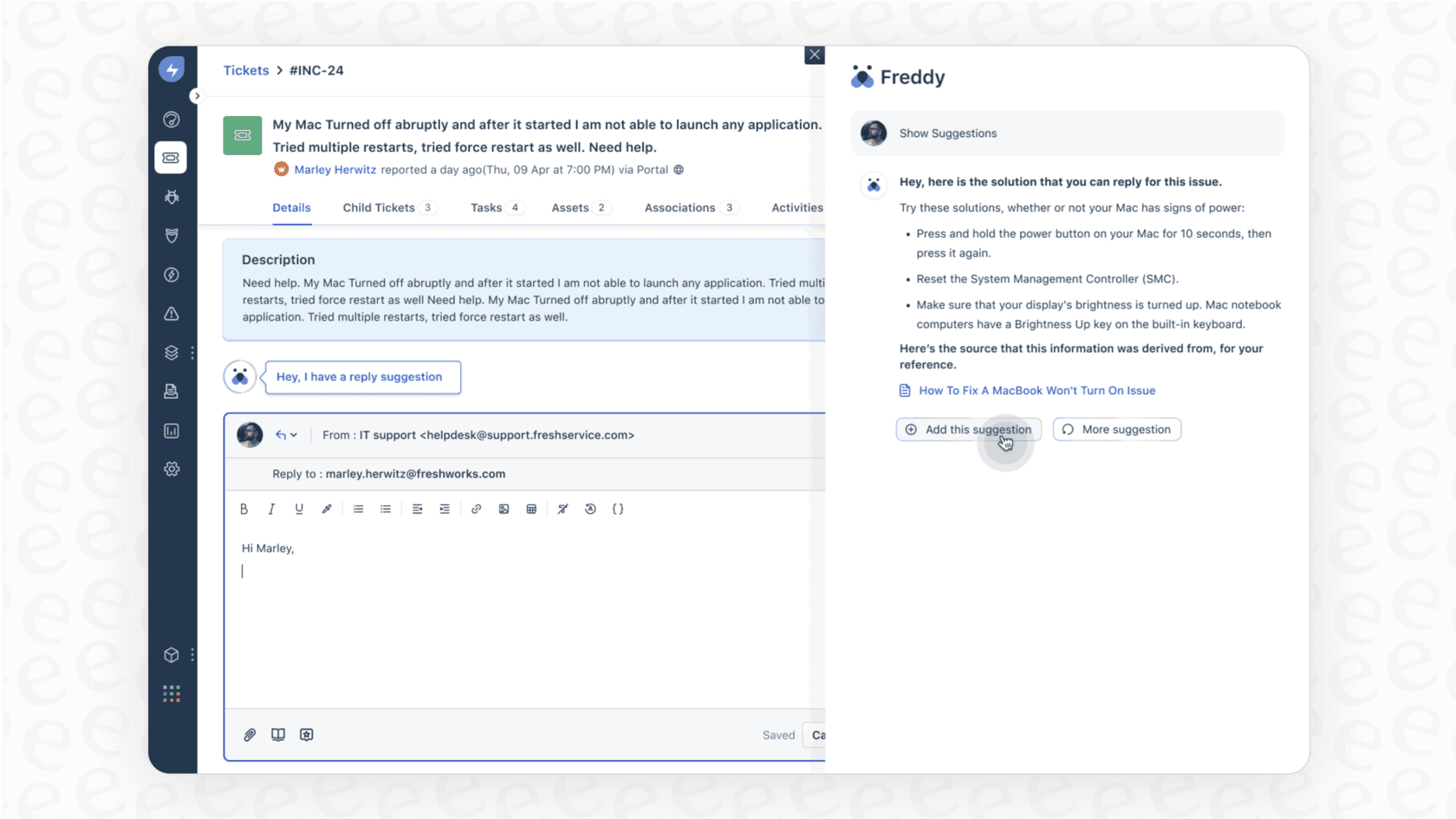
Pricing is based on information from the Freshdesk pricing page and may change. Freshdesk’s native AI, Freddy AI, is an excellent addition for teams looking to boost agent productivity directly within the platform.
Maximizing your Freshdesk multilingual KB for global success
The native Freshdesk multilingual KB is a strong foundation for any company looking to support a global audience. Its structured approach to translation ensures that your customers receive high-quality, localized help.
As you look toward the future, combining Freshdesk's reliability with AI can help you scale even more efficiently. By using AI to deliver instant answers and unify your knowledge sources, you can save time and provide a world-class experience. eesel AI is a great option to consider as a complement to your Freshdesk setup, helping you automate and refine your global support.
Ready to see how AI can help you automate support? Connect your Freshdesk account to eesel AI and discover how it can enhance your global customer service. Start your free trial today.


Frequently asked questions
A Freshdesk multilingual KB is a powerful feature within Freshdesk that allows you to store and display help articles in multiple languages. It operates by having a primary language version of an article, to which translated versions in supported languages are linked, giving customers a reliable self-service option in their preferred language.
Setting up a Freshdesk multilingual KB involves navigating to Admin > Account > Helpdesk Settings > Manage Languages. Here, you'll define your primary language and add the additional languages you wish to support, which then activates a language switcher on your customer portal.
When managing a Freshdesk multilingual KB, it's important to account for the manual effort required for updates. Every modification to a primary article involves updating the translated versions to ensure consistency, which is a standard part of maintaining a high-quality knowledge base as it grows.
The Freshdesk multilingual KB is designed to host the specific content you enter into it. While it doesn't automatically pull from external sources like internal wikis or Google Docs by default, it provides a focused environment for your curated customer-facing help articles.
To access the Freshdesk multilingual KB feature, your Freshdesk account needs to be on their Growth, Pro, or Enterprise plan. These plans offer a comprehensive suite of tools, and Freshdesk's native AI capabilities, Freddy AI, can be added to further enhance the agent experience.
Ensuring consistency in a Freshdesk multilingual KB is managed through a structured review process. When a primary article is updated, you can flag other translations to be reviewed, allowing your team to manually ensure that every article remains accurate and helpful across all languages.
Yes, many teams choose to complement their Freshdesk multilingual KB with AI-powered tools. Solutions like eesel AI can connect to your primary knowledge base and [provide accurate answers](https://www.eesel.ai/blog/how-can-ai-automate-customer-support-a-helpful-guide) in many languages, working alongside Freshdesk to keep information accessible and consistent.
Share this article

Article by
Kenneth Pangan
Writer and marketer for over ten years, Kenneth Pangan splits his time between history, politics, and art with plenty of interruptions from his dogs demanding attention.
