
If you've ever been working a ticket and suddenly realized someone was CC'd without your knowledge, you know how disruptive it can be. Maybe it was a manager jumping in to monitor, or a partner organization getting looped into a sensitive conversation. Either way, you probably wished you'd been notified the moment it happened.
Zendesk doesn't offer a direct "CC added" trigger condition. The platform can detect when a ticket has CCs, but not the specific event of someone being added. This creates a gap for teams who need real-time awareness when stakeholders join a conversation.
This guide shows you how to work within Zendesk's native capabilities to create triggers that add internal notes when CCs are present, plus an advanced webhook approach for more specific notifications. We'll also look at how AI tools can take this workflow further by adding dynamic context to your automated notes.
What you'll need
Before setting up these triggers, make sure you have:
- A Zendesk Suite or Support plan (Team, Growth, Professional, or Enterprise)
- Administrator access to create and edit triggers
- A clear understanding of when you want notifications to fire (all CC additions, or specific scenarios)
- For the webhook method: API access and a Zendesk API token
Understanding CCs vs followers in Zendesk
Zendesk offers two ways to keep people informed about ticket activity, and confusing them is a common source of trigger misfires.

CCs are users (end users or agents) who receive ticket notifications and can respond to the conversation. When you CC someone, their email address is visible to everyone on the ticket, including the requester. CCs can reply to notifications, and their responses become part of the public ticket thread. You can have up to 48 CCs on a single ticket.
Followers are internal-only users (agents or administrators) who receive updates without being visible to end users. Followers are perfect for managers who want to monitor tickets without customers knowing they're watching. There's no limit to how many followers a ticket can have. Learn more about CCs and followers in Zendesk.
Here's why this distinction matters for triggers: when someone wants to be "notified about internal activity," they might actually need to be a follower, not a CC. If your goal is purely internal awareness, followers are often the cleaner solution. But if external stakeholders need visibility, CCs are the right choice, and that's where trigger-based internal notes become valuable.
Method 1: Using native triggers to detect CCs
While Zendesk doesn't have a "CC added" event trigger, you can use the "Ticket > CC" condition to detect when tickets have CCs present. This approach works best for notifications at ticket creation or when combined with other conditions that suggest a CC was just added. See the Zendesk trigger conditions reference for all available options.
Step 1: Navigate to the triggers menu
Log into your Zendesk account and head to the Admin Center. From there, go to Objects and rules > Business rules > Triggers. This is where all your ticket automation lives.

Step 2: Create a new trigger
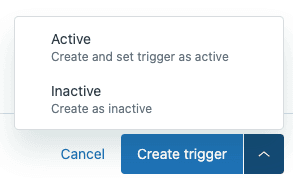
Click the "Add trigger" button. Give your trigger a descriptive name that'll make sense to other admins later. Something like "Internal Note: CC Present on Ticket" or "Alert: External Stakeholder Added" works well. The name should immediately tell someone what this trigger does without them having to open it.
Step 3: Set the conditions
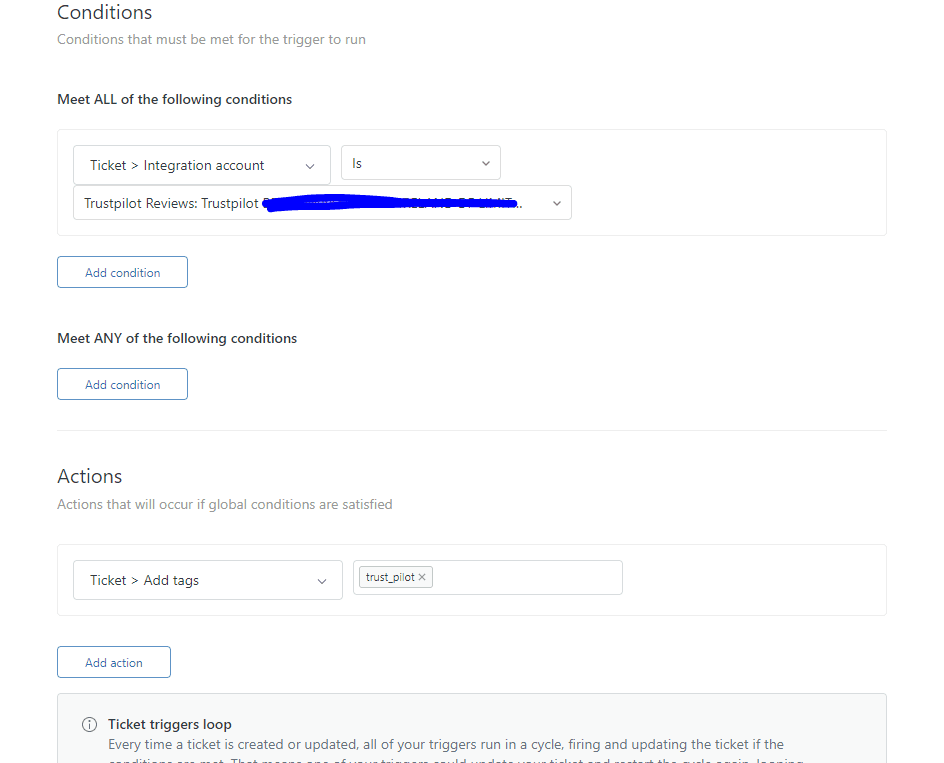
Here's where you define when this trigger fires. Under "Meet ALL of the following conditions," add:
- Condition 1: "Ticket > Is > Created" (for new tickets) OR "Ticket > Is > Updated" (for existing tickets)
- Condition 2: "Ticket > CC > Is > Present"
The "Ticket > CC" condition checks whether the ticket has any CCs at the time the trigger runs. It's a boolean check (present or not present), not a count, so you can't detect "more than 2 CCs" with native conditions.
You can add more conditions to narrow when this fires. For example:
- "Ticket > Group > Is > [Specific Group]" (only for certain teams)
- "Ticket > Priority > Is > High" (only for urgent issues)
- "Ticket > Tags > Contains none of the following > cc_notified" (to prevent loops)
Step 4: Add the internal note action
Under the Actions section, click "Add action" and select "Ticket > Internal note." A text box will appear where you can write the message that gets added to the ticket.
For example:
"This ticket has CCs included. Review the CC list to ensure all external stakeholders are appropriate for this conversation."
Or for a more specific use case:
"A CC has been added to this ticket. If this is a VIP customer escalation, follow the executive communication protocol."
Remember that internal notes added by triggers appear as comments from the "system user," not from an actual agent. This helps distinguish automated notes from human-written ones.
Step 5: Prevent trigger loops
This is critical. Without a nullifying condition, your trigger could fire repeatedly on the same ticket, creating an endless loop of internal notes.
Add these two elements:
Condition: "Tags > Contains none of the following > cc_note_added"
Action: "Ticket > Add tags > cc_note_added"
The tag acts as a flag that tells the trigger "I've already run on this ticket, don't run again." The condition prevents the trigger from firing if the tag exists, and the action adds the tag after the trigger runs.
Step 6: Save and test
Click "Create" to save your trigger. Now test it:
- Create a test ticket from a personal email account
- Add a CC to the ticket
- Check that the internal note appears
- Verify the tag was added
- Update the ticket again and confirm the trigger doesn't fire a second time
If the trigger doesn't fire, check your conditions. The "Ticket > CC > Is > Present" condition only evaluates the current state, so timing matters.
Method 2: Using webhooks for dynamic CC notifications
Native triggers have a significant limitation: they can only add static, pre-written internal notes. If you need dynamic content (like "CC added: john@example.com"), you'll need webhooks.
This approach requires more setup but gives you precise control over what gets logged.
When to use webhooks:
- You need to mention specific CC email addresses in the note
- You want to check if a new CC was added (not just that CCs exist)
- You need custom logic that native conditions can't handle
The webhook approach:
- Create a Zendesk webhook in Admin Center > Apps and integrations > Webhooks
- Set the endpoint URL to:
https://yoursubdomain.zendesk.com/api/v2/tickets/{{ticket.id}}.json - Use PUT method with JSON format
- Authenticate with Basic Auth using an API token
JSON payload for adding an internal note:
{
  "ticket": {
    "comment": {
      "body": "CC activity detected on this ticket. Current CCs: {{ticket.cc_names}}. Please review for appropriate stakeholder inclusion.",
      "public": false
    }
  }
}
The {{ticket.cc_names}} placeholder inserts the names of CC'd users, giving agents actual context instead of a generic message. See Zendesk webhook documentation for more details on setting up webhooks.
Important: Webhooks that update tickets can create trigger loops if you aren't careful. Always include nullifying tags and test thoroughly in a sandbox environment first.
Common use cases for CC notification triggers
Here are specific scenarios where CC notification triggers add value:
VIP customer escalations: When a ticket from a VIP organization gets CC'd to their account manager, automatically add a note reminding the agent to follow executive communication protocols.
Legal and compliance monitoring: If legal@company.com or compliance@company.com gets CC'd on any ticket, trigger an internal note documenting that legal oversight has been engaged.
Partner organization coordination: When tickets involving partner companies have external stakeholders added, internal notes can remind agents to check NDAs and partnership agreements before sharing sensitive information.
Manager oversight notifications: For high-priority tickets, an internal note can alert the assigned agent that their manager is now following the conversation via CC.
External consultant involvement: When consultants or contractors are CC'd, internal notes can remind agents to verify what information is appropriate to share with external parties.
Best practices and limitations
Before deploying CC notification triggers, understand these constraints:
The "one note per update" rule: Zendesk only allows one internal note and one public comment to be added per ticket event. If multiple triggers could add internal notes, only the first one in your trigger list will succeed. Order your triggers carefully.
Trigger ordering matters: Zendesk evaluates triggers from top to bottom. Place your CC notification triggers in the right position relative to other automation. If a trigger earlier in the list adds an internal note, your CC trigger won't be able to add another one on the same update.
Static content only (native triggers): Without webhooks, you can't include dynamic data like "CC added: [specific email]" in native trigger internal notes. The message is always the same pre-written text.
System user attribution: Notes added by triggers show as coming from "system user," not an actual agent. This is good for distinguishing automated notes from human ones, but it means you can't attribute the note to a specific team or individual.
Avoid notification spam: Be specific with your conditions. A trigger that fires on "any ticket with CCs" will create a lot of noise. Narrow it down with additional conditions like specific groups, priorities, or tags.
Troubleshooting common issues
Trigger not firing:
- Check that your conditions actually match the ticket state when you expect them to
- Verify trigger order (another trigger might be taking priority)
- Confirm the "Ticket > CC > Is > Present" condition is evaluating at the right time
Multiple notes appearing:
- Your nullifying tag isn't working. Check that the tag condition is "Contains none of the following" (not "Contains at least one")
- Verify the tag action is actually adding the tag
- Check if multiple triggers are firing (they might have different names but similar logic)
Wrong agents being notified:
- Remember that CC notifications go to CCs, not followers. If someone needs internal-only visibility, they should be a follower, not a CC
- Check if your trigger conditions are too broad and catching tickets they shouldn't
Loop prevention failures:
- If you see the same note added repeatedly, your nullifying condition isn't working
- Check that the tag in your condition exactly matches the tag in your action (case-sensitive)
- Verify no other automation is removing the tag
Alternative: Using eesel AI for intelligent internal notes
Native Zendesk triggers are reliable for consistent, rules-based notifications. But they have a ceiling: static text that doesn't adapt to the specific situation.
This is where AI-enhanced workflows become interesting. eesel AI integrates with Zendesk to add dynamic context to your internal notes, going beyond what native triggers can do.
Here's how it works alongside your existing triggers:
Understanding the full conversation: While native triggers check for keywords or field values, eesel AI reads the entire ticket thread. It can distinguish between "customer asked about refunds as a general question" versus "customer is demanding a refund for order #12345."
Dynamic summaries: Instead of a static note like "This ticket mentions refunds," eesel AI can generate contextual summaries: "Customer wants a refund for order #12345 because it was delivered late. They've been a loyal customer with 5 previous orders."
Knowledge integration: eesel AI can connect to your Confluence, Google Docs, or help center to pull relevant process documentation directly into the internal note. An agent sees not just "follow the refund process" but the actual steps from your knowledge base.
Real-time data lookups: Need shipping status? Order details? Account information? eesel AI can query external systems like Shopify and include live data in internal notes.
When to consider AI-enhanced notes:
- Your team spends significant time reading tickets to understand context
- You have complex processes documented across multiple knowledge sources
- Agents need real-time data from external systems to resolve tickets
- You want to reduce the cognitive load on agents by summarizing long conversations
Native triggers and AI tools aren't mutually exclusive. Many teams use native triggers for simple, reliable notifications and layer in AI for complex tickets that need deeper context. Explore eesel AI's Zendesk integration to learn more.
Start automating your CC notifications today
Setting up triggers to add internal notes when CCs are present takes some initial configuration, but the payoff is worth it. Your agents get immediate awareness of stakeholder changes without manually checking the CC list on every ticket update.
Start with Method 1 (native triggers) for basic notifications. It's reliable, doesn't require API knowledge, and covers most use cases. If you need dynamic content or specific CC details, explore the webhook approach in Method 2.
Remember to always include nullifying conditions to prevent loops, test thoroughly before deploying to production, and keep your trigger logic as specific as possible to avoid notification fatigue.
For teams ready to go beyond static notifications, AI-enhanced internal notes offer a way to give agents not just alerts, but actual context that helps them resolve tickets faster.