
Moving your Zendesk triggers from one account to another is a common task that sounds simple but quickly gets complicated. Whether you're consolidating accounts after an acquisition, moving from a sandbox to production, or setting up a new instance, you'll need a reliable way to transfer your automation rules without breaking them.
Here's the short version: Zendesk doesn't provide a built-in export/import feature for triggers. You have two main options. The API method gives you full control but requires technical expertise. Third-party migration tools handle the complexity for you but come with a price tag.
This guide walks you through both approaches, explains the common pitfalls, and shows you how to avoid breaking your workflows during the migration.
If you're finding that managing complex trigger setups is becoming a burden, you might want to explore modern alternatives. eesel AI offers a different approach to support automation that doesn't rely on maintaining dozens of trigger rules.
Why you might need to migrate Zendesk triggers
Before diving into the how, let's look at the common scenarios where trigger migration becomes necessary.
Sandbox to production: You've spent weeks perfecting your trigger setup in a sandbox environment. Now you need to move those carefully crafted automations to your live account without recreating them manually.
Account consolidation: Your company acquired another business or merged departments. Both teams have Zendesk accounts with established trigger workflows. You need to combine them into a single account.
Multi-brand setup: You're reorganizing your support structure and need to move specific brand triggers to a dedicated account.
Testing and rollback: You want to experiment with trigger changes but need a way to quickly revert if things go wrong.
Here's the catch: triggers can't simply be copied between accounts. Each trigger has a unique ID that's tied to its account. Dependencies like groups, custom fields, and schedules reference other objects by ID. When you move to a new account, those IDs don't exist. Your "assign to VIP Support Group" trigger won't work if that group doesn't exist in the target account with the exact same ID.
This is why a direct copy-paste approach fails. You need a method that either translates these references or recreates the dependencies first.
What you'll need before starting
Let's break down the prerequisites for a successful trigger migration.
Admin access: You'll need administrator privileges in both the source and target Zendesk accounts. Trigger management requires full admin rights.
API tokens: For the API method, generate API tokens in both accounts. Go to Admin Center > Apps and integrations > APIs > Zendesk API. Create a token for each account and store them securely.
Dependency inventory: Before touching any triggers, document what they depend on. Create a list of:
- Groups that triggers reference in their assignment actions
- Custom ticket fields used in trigger conditions
- Schedules mentioned in business hours conditions
- Ticket forms that triggers apply to
- Agents that triggers assign tickets to

Target environment preparation: Set up the target account with matching groups, fields, and schedules before importing triggers. This is non-negotiable. A trigger that assigns tickets to "Tier 2 Support" will fail if that group doesn't exist.
Testing plan: Identify a few non-critical triggers to test with first. Don't start with your most complex automation.
Method 1: Using the Zendesk API to export and import triggers
The API method gives you complete control over the migration process. It's the most reliable approach for complex setups, but it requires some technical knowledge. Refer to the Zendesk Triggers API documentation for complete endpoint details.
Step 1: Export triggers from the source account
Start by listing all triggers in your source account. Use the GET /api/v2/triggers endpoint:
curl https://{subdomain}.zendesk.com/api/v2/triggers \
  -v -u {email_address}/token:{api_token}
The API returns a JSON object containing all triggers. Each trigger includes its conditions, actions, position, and active status.
For accounts with many triggers, you'll need to handle pagination. The API returns a maximum of 100 records per page. Use cursor pagination for large datasets:
curl https://{subdomain}.zendesk.com/api/v2/triggers?page[size]=100 \
  -v -u {email_address}/token:{api_token}
Save the complete JSON response to a file. You'll need this data for the next steps.
Pro tip: Include the sideload parameter to get usage statistics. This helps you identify which triggers are actually active and worth migrating:
curl https://{subdomain}.zendesk.com/api/v2/triggers?include=usage_30d \
  -v -u {email_address}/token:{api_token}
Step 2: Map and prepare trigger data
This is where most migrations fail. You need to translate IDs from the source account to match the target account.
First, identify all ID references in your trigger JSON. Look for these fields:
group_idvalues in assignment actionsassignee_idvalues in agent assignment actionscustom_fields_references in trigger conditionsschedule_idvalues in business hours conditionsticket_form_idvalues in form-specific conditions
Create a mapping document that translates source IDs to target IDs. For example:
| Source ID | Source Name | Target ID | Target Name |
|---|---|---|---|
| 20455932 | Tier 1 Support | 98765432 | Tier 1 Support |
| 20455933 | VIP Customers | 98765433 | VIP Customers |
You'll need to manually look up the target IDs by creating the corresponding groups, fields, and schedules in the target account first, then noting their new IDs.
Modify your trigger JSON to replace source IDs with target IDs. Remove the id and url fields from each trigger object (these will be assigned by the target account). Keep position if you want to maintain execution order, or adjust it to fit existing triggers in the target account.
Step 3: Import triggers to the target account
With your JSON prepared, create triggers in the target account using POST /api/v2/triggers:
curl -u {email_address}/token:{api_token} \
  https://{target_subdomain}.zendesk.com/api/v2/triggers \
  -H "Content-Type: application/json" -X POST \
  -d '{"trigger": {"title": "Your Trigger Name", "conditions": {...}, "actions": {...}}}'
Important: Create triggers in an inactive state initially. Set "active": false in your JSON. This prevents triggers from firing during the import process, which could spam your team with notifications.
After creating each trigger, note the new ID assigned by the target account. You'll need this for position management.
For bulk position updates, use the PUT /api/v2/triggers/update_many endpoint:
curl https://{target_subdomain}.zendesk.com/api/v2/triggers/update_many \
  -v -u {email_address}/token:{api_token} \
  -H "Content-Type: application/json" \
  -X PUT \
  -d '{"triggers": [{"id": 25, "position": 3}, {"id": 26, "position": 5}]}'
Step 4: Validate and test imported triggers
Before activating your imported triggers, verify they work correctly.
Check trigger execution order in the target account. Go to Admin Center > Objects and rules > Business rules > Triggers. Review the list to ensure positions are correct. See Zendesk's trigger documentation for more details on managing trigger order.
Test each trigger with sample tickets. Create test tickets that match your trigger conditions and verify the expected actions occur.
Verify notification delivery if triggers send emails. Check that the right people receive notifications and that templates render correctly.
Only activate triggers after validation. Use the update_many endpoint to activate in bulk:
curl https://{target_subdomain}.zendesk.com/api/v2/triggers/update_many \
  -v -u {email_address}/token:{api_token} \
  -H "Content-Type: application/json" \
  -X PUT \
  -d '{"triggers": [{"id": 25, "active": true}, {"id": 26, "active": true}]}'
Method 2: Using third-party migration tools
If the API method sounds overwhelming, third-party tools offer a simpler alternative. They handle the technical complexity but cost more.
Help Desk Migration
Help Desk Migration is a specialized service for moving support data between platforms. They support 90+ help desk systems including Zendesk-to-Zendesk migrations.
Their Migration Wizard provides a no-code interface. You connect your source and target accounts, select what to migrate, and they handle the rest. For trigger migration specifically, they can transfer business rules between Zendesk accounts while handling ID translation.
Key features:
- Unlimited free demo migrations (test with 20 records)
- Zero downtime during migration
- Delta migration for updating records after initial transfer
- 9/5 to 16/5 support depending on package
Pricing is per-record rather than flat rate. As an example, migrating 1,000 records might cost around $100, while 10,000 records could be approximately $514. They offer a price-match guarantee if you find a lower quote elsewhere.
| Package | Support | SLA Response | Data Retention |
|---|---|---|---|
| Standard | 9/5 | 24 hours | 3 days |
| Premium | 16/5 + weekends | 8 hours | 5 days |
| Signature | 16/5 + weekends | 4 hours | 10 days |
Source: https://help-desk-migration.com/pricing/
Import2
Import2 offers 1-click data migration between business apps. They support 50+ platforms including Zendesk.
Their approach is fully automated. You connect your apps, run a free sample migration to preview results, then proceed with the full transfer if satisfied.
For help desk migrations, their pricing is tiered:
| Plan | Record Limit | Price |
|---|---|---|
| Basic | Under 1,000 | $99 |
| Plus | Under 5,000 | $199 |
| Premium | Under 50,000 | $299 |
| Enterprise | Under 500,000 | $499+ |
Source: https://www.import2.com/pricing
Import2 offers a money-back guarantee and SOC 2 Type II certification. They're a good fit for simpler migrations where you don't need extensive customization.
When to choose which approach
Use the API method if:
- Your team has technical resources available to write and maintain migration scripts
- You need complete control over every aspect of the migration process
- You're managing complex trigger dependencies that require custom handling
- You want to avoid paying third-party service costs
Use a migration tool if:
- Your team lacks the technical expertise to work with APIs directly
- You need to migrate more than just triggers, such as tickets, users, and knowledge base articles
- You want a managed process with dedicated support throughout the migration
- The cost of the tool is justified by the time and effort you'll save
Managing trigger dependencies
The biggest challenge in trigger migration isn't the triggers themselves. It's everything they reference.
Critical dependencies to check
Groups: Most triggers assign tickets to specific groups. Before importing triggers, create matching groups in your target account. Note the new group IDs and update your trigger JSON accordingly.
Custom ticket fields: Triggers often check custom field values in their conditions. Create these fields in the target account first. The field IDs will differ between accounts, so you'll need to map them carefully.
Schedules: Business hours conditions reference schedules that must exist in the target account. Recreate your schedules in the target account and update trigger references with the new schedule IDs.
Ticket forms: Some triggers apply only to specific forms or check form-related conditions. Ensure these forms exist in the target account before importing dependent triggers.
Agents: Assignment actions reference agent user IDs. Create agent accounts in the target system first, then map the old IDs to the new ones in your trigger JSON.
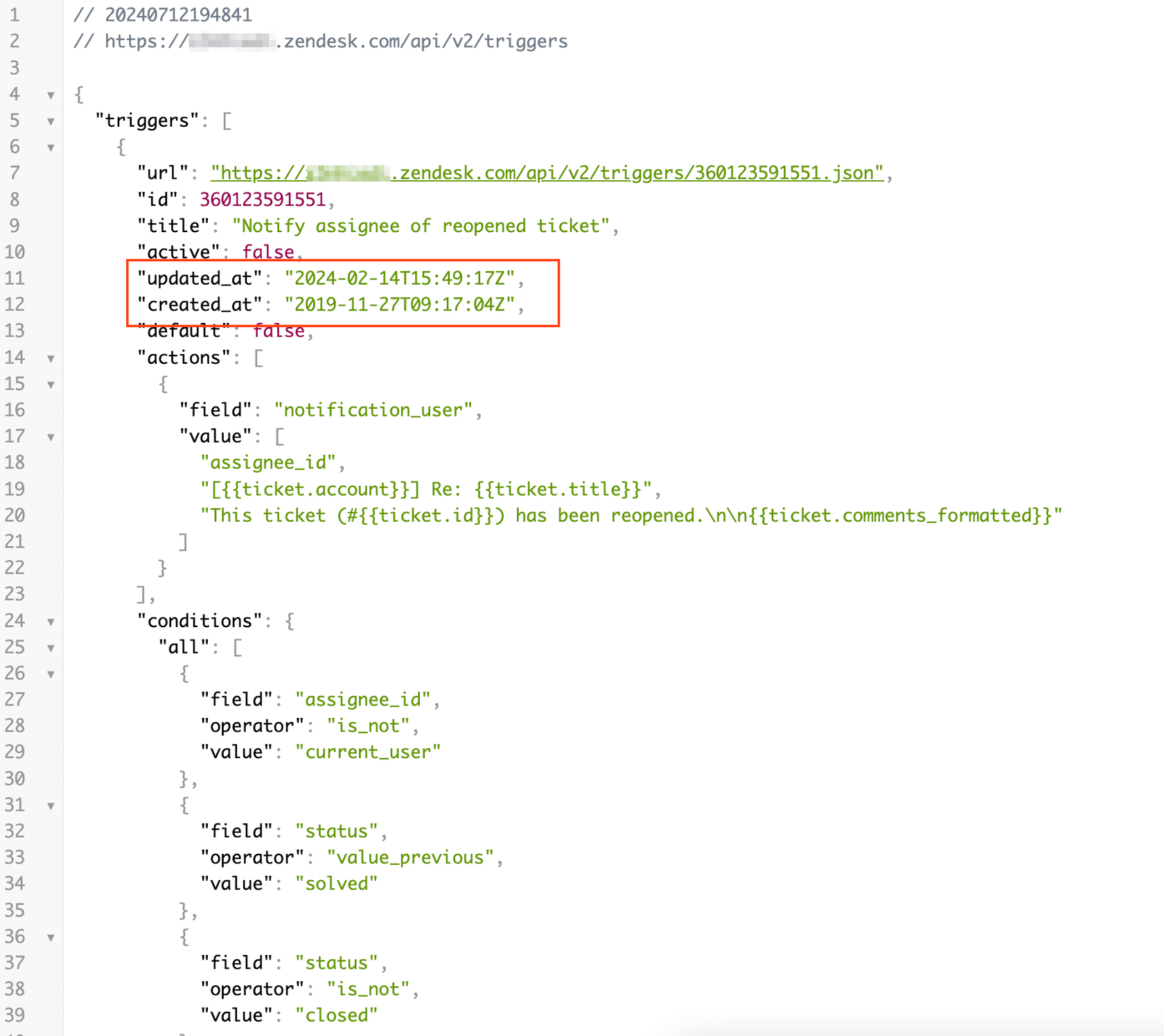
How to identify dependencies in trigger JSON
Review each trigger's conditions and actions arrays. Look for these field types:
{
  "conditions": {
    "all": [
      {"field": "group_id", "operator": "is", "value": "20455932"}
    ]
  },
  "actions": [
    {"field": "assignee_id", "value": "296220096"}
  ]
}
Any numeric value in a condition or action likely references another object. Document all these references before migration.
Handling broken references post-migration
Even with careful preparation, some references might break. Here's how to handle them:
Validation errors: If a trigger fails to create due to invalid references, the API returns a 422 error with details. Fix the reference and retry.
Silent failures: Some triggers might import successfully but fail to execute. Monitor your target account's trigger activity after migration.
Missing dependencies: If you discover missing groups or fields after migration, create them in the target account, note their IDs, then update the affected triggers.
Common issues and troubleshooting
API rate limits
Zendesk limits API requests to 700 per 10 minutes for most endpoints. If you're importing many triggers, you might hit this limit.
Solution: Add delays between requests. Process triggers in batches and implement exponential backoff when you receive 429 responses.
Trigger position conflicts
Your target account might already have triggers occupying the positions you want to use.
Solution: Either adjust your imported triggers to use available positions, or use the reorder endpoint to reorganize all triggers after import.
Notification spam during migration
If you import triggers in an active state, they might immediately start firing on existing tickets.
Solution: Always import triggers as inactive. Activate them only after validation. Also consider temporarily disabling email notifications in the target account during migration.
ID mismatch errors
The most common error is referencing an ID that doesn't exist in the target account.
Solution: Maintain a detailed mapping document. Validate all IDs exist in the target account before attempting import.
Validation failures
Zendesk validates trigger conditions and actions. Invalid combinations will be rejected.
Solution: Test each trigger JSON against the target account's trigger definitions endpoint (GET /api/v2/triggers/definitions) to ensure your conditions and actions are valid.
Best practices for trigger migration
Always test in sandbox first: If your target account has a sandbox, practice the migration there. Work out the kinks before touching production.
Document your trigger logic: Before migration, export your triggers and save the original JSON. If something goes wrong, you have a reference point to restore from.
Disable notifications during migration: Turn off agent email notifications in the target account before importing triggers. This prevents spam if triggers fire unexpectedly during the import process.
Maintain a rollback plan: Keep your source account operational until you've validated the migration. Don't delete or modify source triggers until you're confident the new setup works correctly.
Consider modern alternatives: Complex trigger setups can become difficult to maintain over time. If you're investing significant effort in trigger migration, it might be worth evaluating whether your current automation approach still serves your needs. Modern AI-powered support tools can handle many automation scenarios with less configuration overhead.
Streamline your support automation with eesel AI
Managing complex trigger workflows takes significant time and expertise. If you're spending hours migrating, debugging, and maintaining Zendesk triggers, there might be a better way.
eesel AI is an AI teammate for customer support that works alongside or replaces traditional trigger-based automation. Instead of writing dozens of rules to handle different scenarios, you train eesel AI on your past tickets and documentation. It learns your business logic naturally and handles tickets autonomously.

Here's how it differs from trigger-based automation:
- No complex rule maintenance: eesel AI learns from your data rather than requiring explicit rules for every scenario
- Natural language instructions: Tell eesel what to do in plain English instead of configuring conditions and actions
- Progressive rollout: Start with eesel drafting replies for review, then level up to full autonomy as it proves itself
- Works with Zendesk: eesel AI integrates directly with Zendesk, so you can keep your existing setup while adding AI capabilities
If you're considering a major trigger migration because your current setup has become unwieldy, it might be worth exploring whether an AI-powered approach could simplify your support operations.