Zendesk triggers are the workhorse of support automation. They handle routing, tagging, notifications, and prioritization without anyone lifting a finger. But while most admins quickly master basic triggers (like "if status is New, assign to Level 1"), many never tap into the real power hiding in their custom fields.
Custom field trigger conditions let you build automation that matches your actual business logic. Instead of relying on generic ticket properties, you can route based on product type, prioritize by customer tier, or escalate based on checkbox flags you've created. The catch? Not all field types work the same way in triggers, and some have surprising limitations.
This guide walks you through everything you need to know about using custom field values in Zendesk trigger conditions, from basic setup to advanced techniques with custom objects. And if you find yourself bumping against the limits of rule-based automation, we'll touch on how eesel AI can handle more complex scenarios that triggers simply weren't designed for.
What are custom field trigger conditions in Zendesk?
Custom field trigger conditions let you use the values from your custom ticket fields as criteria for automated actions. Think of them as an extension of Zendesk's standard trigger conditions (like "Status is New" or "Priority is High") that you define yourself.
Here's how they fit into the bigger picture. Standard triggers can only react to Zendesk's built-in ticket properties: status, priority, group, assignee, tags, and so on. That's useful, but most support teams have business logic that doesn't map neatly to those defaults. You might need to route tickets differently based on product line, customer segment, or issue category. Custom fields let you capture that data, and custom field trigger conditions let you automate based on it.
The business value is straightforward. Instead of agents manually triaging tickets or applying tags, your triggers handle it automatically:
- Route enterprise product tickets to your senior support team
- Flag VIP customers for priority handling
- Auto-categorize tickets for reporting and analytics
- Escalate issues based on custom severity flags
For teams that outgrow what rule-based triggers can do, there's another option. We built eesel AI to handle the scenarios where triggers fall short: understanding context, interpreting intent, and making judgment calls that require more than simple field matching. But for straightforward automation based on known values, custom field triggers are the right tool.
Prerequisites and what you'll need
Before you start building triggers with custom field conditions, make sure you have:
- A Zendesk Support account on Team plan or higher (custom fields aren't available on the legacy Essential plan)
- Admin access to create and edit triggers
- Custom ticket fields already created and added to your ticket forms
- Basic familiarity with how triggers work (conditions and actions)
A few features mentioned in this guide require higher-tier plans. Custom objects and lookup relationship fields are Enterprise-only features. If you're on Team or Growth, you'll still be able to use standard custom field types (drop-down, text, checkbox, date) in triggers.
Step-by-step: Setting up a trigger with custom field conditions
Let's walk through creating a trigger that uses a custom field condition. The example we'll use: automatically assigning tickets to your Enterprise Support group when the "Product Type" custom field is set to "Enterprise Software."
Step 1: Access the triggers page in Admin Center
Navigate to Admin Center, then click Objects and rules in the sidebar, followed by Business rules and Triggers.
You'll see a list of all existing triggers in your account. Zendesk includes several default triggers (like "Notify requester of received request") that handle basic notifications.
Step 2: Create a new trigger or edit existing
Click the Add trigger button to create a new one. Give it a clear, descriptive name like "Route: Enterprise Product to Enterprise Support" and add a brief description explaining what it does. This helps other admins understand the trigger's purpose without having to open it.
Select a trigger category if you use them for organization. Categories help you group related triggers together.
Step 3: Configure trigger conditions with custom fields
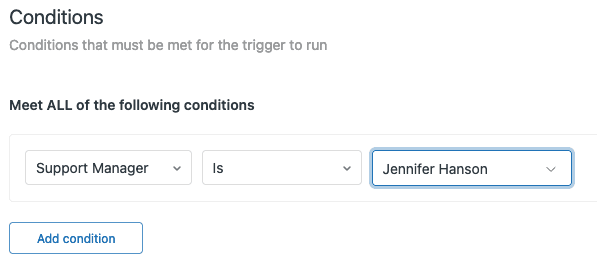
Under Meet ALL of the following conditions (or Meet ANY if you want the trigger to fire when any single condition matches), you'll build your condition statement.
Click Add condition, then select the category that contains your custom field. For standard custom ticket fields, look under Ticket and scroll to find your field by name. The field will appear as you named it when you created it.
If you don't see your custom field in the list, verify that it's active and has been added to at least one ticket form. Inactive fields won't appear as trigger conditions.
Step 4: Select the appropriate operator and value
Once you've selected your custom field, choose the operator. The available operators depend on your field type:
- Drop-down fields: is, is not, present, not present
- Multi-select fields: includes, does not include, present, not present
- Text fields: present, not present (only)
- Date fields: is, is not, before, after, present, not present, is within previous/next
For our example, select is as the operator, then choose "Enterprise Software" from the value dropdown.
Step 5: Add trigger actions
Now define what happens when the condition is met. Click Add action and select the action you want. Common actions include:
- Group: Assign the ticket to a specific group
- Assignee: Assign to a specific agent
- Add tags: Apply tags for reporting or routing
- Priority: Set the ticket priority
- Notify by: Send email notifications
For our example, add the action Group and select your "Enterprise Support" group.
You can add multiple actions to a single trigger. Just remember that all actions fire when the conditions are met.
Step 6: Save and test your trigger
Click Save to activate your trigger. Now test it by creating a test ticket and setting the custom field value to match your condition. Verify that the trigger fires and applies the actions you configured.
If the trigger doesn't fire as expected, check that you're using Meet ALL versus Meet ANY correctly. ALL means every condition must be true. ANY means just one condition needs to match.
Custom field types and their available operators
Not all custom fields work the same way in triggers. Understanding which operators are available for each field type helps you design automation that actually works.
Drop-down fields
Drop-down fields are the most flexible custom field type for triggers. They support:
- is / is not: Exact match with a specific option
- present / not present: Whether any value is selected
Use these for routing by category, product type, priority level, or any scenario where you have a predefined list of options. Drop-down fields are the go-to choice when you need reliable trigger conditions because the values are controlled and consistent.
Multi-select fields
Multi-select fields let users choose multiple values. In triggers, they support:
- includes / does not include: Checks if specific values are among the selected options
- present / not present: Whether any values are selected
The includes operator is particularly useful. It lets you create triggers that fire when a ticket is tagged with any of several related categories. For example, a trigger that assigns to your Engineering queue when "Bug Report" or "Feature Request" is selected.
Text and multi-line fields
Here's where triggers get limiting. Text fields only support:
- present / not present: Whether the field has any content
You cannot match specific text content in trigger conditions. So a condition like "Description contains 'urgent'" isn't possible with custom text fields in triggers. If you need to match specific values, use a drop-down field instead. The text field limitation exists because text matching can be computationally expensive and prone to false matches.
Number and decimal fields
Number fields have the same limitation as text fields:
- present / not present only
You cannot use greater than, less than, or equals operators with numeric custom fields in standard triggers. This surprises many admins who expect to create conditions like "Order Value > $1000." For that kind of logic, you'd need to use tags or drop-downs as a workaround.
Checkbox fields
Checkboxes are straightforward:
- is checked / is unchecked
These are perfect for binary flags like "Escalation Required," "VIP Customer," or "Needs Manager Review." The simplicity makes them reliable trigger conditions.
Date fields
Date fields have the richest set of operators:
- is / is not: Specific calendar date
- before / after: Relative to a specific date
- present / not present: Whether any date is set
- is within the previous / is within the next: Relative time windows
The "is within" operators deserve special attention. According to Zendesk's documentation, these evaluate based on 24-hour multiples. "Is within the next 3" means within the next 72 hours, not necessarily 3 calendar days. Also note that custom date fields always use calendar days; business hours and schedules aren't considered.
Lookup relationship fields (Enterprise)
For Enterprise plans, lookup relationship fields connect tickets to custom objects, users, or organizations. They support:
- is / is not: Match a specific related record
- present / not present: Whether any relationship exists
In ticket triggers, lookup relationship fields can only be used in notification actions. You can't use them to set field values or assign tickets directly. For full automation based on custom objects, you'd use object triggers (covered in the advanced section below).
Practical examples and use cases
Let's look at some real-world scenarios where custom field trigger conditions add value.
Example 1: Route tickets by product type
The scenario: You support multiple product lines with different expertise requirements. Enterprise software needs your senior team; consumer products can go to general support.
The trigger:
- Condition: Product drop-down is "Enterprise Software"
- Action: Assign to Enterprise Support group, add tag "enterprise"
The business value: Tickets reach the right expertise immediately, reducing transfers and improving resolution time.
Example 2: Prioritize VIP customers
The scenario: You have a tiered customer base and want Platinum customers to get priority handling.
The trigger:
- Condition: Customer Tier is "Platinum"
- Action: Set priority to High, notify account manager via email
The business value: High-value customers get faster response times without manual triage.
Example 3: Auto-tag for reporting
The scenario: You need consistent categorization for analytics but can't rely on agents to manually tag every ticket.
The trigger:
- Condition: Issue Category includes "Bug Report"
- Action: Add tags "bug-report" and "needs-investigation," assign to Engineering queue
The business value: Clean reporting data and automatic routing to the right team.
Example 4: Escalate based on checkbox
The scenario: Agents need a simple way to flag tickets for escalation without complex workflows.
The trigger:
- Condition: "Escalation Required" checkbox is checked
- Action: Set priority to Urgent, add follower (manager), add tag "escalated"
The business value: One-click escalation that triggers the full response protocol.
Example 5: SLA management with date fields
The scenario: You want proactive notifications before SLA deadlines are missed.
The trigger:
- Condition: "SLA Deadline" date is within the next 1 day
- Action: Notify assignee via email, add tag "approaching-sla"
The business value: Prevents SLA breaches by surfacing at-risk tickets before they expire.
Common issues and troubleshooting
Even simple triggers can fail to fire. Here are the most common issues with custom field conditions and how to fix them.
Trigger not firing at all
Check your ALL versus ANY logic. If you have multiple conditions under "Meet ALL of the following conditions," every single one must be true for the trigger to fire. A common mistake is mixing conditions that can't all be true at once.
Custom field doesn't appear in the condition dropdown
The field must be active and added to at least one ticket form. Go to Admin Center > Objects and rules > Tickets > Ticket Fields and verify the field status. Then check your ticket forms to confirm the field is included.
Date field timing seems off
Remember that "is within the previous/next" uses 24-hour windows, not calendar days. "Is within the next 1" means the next 24 hours, not "today." Also, date fields evaluate at the moment the trigger runs, not continuously.
Text field can't match specific content
This isn't a bug; it's a limitation. Standard triggers cannot match specific text content in custom fields. If you need this functionality, consider using a drop-down field instead, or look into Zendesk's advanced AI features that can analyze ticket content.
Lookup relationship restrictions
In ticket triggers, lookup relationship fields can only be used in notification actions (like "Notify by: User email"). You can't use them to assign tickets or set field values. For automation based on custom object data, you need object triggers.
Performance considerations
Too many complex triggers can slow down ticket processing. If you have dozens of triggers all evaluating on every ticket update, you may see delays. Zendesk evaluates triggers in order, so place your most frequently firing triggers early in the list.
Advanced techniques with custom objects (Enterprise)
For Enterprise customers, custom objects unlock more sophisticated automation. Here's what's possible when you combine custom objects with triggers.
Using lookup relationships in ticket triggers
When you create a lookup relationship field that connects tickets to custom objects, you can use that relationship in trigger conditions. For example, if you have a "Service Contract" custom object linked to tickets, you can create triggers that fire based on contract properties.
The condition would look like: Service Contract is [specific contract record].
Remember the limitation: in ticket triggers, lookup relationships can only be used in notification actions, not for assignment or field updates.
Object triggers
Object triggers are a separate trigger type that fires when custom object records are created or updated, not when tickets change. This opens up new automation possibilities:
- Send notifications when a service contract approaches renewal
- Update related tickets when product information changes
- Alert account managers when customer health scores drop
Object triggers use the same condition/action structure as ticket triggers but operate on custom object records instead.
Placeholders for custom objects
When you need to include custom object data in trigger notifications, use placeholders. The syntax differs from standard ticket placeholders:
For ticket-level lookups: {{ticket.ticket_fields_123456789.custom_fields.field_name}}
For object triggers: {{custom_objects.object_type.custom_fields.field_name}}
You can also format dates: {{custom_objects.contract.custom_fields.renewal_date | date: '%Y-%m-%d'}}
Best practices for trigger management
A few habits make the difference between triggers that help and triggers that create chaos.
Use consistent naming conventions. Include the trigger's purpose in the name. "Route: Enterprise to Enterprise Support" is more useful than "Enterprise Trigger."
Document your triggers. The description field is searchable and helps other admins understand why a trigger exists. Note the business logic, not just what the trigger does.
Test in sandbox first. Major trigger changes should be tested in a sandbox environment before going to production. A misconfigured trigger can send hundreds of notifications or incorrectly assign tickets.
Group related triggers. Use trigger categories to organize related automation. This makes it easier to find and manage triggers as your instance grows.
Audit regularly. Disable triggers that no longer serve a purpose. Old triggers can conflict with new ones or fire unnecessarily.
Know when to move beyond triggers. Rule-based automation has limits. If you find yourself creating increasingly complex trigger chains to handle nuanced scenarios, it might be time to consider AI-powered alternatives. We built eesel AI specifically for teams that have outgrown what triggers can reasonably handle.
Getting started with intelligent automation
Custom field triggers are powerful for straightforward automation: when X field equals Y value, do Z. But they struggle with nuance, context, and anything that requires understanding rather than pattern matching.
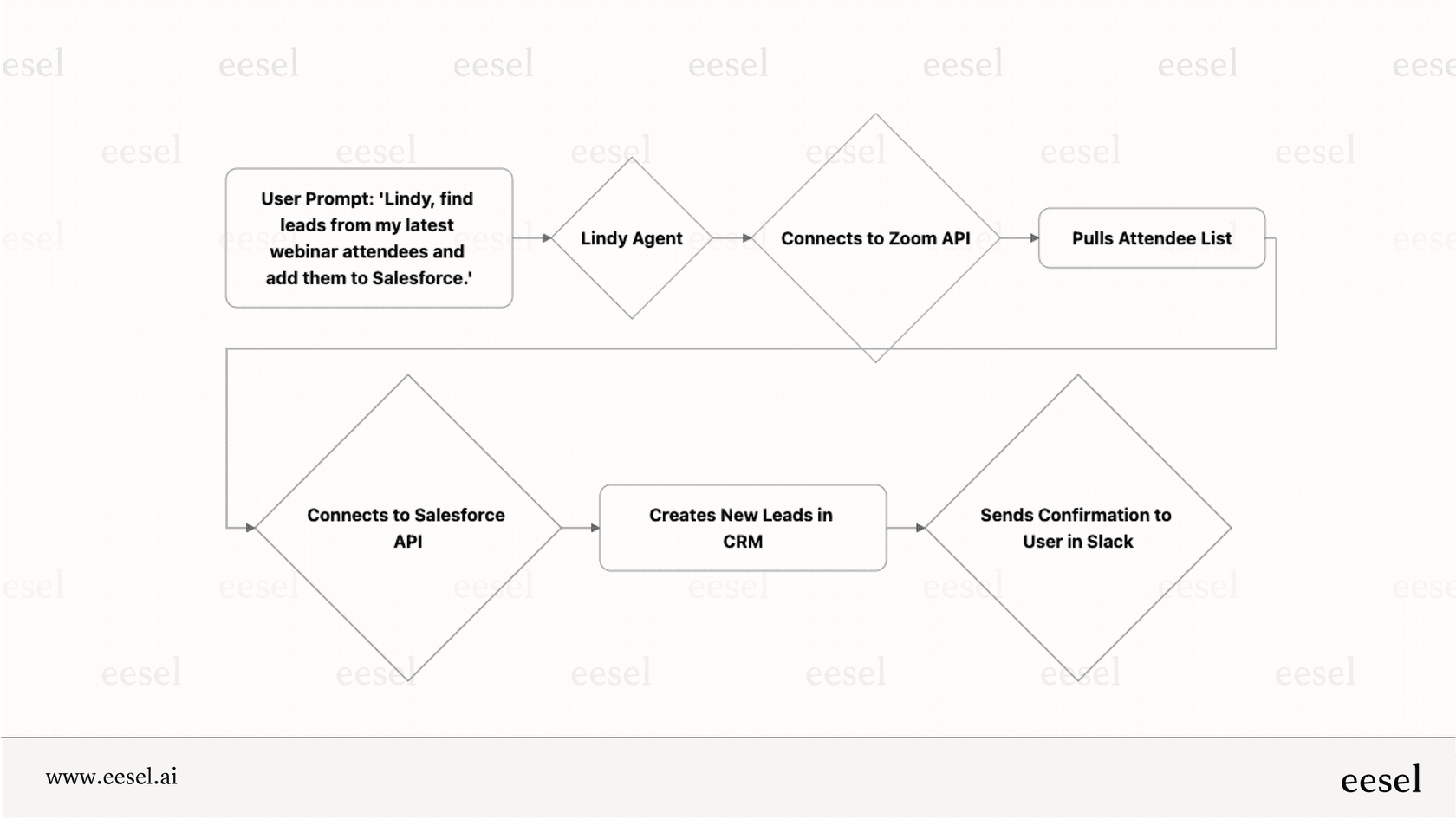
That's where AI agents differ. Instead of configuring rules for every possible scenario, you train an AI on your knowledge base and let it interpret tickets. It can understand intent, ask clarifying questions, and make judgment calls that would require dozens of triggers to approximate.
We built eesel's AI agent for Zendesk to integrate directly with Zendesk and work alongside (or replace) traditional triggers. You can start with AI handling specific ticket types, review its work, and expand its scope as it proves itself. Or use it as a copilot that drafts responses for your agents to review.
If you're spending more time managing trigger complexity than the triggers are saving you, it might be worth exploring whether AI is a better fit for your workflow. You can try eesel AI free and see how it compares to your current automation setup.