Zendesk proactive chat: A complete setup guide for 2026

Stevia Putri
Written by

Stevia Putri

Reviewed by

Stanley Nicholas

Last edited March 5, 2026

Expert Verified

Banner image for Zendesk proactive chat: A complete setup guide for 2026

Most businesses wait for customers to ask for help. But here's the thing: humans are notoriously bad at asking for help when they need it. That's where proactive chat changes the game. Instead of waiting for visitors to reach out, you can start conversations at exactly the right moment.

Zendesk offers one of the most robust proactive chat systems available. Whether you want to reduce cart abandonment, welcome returning customers, or guide visitors through complex pages, proactive messaging lets you engage before frustration sets in.

A screenshot of Zendesk's landing page.

Let's break down what Zendesk proactive chat is, how to set it up, and how to use it effectively.

What is Zendesk proactive chat?

Proactive chat (or proactive messaging) is the ability to initiate conversations with website visitors before they reach out for help. It's the difference between reactive support (waiting for customers to contact you) and anticipatory engagement (reaching out when you detect they might need assistance).

Here's how it works in Zendesk:

  • You define trigger conditions based on visitor behavior (page URL, time on page, new vs. returning visitor)
  • When conditions are met, a chat message automatically appears
  • The visitor can respond and start a conversation immediately
  • Either a human agent or an AI agent handles the response

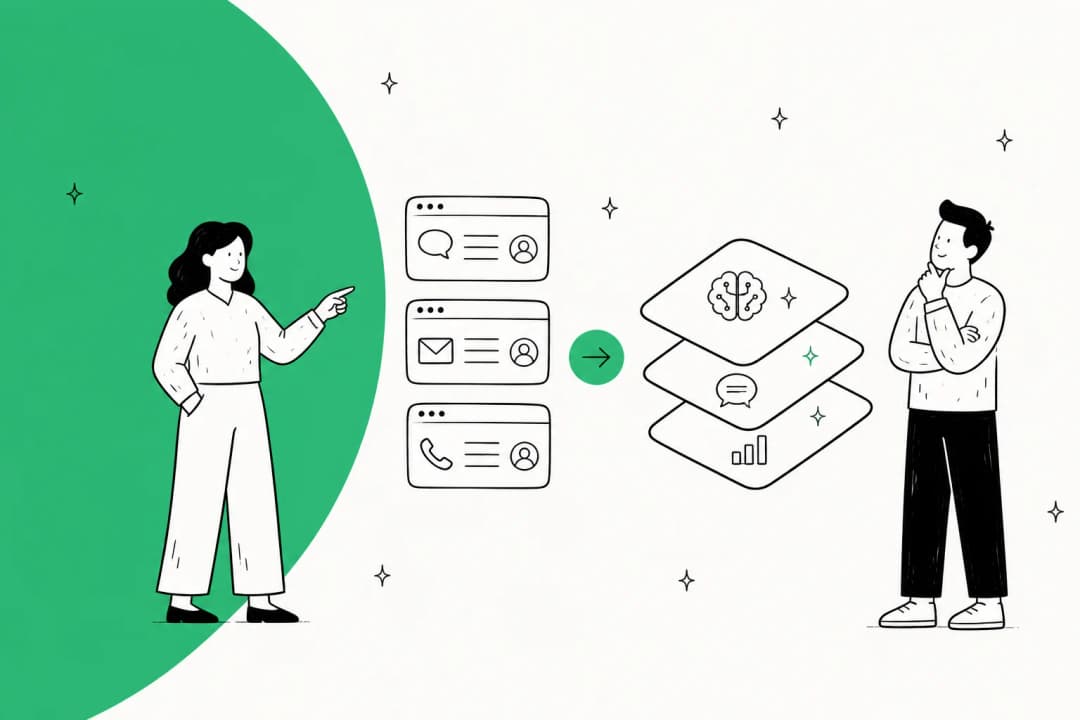
This workflow demonstrates how automated triggers bridge the gap between silent browsing and active customer support engagement.

The key benefit? You catch customers at their moment of need. According to Zendesk's research, 44% of US online consumers appreciate getting live chat invitations during research or purchase.

Proactive chat isn't just about being helpful (though it is). It directly impacts your bottom line: reducing cart abandonment, increasing conversions, and building customer loyalty through personalized engagement.

How to set up proactive chat in Zendesk

Before you start, you'll need a Zendesk Suite plan (Team, Growth, Professional, Enterprise, or Enterprise Plus). Proactive messages aren't available on basic Support-only plans.

Here's the short version of the process:

  1. Access proactive message settings in Admin Center
  2. Create a new proactive message
  3. Compose your greeting and follow-up messages
  4. Set trigger conditions
  5. Configure timing and publish

Let's walk through each step.

Step 1: Access the proactive messages settings

Navigate to Admin Center → Channels → Messaging and social → Proactive messages.

The Admin Center's Proactive messages interface, showing a list of messages, their status, and channels like Omnidesk web and iOS.

You'll see a list of any existing proactive messages. Click "Create proactive message" to start building a new one.

Step 2: Create your first proactive message

In the creation form, you'll configure:

  • Name: An internal name to identify this message
  • Brand: Which brand this applies to (if you have multiple)
  • Channel: Select Web Widget
  • Response type: Choose between Human agent or AI agent

The proactive message creation form, displaying the message content, brand 'Sophie's Coffee Roasting', and channel selection for AI or human agents.

The response type is important. Human agent means a real person will respond when the visitor replies. AI agent means Zendesk's AI will handle the initial conversation and escalate to humans when needed.

Step 3: Compose your message

This is where you write what visitors will see. You can include:

  • A greeting message (required)
  • A follow-up message for human agent handoff (optional but recommended)
  • Rich formatting: bold, italics, emojis, external links
  • Name personalization using {{visitor.first_name}} or {{visitor.full_name}}
  • Optional fields to request customer details (name, email)

A message composition interface showing a text editor with formatting options for proactive and follow-up messages, along with agent assignment choices.

Keep your greeting friendly and helpful. Something like: "Hi there! Need help finding the right plan for your team?" works better than generic "Can I help you?" messages.

Step 4: Set trigger conditions

Triggers determine when your proactive message appears. You can set conditions based on:

Visitor conditions:

  • Page URL (contains, equals, starts with)
  • Page title
  • Visit history (new visitor, returning visitor)

Device conditions:

  • Language settings

A message composition panel showing a proactive message with a personalized greeting and text formatting options.

You can add multiple conditions and choose whether ALL must be met (AND logic) or ANY can trigger the message (OR logic).

Pro tip: Start simple. A trigger like "Page URL contains /pricing AND visitor is new" is more effective than complex multi-condition rules when you're getting started.

Step 5: Choose when to send and publish

Finally, configure when the message should appear:

Time of day:

  • Any time
  • Only during business hours
  • Only outside business hours

Frequency:

  • Once per customer (recommended for most use cases)
  • Once per visit
  • Every time conditions are met

Timing delay:

  • Set how long after page load to check conditions (in minutes/seconds)

A dashboard displaying a list of proactive messages with their status, channel, and performance metrics.

Once everything looks good, click Publish to activate your proactive message.

Proactive chat use cases that drive results

Now that you know how to set up proactive chat, let's look at specific scenarios where it delivers real business impact.

Reducing cart abandonment

Cart abandonment is a $4 trillion problem in e-commerce. Proactive chat can help.

The trigger: Visitor on checkout page for 60+ seconds The message: "Need help completing your order? I can answer any questions about shipping or payment options." The result: Real-time assistance removes friction and recovers potentially lost sales.

Case in point: Freshly uses proactive chat to engage customers during the meal selection process, helping them choose the right subscription plan.

Welcoming returning visitors

Returning customers are your most valuable. Proactive chat makes them feel recognized.

The trigger: Returning visitor on homepage The message: "Welcome back! Looking for something specific, or can I help you find what you viewed last time?" The result: Personalized service builds loyalty and increases repeat purchase rates.

Supporting critical pages

Some pages generate more questions than others. Proactive chat anticipates this.

Pricing page: "Have questions about which plan fits your needs? I can walk you through the differences."

Product detail pages: "Want to know more about [product feature]? I can explain how it works."

Help Center: "Can't find what you're looking for? I can point you to the right article."

Customer retention campaigns

Proactive chat isn't just for sales. It's powerful for retention too.

Re-engagement: Target customers who haven't logged in for 30 days with "We miss you! Here's what's new since your last visit."

Post-support follow-up: After a low CSAT score, proactively reach out: "I saw your recent experience wasn't perfect. How can we make this right?"

Mapping specific triggers to business goals helps teams prioritize high-impact chat interventions that directly increase conversion and loyalty.

Zendesk proactive chat limitations and considerations

Before you go all-in on proactive messaging, there are some limitations to understand.

Plan limitations

Basic Zendesk plans have restrictions:

  • Suite Team and lower: Limited to 2 proactive chat triggers
  • Higher tiers: Up to 140 proactive messages

Source: Zendesk help documentation

Technical constraints

Pre-chat form bypass: If you require pre-chat forms, proactive triggers will skip them. This can affect data collection.

Department routing issues: Proactive messages can bypass department routing rules you've configured.

AI resolution limits: If you hit your automated resolution limit, AI-powered proactive messages will pause until the next billing cycle.

Conversation control: Proactive messages only work when conversation control is set to "Release control."

Best practices to avoid over-messaging

Nothing annoys visitors more than aggressive chat popups. Follow these guidelines:

  • Limit frequency: Use "Once per customer" for most messages
  • Respect timing: Don't trigger immediately on page load. Give visitors 30-60 seconds first
  • Be relevant: Match messages to the specific page content
  • Make it easy to close: Visitors should be able to dismiss the chat without friction

Measuring the impact of proactive chat

Setting up proactive chat is only half the battle. You need to measure whether it's actually working.

Key metrics to track:

  • Engagement rate: Percentage of visitors who see the proactive message and click it
  • Response rate: Percentage who start a conversation after seeing the message
  • Conversion lift: Increase in conversions for visitors who engage with proactive chat vs. those who don't
  • Resolution time: How quickly issues are resolved through proactive-initiated chats

Use Zendesk's analytics to monitor these metrics. Look for patterns: which triggers get the most engagement? Which messages convert best? Continuously optimize based on data.

A/B testing tip: Create two versions of the same proactive message with different greeting text. Run them simultaneously to see which performs better. Small changes in wording can significantly impact engagement rates.

Alternatives to Zendesk proactive chat

Zendesk proactive chat is powerful, but it's not the right fit for every team. Here's when to consider alternatives.

You might want an alternative if:

  • You need AI-powered autonomous responses without complex configuration
  • You want simpler setup with less manual trigger management
  • Per-agent pricing doesn't fit your budget model
  • You want to test AI responses safely before going live

eesel AI: An AI-powered alternative

eesel AI takes a different approach to proactive support. Instead of manually configuring triggers and messages, you invite eesel as an AI teammate that learns your business and handles support autonomously.

A screenshot of the eesel AI platform showing the no-code interface for setting up the main AI agent, which uses various subagent tools.

How it works:

  1. Connect eesel to your help desk (Zendesk, Freshdesk, Intercom, or others)
  2. eesel learns from your past tickets, help center, and macros automatically
  3. Start with eesel drafting replies for agent review
  4. Level up to full autonomy as eesel proves itself

Key differences from Zendesk proactive chat:

FeatureZendesk Proactive Chateesel AI
SetupManual trigger configurationLearns automatically from existing data
Response handlingHuman or AI agentAutonomous AI with human escalation
PricingPer agent/monthFlat rate based on interactions
TestingLive testing onlySimulate on past tickets before going live
ControlRule-based triggersPlain English instructions

eesel AI pricing:

PlanMonthly PriceAnnual PriceKey Features
Team$299$239Up to 3 bots, 1,000 interactions, AI Copilot
Business$799$639Unlimited bots, 3,000 interactions, AI Agent, bulk simulation
CustomContact salesContact salesUnlimited interactions, custom integrations

Source: eesel AI pricing

The main advantage? eesel learns continuously from your actual support interactions. You don't need to manually write proactive messages or set complex triggers. You describe what you want in plain English, and eesel handles the rest.

Side by side comparison of eesel AI's predictable pricing vs Zendesk's variable resolution based pricing model.

Bottom line: If you want granular control over exactly when and how messages appear, Zendesk proactive chat is the better choice. If you want an AI teammate that learns your business and handles support autonomously, eesel AI is worth exploring.

Getting started with proactive customer engagement

Proactive chat transforms reactive support into anticipatory engagement. The key is starting small and iterating based on results.

Your action plan:

  1. Start with one high-impact trigger: Cart abandonment or pricing page visits are good candidates
  2. Keep messages simple and helpful: Avoid aggressive sales language
  3. Monitor engagement metrics: Track which messages perform best
  4. Iterate based on data: A/B test different greetings and timing
  5. Expand gradually: Add more triggers as you learn what works

Remember, proactive chat is about being helpful, not pushy. When done right, visitors appreciate the assistance. When done wrong, it feels like an interruption.

If you're ready to move beyond manual triggers and want AI that learns your business automatically, try eesel AI free for 7 days. Our AI teammate integrates with Zendesk and other help desks, learns from your past tickets, and handles frontline support autonomously (up to 81% resolution rates for mature deployments).


Frequently Asked Questions

Zendesk proactive chat lets you automatically initiate conversations with website visitors based on their behavior. Common use cases include reducing cart abandonment, welcoming returning customers, supporting visitors on complex pages like pricing, and re-engaging inactive users.
Proactive chat requires a Zendesk Suite plan. Suite Team starts at $55/agent/month (annual) and includes basic proactive messaging with a limit of 2 triggers. Higher tiers like Suite Professional ($115/agent/month annual) support up to 140 proactive messages.
Yes. When creating a proactive message, you can choose 'AI agent' as the response type. This routes visitor replies to Zendesk's AI agents for automated responses, escalating to humans only when needed.
Set frequency to 'Once per customer' instead of 'Every time,' add a 30-60 second delay before triggering, make messages relevant to the specific page, and ensure visitors can easily dismiss the chat.
Zendesk proactive chat requires manual trigger configuration and rule-based messaging. eesel AI learns from your past tickets automatically and handles support autonomously with plain English instructions. Zendesk charges per agent; eesel charges a flat rate based on interactions.
Zendesk proactive chat requires live testing on your actual website. For pre-deployment testing, tools like eesel AI offer simulation features that let you test AI responses against past tickets before making them customer-facing.

Share this post

Stevia undefined

Article by

Stevia Putri

Stevia Putri is a marketing generalist at eesel AI, where she helps turn powerful AI tools into stories that resonate. She’s driven by curiosity, clarity, and the human side of technology.