Push notifications are the bridge between your customers and your support team when they're on the move. When someone fires off a support request from their phone, they expect to know immediately when you've responded. Not when they remember to check the app. Not after they've switched to email. Right then.
Setting up push notifications for the Zendesk mobile SDK isn't complicated, but it is precise. One misconfigured certificate, one missed step in Firebase, and your customers are left wondering if their message disappeared into the void.
This guide walks through everything you'll need to get push notifications working for both iOS and Android. We'll cover the Zendesk Messaging SDK (the current recommended approach), the older Chat SDK if you're maintaining legacy code, and what to do when things don't work as expected.
For teams already using Zendesk, there's also a simpler path that's worth considering. At eesel AI, we integrate directly with your existing Zendesk setup and handle customer conversations without the mobile SDK complexity. More on that later.
What are Zendesk mobile SDK push notifications?
Push notifications in the Zendesk mobile ecosystem are alerts sent to a customer's device when an agent responds to their support request. Without them, customers have to manually open your app and check for replies. With them, the conversation flows naturally.
The Zendesk mobile SDK supports push notifications across two main platforms:
- iOS: Uses Apple Push Notification service (APNs) with SSL certificates
- Android: Uses Firebase Cloud Messaging (FCM) with server keys
There are also three different SDKs you might encounter, each with slightly different approaches:
| SDK | Use Case | Push Method |
|---|---|---|
| Zendesk Messaging SDK | Modern unified messaging | Built-in APNs/FCM |
| Zendesk Chat SDK v2 | Legacy chat implementations | APNs/FCM via Chat dashboard |
| Zendesk Support SDK | Ticket-based support | Webhook API or Urban Airship |
If you're starting fresh, use the Messaging SDK. It's the current standard and handles most use cases without the older options' complexity.
Prerequisites for setting up push notifications
Before diving into configuration, make sure you've got:
- A Zendesk account with Messaging enabled
- Admin access to your Zendesk Admin Center
- For iOS: An Apple Developer account ($99/year)
- For Android: A Firebase project (free tier works)
- Your mobile app with the Zendesk SDK already integrated
You'll also need physical devices for testing. Push notifications don't work on iOS simulators, and Android emulators can be unreliable for this.
Setting up push notifications for iOS
iOS push notifications require creating and uploading an Apple Push Notification service (APNs) certificate. Here's how it's done.
Step 1: Create your .p12 certificate in Apple Developer Portal
Log in to the Apple Developer Member Center and navigate to the certificates section:
- Click the + button to create a new certificate
- Select Apple Push Notification service SSL (Sandbox & Production)
- Choose your app ID from the dropdown
- Follow Apple's instructions to generate a Certificate Signing Request (CSR) using Keychain Access
- Upload the CSR to generate your certificate
- Download the certificate and double-click to open it in Keychain Access
- Right-click the certificate and select Export "Apple Push Services: {your-app-id}"
- Save as a .p12 file (you can set a password or leave it blank)
Important: Zendesk doesn't support Sandbox-only certificates. You'll need to use a certificate with Production environment enabled.
Step 2: Upload certificate to Zendesk Admin Center
Now add that certificate to your Zendesk account.
- In the Zendesk Admin Center, click the Channels icon, then Messaging
- Click iOS, then the Notifications tab
- Drag and drop your .p12 file or click to browse
- Click Save Changes
If you don't have iOS messaging enabled yet, you'll need to add the channel first (Channels > Messaging Setup > Add Channel > iOS).
Step 3: Configure your Xcode project
Open your project in Xcode and add the required capabilities:
- Select your project target
- Go to the Signing & Capabilities tab
- Click + Capability and add Push Notifications
- Check your app's .entitlements file to confirm an
APS Environmentkey exists and is set to production
Step 4: Implement push notification code
Add the code to register for notifications and handle them in your app.
First, request authorization and register for remote notifications in your AppDelegate:
import UserNotifications
import ZendeskSDKMessaging

func application(_ application: UIApplication,
                 didFinishLaunchingWithOptions launchOptions: [UIApplication.LaunchOptionsKey: Any]?) -> Bool {
    registerForPushNotifications()
    return true
}

private func registerForPushNotifications() {
    let notificationCenter = UNUserNotificationCenter.current()
    notificationCenter.delegate = self
    notificationCenter.requestAuthorization(options: [.alert, .sound, .badge]) { allowed, _ in
        guard allowed else { return }
        DispatchQueue.main.async {
            UIApplication.shared.registerForRemoteNotifications()
        }
    }
}
Then handle the device token registration:
func application(_ application: UIApplication,
                 didRegisterForRemoteNotificationsWithDeviceToken deviceToken: Data) {
    PushNotifications.updatePushNotificationToken(deviceToken)
}
Finally, implement the notification center delegate to handle incoming notifications:
func userNotificationCenter(_ center: UNUserNotificationCenter,
                            willPresent notification: UNNotification,
                            withCompletionHandler completionHandler: @escaping (UNNotificationPresentationOptions) -> Void) {
    let userInfo = notification.request.content.userInfo
    let shouldBeDisplayed = PushNotifications.shouldBeDisplayed(userInfo)

    switch shouldBeDisplayed {
    case .messagingShouldDisplay:
        if #available(iOS 14.0, *) {
            completionHandler([.banner, .sound, .badge])
        } else {
            completionHandler([.alert, .sound, .badge])
        }
    case .messagingShouldNotDisplay:
        completionHandler([])
    case .notFromMessaging:
        completionHandler([])
    @unknown default:
        break
    }
}
Setting up push notifications for Android
Android uses Firebase Cloud Messaging (FCM), which is generally simpler than iOS certificate management.
Step 1: Set up Firebase Cloud Messaging
If you haven't already, create a Firebase project and add your Android app.
- Go to the Firebase Console
- Create a new project or select an existing one
- Click the Android icon to add an app
- Enter your package name and register the app
- Download the
google-services.jsonfile - Copy the file to your Android Studio project's app folder
Add the Firebase dependencies to your app-level build.gradle:
implementation platform("com.google.firebase:firebase-bom:{latest_version}")
implementation "com.google.firebase:firebase-messaging:{latest_version}"
Apply the Google services plugin in the same file:
apply plugin: 'com.google.gms.google-services'
Step 2: Add Firebase credentials to Zendesk
Generate a service account key and upload it to Zendesk:
- In Firebase Console, go to Project Settings > Service Accounts
- Click Generate New Private Key
- In the Zendesk Admin Center, go to Channels > Messaging > Android
- Upload the JSON file you just downloaded
- Click Save Changes
Note: Google deprecated the legacy FCM APIs in June 2024. If you're migrating from an older setup, ensure you're using the FCM v1 API format.
Step 3: Implement FCM in your app
Register your push token with the Zendesk SDK when it becomes available.
In your main application code or FirebaseMessagingService:
import com.google.firebase.messaging.FirebaseMessaging
import zendesk.messaging.android.push.PushNotifications

// Retrieve the current FCM registration token
FirebaseMessaging.getInstance().token.addOnCompleteListener { task ->
    if (task.isSuccessful) {
        val token = task.result
        PushNotifications.updatePushNotificationToken(token)
    }
}

// Or in your FirebaseMessagingService:
override fun onNewToken(newToken: String) {
    PushNotifications.updatePushNotificationToken(newToken)
}
To display notifications, use the SDK's default service or handle them yourself:
// Using the default implementation (simplest)
// Add to AndroidManifest.xml:
<service android:name="zendesk.messaging.android.push.DefaultMessagingService"
    android:exported="false">
    <intent-filter>
        <action android:name="com.google.firebase.MESSAGING_EVENT" />
    </intent-filter>
</service>
For custom handling, check if the push belongs to Zendesk before displaying:
override fun onMessageReceived(remoteMessage: RemoteMessage) {
    val responsibility = PushNotifications.shouldBeDisplayed(remoteMessage.data)
    when (responsibility) {
        PushResponsibility.MESSAGING_SHOULD_DISPLAY -> {
            PushNotifications.displayNotification(context = this, messageData = remoteMessage.data)
        }
        PushResponsibility.MESSAGING_SHOULD_NOT_DISPLAY -> {
            // Zendesk push, but shouldn't display
        }
        PushResponsibility.NOT_FROM_MESSAGING -> {
            // Handle your own pushes here
        }
    }
}
Understanding the different Zendesk SDKs
If you're maintaining an older app or evaluating options, it's worth understanding the differences between Zendesk's mobile SDKs.
Zendesk Messaging SDK (Current)
The Messaging SDK is Zendesk's modern, unified platform. It combines chat, messaging, and support into a single interface:
- Unified conversation history across channels
- Built-in push notification support
- Modern UI components
- Recommended for all new implementations
Zendesk Chat SDK v2 (Legacy)
The Chat SDK v2 was designed specifically for live chat scenarios:
- Requires separate configuration in the Chat dashboard
- Different push notification setup process
- Still supported but not recommended for new projects
Zendesk Support SDK
The Support SDK focuses on ticket-based support rather than real-time chat:
- Uses Webhook API or Urban Airship for push notifications
- More complex setup requiring backend integration
- Best for apps that don't need real-time chat
If you're starting a new project, use the Messaging SDK. The other options exist primarily for teams maintaining existing implementations.
Troubleshooting common issues
Push notifications have multiple failure points. Here's what to check when they aren't working.
Push notifications not appearing
- iOS: Verify your .p12 certificate includes the Production environment and hasn't expired
- Android: Confirm the FCM v1 API is enabled in Google Cloud Console (legacy APIs were deprecated in June 2024)
- Both: Check that the device token is actually being registered with Zendesk (add logging to verify)
Notifications not opening the conversation
When a user taps a notification, they should land in the relevant conversation. If they don't:
- Verify you're implementing
userNotificationCenter(didReceive:)on iOS - Check that
PushNotifications.handleTap()is being called - Ensure the SDK is initialized before handling the tap (it won't work if the app was killed)
iOS sandbox vs production confusion
A common mistake is testing with a Sandbox certificate in a production build or vice versa. Zendesk requires Production certificates. Test on a real device with a production-signed build.
Device token registration failures
If tokens aren't registering:
- Check network connectivity
- Verify the device isn't already registered with a different identity
- Ensure you're calling
updatePushNotificationToken()every time the app launches (tokens can change)
Best practices for mobile support push notifications
Getting the technical setup right is only half the battle. How you use push notifications matters too.
-
Request permission at the right moment: Don't ask for notification permission immediately on first launch. Wait until the user initiates a support conversation.
-
Customize the notification appearance: Both iOS and Android let you customize icons, sounds, and vibration patterns. Match them to your brand.
-
Handle foreground notifications: By default, notifications don't appear when your app is in the foreground. Implement
willPresentNotificationto show them or provide in-app indicators. -
Test thoroughly: Test on real devices, not simulators. Test when the app is in foreground, background, and fully killed. Test with poor network conditions.
-
Monitor delivery: Use Zendesk's analytics to track push delivery rates. If they're low, investigate certificate or configuration issues.
A simpler alternative: eesel AI for mobile support
Setting up push notifications is just one piece of the mobile support puzzle. You'll also need to staff those conversations, train agents, and maintain response times.
At eesel AI, we offer a different approach. Instead of just routing messages to human agents, we act as an autonomous teammate that handles the entire conversation.

Here's how we compare to the traditional Zendesk mobile SDK approach:
| Aspect | Zendesk SDK + Human Agents | eesel AI Integration |
|---|---|---|
| Setup complexity | Certificates, SDK integration, agent training | One-click Zendesk connection |
| Response time | Depends on agent availability | Instant, 24/7 |
| Resolution rate | Varies by team | 81% autonomous resolution average |
| Mobile notifications | Requires full SDK implementation | Works with existing Zendesk mobile app |
| Cost | Per-agent seats + infrastructure | Per-interaction pricing |
With our Zendesk integration, you connect your existing Zendesk account and we learn from your past tickets, help center articles, and macros. We then handle frontline support directly in Zendesk, escalating only what we can't resolve.
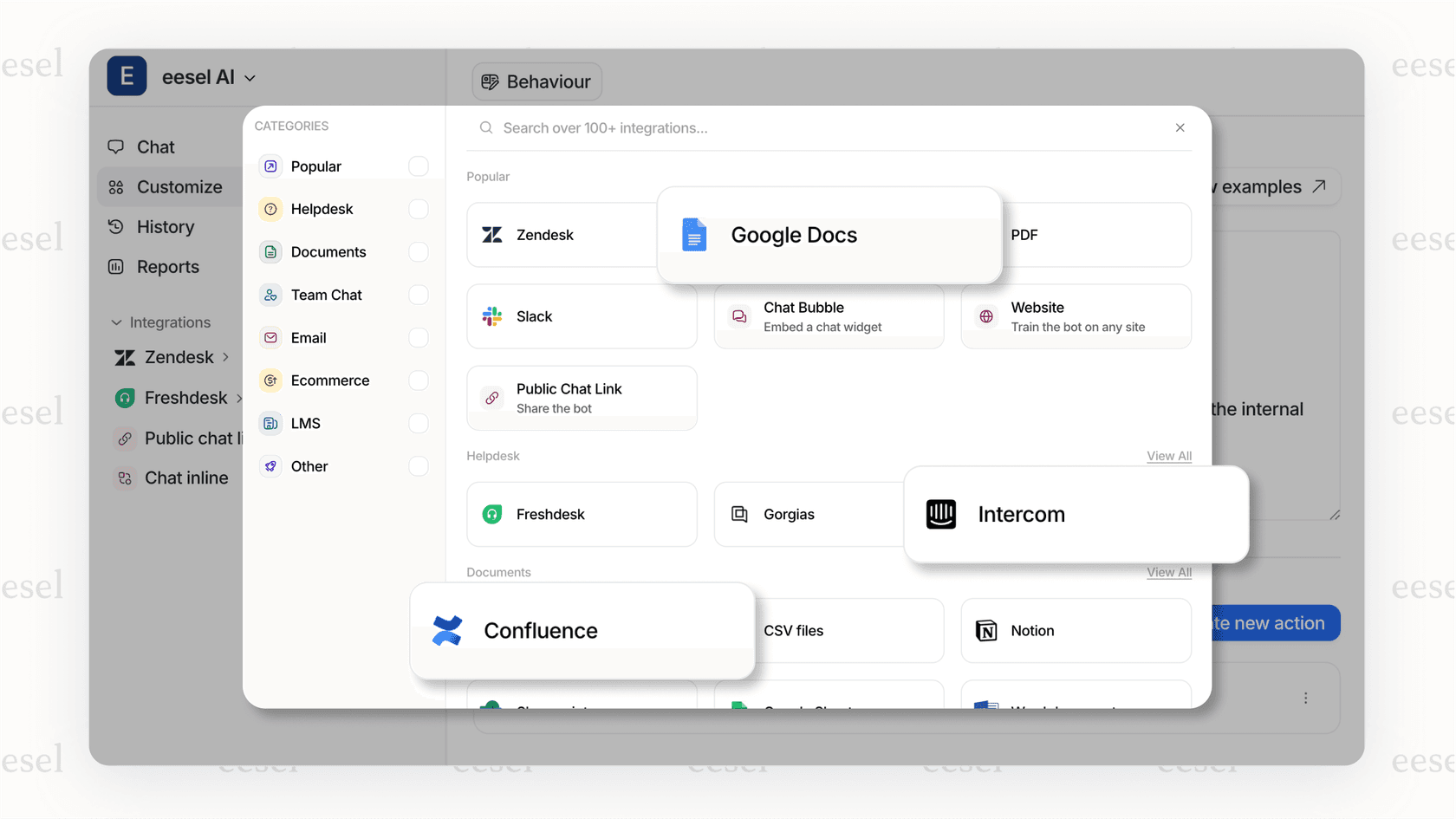
For teams already invested in Zendesk's mobile SDK, we can work alongside it. We handle routine queries instantly, while your human agents focus on complex issues. Customers still get push notifications through the Zendesk mobile app, but they get answers faster.
Our pricing starts at $299/month for the Team plan, which includes up to 3 bots and 1,000 interactions. The Business plan at $799/month adds unlimited bots, past ticket training, and EU data residency.
Getting started with Zendesk mobile SDK push notifications
Push notifications are essential for any mobile support experience. Without them, conversations stall. With them, you can provide the responsive, real-time support customers expect.
The setup process is straightforward but exact. Follow the steps for your platform carefully, test on real devices, and have a troubleshooting checklist ready for when things don't work the first time.
If you're looking to reduce the complexity of mobile support entirely, consider augmenting your Zendesk setup with eesel AI. We handle the conversations so your team can focus on what humans do best.