Zendesk messaging template approval for WhatsApp: complete 2026 guide

Stevia Putri
Last edited February 20, 2026
Your support team has a customer who hasn't responded in 23 hours. Their issue is half-resolved, but you can't send that follow-up message. WhatsApp's 24-hour rule has kicked in, and now you're stuck unless you have an approved message template.
This is the reality of using WhatsApp Business API with Zendesk. Templates aren't just nice to have. They're the only way to proactively message customers after that 24-hour window closes.
Getting these templates approved by Meta isn't complicated, but it does have specific rules. This guide walks through everything you need to know about creating, submitting, and managing WhatsApp message templates in Zendesk.
Understanding WhatsApp message templates in Zendesk
What are WhatsApp message templates?
WhatsApp message templates are pre-approved message formats that businesses must use when initiating conversations outside the customer service window. Think of them as scripted messages that Meta reviews in advance to ensure they meet platform policies.
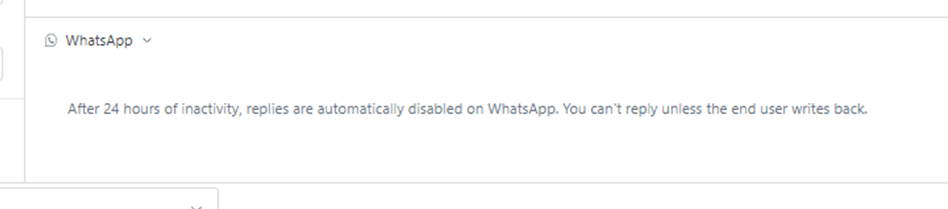
When a customer messages you first, you have 24 hours to respond freely. After that window closes, only templates can restart the conversation. This applies whether you're sending an order update, appointment reminder, or marketing promotion.
The 24-hour customer service window explained
The 24-hour rule is WhatsApp's way of preventing spam. Here's how it actually works:
- Within 24 hours of the customer's last message: You can send free-form text, images, videos, or any media type. The conversation flows naturally.
- After 24 hours: You can only send pre-approved template messages. Any free-form message will fail.
- Customer replies reset the clock: When a customer responds to your template, a new 24-hour window opens immediately.
This rule exists across all WhatsApp Business API integrations, including Zendesk. Your agents see visual indicators in the Zendesk interface showing when the window is about to close or has already expired.
Template categories and use cases
Every template must be assigned to one of three categories. This determines both approval speed and pricing.
| Category | Use Case | Approval Speed | 2026 Price Range |
|---|---|---|---|
| Authentication | OTPs, verification codes, account security alerts | Fast (minutes) | $0.004 - $0.05/message |
| Utility | Order confirmations, shipping updates, appointment reminders | Fast (minutes) | $0.004 - $0.05/message |
| Marketing | Promotions, product announcements, newsletters | Standard (up to 24h) | $0.025 - $0.14/message |
Source: Meta Template Guidelines
Choosing the right category matters. Meta reviews templates for category accuracy. If you submit a promotional message as Utility to get faster approval, it will likely be rejected or reassigned.
Prerequisites for Zendesk WhatsApp template approval
Before you can create a single template, several accounts need to be properly configured and verified.
Required accounts and verification
Meta Business Manager is the foundation. You need a verified business account with these components:
- Verified Meta Business Manager account - This requires submitting business documentation like tax records or utility bills
- WhatsApp Business Account - Created within your Business Manager
- Verified phone number - Must be able to receive SMS or voice calls for verification
- Approved display name - Must match your business name or branding
Without verification, your WhatsApp Business Account faces restrictions: a 250-message daily limit, customer-initiated conversations only, and a maximum of 250 templates instead of 6,000.
Zendesk requirements
On the Zendesk side, you need:
- Zendesk Suite Professional or higher - The Sunshine Conversations API required for outbound messaging isn't available on lower tiers
- Sunshine Conversations API access - Enabled by default on Professional+ plans
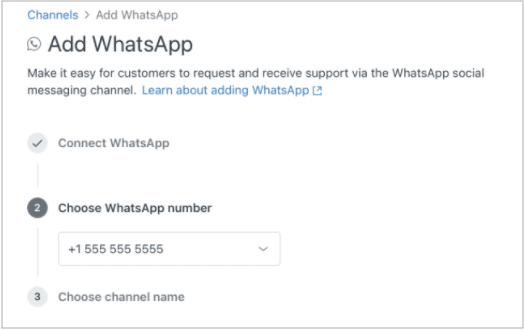
- WhatsApp channel configured - Connected through Admin Center to your Meta account
You'll also need to generate API credentials: App ID, Key ID, and Secret Key from the Conversations API section in Zendesk Admin Center.
Understanding Meta's review criteria
Meta evaluates templates for:
- Appropriate categorization - Does the content match the selected category?
- Clear, non-deceptive language - No misleading claims or clickbait
- Compliance with Commerce Policy - No prohibited products or services
- Proper formatting - Variables use correct syntax, language matches content
Utility and Authentication templates typically approve within minutes because their transactional nature is clear. Marketing templates take longer because Meta reviews them for compliance with promotional messaging policies.
How to create and submit WhatsApp templates in Zendesk
Step 1: Access the template management interface
Navigate to Admin Center > Channels > Messaging and social > WhatsApp Business API > Message Templates.
If you don't see this option, verify that:
- Your Zendesk plan includes Sunshine Conversations
- Your WhatsApp channel is properly connected
- You have admin permissions
The template management interface shows all existing templates with their current status: Approved, Pending, or Rejected.
Step 2: Build your template structure
Templates consist of four possible components. Only the body is required.
Header (optional):
- Text: Up to 60 characters
- Media: Image, video, or document
- Purpose: Grab attention or provide context
Body (required):
- Text: Up to 1,024 characters
- Supports variables:
{{1}},{{2}}for positional, or{{first_name}}for named - Purpose: Main message content
Footer (optional):
- Text: Up to 60 characters
- Purpose: Additional context like "Reply STOP to unsubscribe"
Buttons (optional):
- Quick Reply: Up to 3 buttons, 20 characters each
- Call-to-Action: Up to 2 buttons (phone number or URL)
- Purpose: Drive specific customer actions
Here's a complete example for an order confirmation:
Header: Your order is on the way!
Body: Hi {{1}}, your order #{{2}} has shipped via {{3}}.
Expected delivery: {{4}}.
Footer: Track anytime at example.com
Button: [Track Package]
When building templates, consider how variables populate from your Zendesk user data. The {{1}} parameter might map to ticket.requester.first_name, while {{2}} comes from a custom order number field.
Step 3: Select category and language
Choose your category carefully:
- Utility for transactional messages: "Your appointment is confirmed for Tuesday at 2 PM"
- Authentication for security codes: "Your verification code is 123456"
- Marketing for promotional content: "Get 20% off your next purchase"
For language, select the primary language of your template content. If you need the same message in multiple languages, create separate templates for each. Each language version counts against your template limit.
Step 4: Submit for Meta approval
Once your template is complete, submit it for review. The approval process works differently depending on your setup:
If using Zendesk's integrated template management:
- Templates submit directly through Zendesk interface
- Status updates appear in Admin Center
- Approved templates sync automatically
If using Meta Business Manager directly:
- Go to WhatsApp Manager > Account tools > Message templates
- Create and submit templates there
- Manually sync approved templates to Zendesk
Approval times vary:
- Utility/Authentication: Usually minutes, rarely more than an hour
- Marketing: Up to 24 hours, often faster for straightforward content
You can check status in Zendesk Admin Center or Meta's WhatsApp Manager. Webhook notifications are also available if you want programmatic status updates.
Source: Meta Template Review Documentation
Managing template approval status and troubleshooting
Understanding approval statuses
Templates move through several statuses during their lifecycle:
| Status | Meaning | Action Required |
|---|---|---|
| In-Review | Pending Meta review | Wait up to 24 hours |
| Approved | Ready to use | None - template is active |
| Rejected | Failed review | Edit and resubmit |
| Active - High Quality | Good feedback scores | Monitor periodically |
| Active - Medium Quality | Some negative feedback | Review customer complaints |
| Paused | Too many blocks/reports | Appeal or recreate |
Templates can be paused or disabled if they receive consistent negative feedback. Meta tracks quality metrics based on customer reactions.
Common rejection reasons and fixes
Based on Meta's published guidelines, here are the most common rejection scenarios:
| Rejection Reason | What It Means | How to Fix |
|---|---|---|
| Category mismatch | Content doesn't match selected category | Resubmit under correct category |
| Promotional content in Utility | Marketing language in transactional template | Move to Marketing or remove promotional elements |
| Missing opt-out | Marketing template lacks unsubscribe instructions | Add "Reply STOP to opt out" in footer |
| Variable formatting error | Incorrect parameter syntax | Use {{1}} or {{parameter_name}} format |
| Language mismatch | Content doesn't match declared language | Correct language selection or translate content |
| URL policy violation | Shortened URLs or suspicious links | Use full domain URLs |
| Prohibited content | Violates Commerce Policy | Remove restricted products/services |
Source: Meta Template Guidelines
If your template is rejected, Meta provides a reason code. Don't just resubmit the same template. Address the specific issue and create a new submission.
How to check template status
In Zendesk Admin Center:
- Navigate to Channels > Messaging and social > WhatsApp Business API
- Select the Message Templates tab
- View status column for each template
In Meta Business Manager:
- Go to WhatsApp Manager
- Click Account tools > Message templates
- Status appears alongside quality ratings for active templates
Via API: For programmatic monitoring, use the GET /{template_id} endpoint with the status field:
curl 'https://graph.facebook.com/v23.0/{TEMPLATE_ID}?fields=status' \
-H 'Authorization: Bearer {ACCESS_TOKEN}'
Editing and resubmitting rejected templates
Important limitation: Approved templates cannot be edited. If you need to change an approved template, you must create a new one with a different name.
For rejected templates:
- Review the rejection reason
- Create a new template with corrections
- Use a descriptive naming convention for versioning:
order_confirmation_v2 - Submit the new version
Best practice for template naming: Use descriptive names that indicate purpose and version. Examples: shipping_notification_v1, appointment_reminder_v2, promo_spring_2026.
Using approved templates for Zendesk outbound messaging
Once your templates are approved, you can use them to message customers outside the 24-hour window.
Sending templates via Zendesk Relay app
The Relay app from Zendesk Labs provides a no-code interface for bulk template messaging.
Prerequisites:
- Zendesk Suite Professional or higher
- Custom Objects enabled
- Conversations API credentials configured
Process:
- Install Relay from Zendesk Marketplace
- Configure your API credentials and WhatsApp Namespace ID
- Select an approved template
- Define your audience using Zendesk search (e.g.,
tags:viportype:ticket status:pending) - Map template variables to user fields
- Preview and send
Relay processes up to 10,000 users per campaign. You can track delivery status in real-time as messages go out.
Sending templates via Notification API
For programmatic sending, use the Sunshine Conversations Notification API:
POST https://{subdomain}.zendesk.com/sc/v1.1/apps/{app_id}/notifications

{
  "destination": {
    "integrationId": "your-whatsapp-integration-id",
    "destinationId": "+1234567890"
  },
  "author": {
    "role": "appMaker"
  },
  "messageSchema": "whatsapp",
  "message": {
    "type": "template",
    "template": {
      "name": "order_confirmation",
      "language": {"code": "en_US"},
      "components": [{
        "type": "body",
        "parameters": [
          {"type": "text", "text": "Jessica"},
          {"type": "text", "text": "ORD-12345"}
        ]
      }]
    }
  }
}
The API returns a notification ID for tracking delivery through webhooks.
Template personalization with variables
Variables make templates feel personal rather than robotic. Map them to Zendesk data:
| Variable | Zendesk Field | Example Value |
|---|---|---|
{{1}} | ticket.requester.first_name | "Jessica" |
{{2}} | ticket.custom_fields.order_number | "ORD-12345" |
{{3}} | ticket.custom_fields.shipping_carrier | "FedEx" |
{{4}} | ticket.custom_fields.delivery_date | "March 15" |
For static values that don't change per recipient, enter them directly in the send payload rather than mapping to user fields.
Best practices for Zendesk WhatsApp template approval
Writing approval-ready templates
Follow these guidelines to maximize approval chances:
Be specific and clear:
- "Your order has shipped" is better than "Great news!"
- Include specific details like order numbers, dates, or amounts
Match category to content:
- Don't try to sneak marketing into Utility templates
- If it promotes, it's Marketing. If it informs, it's Utility.
Use variables thoughtfully:
- Personalize with customer names and relevant details
- Don't overuse variables to the point where the message becomes confusing
Follow formatting rules:
- No emojis in template names
- Variables must use double curly braces
- Keep within character limits for each component
Maintaining template quality ratings
Once approved, templates accumulate quality ratings based on customer feedback. Poor ratings can pause or disable your templates.
Monitor these metrics:
- Block rates (customers blocking your number)
- Report spam rates
- Read rates for marketing messages
Best practices:
- Send only to opted-in customers
- Honor unsubscribe requests immediately
- Keep message frequency reasonable
- Ensure content matches customer expectations
If a template gets paused, you can appeal through Meta's support process. However, it's usually faster to create an improved version and submit fresh.
Handling responses to template messages
Here's something many teams overlook: when customers reply to your templates, they create tickets that need handling.
A successful outbound campaign can generate significant inbound volume. That shipping notification might prompt questions about delivery times. That appointment reminder might trigger rescheduling requests.
This is where automation helps. Our AI agent for Zendesk can handle routine responses automatically. It reads incoming WhatsApp replies, drafts responses based on your knowledge base, and either sends them directly or routes complex issues to your team.
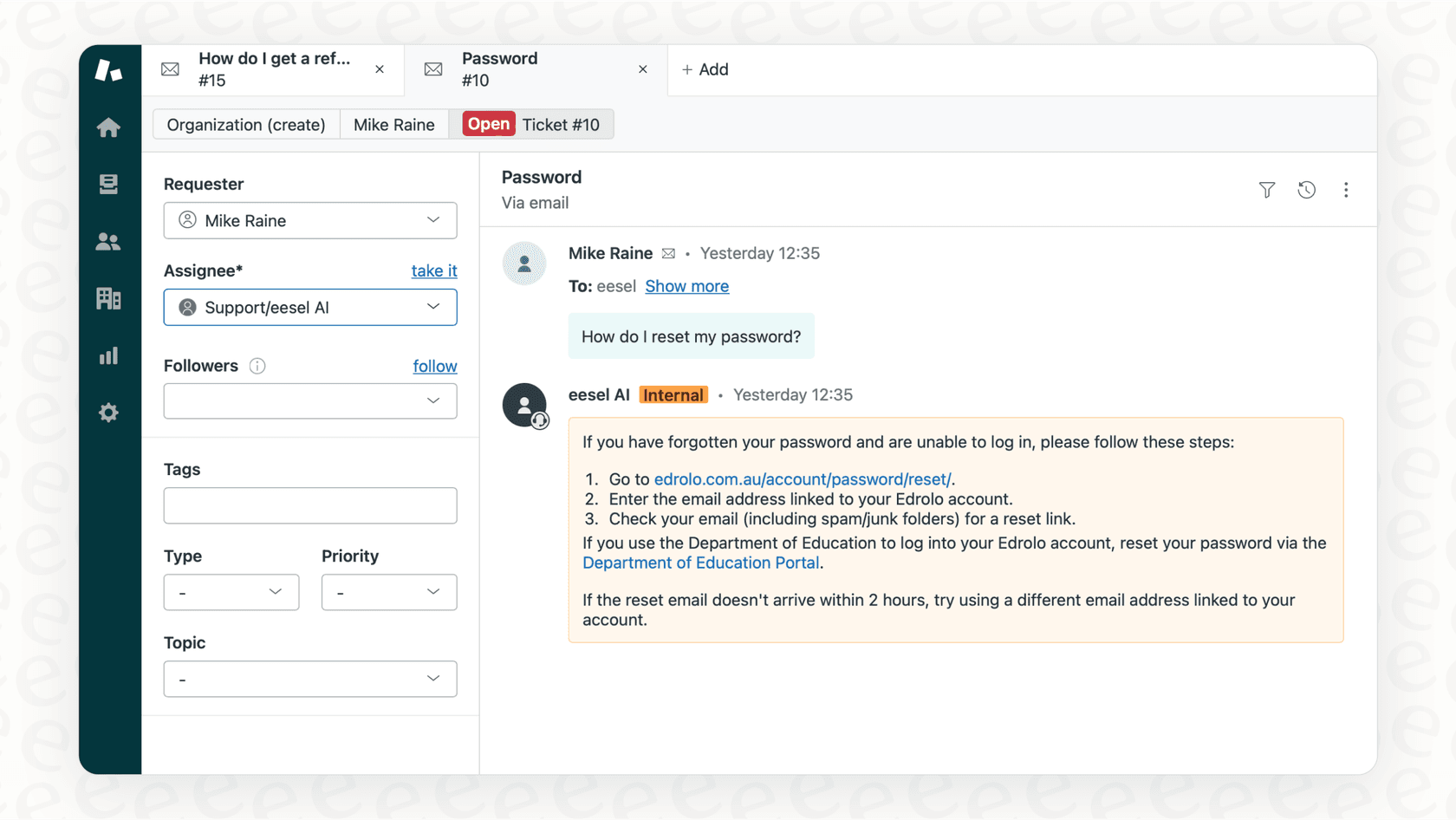
For teams running regular outbound campaigns, combining WhatsApp templates with AI-powered response handling prevents your agents from getting overwhelmed.
Getting started with Zendesk WhatsApp template approval
Here's your action plan:
- Verify your Meta Business Manager - Submit business documentation and complete verification
- Connect WhatsApp Business Account - Link your phone number and get display name approval
- Configure Zendesk WhatsApp channel - Set up the integration in Admin Center
- Create your first templates - Start with Utility templates (fastest approval) for common scenarios
- Submit and monitor - Check status in Zendesk or Meta Business Manager
- Test with small campaigns - Use the Relay app or API to send to a limited audience first
- Scale gradually - Expand usage as you confirm delivery and response rates
Remember that templates are living assets. Review performance regularly, update content as your business evolves, and create new templates for new use cases.
If you're planning significant outbound messaging campaigns, consider how you'll handle the inbound responses. Whether you staff up, use automation, or a combination of both, the goal is maintaining fast response times even as volume grows.
Want to see how AI can help manage the responses from your WhatsApp campaigns? Learn about our Zendesk integration and how we handle ticket triage, response drafting, and autonomous resolution.

Frequently Asked Questions
Share this article

Article by
Stevia Putri
Stevia Putri is a marketing generalist at eesel AI, where she helps turn powerful AI tools into stories that resonate. She’s driven by curiosity, clarity, and the human side of technology.