
When your support team clocks out for the day, what happens to customers who still need help? For many Zendesk users, the default experience is frustrating: visitors hit a wall when all agents go offline, left with nothing but a generic form and a promise that someone will get back to them eventually.
The good news is that Zendesk offers several ways to handle offline messages. The configuration options range from simple contact forms to sophisticated messaging triggers. But each approach comes with trade-offs, and none of them solve the fundamental problem: customers want answers, not queue positions.
This guide walks you through setting up Zendesk's native offline message handling, from basic configuration to advanced workflows. We'll also look at what happens when native features reach their limits, and how AI-powered alternatives can fill the gaps without complex trigger configurations.

Understanding Zendesk offline message options
When customers interact with your support channels outside business hours, they enter what Zendesk calls "offline" state. What happens next depends entirely on how you've configured your messaging or chat widget.
Here's the basic flow: when no agents are online, Zendesk can either show an offline form that creates a ticket, display a message about your business hours, or (if you're using messaging) queue the conversation for the next available agent. The customer's message doesn't disappear, but the experience varies dramatically based on your setup.
The distinction between Chat and Messaging matters here. Live chat is session-based. When the chat ends, the context is gone. Messaging, on the other hand, is persistent. Customers can start a conversation, close their browser, and pick it up hours later via email or the widget. This persistence changes how you should think about offline handling. It's not just about capturing contact information; it's about maintaining a continuous conversation.
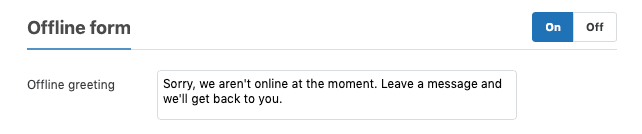
Setting up the offline form in Zendesk Chat
If you're using the classic Zendesk Chat (not Messaging), the offline form is your primary tool for capturing messages when agents are unavailable. Here's how to configure it.
Step 1: Navigate to Chat dashboard settings
Log into your Zendesk Chat dashboard. Click on Settings in the left sidebar, then select Widget, then Forms. This is where you control what visitors see when they interact with your widget.
Step 2: Enable and customize the offline form
Toggle the offline form to "on." You'll see options to customize which fields appear. At minimum, you'll want name, email, and message fields. You can add custom fields if you need specific information (like order numbers or account IDs).
The form customization is straightforward, but think carefully about what you're asking for. Every additional field creates friction. If you don't absolutely need the information to respond effectively, leave it out.
Step 3: Configure form behavior
Decide what happens when someone submits the form. By default, it creates a ticket in your Zendesk Support instance. You can set the default assignee, tags, and priority. Consider creating a specific "offline" tag so you can easily filter and prioritize these tickets when your team returns.
One limitation worth noting: the offline form only appears when all agents are offline. If even one agent is online (or set to "away" but technically logged in), visitors will see the chat interface instead. This can create confusion if that one agent is at capacity and can't actually respond.
Converting offline chats to tickets automatically
The offline form creates tickets, but what about the contact form? Many Zendesk users confuse these two features, and the distinction matters for offline message handling.
Contact form vs. offline form
The contact form appears in your Web Widget (Classic) and allows visitors to submit tickets even when agents are online. It's essentially an embedded version of your ticket submission form.
The offline form only appears when no agents are available. It serves the same functional purpose (creating tickets), but the visitor experience differs. The offline form explicitly sets expectations: "We're not here right now, but we'll get back to you."
If you're using the newer Zendesk Messaging rather than classic Chat, neither of these forms applies. Messaging uses a different approach entirely, which we'll cover in the next section.
Configuring ticket creation for offline messages
To ensure offline submissions create properly routed tickets:
- Go to Admin Center > Channels > Classic > Web Widget
- Select your widget
- Under the offline form settings, verify that "Create ticket" is enabled
- Set default values for ticket fields like Group and Priority
Consider setting offline tickets to a higher priority or a specific group that handles overflow. The key is making sure these tickets don't get lost in the general queue when your team returns online.
Using messaging triggers for offline notifications
For teams using Zendesk Messaging (the newer, persistent conversation model), triggers replace the offline form. Triggers are more flexible but also more complex to configure.
Creating a messaging trigger for offline groups
A messaging trigger fires automatically when specific conditions are met. For offline notifications, you'll create a trigger that detects when agents are unavailable and sends an appropriate message.
Here's the basic setup:
- Go to Admin Center > Objects and rules > Business rules > Triggers
- Click Create trigger
- Name it something descriptive like "Notify when group is offline"
Setting trigger conditions
Under "Meet ALL of these conditions," add:
- Group status | [Your group name] | Invisible
This condition checks if all agents in the specified group are offline or invisible. When true, the trigger fires.
You can add additional conditions, like "Business hours" is "Outside" to only trigger this message during off-hours, or leave it to fire whenever the group is unavailable regardless of time.
Customizing offline messages
Under actions, select Send message to customer and craft your message. Be specific about expectations: "Our team is currently offline. We typically respond within 4 business hours. For urgent issues, call [phone number]."
The message can include dynamic content like business hours or links to your help center. The goal is setting clear expectations while providing alternative paths for customers who need immediate assistance.
Test your trigger thoroughly. Set all agents in the group to invisible, then start a conversation as a test user. Verify that the trigger fires and the message appears as expected.
Managing offline email notifications
When offline messages come in as tickets, who gets notified? This is where many teams run into frustration with Zendesk's native setup.
Current notification limitations
Here's the frustrating part: there's no admin-level control for offline message notifications. Each agent must individually disable these notifications from their profile settings. If you have twenty agents and only three should receive offline alerts, you cannot configure that centrally. Each of the seventeen agents who shouldn't get notifications has to log in and disable them manually.
This is a known limitation in Zendesk Chat. The system was designed with the assumption that offline messages are rare exceptions, but for many teams, they're a significant portion of incoming volume.
Best practices for notification management
Until Zendesk adds bulk notification controls, here are workarounds:
- Create a dedicated offline triage role. Have one or two agents responsible for monitoring and routing offline messages, and have all other agents disable notifications.
- Use views instead of email notifications. Create a shared view in Zendesk Support for "offline" tagged tickets. Agents check this view when they start their shift rather than getting real-time emails.
- Set up routing rules. Use triggers to automatically assign offline tickets to specific agents or groups based on content, so the right people get notified through standard ticket assignment rather than offline-specific notifications.
Troubleshooting common offline message issues
Even with proper configuration, offline message handling can break in unexpected ways. Here are the most common issues and how to fix them.
Widget shows offline despite agents being logged in
Check your department settings. If agents are online but not assigned to the department linked to that widget, visitors will see the offline state. Also verify that agents haven't set themselves to "invisible" status.
Customers only see offline options (no live chat)
This usually means either all agents are actually offline, or there's a department mismatch. If you're using the API to set departments on your website, verify the script is loading correctly and selecting the right department.
Department routing issues
If offline messages are going to the wrong team, review your trigger routing rules. Make sure the offline form is creating tickets with the correct default group, or that your routing triggers are properly configured to assign based on the message content.
Going beyond native features with AI-powered offline handling
Zendesk's native offline handling is functional but limited. It captures messages and creates tickets, but it doesn't actually help customers in the moment. For teams looking to provide 24/7 responsiveness without 24/7 staffing, AI offers a different approach.
Limitations of native offline handling
The fundamental constraint of Zendesk's offline features is that they're reactive, not proactive. They capture information for later follow-up but provide no immediate assistance. For customers with simple questions ("What's your return policy?" "How do I reset my password?"), waiting hours for a human response is unnecessary friction.
The trigger-based approach also requires ongoing maintenance. Every time you add a new product line, update a policy, or change business hours, you need to update your triggers. For complex organizations, this creates a significant administrative burden.
How eesel AI handles offline messages differently
eesel AI's Zendesk integration takes a different approach to the offline message problem. Instead of just capturing messages for later, the AI agent responds to customers immediately, 24/7, even when your human team is completely offline.

Here's how it works: you connect eesel AI to your Zendesk instance, and it learns from your past tickets, help center articles, macros, and even connected documentation like Confluence or Google Docs. Within minutes, it understands your products, policies, and tone of voice.
When a customer sends a message (during business hours or not), the AI evaluates whether it can handle the request. For common questions, it responds immediately with accurate, cited answers. For complex issues requiring human judgment, it escalates to your team with full context.
The key difference is continuity. Customers don't experience a "sorry, we're closed" wall followed by a delayed email. They get immediate assistance for questions the AI can handle, and clear expectations with queue position for issues requiring human agents.
The AI agent integrates directly into Zendesk, so conversations flow seamlessly between AI and human agents. When an AI-resolved issue needs escalation, the human agent sees the full conversation history, not just a ticket saying "customer asked about returns."
eesel AI offers a free plan with 100 credits, no card needed, where you can see how the AI performs on your actual past tickets before going live. Try it out and see the difference immediate responses make for customer satisfaction.
Choosing the right offline message strategy for your team
Not every team needs AI-powered responses. For some, Zendesk's native offline features are perfectly adequate. Here's how to decide.
When native Zendesk features work well
Native offline handling is sufficient if:
- Your ticket volume is low enough that a few hours of delay doesn't create significant backlog
- Most of your inquiries are complex and genuinely require human expertise (custom consulting, sensitive account issues)
- You have predictable business hours and customers understand you're not a 24/7 operation
- Your team has the administrative capacity to maintain trigger configurations as your business changes
For these scenarios, the offline form or messaging triggers we've covered will handle your needs without additional complexity.
When to consider AI-powered alternatives
AI becomes worth considering when:
- You receive high volumes of simple, repetitive questions that don't require human creativity (password resets, policy lookups, order status checks)
- Your customers span time zones and expect responsiveness outside your business hours
- Your team spends significant time on Tier 1 triage rather than complex problem-solving
- You want to reduce administrative overhead from maintaining complex trigger rules
The trade-off is straightforward: AI requires an additional tool and associated cost, but it eliminates the "we'll get back to you" friction that frustrates customers with simple needs.
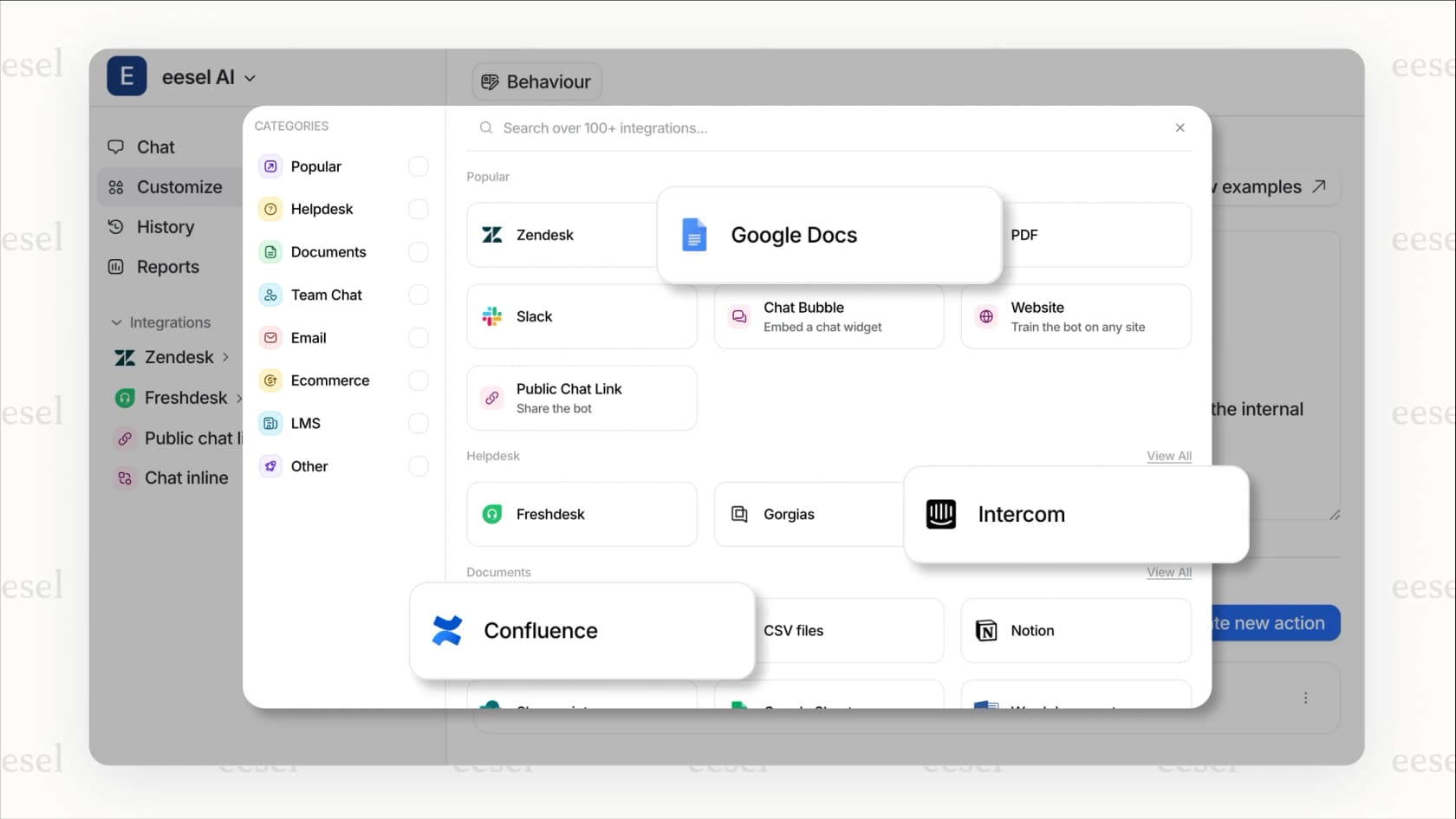
eesel AI integrates with Zendesk in minutes, learns your specific business context from existing data, and lets you test performance on past tickets before going live. Explore our Zendesk integration to see if it's right for your team. You can also review our pricing to understand how our flat-rate model compares to adding more human agents for after-hours coverage.