Your customers are already on Facebook Messenger. With over 138 million users in the U.S. alone, it's one of the most popular channels for customer service and purchases. If you're using Zendesk for support, integrating Facebook Messenger can help you meet customers where they already are.
But the setup isn't always straightforward. There are two different channel types, plan requirements to navigate, and some important limitations you need to know about before you start. This guide walks you through everything you need to connect Facebook Messenger to Zendesk, plus a modern alternative worth considering.

What you'll need to get started
Before you start the integration, make sure you have the following ready:
A Zendesk account with the right plan. The public Facebook channel (posts and comments) is available on all plans, but private Messenger integration requires Zendesk Suite or the Social Messaging add-on. Support-only plans are limited to public messages.
Admin access on both platforms. You need to be an administrator in both Zendesk and Facebook to set up the connection. This means having admin permissions on the Facebook Business Page you want to connect.
Clear understanding of the channel types. Zendesk treats public Facebook posts and private Messenger conversations as separate channels. You can set up one without the other, but most businesses want both.
If you're looking for a simpler approach to social messaging, we built eesel AI to handle Facebook Messenger (and other channels) with minimal configuration. But let's walk through the Zendesk setup first.
Understanding the two Facebook channel types
Zendesk's Facebook integration is actually two separate connections that work differently. Here's what each one does.
Public Facebook channel
This converts Facebook Page posts and comments into tickets in Zendesk. When someone posts on your Page wall or comments on your content, it becomes a ticket your agents can respond to. The response goes back as a comment on the original post.
All Zendesk Support and Suite plans include this, but you're limited to one Facebook Page on Support plans. Suite plans let you connect multiple Pages.
Private Facebook Messenger channel
This converts direct messages sent to your Facebook Page into tickets. It's separate from the public channel and requires Zendesk Suite or the Social Messaging add-on. If you're on a Support-only plan, you won't be able to receive private Messenger messages as tickets.
Suite V1 supports up to 15 Facebook Pages with both public and private messaging. Suite V2 increases this to 30 Pages.
Key differences at a glance
| Feature | Public Channel | Private Messenger |
|---|---|---|
| What it captures | Page posts, comments | Direct messages |
| Plans supported | All plans | Suite or add-on required |
| Page limits | 1 (Support), 15-30 (Suite) | 15 (Suite V1), 30 (Suite V2) |
| Response format | Comment on post | Reply in Messenger |
Step-by-step setup guide
Here's how to connect your Facebook Page to Zendesk and start receiving messages as tickets.
Step 1: Access the Admin Center
Log into Zendesk and navigate to Admin Center > Channels > Messaging and social > Facebook Pages. This is where you'll manage all Facebook connections.
Step 2: Connect your Facebook account
Click "Add your first Facebook Page" (or "add new Page" if you already have one connected). You'll be prompted to log into Facebook with an account that has admin permissions for the Page you want to connect.
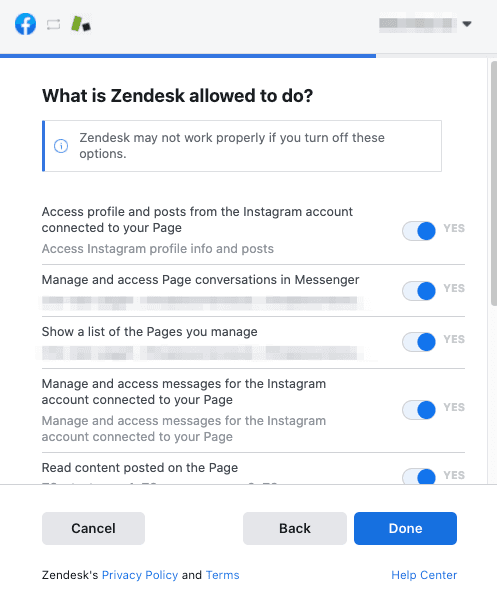
Grant Zendesk the requested permissions. These are necessary for the integration to function properly. If you change these permissions later, the connection might stop working.
Step 3: Select pages and permissions
Choose which Facebook Pages you want to connect to Zendesk. For each Page, enable the permissions Zendesk needs. You can also enable "Import recent activity" to create tickets from existing messages or posts from the last week (up to 100 posts and 500 comments per post).
If your plan supports multiple Pages, you can add more than one. Just click "Add" beside each Page you want to include.
Step 4: Configure channel settings
Once connected, configure your channel settings. Give the channel a descriptive name and select which brand it belongs to (if you use multiple brands in Zendesk).
Set up business rules and triggers to manage how Facebook tickets flow into your workflow. For example, you might want Facebook tickets to go to a specific team or have a different priority level.
You'll also want to configure auto-responders for your Facebook channels. This lets customers know you've received their message and sets expectations for response times.
Key features and capabilities
Once set up, the Facebook integration gives you several tools for managing social support.
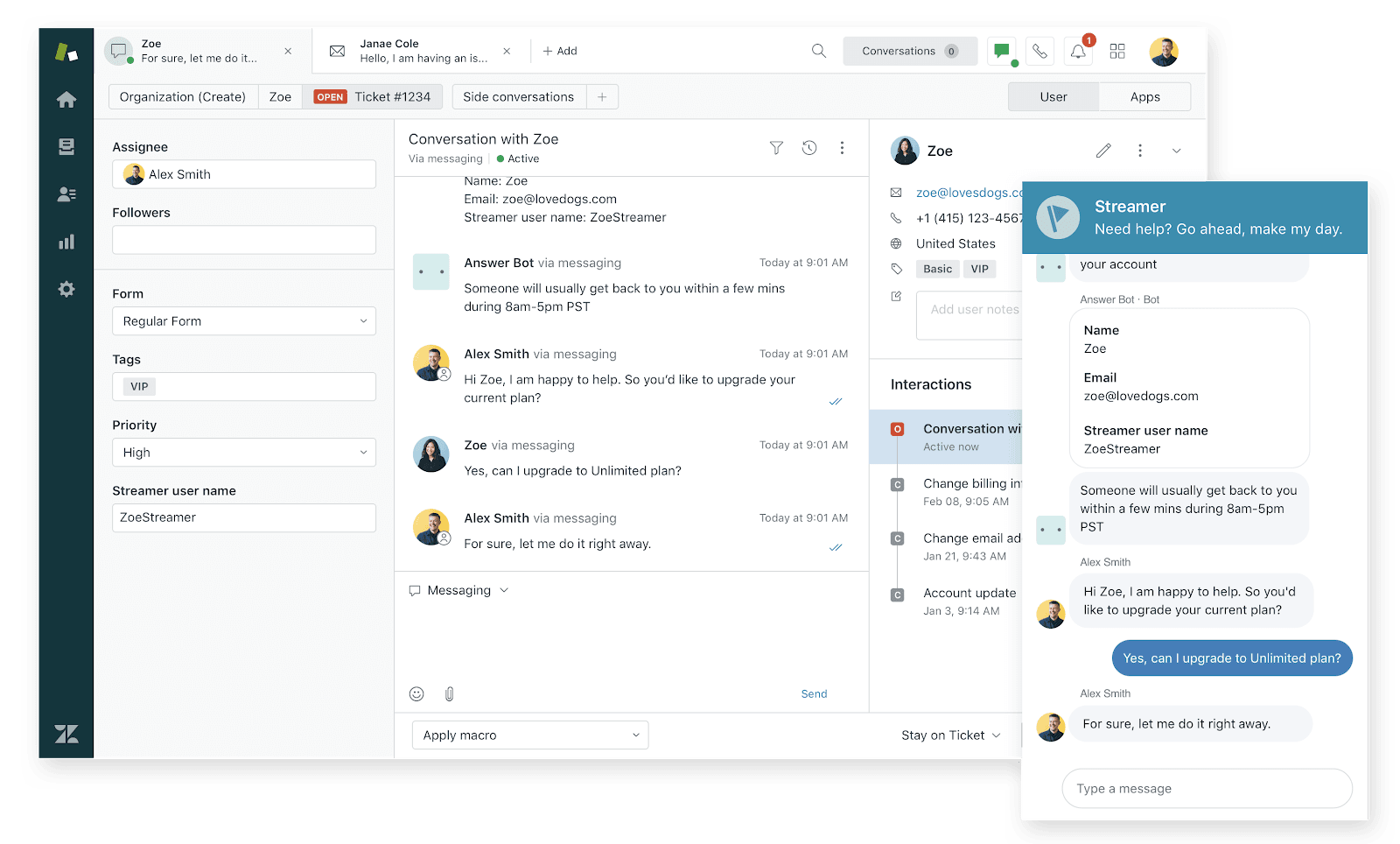
Unified ticket management. Facebook messages and comments appear alongside tickets from other channels in the Zendesk Agent Workspace. Agents don't need to switch tools to handle social conversations.
Answer Bot integration. You can deploy Zendesk's Answer Bot on Facebook Messenger to handle simple queries automatically. If the bot can't resolve the issue, the conversation history is visible to the agent who takes over.
Rich messaging features. Facebook Messenger supports carousels, multimedia sharing, and voice or video chat. These features let you create more engaging customer experiences than plain text.
Workflow engine integration. Facebook messages can trigger automated actions in Zendesk. For example, a message containing "order status" could automatically pull customer order information.
Important limitations to know
Before you commit to Zendesk's Facebook integration, you should understand these constraints.
The 7-day response window
Facebook's platform rules are strict: businesses have only seven days to respond to a message before the messaging window closes. After that, the composer in Zendesk will be blocked. The only way to reopen the conversation is if the customer sends a new message.
This is a hard limit from Facebook, not Zendesk. It means you can't follow up on old conversations or send proactive messages outside the window.
Character and format limits
Facebook Messenger has a 2000-character limit per message. Anything longer won't be delivered. You'll also need to work around these unsupported features:
- Reel comments
- Stickers in comments
- Video comments (video posts are supported, but not video comments)
- Live video posts and comments
Sync limitations
Here's a common source of confusion: if an agent responds directly in the Facebook Messenger app or website, that response does not sync back to Zendesk. Agents must respond through Zendesk's interface for everything to stay synchronized.
Plan restrictions
The plan limitations are significant. On Support plans, you get one Facebook Page and public messages only. For private Messenger support, you need Suite. The V1 integration supports 15 Pages; V2 supports 30. Migrating from V1 to V2 requires reconfiguration.
eesel AI: a modern alternative for Facebook Messenger support
If you're finding Zendesk's Facebook integration limiting or complex, there's another approach. We built eesel AI to handle social messaging (and other channels) with a different philosophy: instead of configuring complex rules, you hire an AI teammate that learns your business.

Here's how we handle Facebook Messenger differently.
Progressive rollout. You don't have to go fully automated from day one. Start with eesel AI drafting replies for your agents to review. Once you're confident, let it respond directly to common questions. You control the pace.
Plain-English configuration. No complex trigger rules or workflow builders. You describe in natural language how you want the AI to handle different situations. "If someone asks about a refund over 30 days old, politely decline and offer store credit."
Pre-go-live testing. Run simulations on your past tickets before the AI ever touches a real customer. See exactly how it would respond and measure quality before going live.
Continuous learning. Correct any response by chatting with the AI, and it improves over time. Update policies by messaging it: "We changed our pricing to $99."
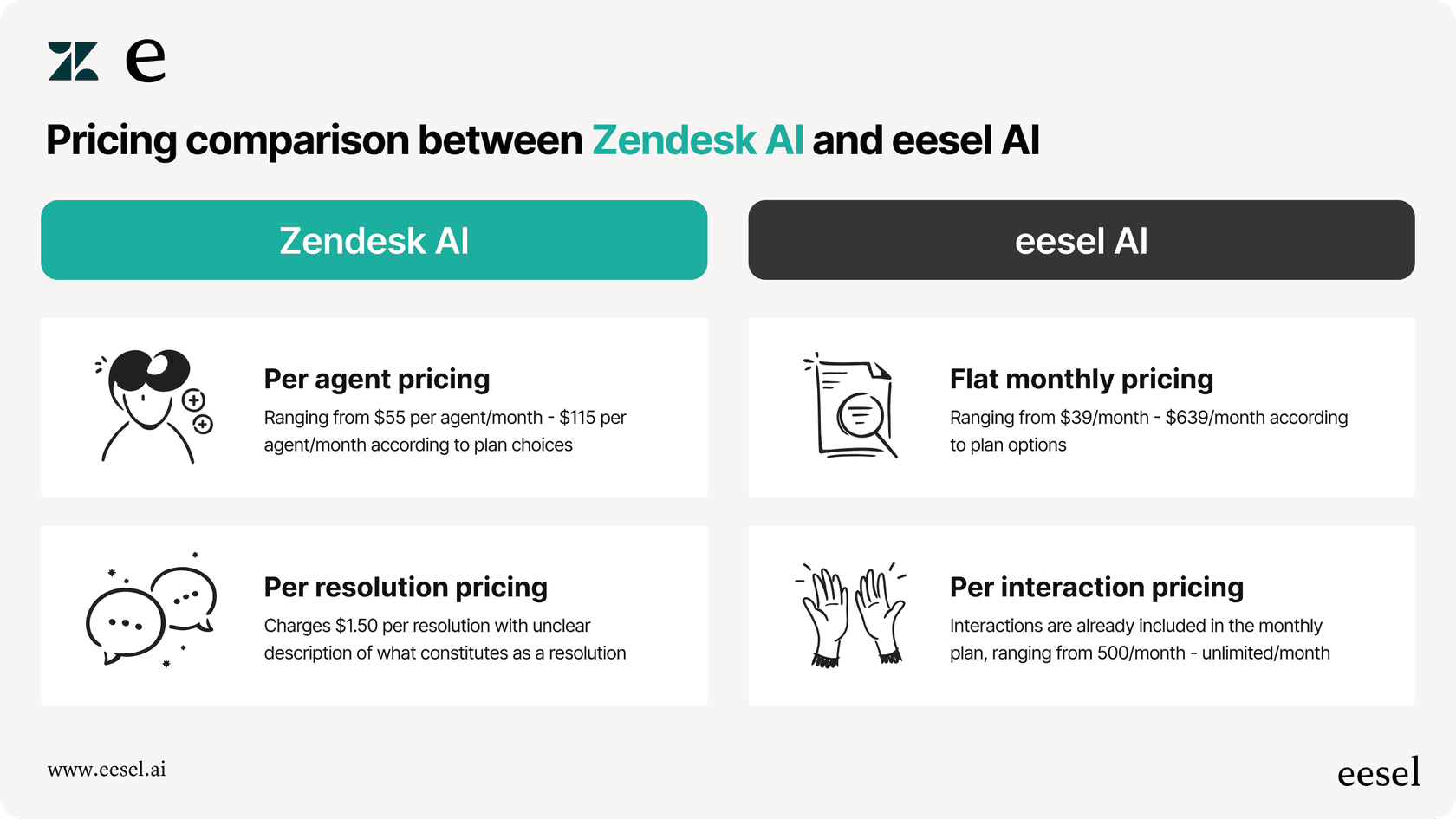
Flat pricing, not per-agent. Our Business plan is $639/month (annual) for unlimited bots and up to 3,000 AI interactions. You don't pay more as your team grows.
Comparison: Zendesk vs eesel AI for Messenger support
| Factor | Zendesk | eesel AI |
|---|---|---|
| Pricing model | Per agent/month ($55-$169+) | Flat rate ($239-$639/month) |
| Setup time | Hours to days | Minutes |
| AI training | Manual configuration | Learns automatically from past tickets |
| Control method | Complex rules and triggers | Plain English instructions |
| Testing before live | Limited | Full simulation on past tickets |
| Continuous improvement | Manual updates | Learns from corrections automatically |
| Facebook limitations | Subject to all platform limits | Same platform limits, but easier to work around |
Getting started with smarter Facebook Messenger support
Connecting Facebook Messenger to your help desk is essential if your customers use the platform. Zendesk's integration works, but it comes with complexity: plan restrictions, setup steps, and rigid Facebook platform limits.
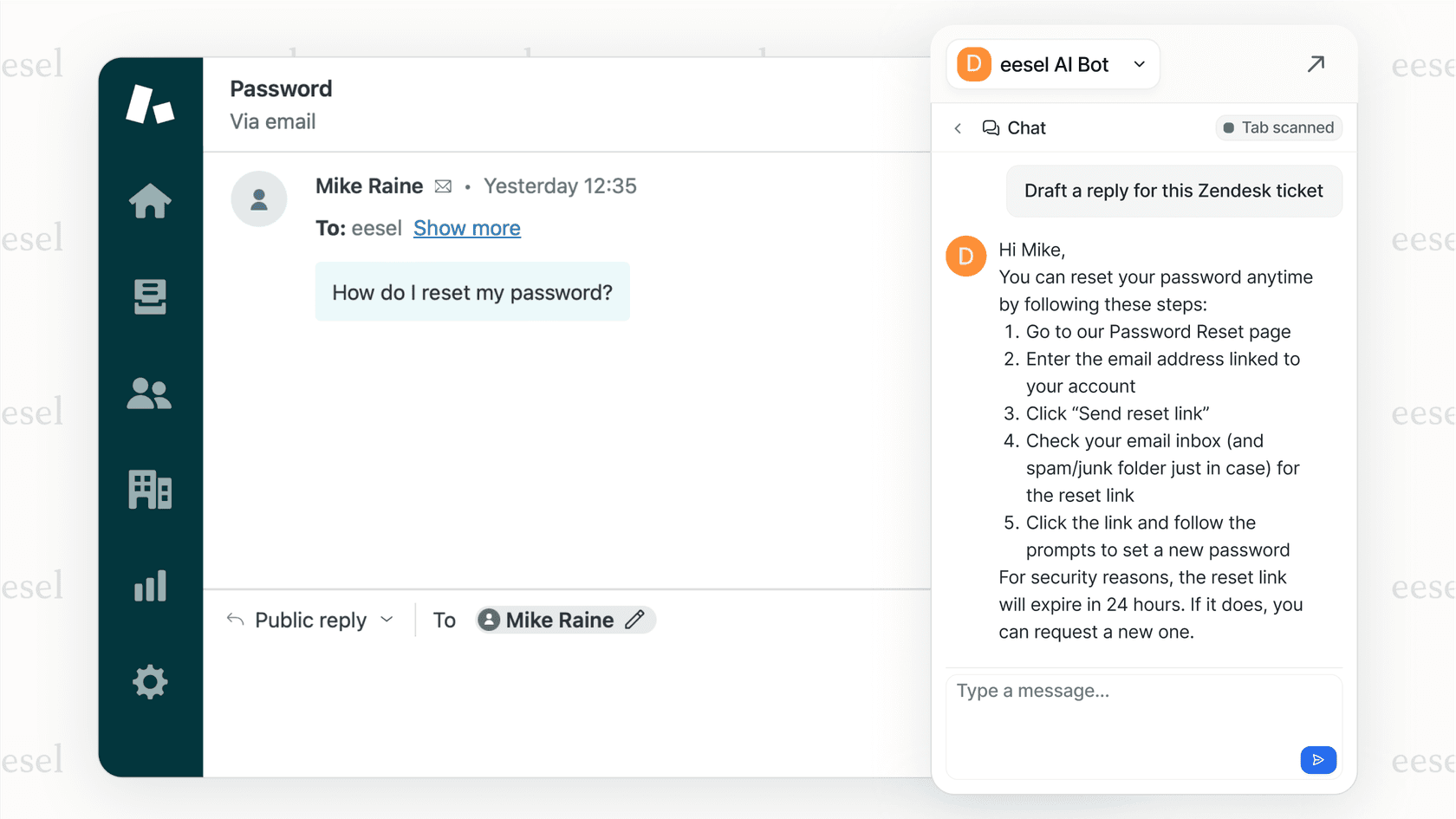
If you're already using Zendesk and just need basic Facebook connectivity, the native integration may be sufficient. Set up both the public and private channels, configure your triggers, and train your agents on the 7-day window limitation.
But if you want an AI-powered approach that learns your business, tests before going live, and improves continuously, eesel AI is worth exploring. We integrate with Zendesk and other help desks, handle Facebook Messenger alongside your other channels, and let you start with guidance before leveling up to full automation.
Try eesel AI free for 7 days or book a demo to see how it works with your existing setup.