
Over 1 billion people use iPhones worldwide. For support teams, that means a massive segment of your customer base already lives in Apple's ecosystem, messaging friends and family through the native Messages app every day. Apple Messages for Business lets you meet them there.
This integration connects Apple's messaging platform directly to your Zendesk environment, allowing customers to start conversations from Safari, Maps, or your website, and reach your support team through the same interface they use to text their contacts. The result is a familiar, low-friction support channel that feels natural to iOS users.
Here's the short version: setting this up requires registering with Apple, getting approved, configuring the channel in Zendesk, and implementing rich messaging features. In this guide, we'll walk through the entire process step by step.

What you'll need before you start
Setting up Apple Messages for Business is not a simple toggle switch. Apple maintains strict quality standards for businesses using their platform, and Zendesk requires specific subscription levels. Before you begin, make sure you have:
- Zendesk Suite Professional, Enterprise, or Enterprise+, or a standalone Support Professional/Enterprise subscription with Chat activated
- Messaging enabled in your Zendesk account
- An active AI agent or third-party bot configured
- A Professional Services package from Zendesk (this is mandatory and requires contacting their sales team)
- Brand assets ready: square and wide logos, brand colors
- Apple ID to access Apple Business Register
The Professional Services requirement is worth calling out specifically. Unlike some Zendesk integrations you can set up yourself, Apple Messages for Business requires working with Zendesk's team. This adds cost and time but ensures proper implementation.
Understanding Apple Messages for Business
Apple Messages for Business is fundamentally different from traditional live chat. While live chat sessions are real-time and ephemeral, messaging conversations are persistent and asynchronous. A customer can start a conversation, close their phone, and resume hours later exactly where they left off.
The channel operates entirely within Apple's native Messages app. Customers discover your business through various entry points (we'll cover those later), tap to start a conversation, and interact with your support team as easily as messaging a friend.
Privacy is core to the platform. Customers must initiate conversations, businesses never see phone numbers, and users can close conversations at any time. Messages use end-to-end encryption between user devices and Apple servers.
Key differences from live chat
| Aspect | Live Chat | Apple Messages for Business |
|---|---|---|
| Session type | Real-time, session-based | Persistent, asynchronous |
| Cross-device | Limited | Full sync across iPhone, iPad, Mac |
| Customer initiation | Business or customer | Customer only |
| Payment integration | External checkout | Apple Pay in conversation |
| Encryption | Varies by implementation | End-to-end |
Step 1: Register with Apple Business Register
Your first task is creating an account in Apple's Business Register. This is where you submit your brand for approval and select Zendesk as your Messaging Service Provider.
Start by navigating to register.apple.com and signing in with your Apple ID. If you don't have one, you'll need to create it.
Once inside the Business Register:
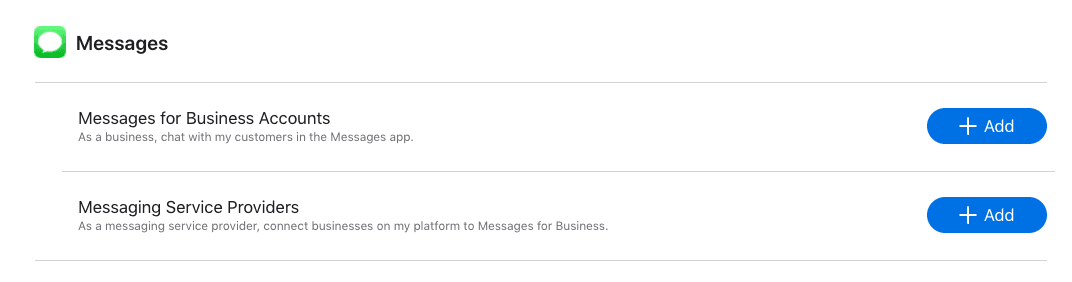
- Click Manage connections
- Click Add next to Messages for Business Accounts
- Accept the Terms of Use
- Click Add New to start your application
You'll need to provide detailed brand information:
- Brand Identity: Upload your square and wide logos, specify branding colors
- Brand Information Card: Your business name, website URL, phone number, expected response time, and live agent hours
- MSP Selection: Search for and select "Zendesk-Sunshine Conversations"
- Team contacts: Technical contact and backup team members
After submitting, Apple's review process typically takes a few days. Use this time to prepare your internal teams and plan your conversation flows.
Step 2: Get your Messages for Business ID
Once Apple approves your application, you need to locate your unique Messages for Business ID. This identifier connects your Apple account to Zendesk.
In the Apple Business Register:
- Navigate to your Messages for Business Account page
- Scroll to the Messaging Service Provider section
- Click Test your Messaging Service Provider connection
- Copy the Messages for Business ID displayed on this page
Keep this ID secure and accessible. You'll paste it into Zendesk in the next step.
Step 3: Add the channel in Zendesk Admin Center
With your Messages for Business ID in hand, you can now configure the channel in Zendesk.
Navigate to Admin Center > Channels > Messaging and social > Messaging. Click Add channel and select Apple Messages for Business.
On the configuration page, enter:
- Channel name: A descriptive name your team will see (e.g., "Apple Messages - Customer Support")
- Business ID: The Messages for Business ID you copied from Apple Business Register
Click Add channel, then save your settings. The channel is now connected but needs further configuration before going live.
Step 4: Configure your channel settings
The configuration page has three tabs you'll need to work through:
Basics tab
Here you can update your channel name and configure your OAuth secret if you're implementing authentication messages. The OAuth secret verifies authentication requests between Apple and Zendesk.
Auto-responder tab
Enable the auto-responder to send automatic welcome messages when customers initiate conversations. This sets expectations immediately and can guide customers toward self-service options.
Keep your welcome message concise but helpful. Something like:
"Hi there! Thanks for reaching out. We typically respond within a few minutes. For immediate answers, try typing 'help' to see our most common topics."
Message Us button tab
The Message Us button lets customers start conversations from your website, help center, or mobile app. You can customize:
- Language: Select from Apple's approved language options
- Style: Choose from pre-approved button messages
- Color: Dark or light to match your site
After configuring, copy the HTML code snippet and paste it before the closing </body> tag on pages where you want the button to appear.
Step 5: Set up rich messaging templates
Standard text responses work fine for simple questions, but Apple Messages for Business shines when you use rich interactive features. These require the Interactive Messaging Templates app from the Zendesk Marketplace.
Install the app (it's free for Suite Professional and higher), then work with your Zendesk team to create templates for common interactions.
Rich message types available
| Message Type | Best Used For | Example |
|---|---|---|
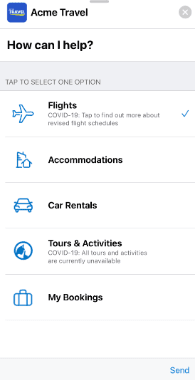
| Quick replies | Simple routing (2-5 options) | "What do you need help with?" with buttons for Billing, Technical, Orders |
| List pickers | Complex selections with details | Product selection with images and descriptions |
| Time pickers | Appointment scheduling | Booking a call or service appointment |
| Apple Pay | In-conversation purchases | Completing a transaction without leaving Messages |
| Authentication | Secure login within chat | Verifying identity before discussing account details |
| Rich links | Enhanced URL previews | Sharing help articles with preview images |
When building templates, think through the customer journey. A welcome quick reply might offer "Track my order," "Start a return," or "Talk to an agent." Each selection can trigger different workflows.
Using Apple Messages for Business in Agent Workspace
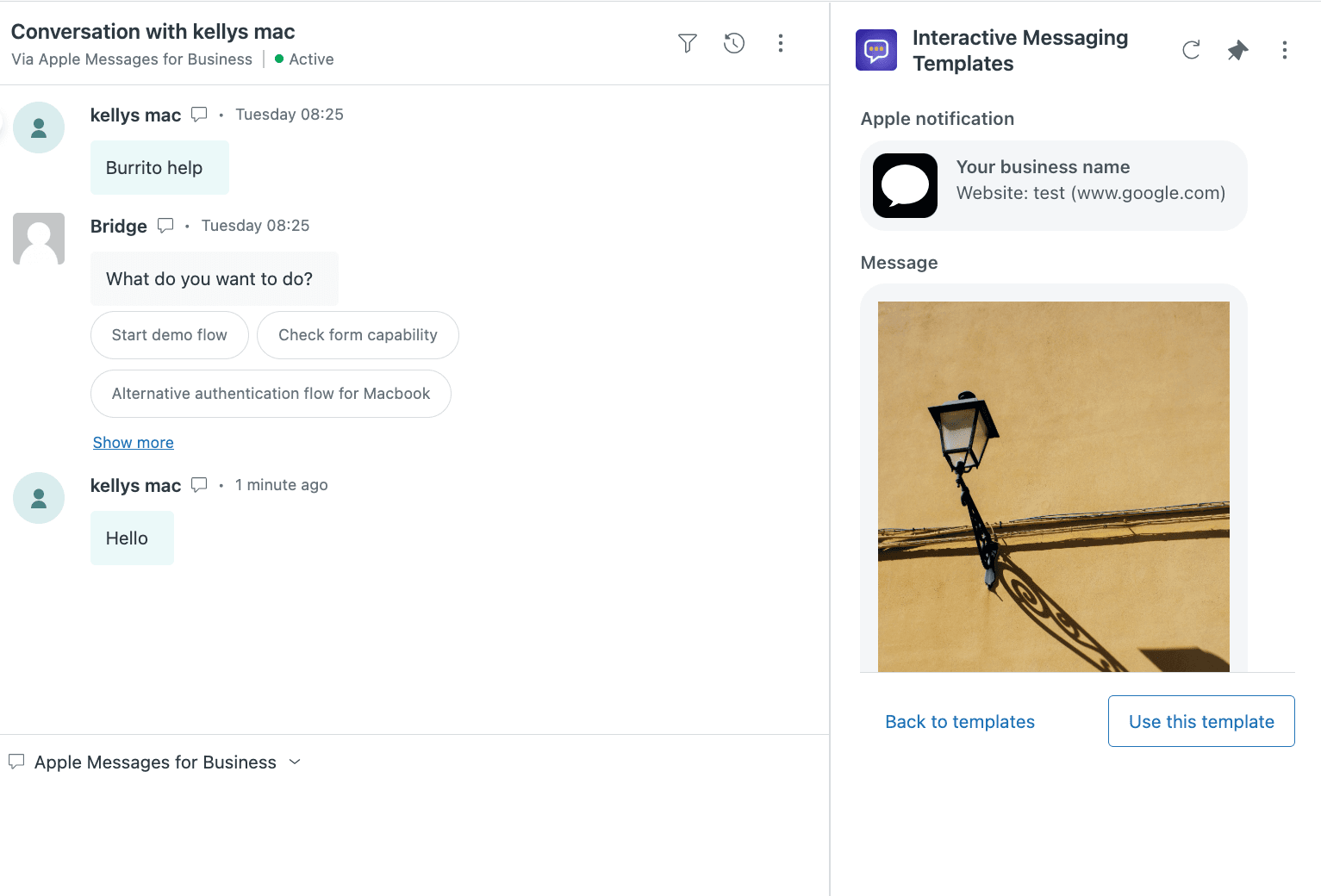
Once configured, incoming Apple Messages conversations appear in Agent Workspace like any other ticket. Agents can view conversation history, respond with text, and apply rich templates through the Apps panel.
What agents see
The interface shows the full conversation thread. When an agent applies a rich template from the Interactive Messaging Templates app, it appears as a formatted message in the ticket. The actual interactive elements render on the customer's device.
Handling closed conversations
One unique aspect of Apple Messages for Business is that customers control the conversation. When a customer chooses to leave or close the conversation:
- The messaging session ends immediately
- Agents cannot send further messages via this channel
- The ticket shows a system message indicating the user left
- The message composer disables for Apple Messages
If you have the customer's email or phone number from previous interactions, you can continue the conversation through other channels. If they return to Apple Messages later, a new ticket is created.
Entry points: where customers find you
Customers can discover and initiate Apple Messages conversations through multiple touchpoints:
Your website and help center The Message Us button you configured in Step 4 appears on pages where you embed the code. This is the most direct entry point you control.
Apple Maps When customers search for your business location, they can tap to message directly from the listing.
Safari and Search Your business can appear in search results with a Messages option, letting customers start conversations without visiting your site first.
Message Suggest If you register your business phone numbers, iOS can suggest messaging as an option when customers view your number.
iOS apps Embed the Message Us button in your native iOS apps for seamless in-app support.
QR codes Include QR codes on physical materials that open directly to a Messages conversation.
Strategically placing these entry points where customers typically need help (order pages, support articles, contact pages) maximizes the channel's utility.
Best practices for success
Design for asynchronous conversations
Customers might respond hours later. Build workflows that handle delays gracefully. Use quick replies to capture intent early, so if a conversation resumes with a different agent, they understand the context.
Automate the routine
Apple requires human escalation capability, but you should automate everything else. Use your AI agent or bot to handle FAQs, order tracking, and appointment scheduling. Reserve agent time for complex issues.
Train agents on rich features
Most support teams are used to text-only chat. Train your agents on when and how to use list pickers, quick replies, and time pickers. These features can dramatically improve resolution times when used correctly.
Monitor and optimize
Apple recommends reviewing metrics 30 days after launch. Track:
- Conversation volume by entry point
- Resolution rates
- Customer satisfaction scores
- Intent distribution (what customers ask about most)
Use this data to expand popular intents and optimize conversation flows.
Common issues and solutions
| Issue | Cause | Solution |
|---|---|---|
| Apple review delays | Incomplete brand information | Double-check all logos, website URLs, and contact details before submitting |
| Rich links not previewing | Missing OpenGraph tags | Ensure your website has proper OpenGraph metadata on all pages |
| OAuth authentication failing | Mismatched secrets | Verify your OAuth secret is correctly entered in both systems |
| Messages not sending | Channel not active | Confirm your account status in Apple Business Register |
Alternative: AI-powered messaging without the complexity
Apple Messages for Business provides a premium experience for iOS users, but the setup complexity and Professional Services requirement put it out of reach for many teams. If you need a messaging solution that works across all platforms (not just iOS) and can be deployed in hours rather than weeks, modern AI support platforms offer an alternative.
eesel AI operates as an AI teammate that handles customer conversations across channels. Unlike Apple Messages for Business, which requires extensive configuration and works only with iOS customers, eesel AI integrates with your existing help desk and learns from your past tickets to start resolving conversations immediately.
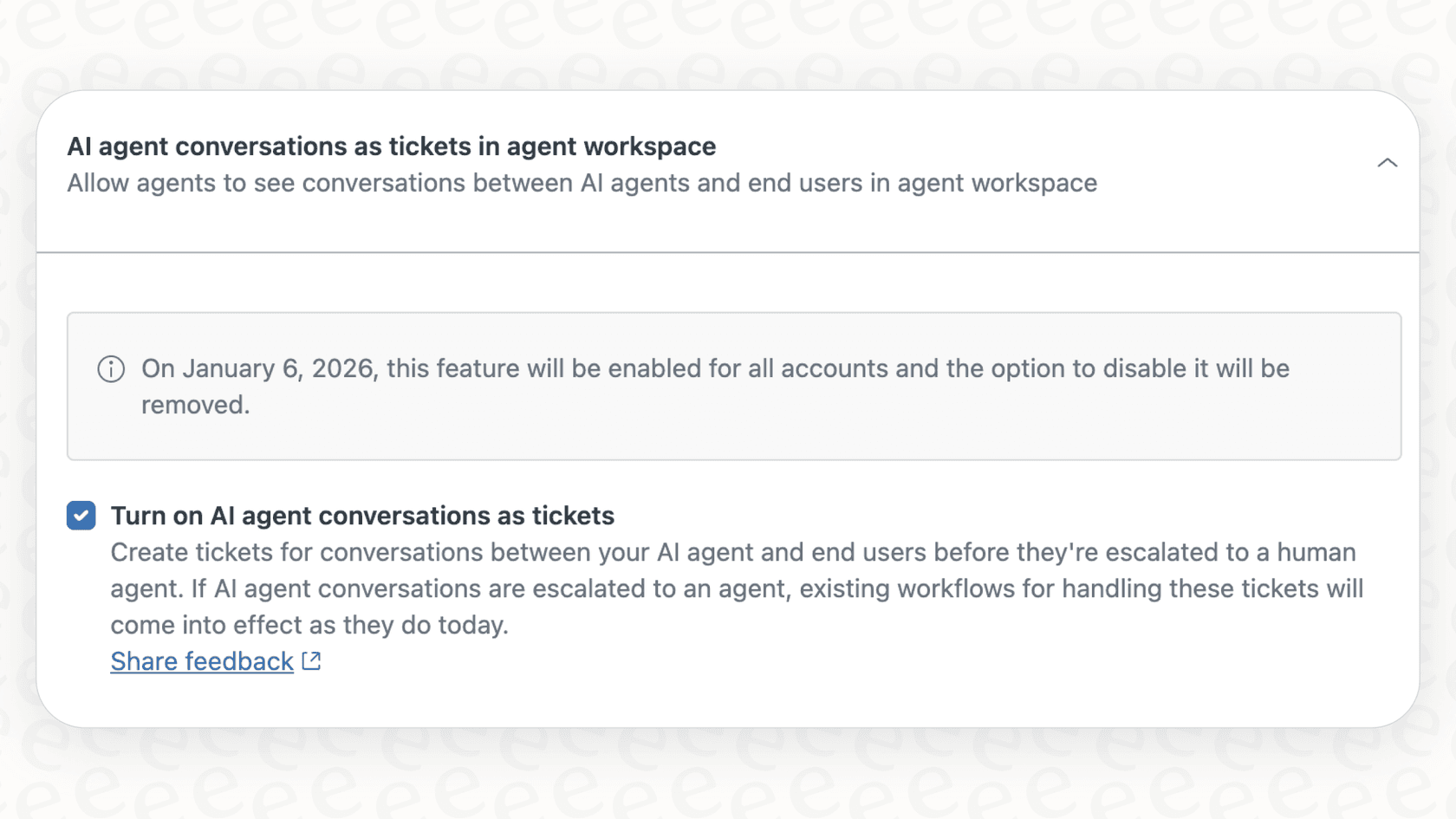
The key difference is time-to-value. Apple Messages for Business requires weeks of setup, Apple approval, and Professional Services engagement. AI support tools like eesel can be connected to your help desk in minutes, trained on your existing data, and deployed with guidance-based rollout.
For teams wanting the persistent, asynchronous messaging experience Apple Messages provides but without the platform restrictions or setup overhead, AI agents offer a compelling alternative that works across email, chat, and social channels.
Start supporting customers where they already are
Apple Messages for Business represents a significant opportunity for support teams serving iOS-heavy customer bases. The native integration, rich features, and privacy focus create a premium support experience that feels natural to Apple users.
The setup requires commitment. You'll need Professional Services, Apple's approval, and careful configuration. But for teams that invest the time, the result is a support channel that meets customers on one of their most-used apps.
If you're ready to move forward, start with Apple Business Register. While waiting for approval, engage Zendesk's Professional Services team to plan your implementation. The sooner you begin the registration process, the sooner you'll be messaging with customers through iMessage.


