
When customers reach out through your messaging channel, they expect a smooth experience. But what happens when your bot stops responding? Or when a conversation sits idle for too long? Understanding how to configure timeout and fallback behaviors in Zendesk messaging isn't just a technical detail, it's the difference between a customer who feels supported and one who feels ignored.
This guide walks you through everything you need to know about Zendesk messaging bot timeout and fallback configuration. We'll cover the key differences between chat and messaging timeouts, how to set up fallback responses when your bot hits its limits, and what to do when you encounter the platform's hard constraints.
Understanding chat vs. messaging timeout differences
Before configuring anything, you need to understand a fundamental distinction in Zendesk: live chat and messaging handle timeouts completely differently.
Live chat operates on real-time sessions. When a visitor closes their browser, minimizes the chat window, or stays idle, the session eventually times out. Here are the specific behaviors:
| Scenario | Timeout Behavior |
|---|---|
| Browser closed | 20 seconds to 2 minutes |
| Idle on website (no mouse/keyboard for 10 minutes) | 20 minutes |
| Chat Mobile SDK - no activity | 1 hour |
| Chat Mobile SDK - disconnected | 1 hour |
| Agent ends chat | Resets disconnect timeout to 5 minutes |
Messaging, on the other hand, is asynchronous and persistent. There is no customer-facing session to end. Instead, conversations move between states:
| State | Definition | Default Trigger |
|---|---|---|
| Active | End user has sent a message recently | Recent customer activity |
| Inactive | No response from end user | 10 minutes of no activity (configurable) |
| Handoff | AI agent no longer first responder | Transfer to live agent |
| Handback | AI agent becomes first responder again | Ticket status changes to Closed |
This distinction matters because many administrators expect messaging to behave like chat. It doesn't. A customer can close their browser, come back hours later, and continue the same conversation. This persistence is great for customer experience but requires different timeout thinking.
For teams managing complex routing across channels, understanding these differences helps configure more effective handoff rules between chat and messaging environments.
Configuring messaging bot timeouts and fallback responses
Setting the inactivity period
Messaging conversations become inactive after a period of no customer response. By default, this is 10 minutes. You can modify this to better fit your support workflow.
To adjust the inactivity period:
- Navigate to Admin Center > Objects and rules > Business rules > Automations
- Locate the automation "Close ticket 4 days after status is set to solved"
- Edit the timing conditions to match your needs (up to 28 days)
Alternatively, create a custom trigger for immediate handback when specific conditions are met. This is useful if you want the AI agent to become available again as soon as a ticket is solved, rather than waiting the default 4 days.
Configuring automatic release capacity
If you use omnichannel routing, enabling automatic release capacity helps manage agent workload:
- Go to Admin Center > Channels > Routing > Omnichannel routing
- Enable Automatic release capacity
- Set your desired Inactivity period for messaging
When capacity is released, the conversation closes automatically. This prevents the end user from reopening the same conversation thread.
Setting up standard AI agent fallback responses
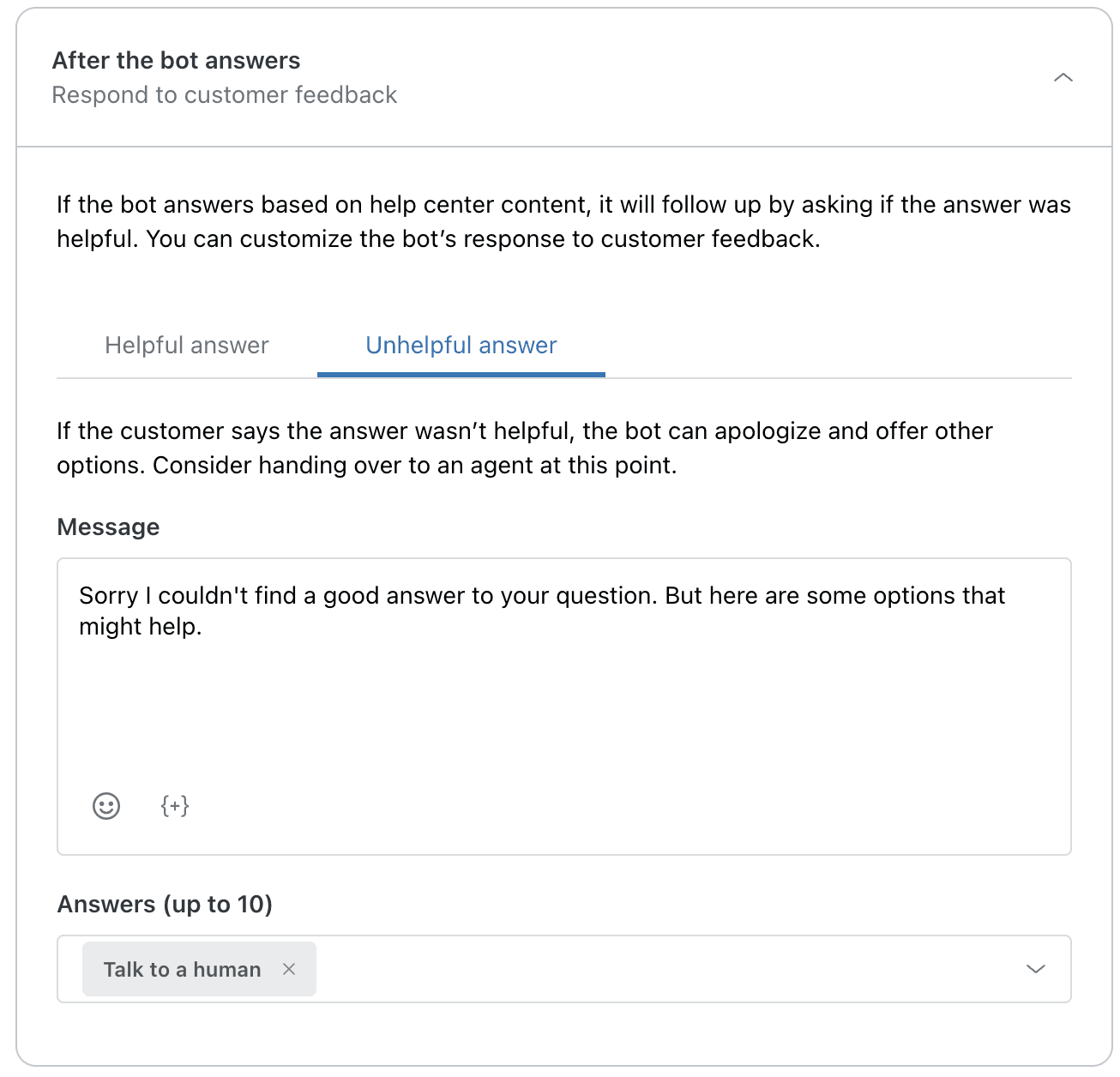
Your AI agent needs clear fallback responses for when it cannot answer a question. Zendesk calls this the "If the AI agent can't answer the question" response.
To configure this:
- Go to Admin Center > AI > AI agents
- Select your AI agent
- Click the Messaging behavior tab
- Expand "If the AI agent can't understand a question"
- Enter your fallback message (default: "Sorry, I can't answer that. Here are some topics that might help though.")
- Optionally, select up to 10 pre-created answers to present as options
The default fallback is functional but generic. Consider customizing it to match your brand voice and provide clear next steps.
Creating custom fallback flows in Flow Builder
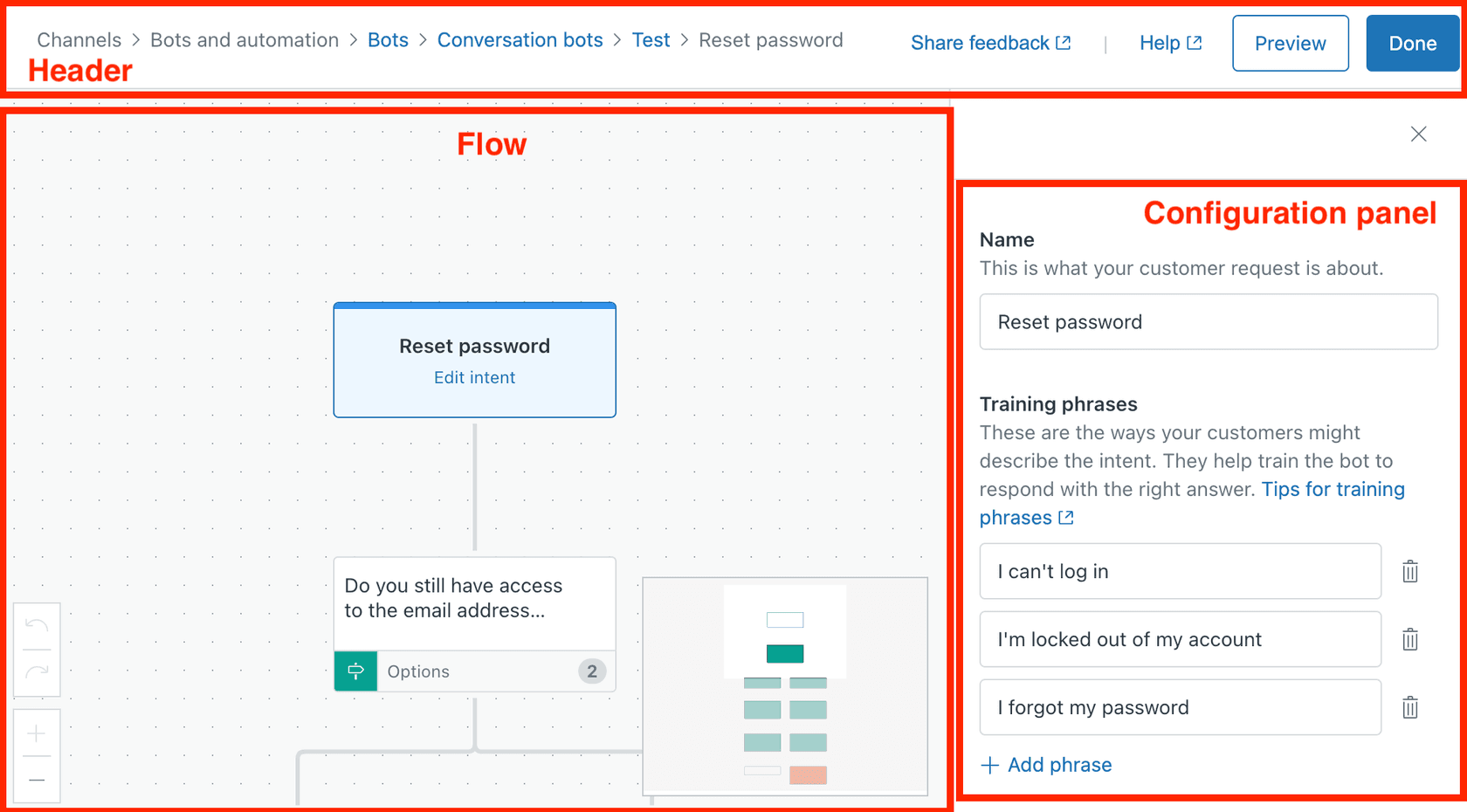
For more sophisticated fallback handling, you can build custom flows (note: Flow Builder is now in legacy status for customers who created AI agents after February 2025).
A well-designed fallback flow typically includes:
- A clear acknowledgment that the bot couldn't help
- Quick reply options like "Talk to a human" or "Browse help center"
- Business hours conditions to route appropriately based on agent availability
- Information capture before transfer to minimize customer repetition
Managing handoff and handback timeouts
Handoff timeout scenarios
What happens when your bot tries to hand off to a human, but no one accepts? This is where queue configuration matters.
Zendesk's maximum queue wait time setting controls how long customers wait before the system takes action. On most plans, you can set this from 1 to 20 minutes. Enterprise plans extend this up to 60 minutes.
Important limitation: Maximum queue wait time is ignored after a call is transferred. When a call transfers to a group and all agents ignore it, the caller stays on hold until someone answers or the call routes to voicemail.
Source: Zendesk support documentation
The handback timing problem
Here's a scenario that catches many administrators off guard: A customer chats with your AI agent, gets transferred to a human, the human solves the issue, and the ticket is marked Solved. Four days later (by default), the ticket closes. Only then can the customer start a fresh conversation with the AI agent.
During those four days, if the customer returns to the messaging channel, they find the same conversation still active with the human agent as first responder. They cannot start a new conversation for a different issue.
You have two options to fix this:
Option 1: Adjust the default automation
- Edit the automation "Close ticket 4 days after status is set to solved"
- Change the time frame from 4 days to as short as 1 hour or as long as 28 days
Option 2: Create an immediate closure trigger
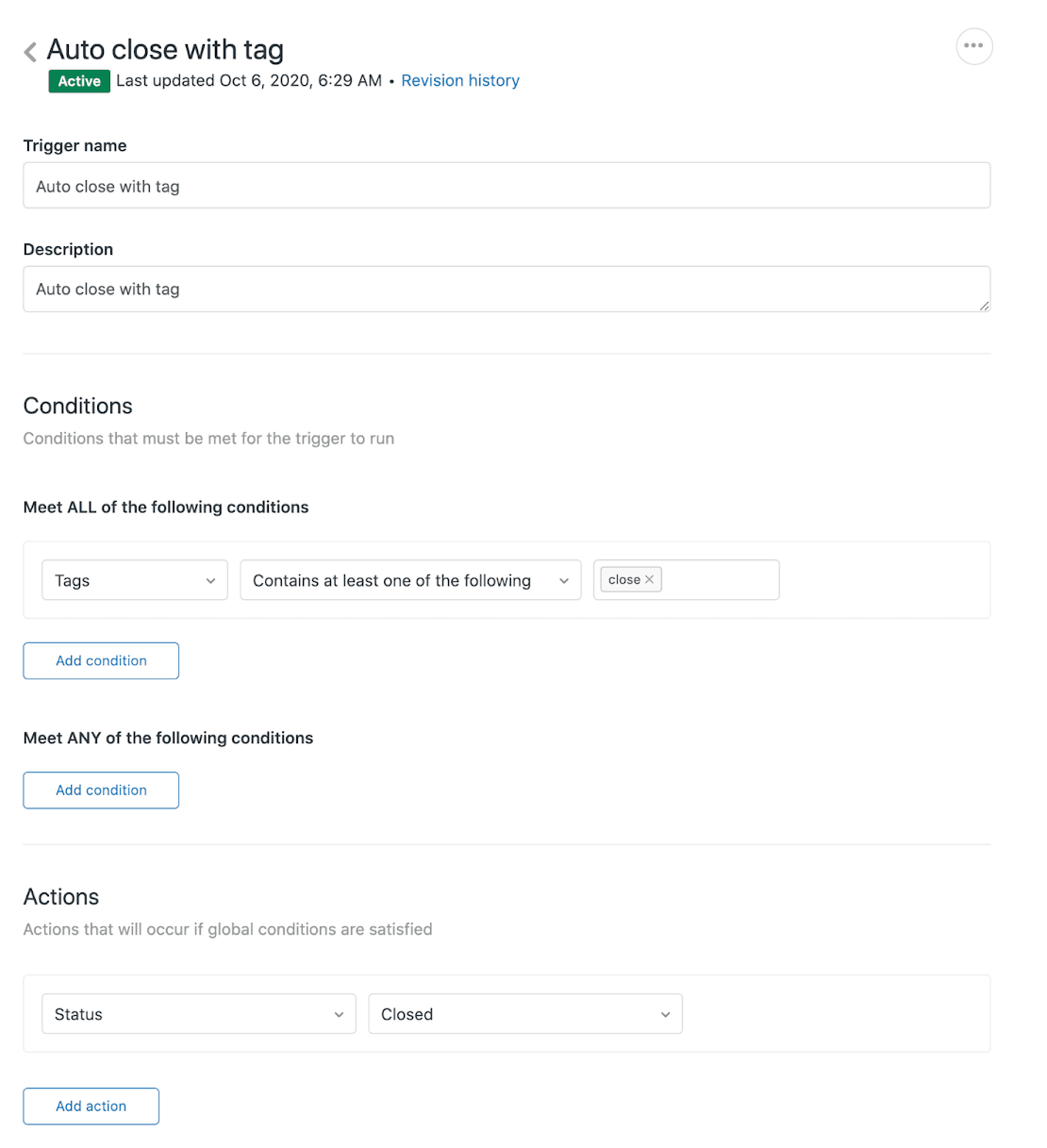
- Create a trigger that fires when ticket status changes to Solved
- Add a tag (like "close")
- Create a second trigger that closes tickets with that tag immediately
Consider CSAT timing if you use satisfaction surveys. The survey sends immediately when status is set to Solved, so immediate closure might impact response rates.
Bot API timeout limitations
Now for the hard constraint that affects many implementations: Zendesk bot API calls have a fixed timeout that cannot be increased.
This is confirmed by Zendesk support: "Unfortunately, at present, there is no available option to increase the timeout for API calls for bots."
Source: Zendesk community post
If your bot calls external APIs for processes that take time (looking up order details, calculating quotes, checking inventory), you may hit this limit. The workaround options include:
- Sunshine Conversations platform: For more complex integrations requiring longer processing times
- Asynchronous processing patterns: Design your API to return immediately and update the conversation later via webhook
- Webhook-based external handling: Move long-running processes outside the bot flow entirely
Troubleshooting common timeout issues
When timeouts aren't working as expected, check these common causes:
| Symptom | Likely Cause | Solution |
|---|---|---|
| Bot stops responding mid-conversation | API timeout exceeded | Implement async patterns or move to external webhook handling |
| Handoff loops back to bot | Group configuration issue | Verify target group exists and has online agents |
| API webhook calls fail | Authentication or timeout | Check API keys, response times, and payload format |
| Agent availability check fails | Routing configuration | Verify omnichannel routing settings and agent status |
| "Inactive" status not triggering | Inactivity period not set | Configure automatic release capacity in omnichannel routing |
Testing recommendations
Before deploying timeout configurations to production:
- Use Zendesk's sandbox environment to test conversation flows
- Simulate different timeout scenarios with test tickets
- Monitor the Insights dashboard for AI agent performance metrics
- Set up alerts for unusual timeout patterns
Using Zendesk Explore, track overflow calls, abandoned conversations, and average wait times. Look for patterns. Are timeouts happening at specific times of day? During certain campaigns? This data helps you staff appropriately rather than just routing conversations elsewhere.
Alternative approaches when Zendesk bots reach limits
The API timeout limitation isn't the only constraint teams encounter. The legacy status of Flow Builder for new customers (after February 2025) means many advanced bot customization options are no longer available without upgrading to Advanced AI Agents, which is a contact-sales add-on.
When you hit these limitations, what are your options?
Several third-party AI platforms integrate with Zendesk and offer different architectural approaches to timeout handling and conversation flow. These platforms often provide more flexibility for complex API integrations and custom fallback logic.
At eesel AI for Zendesk, we approach this differently. Rather than working within Zendesk's bot framework constraints, eesel AI operates as an AI teammate that integrates directly with your Zendesk instance.

This means:
- No API timeout constraints on external lookups or actions
- Custom integrations with your existing systems without platform limitations
- Advanced fallback routing that can escalate through multiple channels
- Continual learning from your specific ticket history and macros
You can start with eesel AI drafting responses for agent review, then level up to full autonomous ticket resolution as the system proves itself. For teams hitting Zendesk's native bot limitations, this often provides a path forward without migrating away from Zendesk entirely.
The eesel AI Zendesk integration works alongside your existing setup, so you can test it in parallel before making any changes to your current bot configuration.
Testing and monitoring your timeout configuration
Getting timeout settings right requires balancing customer patience with operational reality. Here's a practical approach:
- Start conservative: Set longer timeouts initially and monitor customer feedback
- Track key metrics: First response time, resolution time, customer satisfaction by channel
- Review weekly: Check the AI agent Insights dashboard for patterns
- Adjust incrementally: Make small changes rather than dramatic shifts
- Document decisions: Note why you chose specific timeout values for future reference
Remember that timeout configuration isn't a one-time setup. As your team, product, and customer base evolve, your timeout strategy should too.
Getting started with reliable AI messaging
Configuring Zendesk messaging bot timeout and fallback settings requires understanding the platform's constraints: the difference between chat and messaging timeouts, the 4-day default handback delay, and the unconfigurable API timeout limit.
For teams with straightforward needs, native Zendesk AI agents often suffice. Start with the default settings, customize your fallback messages, and monitor performance through the Insights dashboard.
For teams hitting these limitations, whether it's the API timeout constraint, the need for more complex fallback flows, or the requirement to integrate with systems that take time to respond, exploring alternatives makes sense. The goal is reliable customer experience, not working around platform constraints.
If you're evaluating options, you can try eesel AI free and see how it handles the timeout scenarios that have been challenging in your current setup. Or book a demo to see how the platform handles complex integrations without the timeout limitations.


