

If you are managing a Zendesk Guide (now Zendesk Knowledge) help center, you have probably hit a frustrating wall: there is no documented native field to customize meta descriptions for your articles. You write great content, organize it logically, and then discover that Google is pulling random snippets from your articles instead of showing the compelling description you want searchers to see.
This is not a small issue. Meta titles and descriptions are what convince people to click through from search results. A well-written meta description can be the difference between a visitor and a missed opportunity.
The good news? There are workarounds. In this guide, we will cover how Zendesk handles meta tags automatically, practical techniques to customize them anyway, and best practices for writing titles and descriptions that actually drive clicks.
How Zendesk Guide handles meta titles and descriptions
Let us start with what Zendesk does out of the box. Understanding the automatic behavior helps you work within (and around) the platform's constraints.
Automatic meta descriptions
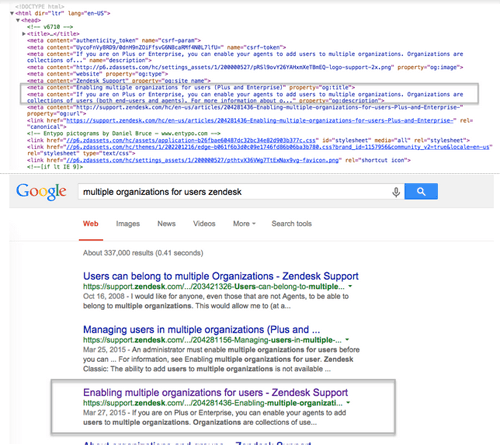
Zendesk automatically generates meta description tags for knowledge base articles and community posts. It pulls the first 140 characters of your content and uses that as the meta description. For categories and sections, it uses whatever description you've manually entered in those fields.
This means your opening sentence carries serious SEO weight. If your article starts with "Last updated on March 15, 2025..." that's what Google might display in search results. Not ideal.
Title tags
Article titles become your meta titles automatically. This part actually works well, since you are already writing descriptive titles for readers. The title appears in browser tabs and as the clickable link in search results.
What's missing
Here's where Zendesk's automatic approach falls short:
- Homepage: Not listed among the pages that get an automatic meta description in Zendesk's SEO documentation
- Custom pages: Not listed in that documentation either
- Article control: The documented behavior is the first 140 characters of the article, and the documentation describes no separate description field
Built-in SEO features Zendesk provides
It's not all limitations. Zendesk does include several SEO-friendly features automatically:
- HTTPS everywhere (a Google ranking signal since 2014)
- Mobile-friendly responsive themes
- Canonical URL tags to prevent duplicate content issues
- Hreflang tags for multilingual content
- Automatic XML sitemap updated every two hours (Zendesk lists it as unavailable on Suite Team, and it is not generated if your help center requires sign-in)
- Clean URL structure with readable slugs that don't break when you change titles
These technical foundations are solid. The gap is in content-level control, specifically meta descriptions.
The hidden summary workaround for custom meta descriptions
The most practical solution for controlling article meta descriptions is a CSS-based workaround that lets you specify exactly what text Zendesk pulls for the meta description while hiding it from readers.
Here's how it works: you add a short summary paragraph at the very beginning of your article, style it to be invisible to readers, and Zendesk pulls those first 140 characters for the meta description while your actual article content starts below.
Step 1: Add the hidden summary HTML
At the very top of your article (before any visible content), add this HTML:
<p class="hidden-meta">
Your compelling 140-character meta description goes here. Make it count.
</p>
Keep it under 140 characters so Zendesk captures the complete text. Include your primary keyword and a clear value proposition.
Step 2: Add the CSS to hide it
You need to add CSS to your theme to hide this paragraph from readers. Go to Guide Admin → Customize Design → Edit Code, then add this to your stylesheet:
.hidden-meta {
  display: none;
}
This hides the element visually while keeping it in the HTML source, which is what Zendesk reads to generate the meta description.
Step 3: Write your article normally
After the hidden paragraph, write your article as you normally would. Your readers will not see the hidden summary, but search engines will use it for the meta description.
Why this works
Zendesk generates the meta description from the article's HTML source, not the rendered page. Since the hidden summary appears first in the source code, that's what gets used. The CSS display: none only affects visual rendering, not the underlying HTML that Zendesk's meta description generator reads.
Best practices for hidden summaries
- Front-load keywords: Put your primary keyword in the first 100 characters
- Include a call-to-action: "Learn how to..." or "Discover the best way to..."
- Match search intent: Think about what someone searching for this topic wants to know
- Stay under 140 characters: Anything beyond that gets cut off
- Make it compelling: This is your ad in search results. Make people want to click.
Customizing meta tags for homepage and custom pages
Articles are not the only pages that need meta descriptions. Your homepage and any custom pages in your help center also need them, and Zendesk's documentation doesn't list them among the pages that get automatic descriptions.
The solution involves adding JavaScript to your theme's document_head.hbs file to inject meta tags dynamically based on the current page.
Step 1: Access your theme code
Navigate to Guide Admin → Customize Design → Edit Code. This opens the theme code editor where you can modify HTML, CSS, and JavaScript files.
Step 2: Locate document_head.hbs
In the templates folder, find document_head.hbs. This template controls the content placed in the <head> section of every page in your help center.
Step 3: Add the meta description script
Add this JavaScript to document_head.hbs before the closing </head> tag:
<script>
// Get the current page path and locale
let userLocale = window.location.pathname.split('/')[2];
let currentPageType = window.location.pathname.slice(5 + userLocale.length);

// Function to create and inject meta description
let setMeta = (description) => {
  let descriptionMeta = document.createElement('meta');
  descriptionMeta.setAttribute('name', 'description');
  descriptionMeta.setAttribute('content', description);
  document.getElementsByTagName('head')[0].prepend(descriptionMeta);
};

let description = "";

// Homepage
if (currentPageType == "") {
  description = "Get help with [Your Product]. Browse our knowledge base for guides, tutorials, and troubleshooting tips.";
  setMeta(description);
}
// New request page
else if (currentPageType == "requests/new") {
  description = "Submit a support request to our team. We are here to help with any questions or issues.";
  setMeta(description);
}
// Custom pages - add more as needed
else if (currentPageType.startsWith("/p/")) {
  // Extract page name or set custom descriptions per page
  description = "Learn more about this topic in our help center.";
  setMeta(description);
}
</script>
Customize the description text for each page type to match your content and brand voice.
Important considerations
- JavaScript dependency: This approach requires JavaScript to execute. Search engines that do not run JavaScript will not see these meta descriptions.
- Page load timing: The meta tag is added after the page starts loading, which means it might not be captured by all search engine crawlers immediately.
- Testing: Always test changes in a sandbox environment before applying to your live help center.
For teams that need more reliable SEO control, this limitation is worth considering when evaluating whether Zendesk Knowledge meets long-term needs.
Best practices for writing effective meta titles and descriptions
Now that you know how to customize your meta tags, let us cover how to write them effectively.
Title tag best practices
- Keep it under 60 characters: Anything longer gets truncated in search results
- Include your primary keyword: Preferably near the beginning
- Make it compelling: Your title is your headline in search results
- Be specific: "How to reset your password" beats "Password help"
- Match search intent: Think about what the searcher is trying to accomplish
Since Zendesk uses your article title as the meta title, following these practices when writing article titles gives you SEO benefits automatically.
Meta description best practices
- Aim for 140-160 characters: This is the sweet spot for full display in search results
- Include a call-to-action: "Learn how to..." or "Find out why..."
- Use active voice: "Discover the best practices" not "The best practices are covered"
- Include your keyword: But write naturally. Keyword stuffing hurts more than it helps
- Make it unique: Do not use the same description across multiple pages
Writing for Zendesk specifically
Since Zendesk pulls meta descriptions from your article's opening text (or your hidden summary), you need to front-load important information. Put the most compelling, keyword-rich content in the first 140 characters.
Example of a well-optimized opening:
<p class="hidden-meta">
Learn how to optimize Zendesk Guide meta descriptions for better SEO and higher click-through rates from Google search.
</p>
This hidden summary is 137 characters, includes the primary keyword, explains the benefit, and includes a subtle call-to-action.
Common mistakes to avoid
- Keyword stuffing: Repeating the same keyword multiple times looks spammy and can hurt rankings
- Duplicate descriptions: Every page should have a unique meta description
- Misleading clickbait: If your description promises something the article does not deliver, visitors will bounce quickly
- Ignoring mobile: Meta descriptions display differently on mobile devices. Keep important information toward the beginning
Measuring the impact of your SEO changes
Implementing these workarounds takes effort. You want to know if it is actually working.
Track before and after
Before making changes, document your current performance in Google Search Console. This free tool from Google shows how your pages appear in search results, which queries drive traffic, and how your click-through rates change over time. Note:
- Average click-through rate (CTR) for key articles
- Average position in search results
- Total impressions
After implementing the hidden summary technique, monitor these same metrics over the next 4-6 weeks.
Key metrics to watch
- Click-through rate: The percentage of impressions that result in clicks. This is where meta descriptions have the most direct impact.
- Average position: While meta descriptions don't directly affect ranking, higher CTR can indirectly improve position over time.
- Impressions: How often your pages appear in search results. This indicates whether your content is being indexed and ranked.
Timeframe for results
Do not expect immediate changes. Google's crawler needs to revisit your pages, which can take anywhere from a few days to several weeks depending on your site's crawl frequency. Most teams see meaningful data within 4-6 weeks.
A/B testing approach
If you have multiple articles on similar topics, try different description formats and compare performance:
- Test question-based descriptions vs. statement-based
- Test descriptions with numbers ("5 ways to...") vs. without
- Test different call-to-action phrases
Use the insights to refine your approach across your help center.
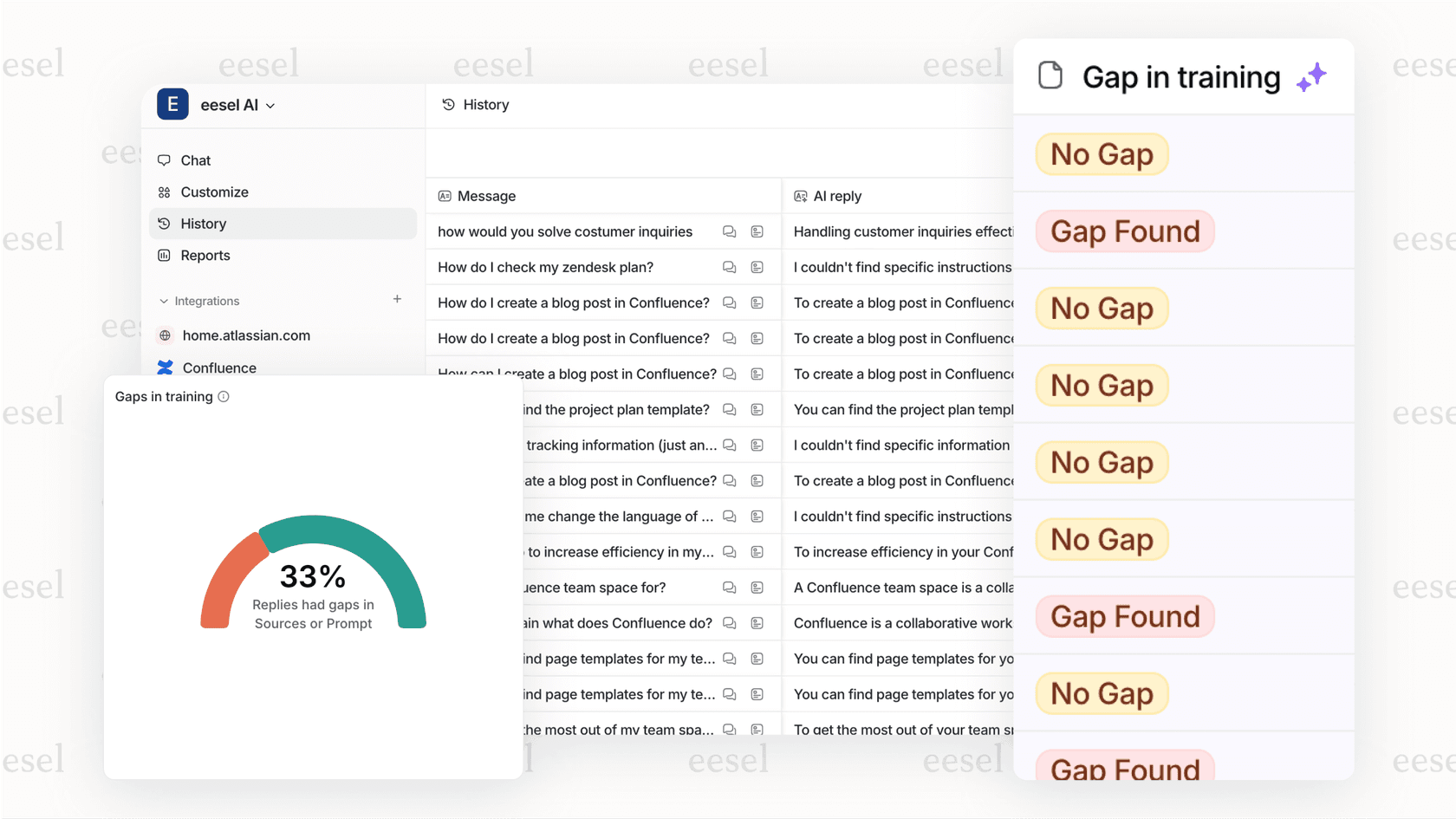
For teams using eesel's Zendesk integration alongside Zendesk, our AI Agent and reporting dashboard can show which customer questions your help center articles don't answer yet, which helps you pick the next articles to optimize. You can also explore Zendesk's official SEO documentation for more technical details about how their platform handles search optimization.
When to consider alternatives to Zendesk Guide
These workarounds solve immediate problems, but they are still workarounds. There are situations where Zendesk's SEO limitations become genuine blockers.
Signs you've outgrown Zendesk's SEO capabilities
- You need custom meta titles that differ from article titles
- You want to implement structured data (schema markup) for rich snippets
- You need full control over URL structures and redirects
- SEO is a primary acquisition channel for your business
- You are managing a large knowledge base where manual workarounds do not scale
Alternatives with better SEO control
Several platforms offer more robust SEO capabilities:
- Headless CMS options: Contentful, Sanity, or Strapi paired with a custom frontend give you complete control
- Dedicated knowledge base platforms: Some alternatives offer built-in SEO fields that Zendesk's documentation does not describe
- eesel AI: eesel isn't a help center host, so it doesn't replace Guide's page metadata. It works alongside Zendesk and answers customer questions from your Help Center content. Learn more about our Zendesk AI integration
Migration considerations
Switching platforms is a significant investment. Before migrating, weigh:
- Current traffic: How much organic traffic does your help center actually receive?
- SEO priority: Is SEO a primary growth channel or a nice-to-have?
- Team resources: Do you have the technical resources to manage a more complex platform?
- Integration needs: How deeply is Zendesk integrated with your support workflow?
For many teams, the workarounds in this guide provide sufficient SEO control without the disruption of switching platforms. But if SEO is central to your strategy, it may be worth exploring alternatives.
Improve your help center SEO today
Zendesk Knowledge's automatic SEO features handle the technical fundamentals well, but the lack of native meta description control is a real limitation. The hidden summary workaround gives you the control you need without switching platforms.
Here's what to do next:
- Audit your current meta descriptions: Use Google Search Console to see how your pages currently appear in search results
- Implement the hidden summary technique: Start with your highest-traffic articles and work your way down
- Add homepage and custom page meta tags: Use the JavaScript approach for pages that need it
- Monitor results: Track CTR and rankings over the next month to measure impact
If you find yourself bumping against Zendesk's limitations regularly, it might be time to explore alternatives. that would mean a different help center platform, since eesel AI doesn't host help centers. If the support side is what you want to improve, eesel works on top of Zendesk and answers questions from the Help Center articles you have already optimized. For teams looking to enhance their Zendesk setup further, check out our guide on AI chatbots for Zendesk.
The workarounds exist because the need is real. Your help center content deserves to be found, and with these techniques, it will be.