Every support ticket contains valuable information hiding in plain sight. Order numbers, product names, account IDs. Your agents spend precious minutes hunting for these details instead of solving problems. Entity extraction changes this by automatically spotting and organizing key data points the moment a ticket arrives.
In this guide, we'll walk through how Zendesk's entity extraction works and how to set it up for your team. Whether you're looking to automate ticket routing, sanitize sensitive data, or simply help agents find information faster, this feature can streamline your workflow.
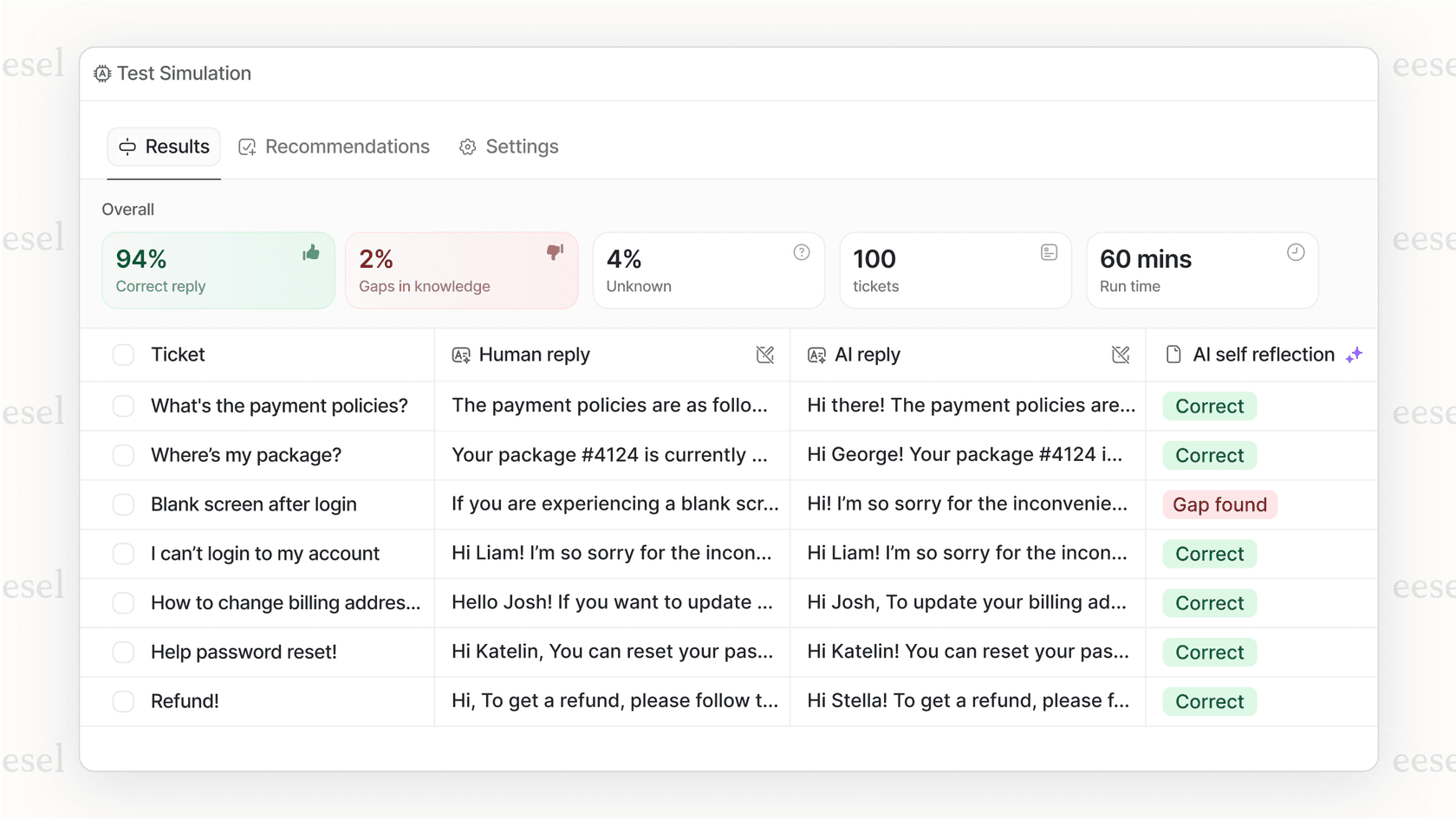
If you're exploring ways to enhance your support automation beyond Zendesk's built-in features, you might also want to see how eesel AI integrates with Zendesk to connect broader knowledge sources and provide additional context for complex tickets.

What is Zendesk entity extraction?
Entity extraction is an AI-powered feature that automatically identifies specific pieces of information within customer messages. Think of it as a smart highlighter that scans tickets for data points your business cares about: product names, order numbers, serial codes, or any custom field you define. According to Zendesk's documentation, this feature is part of their broader AI-powered customer experience platform.
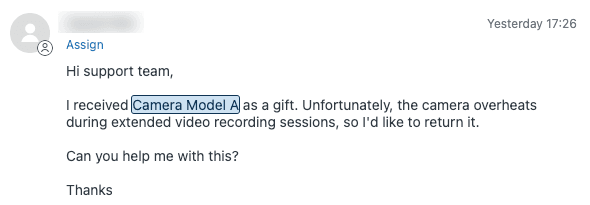
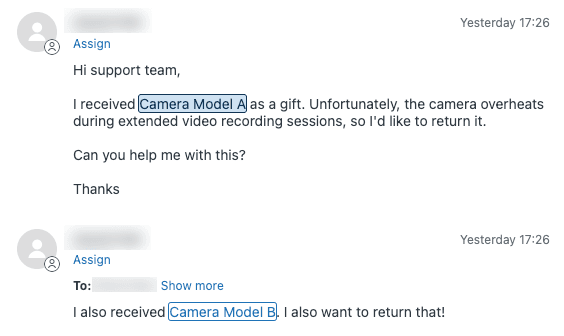
Here's how it transforms your support workflow. When a customer writes "My order ORD-12345 arrived damaged," the system detects "ORD-12345" as an order number entity. It then populates the corresponding ticket field automatically. Agents no longer need to scroll through messages to find this information. It's already there, highlighted in blue and ready to use.
This feature is part of Zendesk's Intelligent Triage system, which sits within their broader AI offering. To access it, you'll need the Copilot add-on on top of your base Zendesk plan.
The practical benefits are immediate. Tickets get routed to the right teams without manual triage. Sensitive information like credit card numbers can be automatically masked. Agents spend less time on data entry and more time actually helping customers. Intelligent Triage also includes intent detection and sentiment analysis that work alongside entity extraction for more comprehensive automation.
For teams looking to go further, we offer a complementary approach. While Zendesk handles structured entity extraction well, our platform at eesel AI connects to broader knowledge sources beyond your help center (think Confluence, Google Docs, Notion) to provide additional context for complex inquiries.
How entity extraction works in Zendesk
The technical foundation is straightforward. Entity extraction links specific data patterns to custom ticket fields you've already created in Zendesk. When the AI detects a match in a customer message, it automatically populates that field.
Zendesk offers three field types for entity matching:
Drop-down fields work best for standardized data like product lines or service categories. You define the acceptable values, and the system matches customer mentions to these options.
Multi-select fields are useful when customers might reference multiple items in one ticket, like several products affected by the same issue.
Regex fields handle data that follows predictable patterns, like order numbers (ORD-#####) or tracking IDs. This requires some technical knowledge to set up the regular expression patterns. You can learn more about adding entities in Zendesk from their documentation.
Once detected, entity values appear highlighted in blue within tickets. This visual cue makes it easy for agents to spot important information at a glance. The highlighting appears in public comments, while internal notes show the values without the visual emphasis.
There are some constraints to keep in mind. Entity detection works on space-separated words, so "Mondo Phone3" would match while "MondoPhone3" wouldn't. The entity must also be created in the same language as the ticket. An English entity won't trigger in a Spanish ticket, even if the word is identical.
Misspelling detection helps catch minor errors in words longer than five letters. The first letter must match, and the system allows up to two errors per word (added, missing, misplaced, or replaced letters). This catches common typos without creating false positives.
Setting up entity extraction in Zendesk
Before diving into configuration, make sure you have the prerequisites in place. You'll need Zendesk Suite Professional or higher, plus the Copilot add-on ($50 per agent per month). Admin Center access is required to configure entities.
Step 1: Create custom ticket fields
Start by creating the fields that will store your entity data. Navigate to Admin Center, then Objects and rules, Tickets, and Fields.
Create fields that match the type of data you want to extract. For example, you might create a drop-down field named "Product Line" with values like "Camera Model A" and "Camera Model B," a regex field for "Order Number" with a validation pattern, or a multi-select field for "Issue Categories." These fields become the foundation for your entities.
Step 2: Create entities in Intelligent Triage
With your fields ready, go to Admin Center, then AI, Intelligent Triage, and Entity. Click "Add entity" to start the creation process. You can refer to Zendesk's guide on adding entities for detailed instructions.
Select your field type (drop-down, multi-select, or regex) and link it to the custom field you created. The "Detect entity" checkbox is selected by default. Leave it checked unless you want to configure the entity without activating detection yet.
After creating the entity, click "Manage settings" to configure the details. For more information on managing and editing entities, see Zendesk's documentation on editing entities.
Step 3: Configure extraction rules
Extraction rules determine when and how entities populate ticket fields. You have four options under "Update ticket field with detected values." The "Don't update ticket fields" option means agents must manually populate the field by clicking update. "Values in first message only" populates the field from the subject, first comment, or conversation's first message. "Values in subsequent messages only" updates the field based on any comment except the first. "Values in all messages" populates and updates from any ticket comment or message, which is the default setting.
Under "Agent tools," you can enable "Highlight entity values in all messages" to show the blue highlighting agents see. Under "Detection settings," "Detect misspelled values" adds tolerance for common typos.
Step 4: Add synonyms for better detection
Customers don't always use the exact terminology you expect. Synonyms help catch variations that mean the same thing.
For an "Order Number" entity, you might add synonyms like "Order ID," "Transaction number," or "Purchase ID." You can add up to 10 synonyms per entity value. When any synonym appears, it's highlighted and the corresponding entity value is extracted.
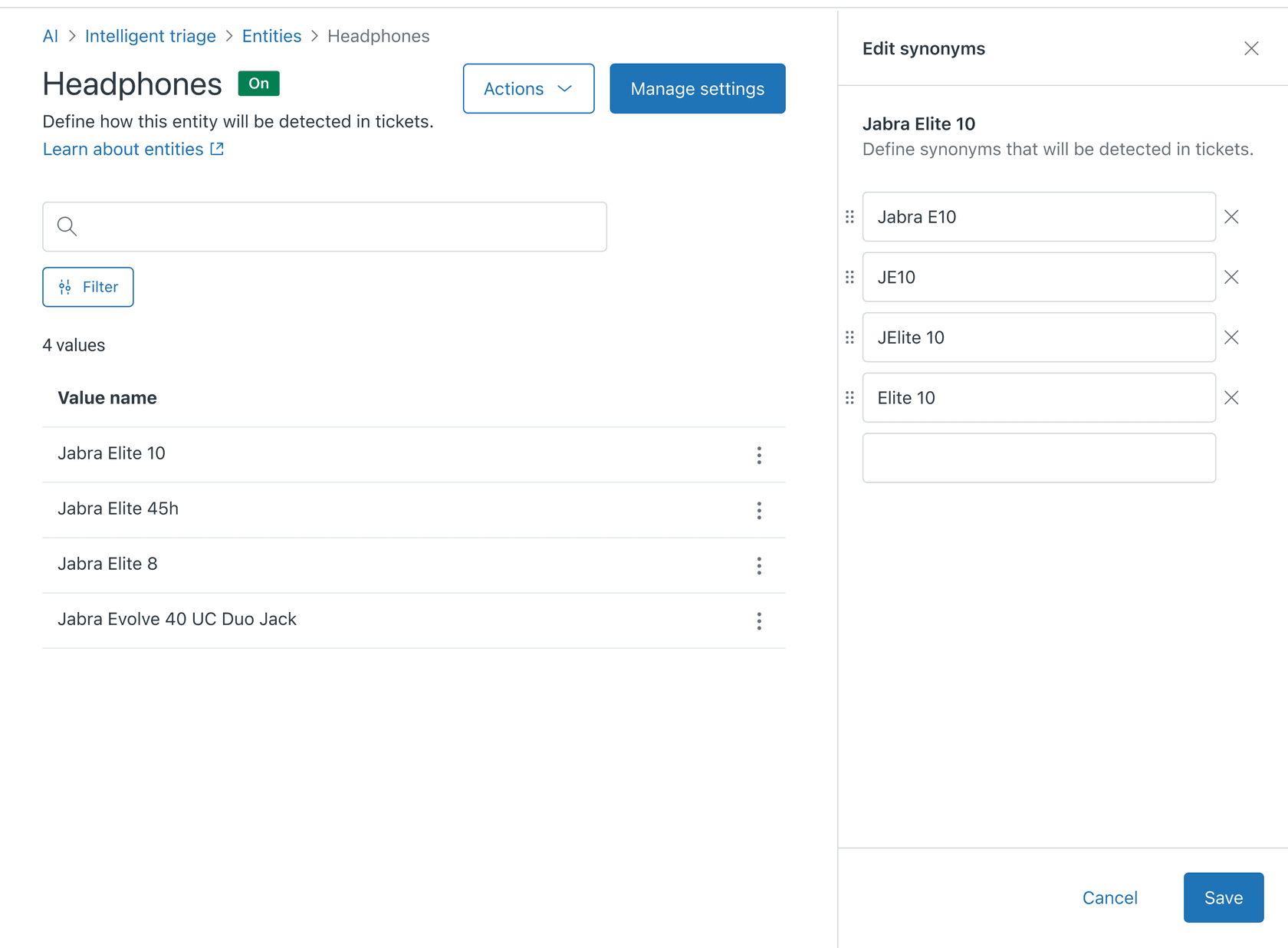
To add synonyms, click on an entity, then click the options menu for a value name and select "Edit synonyms." Enter your variations and save. See Zendesk's guide on editing and managing entities for more details on synonym configuration.
Step 5: Enable misspelling detection (optional)
Misspelling detection is available for entities associated with drop-down and multi-select fields. It only works if the first letter matches the entity value and doesn't work on patterns shorter than six letters. You can learn more about how misspelling detection works in Zendesk's documentation.
This feature is particularly useful for product names or technical terms customers might mistype. Just be aware it might not work well in languages where a single character change results in a different meaning.
Practical use cases for entity extraction
Once configured, entities power a range of automation possibilities. Here are the most common applications support teams implement.
Automated ticket routing
The most popular use case is routing tickets to specialized teams based on detected entities. If your entity detects "Camera Model A" in a ticket, you can create a trigger that automatically assigns it to your Camera Support Team.
This eliminates manual triage and ensures customers reach the right expert immediately. For teams with multiple product lines or specialized knowledge areas, this alone can save hours of routing work each day.
Priority setting
Certain entities indicate urgency. A "cancellation" mention might signal a customer about to churn. A "security breach" entity could indicate a critical issue requiring immediate attention.
By creating triggers that watch for these high-priority entities, you can automatically escalate tickets before an agent even sees them. This ensures your most critical issues get attention quickly.
Data sanitization and security
Entity extraction helps maintain security standards by automatically detecting sensitive information. You can set up entities for patterns like credit card numbers or social security numbers, then use them to trigger automatic redaction or masking.
This protects customer data and helps with compliance requirements. Instead of relying on agents to spot and handle sensitive information manually, the system catches it automatically.
AI agent enhancement
For teams using Zendesk's AI agents, entities provide crucial context. When an AI agent detects an order number entity, it can trigger backend lookups to provide real-time order status without escalating to a human.
This moves conversations from simple Q&A to active problem-solving. The AI can take actions based on the specific details in each ticket rather than offering generic responses.
Reporting and analytics
Because entities populate standard ticket fields, they feed directly into your reporting. You can track which products generate the most support requests, identify trending issues by category, or measure resolution times by product line. Zendesk's reporting features vary by plan tier, with more advanced analytics available on higher-tier subscriptions.
This data helps with resource planning, product improvements, and identifying training opportunities for your team.
Creating workflows with detected entities
Entities become powerful when combined with Zendesk's business rules. Here's how to build effective workflows around your detected data.
Triggers are the most common tool for entity-based automation. When creating a trigger, you can use the entity's tag as a condition. Tags follow the format field_name__value, making them easy to reference.
For example, a trigger might have a condition where Ticket > Tags contains at least one of product_line__camera_model_a, with an action to set Ticket > Group to Camera Support Team. You can also use the custom field values directly in trigger conditions if you prefer.
Best practices for entity workflows include testing before deploying using Zendesk's trigger testing or running a small pilot before full rollout. Order matters because Zendesk processes entity matches in the order you set, so place more specific rules higher than general ones. Start simple by beginning with one or two high-impact entities rather than trying to configure everything at once. Document your setup by keeping notes on what each entity and trigger does for future team members.
Limitations and considerations
Entity extraction is powerful, but it's not without constraints. Understanding these upfront helps set appropriate expectations. For a complete overview of entity detection capabilities and limitations, see Zendesk's entity detection documentation.
Language matching is the most significant limitation. An entity created in English won't detect in Spanish tickets, even if the word is the same. This means multilingual teams need to create separate entities for each language they support.
Word separation issues can cause missed detections. The system identifies individual words separated by spaces. "Mondo Phone3" will match while "MondoPhone3" won't. This primarily affects languages that don't use spaces between words.
Regex setup requires technical expertise. While drop-down and multi-select entities are straightforward, regex patterns demand knowledge of regular expressions. Teams without technical resources may need help setting up pattern-based entities.
Cost is another consideration. The Copilot add-on runs $50 per agent per month on top of your base Zendesk plan. For smaller teams, this might be significant. Zendesk's pricing starts at $115 per agent per month for Suite Professional (the minimum plan supporting Copilot), bringing the total to $165 per agent monthly.
Finally, entity extraction is limited to data within your Zendesk tickets. It can't pull information from external knowledge sources like Confluence or Google Docs. For teams needing to connect broader knowledge bases, we offer integrations with over 100 sources at eesel AI, complementing Zendesk's structured approach with broader context.
Getting the most from entity extraction
Successful implementations share a few common traits. Here's what experienced admins recommend.
Start with high-impact entities. Don't try to extract everything at once. Pick the two or three data points that would save your team the most time. Common starting points are product names, order numbers, or issue categories that drive routing decisions.
Use specific rules before general ones. Zendesk processes entities in the order you define them. If you have both "Camera Model A Pro" and "Camera Model A" as entities, put the more specific "Pro" version first. Otherwise, all mentions of "Camera Model A Pro" might get tagged as just "Camera Model A."
Regular review keeps entities accurate. Customer language changes. New products launch. Set a quarterly reminder to review your entities, update synonyms, and add new values as needed.
Combine with other Intelligent Triage features. Entity extraction works alongside intent detection and sentiment analysis. A ticket with negative sentiment + "cancellation" entity + "VIP" customer tag might warrant immediate escalation. Using these features together creates more sophisticated automation.
Consider complementary tools for broader needs. While Zendesk excels at structured entity extraction within tickets, some teams need to pull context from wider knowledge sources. Our platform at eesel AI connects to help centers, internal wikis, documentation, and past tickets to provide additional context for complex inquiries. You can also try eesel free to see how it works with your existing setup.