
Time-based workflows are the backbone of efficient support operations. While triggers handle immediate responses to ticket events, automations let you define what happens when tickets sit in specific states for defined periods. The key to making these automations work intelligently lies in understanding Zendesk automation schedule based conditions.
Schedule conditions let you calculate time in business hours rather than calendar hours. This means a ticket that comes in Friday at 5 PM will not trigger Monday morning automations based on weekend hours. For teams with defined operating hours, this distinction is essential for accurate SLA tracking and appropriate customer communication.
At eesel AI, we see teams struggle with this distinction regularly. Getting it right means the difference between automations that help your workflow and ones that create confusion for both agents and customers.

Understanding Zendesk automation schedule based conditions
Schedule based conditions in Zendesk are time calculations that reference your defined business hours rather than running continuously. When you set business hours in your Zendesk account, you create a framework that automations and triggers can reference to determine when actions should occur.
The fundamental distinction you need to understand is between triggers and automations. Triggers are event-based, they fire immediately when something happens (like a ticket being created or updated). Automations are time-based, they check conditions hourly and fire when those conditions have been true for a specified duration.
Here is why this matters: if you want to send a different auto-reply for tickets submitted after hours, you would use a trigger with the "Within business hours?" condition. If you want to automatically solve tickets that have been pending for 48 hours, you would use an automation with "Hours since pending" set to business hours.
Business hours vs. calendar hours is another critical distinction. Calendar hours count every hour continuously. Business hours only count time within your defined schedule. If your business operates 9 AM to 5 PM Monday through Friday, a ticket created at 4 PM Friday will not accumulate a full business hour until 9 AM Monday. That same ticket would accumulate 14 calendar hours over the weekend.
This distinction becomes particularly important for teams with strict SLAs or those operating across multiple time zones. A customer waiting for a response does not care about your business hours, but your internal metrics and automation logic should.
Setting up business hours and schedules in Zendesk
Before you can use schedule based conditions, you need to configure your business hours. This is done in the Admin Center under Objects and rules > Business rules > Schedules. For complete details, see Zendesk's schedule configuration documentation.
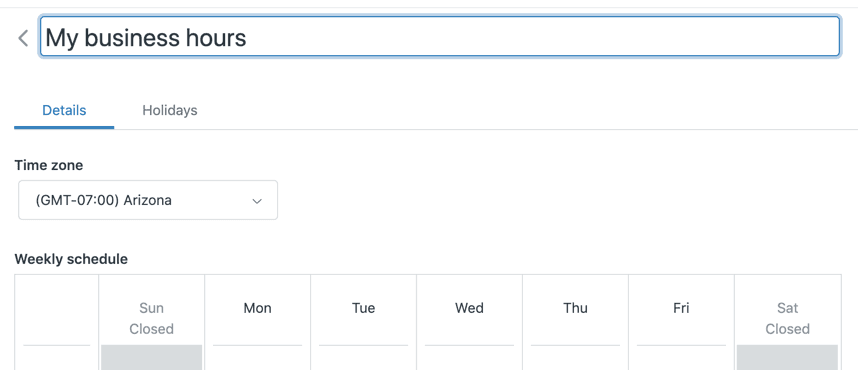
Plan requirements to note: Business hours and schedule features are only available on Professional and Enterprise plans. Suite Team and Support Team plans do not include schedule functionality. If you are on Suite Professional, you get a single schedule. Suite Enterprise allows multiple schedules.
To set up your schedule:
- Navigate to Admin Center > Objects and rules > Business rules > Schedules
- Click "Add schedule" to create a new schedule
- Enter a schedule name and select your time zone
- Define your weekly business hours by adjusting the time blocks for each day
- Add any holidays as exceptions to your regular schedule
Each business interval must be at least one hour long, and you can adjust times in 15-minute increments. If your business hours span midnight, you will need to create two separate intervals (one for each calendar day). You cannot set partial-day holidays, as they apply to the full calendar day.
On Enterprise plans, you can create multiple schedules and assign them to different tickets using triggers. The first schedule in your list becomes the default for all tickets unless specifically overridden. Learn more about managing multiple schedules in Zendesk.
Schedule conditions for triggers
Triggers evaluate conditions immediately when a ticket event occurs. Schedule-based conditions in triggers let you determine whether that event happened during business hours, outside business hours, or on a holiday.
The primary condition you'll use is "Ticket: Within business hours?" This returns true or false based on whether the ticket event occurred during your defined business hours. It's useful for after-hours escalations, different auto-reply messaging, or routing tickets to specific groups based on timing. See Zendesk's trigger conditions reference for all available options.
The "Ticket: On a holiday?" condition works similarly but evaluates whether the event occurred on a scheduled holiday. Important: this condition evaluates to true for the full calendar day of the holiday, not just during your normal business hours. If Monday is a holiday and your normal Monday hours are 9 AM to 5 PM, the condition is true at 10 PM Sunday night.
For Enterprise users, two additional conditions are available:
- "Ticket: Schedule" - checks which schedule is applied to the ticket
- "Ticket: Within (schedule)" - checks if the event occurred within a specific schedule's hours
Practical example: After-hours VIP escalation
Say you want to immediately notify a manager when a VIP customer submits a ticket outside business hours. Your trigger conditions would be:
- Ticket is created
- Organization is VIP
- Within business hours? is No
The action would be to email the manager group. This ensures VIP issues get immediate attention even when your team is offline.
Practical example: Holiday auto-reply
For holidays, you may want to set customer expectations about response times. Your trigger conditions:
- Ticket is created
- On a holiday? is Yes
The action sends an auto-reply explaining that it is a holiday and providing expected response timeframes. You can customize this using Zendesk's email template options.
Schedule conditions for automations
Automations are where schedule based conditions prove most valuable. Unlike triggers, automations run hourly and check whether conditions have been true for a specified duration. This makes them perfect for follow-ups, escalations, and cleanup tasks.
The core time-based conditions for automations include:
- Hours since created
- Hours since open
- Hours since pending
- Hours since on-hold
- Hours since solved
- Hours since assigned
- Hours since update
For each of these, you can choose between calendar hours and business hours. The business hours option calculates time only within your defined schedule, excluding nights, weekends, and holidays. See Zendesk's automation conditions reference for the complete list of time-based conditions.
Critical distinction: "Greater than" vs. "is"
When setting hour conditions, you have operator choices. The "is" operator only matches at the exact hour specified. If your automation runs hourly and checks "Hours since pending is 24," it only fires if the ticket has been pending for exactly 24 hours when the automation runs. If processing delays cause the automation to check at 24.5 hours, it will not fire.
The "Greater than" operator is usually what you want. "Hours since pending > 24" fires for any ticket pending more than 24 hours, regardless of exactly when the automation runs. See Zendesk's documentation on automation operators for more details.
Nullifying conditions to prevent loops
Every automation needs a nullifying condition, a condition that becomes false after the automation fires, preventing it from firing again on the same ticket. Typically this is done with tags:
- Condition: Tags contains none of the following: "reminder_sent"
- Action: Add tag "reminder_sent"
After the automation fires, the tag is added, so the condition fails on future runs.
The 28-day limitation
Zendesk automations have a maximum lookback of 28 days (672 hours). Conditions checking "Hours since" values greater than 672 won't work reliably. Plan your workflows within this constraint.
Closed tickets cannot be modified
Once a ticket is closed, no automations can update it. There is no "Hours since closed" condition because such an automation couldn't take any action. Design your workflows to handle tickets before they reach closed status.
Common automation recipes using schedule conditions
Here are practical automation patterns you can implement immediately.
Recipe 1: Pending ticket cleanup
Problem: Tickets sit in pending status indefinitely when customers don't respond.
Conditions:
- Status is Pending
- Hours since pending > 48 (business)
- Tags contains none of the following: auto_solved
Actions:
- Status: Solved
- Add tag: auto_solved
This automatically solves tickets that have been waiting for customer input for more than two business days. See Zendesk's guide on auto-solving tickets for more details.
Recipe 2: Follow-up reminders
Problem: Customers forget to respond to pending tickets.
Conditions:
- Status is Pending
- Hours since pending > 24 (business)
- Tags contains none of the following: reminder_sent
Actions:
- Email requester: "We're waiting for your response..."
- Add tag: reminder_sent
This sends a gentle reminder after one business day, then stops because of the nullifying tag.
Recipe 3: Escalation for unresolved tickets
Problem: High-priority tickets don't get attention fast enough.
Conditions:
- Status is Open
- Priority is High or Urgent
- Hours since open > 4 (business)
- Tags contains none of the following: escalated
Actions:
- Email group: Managers
- Add tag: escalated
This notifies management when important tickets haven't been addressed within four business hours.
Recipe 4: Closing solved tickets
Problem: Solved tickets accumulate indefinitely.
Conditions:
- Status is Solved
- Hours since solved > 96 (calendar)
- Tags contains none of the following: auto_closed
Actions:
- Status: Closed
- Add tag: auto_closed
This closes tickets four days after they are solved, keeping your ticket volume manageable.
Best practices and common pitfalls
Getting automations right requires attention to detail. Here are the practices that separate smooth workflows from problematic ones.
Always use "Greater than" instead of "is" for time conditions. The "is" operator is too specific and will cause automations to miss tickets due to timing variations. "Greater than" ensures consistent behavior.
Include nullifying tags on every automation. Without them, automations will fire repeatedly on the same ticket, spamming customers or creating unnecessary updates. The pattern is simple: check that a tag does not exist, then add that tag as an action.
Test automations with preview before going live. Zendesk provides a preview feature that shows which tickets would be affected. Use it to catch logic errors before they impact real customers.
Remember that automation order matters. Automations run sequentially every hour. If two automations could affect the same ticket, the first one in the list runs first. Order them logically.
Closed tickets are immutable. Once a ticket closes, no automation can touch it. Handle any needed actions before tickets reach closed status.
Plan for the 28-day lookback limit. Don't design workflows that need to check time periods beyond 28 days. For longer-term tracking, consider alternative approaches like scheduled reports.
Document your automation logic. When you have dozens of automations, it becomes hard to remember what each one does. Add descriptions and maintain internal documentation.
Monitor automation performance regularly. Check that your automations are firing as expected using Zendesk's automation reports. A misconfigured condition can silently fail for weeks before anyone notices.
Enhancing Zendesk workflows with AI automation
Zendesk's rule-based automations are powerful for time-based workflows, but they have inherent limitations. They work on fixed conditions and cannot understand context, intent, or nuance in customer messages.
This is where AI automation complements Zendesk's native features. While schedule conditions handle the "when," AI handles the "what" and "why" with greater sophistication.
At eesel AI, we approach this as hiring an AI teammate rather than configuring another tool. Our AI learns your business from your existing tickets, help center, and documentation. It understands context that rigid rules cannot capture.
AI Triage works alongside your time-based automations. While Zendesk automations handle status changes and follow-ups based on timing, AI Triage can route tickets based on intent, sentiment, and content understanding. A ticket about "billing error" gets routed to finance automatically, while "technical bug" goes to engineering, without relying on keyword matching that misses nuance.
AI Agent handles the actual conversation. When your schedule-based automation identifies a ticket that needs attention, our AI Agent can draft responses grounded in your knowledge base, look up order information in connected systems like Shopify, and resolve issues end-to-end. It escalates to humans based on criteria you define in plain English, not rigid condition trees.
The combination is powerful: Zendesk schedule conditions handle timing and workflow orchestration, while AI handles understanding and response quality. You get the reliability of time-based rules plus the flexibility of intelligent automation.
If you want to move beyond rigid automation rules, explore how eesel AI integrates with Zendesk. Our AI Triage and AI Agent products work within your existing Zendesk setup, learning your business and handling tickets with the context awareness that rule-based systems cannot match.


