Let's be real: the dream of having an AI coding sidekick isn't about it writing genius-level algorithms from thin air. It's about finally putting an end to the constant context-switching that kills our focus. Every single time you have to tab away from your editor to search for an answer, debug a strange error, or recall some boilerplate syntax, you lose your flow. It's death by a thousand digital paper cuts.
Anthropic’s Claude Code has been making waves as a seriously capable, terminal-first AI pair programmer that can handle some pretty complex stuff. But to make it a true part of your workflow, you have to hook it into your Integrated Development Environment (IDE).
This guide will walk you through the IDE plugins Claude Code has to offer. We’ll look at what the experience is like, especially comparing the VS Code and JetBrains worlds, to help you figure out the best setup for your daily grind. And since coding is only half the battle, we’ll also touch on how you can stop wasting time searching for internal docs and get back to building things.
What is Claude Code and why use its IDE plugins?
Claude Code is an AI coding assistant from Anthropic designed to help you with tricky coding tasks, refactor entire projects, and get your head around massive codebases. It thinks about the problem a little differently than many other assistants. It’s designed as an agent that lives in your terminal, which gives it the ability to read files, write new code, and even run terminal commands, all with your say-so.
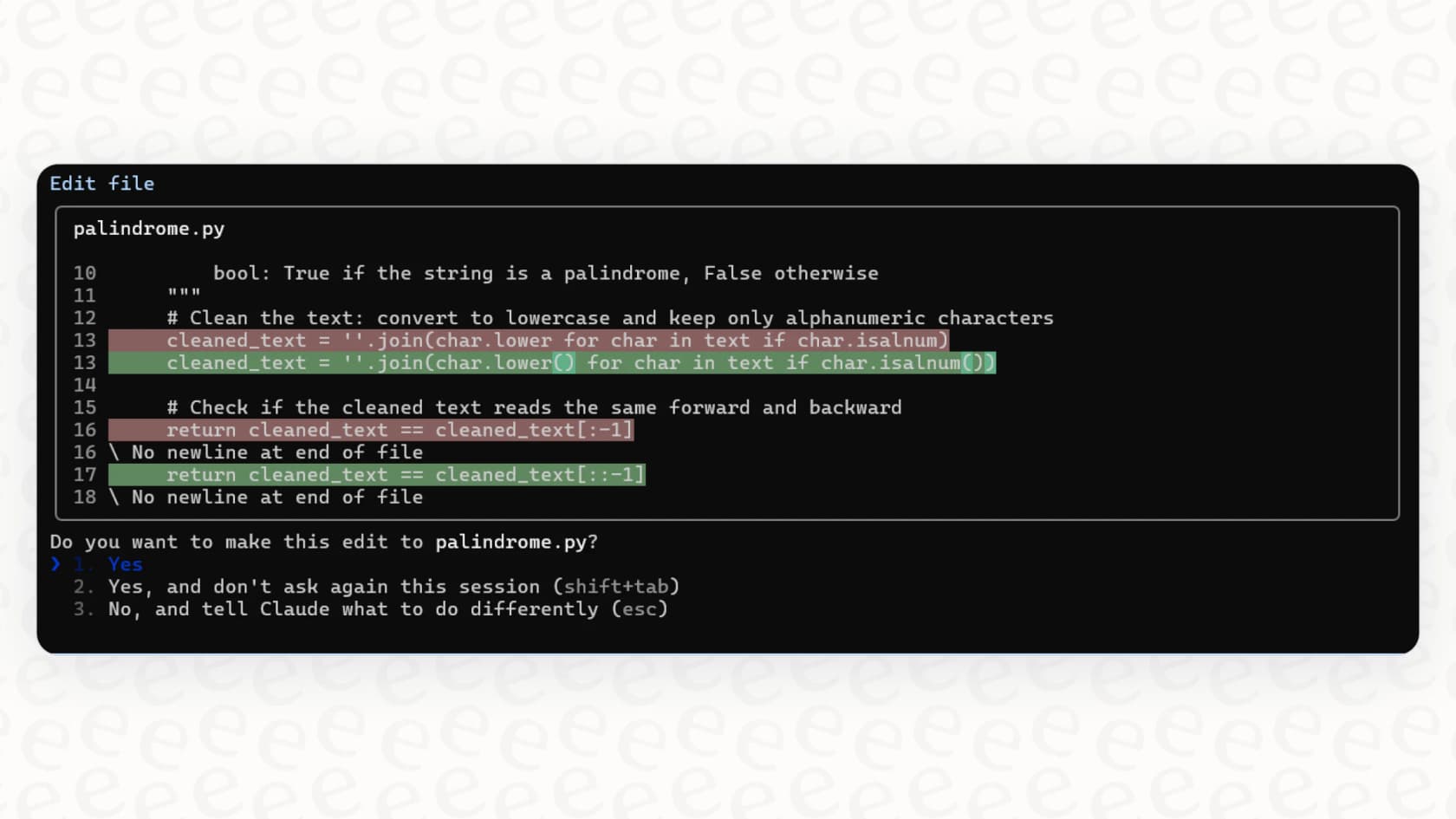
It's a powerful setup, but working entirely from a separate command line can feel a bit disconnected from your actual code editor. To really get the most out of it, you need a bridge between Claude and your code. That's where IDE plugins come in.
The landscape of IDE plugins for Claude Code
When you start looking into IDE plugins Claude Code, you'll quickly realize that not all integrations are created equal. The experience can change a lot depending on your IDE, and it usually falls into one of two buckets: a native graphical interface or a smart terminal wrapper.
The official VS Code extension: A graphical approach
For anyone using Visual Studio Code, the official Claude Code extension offers the most polished, feature-packed experience. It’s more than just a terminal window inside your editor; it provides a proper graphical user interface (GUI) that feels like part of the IDE.
Here's what you get:
-
A native IDE feel: You get a dedicated sidebar panel to chat with Claude, which feels way more integrated than typing into a command line.
-
Visual plan review: Before Claude touches a single line of code, it shows you a step-by-step plan. In the VS Code extension, you can see this plan visually and even tweak it before you approve it.
-
Inline diffs: You can see proposed code changes right inside your editor. This is a massive time-saver because you aren't flipping back and forth between a terminal and a separate diff view.
-
Conversation history: All your previous chats and commands are saved in the UI, making it easy to jump back into a task without losing your train of thought.
The official JetBrains plugin: A terminal wrapper
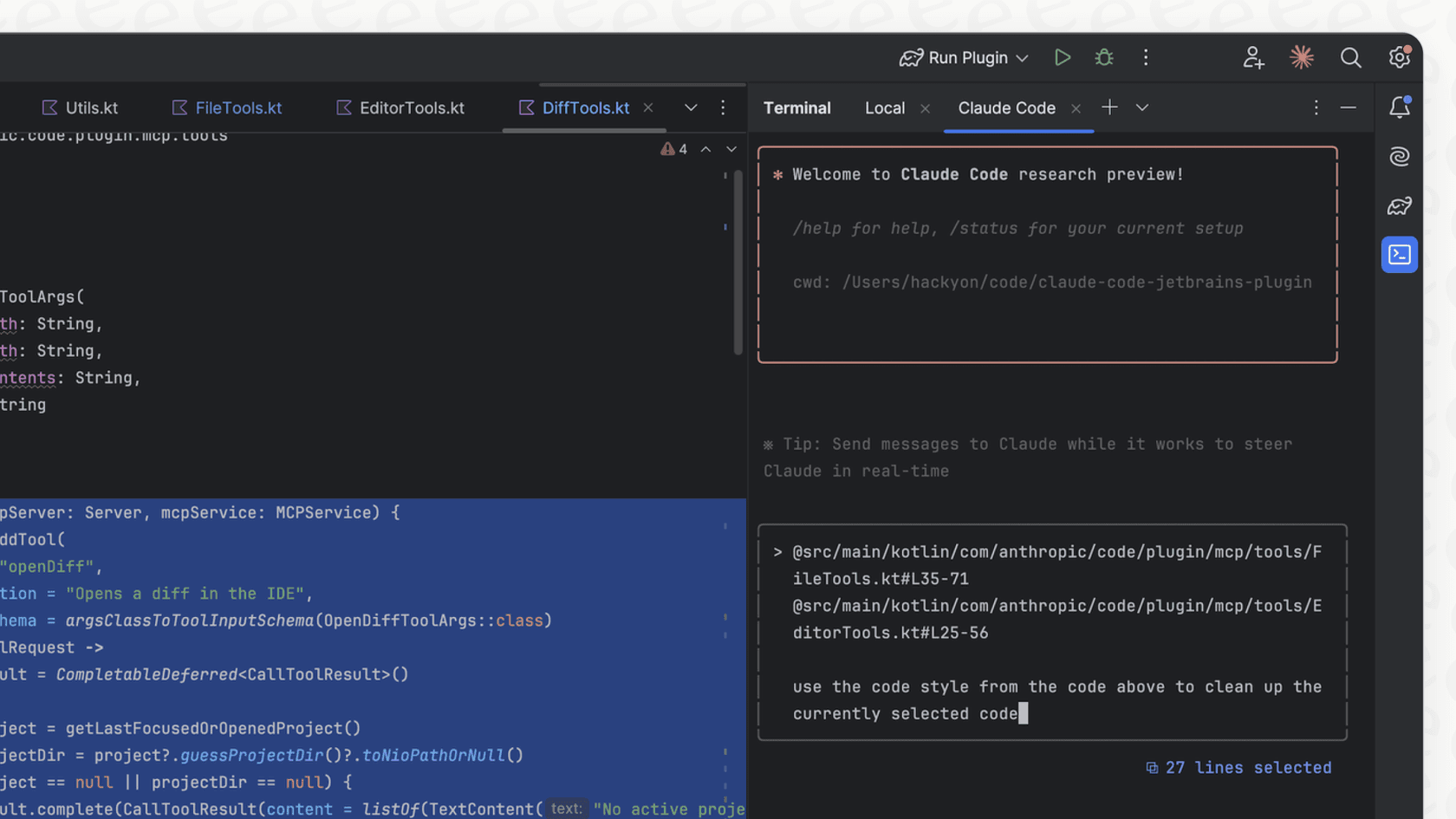
If you’re in the JetBrains ecosystem (using tools like IntelliJ, PyCharm, or WebStorm), the official Claude Code plugin goes a different route. Instead of a full GUI, it works as a clever bridge connecting your IDE to the Claude Code command-line tool.
Here's what it does:
-
Quick launch: It adds a simple shortcut to pop open Claude Code in your IDE’s integrated terminal. The best part is, it automatically gives Claude the context of what you're working on.
-
Diff viewing: When Claude suggests changes, the plugin opens your IDE's familiar, built-in diff viewer so you can review everything in an environment you already know.
-
Context sharing: This is where the magic happens. It automatically shares your current file, any selected text, and even diagnostic errors with the terminal session. This saves you from a ton of tedious copy-pasting.
While it's a definite improvement over a completely separate terminal, many developers find themselves wishing for a more graphical, chat-like experience inside their JetBrains IDE.
Third-party plugins: Filling the gaps
That desire for a better UI in the JetBrains world hasn't gone unnoticed. Community developers have started building their own solutions, like Claude Code Plus, to bridge the gap. These plugins try to mimic the native UI found in the VS Code extension, offering features like a dedicated chat window and a more visual workflow. This trend pretty much confirms that while the terminal is powerful, a lot of us still prefer a more visual, integrated way to work with our AI assistants.
Comparison of IDE plugins for Claude Code
| Feature | Official VS Code Extension | Official JetBrains Plugin |
|---|---|---|
| Interface Style | Native GUI Sidebar | Integrated Terminal Wrapper |
| Plan Review | Visual, editable plan | Text-based in terminal |
| Diff Viewing | Inline within the editor | Opens native IDE diff viewer |
| Conversation History | Accessible in UI panel | Via terminal command history |
| Core Dependency | Claude Code CLI | Claude Code CLI |
| Ease of Use | High (visual, intuitive) | Moderate (requires terminal comfort) |
Key features and limitations of Claude Code IDE plugins
Knowing what a plugin is supposed to do is one thing, but how it actually feels to use it every day is what really matters. Here’s a look at the good and the not-so-good.
Core productivity boosters
No matter which IDE you’re in, the core integrations offer some huge productivity wins that everyone seems to love.
-
It just knows what you're working on: The simple fact that Claude automatically knows which file you're in and what code you've selected is a lifesaver. It cuts out dozens of small, annoying steps you'd otherwise take every single day.
-
It sees your errors: When you have linting warnings or syntax errors, the plugins can feed them directly to Claude. Asking it to "fix these errors" becomes a one-step process, which feels pretty amazing the first few times you do it.
-
It can handle huge files: Based on developer feedback, Claude Code really excels at understanding and modifying enormous, complex files. People have reported that it successfully refactored files with over 10,000 lines of code where other AI agents would just get stuck or give up.
Common pain points and limitations
Of course, it's not perfect. There are a few quirks and limitations you should probably know about before you jump in.
-
That constant "May I?" prompt: Claude Code asks for permission for just about everything. "Can I edit this file?" "Can I run this command?" These prompts can really break your flow. While you can use the
--dangerously-skip-permissionsflag to get around this, it obviously comes with risks you need to be comfortable with. -
The terminal UI quirks: Even with IDE integration, the terminal-first approach has a bit of a learning curve. Simple things like adding a new line (Shift+Enter often doesn't work out of the box) or pasting an image require you to learn specific workarounds.
-
The two different experiences: The biggest takeaway here is that the developer experience isn't the same everywhere. If you're on VS Code, you get a polished, graphical interface. If you're on a JetBrains IDE, you're getting a powerful but less-integrated terminal wrapper. This gap is a pretty big deal when choosing the right tool for your workflow.
Beyond Claude Code IDE plugins: Automating developer knowledge access
A developer’s day isn't just spent fighting with code. A huge chunk of our time disappears into the black hole of hunting for information scattered across the company's internal jungle of tools.
-
"How do I set up the local environment for that new microservice?" (It’s probably buried in Confluence).
-
"What are the style guide rules for this new React component?" (Someone dropped a link in a Google Doc a month ago).
-
"Who do I talk to about getting production access?" (Time to go digging through old Slack threads).
This is the exact same context-switching problem that breaks your concentration, but for documentation instead of code. You leave your IDE, open a dozen browser tabs, and try to piece together an answer. What if an AI could just bring the answers from all your company's scattered docs directly to you?
This is where a tool built for knowledge automation fits in. With eesel AI, you can connect all your knowledge sources, like Confluence, Google Docs, and past support tickets, into one brain. It lets developers and other team members get instant, accurate answers right inside the tools they already use, like Slack or Microsoft Teams, which means fewer interruptions. It’s also built to be self-serve, so you can get it up and running in minutes without having to sit through a sales demo.
Claude Code pricing plans
It's important to know that Claude Code isn't a separate product you buy off the shelf. Access is included as part of a subscription to Claude's premium plans, which are aimed at different levels of use.
Here’s a quick look at the plans that include Claude Code:
-
Claude Pro:
- Price: $20 per month (or $17 per month if you pay annually).
- Includes: This plan gives you a lot more usage than the free version and unlocks access to Claude Code in your terminal. It's a great place to start for individual developers who want to give it a spin.
-
Claude Max:
- Price: Starts at $100 per person, per month.
- Includes: You get everything in the Pro plan, plus a huge bump in usage (either 5x or 20x more), higher output limits for those really complex tasks, and early access to new features. This tier is for the power users and professionals who rely on AI for a big part of their daily work.
Just remember that usage limits still apply to these plans, and the prices shown don't include taxes. For the latest details, it's always a good idea to check the official Claude pricing page.
Choosing the right IDE plugins for Claude Code
The world of IDE plugins Claude Code offers some powerful tools, but the experience is anything but consistent. The official VS Code extension delivers a mature, graphical interface that feels like it belongs, while the JetBrains plugin is more of a smart terminal wrapper that, while useful, might leave some developers wanting more.
At the end of the day, picking the right tool comes down to your preferred IDE and how comfortable you are working in a terminal. But as you work on optimizing your coding process, don't forget that true developer productivity is about more than just the codebase. While tools like Claude Code are changing how we write and refactor code, the next big win is in how we find and use our team's knowledge.
To really cut down on context switching, teams need to think bigger. An AI coding assistant can handle the codebase, while an internal knowledge assistant handles the documentation. For teams looking to solve the headache of scattered information, an AI platform like eesel AI offers a powerful, easy-to-set-up solution that perfectly complements the modern developer's toolkit. It's worth exploring how you can unify your internal knowledge and give your team the instant answers they need.
Frequently asked questions
What are the main differences between the official VS Code and JetBrains IDE plugins Claude Code?
The official VS Code extension provides a native graphical user interface with visual plan review and inline diffs directly within the IDE. In contrast, the official JetBrains plugin acts more as a smart terminal wrapper, integrating the Claude Code command-line interface and utilizing the IDE's built-in diff viewer.
How do IDE plugins Claude Code help improve a developer's workflow and reduce context switching?
IDE plugins Claude Code significantly reduce context switching by keeping Claude directly within your coding environment. They allow Claude to automatically understand your current file, selected code, and even diagnostic errors, streamlining tasks like refactoring and debugging without needing to leave your editor.
Are there any significant limitations or common pain points when using IDE plugins Claude Code?
A common pain point is Claude Code's frequent "May I?" prompts for permissions, which can interrupt your flow. Additionally, the terminal-first UI of some IDE plugins Claude Code can have a slight learning curve for users less accustomed to command-line interactions.
Which Claude subscription plans provide access to IDE plugins Claude Code?
Access to IDE plugins Claude Code is included with Claude's premium subscription plans. Specifically, both the Claude Pro plan ($20/month) and Claude Max plan (starting at $100/person/month) unlock this functionality for users.
Can third-party IDE plugins Claude Code offer a more graphical interface for JetBrains users?
Yes, community developers have created third-party IDE plugins Claude Code, such as "Claude Code Plus" for JetBrains. These plugins aim to bridge the UI gap by providing a more graphical, chat-like experience, mimicking features found in the official VS Code extension.
How does the "May I?" prompt affect the user experience with IDE plugins Claude Code, and is there a way to manage it?
The "May I?" prompt requires explicit permission for actions like editing files or running commands, which can disrupt your workflow by adding extra interaction steps. While you can use the `--dangerously-skip-permissions` flag to bypass these prompts, it's crucial to understand the associated security risks before doing so.