When a VIP customer submits a ticket, you want it going straight to your senior agents. Not sitting in a general queue for hours. Not bouncing between three different teams before finding the right person.
Zendesk VIP routing is the difference between tickets reaching the right agent immediately and customers waiting while someone manually triages their request. Whether you are supporting enterprise accounts, high-value customers, or internal executives, getting routing right affects customer satisfaction and retention.
The good news? Zendesk offers multiple ways to set this up. The challenge is choosing the right approach for your team size, plan level, and complexity needs. In this guide, we will walk through three methods to route VIP customers in Zendesk: triggers, group mapping, and omnichannel routing. By the end, you will know exactly which approach fits your team's needs and how to implement it.

What you will need
Before setting up VIP routing, make sure you have:
- A Zendesk account with admin access
- A list of VIP customers or organizations you want to prioritize
- An agent group created for handling VIP tickets
- Optional: Custom user fields or tags to identify VIP status
Plan requirements vary by method. Triggers work on all plans, including the $19/agent Support Team tier. Group mapping and omnichannel routing require Suite Professional ($115/agent annually) or higher.
Method 1: Using triggers for Zendesk VIP routing (all plans)
Triggers are event-based business rules that fire when tickets are created or updated. They are available on all Zendesk plans, making them the most accessible routing method.
Use triggers when you need flexibility: routing based on organization AND ticket content, applying different routing for the same organization based on ticket type, or adding actions like priority changes and notifications alongside group assignment.
Step 1: Identify VIP customers with tags
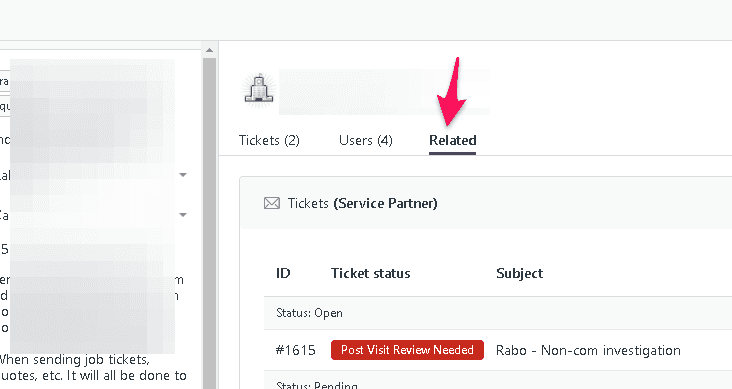
There are two ways to identify VIP customers. You can add a VIP tag to individual user profiles, which works well when VIP status is person-specific. Or use organization tags for company-wide VIP status, which is better for B2B scenarios where entire organizations are considered VIP.
To add tags to users, go to Admin Center > People > End users, select a user, and add "VIP" to their tags. For organizations, go to Admin Center > People > Organizations, select the organization, and add the VIP tag there.

Step 2: Create a VIP agent group
Groups collect agents together, allowing you to manage ticket assignments based on skills and experience. For VIP customers, identify senior agents who are best-suited to help these customers promptly.
Go to Admin Center > People > Team > Groups. Click "Add group," give it a name like "VIP Support" or "Enterprise Team," select the agents who should be members, and save.
Step 3: Build the routing trigger
Now create the trigger that will automatically route VIP tickets to your specialized group.
Navigate to Admin Center > Objects and rules > Business rules > Triggers. Click "Add trigger" and name it something descriptive like "Route VIP tickets to Premium Support."
Under "Meet ALL of the following conditions," add:
- Ticket > Is > Created
- Tags > Contains at least one of the following > VIP
Under "Actions," add:
- Group > [Select your VIP group]
- Priority > High (or Urgent)

Step 4: Position the trigger correctly
Trigger order matters. Zendesk processes triggers from top to bottom, and each trigger can modify the ticket before the next one sees it.
Click "Create trigger," then find your new trigger in the list. Use the drag handles to move it near the top. VIP triggers should typically run before general routing rules to ensure they take precedence.
Test your setup by creating a test ticket from a user with the VIP tag. Verify it gets assigned to your VIP group with the correct priority.
Pros of trigger-based routing:
- Works on all Zendesk plans
- Highly flexible with conditional logic
- Can combine multiple conditions (tags, organization, keywords)
Cons:
- Requires attention to trigger order management
- Later triggers can overwrite earlier assignments
- Can become complex with many routing rules
Method 2: Group mapping for organization-based Zendesk VIP routing (Professional+)
Group mapping is the simplest approach for straightforward routing needs. Once configured, every ticket from users in a mapped organization automatically gets assigned to that group. No triggers needed.
This works best when you have clear one-to-one relationships: one organization always goes to one group. It is also the most reliable method because group mapping runs before most triggers, so it will not get overwritten by other automation.
Step 1: Create specialized groups for VIP accounts
Follow the same process as Method 1 to create your VIP agent groups.
Step 2: Configure organization default groups
Find the organization in Admin Center > People > Organizations. Click to open it, then click "Edit." Look for the Group dropdown and select the group you created. The change saves automatically.
Step 3: Add email domain mapping (optional)
For B2B routing, you can automatically add users to organizations based on their email domain. Add "acmecorp.com" to the organization's email domains, and any user submitting from that domain gets added to the organization automatically.
That is it. From now on, any ticket submitted by a user in this organization automatically assigns to your mapped group.
Important considerations:
Group mapping requires Zendesk Professional or higher. If you are on the Team plan, you will need to use triggers instead.
Group mapping is one-to-one: one organization maps to one group. If you need more complex logic, triggers are the better fit.
Group mapping runs before most triggers, so the mapped group gets set first. If your trigger also sets a group and does not have a "Group is not set" condition, it will overwrite the group mapping assignment.
Method 3: Omnichannel routing for advanced Zendesk VIP handling (Suite Professional+)
Omnichannel routing represents a shift from the traditional pull model (agents grabbing tickets from views) to a push model (tickets automatically assigned to the best available agent).
Instead of tickets sitting in a group view waiting for someone to pick them up, omnichannel routing considers agent status, capacity, and skills to push tickets directly to the right person.
Step 1: Enable omnichannel routing
In Admin Center > Objects and rules > Omnichannel routing, click "Turn on omnichannel routing." Enter an auto-routing tag (like "auto_routing") which identifies which email tickets should be routed.
Step 2: Set up VIP routing triggers
You still need triggers to identify VIP tickets. Create a trigger that:
- Checks for your VIP tag or organization
- Adds the auto_routing tag
- Assigns a group (optional if using custom queues)
- Sets priority to Urgent or High
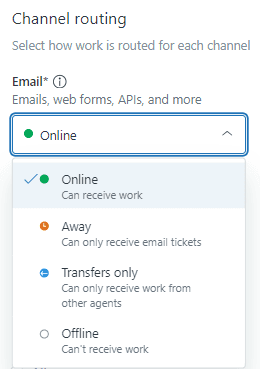
Step 3: Configure agent statuses and capacity
Capacity rules let you limit how many tickets an agent can handle at once. You might allow 3 email tickets, 5 messaging conversations, and 1 call simultaneously.
Go to Admin Center > Objects and rules > Omnichannel routing > Capacity rules. Create rules based on agent roles. Second-line agents who handle complex tasks might only get 2 email tickets due to longer resolve times.
Step 4: Add skills-based routing (optional)
Skills-based routing matches tickets requiring specific expertise to agents who have those skills.
Create skills like "Enterprise product," "French language," or "Billing disputes." Assign these skills to agents, then create triggers that add skills to tickets based on content.
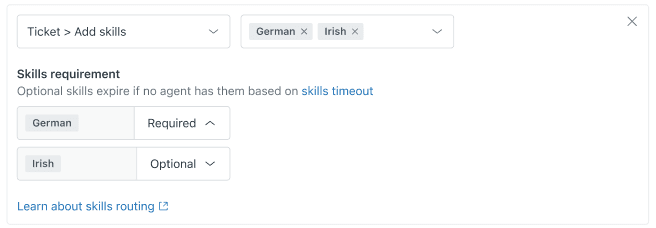
When a VIP ticket about a billing dispute comes in, omnichannel routing will prioritize assigning it to an available agent with the "Billing disputes" skill.
Benefits of omnichannel routing:
- Considers real-time agent availability
- Balances workloads automatically
- Matches tickets to agent skills
- Prevents cherry-picking of tickets
Trade-offs:
- Requires Suite Professional or higher ($115/agent annually)
- More complex initial setup
- Agents must actively manage their status
Choosing the right Zendesk VIP routing method
Here is a decision matrix to help you choose:
| Factor | Triggers | Group Mapping | Omnichannel |
|---|---|---|---|
| Plan requirement | All plans ($19/agent+) | Professional+ ($115/agent+) | Suite Professional+ ($115/agent+) |
| Setup complexity | Low | Low | High |
| Best for | Conditional logic | Simple org-to-group routing | High volume, skill-based assignment |
| Flexibility | High | Low (one org = one group) | Very high |
Recommendations by team size:
- Under 5 agents: Triggers are sufficient. You do not need the complexity of omnichannel routing for low ticket volumes.
- 5-15 agents: Consider group mapping for your largest customers (cleaner than trigger logic) plus triggers for everything else.
- 15+ agents: Omnichannel routing becomes valuable. The workload balancing and skill matching justify the setup effort at this scale.
Migration path: Most teams start with triggers because they work on all plans. As you grow, you might add group mapping for your largest customers. Eventually, high-volume teams migrate to omnichannel routing for more sophisticated workload balancing.
Common Zendesk VIP routing mistakes to avoid
Even with careful setup, you will encounter these issues:
Trigger order conflicts. Later triggers can overwrite group assignments made by earlier triggers. This is powerful when used intentionally (VIP overrides) but frustrating when accidental. Document your trigger order and review it when adding new triggers.
Forgetting to tag existing VIP customers. Routing only works on new tickets after you have set up the tags. Go back and tag your existing VIP users before going live.
Not testing across all channels. A trigger that works for email might not fire correctly for chat or phone tickets. Test each channel separately.
Overloading VIP agents. Without capacity limits, your best agents can get overwhelmed. Use omnichannel routing's capacity rules or manually monitor workloads.
Not documenting VIP criteria. Make sure your team knows which customers are VIP and why. This helps when exceptions come up or when training new agents.
Taking Zendesk VIP routing further
Rule-based routing works well for known patterns. But it has limits. It cannot learn from your historical ticket data, adapt as your business changes, or handle nuanced decisions that do not fit simple if-then logic.
This is where AI triage helps. Instead of building increasingly complex trigger conditions, you can use natural language instructions:
- "Route angry customers from enterprise accounts to senior agents"
- "Prioritize tickets about outages during business hours"
- "Send refund requests over $500 to the finance team"

Our AI triage analyzes your past tickets to understand routing patterns you might not have explicitly defined. It handles multiple factors simultaneously: organization, content sentiment, urgency signals, and agent workload.
You can also test routing decisions on historical tickets before going live. See how the AI would have routed your last 1,000 tickets, measure accuracy, and refine instructions before touching real customer conversations.
If your routing needs are outgrowing Zendesk's native capabilities, explore how our AI for customer service solutions work alongside your existing Zendesk setup.