If you've ever tried to change a ticket's channel in Zendesk (say, from a phone call to email), you've probably hit a wall. You're not alone. This is one of the most requested features in the Zendesk community, and it's a source of real frustration for support teams.
The confusion starts with terminology. Zendesk offers "channel transfers" for messaging conversations, but that's completely different from changing a ticket's channel property. One works. The other doesn't. This guide clarifies what's actually possible, why the limitation exists, and how to work around it.

The channel switching confusion
Let's clear this up right away. When people say "Zendesk channel switching," they usually mean one of two things:
Channel transfer (supported): Moving a conversation from one messaging channel to another, like from the Web Widget to WhatsApp. This preserves the conversation history and keeps everything in one thread.
Channel change (not supported): Modifying the ticket's channel property, like switching a Talk ticket to Email. This is what most people actually want, and it's not natively possible.
Here's the short version: if you're trying to move a conversation between messaging apps, Zendesk can do that. If you're trying to change how a ticket's classified for routing and reporting purposes, you're out of luck.
Just recently, an agent followed up on a phone conversation via email, but because the ticket was still classified as a phone call, our normal routing triggers didn't fire. The ticket sat unassigned until someone manually picked it up and delegated.

What Zendesk actually supports: Channel transfers
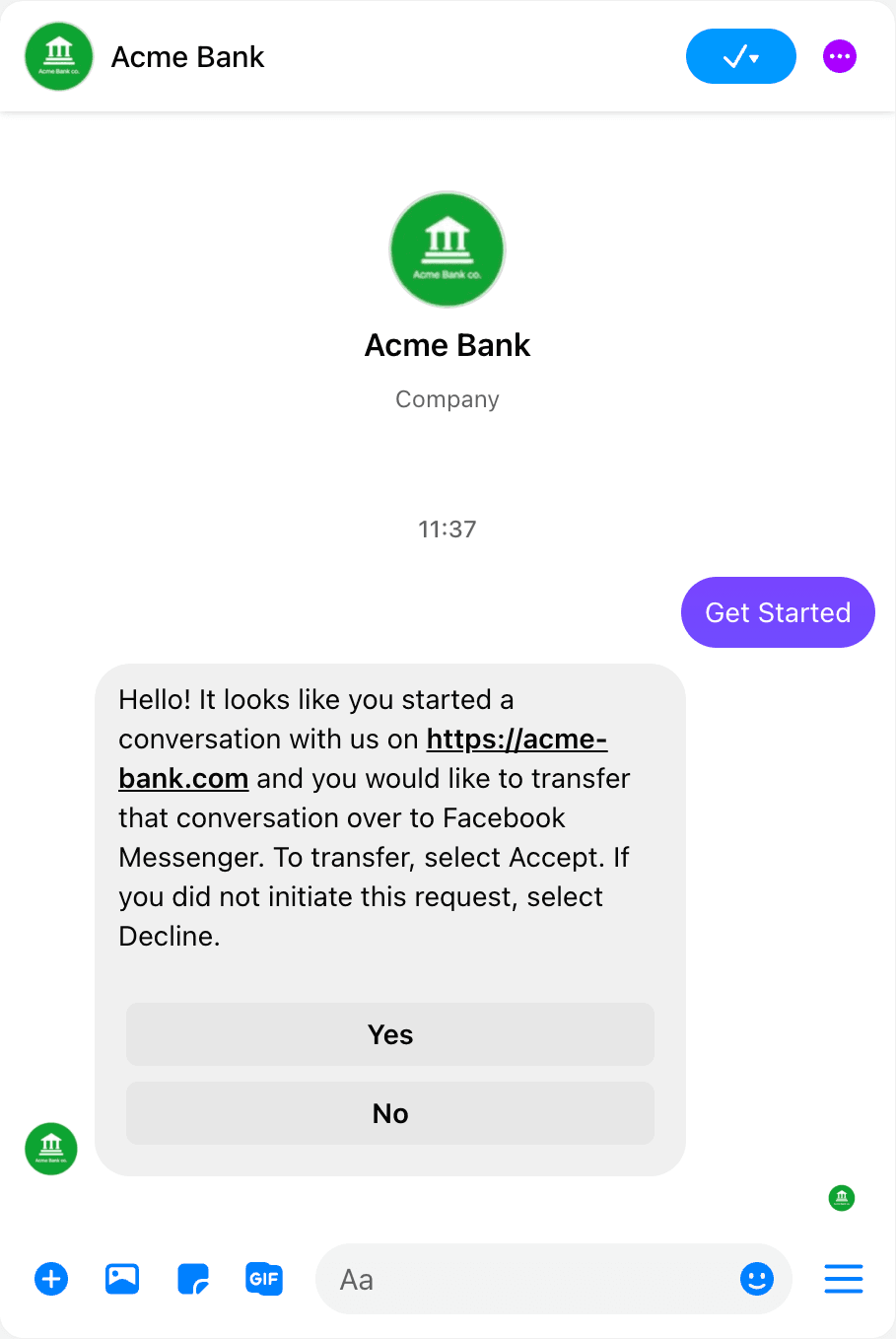
Channel transfers are designed for messaging conversations. They let you move a customer from one channel to another without losing context. The original use case was simple: a customer starts chatting on your website, but they need to leave. Instead of losing them, you can transfer the conversation to WhatsApp or Facebook Messenger so they can continue on their phone.
How channel transfers work
There are two ways to initiate a transfer:
User-initiated: The customer clicks a button in the Web Widget to continue the conversation on a social channel. Zendesk handles this automatically. No coding's required.
Business-initiated: Your system uses the Conversations API to link the user to a new channel. This requires development work but gives you more control.
The API approach uses what's called a "link request code." Your system generates a one-time token, sends it to the user, and when they accept, the channels are linked. The user gets a prompt asking if they want to connect the new channel, and once confirmed, the conversation continues seamlessly.
Confirmation types
When using the API, you choose how the user confirms the transfer:
| Type | How it works |
|---|---|
| Immediate | No confirmation needed. The link happens automatically. |
| User activity | The user must send a message or click a button to confirm. |
| Prompt | Zendesk sends a message asking the user to accept or refuse. |
Source: Zendesk Channel Transfer Documentation
The catch
Channel transfers only work between messaging channels. You can move from Web Widget to WhatsApp, or from Facebook Messenger to Instagram Direct. But you cannot use this feature to change a Talk ticket to Email, or an Email ticket to Chat. The ticket's original channel classification stays the same.
What Zendesk doesn't support: Changing ticket channels
This is where things get frustrating. Zendesk doesn't let you change a ticket's channel property after it's created. If a customer calls you and the ticket's created as a "Phone call" channel, it stays that way forever, even if all subsequent communication happens via email.
Why this matters
The channel property controls several important things:
- Routing rules: Your triggers and automations often depend on channel. If a ticket is classified as a phone call but the follow-up happens via email, your "Email" routing rules won't fire.
- Agent behavior: Agents might accidentally reply via the wrong channel. We've all seen the support rep who sends "Hi [name]" as a chat message when they meant to send an email.
- Reporting: Your channel metrics get skewed. A ticket that started as a call but resolved entirely over email still counts as a phone ticket in your reports.
In this world of multi-channel touch, it makes no sense to have to create a new ticket, or to have your admin team monitor a view to push tickets that were originally a phone call to another agent. The platform should just seamlessly move from call, to chat, to tickets, to message, back to calls.
What Zendesk says
According to community posts, Zendesk's acknowledged this limitation. A product manager noted that enabling channel changes is on the roadmap, with early 2026 mentioned as a likely timeframe. But for now, there's no native solution.
Source: Zendesk Community: Enable Channel Change
Why channel switching matters for your workflow
You might be thinking: "So what? The ticket gets resolved either way." But the channel mismatch creates real operational problems.
Routing failures
When a ticket's channel doesn't match how you're actually communicating, your automated routing can break. Here's a common scenario:
- Customer calls and leaves a voicemail. Ticket created as "Phone call (incoming)."
- Agent calls back, gets no answer, sends a follow-up email.
- Customer replies to the email.
- Your trigger that assigns "Email" tickets to the support team doesn't fire because the ticket is still classified as a phone call.
- The ticket sits in limbo until someone manually routes it.
This happens more often than you'd think, especially in teams that handle multiple channels.
Agent confusion
Agents work faster when the interface matches their intent. When a ticket defaults to the wrong channel, mistakes happen. Agents send chat messages when they meant to email. They trigger the wrong macros. They waste time checking which channel is active.
Once a ticket has become email channel, it should stay that way as the default.
Reporting headaches
If you're trying to measure channel performance, mixed-channel tickets pollute your data. A ticket that starts as a call but resolves via email might show poor "call resolution" metrics even though the actual problem was solved over email. This makes it hard to understand which channels are actually working for your customers.
Workarounds that actually work
Until Zendesk adds native channel changing, here are three approaches that can help.
Custom fields approach
Create a custom dropdown field called "Communication Method" or "Actual Channel." When an agent switches from one channel to another (like call to email), they update this field. Then build your routing triggers to look at the custom field instead of the native channel property.
Pros: Simple to set up, gives agents control Cons: Requires agent discipline to update the field, doesn't fix the default reply channel
Trigger-based routing
Set up triggers that detect when a ticket's communication pattern changes. For example:
- When a "Phone call" ticket receives an email reply, add a tag like "email_follow_up"
- Create a view or routing rule that looks for this tag
- Auto-assign these tickets to a specific group that handles multi-channel follow-ups
This doesn't change the channel, but it ensures the ticket gets routed correctly anyway.

Macros for channel consistency
Create macros that agents can use when switching channels. For example, a "Switch to Email" macro could:
- Add an internal note documenting the channel change
- Apply a tag for routing purposes
- Add a standard response explaining the switch to the customer
- Update the ticket priority if needed
This standardizes the process and ensures nothing falls through the cracks.
A better approach: How eesel AI handles multi-channel support
Workarounds help, but they don't solve the underlying problem. The real issue is that Zendesk treats channels as fixed properties when modern support is inherently fluid. Customers jump between email, chat, phone, and social media without thinking about "channels."
At eesel AI, we take a different approach. Instead of trying to manage channel properties, we focus on resolving conversations regardless of where they happen.

Here's how it works with Zendesk:
Progressive autonomy: Start by having eesel draft replies for agent review. As you gain confidence, let it send responses directly. Eventually, it can handle full frontline support while escalating only the complex issues you define.
Works across channels: eesel reads tickets from any Zendesk channel (email, chat, messaging, phone notes) and drafts appropriate responses. The channel doesn't matter because the AI understands the conversation context.
Plain English control: Define routing and escalation rules in natural language. "Always escalate billing disputes to Sarah" or "If the refund request is over 30 days, politely decline." No complex trigger configurations.
Learns from your history: Connect eesel to your past tickets, help center articles, and macros. It understands your tone, policies, and common issues from day one. No manual training required.
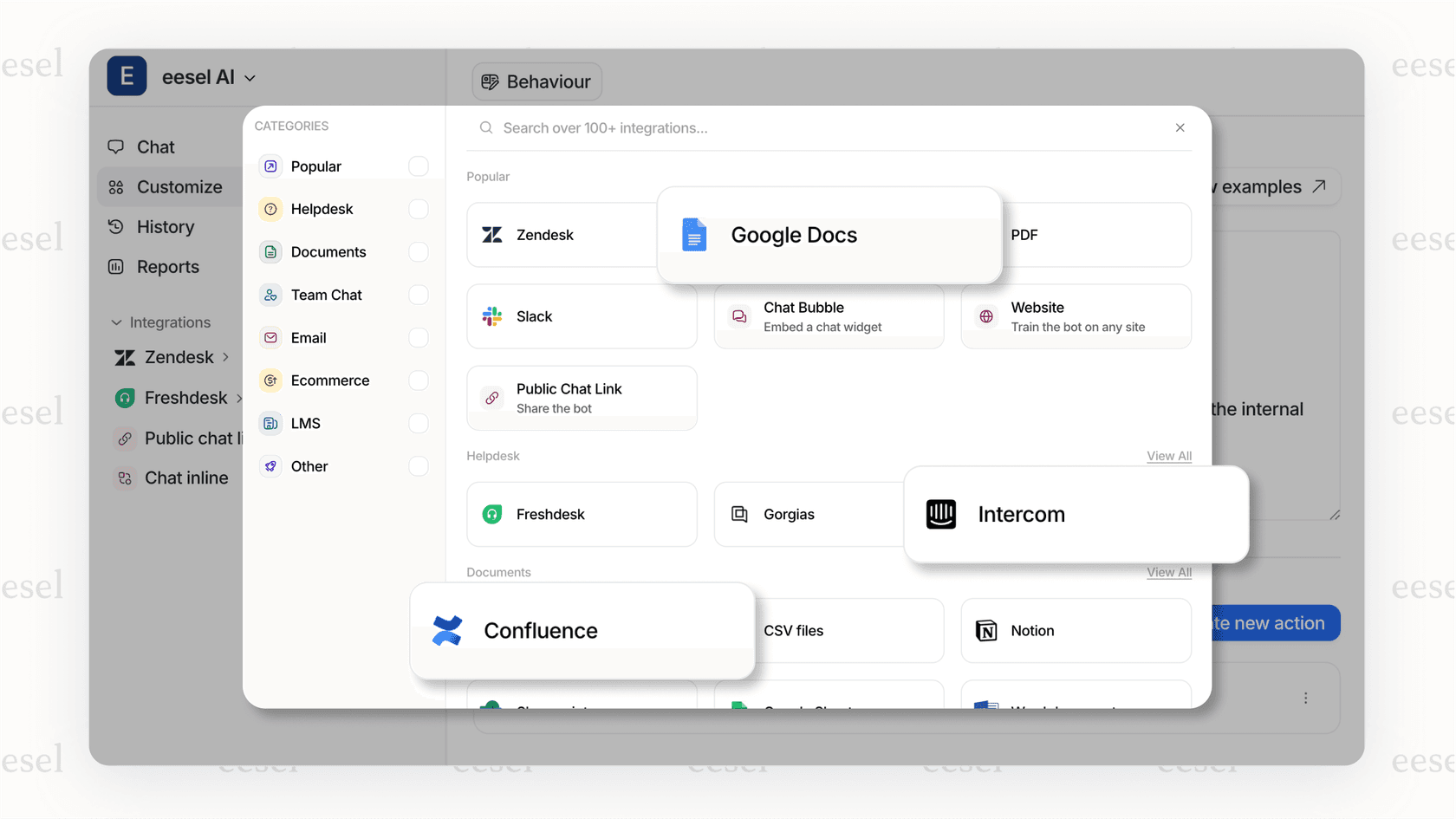
For teams already invested in Zendesk, our AI Agent for Zendesk integrates directly with your existing setup. You don't replace your help desk, you enhance it. The AI handles routine responses across all channels, so your agents can focus on the conversations that actually need a human touch.
If you're interested in how unified support works without the channel complexity, our guide on unifying multiple support channels in Zendesk covers complementary strategies.
Choosing the right approach for your team
So what's the best solution for your situation?
If you're a small team with simple routing: The custom fields approach is probably enough. Train your agents to update the field when they switch channels, and build a few triggers to handle the routing.
If you have complex routing rules: You'll need the trigger-based approach. It's more work to set up, but it scales better and doesn't depend on agents remembering to update fields.
If channel switching is a daily headache: Consider augmenting Zendesk with AI. Tools like eesel AI remove the channel complexity entirely by handling responses autonomously, regardless of where the conversation started.
The bottom line: Zendesk's channel limitations are real, but they're not insurmountable. With the right workarounds (or the right AI teammate), you can keep your support running smoothly while waiting for native channel changing to arrive.