Zendesk trigger for messaging vs support: A complete guide for 2026

Stevia Putri
Last edited February 24, 2026
If you're setting up automation in Zendesk, you've probably noticed there are two different types of triggers: messaging triggers and support triggers. They sound similar, but they work at completely different stages of the customer journey. Using the wrong one (or using them in the wrong order) can break your workflows and leave customers confused.
Here's the short version: messaging triggers run before a ticket exists, during the conversation itself. Support triggers run after a ticket is created or updated. Understanding when each one fires and what they can do is essential for building automation that actually works.
In this guide, we'll break down the key differences between Zendesk messaging triggers and support triggers, when to use each one, and how to make them work together.

What are Zendesk triggers?
Zendesk triggers are business rules that automatically perform actions when specific conditions are met. Think of them as "if this, then that" statements for your support workflows.
When a customer reaches out, Zendesk evaluates your triggers against the current conditions. If the conditions match, the trigger fires and performs whatever actions you've configured: sending a message, updating a ticket field, assigning to a group, or notifying a team member.
The key thing to understand is that Zendesk has different trigger types for different channels. Email tickets, messaging conversations, and chat sessions each have their own trigger systems with different capabilities and timing. This is where the confusion usually starts.
Messaging triggers vs support triggers: The key differences
Let's look at how these two trigger types differ across four critical dimensions.
Timing: When they fire
The most important difference is timing.
Messaging triggers run during the conversation, before a ticket is created. They fire when a customer requests a conversation, sends a message, gets added to a queue, or is assigned from a queue. This lets you control the conversation flow in real-time.
Support triggers run after a ticket is created or updated. They respond to ticket lifecycle events: creation, status changes, field updates, or comments. These triggers manage the ticket once it exists in your system.
This timing difference is crucial. A messaging trigger can send a greeting when a customer starts chatting. A support trigger can route that ticket to the right team once it's created. Same customer interaction, two different automation opportunities.
Scope: What they control
Messaging triggers control the conversation experience. They can send automated messages to customers, request email addresses, add tags for routing, or suspend problematic users. They're focused on the immediate interaction.
Support triggers control the ticket lifecycle. They can assign tickets to groups or agents, set priorities, update custom fields, send email notifications, or escalate based on SLAs. They're focused on ticket management.
Management location
You'll find these triggers in different places in the Admin Center:
- Messaging triggers: Admin Center > Objects and rules > Business rules > Messaging triggers
- Support triggers: Admin Center > Objects and rules > Business rules > Triggers
This separation reflects their different purposes and ensures you don't accidentally mix up conversation automation with ticket automation.
Channel support
Messaging triggers work specifically with Zendesk messaging channels: the Web Widget, mobile SDKs (iOS, Android, Unity), and social messaging channels like WhatsApp, Facebook, and Instagram.
Support triggers work across all channels: email, web forms, API submissions, phone tickets, and yes, tickets created from messaging conversations.
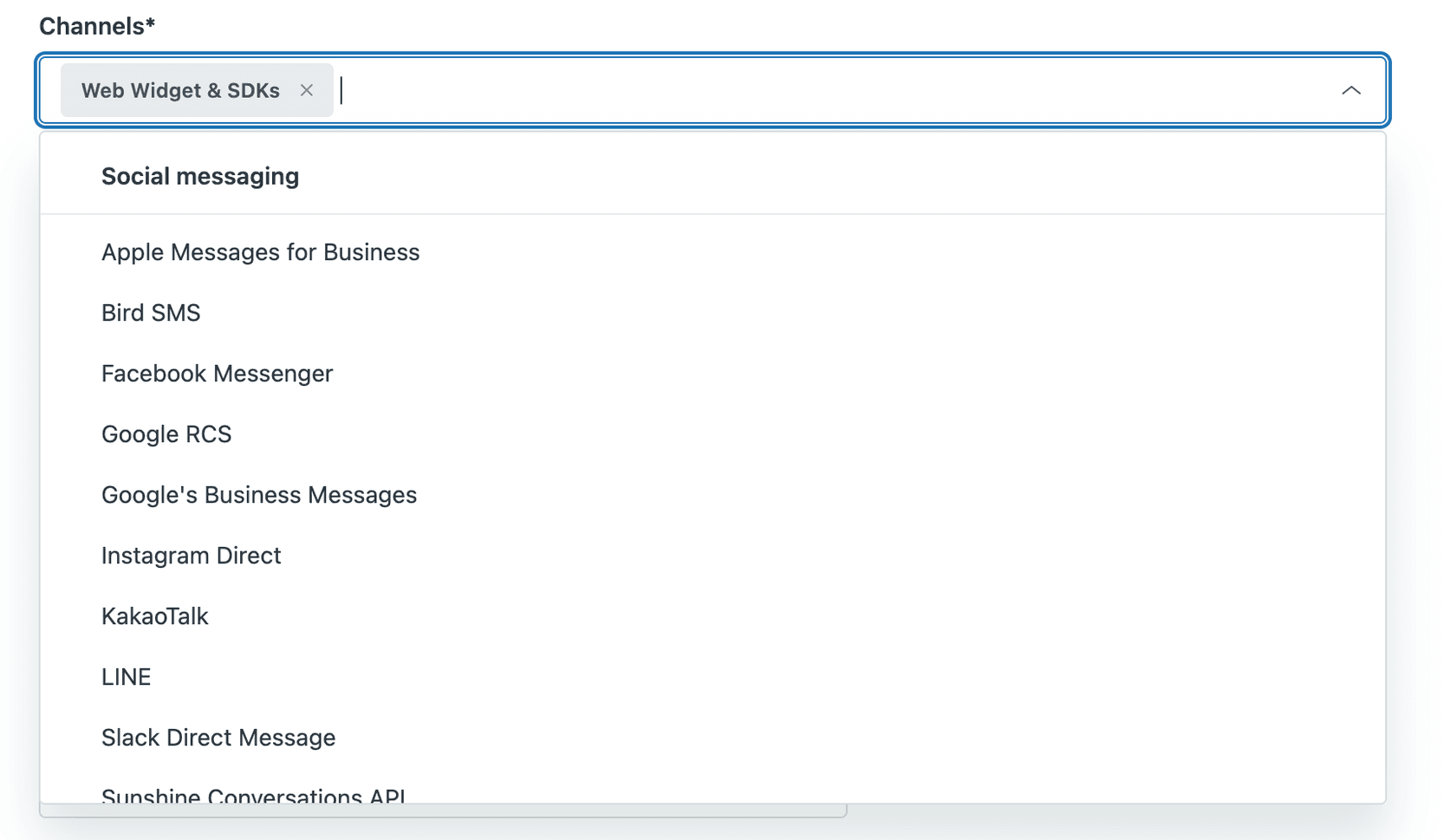
Messaging channels include the Web Widget, mobile SDKs for iOS and Android, and social platforms like WhatsApp and Facebook Messenger. Support triggers work across all these channels plus email, web forms, and API submissions.
When to use messaging triggers
Messaging triggers excel at pre-ticket automation. Here are the scenarios where they make the most sense:
Pre-conversation automation. Send greetings, set expectations about wait times, or collect information before an agent gets involved. For example, you can automatically message: "Thanks for reaching out. Our current wait time is approximately 5 minutes."
Routing before ticket creation. Use messaging triggers to tag conversations based on the page URL, customer attributes, or message content. These tags can then influence routing once the ticket is created.
Handling offline scenarios. When all agents are away or offline, messaging triggers can set expectations and collect contact information for follow-up.
Real-time responses during active conversations. Send proactive messages based on queue size, wait times, or customer behavior without waiting for ticket updates.
Email collection for continuous conversations. Request a customer's email address so they can re-engage later if they leave the conversation.
Here's a practical example: a customer visits your pricing page and opens the messaging widget. A messaging trigger detects the page URL, sends a greeting mentioning pricing questions, and adds a "pricing-inquiry" tag. When the ticket is later created, that tag helps route it to your sales team.
When to use support triggers
Support triggers handle post-ticket automation. Use them for:
Post-ticket creation workflows. Once a messaging conversation becomes a ticket (when an AI agent hands off or the conversation is assigned), support triggers take over for routing, prioritization, and notifications.
Ticket routing and assignment. Automatically assign tickets to specific groups or agents based on channel, tags, customer attributes, or ticket content.
Status updates and notifications. Notify customers or internal teams when ticket status changes, when an agent responds, or when tickets are solved.
SLA management. Set priorities based on ticket criteria to ensure SLAs are applied correctly and alerts fire when thresholds approach.
Escalation workflows. Automatically escalate tickets that meet specific criteria: VIP customers, high-priority keywords, or tickets approaching SLA breach.
Internal team coordination. Add internal notes, notify managers of high-priority tickets, or create side conversations with other departments.
For example, once a messaging ticket is created with that "pricing-inquiry" tag from our earlier example, a support trigger can automatically assign it to your Sales group, set the priority to High for enterprise prospects, and notify the sales manager.

How messaging and support triggers work together
The handoff between messaging and support triggers is where sophisticated workflows happen. Let's walk through a complete customer journey:
-
Customer opens messaging widget → Messaging trigger fires: "Thanks for contacting us. Please wait while we connect you to an agent."
-
Customer sends their question → Messaging trigger fires: Adds "technical-support" tag based on keywords in the message.
-
AI agent hands off to live agent → Ticket is created.
-
Ticket created → Support trigger fires: Assigns to Technical Support group, sets priority based on customer tier.
-
Agent responds → Support trigger fires: Updates status to Pending, notifies customer via email.
-
Customer becomes inactive for 10 minutes → New messaging session state condition (added January 2025) can trigger: Sets ticket to Pending, releases agent capacity.
This workflow uses both trigger types at different stages. The messaging triggers handle the conversation experience. The support triggers handle the ticket lifecycle.
Common pitfalls to avoid
Trigger conflicts. Since messaging triggers run before support triggers, make sure they don't contradict each other. Don't have a messaging trigger promise "an agent will respond within 5 minutes" while a support trigger assigns to a group with a 24-hour SLA.
Duplicate notifications. If both trigger types send messages about the same event, customers get spammed. Coordinate your messaging so each trigger type handles its own domain.
Assuming immediate ticket creation. Support triggers won't fire until a ticket actually exists. If you're using AI agents or complex bot flows, there might be a delay between the conversation starting and the ticket being created. Check your Zendesk AI agent settings to understand when tickets are created in your workflow.
Setting up your triggers: Best practices
Naming conventions
Use consistent naming so your team can understand trigger purposes at a glance. Include the trigger type, channel, and purpose in every name:
- MSG - Welcome - Business Hours A messaging trigger that sends welcome messages during operating hours
- SUP - Route - Technical Tags A support trigger that assigns tickets based on technical category tags
- MSG - Offline - Email Collection A messaging trigger that collects customer emails when no agents are available
Testing before going live
Always test triggers in a sandbox or on a limited set of tickets before full deployment. Zendesk's sandbox environment (available on Suite Enterprise plans) is ideal for this.
Ordering and priority
Triggers run in a specific order, and actions from one trigger can affect how others run. For ticket triggers, actions from one trigger can impact subsequent triggers. Plan your trigger order carefully.
Avoiding trigger conflicts
Document which triggers handle which scenarios. When multiple triggers might apply to the same situation, make sure their conditions are mutually exclusive or their actions are complementary.
Migration tips for Chat to Messaging
If you're migrating from Zendesk Chat to Messaging, your chat triggers need to be recreated as messaging triggers. Zendesk provides a migration guide that explains the mapping between old chat trigger conditions and new messaging trigger conditions. Review the messaging triggers reference for a complete list of available conditions and actions.
Key changes to know:
- The "Channel" field lets you specify Chat, Messaging, or both
- Some conditions available in Chat aren't available in Messaging (and vice versa)
- Standard triggers like "First Reply" need to be enabled for messaging specifically
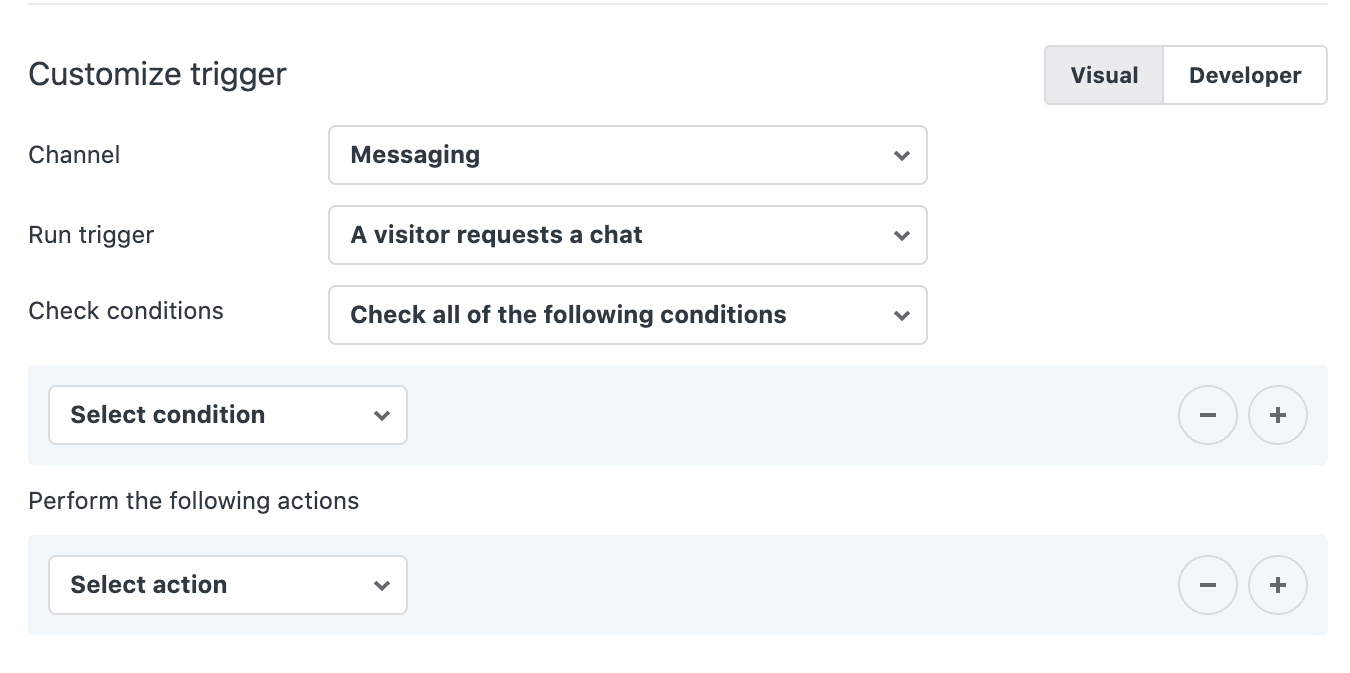
eesel AI: An alternative approach to Zendesk automation
Rule-based triggers are powerful, but they have limitations. They can only respond to conditions you've explicitly defined. They don't understand context or intent. And they require ongoing maintenance as your business rules change.
This is where we can help. At eesel AI, we take a different approach to automation. Instead of building complex trigger hierarchies, our AI learns from your existing knowledge: past tickets, help center articles, macros, and documentation. It understands context and intent rather than just matching keywords.
Here's how the approaches compare:
| Capability | Messaging/Support Triggers | eesel AI |
|---|---|---|
| Setup | Manual rule creation | Learns from existing data in minutes |
| Language support | Single language per trigger | 80+ languages automatically |
| Context understanding | Keyword/condition matching | Understands intent and conversation context |
| Complex scenarios | Multiple triggers needed | Single AI handles varied requests |
| Maintenance | Update rules as business changes | Improves from agent corrections |

We integrate directly with Zendesk and can operate as a frontline AI Agent (handling tickets autonomously), an AI Copilot (drafting replies for agent review), or both. You define escalation rules in plain English, and our AI follows them.
For teams managing high-volume messaging, this means less time building and maintaining trigger logic and more time focusing on complex customer issues. If you're finding the limitations of rule-based automation frustrating, try eesel AI alongside your Zendesk setup. You can also book a demo to see how it works with your existing workflows.
Choosing the right trigger strategy for your team
Before building your trigger workflows, ask yourself these questions:
-
What stage of the customer journey needs automation? Pre-conversation (messaging triggers) or post-ticket (support triggers)?
-
Who needs to create and manage triggers? Only admins can create messaging triggers. Support triggers can be managed by agents with the right permissions.
-
Which channels are you supporting? Messaging triggers only work on messaging channels. Support triggers work across all channels.
-
How complex are your routing needs? Simple routing based on tags or keywords works well with triggers. Complex intent-based routing might need AI assistance.
Summary comparison
| Aspect | Messaging Triggers | Support Triggers |
|---|---|---|
| When they run | Before ticket creation | After ticket creation/update |
| What they control | Conversation flow, greetings | Ticket properties, routing |
| Who can create | Admins only | Admins + agents with permissions |
| Channels | Web Widget, Mobile SDKs, Social | All channels |
| Best for | Real-time conversation automation | Ticket lifecycle management |
Final tips for implementation
Start simple. Build one or two triggers for your most common scenarios, test them thoroughly, then expand. Document your trigger logic so your team understands what each one does. And review your triggers regularly: business rules change, and outdated triggers can cause confusion for both customers and agents.
If you're migrating from Chat to Messaging, prioritize recreating your most critical chat triggers first. You don't need to migrate everything on day one.

Frequently Asked Questions
Share this article

Article by
Stevia Putri
Stevia Putri is a marketing generalist at eesel AI, where she helps turn powerful AI tools into stories that resonate. She’s driven by curiosity, clarity, and the human side of technology.
