
Quick replies are one of those features that seem simple on the surface but can transform how your support team handles customer conversations. Instead of typing out the same responses repeatedly, agents can send pre-written messages with a single click. Customers get faster answers. Your team saves hours every week.
But there's more to quick replies than just saving keystrokes. When you combine them with automation in Zendesk messaging, you can guide customers through entire workflows - routing them to the right department, collecting information upfront, and resolving common issues before they ever reach a human agent.
Let's walk through exactly how to set up and use Zendesk messaging quick replies, whether you're building automated bot flows or empowering your agents to respond faster.

What You'll Need to Get Started
Before you start creating quick replies, make sure you have the right setup:
| Requirement | Details |
|---|---|
| Plan | Zendesk Suite Team or higher ($55/agent/month annually) |
| Access | Admin permissions in Zendesk Admin Center |
| Channel | Active messaging channel (Web Widget or mobile SDK) |
| Help center | Recommended for AI agent quick replies |
Important distinction: Zendesk has two separate products for chat. Zendesk Chat is the legacy live chat product with session-based conversations. Zendesk Messaging is the current platform with persistent conversations that work across devices. Quick replies in this guide refer to messaging features, not legacy Chat structured messages.
Source: Zendesk Messaging Setup Guide
Setting Up Quick Replies in Answer Bot
The most powerful way to use quick replies is through Zendesk AI agents (formerly Answer Bot). These automated responders can present customers with predefined options that branch the conversation in different directions. For teams looking for more flexible automation, an AI agent that learns from your existing tickets and documentation can complement these scripted flows.
Here's how to create quick replies in your AI agent flows:
Step 1: Access Flow Builder Navigate to Admin Center > AI > AI agents. If you haven't created an AI agent yet, click "Create AI agent" to start.
Step 2: Create or Edit an Answer AI agents work through "answers" - scripted conversation flows for specific scenarios. You can either edit the default greeting answer or create new answers for specific use cases.
Step 3: Add a "Present Options" Step This is the step type that creates quick replies. When you add it to your flow, you'll see a configuration panel where you can:
- Write a message to display above the quick reply buttons
- Add up to 10 quick reply options (though 6 or fewer works best for user experience)
- Configure what happens when each option is selected
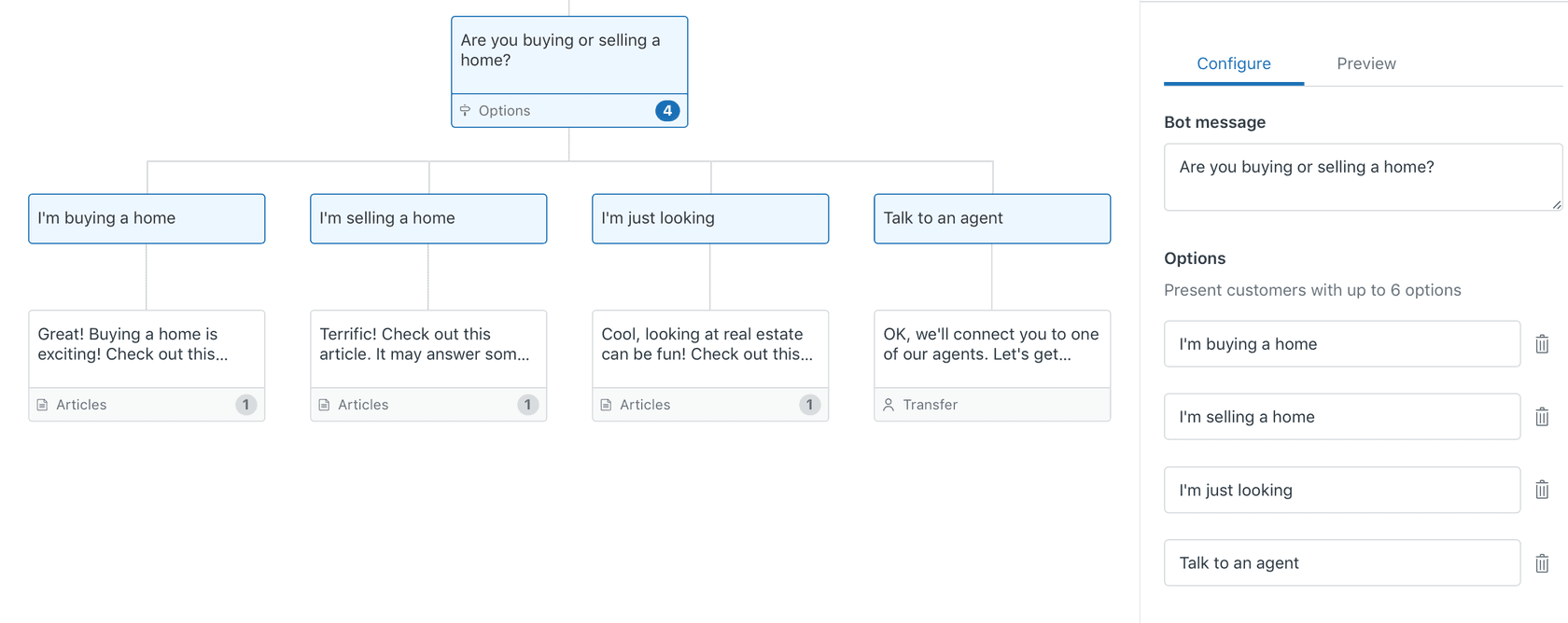
Step 4: Configure Branching Logic Each quick reply option can lead to a different path. For example:
- "I want to track my order" → Show help center articles about order tracking
- "I need a refund" → Collect order details, then transfer to agent
- "Talk to a human" → Transfer to agent immediately
Step 5: Test Before Publishing Zendesk provides a test panel where you can preview how your quick replies will appear to customers. Test every branch to make sure the flow works as expected.
Step 6: Publish to Your Channel Once everything looks good, publish your AI agent to your messaging channel. The quick replies will now appear to customers when they start a conversation.
Source: Understanding Step Types for AI Agents
Quick Reply Limits to Keep in Mind
| Limit | Specification |
|---|---|
| Maximum options | 10 per step (6 recommended for best UX) |
| Character count | 20-40 characters per button (varies by channel) |
| Disappearing behavior | Quick replies vanish after customer selects one |
| Flow requirement | Present options step must be followed by another step type |
Source: Flow Builder Documentation
Using Quick Replies as an Agent
Not every conversation needs automation. Sometimes your agents just need to respond faster to common questions. Agent quick replies work well for these situations.
Creating Agent Quick Replies
In the Agent Workspace, agents can access quick replies through the composer:
- Personal quick replies: Each agent can create their own set of reusable responses
- Shared quick replies: Admins can create quick replies available to all agents
- Macro integration: Quick replies work alongside your existing macros
Using the Quick Reply Shortcut
Agents can insert quick replies by:
- Typing "/" in the composer to bring up the quick reply menu
- Browsing categories to find the right response
- Selecting a quick reply to insert it into the conversation
Best Practices for Agent Quick Replies
- Keep them brief: Quick replies work best for short, common responses like greetings, status updates, and closing messages
- Use placeholders: Include variables like {{ticket.requester.name}} to personalize responses automatically
- Organize by category: Group quick replies by topic (Greetings, Troubleshooting, Escalations, Closings) so agents can find them quickly
- Update regularly: Review and refresh quick replies based on what agents actually use
Quick Reply Best Practices and Use Cases
The difference between quick replies that help and quick replies that frustrate often comes down to how you design them. Here are patterns that work:
Common Quick Reply Scenarios
| Scenario | Example Quick Replies |
|---|---|
| Greeting | "Hi there! How can I help you today?" |
| Routing | "Order question" / "Technical issue" / "Billing help" |
| Status updates | "I'm looking into this now" / "I need 2-3 minutes to check" |
| Information collection | "What's your order number?" / "Which product are you using?" |
| Feedback | "Was this helpful?" / "Is there anything else I can help with?" |
| Closing | "Glad we could help!" / "Feel free to reach out anytime" |
Designing Effective Conversation Flows
When using quick replies in automated flows:
- Start broad, then narrow: Begin with general categories (Sales, Support, Billing) before drilling into specifics
- Offer an escape hatch: Always include "Talk to a human" or "Something else" as an option
- Match your customer's language: Use terms your customers actually use, not internal jargon
- Test on mobile: Quick replies render differently on phones than desktop - make sure they're readable
When NOT to Use Quick Replies
Quick replies aren't right for every situation. Avoid them when:
- The issue requires empathy or personalized handling (complaints, sensitive topics)
- The customer has already tried several solutions and is frustrated
- The conversation needs free-form explanation that doesn't fit button options
- You're asking for information that varies widely (order numbers, specific error messages)
Limitations and Considerations
Before you build your entire support strategy around quick replies, understand where they fall short:
Platform Differences
Quick replies don't look or work exactly the same across channels:
- Web Widget: Full support for all rich message types
- WhatsApp: Quick replies appear as numbered options
- Mobile SDKs: May have different character limits and rendering
- Social channels: Some Flow Builder steps (like "Ask for details") aren't supported on social messaging
Technical Constraints
| Constraint | Impact |
|---|---|
| Character limits | Button text gets truncated if too long |
| Disappearing buttons | Once selected, customers can't see other options |
| Single selection | Customers can't select multiple quick replies |
| No edits after publishing | Changes require republishing the AI agent |
The Legacy Chat Confusion
If you've been using Zendesk for a while, you might remember structured messages in legacy Chat. Those don't work on mobile SDKs and require Enterprise/Premium plans. Zendesk Messaging quick replies are the current standard and work across all channels with Suite Team and above.
Source: Using Structured Messages in Zendesk Chat
Going Beyond Static Quick Replies With eesel AI
Traditional quick replies have a limitation: they're static. You write them once, and they stay the same regardless of context. That works fine for "Hi, how can I help?" but falls short when customers need specific, nuanced answers.
An AI teammate approaches this differently.
With eesel AI, you're not limited to predefined buttons. Instead, you get an AI agent that actually understands your business. Connect it to your Zendesk account, and it learns from your past tickets, help center articles, and macros. When customers ask questions, it generates contextual responses instead of forcing them to pick from a limited menu.

Quick replies offer multiple-choice support. eesel AI provides open-ended support that still maintains accuracy because it's grounded in your actual documentation.
How It Works With Zendesk
- Connect in minutes: eesel integrates directly with your Zendesk help desk
- Learn from your data: It reads your past tickets, help center, and macros to understand your voice and policies
- Start with guidance: Like any new hire, eesel begins by drafting responses for your agents to review
- Level up over time: As eesel proves itself, expand its scope to handle more conversations autonomously, or deploy an AI chatbot for customer-facing support
When to Use Each Approach
| Approach | Best For |
|---|---|
| Zendesk quick replies | Simple routing, FAQs with fixed answers, high-volume repetitive questions |
| Zendesk AI agents | Help center article suggestions, basic automated responses |
| eesel AI Triage | Auto-tagging, routing, and prioritizing tickets |
| eesel AI | Complex troubleshooting, personalized responses, learning from your specific business context |
The two actually work well together. Use quick replies for initial routing ("What can we help you with today?"), then let eesel AI handle the detailed conversation once you know the topic.
See how eesel works with Zendesk or try it free to see how an AI teammate handles the conversations that don't fit neatly into quick reply buttons.


