
Picture this: a customer starts a chat from your product page, and your agent immediately knows exactly which item they were looking at, the SKU number, and their account tier. No back-and-forth asking for order numbers. No digging through multiple systems. Just instant context that lets your team solve problems faster.
That's what Zendesk messaging conversation metadata makes possible. It is a feature that lets you pass information from your website or mobile app directly into Zendesk support tickets. Instead of making customers repeat information they have already provided elsewhere, you can programmatically send data like product IDs, confirmation numbers, or user segments straight to your agents.
Whether you are looking to improve routing, enhance your AI agent conversations, or simply give your team better context, this guide will walk you through everything you need to know about implementing messaging metadata.
What is Zendesk messaging conversation metadata?
Messaging conversation metadata is a set of APIs that let you attach custom data to Zendesk conversations. Think of it as a way to label conversations with information that helps your team understand the full picture before they even say hello.
There are two main ways to use metadata:
-
Conversation fields let you set values for custom ticket fields. These are structured data points like order numbers, product SKUs, or booking references. When a customer starts a conversation, these fields automatically populate in the resulting ticket.
-
Conversation tags are simpler labels you attach to conversations. Tags like "vip_customer," "sales_inquiry," or "mobile_app" help with routing and filtering.
The metadata you set travels with the conversation from the moment a customer sends their first message. When a ticket gets created, that data appears in your Agent Workspace. If you are using Zendesk AI agents, the metadata can pre-fill form fields or trigger conditional conversation paths.
The benefits are straightforward. Agents spend less time asking basic questions and more time solving actual problems. Routing becomes more accurate because you can base triggers on specific field values. And customers have a smoother experience because they are not repeating information your systems already know.
What you'll need to get started
Before you start implementing messaging metadata, make sure you have a few things in place.
First, you will need a Zendesk Support account with messaging enabled. This feature works with the modern messaging Web Widget, not the classic chat widget. If you are still using the legacy widget, you will need to migrate first.
Second, you need custom ticket fields configured in your Admin Center. These fields must be set to allow end-user editing, which is a security requirement since the metadata API is client-side. If you are passing sensitive data, consider carefully what fields you expose.
Third, you will need developer access to your website or mobile app. The metadata APIs require adding code to your pages or app screens. For websites, this means JavaScript. For mobile apps, you will work with the Zendesk SDKs for iOS or Android.
Finally, have a clear idea of what data you want to pass and why. The best implementations start with a specific use case, like pulling order IDs from an e-commerce checkout page or tagging conversations from your mobile app differently than web conversations.
Setting up conversation fields in Zendesk
The first step in using messaging metadata is creating the custom fields that will receive your data.
Step 1: Create custom ticket fields
Head to Admin Center, then navigate to Objects and rules, then Tickets, then Fields. Click Add field and choose the field type that matches your data.
Text fields work well for things like order numbers or confirmation codes. Drop-down fields are good when you want customers to select from predefined options like product categories or request types. Checkboxes work for simple yes/no flags like "Active subscription" or "VIP customer."
When configuring the field, pay attention to the Permissions section. You must select "Customers can edit" for the field to work with messaging metadata. This is required because the API sets values from the client side. If a field is set to agent-only or hidden, the API cannot populate it.
Also set a title that customers will see if the field appears in conversations. Even if you pre-fill the value, customers may see it depending on your bot configuration. Click Save and make note of the Field ID that appears in the URL or field details. You will need this ID in your code.
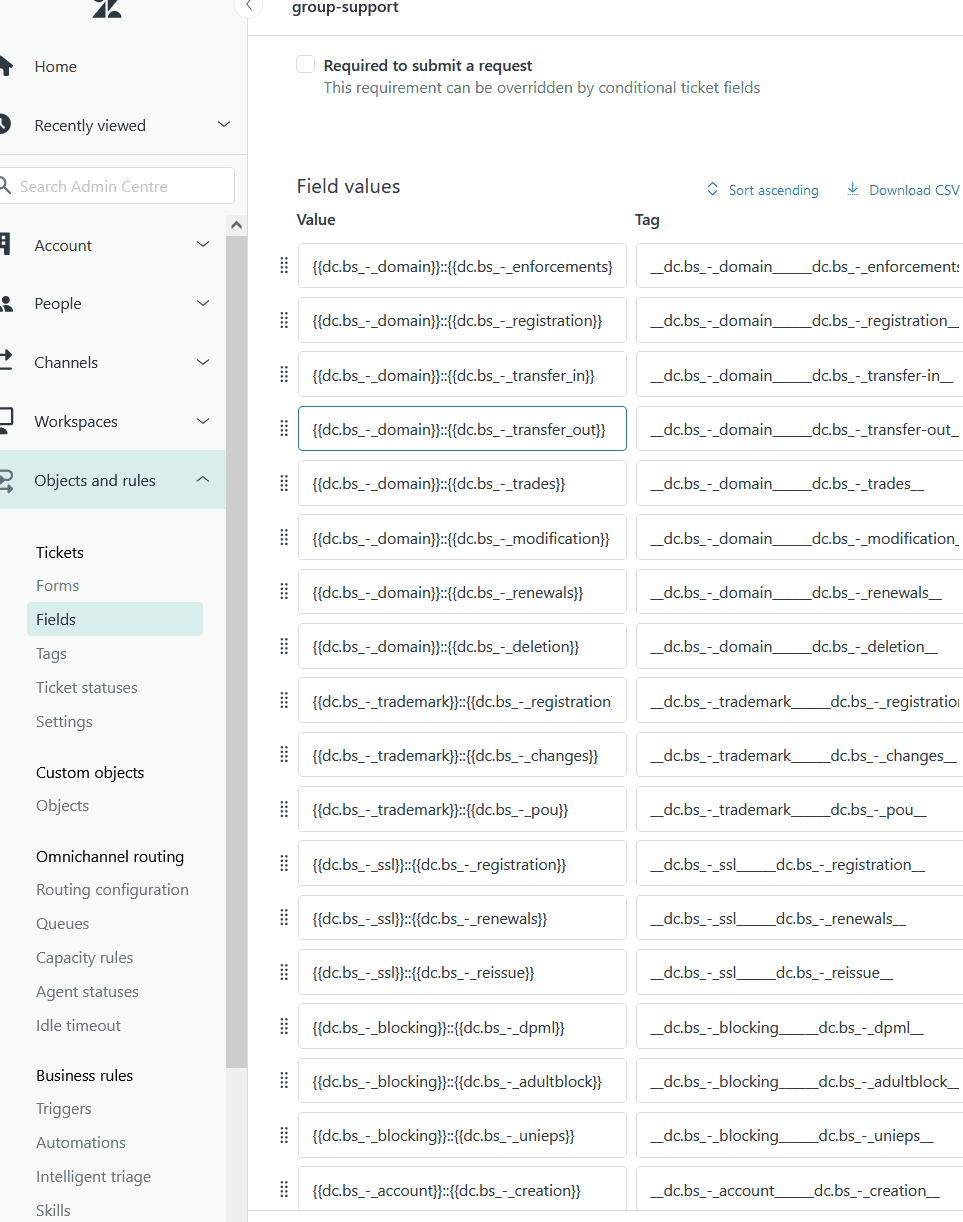
Step 2: Configure field permissions and visibility
Once your field is created, think through the security implications. Because the metadata API is client-side, technically savvy users could inspect your code and see what fields you are setting. Avoid passing highly sensitive data like full credit card numbers or passwords through conversation metadata.
Consider field visibility carefully. Fields set through metadata will appear in tickets, but you can control whether agents see them in the main ticket view or in side conversations. You can also use Zendesk's field permissions to control which agent roles can edit the values after they are set.
Test your field configuration by creating a ticket manually and verifying the field appears as expected. Once you are satisfied, you are ready to implement the API calls.
Implementing messaging metadata on your website
For websites using the Zendesk Web Widget, you will use JavaScript to set conversation fields and tags. The API is straightforward but has some timing considerations to keep in mind.
Web Widget implementation
The core API call looks like this:
zE('messenger:set', 'conversationFields', [
  { id: '123456789', value: 'ORDER-9876' }
]);
Replace 123456789 with your actual field ID from Admin Center. The value can be a string, number, or boolean depending on your field type.
To set multiple fields at once, add more objects to the array:
zE('messenger:set', 'conversationFields', [
  { id: '123456789', value: 'ORDER-9876' },
  { id: '987654321', value: 'SKU-ABC123' },
  { id: '456789123', value: true }
]);
For tags, the syntax is similar but simpler:
zE('messenger:set', 'conversationTags', ['vip_customer', 'mobile_web']);
Timing matters. You should call these methods after the Web Widget script has loaded but ideally before the user starts a conversation. A common pattern is to set fields when the page loads, then open the widget when the user clicks your custom launcher or the default widget button.
Here is a complete example that pulls a product SKU from the page and sets it when the page loads:
// Wait for the Zendesk widget to load
window.zESettings = {
  webWidget: {
    messenger: {
      onShow: function() {
        // Get the SKU from your page's data layer or DOM
        var productSKU = document.getElementById('product-sku').textContent;

        // Set the conversation field
        zE('messenger:set', 'conversationFields', [
          { id: '123456789', value: productSKU }
        ]);
      }
    }
  }
};
Clearing fields and tags
When a user logs out or navigates away from a context-sensitive page, you should clear the metadata. Otherwise, the values persist and could get attached to unrelated conversations later.
zE('messenger:set', 'conversationFields', []);
zE('messenger:set', 'conversationTags', []);
Alternatively, if you are completely resetting the widget state, you can use:
zE('messenger', 'resetWidget');
This clears all local state including conversation fields, tags, and user data. After a reset, you will need to set fields again for new conversations.
Testing your implementation
Open your browser's developer tools and watch the Network tab when you trigger the API calls. You should see requests to Zendesk's servers that include your metadata in the payload. The data appears under conversation metadata with keys like zen:ticket_field:123456789.
Start a test conversation and check the resulting ticket in Agent Workspace. Your custom fields should appear with the values you set. If fields are missing, double-check that the field IDs match and that the fields are configured for end-user editing.
Mobile SDK implementation
If you have a mobile app, you can use the Zendesk SDKs for iOS and Android to set conversation metadata. The concepts are the same as the Web Widget, but the syntax varies by platform.
iOS implementation
For iOS apps using Swift, setting conversation fields looks like this:
Zendesk.instance.messaging.setConversationFields([
    "123456789": "ORDER-9876",
    "987654321": "SKU-ABC123"
])
Setting tags uses a similar pattern:
Zendesk.instance.messaging.setConversationTags(["vip_customer", "ios_app"])
When the user logs out or switches accounts, clear the metadata:
Zendesk.instance.messaging.clearConversationFields()
Zendesk.instance.messaging.clearConversationTags()
Objective-C follows the same pattern with slightly different syntax:
[Zendesk.instance.messaging setConversationFields:@{@"123456789": @"ORDER-9876"}];
[Zendesk.instance.messaging setConversationTags:@[@"vip_customer"]];
Android implementation
For Android apps using Kotlin, the implementation looks like this:
Zendesk.instance.setConversationFields(listOf(
    TicketField(id="123456789", value="ORDER-9876"),
    TicketField(id="987654321", value="SKU-ABC123")
))
Setting tags:
Zendesk.instance.setConversationTags(listOf("vip_customer", "android_app"))
Clearing metadata:
Zendesk.instance.clearConversationFields()
Zendesk.instance.removeConversationTags()
Unity implementation
For games or apps built with Unity, use the C# SDK:
var fields = new Dictionary<string, object> {
    {"123456789", "ORDER-9876"},
    {"987654321", "SKU-ABC123"}
};
ZendeskSdk.Instance.Messaging.SetConversationFieldsAsync(fields);
Tags work similarly:
var tags = new List<string> {"vip_customer", "unity_app"};
ZendeskSdk.Instance.Messaging.SetConversationTags(tags);
Using metadata with Zendesk AI agents
One of the most powerful uses of messaging metadata is enhancing your AI agent conversations. When you set field values through the API, those values can pre-populate forms in your bot flows.
Pre-filling forms in bot conversations
In your Zendesk AI agent configuration, you can create "Ask for details" steps that prompt customers to provide information. When a customer has already provided that information through metadata, the field appears pre-filled. They can confirm the value or change it if needed.
This works particularly well for scenarios like:
- A customer clicks support from an order confirmation page. The order number is pre-filled in the bot's form.
- A VIP customer opens chat from their account page. Their account tier is already set, triggering a priority routing flow.
- A user on your mobile app starts a conversation. You tag it as "mobile_app" and route to agents trained on mobile-specific issues.
Conditional branching
Metadata also enables smarter conversation flows. Your bot can branch based on field values using conditional logic. For example, if the "Product Category" field is set to "Enterprise," the bot can skip basic troubleshooting and offer direct escalation to your enterprise support team.
To set this up, create a branch condition in your bot flow that checks the custom field value. Then design separate conversation paths for each possible value.
Passing data to Agent Workspace
When a conversation escalates from a bot to a human agent, all the metadata you set comes with it. The agent sees the pre-filled fields immediately in their workspace. This eliminates the need for customers to repeat information they have already provided to the bot.
Common use cases and examples
To help spark ideas for your implementation, here are some common ways teams use messaging metadata.
E-commerce scenarios
- Product context: Pass the product SKU or name when a customer starts chat from a product page. Agents immediately know what item the customer is asking about.
- Order identification: Pre-fill order numbers from order history or confirmation pages. This is especially useful for shipping inquiries or return requests.
- Cart abandonment: Tag conversations that start from the cart page with "cart_abandonment" and route to your sales team for recovery efforts.
Travel and hospitality
- Booking references: Pass itinerary numbers or confirmation codes from booking details pages. This lets agents pull up reservations without asking customers to dig through emails.
- Travel dates: Set check-in or departure dates as fields so agents know urgency levels at a glance.
- Room or seat preferences: Pre-fill preference fields so agents can see customer history during the conversation.
Customer segmentation
- VIP routing: Set a tag for VIP customers and use triggers to route them to your premium support queue immediately.
- Account tier: Pass subscription levels (Basic, Pro, Enterprise) to ensure customers get support from agents trained on their plan features.
- Sales vs support: Use page context to determine if a customer needs sales or support. Product pages might route to sales; help articles might route to support.
Tips and common pitfalls
As you implement messaging metadata, keep these tips in mind to avoid common issues.
Metadata only applies to new tickets. When you set conversation fields or tags, they only attach to tickets created after the API call. You cannot retroactively add metadata to existing tickets or ongoing conversations.
Fields must allow end-user editing. This is the most common implementation issue. If your custom field is set to "Agent only" permissions, the metadata API cannot populate it. Always verify field permissions in Admin Center.
Supported data types are limited. Conversation fields only accept strings, numbers, and booleans. You cannot pass complex objects or arrays as field values. For drop-down fields, pass the tag value associated with the option you want to select.
System fields are not supported. You cannot set built-in fields like Priority, Status, or Assignee through messaging metadata. These must be handled through triggers or automation rules after ticket creation.
Metadata persists until cleared. Values you set remain in the SDK's local storage until you explicitly clear them or call the reset widget method. Make sure to clear data when users log out or navigate away from context-sensitive pages.
Test thoroughly before launch. Use a sandbox or staging environment to verify your implementation. Check that field IDs match, values appear correctly in tickets, and your routing triggers work as expected.
Enhancing Zendesk with eesel AI
While Zendesk's native messaging metadata is powerful for passing data from your apps, you might find yourself wanting more advanced automation capabilities. That is where we can help.
At eesel AI, we complement Zendesk with a no-code workflow engine that can handle more complex automation scenarios. Where native metadata requires developer time to implement and maintain, our platform lets support teams build automations using plain English instructions.
For example, instead of writing code to pull order details from Shopify and set them as fields, you could create a workflow that says: "When a new ticket is created, look up the customer's latest order in Shopify and update the Order ID and Total fields in Zendesk." No JavaScript required.
We also connect to over 100 external data sources beyond what Zendesk's native integrations support. So if you need to pull data from Salesforce, Airtable, or a custom database into your Zendesk tickets, we can bridge that gap.
Our simulation mode lets you test these automations against your past tickets before going live. You will see exactly how fields would have been updated, giving you confidence that your automation works correctly.
If you are looking to go beyond basic metadata passing and build sophisticated, multi-step automations, check out our Zendesk integration.
Start automating your Zendesk workflows today
Zendesk messaging conversation metadata is a straightforward way to give your support team better context and improve customer experience. By passing data directly from your website or app into tickets, you eliminate repetitive questions and help agents solve problems faster.
Start small. Pick one high-impact use case, like passing order numbers from your checkout page or tagging VIP customers. Implement that first, measure the results, and expand from there.
For more advanced automation ideas, see our guide on Zendesk automation to add product metadata from custom fields. It covers additional techniques for enriching your tickets with data from external systems.
If you are ready to take your Zendesk automation further, try eesel AI and see how no-code workflows can complement your existing setup.


