Connecting WhatsApp to your customer support platform has become essential for businesses serving global markets. With over 3 billion monthly active users, WhatsApp is the dominant messaging app in regions like APAC, EMEA, and Latin America. For teams already using Zendesk, the WhatsApp integration brings these conversations directly into your Agent Workspace alongside email, chat, and phone channels.
This guide walks you through everything you need to know about setting up the Zendesk WhatsApp integration in 2026, from prerequisites and step-by-step configuration to understanding key limitations like the 24-hour rule. We'll also explore how modern AI alternatives like eesel AI's Zendesk integration can simplify your support automation without the complexity of Meta's verification requirements.

What is Zendesk WhatsApp integration?
The Zendesk WhatsApp integration connects the WhatsApp Business API to your Zendesk Agent Workspace, allowing your support team to receive and respond to WhatsApp messages alongside other support channels in a unified inbox.
When a customer sends a message to your WhatsApp business number, it automatically creates a ticket in Zendesk with the full conversation history. Agents can reply directly from the Zendesk interface, and these responses are delivered back to the customer via WhatsApp. The integration supports rich media including images, videos, documents, and voice messages.
For businesses operating internationally, this is particularly valuable because WhatsApp has replaced SMS in many regions as the preferred communication channel. Rather than managing a separate WhatsApp device or app, everything flows into your existing Zendesk workflows, reporting, and automation systems.
Prerequisites and requirements
Before starting the setup process, ensure you meet the following requirements:
Zendesk plan requirements
WhatsApp integration requires a Zendesk Suite plan (Team, Growth, Professional, or Enterprise). The basic Support Team plan at $19 per agent per month doesn't include messaging channels. Suite plans start at $55 per agent per month when billed annually.
Meta Business Manager account
You'll need a verified Meta Business Manager account that belongs to your business. The person setting up the integration must have Admin access within this Business Manager. Verification typically takes 1-3 business days and requires submitting business documentation to Meta.
Phone number requirements
The phone number you connect must:
- Be able to receive international phone calls and SMS messages
- Not be a VoIP number
- Not currently be connected to the WhatsApp mobile app
Important: Once you connect a phone number to the WhatsApp Business API, you can't use that same number to receive calls or messages through the standard WhatsApp mobile app. This is a Meta limitation that affects how your team communicates.
Display name approval
Your WhatsApp display name must match your business name or branding exactly. WhatsApp reviews and approves display names according to their guidelines, and mismatches will delay your setup.
Timeline expectations
| Step | Typical Duration |
|---|---|
| Meta Business Verification | 1-3 business days |
| WhatsApp Business Account Approval | 1-2 weeks |
| Channel Setup in Zendesk | Up to 5 minutes |
Step-by-step setup guide
Follow these steps to add a WhatsApp channel to your Zendesk Agent Workspace:
Step 1: Access Admin Center
Navigate to Admin Center → Channels → Messaging and social → Messaging.
Step 2: Add WhatsApp channel
Click Add channel and select WhatsApp from the dropdown menu.
Step 3: Connect Meta account
Click Continue with WhatsApp to open the Meta authentication flow. Sign in with the Facebook profile linked to your company's Meta Business Manager. You can either continue with the existing profile or sign in to a different account.
Step 4: Provide permissions
Grant Zendesk permission to access your WhatsApp business account and phone number. This allows Zendesk to host the number and connect it to your Agent Workspace.
Step 5: Select business account
Choose the Meta Business Manager for your WhatsApp number. You can select an existing Business Manager or create a new one. Then select an existing WhatsApp Business Account or create a new one.
If you already connected a number through Zendesk previously, select the existing WhatsApp Business Account to add additional phone numbers.
Step 6: Configure business profile
Set up your business profile with:
- Channel name: A unique name to identify the channel in Zendesk
- Brand: Select a brand if your account has multiple brands
- Profile picture: Upload an image that appears in WhatsApp conversations
- Description: A brief description of your business
- Contact information: Address, email, industry, and websites
Step 7: Set up phone number
Add and verify your phone number. If the business account you selected already has a phone number configured, you can skip this step.
Step 8: Activate the channel
After completing the setup flow:
- Select the number you want to activate from the dropdown
- If the number is dimmed and marked "(pending)," your Meta Business Manager verification is incomplete
- Once approved, click Add channel
The channel activation may take up to 5 minutes as Zendesk sets up hosting for your number. When complete, a "Channel added" message appears.
Step 9: Verify completion
After setup, you can access your WhatsApp Business Account Manager through Facebook Business Manager → Accounts → WhatsApp accounts → Settings → WhatsApp Manager to monitor display name status, message usage, and quality rating.
Understanding the 24-hour rule
One of the most important constraints of the WhatsApp Business API is the 24-hour customer service window. Here's how it works:
What is the 24-hour rule?
After a customer sends a message to your business, you have 24 hours to respond freely. At hour 25, you can no longer reply to that conversation unless the customer messages you again.
Why does this exist?
WhatsApp designed this to prevent spam and ensure businesses respond promptly to customer inquiries. It encourages real-time customer service rather than delayed batch responses.
How to message outside the 24-hour window
To contact customers after the window expires, you must use WhatsApp template messages. These are pre-approved message formats that you create in Meta Business Manager. Templates fall into two categories:
- Utility templates: Often free, used for order confirmations, shipping updates, appointment reminders
- Marketing templates: May incur costs, used for promotional messages
Using templates in Zendesk
You can integrate WhatsApp templates with Zendesk macros to streamline outbound messaging. When you need to send a template, the Relay app from the Zendesk Marketplace can help manage this process within your workflow.
Key limitations to know before starting
Before deploying WhatsApp through Zendesk, understand these important limitations:
No voice or video calls
Once a phone number is connected to the WhatsApp Business API, it can no longer receive WhatsApp voice or video calls. This is a Meta platform limitation that affects how customers can reach you.
No group messaging
The Zendesk WhatsApp integration doesn't support group chats. You can only handle one-on-one conversations between customers and your support team.
Fixed status message
Due to Meta API limitations, you can't customize the status message for your WhatsApp number. It will always display the default "Hey there! I am using WhatsApp" regardless of your business branding.
Mobile app conflict
A phone number can't be connected to both the WhatsApp Business API and the WhatsApp mobile app at the same time. If your team currently uses WhatsApp for Business on mobile devices, you'll need to migrate away from that setup.
Restricted access before verification
Until your Meta Business Manager is fully verified, your WhatsApp channel will have restricted access:
- Maximum 250 unique customers per 24-hour period
- Maximum 2 phone numbers allowed
- You can't apply for Official Business Account status
Usage-based charges
In addition to your Zendesk subscription, WhatsApp API usage may incur charges based on conversation volume. Review Meta's WhatsApp pricing for your region.
Use cases and benefits
Despite the limitations, the Zendesk WhatsApp integration delivers real value for many businesses:
Unified inbox management
All WhatsApp conversations appear alongside email, chat, phone, and social media interactions in the Zendesk Agent Workspace. Agents have full customer context including past tickets, order history, and interaction history across all channels.
AI-powered automation
Zendesk's AI agents can provide 24/7 automated responses to common WhatsApp inquiries. The AI learns from your help center articles and past conversations to deliver relevant answers without human intervention. For teams looking to enhance their Zendesk setup further, explore how eesel AI integrates with Zendesk to add advanced AI capabilities.
Rich media support
Customers can send images of product issues, share documents, or send voice messages describing problems. Agents can respond with the same rich media types, making troubleshooting more efficient.
Global reach without SMS costs
For businesses serving international customers, WhatsApp provides free messaging that bypasses expensive international SMS fees. This is particularly valuable in regions where WhatsApp is the default communication method.
Real-world results
According to Zendesk case studies, businesses using WhatsApp integration have seen:
- 28% increase in conversion rates compared to other channels
- 13% improvement in issue resolution rates
- Faster response times due to asynchronous messaging
A simpler alternative: eesel AI
While the Zendesk WhatsApp integration offers powerful capabilities, the setup complexity and Meta verification requirements can be real barriers. If you're looking for a faster path to AI-powered support automation, eesel AI offers a compelling alternative.

Key differences
| Feature | Zendesk + WhatsApp | eesel AI |
|---|---|---|
| Setup time | 1-2 weeks | Minutes |
| External verification | Required (Meta) | Not required |
| AI capabilities | Add-on cost | Core feature |
| Pricing | Per-agent + usage | Flat rate by interactions |
| Simulation testing | Limited | Full sandbox |
How eesel AI works
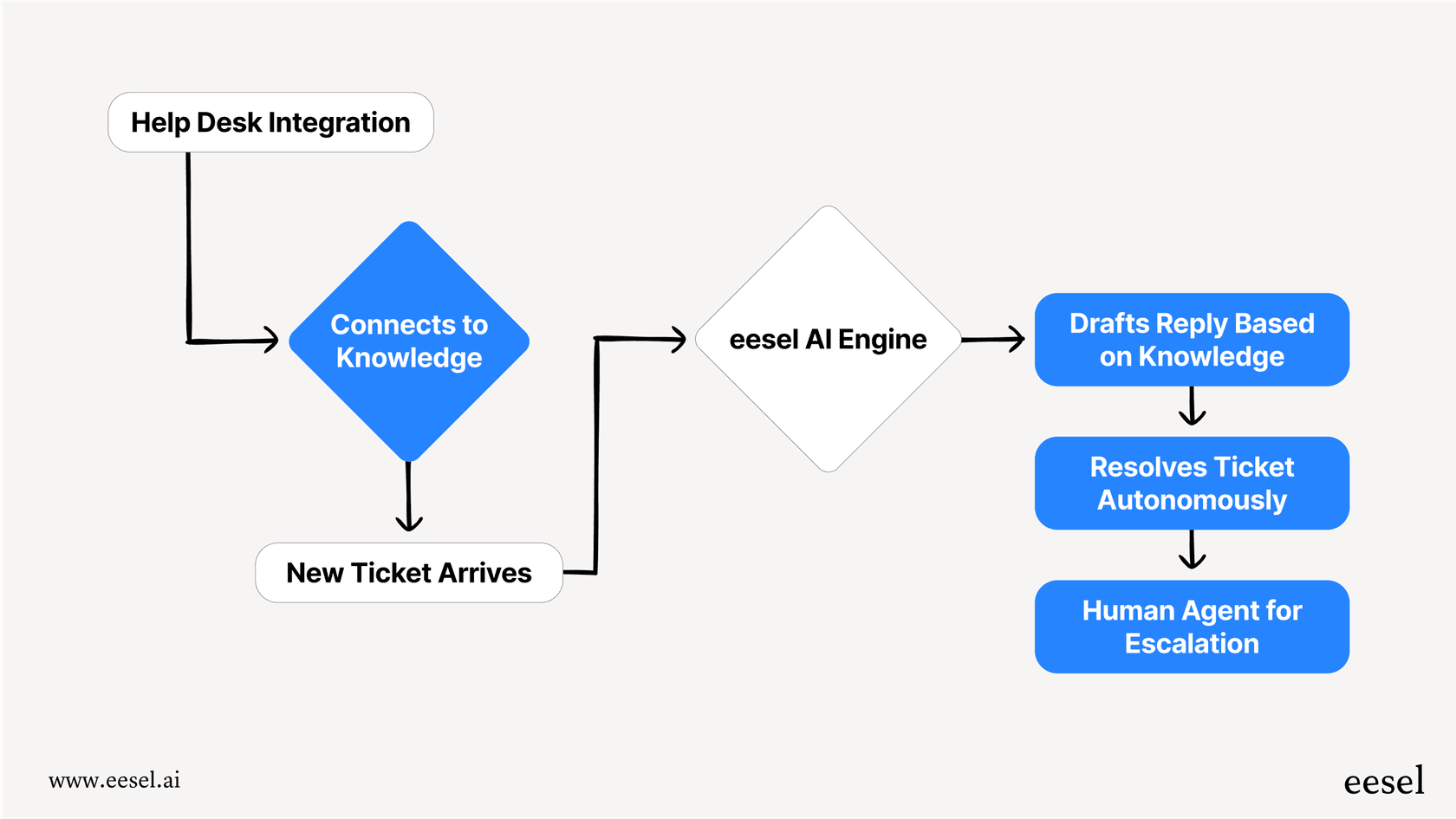
eesel AI integrates directly with your existing help desk (including Zendesk) to provide AI-powered support automation without the complexity of WhatsApp Business API setup. The AI learns from your past tickets, help center articles, macros, and documentation to handle frontline support automatically.
Progressive rollout approach
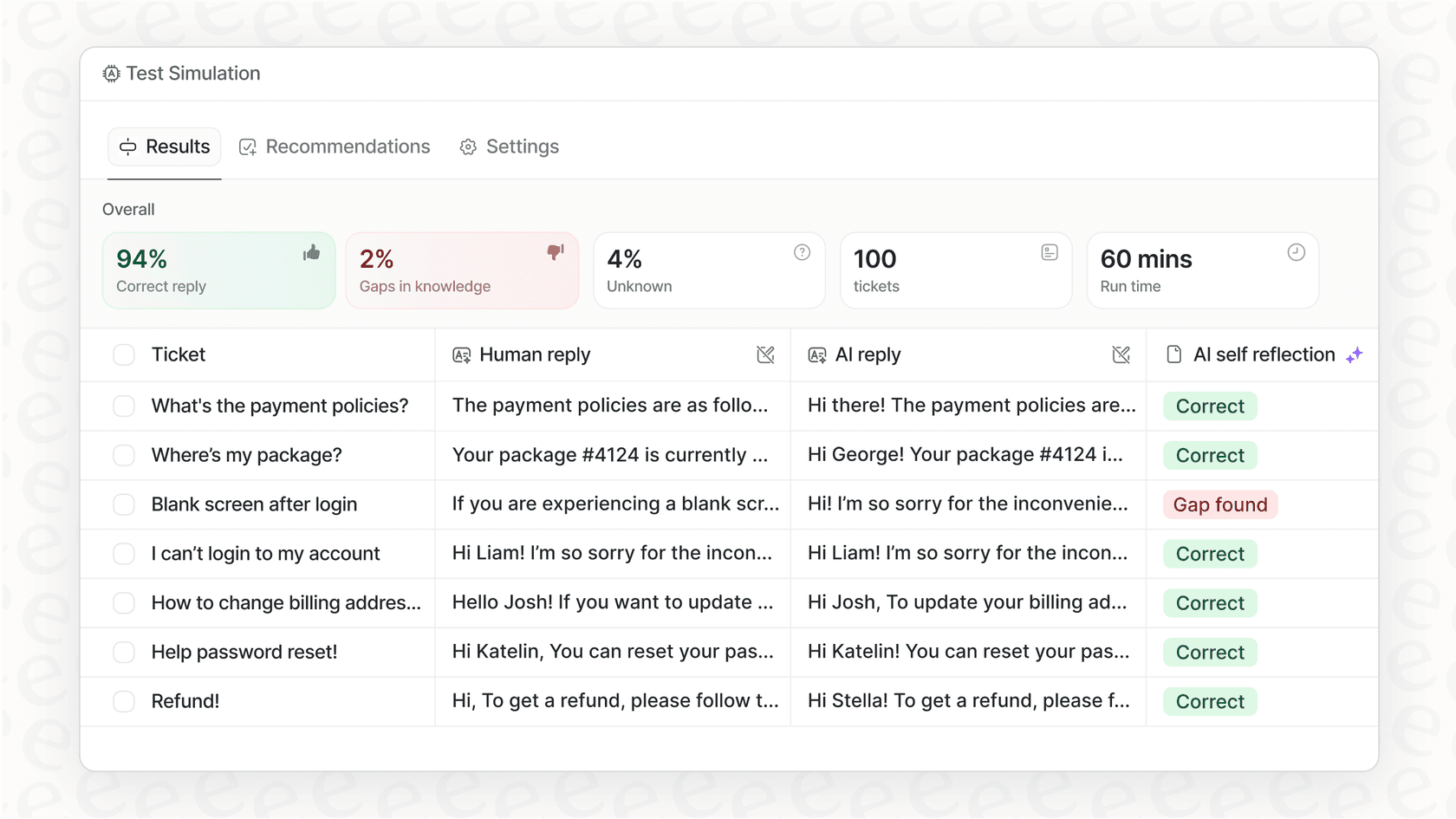
Rather than requiring full automation from day one, eesel AI lets you start with AI-drafted replies that agents review before sending. As the AI proves itself, you can gradually expand its role to full autonomous resolution. This "hire and level up" approach lets you verify quality before expanding scope.
Transparent pricing
eesel AI pricing starts at $299/month for 500 credits (1 credit per ticket or chat), with a free plan of 100 credits and no card needed. There is no platform fee and no per-seat fee. Unlimited bots, AI actions, and bulk simulation testing are all included. Unlike per-agent pricing, this model scales with your ticket volume.
Results
eesel AI customers typically see:
- 81% of support conversations resolved autonomously
- Under 2-month payback period
- Integration with Zendesk, Freshdesk, Intercom, and 100+ other tools
If the complexity of Meta verification and WhatsApp API setup is holding back your support automation goals, eesel AI offers a faster path to AI-powered customer service.
Getting started with WhatsApp customer support
Setting up Zendesk WhatsApp integration requires thoughtful preparation due to the Meta verification requirements and timeline. Here's a quick checklist to ensure success:
- Start Meta verification early - This is typically the longest part of the process
- Choose your phone number wisely - Remember it cannot be used on WhatsApp mobile app simultaneously
- Prepare your display name - Ensure it matches your business branding exactly
- Understand the 24-hour rule - Plan your template messaging strategy for proactive outreach
- Consider alternatives - If the complexity is a barrier, modern AI solutions like eesel AI can deliver automation without the setup friction
The Zendesk WhatsApp integration is a powerful tool for businesses that need to meet customers on their preferred messaging platform. By following this guide and understanding both the capabilities and limitations, you can deploy a WhatsApp support channel that serves your customers effectively while integrating seamlessly with your existing Zendesk workflows.
Ready to explore a simpler approach to AI-powered customer support? Try eesel AI and see how it can transform your support operations without the complexity of Meta verification.