
Standard Zendesk objects like tickets, users, and organizations cover most support needs. But what happens when your business has unique data that doesn't fit into those predefined boxes? Zendesk custom objects give you the flexibility to model your data exactly how you need it.
Custom objects let you extend Zendesk's data model to store information specific to your business. Whether you're tracking software licenses, product warranties, or subscription details, custom objects give you the flexibility to model your data exactly how you need it.
In this guide, you'll learn how to create a custom object type in Zendesk using two methods: the REST API for automated setups and the Admin Center for a point-and-click approach. We'll also look at how tools like eesel AI can work alongside your custom data to automate support workflows.
Creating a custom object type via the API
The API method gives you precise control and lets you automate object creation across multiple Zendesk instances. Here's how to create a Zendesk custom object type programmatically.
Step 1: Enable custom objects in your account
Before you can use the API, an admin needs to activate the feature:
- Navigate to Admin Center > Objects and rules > Custom objects
- Click Get started to enable the feature
- If you've previously used legacy custom objects, you'll see a banner to try the new experience
Step 2: Create the custom object
Once enabled, use the create custom object endpoint to define your object:
Endpoint: POST /api/v2/custom_objects
Required parameters:
key: A unique identifier for your object (cannot be changed later)title: The singular display name (e.g., "Software License")title_pluralized: The plural display name (e.g., "Software Licenses")
Here's a complete cURL example:
curl --request POST https://{subdomain}.zendesk.com/api/v2/custom_objects \
  --header "Content-Type: application/json" \
  -u {email_address}/token:{api_token} \
  --data-raw '{
    "custom_object": {
      "key": "software_license",
      "title": "Software License",
      "title_pluralized": "Software Licenses"
    }
  }'
Expected response (201 Created):
{
  "custom_object": {
    "url": "https://{subdomain}.zendesk.com/api/v2/custom_objects/software_license.json",
    "key": "software_license",
    "created_by_user_id": "15590417147927",
    "updated_by_user_id": "15590417147927",
    "created_at": "2023-09-12T16:28:17Z",
    "updated_at": "2023-09-12T16:28:17Z",
    "title": "Software License",
    "raw_title": "Software License",
    "title_pluralized": "Software Licenses",
    "raw_title_pluralized": "Software Licenses",
    "description": "",
    "raw_description": ""
  }
}
The key you choose is permanent, so pick something descriptive that's consistent with your naming conventions.
Step 3: Add custom fields to define the schema
An object without fields is just an empty container. Use the create custom object field endpoint to add properties:
Endpoint: POST /api/v2/custom_objects/{custom_object_key}/fields
Available field types:
text: Single-line or multi-line textdropdown: Predefined options with tagscheckbox: Boolean true/falselookup: Relationships to tickets, users, organizations, or other custom objectsdate: Date valuesnumber: Integer valuesdecimal: Decimal numbersregexp: Text matching a regular expression pattern
Example: Adding a dropdown field for license status
curl --request POST \
  https://{subdomain}.zendesk.com/api/v2/custom_objects/software_license/fields \
  --header "Content-Type: application/json" \
  -u {email_address}/token:{api_token} \
  --data-raw '{
    "custom_object_field": {
      "key": "status",
      "title": "License Status",
      "type": "dropdown",
      "custom_field_options": [
        {"name": "Active", "raw_name": "Active", "value": "active"},
        {"name": "Expired", "raw_name": "Expired", "value": "expired"},
        {"name": "Pending", "raw_name": "Pending", "value": "pending"}
      ]
    }
  }'
Example: Adding a lookup relationship to link licenses to users
curl --request POST \
  https://{subdomain}.zendesk.com/api/v2/custom_objects/software_license/fields \
  --header "Content-Type: application/json" \
  -u {email_address}/token:{api_token} \
  --data-raw '{
    "custom_object_field": {
      "key": "assigned_user",
      "title": "Assigned User",
      "type": "lookup",
      "relationship_target_type": "zen:user"
    }
  }'
Agents see fields in the order you create them. If you need to reorder them later, use the reorder custom object fields endpoint.
Creating a custom object type in the Admin Center
If you prefer a visual interface, the Admin Center provides a straightforward way to create custom objects without writing any code.
Step 1: Access the custom objects page
- In the Admin Center, click Objects and rules in the sidebar
- Select Custom objects > Objects
- Click Create object
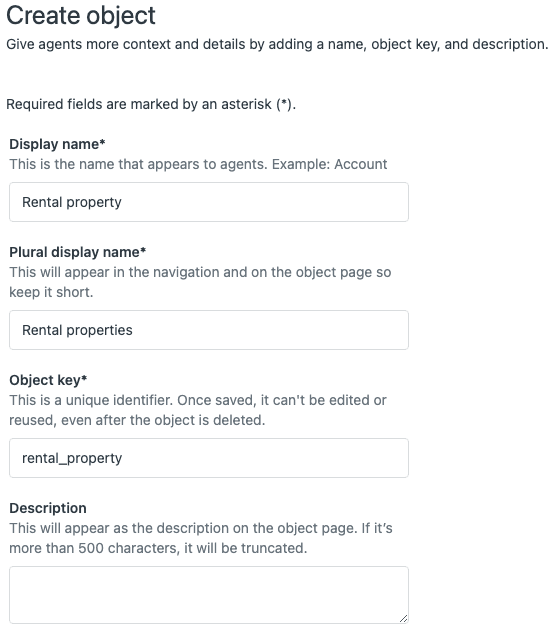
Step 2: Configure the object properties
Fill in the basic object information:
- Object key: A unique identifier (e.g.,
software_license). This cannot be changed later. - Singular name: How the object appears in the interface (e.g., "Software License")
- Plural name: The plural form shown in lists (e.g., "Software Licenses")
- Description: Optional context for other admins
- Visibility: Choose whether agents can view this object type in the Custom objects records page
Click Save to create the object.
Step 3: Define custom fields
After saving, you'll see a Fields tab:
- Click Add field
- Select a field type from the dropdown (text, number, date, dropdown, checkbox, lookup)
- Enter a field key and display title
- Configure type-specific options (e.g., dropdown values, lookup target)
- Set whether the field is required
- Click Save
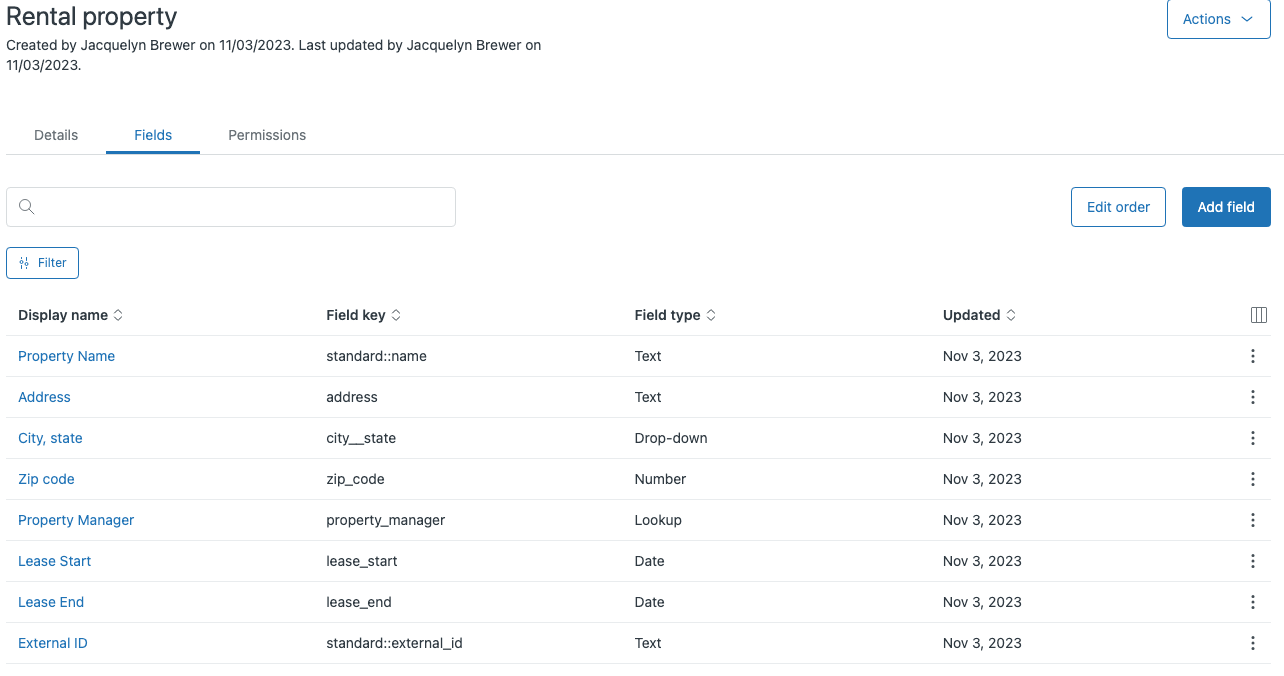
Repeat this process for each field you need. The standard name field is included by default, so you don't need to create that separately.
Understanding custom object fields and relationships
Fields define what data your custom objects can hold. Choosing the right field types makes your data more useful and easier to work with.
Standard vs custom fields
Every custom object automatically includes a standard name field. This serves as the primary identifier for records. You can customize its title (e.g., change "Name" to "License Key") but you can't remove it.
Custom fields are where you define your specific data structure. You can add up to 100 custom fields per object, giving you plenty of flexibility for complex data models.
Field types explained
- Text fields: Store free-form text. Use single-line for short entries (like serial numbers) and multi-line for longer descriptions.
- Dropdown fields: Restrict input to predefined options. Useful for status fields, categories, or any data with a fixed set of values.
- Checkbox fields: Simple true/false values. Good for flags like "requires approval" or "is active."
- Date fields: Store calendar dates. Useful for expiration dates, purchase dates, or renewal dates.
- Number/Decimal fields: Store numeric values. Use for quantities, amounts, or any calculated values.
- Lookup relationship fields: The most powerful field type. These create connections between your custom object and other Zendesk objects.
Lookup relationships
Lookup fields let you link custom object records to:
- Tickets: Associate a license, product, or asset with a specific support ticket
- Users: Connect records to the customers who own them
- Organizations: Link data to company accounts
- Other custom objects: Build complex relationships (e.g., licenses linked to products)
When you add a lookup field to a ticket form, agents can search and select related custom object records directly while working on tickets. This brings your custom data into the support workflow.
Plan limits to keep in mind
| Limit | Suite Team/Growth | Enterprise/Professional+ |
|---|---|---|
| Custom objects per account | 3-5 | 30-50 |
| Fields per object | 100 | 100 |
| Lookup relationships per object | 5 | 10 |
These limits are hard caps, so plan your object structure accordingly. If you're hitting limits frequently, you might need to consolidate objects or upgrade your plan.
Creating and managing object records
Once you've defined your object type and fields, you can start creating actual records.
Creating records via API
Use the create custom object record endpoint:
Endpoint: POST /api/v2/custom_objects/{custom_object_key}/records
curl --request POST \
  https://{subdomain}.zendesk.com/api/v2/custom_objects/software_license/records \
  --header "Content-Type: application/json" \
  -u {email_address}/token:{api_token} \
  --data-raw '{
    "custom_object_record": {
      "name": "LICENSE-2024-001",
      "custom_fields": {
        "status": "active",
        "assigned_user": "123456789"
      }
    }
  }'
Creating records in the Admin Center
- Go to Admin Center > Objects and rules > Custom objects > Records
- Select your object type from the dropdown
- Click Add record
- Fill in the field values
- Click Save
Bulk importing with CSV
For large datasets, use the Data Importer in the Admin Center:
- Prepare a CSV with columns matching your field keys
- Include an
external_idcolumn for matching existing records - Upload via Admin Center > Objects and rules > Data importer
- Map CSV columns to object fields
- Review and confirm the import
The Data Importer can both create new records and update existing ones based on the external_id field.
Using placeholders in macros and triggers
Custom object data becomes powerful when you use it in your support workflows. Zendesk supports placeholders that let you reference custom object values in macros, triggers, and automations.
For a lookup field with ID 123456789 on a ticket:
{{ticket.ticket_field_123456789.name}}returns the linked record's name{{ticket.ticket_field_123456789.custom_fields.status}}returns the status field value{{ticket.ticket_field_123456789.custom_fields.status.title}}returns the display value for dropdown fields
This lets you create dynamic macros that pull in relevant customer data automatically.
Plan limits and important considerations
Before building out your custom object structure, understand the constraints:
| Plan | Custom Object Limit |
|---|---|
| Suite Team | 3 |
| Suite Growth | 5 |
| Support Enterprise / Suite Professional | 30 |
| Suite Enterprise / Suite Enterprise Plus | 50 |
Key limitations:
- Field limit: 100 custom fields per object (standard fields don't count)
- Lookup limits: 5 lookup fields per object on Team/Growth, 10 on higher plans
- Immutable keys: The object key cannot be changed after creation. If you make a mistake, you'll need to delete and recreate the object (losing any existing records).
- Admin-only: Only administrators can create and modify object types. Agents can create and edit records if given permission.
- API rate limits: Bulk operations are subject to Zendesk's standard API rate limiting.
Best practices:
- Use consistent naming conventions for keys (lowercase with underscores works well)
- Document your object schema for other team members
- Test with a small dataset before bulk importing
- Plan your lookup relationships carefully, they can't be easily changed later
Extending your helpdesk with AI
Custom objects give you a powerful way to structure your data. But data alone doesn't solve support problems, you need to make it actionable. AI can bridge that gap.
eesel AI works as an AI teammate inside your Zendesk instance. It learns from your help center articles, past tickets, and yes, even your custom object data. Instead of just storing information about software licenses or product warranties, eesel can use that data to resolve tickets automatically.
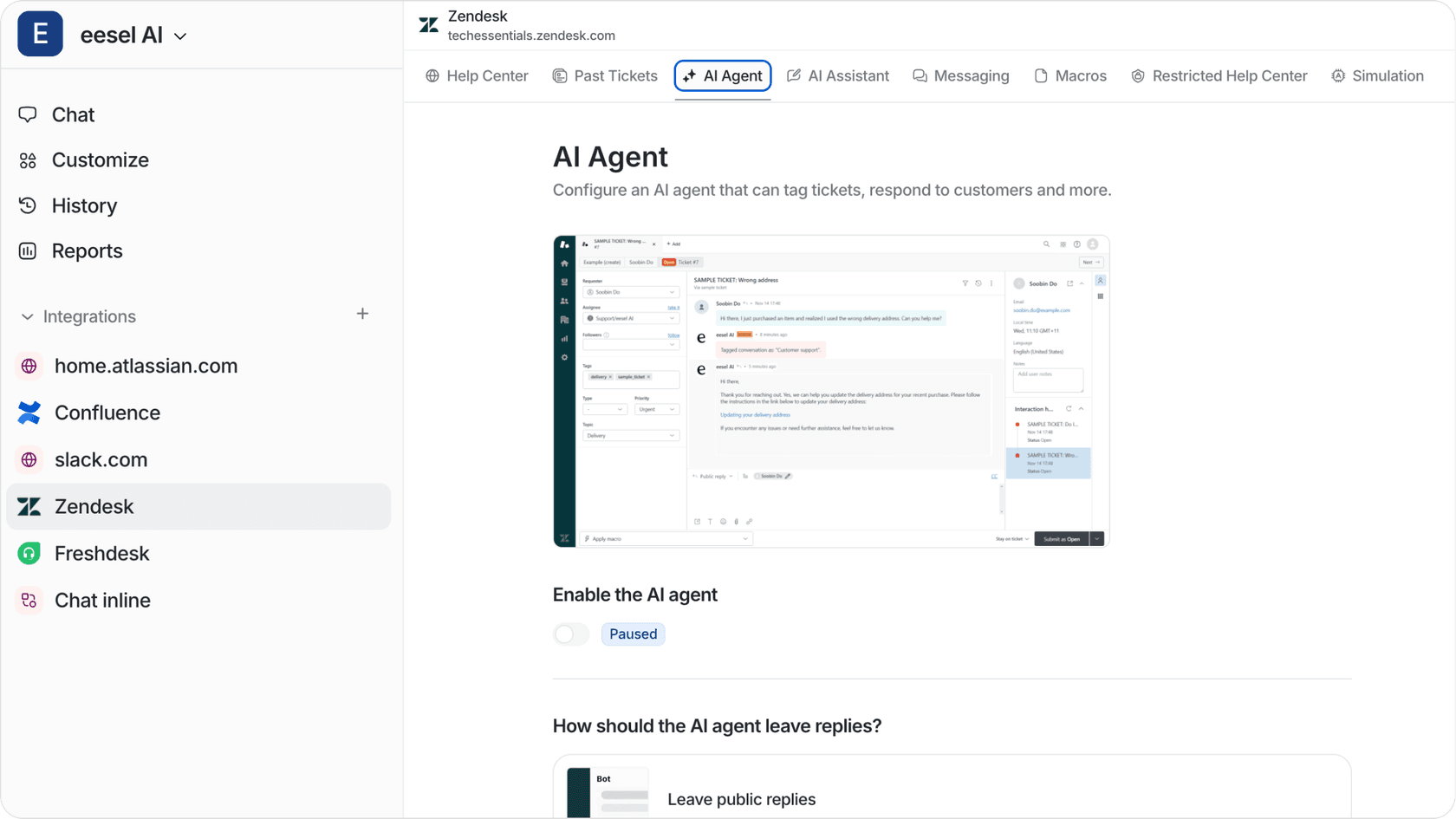
Here's how it works: connect eesel to your Zendesk account, and it immediately starts learning your business context. When a customer emails about a license issue, eesel can look up their custom object records, check the status, and respond with the correct information. No agent's needed for routine lookups.
The difference from standard automation is that eesel understands context. It doesn't just match keywords, it reads the ticket, understands what the customer needs, and takes appropriate action based on your custom data. You define escalation rules in plain English ("If the license is expired, offer renewal options"), and eesel follows them.
For teams already using custom objects to track complex customer data, adding an AI layer can turn that data into automated resolutions. It's worth exploring if you're looking to scale without proportionally growing your team.
Start building custom objects in Zendesk today
You now have two solid methods for creating custom object types in Zendesk: the API for programmatic control and the Admin Center for visual setup. Both approaches let you extend Zendesk beyond its standard data model to capture the unique information your business needs.
The key is to start simple. Pick one use case (like tracking software licenses or product registrations), create a basic object with a few fields, and test it with your team. Once you see how custom objects fit into your workflow, you can expand to more complex data models.
Remember that planning matters. Object keys are permanent, field relationships are hard to change, and plan limits are real constraints. Sketch out your data model before building.
For detailed API reference and additional examples, check out Zendesk's official custom objects documentation. And if you're looking to do more with your custom data, explore how eesel AI can turn that data into automated support resolutions.


