
Ever wished you could just press a button and turn all your messy research notes into a slick presentation? Well, we're getting pretty close. Google's NotebookLM, an AI research assistant, recently rolled out a feature that promises to do just that, turning your documents into a slide deck that looks like you spent hours on it.
In this guide, we'll take a close look at the NotebookLM slide deck feature. We'll walk through what it is, how to use it, and its potential applications, using Google's own examples. We will also cover its limitations, based on user feedback, to help you determine if it's the right tool for your project.
What is the NotebookLM slide deck feature?
Before we get into the slide generator, let's quickly cover what NotebookLM actually is. Think of it as your personal AI research assistant that only uses the documents you give it. You can upload PDFs, Google Docs, website links, and even YouTube video transcripts to create a "notebook." The AI then uses this hand-picked collection of documents as its brain to answer questions, summarize info, and create new content. This keeps the AI's answers grounded in your specific material, which is a big plus.
The slide deck feature is a new tool in NotebookLM's "Studio" panel. It's powered by Google's Nano Banana Pro image model and its job is to automatically build a full presentation from your uploaded sources. Instead of just spitting out text summaries, it creates a set of visual slides with different layouts, images, and key points. Google calls it a "powerful engine for visual storytelling," and it definitely moves NotebookLM beyond a simple research tool.
How to generate a presentation with NotebookLM
Getting started with the slide deck generator is pretty simple. According to Google's help documentation, the quality of the slides you get really depends on two things: the quality of the sources you upload and the clarity of the instructions you give.
Here’s how it works:
-
Gather your sources. First, you need to create a notebook and fill it with your materials. You can upload things like PDFs, text files, and Google Docs. The AI will scan all of it to build the presentation. A free account gives you up to 50 sources for each notebook.
-
Select your sources. Inside your notebook, you can tell it to use all your sources or just a few specific ones. This is handy if you only want to make a presentation about one particular document.
-
Customize the generation. In the "Studio" panel, look for "Slide Deck" and click the pencil icon to open up the options. This is where you can really steer the output. You can pick:
- Format: "Detailed Deck" gives you more comprehensive slides, while "Presenter Slides" creates more visual, TED-style slides with just a few talking points.
- Length: You can choose short, default, or long.
- Language: Pick the language you want the slides in.
- Prompt: This is your chance to direct the AI's style. You could say something like, "a deck for beginners using a bold and playful style with a focus on step-by-step instructions."
-
Generate and review. Once you've set your preferences, NotebookLM gets to work. When it's done, you can look at the presentation right in the app, pop it into a full-screen slideshow, or download it as a PDF to share.
Key use cases for the NotebookLM slide deck feature
There are a few areas where this feature is genuinely useful, especially when you need something fast. Google's own blog points out several creative applications for it.
Rapidly visualizing research and data
If you're a student, researcher, or consultant, this feature can be a huge time-saver. Instead of spending hours turning dense reports into slides, you can upload a research paper or some technical docs and get a decent first draft in minutes. It's great for whipping up study guides or internal presentations where the main goal is just to get the key points across quickly.
Brainstorming and creative ideation
NotebookLM can feel like a creative partner. You can feed it rough notes, a messy brainstorm, or a few articles on a topic and ask it to generate a pitch deck. For instance, Google showed how it could create a pitch deck for a holiday-themed Jane Austen fan-fiction sequel, complete with plot ideas and book covers, all based on the original novels.
Converting lengthy content into visual stories
The tool is pretty good at breaking down long-form content. You can upload a big report, a bunch of articles, or even a book and ask NotebookLM to turn it into a "beautifully visual narrative." This is perfect for summarizing complicated subjects for people who'd rather look at slides than read a wall of text.
Creating personal and fun projects
The visual, story-like style of the slide decks is also great for personal projects. Google has shown examples of users turning photos of their baking into a polished recipe book or converting handwritten notes into a stylized "blackboard" design to organize their New Year's resolutions. It really shines in these kinds of creative, low-stakes situations.
Limitations of the NotebookLM slide deck feature
The NotebookLM slide deck feature has some limitations to consider for professional use, primarily related to the lack of control after the slides are generated.
Slides are not editable
A primary consideration is that the slides are generated as static images. You can't click on a text box to fix a typo, swap out a picture, or tweak the layout. As users on a popular Reddit thread have pointed out, if you need to make even a tiny change, your only option is to go back, adjust your prompt, and regenerate the whole deck. This can be a challenge for presentations that need to match company branding, use precise language, or be updated later.
The feature is really good and works great in NotebookLM. The biggest downside is that the slides it produces can't actually be exported to Google Slides or PowerPoint because they're based on a series of Imagen from Nanobanna 2 images. So you can't work with the slides afterwards or make small corrections or add any customization and changes to the export.

Workflow for business use cases
If edits are necessary, the workaround involves several steps. You have to download the PDF and use another tool to convert it into a PowerPoint file. However, users report this process can alter the formatting, requiring significant manual adjustments. For teams that need to collaborate on presentations or adhere to strict branding guidelines, this process may be inefficient. Some users have resorted to external paid services to convert the files, which adds extra steps to address this limitation of the tool.
Potential for factual and visual inaccuracies
While NotebookLM is pretty good at citing its sources, its interpretations aren't always on the mark. One user mentioned that after they pointed out a mistake, the AI just gave different wrong information. The visuals can be a problem too, with the AI sometimes picking images that don't quite match the text. These kinds of mistakes should be considered if you're using the slides for client-facing or other important presentations.
The slides are amazing, tidy, beautiful... however sometimes in the written parts, it says: 'source: xxxx' and that source doesnt even exist.
Privacy concerns with sensitive data
Privacy is another consideration. You're uploading your documents to Google's servers, which may not be suitable if you're working with sensitive company or client data. While Google has a privacy policy, teams handling confidential information should be careful. In contrast, some solutions like eesel AI contractually promise that your data is never used to train their general AI models, giving businesses a higher level of data security.
NotebookLM slide deck feature pricing and plans
NotebookLM is available in a few different tiers, and it's often bundled with other Google services. The free plan is pretty solid, but if you're a heavy user, you'll probably need a paid subscription.
| Feature | Free Plan | NotebookLM in Pro |
|---|---|---|
| Cost | $0 | Part of Google One AI Pro/Workspace |
| Notebooks | Up to 100 | Up to 300 |
| Sources per Notebook | Up to 50 | Up to 300 |
| Daily Queries | 50 | 500 |
| Multimedia Generations | Standard (e.g., 3 audio/day) | 5x more generations |
The free plan is more than enough for most personal or school projects. For more intense use, NotebookLM's pro features come with subscriptions like Google One AI Pro or Google Workspace plans, which also include other AI tools like Gemini.
Alternatives for actionable business intelligence
NotebookLM's slide feature is designed to turn documents into static visuals. For businesses where knowledge needs to be actionable for tasks like answering customer tickets or helping employees find information, a different type of AI tool may be needed.
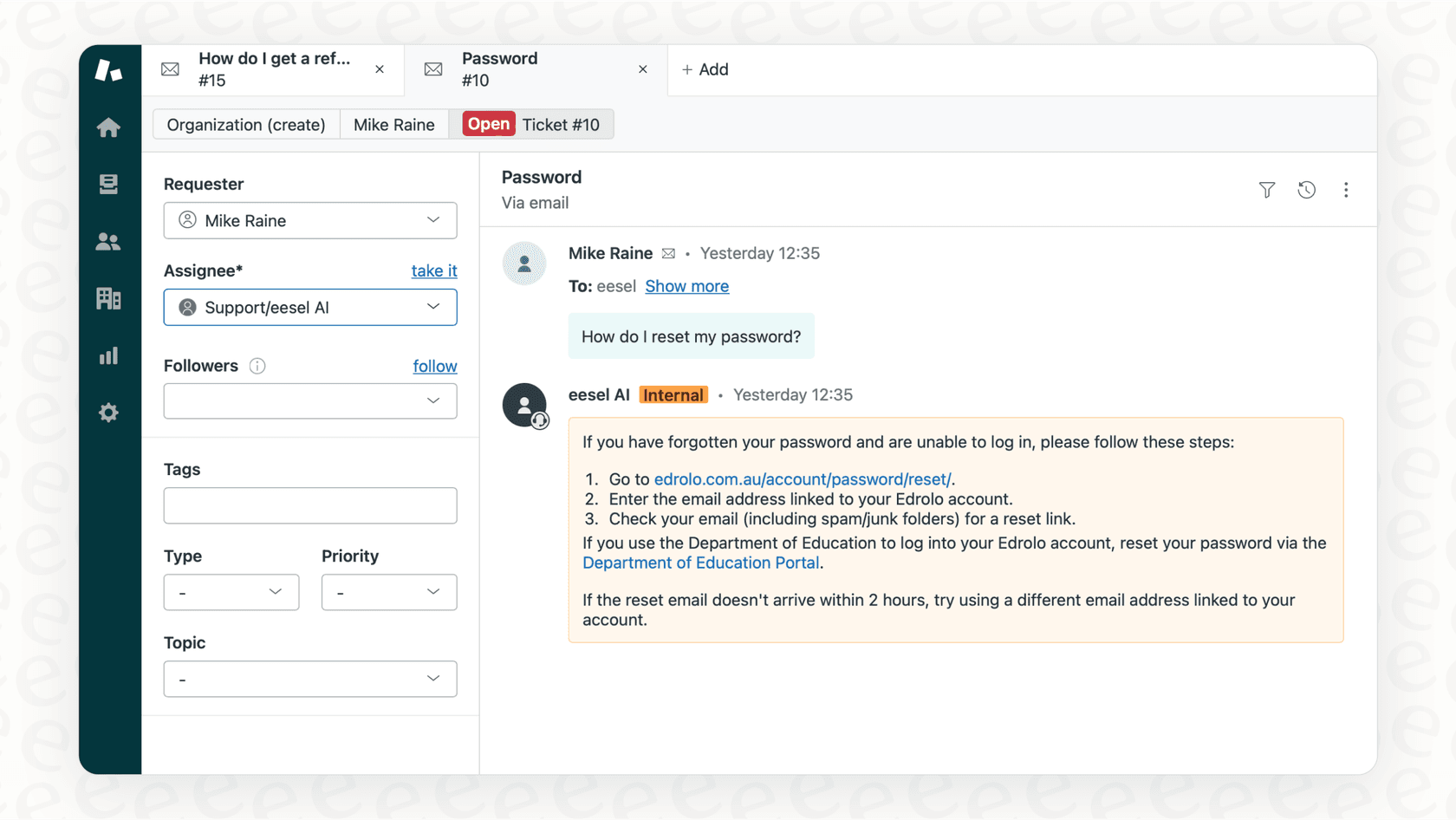
While a content generator creates a thing, an AI teammate from eesel AI plugs right into your daily work to help you out. For example, instead of just summarizing help articles into a deck, an eesel AI Agent can connect to your help desk and internal documents to resolve customer support tickets on its own, handling up to 81% of tickets for some teams. It learns from your past conversations to draft and send replies, giving your team a break.
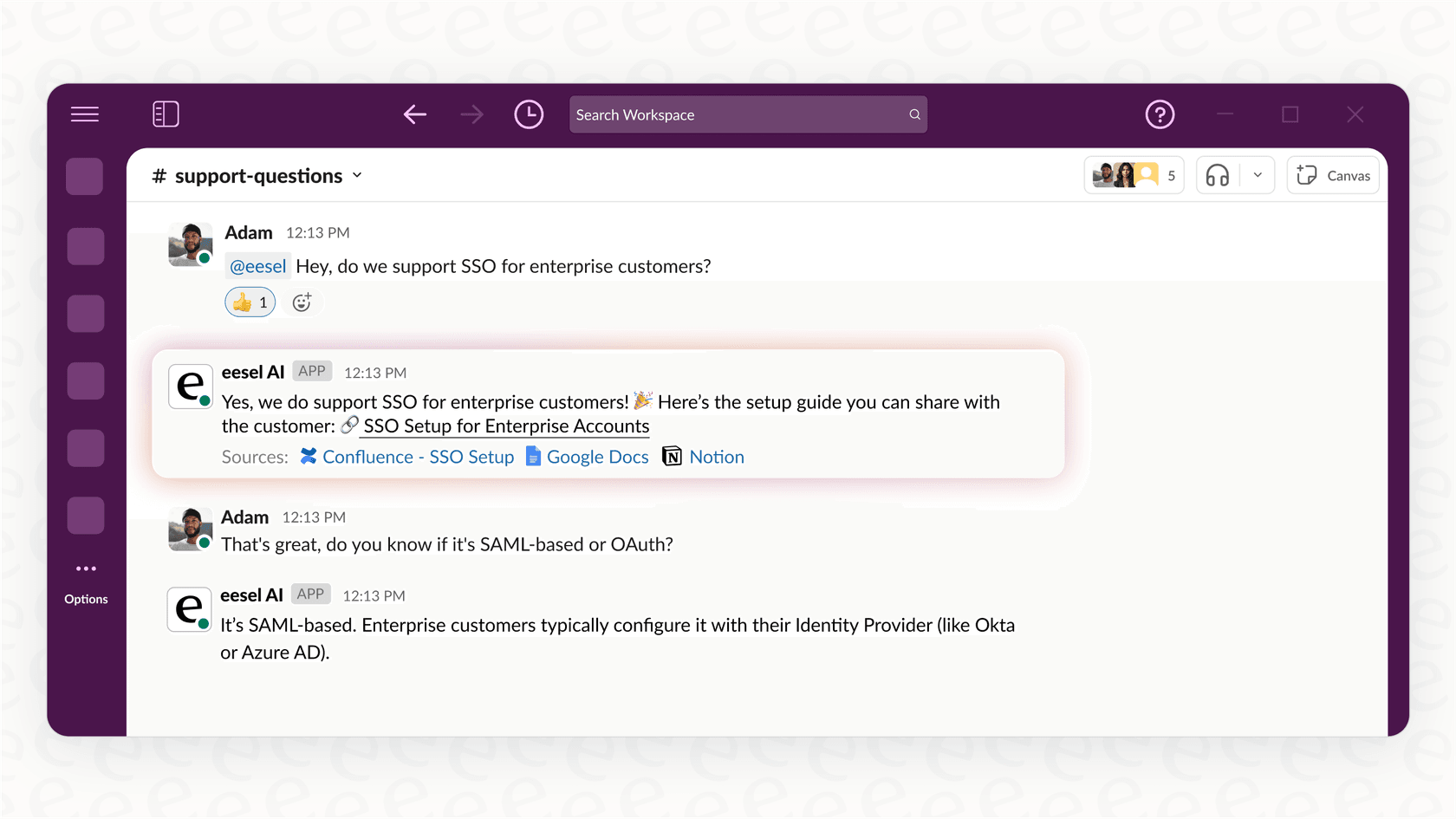
Similarly, eesel’s AI Internal Chat turns all your scattered documents into an interactive Q&A bot right inside Slack or Microsoft Teams. Your team can get instant, cited answers without anyone having to stop and create a report. The knowledge becomes a living, useful tool, not just a static PDF.
To see the NotebookLM slide deck feature in action, check out this video walkthrough. It provides a great visual overview of how you can turn your notes into a presentation in just a few clicks.
Final thoughts on the NotebookLM slide deck feature
Google’s NotebookLM slide deck feature is an innovative tool. For students, researchers, and anyone working on personal projects, it’s a very fast way to visualize information and tell a story without needing design skills. It’s effective for creating first drafts, brainstorming, and making dense information easier to digest.
However, the inability to edit the slides is a significant consideration for most professional business situations. The workarounds for making changes can be complex, and the potential for inaccuracies means that outputs for client-facing materials should be carefully reviewed.
For teams that need to put their knowledge to work, a more integrated tool may be a better fit. If your goal is to automate tasks and give your team interactive knowledge, it’s worth checking out an AI teammate like eesel AI that’s built for business from day one.
Frequently asked questions
Can I edit the slides created by the NotebookLM slide deck feature?
Unfortunately, no. This is the biggest limitation. The slides are generated as images, so you can't edit text, change images, or adjust layouts directly. You'd have to change your prompt and regenerate the entire deck.
Is the NotebookLM slide deck feature free to use?
Yes, there's a generous free plan that's perfect for most personal or academic use. For heavier usage, the pro features of the NotebookLM slide deck feature are bundled into paid subscriptions like Google One AI Pro or Google Workspace.
What kind of documents can I use with the NotebookLM slide deck feature?
You can upload a wide variety of sources, including PDFs, Google Docs, text files, website links, and even transcripts from YouTube videos. The AI uses these sources as the basis for the presentation.
Who is the NotebookLM slide deck feature best suited for?
It's ideal for students, researchers, or anyone who needs to quickly visualize dense information for things like study guides or internal drafts. It's also great for creative brainstorming and personal projects where pixel-perfect editing isn't a priority.
How does the NotebookLM slide deck feature handle sensitive or confidential data?
Since you have to upload your documents to Google's servers, you should be cautious about using it with confidential business or client information. Always review Google's privacy policy before uploading sensitive material.
What's the main difference between using the NotebookLM slide deck feature and a tool like eesel AI?
The NotebookLM slide deck feature is a content generator; it turns your documents into a static visual presentation. An AI teammate like eesel AI is designed for action; it integrates with your workflows (like your help desk or Slack) to answer questions and resolve issues autonomously using your company knowledge.