IT teams are drowning in repetitive tasks. The same types of tickets keep coming in: password resets, software access requests, onboarding tasks. Each one follows a predictable pattern, yet agents spend hours manually routing, responding, and closing them.
This is where Freshservice ticket automation makes a real difference. Instead of handling every ticket by hand, you can build workflows that automatically triage, respond, and resolve common requests. Your team focuses on complex problems while automation handles the routine.
But here's the thing: rule-based automation has its limits. It works great for "if this, then that" scenarios, but it can't understand context or draft personalized responses. That's why many IT teams pair Freshservice's automation with AI teammates like eesel AI to handle the parts automation cannot reach.
Let's break down how Freshservice ticket automation works and how to implement it effectively.
What is Freshservice ticket automation?
Freshservice ticket automation uses rule-based workflows to handle repetitive IT service tasks without human intervention. Think of it as setting up a series of "if-then" statements that trigger automatically when specific conditions are met.
When a ticket comes in, the system checks: Who sent it? What is it about? How urgent is it? Based on your rules, it might automatically assign the ticket to the right team, send a response with troubleshooting steps, or escalate it to a senior agent.
Freshservice approaches automation through three main tools, all part of its broader IT service management platform:
- Workflow Automator for complex multi-step processes
- Scenario Automations for bundling common agent actions
- Observer Rules for reacting to ticket updates
This is different from AI-powered automation. Rule-based systems follow strict logic. They excel at structured tasks but struggle with nuance. They can't read a ticket, understand the user's frustration, and craft a helpful response. They just execute predefined actions.
For modern IT teams, automation matters because it directly impacts three things: efficiency (tickets get handled faster), consistency (every request follows the same process), and scalability (you can handle more volume without proportional headcount increases). Teams looking to maximize these benefits often explore AI agent assist solutions.
Core automation tools in Freshservice
Freshservice gives you three ways to automate, each suited for different situations.
Workflow Automator
The Workflow Automator is Freshservice's visual automation builder. It uses a drag-and-drop interface where you connect triggers, conditions, and actions into workflows.
Triggers start the workflow. Common triggers include:
- Ticket created
- Ticket updated
- Time-based events (SLA approaching)
- Approval status changes
Conditions filter which tickets the workflow affects. You might specify "department equals Finance" or "subject contains password."
Actions are what happens next. You can assign tickets, send notifications, update fields, create child tickets, or call webhooks to integrate with external systems.
Workflow Automator works best for complex processes that span multiple steps. For example, an onboarding workflow might create five child tickets, notify HR, set due dates, and trigger approval requests, all in one flow.
Scenario Automations
Scenario Automations let agents execute multiple actions with a single click from within a ticket. Instead of manually updating status, adding a tag, sending a notification, and reassigning, an agent clicks one button.

You set these up in Admin > Automations > Scenario Automation. Each scenario can include actions like:
- Set status/priority
- Assign to group or agent
- Add tags
- Send emails
- Add notes
These work best for repetitive tasks agents perform multiple times per day. A "Process Refund" scenario might tag the ticket, notify the finance team, and update status in one click.
Observer Rules
Observer Rules monitor tickets for specific changes and trigger actions automatically. Unlike Workflow Automator (which runs once when a ticket is created), Observer Rules react to updates throughout a ticket's lifecycle.
Common use cases include:
- Escalating when priority changes to "High"
- Notifying managers when SLA is about to breach
- Adding tags based on keywords in replies
- Closing tickets automatically when users send "thank you" messages
Observer Rules excel at reactive automation. They watch and respond, making sure nothing falls through the cracks as tickets evolve.
5 essential ticket automation workflows
Here are five practical workflows every IT team should consider implementing.
Step 1: Auto-triage and assign incoming tickets
The most impactful automation routes tickets to the right team immediately. Without it, tickets sit in a general queue until someone manually reviews and assigns them.
How to set it up:
- Go to Admin > Workflow Automator
- Create a new workflow with trigger "Ticket is Raised"
- Add conditions based on your routing logic:
- Department = Finance → Assign to Finance IT group
- Subject contains "password" → Assign to Level 1 support
- Request type = "Hardware" → Assign to Desktop Support
- Add actions to set priority based on keywords ("urgent," "down," "outage")
- Include a fallback assignment so nothing goes unassigned
Pro tip: Start simple. Route by department or request type first. Add more complex rules (keyword matching, time-based routing) once the basics work. Learn more about how to use AI to classify or tag support tickets for smarter routing.
Step 2: Auto-respond to common requests
Many tickets don't need human intervention at all. Password resets, Wi-Fi troubleshooting, software install requests. These follow predictable patterns.
How to set it up:
- Create a Workflow Automator rule triggered on "Ticket is Raised"
- Add conditions for common requests:
- Subject contains "password reset"
- Subject contains "Wi-Fi" or "internet"
- Subject contains "install" + software name
- Set actions to:
- Send auto-response with knowledge base article link
- Add tag indicating auto-response sent
- Set status to "Waiting for Customer" (if you need confirmation)
- Or resolve immediately with solution documentation
This reduces ticket volume and gives users instant answers. Track which auto-responses actually resolve issues versus which create follow-up tickets, and refine accordingly. For teams looking to go further, explore customer support automation strategies.
Step 3: Escalate tickets approaching SLA breach
Missing SLAs damages user trust. Automation can watch deadlines and escalate before breaches happen.
How to set it up:
- Create an Observer Rule (not Workflow Automator, since you need to monitor over time)
- Set trigger to "SLA breach approaching" or use time-based conditions
- Add conditions:
- Priority is High or Urgent
- Status is not Resolved or Closed
- Time until SLA breach < 2 hours
- Set actions:
- Notify assigned agent and their manager
- Reassign to senior technician group
- Add "Escalated" tag for reporting
- Post to Slack/Teams channel for visibility
You can create multiple escalation tiers. First notification at 4 hours before breach, second at 2 hours, third at 30 minutes with manager CC'd.
Step 4: Automate onboarding/offboarding tasks
Employee transitions involve multiple teams and systems. Automation ensures nothing gets missed.
How to set it up:
- Create a parent ticket workflow triggered when HR submits onboarding request
- Add actions to create child tickets:
- Hardware provisioning (laptop, monitor)
- Account creation (Active Directory, email)
- Access requests (VPN, shared drives)
- Training assignments
- Set due dates based on start date (e.g., hardware 5 days before, accounts 2 days before)
- Add approval steps where needed (manager approval for software purchases)
- Use Orchestration apps to automatically create accounts in integrated systems
Freshservice integrates with Azure AD, Okta, and other identity providers to automate account provisioning. You can also explore how AI for IT operations complements these integrations.
Step 5: Auto-close resolved tickets
Tickets often stay open after the issue's resolved, waiting for users to confirm or agents to remember to close them. Automation can clean these up.
How to set it up:
- Create an Observer Rule monitoring status changes
- Set condition: Status changed to "Resolved"
- Add time delay (e.g., 3 days)
- Check if status is still "Resolved" (not reopened)
- If yes, change status to "Closed" and send satisfaction survey
Note: Freshservice can't natively auto-resolve tickets when all associated tasks are complete. This is a known limitation. Workarounds involve using webhooks to check task statuses and trigger resolution only when all tasks show "complete."
Freshservice automation limitations and workarounds
Freshservice's automation is powerful but not unlimited. Knowing the boundaries helps you plan accordingly.
Native limitations:
- Task-based resolution: As mentioned, Freshservice cannot automatically resolve a parent ticket when all child tasks complete. You need webhook workarounds or third-party tools.
- Complex branching: While Workflow Automator supports if/then logic, complex branching (nested conditions, loops) can become unwieldy.
- External data lookups: Limited ability to query external databases or APIs within workflows without using webhooks.
Integration workarounds:
When Freshservice's native automation hits limits, integration platforms extend your capabilities. Many teams also explore AI for ITSM solutions to handle more complex scenarios:
- Make.com offers 47 Freshservice modules including custom triggers and actions
- Workato (available in Freshservice's Connector Apps) provides enterprise-grade workflow orchestration
- Zapier connects Freshservice to hundreds of apps for simple automations
These tools excel at cross-platform workflows. For example, automatically creating a Freshservice ticket when a monitoring alert fires in Datadog, or syncing ticket updates to a Google Sheet for executive reporting.
Freshservice's integration ecosystem includes 1,000+ apps covering communication (Slack, Microsoft Teams), identity management (Azure AD), development tools (Jira), and more. See the full Freshservice integrations catalog for details.
Taking Freshservice ticket automation further with AI teammates
Rule-based automation handles the structured parts of IT support. But tickets aren't always structured. Users describe problems in their own words, with varying levels of detail and urgency. They might be frustrated, confused, or asking for something that doesn't fit any predefined category.
This is where AI teammates complement Freshservice's automation.
The difference:
- Rule-based automation executes predefined actions when conditions match exactly
- AI-powered responses read tickets, understand context, and generate appropriate replies
Think of it this way: Freshservice's automation is like a flowchart. It works perfectly for known paths. AI is like a trained support agent who can handle edge cases, interpret unclear requests, and craft personalized responses.
How eesel AI works alongside Freshservice:
eesel AI integrates directly with Freshservice to add AI capabilities on top of your existing automation. As an AI service desk solution, eesel AI provides:
- AI Triage: Automatically categorizes, tags, and routes tickets based on content understanding, not just keyword matching
- AI Copilot: Drafts responses for agents to review, trained on your knowledge base and past tickets
- AI Agent: Handles frontline tickets autonomously, escalating only what you define
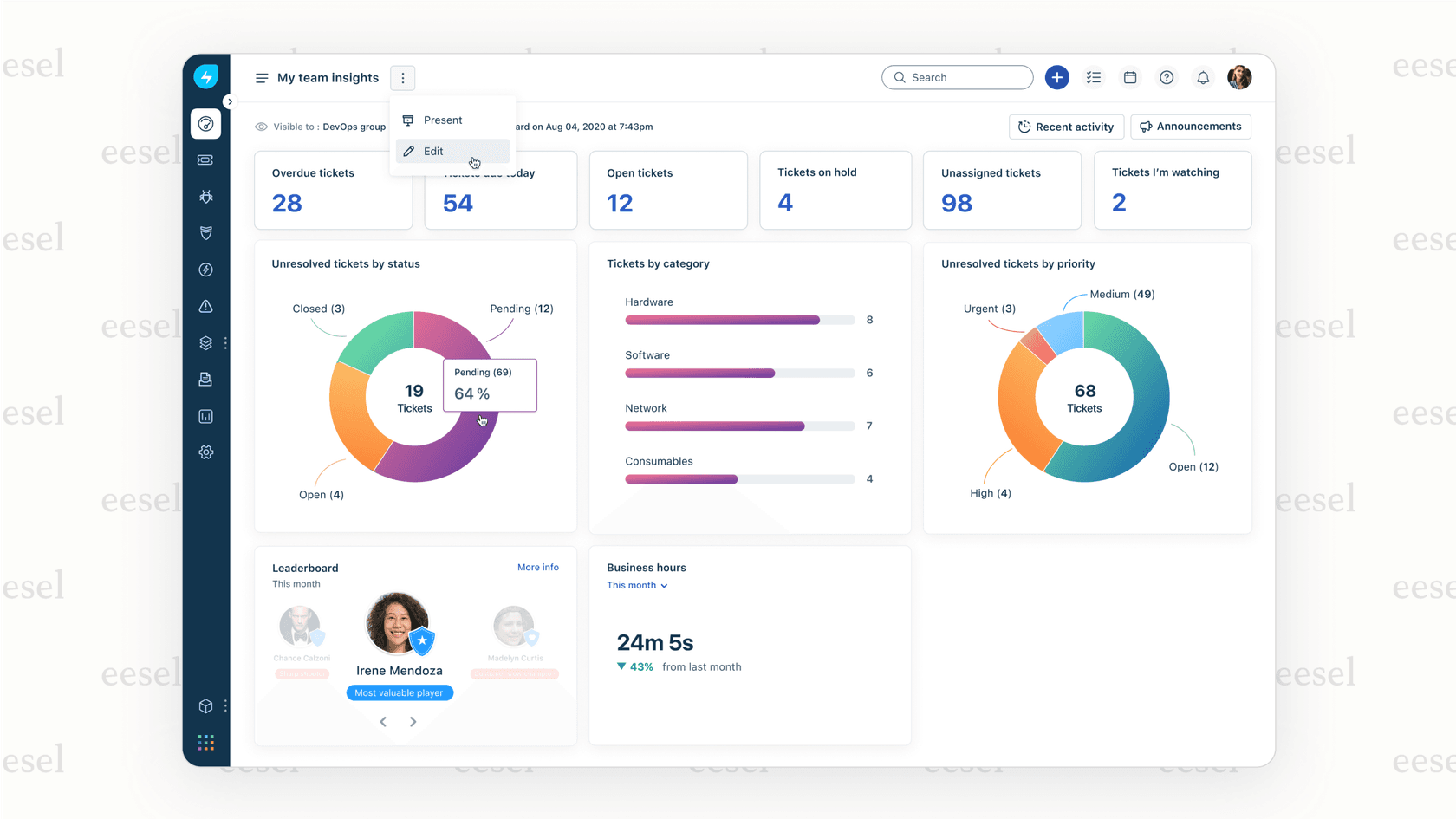
A typical workflow combining both:
- Ticket arrives in Freshservice
- eesel AI reads and categorizes it (AI Triage)
- For common issues, eesel AI drafts a response (AI Copilot) or resolves directly (AI Agent)
- For complex issues, Freshservice's automation routes to the right specialist
- SLA monitoring and escalations happen through Freshservice's Observer Rules
This hybrid approach gives you the reliability of structured automation for known scenarios, plus the flexibility of AI for everything else.
Freshservice handles the orchestration, SLAs, and process management. eesel AI handles the understanding, response drafting, and autonomous resolution. Together, they cover the full spectrum of IT support.
Best practices for Freshservice ticket automation
Automation done wrong creates more problems than it solves. Follow these guidelines to implement it effectively. For a broader perspective, see our guide on AI and automation in customer support.
Start small. Pick 3-5 high-impact workflows and implement those first. Common starting points: ticket routing, password reset auto-responses, and SLA escalation. Get these working smoothly before adding complexity. Learn more about auto-reply rule best practices.
Test before going live. Freshservice lets you test workflows on sample tickets. Use this. Create test tickets that match your conditions and verify the right actions trigger. Check edge cases: what happens if multiple conditions match? What if no conditions match?
Document everything. Write down what each automation does, why it exists, and who owns it. Six months later, when something breaks or needs updating, you'll thank yourself. Include:
- Workflow name and purpose
- Trigger conditions
- Actions performed
- Expected outcomes
- Owner/contact for changes
Monitor and refine. Track metrics for each automation:
- How often does it trigger?
- Does it actually resolve issues or create follow-ups?
- Are there false positives (triggering when it shouldn't)?
Review monthly. Disable automations that aren't working. Tune conditions that trigger too often or too rarely.
Keep human escalation paths clear. Every automation should have an escape hatch. If a user replies "this didn't help," the ticket should route to a human immediately. If an SLA is about to breach, notify people, don't just update a field. Automation should augment your team, not replace human judgment for complex situations.
Streamline your IT operations with smart automation
Freshservice ticket automation gives IT teams a powerful way to reduce manual work and improve response times. By combining Workflow Automator, Scenario Automations, and Observer Rules, you can handle routine tasks automatically while your team focuses on complex problems. For teams evaluating their options, check out our guide to the best AI helpdesk tools.
The key is starting with workflows that have clear rules and high volume. Ticket routing, common request auto-responses, and SLA escalations deliver immediate value. From there, you can expand to more sophisticated automations for onboarding, change management, and asset lifecycle processes.
But remember: rule-based automation has limits. It excels at structured tasks but can't understand nuance or draft personalized responses. The most effective IT operations combine Freshservice's automation with AI teammates that handle the unstructured, contextual parts of support.
If you're looking to take your Freshservice automation further, consider adding an AI teammate to your workflow. eesel AI integrates directly with Freshservice to handle triage, drafting, and autonomous resolution, working alongside your existing automations to deliver faster, more personalized support. You can also explore our AI service desk solution for comprehensive IT support automation.

Start with the workflows in this guide. Measure the results. And gradually build toward an IT operation where routine work happens automatically, and your team's expertise is reserved for the challenges that actually need it.