
Before starting: check your version, access, and scope
Freshworks' Studio FAQ offers eligible Growth, Pro, and Enterprise accounts promotional access through September 30, 2026. That is the position as checked September 8, 2026, not a promise of permanent free access. MSP mode is excluded.
Classic has different packaging and setup controls. Its Enterprise allowance and old channel instructions should not be copied into a Studio rollout without checking the account. The Freshservice agent overview explains the distinction.
For Studio, review the Manage AI Agent Studio role permission. Freshworks also warns that Studio users can view conversation logs across the workspace; separate role-based restrictions are not currently supported for those logs. That matters if your pilot includes employee information. Studio overview
Before building, write down a small, concrete scope. For example: explain the laptop-loan process and help collect the information a service-desk agent needs, without approving the request. That is easier to verify than “handle all IT questions.”
| Prerequisite | Evidence to have |
|---|---|
| Correct product generation | You know whether you are editing Classic or Studio |
| Required access | Approved Studio role and channel-installation permissions |
| Approved knowledge | Current policy with its owner and intended audience |
| Allowed actions | Defined workflow permissions and approval requirements |
| Pilot channel | Test users, destination, and existing agent ownership |
| Review criteria | Expected responses and actions for representative cases |
This table is a suggested readiness check, not a vendor-mandated checklist or a promised setup duration.
Step 1: Open Studio and prepare the agent
Open AI Agent Studio and select the agent you are building. The platform includes prebuilt IT and HR agents as well as custom agents. Under Build, the important areas are Knowledge, Workflows, Instructions, and Configurations.
Use knowledge for facts, instructions for behavior, and workflows for actions. An instruction saying “ask the manager” does not itself configure a manager-approval workflow. Conversely, a workflow with access to a system still needs clear rules about when to use that access.
Keep the initial agent focused on the chosen request. I would write down what it must ask, what it may answer, and what it must leave to a person. Review those choices with the person who owns the support process before connecting a live action.
If Classic is already deployed, check Freshworks' coexistence rules. Classic and Studio can run in the same account, but a given channel can host only one active agent. An unavailable channel toggle may indicate an existing deployment rather than missing permissions.
Step 2: Connect knowledge and configure the necessary workflow
Studio's knowledge model includes files, URLs, the knowledge base, service catalog, and external connectors. Use the source types appropriate to your agent, then verify the relevant content is ready before testing.
Do not apply one old file-count or URL-count limit to every Freshworks product. Classic, Studio, chat, and email documentation describe different scopes. For a setup decision that depends on capacity, check the limit shown for your account and the corresponding product documentation.
For a laptop-loan request, verify that the policy answers practical questions: who qualifies, which details must be supplied, whether approval is needed, and who follows up. If those facts are missing, the agent should identify the gap rather than invent the process.
Freshworks supports workflows configured through its builder. Its Natural Language Workflows option is currently early access, so do not assume every account has it. That option still requires the relevant API actions, properties, or integrations to be configured; plain-language instructions do not supply missing connections.
When testing actions, use authorized test records and appropriately limited credentials. Include a case where the action cannot complete. The employee should receive an accurate explanation, not a success message produced simply because the agent attempted a call.
Step 3: Test interactively, then run a broader query set
Open any Build section and select Preview AI agent. Freshworks' Preview guide supports continued conversations and workflow testing. It also tells admins to verify handover tickets in Freshservice and configure routing beforehand.
Preview is not a guarantee of zero side effects. Use a test setup for actions such as ticket creation or access changes. A new conversation resets conversational context; it does not remove the permissions configured for the agent.
My first cases would check:
- A normal request with all required information.
- A request missing an important detail.
- A follow-up that changes the employee's original request.
- An unavailable or unauthorized action.
- A direct request for a human.
Then use the batch Test section. Add questions manually, one per line, or generate sample questions from the agent's knowledge. Review each answer and its source rather than treating the Answered label as a correctness score.
| Result you see | What to verify next |
|---|---|
| Answered | Is the answer correct for this employee and request? |
| Unanswered | Is the necessary content absent, inaccessible, or unclear? |
| Action reported complete | Does the destination system show the expected result? |
| Handover initiated | Was the ticket created and routed with useful context? |
| Different result after an edit | Does it pass in a new conversation too? |
Keep the original failed input when you make a correction. Retest that case and nearby variations. Do not assume a negative rating or a human edit automatically repairs the underlying knowledge.
Step 4: Deploy to a small channel-specific test group
The rollout controls differ between Slack, Teams, the portal, and email. Use the path for the channel you actually intend to launch.
Slack
The Slack deployment guide requires a connected workspace and permission to install its app.
- Open the agent and select Deploy, then Slack.
- Expand the intended workspace.
- Select Deploy to specific users first, then Create test group.
- Choose users, create a private test channel or select DM-only access, and select Done.
- Review the group and confirm Deploy.
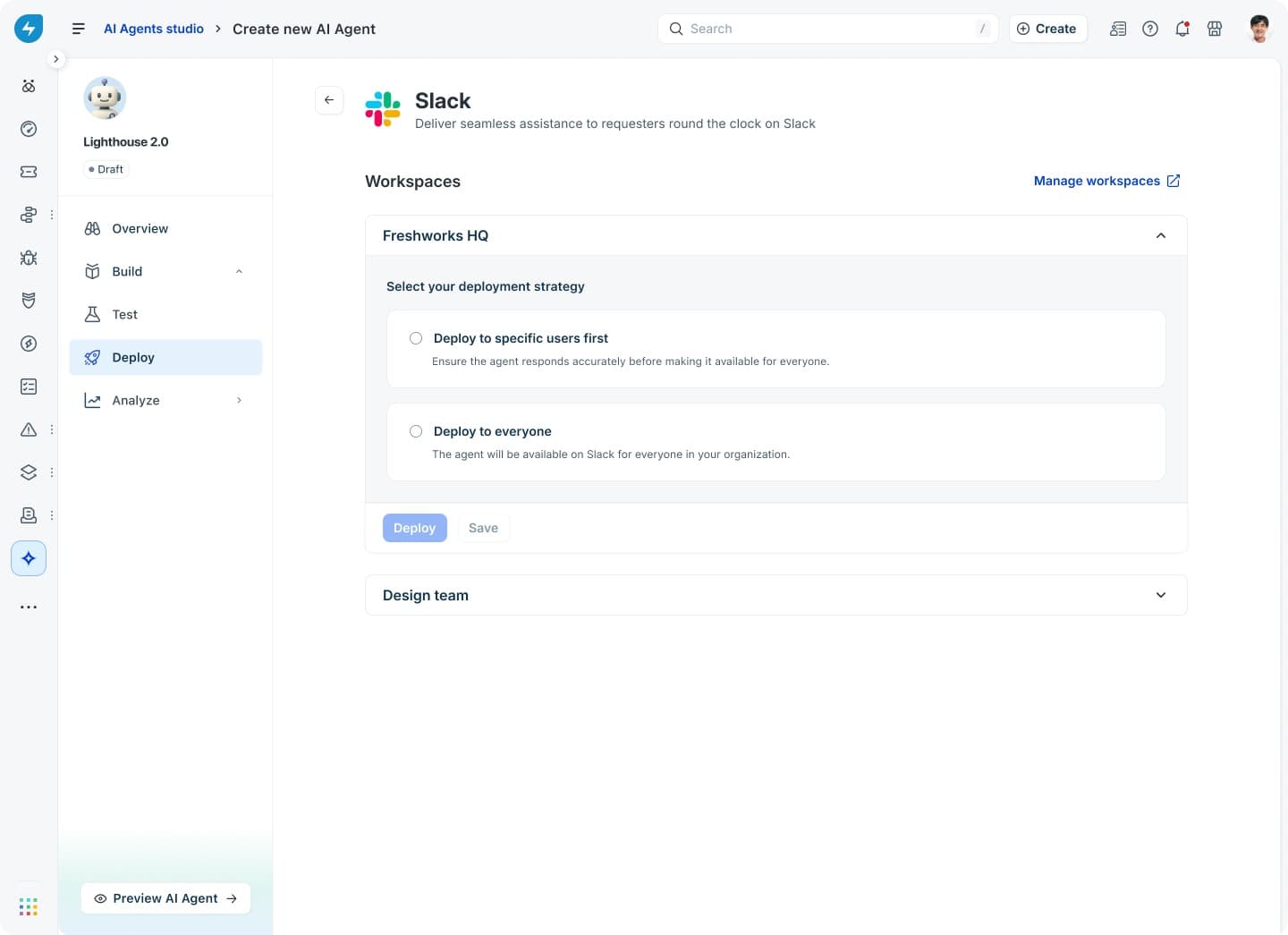
The current Studio Slack deployment screen, from Freshworks' deployment documentation.
Each connected workspace can have its own deployment strategy. In Slack channels, the agent must be added and mentioned; DMs behave differently. Test both if both are in scope.
Microsoft Teams
Open Deploy, then Microsoft Teams. The Teams guide requires a connected organization and permission to install the app.
Select Deploy to specific users first, create the group, and choose a Standard test channel or DM-only access. If you create a channel, manually add the selected users to its host team; selecting them in the test group does not do that step for you. Select Done to save the group, review the users and channel, then confirm Deploy. Check that the agent is Active and marked In testing period.
Review the current permission requirements with your Microsoft administrator. Do not assume an old “Global Admin for every step” instruction describes the exact authorization needed in your tenant.
Support portal and email
For the portal, open Deploy > Support portal and select a test group before deploying. Test users must already have portal access. The portal instructions distinguish the test rollout from deployment to everyone.
Email has its own creation and deployment guide. Create an Email AI Agent, configure its knowledge and behavior, test sample email queries, and choose the target workspace's deployment method. Rule-based deployment can narrow eligible tickets; workflow-based deployment is a separate route. Do not treat email as a Slack checkbox.
Step 5: Verify the pilot before widening it
Test from an actual pilot user's account. Confirm that the agent appears where intended and does not respond outside the intended scope. Inspect the real ticket or channel message as well as the agent's report.
Record failures with enough detail to reproduce them. “The bot did not work” could mean the user lacked channel access, a source was not ready, or a workflow failed after producing a reply.
| Symptom | Check first |
|---|---|
| Channel unavailable | Existing Classic or Studio deployment |
| Selected Teams user cannot access the channel | Membership in the team hosting it |
| Relevant answer missing | Source content, permissions, and processing state |
| Handover reaches the wrong team | Freshservice routing and assignment rules |
| Confident success message, no result | Workflow execution and destination-system evidence |
Avoid a fixed promise such as “complete setup in two hours.” Installation may be quick, but approval, knowledge cleanup, testing, and routing validation determine when a rollout is ready.
Prepare an alternative teammate through eesel CLI
If you are also evaluating eesel, use its CLI to prepare the same teammate and workspace available in the dashboard. A person can run the commands, a script can collect outputs, and Claude Code, Codex, or Cursor can help inspect the results.
This is useful for a setup task because the technical colleague can check knowledge, instructions, and automations together. They can then test a concrete request before asking the support team to review a channel pilot. The CLI reference lists the supported commands.
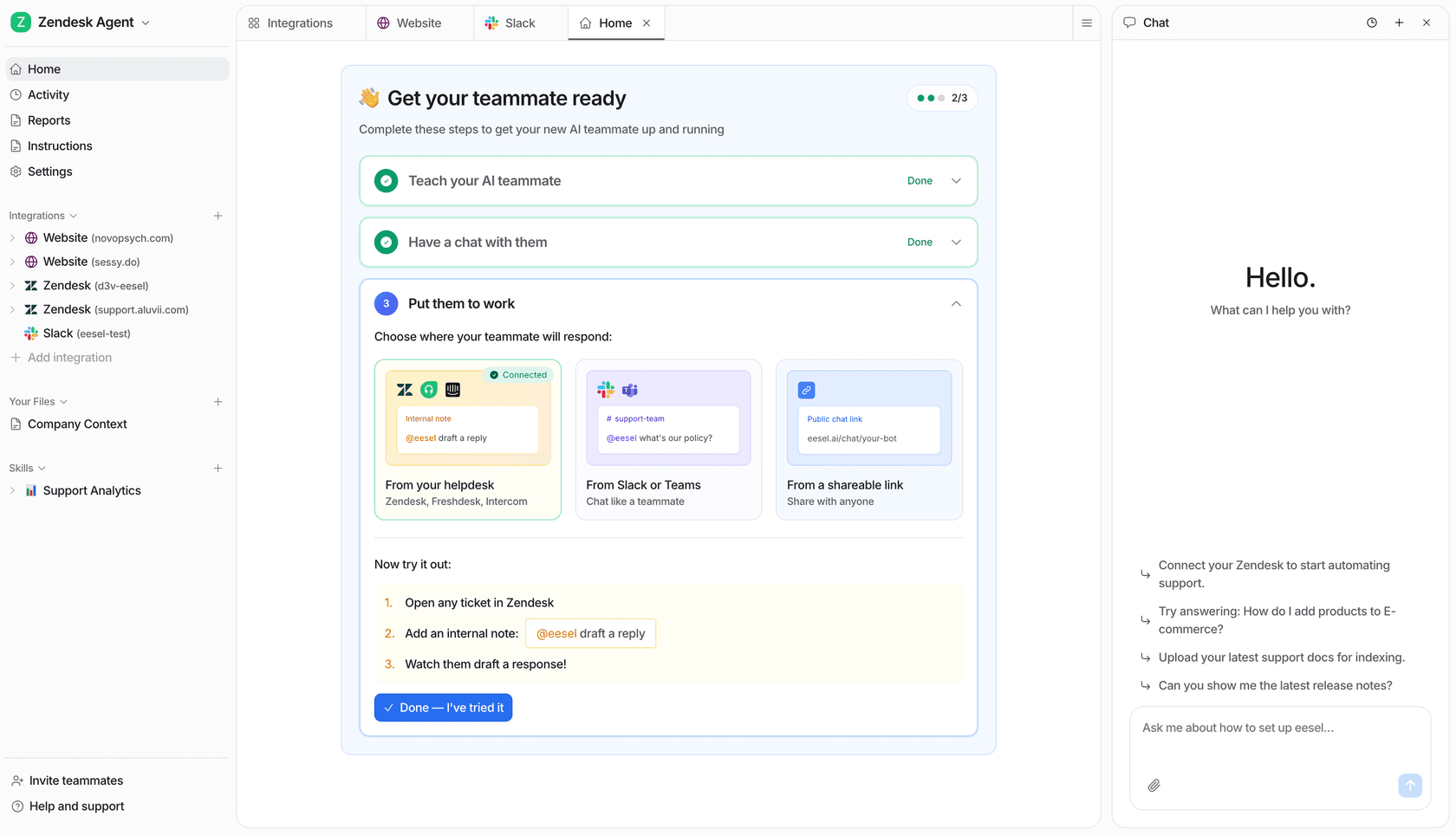
The eesel workspace shown with a Zendesk-connected example. It is not a Freshservice integration screenshot.
Inspect the workspace and permissions
Use Node.js 18.17 or newer. Choose a designated test agent and replace TEST_AGENT_ID below with its actual ID.
npx @eesel/cli login
npx @eesel/cli whoami
npx @eesel/cli agents
npx @eesel/cli --agent TEST_AGENT_ID status
npx @eesel/cli --agent TEST_AGENT_ID integrations
npx @eesel/cli --agent TEST_AGENT_ID instructions
npx @eesel/cli --agent TEST_AGENT_ID automations
Check existing automations before assuming the workspace is inactive. Keep unwanted actions off or held for approval. A “do not act” test prompt is not a substitute for those controls.
eesel CLI operates eesel, not Freddy. This guide does not establish a built-in Freshservice connector, and Freshdesk commands are not interchangeable with Freshservice commands. If the final workflow requires Freshservice API access, confirm the integration path separately.
The documented Network Access mechanism supports API domains and securely stored authentication headers. It does not automatically create a tested Freshservice workflow. Use limited credentials, review the actual endpoints, and never place secrets in chat or example files.
Upload a policy and check missing information
Save an approved, non-sensitive laptop-loan policy as laptop-loan-policy.txt. It should be your actual policy, not invented material that might later be mistaken for a company rule.
npx @eesel/cli --agent TEST_AGENT_ID files upload ./laptop-loan-policy.txt
npx @eesel/cli --agent TEST_AGENT_ID files ls
npx @eesel/cli --agent TEST_AGENT_ID status
npx @eesel/cli --agent TEST_AGENT_ID new --name "laptop-loan-setup-check"
npx @eesel/cli --agent TEST_AGENT_ID chat "Fictional setup test. An employee asks for a loan laptop tomorrow. Using laptop-loan-policy.txt, draft the next reply and identify missing details or required approvals. Do not approve the request, create a ticket, or send any message."
Confirm the file is listed and inspect source readiness before running the test chat. Then check whether the answer follows the policy, asks only relevant questions, and avoids claiming that equipment has been reserved.
Then ask a follow-up in the same conversation: the employee cannot obtain the required approval today. Review whether the teammate explains the real next step rather than waiving a rule to sound helpful. This is a proposed evaluation, not a result measured for this article.
A coding agent can compare those outputs with the file and produce a short list of discrepancies. Ask it to propose changes for review, not silently rewrite the policy or enable an automation. The CLI's JSON output, including one-object-per-line lists, makes that inspection practical.
Connect a supported channel only when ready
For a Slack pilot, the documented command is:
npx @eesel/cli --agent TEST_AGENT_ID integrations connect slack
A person with app-installation permission approves Slack's authorization screen. Invite the bot to the intended channel, then configure the mention trigger and required actions with a narrow channel scope. Check existing channel-to-agent mappings before sending a test mention. These requirements come from eesel's Slack documentation.
Slack is a response channel, not a copied knowledge index in eesel. The agent can search messages live within the documented permissions, while connected documents provide the approved policy. After the agent answers a mention, it can continue the thread without being mentioned again.
Verify the posted response in Slack, not just the terminal. This establishes a Slack workflow; it does not establish Freshservice ticket creation.
npx @eesel/cli --agent TEST_AGENT_ID activity
npx @eesel/cli --agent TEST_AGENT_ID approvals
npx @eesel/cli billing
An action waiting for approval has not run. Billing shows current workspace state, not a setup-cost estimate. Chat may invoke tools and run billable work, so keep early tests small and inspect usage before scaling them.
Finish setup with evidence, not just enabled toggles
For native Freshservice, the final check is a pilot user receiving the expected response and any required ticket or action reaching the correct destination. Keep Classic, Studio, and channel-specific instructions separate.
For an eesel evaluation, use the CLI to inspect the setup and test the policy, then verify the supported channel and any custom integration independently. Try eesel with one support process your team can review before widening its responsibilities.
Frequently Asked Questions
Which plan do I need for Freshservice AI agent setup?
Classic is included with Enterprise. As checked September 8, 2026, eligible Growth, Pro, and Enterprise customers have promotional AI Agent Studio access through September 30, 2026. Studio is not available in MSP mode. Check the current terms and the product overview before following a setup guide.
Should I use Classic settings or AI Agent Studio?
Use the instructions for the agent generation you are configuring. Classic channel toggles and Studio’s Build, Test, and Deploy pages are not interchangeable. If both exist in the account, check channel ownership first. See the Classic and Studio comparison.
Can I test Freshservice AI Agent before deploying it widely?
Yes. Studio has interactive Preview and a batch Test section, plus channel-specific limited rollouts. Preview can execute workflows and create handover tickets, so configure test data and routing first. An Answered batch result does not prove correctness. The evaluation guide explains what to inspect.
How do I deploy a Freshservice AI agent to Slack?
In Studio, open the agent, select Deploy, then Slack. Connect the workspace and confirm app-installation permission. Choose specific users first, create the test group, and deploy. The current guide supports different deployment strategies for connected workspaces. See the Slack deployment instructions.
Why can my Teams test users not see the Freshservice AI agent?
Check the selected test users, app permissions, deployment state, and team membership. Freshworks says users must be manually added to the team hosting a newly created Standard test channel. DM-only testing is also available. Follow the Teams deployment guide.
Can eesel CLI perform Freshservice AI agent setup?
eesel CLI configures and tests an eesel teammate, not Freddy. It can inspect sources and settings, upload knowledge, chat, and connect supported channels such as Slack. A built-in Freshservice connector is not established by this guide. See the eesel CLI reference.
What should I verify after setting up an eesel teammate?
Confirm the workspace and agent, source readiness, action permissions, and automation scope. Test a response, then separately verify delivery in the intended channel. Freshservice API access, if required, needs its own configuration and tests; it is not supplied by a successful CLI chat. Read the Network Access guide.


Article by
Riellvriany Indriawan
Riell is a designer and writer at eesel AI with about two years of experience researching CX platforms, AI chatbots, and helpdesk software. She combines her design background with a sharp eye for how these tools actually look and feel in practice — making her comparisons unusually visual and user-focused.