

Start with the environment
Follow the Desktop quickstart to install the app for macOS or Windows, or the supported Linux beta. Sign in and open the Code tab. The standard subscription route requires Pro, Max, Team, or Enterprise; Team access is not limited to the legacy premium-seat requirement. For current charges and usage allowances, check Claude pricing. Managed third-party-provider deployments have their own setup.
On Windows, install Git for Windows and restart the app before your first local session. The app includes Claude Code, so it does not require a separate Claude CLI or Node installation merely to open Code. Your project still needs its own runtime, package manager, credentials, and test command. Select Local when those tools must run on your machine.
The Desktop reference describes Local sessions on your machine, Cloud sessions that can continue after you close the app, and SSH sessions on a remote machine you manage. Each session has independent context and code changes.
| Environment | Use it for | Check before work |
|---|---|---|
| Local | Files and tools on your machine | Project folder, local credentials, and permissions |
| Cloud | Long-running remote work | Repository access and cloud-specific controls |
| SSH | A remote machine you manage | Host, account, network policy, and project path |
Windows also supports WSL sessions, where the tools and Git run inside the selected WSL 2 distribution. Cloud runs on Anthropic-managed infrastructure by default; organizations can configure self-hosted environments. A local credential or file is not automatically available in either remote environment.
Do not assume a feature from one environment exists in another. For example, the integrated terminal is available in local sessions; the file pane is available in local and SSH sessions. Review the current Desktop documentation before moving a workflow between surfaces.
Pick a permission mode for the task
Desktop lets you change permission modes during a session. Manual asks before edits and commands. Plan explores and proposes an approach without editing source. Accept edits pre-approves edits and common filesystem commands but still asks before other terminal commands. Auto and Bypass have different safeguards and availability; Bypass is for isolated environments, not a shortcut around review.
Cloud sessions have their own limits: Desktop documents Accept edits, Plan, and Auto there, and says Bypass is unavailable. Organization policy can restrict modes. A visible selector is not proof that a downstream account action is authorized.
Choose Desktop, CLI, or both
Desktop is useful when you want the plan, terminal, file, browser, and diff beside the conversation. The terminal CLI remains the better fit for a noninteractive script or CI job, where flags, structured output, and process exit codes are part of the contract. Both can read shared configuration in local sessions, but do not assume a CLI flag or an interactive Desktop control exists in every environment.
For Git projects, Desktop uses worktrees to give parallel sessions separate working directories. A different branch name alone does not isolate files in a shared checkout. Review the worktree and changed files before merging, and remember that separate worktrees can still use the same database, account credentials, or external services.
The usage ring beside the model picker shows context and plan usage. Context is specific to the session; plan usage is shared across Claude Code surfaces. Starting a second session is not a fresh usage allowance. Desktop also supports scheduled tasks, while CLI --print and structured-output flags remain useful for scripts; these are different kinds of automation, not a blanket UI-versus-automation divide.
Check which configuration carried over
Local Code sessions and the CLI share project memory, settings, hooks, and skills. Remote sessions need the appropriate remote setup. For example, a personal skill on your laptop does not become a personal skill on an SSH host.
MCP deserves a separate check. Local Code sessions can load servers from claude_desktop_config.json, as well as Claude Code's configuration files; the standalone CLI does not read that Desktop file automatically. Duplicate server names have Desktop-specific precedence. Use the shared-configuration reference and inspect the connected tools instead of assuming a matching server name means matching credentials or permissions.
Use Plan for an unfamiliar change, then inspect the proposal and diff before moving to execution. The Browser pane also has separate external-site safeguards; an action on a signed-in website deserves its own target and effect review.
Use the desktop panes to review, not guess
Desktop can show chat, diff, browser, terminal, files, plans, tasks, and subagents side by side. A diff lets you comment on a changed line and submit the comments for revision. That makes a useful human review loop:
- State the task, files in scope, and test that would prove it.
- Start in Plan when the approach is uncertain.
- Review the resulting diff and test output.
- Keep external writes, merges, and customer-facing actions outside the assumption that a code edit was approved.
Use eesel CLI from Desktop for a documentation handoff
With eesel CLI, a developer or support owner can ask Claude Code to compare an approved product change with the instructions and connected sources of the same eesel teammate used in the dashboard. The person can also run these commands directly, or reuse the approved checks in a script or another coding agent such as Codex or Cursor.
For example, suppose an approved change renames a product's “Team inbox” screen to “Shared inbox,” without changing who can access it. Give Claude the actual approved release note and documentation diff. Ask it to identify an outdated navigation instruction, not infer new access rights from the new name. This is a proposed review scenario, not a reported customer result.
For a support owner approving a product-rename documentation handoff, use the visible local terminal to establish CLI identity first. Install Node.js 18.17 or newer; Desktop does not guarantee that npx is available on the selected machine. The CLI returns JSON by default and operates the same workspace as the dashboard:
npx @eesel/cli login
npx @eesel/cli whoami
npx @eesel/cli agents
Check that whoami identifies the intended workspace before continuing, then replace the placeholder below with the actual approved teammate ID or name. For scripts, EESEL_API_URL and EESEL_API_TOKEN override stored login credentials; Claude's own login is separate.
Then use only the owner-approved teammate. These commands read configuration; they do not change it:
DESKTOP_REVIEW_AGENT="REPLACE_WITH_OWNER_APPROVED_AGENT"
npx @eesel/cli status --agent "$DESKTOP_REVIEW_AGENT"
npx @eesel/cli integrations --agent "$DESKTOP_REVIEW_AGENT"
npx @eesel/cli integrations download list --agent "$DESKTOP_REVIEW_AGENT"
npx @eesel/cli instructions --agent "$DESKTOP_REVIEW_AGENT"
Ask Claude to write a local review report and open that file beside the documentation diff. Include the approved old/new names and release-note version, the relevant current instruction, source-download status, and any unresolved conflict. A source's name or ready status does not prove its contents include the new wording: inspect the actual approved source separately. The owner can then see whether a navigation instruction needs changing and whether the change is supported by the release note.
Keep edits to that local report separate from edits to the eesel workspace. For this example, the useful finding might be “the instruction still says Team inbox; the release note changes only the label.” It is not permission to change access rules or tell customers that their account has been checked.
The result should be a difference an owner can inspect in the dashboard, not an automatic update. If a change is approved, consult current command help, preview supported writes with --dry-run, apply only that change, and read back the state. Use a separately approved nonproduction teammate with consequential actions Disabled for any response test, and approve billed chats first.
The owner sets those permissions in Actions and Approvals, not merely by putting “do not act” in a prompt. Test the new navigation wording and a case where the user cannot see the screen; the latter should not receive an invented access entitlement. Inspect the actual reply and activity. A dry-run preview or a clean documentation diff does not establish response quality.
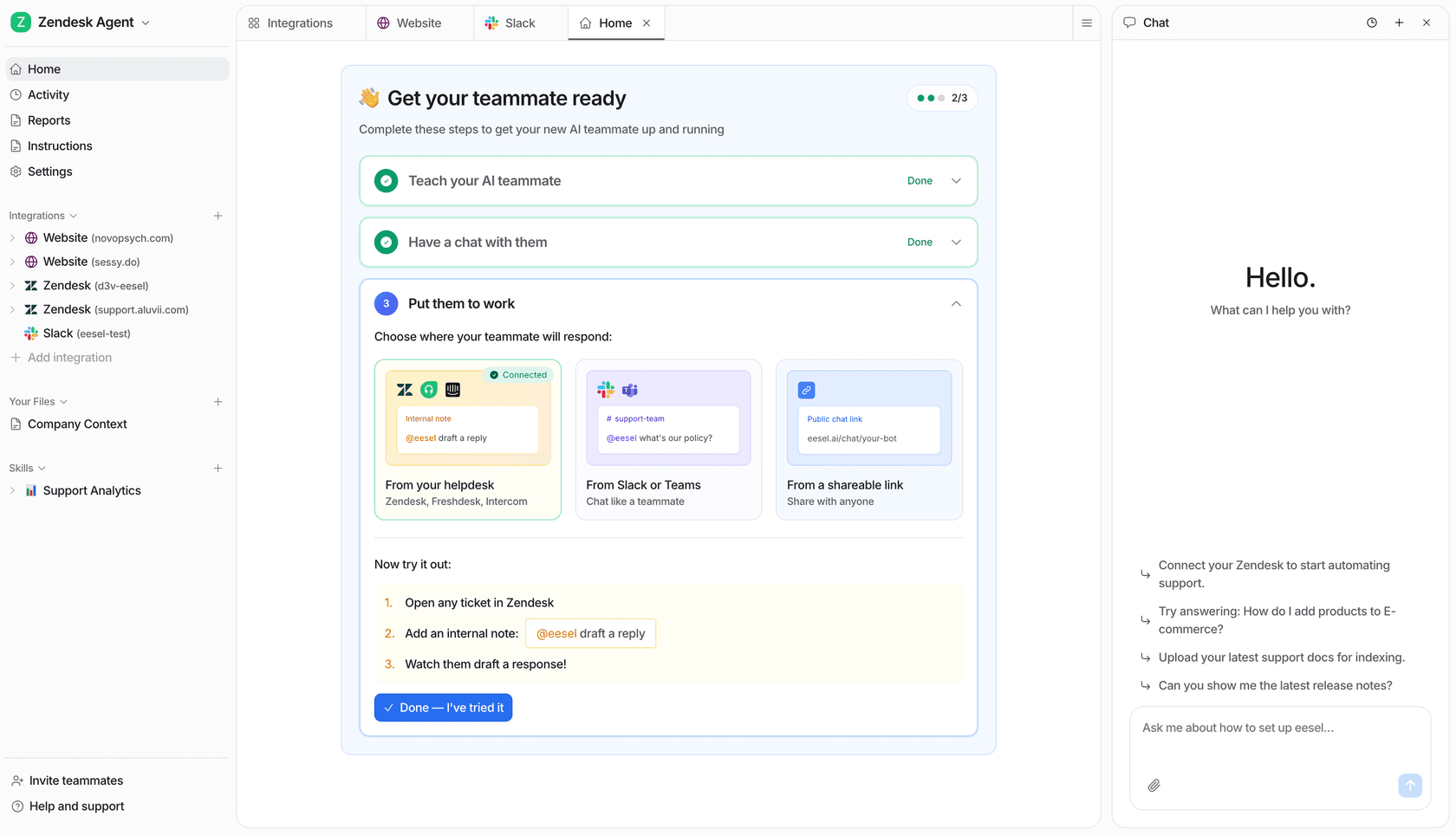
Try eesel CLI with a defined support job
Claude Code Desktop is useful when you want the session, plan, diff, and terminal in view. For a defined support job, Try eesel and use the dashboard or CLI to inspect the same teammate together.
Frequently Asked Questions
What is Claude Code for Desktop?
It is the Code tab in Claude Desktop, with sessions, panes, file and diff review, and choices for local, cloud, or SSH execution.
Can Desktop run work locally or in the cloud?
Yes. Select the environment for each session. Local uses your machine; cloud and SSH have different available features and configuration rules.
How do Desktop permissions work?
Choose a permission mode per session and review the behavior for that environment. Manual, Plan, Accept edits, Auto, and Bypass do not apply identically everywhere.
Is a diff review a security boundary?
No. A diff helps review code changes. It does not replace permissions, account roles, or an owner’s approval for external actions.
Can Claude act on external sites in Desktop?
The Browser pane has separate safety checks and site approvals. Treat every external write as consequential and review the target before approving it.