
Zendesk messaging webview templates let you embed external websites directly into your chat widget conversations. Instead of sending customers away to fill out forms or browse product pages, you can keep them engaged within the conversation flow. This guide walks you through everything you need to know: what webviews are, when to use them, and exactly how to set them up.
What are Zendesk messaging webview templates?
A webview template is one of three structured message types available in Zendesk AI Agents - Advanced. While forms collect customer information and custom JSON templates display carousels or quick replies, webviews serve a different purpose. They let you present an external website to customers without making them leave the conversation.

Here's how webviews differ from other structured messages:
- Forms are built-in data collectors for simple information like email addresses, names, or dropdown selections
- Custom JSON templates create interactive elements like product carousels, quick reply buttons, or NPS surveys
- Webviews display external websites inside the Web Widget, perfect for complex interactions that go beyond Zendesk's native capabilities
Webviews work by loading an external URL in an iframe within the chat widget. When a customer clicks your webview button, the website opens in a panel above the conversation. They interact with the site, complete their task, and return to the chat seamlessly. For channels that don't support webviews, you can set a fallback URL that opens in a new browser tab instead.
Common use cases include booking calendars, payment processors, product configurators, document signing tools, and account management portals. Any scenario where you need more functionality than Zendesk's built-in forms can provide is a candidate for a webview template.
What you'll need to get started
Before creating your first webview template, you'll need to meet several requirements. Let's break 'em down:
Zendesk plan requirements:
| Requirement | Details |
|---|---|
| Base plan | Suite Team ($55/agent/month billed annually) or higher |
| AI add-on | AI Agents - Advanced (contact sales for pricing) |
| Access level | Admin permissions in Zendesk Admin Center |
Technical requirements:
- An external website URL that allows iframe loading (most modern web apps do)
- HTTPS protocol (required for security)
- A fallback URL for channels that don't support webviews
What you don't need:
Unlike building custom integrations with the Sunshine Conversations API, webview templates don't require developer resources. You can create and manage them through Zendesk's visual interface. The setup is straightforward enough that support admins can handle it without engineering help.
For teams evaluating alternatives, we offer a different approach at eesel AI. Rather than building templates for every interaction type, our AI agents learn from your existing content and handle conversations autonomously. You can start with a 7-day free trial if you'd like to explore AI-powered support without the template complexity. See how eesel's AI agent for Zendesk connects to your existing Zendesk setup and resolves conversations without webview templates.

Step-by-step: Creating your first webview template
Step 1: Access AI agent settings
Navigate to Admin Center, then click Channels in the left sidebar. Select AI agents to see your list of advanced AI agents. Choose the agent you want to add the webview template to. If you haven't created an advanced AI agent yet, you'll need to set one up first and connect it to a messaging channel.
Step 2: Navigate to template management
With your AI agent selected, click Settings in the sidebar. Then select CRM Integration from the menu. You'll see several tabs across the top of the content area. Click the Templates tab to access the structured message template management interface.
If this is your first template, you'll see a "Create your first template" button. If you've created templates before, you'll see a list of existing templates with a "Create template" button instead.
Step 3: Create a new webview template
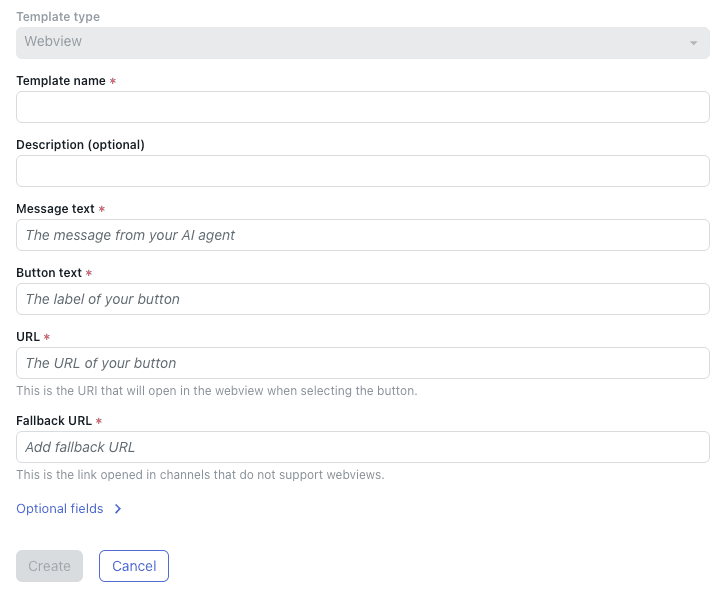
Click the create button and select Webview from the three template type options. The webview template configuration page will open with several fields to complete.
Step 4: Configure template details
Fill in the required fields:
Template name: Enter a unique identifier using only letters, numbers, hyphens, and underscores. No spaces allowed. This name appears in your template list and is what you'll reference when inserting the template into dialogues. Something like "booking-calendar" or "product-configurator" works well.
Description: Optional but recommended. Add a brief note explaining what this template does and when to use it. This helps other team members understand the template's purpose.
Message text: The message your AI agent displays above the webview button. This sets context for the customer. For example: "You can check our real-time availability and book an appointment below."
Button text: The label on the button customers click to open the webview. Keep it action-oriented: "Book appointment," "Configure product," or "Sign document."
URL: The external website URL that loads when the button is clicked. This must use HTTPS and must allow loading in an iframe. Test this URL beforehand to ensure it works properly in an iframe context.
Fallback URL: A backup URL for channels that don't support webviews. This typically opens in a new browser tab. Usually this is the same as your primary URL, but you can set a different page if needed.
Step 5: Set messaging behavior
Click "Optional fields" to expand additional configuration options:
Size: Choose how large the webview panel appears. Your options are:
- Compact: Small panel, good for simple forms or short content
- Tall: Medium panel, suitable for most use cases
- Full: Large panel that takes up most of the widget, ideal for complex interactions
Default action: Mark this as the default action if you're offering multiple options to the customer.
Automatically open webview: Enable this to open the webview immediately when the template triggers, without requiring the customer to click a button. Use sparingly, as it can feel intrusive.
Metadata fields: Add custom fields to capture data from the webview interaction. These can pass information back to Zendesk for reporting or follow-up actions.
Step 6: Save and test
Click Create to save your template. Now test it thoroughly:
- Open your Web Widget preview
- Trigger the dialogue containing your webview template
- Verify the external site loads correctly
- Test on mobile devices to ensure responsive design
- Check that the fallback URL works by testing on unsupported channels
If the webview displays a black screen or error, the external site likely blocks iframe loading. You'll need to either contact the site administrator to allow iframe embedding or choose a different solution.
Using webview templates in conversation flows
Adding templates to dialogues
Creating the template is only half the work. You'll need to insert it into your AI agent's conversation flows so it actually appears to customers.
Templates use a shorthand syntax that's automatically replaced with the full template content when sent. Here's how to add a template to a dialogue:
- Go to your AI agent's Templates tab and find your webview template in the list
- Click the shorthand code shown in the Shorthand column (it will look like
%((template:your-template-name))%) - The code copies to your clipboard
- Open the dialogue where you want to use the template
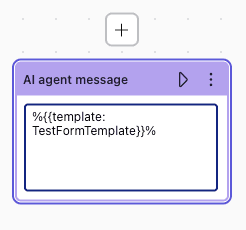
- Select the AI agent message block where the template should appear
- Paste the shorthand code into the message text
Template syntax options
Zendesk provides two syntax formats for templates:
- Standard syntax:
%((template:template_name))% - Alternate syntax:
%{{template:template_name}}%
The alternate syntax exists in case the standard format conflicts with other templating systems you might be using. Both work the same way.
You can include text before the template shorthand, which creates a two-message sequence. The text appears first, then the template renders as a separate message. Any text after the template shorthand is ignored, so put all your context before the code.
Passing variables to templates
For dynamic webviews that change based on conversation context, use the "Add a webview" CRM action instead of a static template. This lets you construct URLs with variables collected during the conversation, such as:
https://your-booking-app.com?customer_id={{user.id}}&product={{conversation.product}}
This approach creates personalized experiences where the external site knows who the customer is and what they're looking for.
Common use cases for webview templates
Webviews work well in scenarios where Zendesk's native forms aren't sufficient. Here are the most effective applications:
Complex booking systems
Appointment scheduling often requires calendar interfaces, time slot selection, and service option comparisons. Rather than building this into Zendesk forms, embed your existing booking tool. Calendly, Acuity Scheduling, or custom booking portals all work great as webviews.
Custom forms
Multi-step data collection, conditional logic, or calculations exceed what Zendesk's simple forms can handle. If you need customers to complete a detailed application, quote request, or registration process, a webview loading your custom form is the right choice.
Payment processing
Secure checkout flows should use established payment processors like Stripe, PayPal, or your e-commerce platform. Embedding these via webview lets customers complete transactions without leaving the support conversation.
Product configurators
Interactive product customization tools, 3D viewers, or complex option selectors are perfect webview candidates. Customers can build their ideal product configuration, see pricing updates in real-time, and then return to chat with questions or to complete the purchase.
Document signing
E-signature tools like DocuSign or Adobe Sign integrate smoothly via webview. Support agents can trigger document signing during refund processes, contract renewals, or dispute resolutions.
Account management
Rather than explaining how to find account settings, show customers their account portal directly in the chat. This works for password resets, subscription management, profile updates, and privacy settings.
For many of these use cases, you might find that maintaining external tools and webview templates adds complexity. At eesel AI, we've found that training an AI agent on your existing processes often eliminates the need for complex webview configurations. Our AI can handle multi-turn conversations, look up account information via API, and guide customers through processes conversationally. The Business plan includes API actions and unlimited interactions if you want to explore this approach.
Best practices and troubleshooting
Design for the widget context
Webviews appear in a constrained space within the Web Widget. Your external pages should:
- Use responsive design that adapts to smaller viewports
- Avoid navigation menus that compete with the widget interface
- Load quickly, ideally under 3 seconds
- Have clear completion states that tell customers what happens next
Security requirements
- Always use HTTPS URLs. HTTP sites won't load in modern browsers within iframes.
- Verify that your external site allows iframe embedding. Look for
X-Frame-Optionsheaders set toSAMEORIGINorDENYas indicators that embedding won't work. - Consider the data passing between Zendesk and your external site. Use URL parameters carefully and avoid exposing sensitive information.
Browser compatibility
Zendesk supports the latest two versions of Chrome, Firefox, and Edge, plus the latest Safari. Test your webviews across these browsers. Mobile Safari on iOS and Chrome Mobile require particular attention since iframe behavior varies on mobile devices.
Common issues and solutions
| Issue | Cause | Solution |
|---|---|---|
| Black screen | External site blocks iframes | Check X-Frame-Options headers or use a different URL |
| Site won't load | HTTP instead of HTTPS | Update URL to use HTTPS |
| Layout breaks | Non-responsive design | Update external site CSS for mobile viewports |
| Fallback opens instead | Channel doesn't support webviews | This is expected behavior for some channels |
| Template not appearing | Shorthand syntax error | Verify template name matches exactly (case-sensitive) |
Testing checklist
Before deploying webview templates to production:
- Test on desktop Chrome, Safari, Firefox, and Edge
- Test on iOS Safari and Android Chrome
- Verify fallback URL behavior on unsupported channels
- Confirm data capture and metadata fields work correctly
- Check that the template appears in the correct dialogue step
- Validate that the external site loads within 3 seconds
- Test with a customer account to ensure personalized URLs work
When webviews fail or complexity grows, having a backup approach helps. We've designed eesel AI to gracefully handle situations where structured templates fall short. Our AI learns from your successful interactions and can often resolve customer needs without requiring external tools. If you're hitting limitations with Zendesk's template system, book a demo to see how autonomous AI handling compares.
Alternatives to webview templates
Webviews aren't always the right solution. Consider these alternatives depending on your needs:
Native Zendesk forms
For simple data collection (name, email, dropdown selections, short text), Zendesk's built-in form templates are faster to set up and more reliable. They integrate directly with ticket fields and don't require external hosting. Keep forms under five fields for the best customer experience.
Carousels and quick replies
If you're showcasing products or offering simple choices, carousels display up to 10 scrollable cards with images and buttons. Quick replies present up to 11 predefined options as clickable buttons. Both keep customers in the native messaging experience without iframe complexity.
Third-party marketplace apps
Apps like Interactive Messaging Templates by Zenplates extend Zendesk's messaging capabilities with agent-facing template pickers. These work well when you want human agents to select and send structured messages rather than automating everything through AI agents.
API-based custom solutions
For maximum flexibility, the Sunshine Conversations API lets developers build completely custom message types. This requires engineering resources but removes the limitations of template-based approaches.
Autonomous AI handling
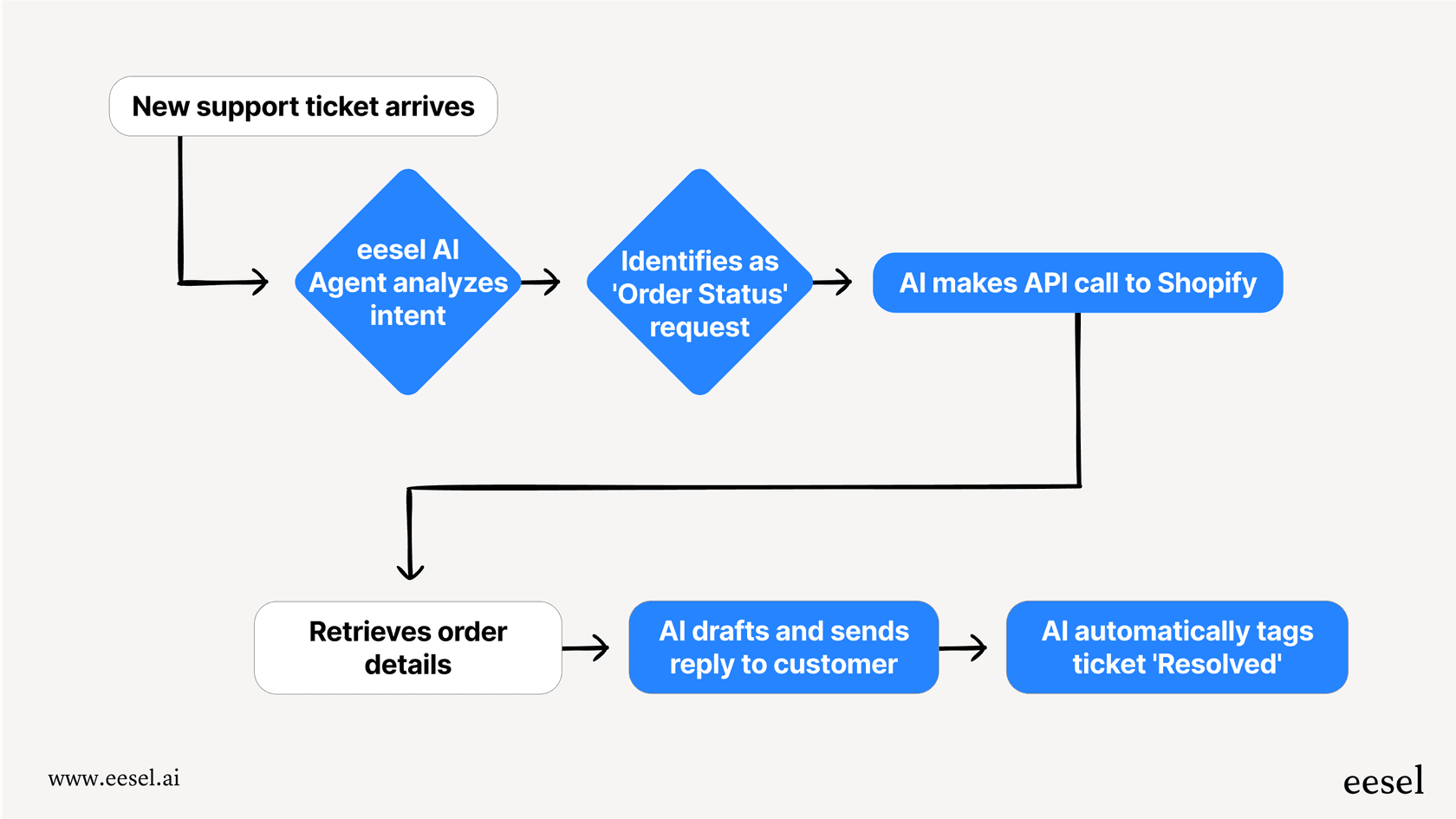
Rather than building templates and webviews for every scenario, some teams are moving toward AI agents that handle conversations naturally. Instead of presenting a booking calendar, the AI asks clarifying questions, checks availability via API, and confirms appointments conversationally. This eliminates the need for customers to interact with external interfaces at all.
We built eesel AI around this philosophy. Our AI agents learn from your past tickets, help center, and documentation to handle customer conversations without predefined templates. For complex scenarios that might traditionally require webviews, the AI can often gather information conversationally and take actions via API integrations. The result is a simpler setup with fewer moving parts. You can try it free for 7 days to see how autonomous handling compares to template-based workflows.
Start enhancing your Zendesk messaging with webview templates
Zendesk messaging webview templates bridge the gap between conversational support and complex external tools. When you need to present a booking calendar, payment form, or product configurator without breaking the conversation flow, webviews are your solution.
The setup requires the right plan (Suite Team plus AI Agents - Advanced), a compatible external website, and some configuration in the Zendesk Admin Center. Once configured, webviews integrate seamlessly into AI agent dialogues using simple shorthand syntax.
Before building out extensive webview configurations, consider whether each use case truly requires an external interface. Sometimes a native form suffices. Sometimes a carousel works better. And sometimes, the entire workflow can be handled conversationally by an AI agent that learns your processes and takes actions directly.
If you're finding template management overwhelming or hitting limitations with what webviews can accomplish, we can help. At eesel AI, we specialize in autonomous AI agents that handle customer conversations without the template complexity. Our AI learns from your existing content, integrates with your help desk, and escalates to humans when needed. Try eesel AI free for 7 days or schedule a demo to see how it compares to template-based approaches.


