
Managing a help center theme directly in Zendesk's admin interface works fine for small tweaks. But once you start making significant changes or working with a team, you'll quickly hit limitations. There's no version control, no way to track who changed what, and no easy method to test changes before they go live.
That's where the GitHub integration comes in. By connecting your Zendesk Guide theme to a GitHub repository, you get all the benefits of version control: branching for experiments, pull requests for code review, and a complete history of every change. Your team can collaborate on theme development without stepping on each other's work, and you can deploy updates with confidence.
This guide walks you through the complete process of importing a Zendesk Guide theme from GitHub. Whether you're starting from the official Copenhagen theme or importing an existing custom theme, you'll learn how to set up the integration, work locally with ZCLI, and establish a workflow that scales with your team.
While you're improving your help center's appearance, consider how you handle customer interactions too. Tools like eesel AI integrate directly with Zendesk to automate responses and triage tickets, complementing your new theme with intelligent automation.
Step 1: Prepare your theme in GitHub
The GitHub integration has specific requirements for how your repository must be structured. Getting this right upfront saves headaches later.
Repository structure requirements
Your theme repository must meet two key requirements:
-
The manifest.json file must be at the root of the repository This file contains theme metadata and settings definitions. Zendesk looks for it at the top level, not in subdirectories.
-
One theme per repository You can't store multiple themes in a single repo. If you need variations of a theme, use branches instead.
The standard theme structure looks like this:
my-zendesk-theme/
├── manifest.json
├── style.css
├── script.js
├── thumbnail.png
├── templates/
│   ├── header.hbs
│   ├── footer.hbs
│   ├── home_page.hbs
│   ├── article_page.hbs
│   └── ...
├── assets/
│   ├── logo.png
│   └── ...
├── settings/
│   └── ...
└── translations/
    └── ...
Forking the Copenhagen theme vs. creating from scratch
For most teams, forking the official Copenhagen theme is the best starting point. It's Zendesk's default theme, actively maintained, and designed to be responsive and accessible. Starting here means you'll receive updates when Zendesk improves the base theme.
To fork it, visit the Copenhagen theme repository and click the Fork button. This creates your own copy that you can customize freely.
If you have an existing theme already in Zendesk, download it from the Knowledge admin interface and push it to a new GitHub repository instead.
Branch strategy for theme variations
Since you can only have one theme per repository, use branches to manage variations:
mainormasterYour production themedevelopStaging environment for testing changesfeature/new-headerSpecific feature workbrand/variant-aWhite-label variations for different brands
When importing into Zendesk, you can specify which branch to use, making it easy to maintain multiple theme variations from the same repository.
Step 2: Set up your local development environment
Working locally lets you preview changes instantly without uploading to Zendesk each time. ZCLI makes this straightforward.
Install ZCLI
ZCLI is Zendesk's modern command-line tool for theme development. Install it globally via npm:
npm install -g @zendesk/zcli
Verify the installation:
zcli --version
Authenticate with your Zendesk account
Before you can preview themes, ZCLI needs access to your Zendesk account. Run the login command:
zcli login -i
You'll be prompted for:
- Subdomain Your Zendesk subdomain (the part before
.zendesk.com) - Email Your Zendesk admin email address
- Password An API token (recommended) or your account password
To create an API token, go to Admin Center > Apps and integrations > APIs > Zendesk API, then add a token under the Settings tab.
Clone your theme repository
If you haven't already, clone your theme repository locally:
git clone https://github.com/your-org/your-theme.git
cd your-theme
Start local preview
With ZCLI authenticated and your theme code local, start the preview server:
zcli themes:preview
This command:
- Uploads your theme to a temporary location
- Starts a local development server
- Opens your default browser to preview the theme
- Watches for file changes and reloads automatically
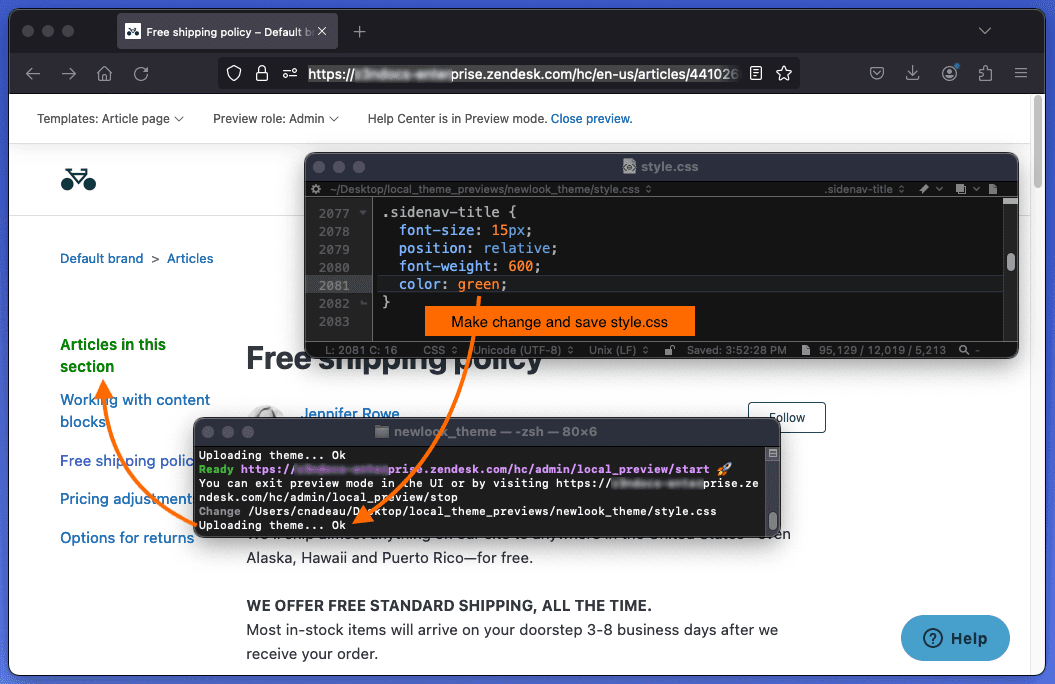
The preview uses your actual Zendesk account data, so you'll see real articles, categories, and tickets rendered with your theme. Make a change to a template file, save it, and the browser refreshes automatically.
Step 3: Connect Zendesk to your GitHub repository
With your theme ready in GitHub and local development working, it's time to establish the connection between Zendesk and your repository.
Navigate to the GitHub integration
In your Zendesk account:
- Go to Knowledge admin (the help center management interface)
- Click Customize design in the sidebar
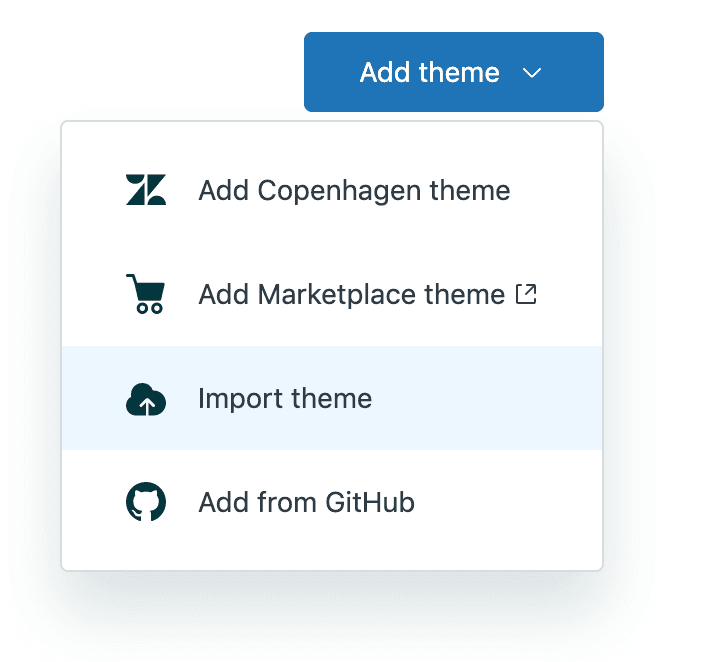
- Click Add theme in the upper right
- Select Add from GitHub
Authorize and import
You'll see a dialog asking for your repository URL. Enter the full GitHub URL:
https://github.com/your-org/your-theme
Optionally specify a branch name if you want to import from something other than the default branch.
Click Import. If you haven't authorized Zendesk to access GitHub before, you'll be redirected to GitHub to grant permissions. Authorize the Zendesk app, then return to Zendesk.
The import process fetches your theme files from GitHub and creates a new theme in your Zendesk account. When complete, you'll see the theme thumbnail on your Themes page.
Understanding the connection
This initial import establishes a one-time connection between your Zendesk theme and the GitHub repository. After this point, changes flow in one direction: from GitHub to Zendesk. You cannot edit a GitHub-managed theme directly in the Zendesk interface without breaking the connection.
Step 4: Customize and deploy your theme
Now that the integration is active, you have a workflow that combines the power of version control with easy deployment to Zendesk.
Making changes locally
Always work on your theme locally, not in the Zendesk admin. Here's the recommended workflow:
- Create a branch for your changes:
git checkout -b feature/update-header - Make edits to templates, CSS, or JavaScript
- Preview changes with
zcli themes:preview - Commit your work:
git commit -am "Update header styling" - Push to GitHub:
git push origin feature/update-header - Open a pull request for team review
- Merge to main when approved
Important: Never edit a GitHub-managed theme directly in the Zendesk interface. If you do, Zendesk will warn you that this will break the GitHub connection. If you accidentally make changes in Zendesk, you'll need to download the theme and commit those changes back to GitHub to restore the sync.
Updating the theme in Zendesk
When your changes are merged to the main branch and you're ready to deploy:
- In Knowledge admin, go to Customize design
- Find your GitHub-managed theme
- Click the menu (three dots) and select Update from GitHub
- Review the changes in the preview
- Click Publish when ready
Zendesk fetches the latest version from your repository and applies it to your help center. The update happens immediately, so consider using a staging environment or testing branch if you need to validate changes before they go live.
Tips for team collaboration
Once multiple people are working on your theme, a few practices help keep things organized.
Branching strategy
Establish clear conventions for how your team uses branches:
- main Production-ready code only. Never commit directly to main.
- develop Integration branch for staging. Merge feature branches here for testing.
- feature/* Individual features or bug fixes. Create a new branch for each task.
- hotfix/* Urgent fixes that need to bypass the normal workflow.
In Zendesk, you can have multiple themes imported from the same repository using different branches. Consider maintaining a "Staging" theme that tracks your develop branch, allowing you to preview changes before they reach production.
Code review workflows
Require pull requests for all changes to main. This ensures:
- At least one other person reviews the code
- Automated checks can run (linting, accessibility tests)
- There's a documented record of why changes were made
Many teams use GitHub Actions to automatically run tests on pull requests, catching issues before they reach Zendesk.
Managing multiple themes
If you manage help centers for multiple brands or regions, you have options:
- Separate repositories Complete isolation between themes
- Same repository, different branches Shared code with brand-specific overrides
- Configuration-based theming Use manifest.json settings to toggle brand elements
The branch approach works well when themes are similar but need brand-specific colors, logos, or content.
Troubleshooting common issues
Authentication errors: If Zendesk can't access your repository, check that the repository is accessible to the account you authorized. Private repositories require proper permissions.
Import failures: Ensure manifest.json is at the root of your repository and contains valid JSON. Syntax errors in this file prevent import.
Sync problems: If Zendesk doesn't reflect your latest changes, verify you pushed to the correct branch and that you're updating from the right branch in Zendesk.
Enhance your help center beyond themes
A well-designed theme makes your help center look professional, but the real impact on customer experience comes from how you handle interactions. While visitors appreciate a clean interface, what they really want is fast, accurate answers to their questions.
This is where AI-powered support tools become valuable. eesel AI integrates directly with Zendesk to automate responses, triage incoming tickets, and provide instant answers from your knowledge base. Instead of just looking good, your help center becomes genuinely more helpful.
The combination works particularly well: your custom GitHub-managed theme creates the visual experience, while AI handles the conversational layer. Customers get a branded, cohesive experience whether they're browsing articles or chatting with your AI agent.
If you're investing effort into customizing your help center's appearance, consider also improving how you handle the conversations that happen within it. Our guide to customer support automation explains how AI can reduce response times and free your team to focus on complex issues that truly need human attention.


