
If you have ever tried to set up a workflow that responds when a ticket's assignee changes, you have probably run into a confusing roadblock. You create an automation, set what seems like the right conditions, and nothing happens. The ticket gets reassigned, but your notification never sends, your webhook never fires, and your workflow stays silent.
Here is the issue: automations in Zendesk cannot detect immediate assignee changes. They run on a schedule, checking tickets every hour for time-based conditions like "hours since assigned." If you want instant reactions when someone gets assigned a ticket, you need triggers, not automations.
This guide walks you through both tools, when to use each, and how to build workflows that actually work. We will cover the specific conditions you need, step-by-step setup instructions, common use cases, and troubleshooting tips for when things go wrong.
How to Detect Assignee Changes Using Zendesk Triggers
Now that we understand triggers are the right tool for immediate assignee detection, let us walk through exactly how to set them up.
The "Assignee Changed" Condition
The condition you need is straightforward: Ticket > Assignee > Changed. This condition is documented in the Zendesk trigger conditions reference.
You will find this in the trigger creation interface under Admin Center > Objects and rules > Business rules > Triggers. For more details on navigating the Admin Center, see Zendesk's guide to creating and managing triggers. When building your condition statement, select "Ticket" as the category, "Assignee" as the field, and "Changed" as the operator.
This condition detects any modification to the assignee field. It fires when:
- An unassigned ticket gets an assignee
- A ticket moves from one agent to another
- An assigned ticket becomes unassigned
Importantly, "Changed" detects any update to the field value, even if the field was previously empty. If a ticket is created and assigned immediately, the "Assignee Changed" condition will fire because the assignment happened during that creation event.
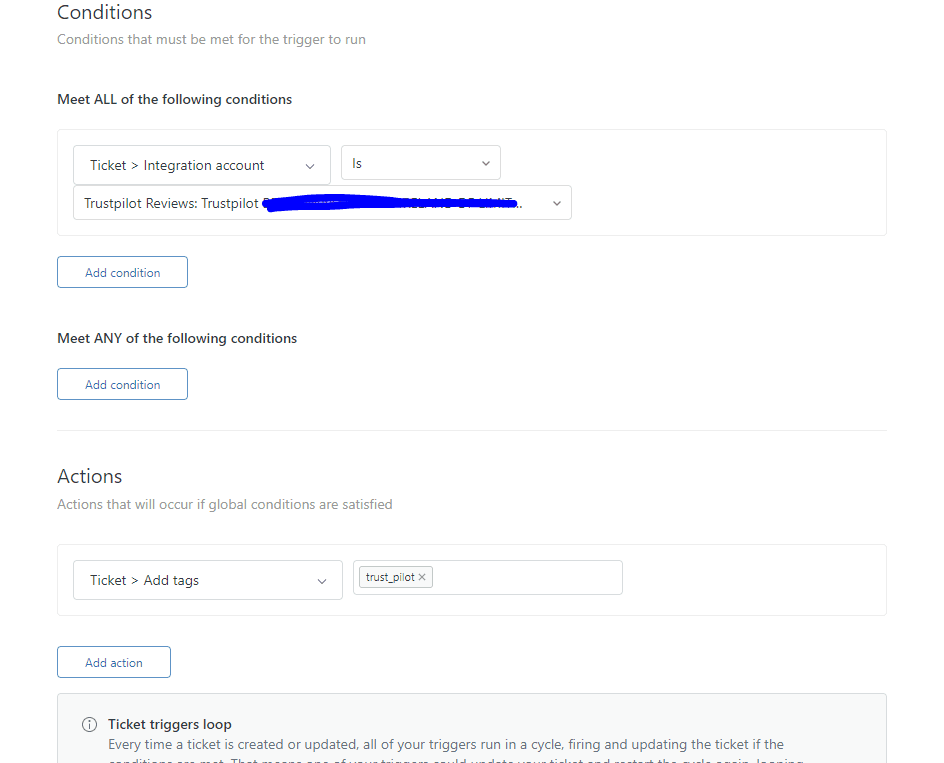
Step-by-Step: Creating an Assignee Change Trigger
Here is exactly how to build a trigger that responds to assignee changes.
Step 1: Access the Triggers Page
Navigate to Admin Center > Objects and rules > Business rules > Triggers. This is where all your ticket automation lives.

Step 2: Create a New Trigger
Click "Add trigger" at the top of the page. Give it a clear, descriptive name like "Notify agent when assigned" or "Assignment notification to assignee." Add a description explaining what this trigger does. This helps other administrators understand your setup later.
Select an appropriate category for organization. Most teams use "Notifications" or create a custom category like "Agent Alerts."
Step 3: Set the Conditions
Under "Meet ALL of the following conditions," add:
- Ticket > Assignee > Changed
- Ticket > Assignee > Is not > (current user) (optional but recommended)
The first condition ensures the trigger fires whenever assignment changes. The second condition prevents the trigger from firing when an agent assigns a ticket to themselves. When Mike clicks "Take it" to grab an unassigned ticket, he already knows he has it. He doesn't need an email telling him what he just did.
If you want notifications even on self-assignment, just omit the second condition.
Step 4: Configure the Action
Under "Actions," select:
Notifications > Email user > (assignee)
This tells Zendesk to send an email to whoever appears in the assignee field after the conditions are met.
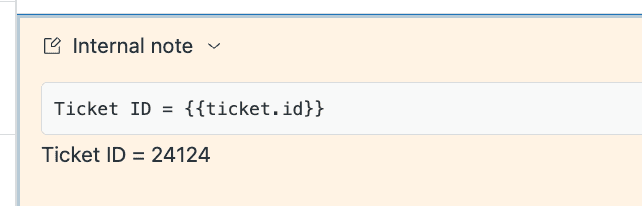
Now customize the email subject and body. Here are the most useful placeholders for assignment notifications:
| Placeholder | What It Shows |
|---|---|
| {{ticket.id}} | The ticket number |
| {{ticket.title}} | The ticket subject line |
| {{ticket.requester.name}} | The customer's name |
| {{ticket.description}} | The initial ticket content |
| {{ticket.priority}} | Priority level (Low, Normal, High, Urgent) |
| {{ticket.status}} | Current status |
| {{ticket.url}} | Direct link to the ticket |
A good email subject might be: "Ticket #{{ticket.id}} assigned to you: {{ticket.title}}"
For the body, include enough context that the agent can understand the issue without opening the ticket:
Hi {{ticket.assignee.first_name}},

You've been assigned ticket #{{ticket.id}}.

Customer: {{ticket.requester.name}}
Priority: {{ticket.priority}}
Subject: {{ticket.title}}

{{ticket.description}}

View ticket: {{ticket.url}}
Step 5: Save and Test
Click "Create" to save your trigger. Now test it:
- Create a test ticket or use an existing one
- Have another agent (not yourself) assign it to you
- Check your email for the notification
- Verify the email contains all the information you configured
If you don't receive the email within a few minutes, check your spam folder and verify your agent profile has email notifications enabled.
Common Use Cases for Assignee Change Triggers
Once you understand the basic setup, you can adapt it for various workflows. Here are the most common scenarios where assignee change triggers add value.
Assignment Notifications
The most straightforward use case is notifying agents when work arrives in their queue. Without this notification, agents have to constantly check their views or dashboards. Tickets sit unnoticed, customers wait, and SLAs are breached.
This trigger becomes especially valuable for teams using skills-based routing or automatic assignment. When tickets flow to agents without manual intervention, notifications become the only signal that new work has arrived. Learn more about automated ticket routing in Zendesk.
Escalation Workflows
Assignee change triggers can power sophisticated escalation patterns. You might create triggers that:
- Route urgent tickets to senior agents based on priority changes
- Move tickets to specialized teams when reassigned to specific groups
- Update custom fields tracking assignment history
- Add tags marking tickets that have been reassigned multiple times
For example, you could create a trigger that fires when a ticket is assigned to your "Escalations" group, automatically adding a tag, setting priority to High, and notifying the group manager.
Integration Syncing
When Zendesk is part of a larger tool ecosystem, assignee changes often need to sync to other platforms. Triggers can notify external systems via webhooks when assignments change.
Common integration patterns include:
- Syncing assignee changes to Slack channels for visibility
- Updating CRM records when ownership changes
- Triggering workflows in project management tools
- Notifying external monitoring systems
The webhook action in triggers lets you send HTTP requests to any endpoint, making it possible to keep external systems in sync with Zendesk assignments in real time.
Tracking and Reporting
Sometimes you need to track assignment patterns for analytics. Assignee change triggers can:
- Add tags when assignee changes, creating a trail for reporting
- Update custom fields storing the previous assignee or assignment count
- Log handoffs between teams for SLA analysis
- Trigger notifications to managers when tickets bounce between agents
This data helps identify routing problems, measure team workload distribution, and understand how tickets flow through your organization.
Using Automations With Assignee-Related Conditions
While triggers handle immediate assignee changes, automations have their place in assignment workflows. They are useful for time-based follow-ups after assignment happens.
When to Use Automations Instead of Triggers
Automations make sense when you need to check on tickets after they have been assigned for a certain period. Common scenarios include:
- Following up on tickets that have been assigned but not updated in 24 hours
- Escalating tickets that sit with an agent for too long
- Closing tickets that were solved and assigned but never confirmed
- Sending reminders about SLA deadlines based on assignment time
The key distinction: triggers react to the assignment event itself. Automations react to time passing since that event occurred.
Available Automation Conditions for Assignees
Automations offer several time-based conditions related to assignment:
- Hours since assigned - Time elapsed since the ticket was first assigned to an agent
- Hours since assignee update - Time since the assignee field was last modified
- Hours since update - Time since any update to the ticket
- Status + assignee combinations - Check both status and assignment state together
Note that "Hours since assigned" only works for tickets that have actually been assigned. Unassigned tickets will not meet this condition.
Example: Follow-Up on Assigned Tickets
Here is a practical automation that reminds agents about tickets they have not touched:
Meet ALL conditions:
- Hours since assigned > Greater than > 24
- Status > Is not > Solved
- Status > Is not > Closed
- Assignee > Is not > ( )
Actions:
- Notifications > Email user > (assignee)
- Subject: "Reminder: Ticket #{{ticket.id}} has been assigned for 24 hours"
This automation runs hourly, checks all tickets assigned for more than 24 hours that are not solved or closed, and sends a gentle reminder to the assignee.
Troubleshooting Assignee Change Triggers
Even with the right conditions, triggers sometimes fail to fire. Here is how to diagnose and fix common problems.
Trigger Not Firing When Assignee Changes
If your trigger is not working, check these common causes:
Trigger position matters. Zendesk evaluates triggers from top to bottom. If another trigger above yours modifies the ticket in a way that prevents your conditions from matching, your trigger will not fire. Place notification triggers toward the end of your trigger list, after all categorization and routing triggers.
Conditions might be too restrictive. If you have additional conditions beyond "Assignee Changed," verify they are actually being met when assignments happen. For example, if you add "Priority is High" but the ticket being assigned is Normal priority, the trigger will not fire.
The "Ticket is Updated" condition. Some trigger setups work better with "Ticket > Is > Updated" as an additional condition. This ensures the trigger only fires on updates, not on ticket creation.
Duplicate Notifications
Getting multiple emails for the same assignment usually means you have multiple triggers with overlapping conditions. Check for:
- Multiple notification triggers that all fire on assignee changes
- Triggers that fire on "Assignee Changed" and also on "Ticket is Updated" when an assignment happens
- Trigger order causing one trigger to modify the ticket in a way that causes another to fire
The fix is usually consolidating similar triggers or adjusting their order so they don't interfere with each other.
Self-Assignment Notifications
If agents complain about getting emails when they assign tickets to themselves, check your "Assignee is not (current user)" condition. This condition exists specifically to prevent this scenario. If you want self-assignment notifications, remove this condition. If you don't want them, make sure it is present and configured correctly.
Assignee Changes Not Detected in Automations
If you're trying to use an automation to detect immediate assignee changes, it won't work. Automations cannot do this. Move that workflow to a trigger instead. Use automations only for time-based follow-ups after assignment.
Advanced Patterns and Best Practices
Once you've mastered the basics, these patterns can help you build more sophisticated assignment workflows.
The "Return to Sender" Pattern
Sometimes tickets need to bounce between teams. A first-line support agent assigns to a specialist, who does their work and then needs to return the ticket to the original agent. Zendesk does not track "original assignee" natively, but you can build this with custom fields and webhooks.
The pattern works like this:
- Create custom fields to store the original assignee and group
- Use a trigger to populate these fields when a ticket is first assigned away from the initial group
- Create a macro that agents use when they are ready to return the ticket
- Use a webhook trigger to read the stored original assignee and reassign the ticket back
This is advanced setup requiring webhook configuration, but it solves a common workflow problem.
Trigger Organization Tips
As your trigger list grows, organization becomes critical.
- Group related triggers using categories. Have a "Notifications" category, a "Routing" category, etc.
- Use descriptive names that explain what the trigger does. "Notify assignee on assignment" is better than "Assignment trigger."
- Document dependencies in trigger descriptions. If Trigger B relies on Trigger A having run first, note this in both descriptions.
- Review trigger order quarterly. As you add triggers, the optimal order changes. Periodically audit to ensure routing happens before notifications, categorization before escalation, and so on.
Testing Triggers Safely
Before activating a new trigger:
- Use the "Preview match" feature to test conditions against existing tickets
- Test with a non-production ticket first
- Have a colleague make the test assignment so you can verify the "current user" logic works correctly
- Check trigger logs if something is not working as expected
Going Beyond Basic Assignee Automation
Zendesk triggers handle the fundamental task of detecting and responding to assignee changes. But modern support teams are moving beyond simple notifications toward intelligent workflow automation.
Here is the difference: a trigger tells an agent "You have a ticket." An AI teammate tells an agent "You have a ticket, it is about a billing issue, the customer is frustrated, here is a draft response, and similar tickets were resolved this way."
At eesel AI, we approach this as a teammate you hire, not a tool you configure. Our AI Agent for help desks can resolve up to 81% of tickets autonomously in mature deployments. Instead of just routing and notifying, our AI can:
-
Smart triage before assignment: The AI reads incoming tickets, categorizes them by topic and urgency, and routes them to the right specialist based on content, not just availability. This means your billing expert gets billing questions, and your technical team gets bug reports.
-
Context-rich notifications: Rather than just sending the ticket subject, our AI Copilot generates a summary of what the customer is asking, identifies the sentiment, and flags any urgency indicators.
-
Auto-draft responses: Agents receive a drafted reply along with the assignment notification. The draft is grounded in your knowledge base and past tickets, so it sounds like your team wrote it.
-
Intelligent escalation: The AI identifies which tickets actually need human attention versus which ones it can resolve autonomously. This means agents only get notified about tickets that truly require their expertise.
The result is that when your agents get a notification, they are not starting from zero. They have context, a draft response, and confidence that this ticket truly needs their attention.
If you are spending significant time configuring Zendesk triggers to get basic notifications working, it might be worth exploring whether an AI teammate could handle the notification workflow more intelligently while also reducing your overall ticket volume through autonomous resolution. See how eesel AI integrates with Zendesk to enhance your support workflows.



