


If you're building integrations with Zendesk, hitting a 429 Too Many Requests error at 2 AM isn't fun. Understanding Zendesk API rate limits before you start coding saves you from frantic debugging sessions and angry stakeholders wondering why their ticket sync stopped working.
This guide breaks down everything you need to know about Zendesk API rate limits. We'll cover the tiered limits by plan, how to monitor your usage in real-time, and practical strategies for handling rate limit errors gracefully. Whether you're syncing ticket data, building a custom dashboard, or automating workflows, you'll learn how to build integrations that stay within limits while delivering reliable performance.
For teams that'd rather not deal with rate limits at all, there's another path. eesel's AI agent for Zendesk connects directly to Zendesk and handles rate limiting automatically. We'll explore both approaches so you can choose what fits your team.
Understanding Zendesk's tiered rate limits
Zendesk applies different rate limits depending on your plan type and the specific API endpoints you're using. Let's break down what you need to know.
Rate limits by plan tier
The Support and Help Center API rate limits vary significantly based on your Zendesk plan:
| Plan | Requests per minute |
|---|---|
| Team | 200 |
| Growth | 400 |
| Professional | 400 |
| Enterprise | 700 |
| Enterprise Plus | 2500 |
| High Volume API add-on | 2500 |
Source: Zendesk Rate Limits Documentation
The High Volume API add-on increases your limit to 2500 requests per minute. It's available on Zendesk Suite Growth plans and above, and Zendesk Support Professional plans and above. You'll need a minimum of 10 agent seats to purchase this add-on. Enterprise Plus plans include this add-on by default.
Endpoint-specific limits
Some endpoints have their own rate limits that override the account-wide limits:
| Endpoint | Rate limit |
|---|---|
| Incremental Exports | 10 requests per minute |
| List Tickets (pages >500) | 50 requests per minute |
| Update Ticket | 30 updates per 10 minutes per user per ticket; also 100 requests per minute per account (300 with High Volume) |
| Chat API | 200 requests per minute (all plans) |
Source: Zendesk Rate Limits Documentation
Requests made by Zendesk apps carry an extra limit of 100 requests per minute per user per app.
The Incremental Export endpoint is particularly important if you're syncing large datasets. You can only make 10 requests per minute to these endpoints, though this increases to 30 requests per minute if you have the High Volume API add-on.
Help Center API considerations
The Help Center API uses the same rate limits as the Support API. However, requests to the Help Center API don't count against your Support API rate limit, and vice versa. This means you can make 700 requests to the Support API and another 700 requests to the Help Center API simultaneously on an Enterprise plan.
Monitoring Zendesk API rate limit requests per minute in your code
Zendesk provides response headers that let you monitor your rate limit status in real-time. This is essential for building integrations that can adapt their request rate dynamically.
Understanding response headers
Every API response from Zendesk includes headers that tell you your current rate limit status:
- X-Rate-Limit or ratelimit-limit: Your account's current rate limit (e.g., 700)
- X-Rate-Limit-Remaining or ratelimit-remaining: Number of requests remaining in the current minute
- ratelimit-reset: Seconds until the current rate limit window resets
- zendesk-ratelimit-tickets-index: Additional limit information for list ticket endpoints
For Ticketing API list endpoints like List Tickets or Search Users, you get additional headers:
x-rate-limit: 700
ratelimit-limit: 700
x-rate-limit-remaining: 699
ratelimit-remaining: 699
ratelimit-reset: 41
zendesk-ratelimit-tickets-index: total=100; remaining=99; resets=41
Source: Zendesk Best Practices for Avoiding Rate Limiting
Reading headers in Python
Here's how to extract and use rate limit headers in Python:
import requests
import time

def call_zendesk_api():
    url = "https://subdomain.zendesk.com/api/v2/tickets"
    headers = {"Authorization": "Bearer YOUR_ACCESS_TOKEN"}
    response = requests.get(url, headers=headers)
    should_continue = handle_rate_limits(response)
    if should_continue:
        # Process the API response
        pass

def handle_rate_limits(response):
    account_limit = response.headers.get("ratelimit-remaining")
    endpoint_limit = response.headers.get("Zendesk-RateLimit-Endpoint")
    account_limit_reset = response.headers.get("ratelimit-reset")

    if account_limit:
        account_remaining = int(account_limit)
        if account_remaining > 0:
            if endpoint_limit:
                endpoint_remaining = int(endpoint_limit.split(";")[1].split("=")[1])
                if endpoint_remaining > 0:
                    return True
                else:
                    endpoint_reset = int(endpoint_limit.split(";")[2].split("=")[1])
                    handle_limit_exceeded(endpoint_reset)
            else:
                return True
        else:
            handle_limit_exceeded(account_limit_reset)
    return False

def handle_limit_exceeded(reset_time):
    wait_time = int(reset_time) + 1  # ratelimit-reset is seconds until reset
    print(f"Rate limit exceeded. Waiting {wait_time} seconds...")
    time.sleep(wait_time)
Source: Zendesk Best Practices Documentation
Reading headers in JavaScript
Here's the same logic in JavaScript with async/await:
const axios = require('axios');

async function callZendeskAPI() {
    const url = "https://subdomain.zendesk.com/api/v2/tickets";
    const headers = {"Authorization": "Bearer YOUR_ACCESS_TOKEN"};
    try {
        const response = await axios.get(url, { headers });
        const shouldContinue = handleRateLimits(response);
        if (shouldContinue) {
            // Process the API response
        }
    } catch (error) {
        console.error(error);
    }
}

function handleRateLimits(response) {
    const accountLimit = response.headers["ratelimit-remaining"];
    const endpointLimit = response.headers["Zendesk-RateLimit-endpoint"];
    const accountLimitReset = response.headers["ratelimit-reset"];

    if (accountLimit) {
        const accountRemaining = parseInt(accountLimit);
        if (accountRemaining > 0) {
            if (endpointLimit) {
                const endpointRemaining = parseInt(endpointLimit.split(";")[1].split("=")[1]);
                if (endpointRemaining > 0) {
                    return true;
                } else {
                    const endpointReset = parseInt(endpointLimit.split(";")[2].split("=")[1]);
                    handleLimitExceeded(endpointReset);
                }
            } else {
                return true;
            }
        } else {
            handleLimitExceeded(accountLimitReset);
        }
    }
    return false;
}

async function handleLimitExceeded(resetTime) {
    const waitTime = (resetTime || 60) + 1; // ratelimit-reset is seconds until reset
    console.log(`Rate limit exceeded. Waiting ${waitTime} seconds...`);
    await new Promise(resolve => setTimeout(resolve, waitTime * 1000));
}
Source: Zendesk Best Practices Documentation
Handling 429 Too Many Requests errors
When you exceed the Zendesk API rate limit requests per minute, the API returns a 429 status code. How you handle this response determines whether your integration fails gracefully or breaks completely. For more context on building robust integrations, see our guide on best AI chatbots for Zendesk.
What 429 errors mean
A 429 Too Many Requests response indicates you have hit the rate limit. The response includes a Retry-After header that tells you how many seconds to wait before retrying:
HTTP/1.1 429
Status: 429
Retry-After: 93
In this example, you'll want to wait 93 seconds before making another request. Ignoring this header and continuing to make requests can result in null errors that'll make debugging difficult.
Source: Zendesk Best Practices Documentation
Implementing exponential backoff
For production integrations, implement exponential backoff to handle rate limits gracefully:
import time
import random

def make_request_with_backoff(url, headers, max_retries=5):
    for attempt in range(max_retries):
        response = requests.get(url, headers=headers)

        if response.status_code == 200:
            return response
        elif response.status_code == 429:
            retry_after = int(response.headers.get('Retry-After', 60))
            # Exponential backoff with jitter
            wait_time = retry_after * (2 ** attempt) + random.uniform(0, 1)
            print(f"Rate limited. Waiting {wait_time:.1f} seconds...")
            time.sleep(wait_time)
        else:
            response.raise_for_status()

    raise Exception("Max retries exceeded")
The exponential backoff approach increases wait time between retries, reducing the chance of overwhelming the server while improving the likelihood of successful requests.
Best practices for error handling
Here are key practices for handling rate limits in production:
- Never ignore 429 errors. Continuing to make requests after hitting the limit can cause your integration to fail with unhelpful null errors.
- Always parse the Retry-After header. This tells you exactly how long to wait.
- Implement circuit breaker patterns for high-volume applications. If you consistently hit rate limits, temporarily pause requests rather than retrying immediately.
- Log rate limit events. Track when and why you hit limits to identify optimization opportunities.
- Design for graceful degradation. Your application should continue functioning even when API requests are delayed.
Monitoring API usage in Zendesk
Beyond monitoring headers in your code, Zendesk provides tools to track your API usage over time.
Using the Admin Center dashboard
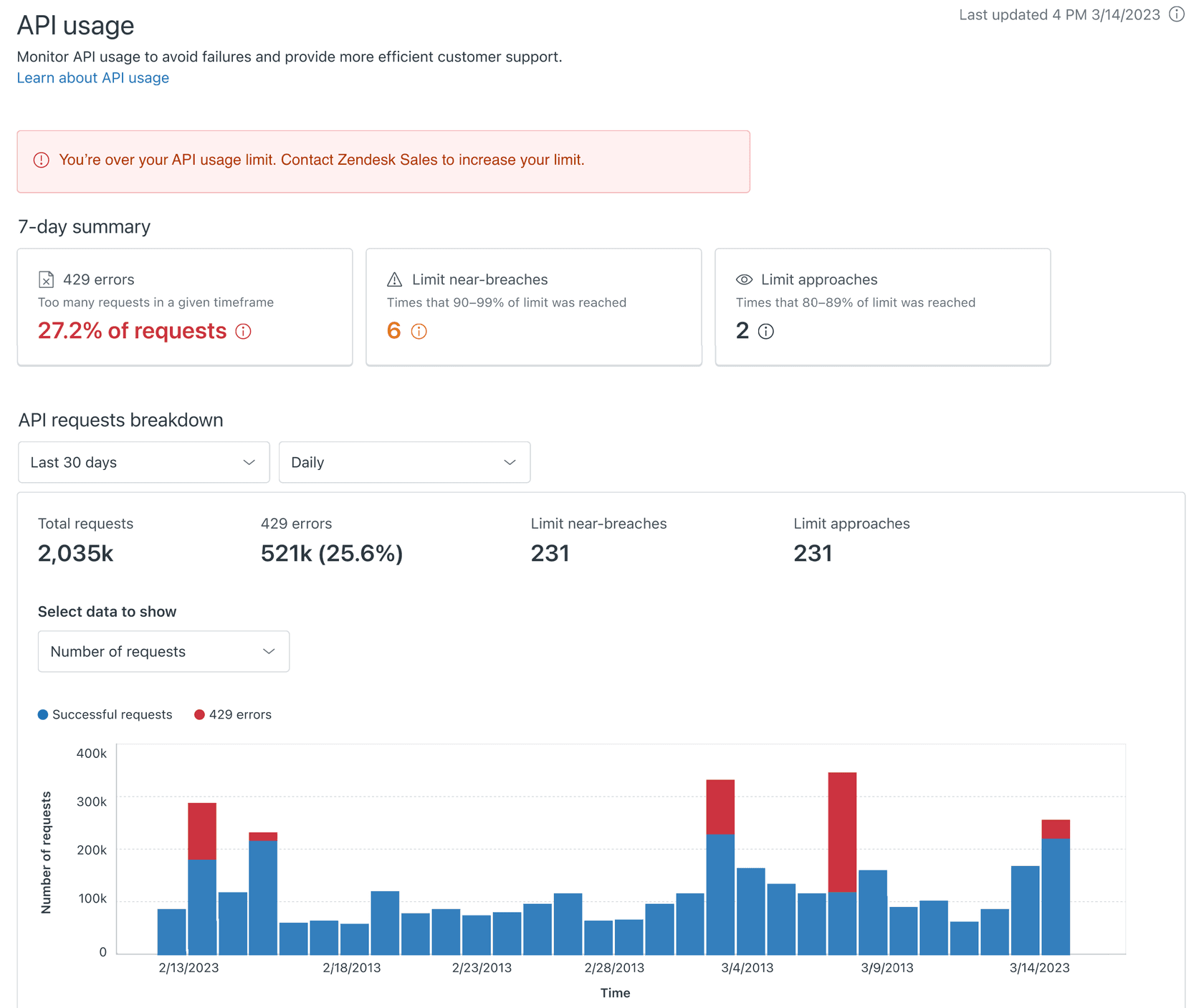
You can view your API usage in the Zendesk Admin Center:
- Go to Admin Center > Account > Usage > API
- View the 7-day summary showing your usage against your rate limit
- Check the percentage of 429 errors during the last seven days
- See how many times you approached your limit (90-99% of capacity), plus a separate "Limit approaches" card for 80-89%
The dashboard shows API requests over time with tables breaking down total requests by callers and endpoints. Content refreshes daily, though it can take up to 72 hours for current usage to appear.
Source: Managing API Usage in Your Zendesk Account
Note: The API usage dashboard isn't available for accounts using more than 2500 requests per minute or stand-alone accounts that don't include Support.
API usage notifications
Zendesk provides notifications when you approach your rate limit:
- Near-breach warnings: Alerts when API calls measure between 90-99% of your plan limit
- 429 error tracking: Monitor the percentage of requests returning rate limit errors
- Daily summaries: Track trends over the past 7 days
Regular monitoring helps you identify patterns and plan for capacity increases before hitting limits affects your operations.
Optimizing your API integration
Smart integration design reduces your API usage without sacrificing functionality. Here are proven strategies for staying within Zendesk API rate limit requests per minute. If you're looking for a deeper understanding of AI-powered support tools, check out our Zendesk AI review.
Batching requests
Instead of making individual API calls for each ticket, use batch endpoints:
- show_many endpoints: Fetch multiple tickets, users, or organizations in a single request
- Side-loading: Use the
includeparameter to fetch related data (like ticket comments) in one call - Bulk updates: Update multiple tickets with a single request when possible
Bulk endpoints such as Update Many Tickets update up to 100 tickets in a single request, which cuts call volume directly.
Implementing caching
Cache data that doesn't change frequently:
- User and organization data: Cache for hours or days since this changes infrequently
- Ticket metadata: Cache ticket fields, tags, and custom field definitions
- Help Center articles: Cache article content with appropriate cache headers
Implement cache invalidation using Zendesk webhooks to clear cached data when changes occur, ensuring your integration stays current without excessive polling.
Using webhooks instead of polling
Polling the API for changes is inefficient and quickly consumes your rate limit. Zendesk webhooks notify your system when events occur:
- Ticket events: Get notified when tickets are created, updated, or solved
- User changes: Receive updates when user profiles change
- Organization updates: Track changes to organization membership
Webhooks eliminate the need for constant polling, dramatically reducing API usage while providing real-time updates.
Incremental exports for large datasets
When syncing large volumes of data, use the Incremental Export API:
- Request only items that changed since your last sync
- Use cursor-based pagination for efficient large dataset handling
- Stay within the 10 requests per minute limit (30 with High Volume add-on)
This approach is far more efficient than repeatedly fetching all tickets, especially for accounts with high ticket volumes.
Source: Zendesk Incremental Exports Documentation
When to upgrade to High Volume API
Sometimes optimization isn't enough. Here's how to know when you need the High Volume API add-on. For a complete overview of Zendesk's capabilities, read our Zendesk review.
Signs you need the add-on
Consider upgrading if you experience:
- Consistently hitting 700 requests per minute on Enterprise plans
- Integration delays affecting business operations
- Growing ticket volume that outpaces your current limit
- Multiple integrations competing for the same rate limit pool
- Frequent 429 errors despite optimization efforts
Pricing and requirements
The High Volume API add-on:
- Increases your limit to 2500 requests per minute
- Available on Zendesk Suite Growth+ and Support Professional+ plans
- Requires minimum 10 agent seats
- Included at no extra cost with Enterprise Plus plans
Source: About Zendesk Add-ons
Before upgrading, audit your current API usage. Many teams find they can optimize their way out of rate limit issues without additional costs.
Alternative: Let eesel AI handle rate limits for you
Building and maintaining a rate-limit-compliant integration takes significant engineering effort. If you'd rather focus on your core product than managing API quotas, we offer an alternative.
eesel AI connects directly to Zendesk and handles rate limiting automatically. Our system:
- Monitors rate limit headers in real-time
- Implements intelligent request queuing and backoff
- Uses optimized batching to minimize API calls
- Provides webhook-based updates instead of polling
- Scales seamlessly as your ticket volume grows

Instead of writing custom code to handle 429 errors and exponential backoff, you configure automations in plain English. We handle the technical complexity of staying within Zendesk's rate limits while your integrations run reliably. Learn more about our Zendesk AI Agent capabilities.
For teams building custom integrations, our Zendesk automation API reference provides additional technical guidance.
Start building reliable Zendesk integrations today
Understanding Zendesk API rate limits is essential for any integration project. The key takeaways:
- Know your plan limits: 200-2500 requests per minute depending on your tier
- Monitor rate limit headers to track usage in real-time
- Implement exponential backoff for 429 errors
- Use the Admin Center dashboard to track usage patterns
- Optimize with batching, caching, and webhooks
- Consider the High Volume API add-on when optimization is not enough
Whether you're building a custom integration or looking for a managed solution, handling rate limits properly ensures your Zendesk workflows run smoothly without interruption.
Ready to automate your Zendesk workflows without worrying about rate limits? Try eesel AI and let us handle the API complexity while you focus on delivering great customer experiences.