Scaling customer support without scaling your team is one of the toughest challenges in operations. Your agents are already juggling tickets, and every new hire adds overhead. But what if your knowledge base could answer questions before they become tickets?
A Jira AI knowledge base does exactly that. By combining Jira Service Management with Atlassian Intelligence, you can give customers instant, accurate answers pulled directly from your documentation. No coding required. No complex setup. Just connect your knowledge base and let the AI handle the routine questions.
In this guide, we'll walk through setting up and optimizing a Jira AI knowledge base. We'll start with Atlassian's native features, then look at how tools like eesel AI can extend these capabilities when you need more flexibility.
What is a Jira AI knowledge base?
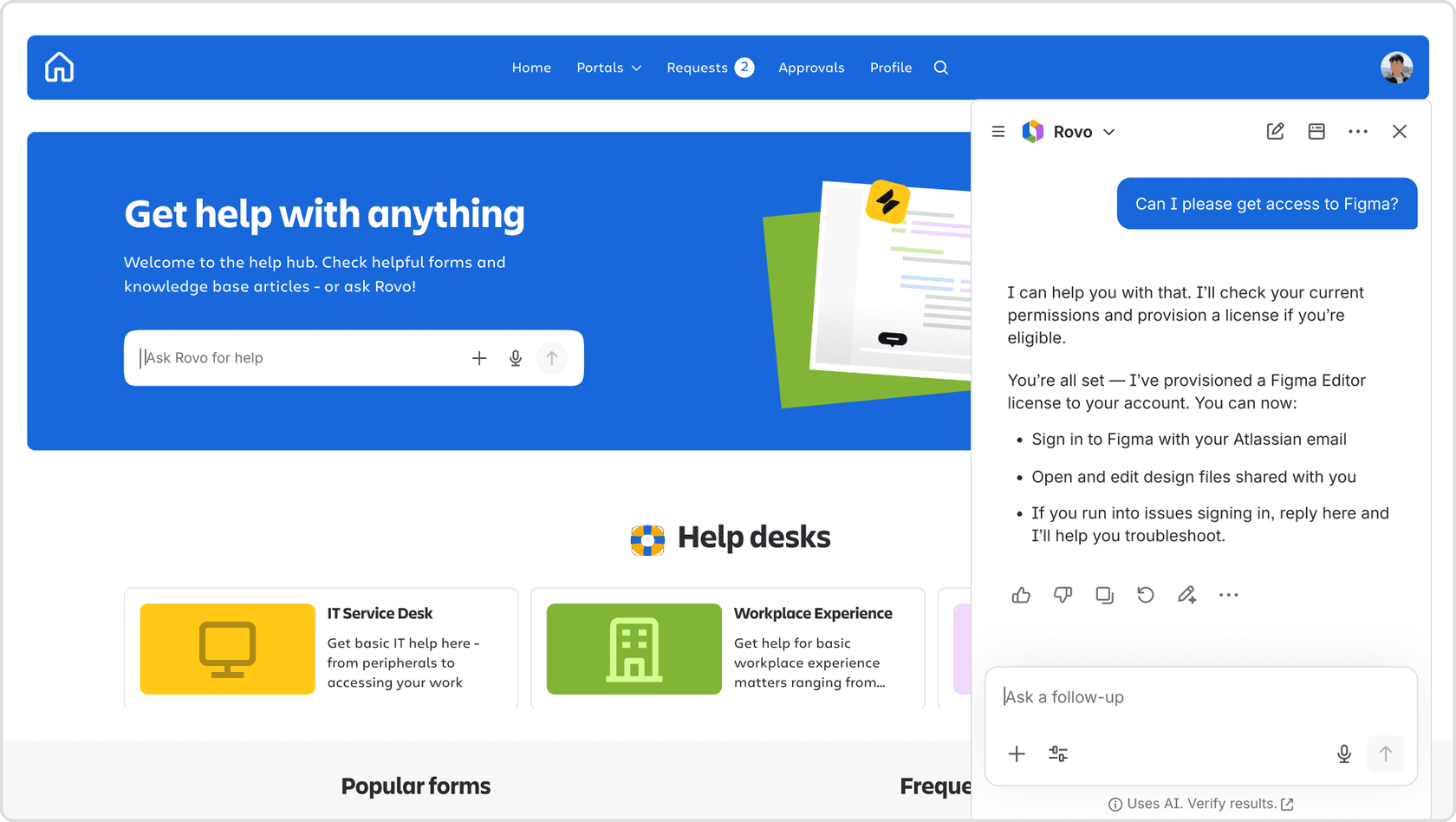
A Jira AI knowledge base is an AI-powered system that reads your documentation and automatically answers customer questions. Instead of submitting a ticket and waiting for an agent, customers get instant responses based on your existing help articles.
Here's how it works: The virtual service agent scans your linked Confluence spaces, finds relevant articles, and uses generative AI to summarize the information in a conversational format. The customer asks "How do I reset my password?" and the AI pulls the answer from your password reset article, delivering it instantly.
The system has three core components:
- Virtual service agent The AI interface that conversations with customers across Slack, email, and your help center
- AI answers The generative capability that searches and summarizes your knowledge base
- Confluence knowledge base The source content that feeds the AI (though you can also use Jira's native knowledge base)
The benefits are straightforward. Customers get 24/7 availability with instant responses. Your team sees reduced ticket volume for common questions. And because the AI only uses your approved documentation, you control exactly what information it shares.
This setup works best for IT teams, HR departments, and any group using Jira Service Management that deals with repetitive questions. Password resets, software access requests, policy questions the routine stuff that eats up agent time but doesn't require human judgment.
Setting up your knowledge base for AI answers
Getting started takes about 30 minutes if you already have documentation. Here's the step-by-step process.
Step 1: Connect Confluence to Jira Service Management
First, you need a knowledge base for the AI to search. If you already use Confluence, you can link an existing space. If not, you'll create one.
Navigate to your Jira Service Management project and select Project settings from the sidebar. Find Knowledge base in the menu. From there, you can either create a new Confluence space or link an existing one. The setup is mostly one-click Atlassian handles the connection between the two products.
One critical setting: Make sure your linked knowledge base space is set to All logged-in users under Who can view. If permissions are too restrictive, the AI won't be able to read the articles. You can learn more about managing knowledge base permissions in Atlassian's documentation.
Step 2: Structure your knowledge base articles
The quality of AI answers depends entirely on the quality of your source material. Atlassian provides specific guidelines for structuring content that the AI can parse effectively.
Use clear, descriptive titles that match what customers actually search for. Organize articles with proper headings (H1, H2, H3) rather than just bold text. Include the vocabulary your customers use if they ask for a "laptop," use that word in your hardware request article, not just "portable computing device."
Keep to one article per topic to avoid duplication. If you have two articles explaining the same VPN setup process, the AI might pull from the outdated one. When you need to reference instructions from another article, link to it rather than copying the content.
One technical limitation to note: AI answers can read information from tables, expand panels, and information panels but not from panels placed inside tables. Structure your content accordingly.
Step 3: Activate AI answers in your virtual service agent
Once your knowledge base is connected and populated, it's time to turn on the AI.
From your service project, select Project settings, then find Virtual service agent in the left panel under Channels & self-service. Select the AI answers tab, turn the toggle on, and select Activate. The AI will start working immediately across all connected channels.
If you're using Slack, you can activate AI answers for specific request channels rather than all of them. Navigate to Request channels in Settings, then turn the toggle on under AI answers next to the channels you want to enable.
Best practices for optimizing KB articles for AI
Setting up the AI is only half the battle. To get good results, you need to optimize your content for how the AI reads and interprets it.
Write for your customers' vocabulary
This is the most common mistake teams make. You write articles using internal terminology, but customers search using their own words.
If you have an article about requesting new hardware, don't just title it "Hardware Procurement Workflow." Include phrases like "I need a new laptop" and "request a keyboard" in the article body. Think about how people actually ask for help in conversation, then include those exact phrases.
The AI matches customer queries to article content. If the words don't match, the AI won't find the right article.
Keep content up to date and accurate
The most common reason for incorrect AI answers is stale source material. If your password reset process changed three months ago but the article still describes the old method, the AI will confidently give customers the wrong instructions.
Set calendar reminders to review your most-accessed articles quarterly. Remove vague or conflicting information. When policies change, update the articles immediately don't wait for the next scheduled review.
Structure for readability and AI parsing
Organization matters more than formatting flair. Use distinct articles for distinct topics rather than cramming everything into one long page. If you have VPN setup instructions for Mac, Windows, and Android, either create separate articles for each or use clear headings that separate the instructions by device.
Write complete instructions per topic. Don't split a procedure across multiple articles unless you're linking between them. The AI works best when it can find a complete answer in one place.
One more technical note: While images are helpful for human readers, AI answers doesn't currently extract information from them. Put critical information in text, not screenshots.
Our Confluence AI integration can help teams who want to extend these capabilities beyond native features.
Native AI features beyond AI answers
Atlassian has built several AI capabilities into Jira Service Management beyond the virtual service agent. These features help you create better content and manage your knowledge base more effectively.
AI editing for knowledge base articles
When you resolve a support ticket, that solution is valuable knowledge that should be captured. The AI editing features let you draft articles directly from Jira issues.
From any ticket, you can use AI to brainstorm content for a new article, improve the writing quality, fix spelling and grammar, or change the tone. Available tones include casual, educational, empathetic, neutral, and professional. This helps you quickly turn a specific ticket resolution into a polished help article that matches your team's voice.
AI drafts and suggested topics
Rather than guessing what articles to write next, let the AI tell you. The suggested topics feature analyzes recent customer requests and identifies gaps in your knowledge base.
From your service project, go to Knowledge base and select Suggested topics. You'll see a list of request topics that lack corresponding articles, along with the number of related requests for each. This helps you prioritize content creation based on actual customer needs, not assumptions.
Smarts-enabled help center search
Even before customers interact with the AI agent, machine learning is working behind the scenes. The help center search uses data-driven algorithms to recommend relevant articles as customers type.
The system learns from user behavior over time, improving its predictions based on what previous users found helpful. This means the search gets smarter the more your customers use it, surfacing the right articles before customers even finish typing their question.
When to consider extending beyond native AI
Atlassian's native AI features work well for many teams, but they have limitations. Understanding these boundaries helps you decide when to stick with native features and when to explore third-party options.
The virtual service agent is designed around Confluence knowledge bases. It can't access information stored in Google Docs, Notion, SharePoint, or other platforms your team might use. It also doesn't learn from historical ticket context it only knows what's in your current documentation.
You might need more than native AI if:
- Your knowledge is scattered across multiple platforms, not just Confluence
- You want the AI to take actions beyond answering questions (like tagging tickets or making API calls)
- You need to test AI performance on historical tickets before going live with customers
- You want the AI to learn from past ticket resolutions, not just published articles
Our Jira Service Management AI integration is built for teams hitting these limitations.
How eesel AI extends Jira's AI knowledge base capabilities
When you've maximized what native Atlassian AI can do, eesel AI provides a path forward that builds on your existing setup rather than replacing it.

The core difference is scope. While Atlassian's AI works within the Atlassian ecosystem, eesel connects to everything. Confluence, Google Docs, Notion, SharePoint, your historical support tickets, even Slack conversations eesel unifies knowledge from wherever it lives. This matters when your team has documentation spread across different tools, which is the reality for most organizations.
Eesel also gives you a simulation mode that native AI doesn't offer. Before deploying to customers, you can run the AI agent against thousands of your past tickets to see exactly how it would have responded. This lets you identify knowledge gaps and refine behavior with zero customer impact. You see how eesel performs before it's customer-facing.
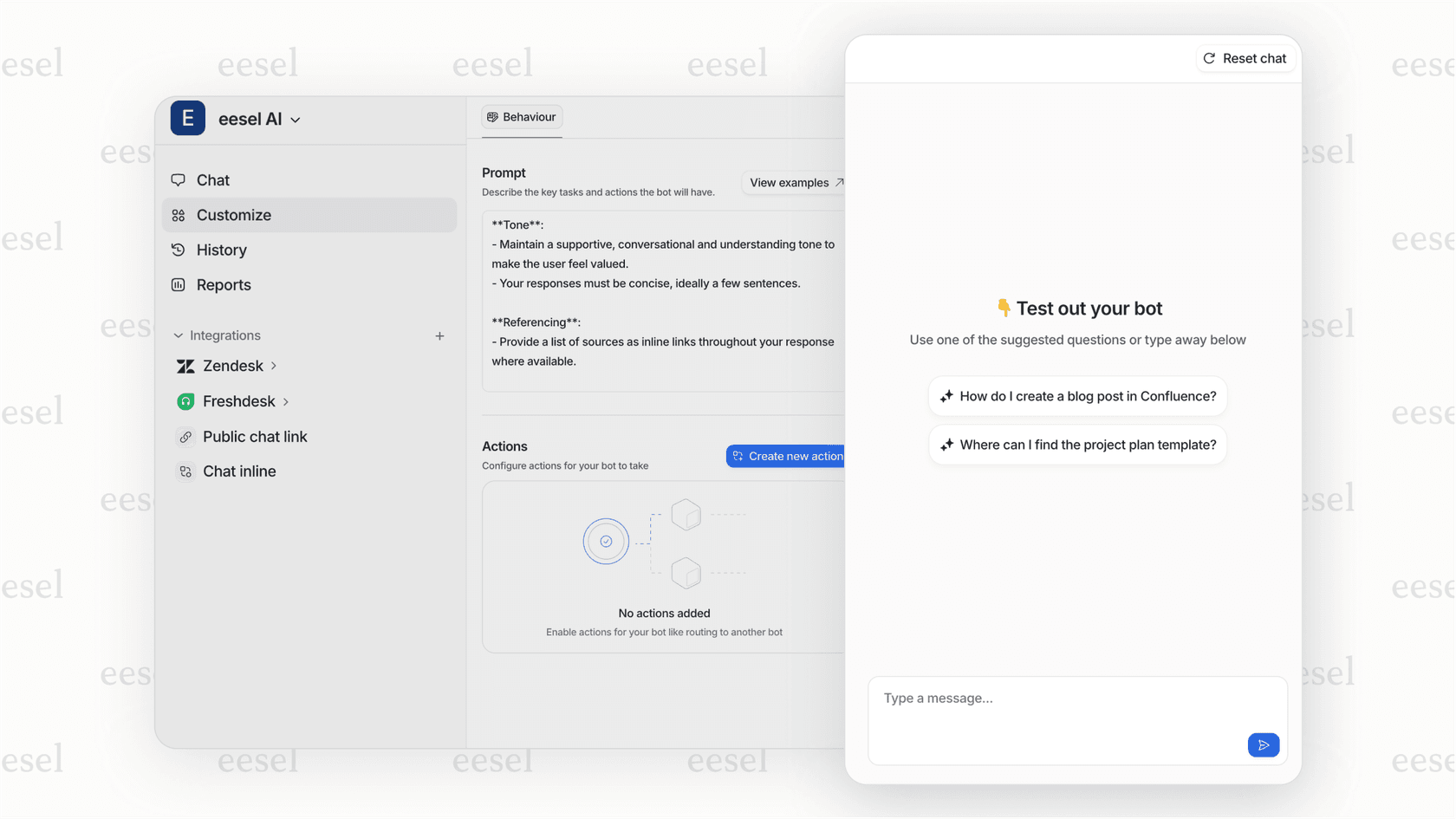
Customization happens in plain English, not code. You define escalation rules, response tones, and allowed actions using natural language instructions. "If the refund request is over 30 days, politely decline and offer store credit." No configuration wizards, no decision trees.
The rollout is progressive, not all-or-nothing. Start with eesel drafting replies for your agents to review. Once you're confident in the quality, expand to handling specific ticket types autonomously. Eventually, eesel can manage full frontline support with escalation only for the edge cases you define.
Beyond answering questions, eesel takes real actions. Tag tickets, update fields, make API calls to other systems, look up customer data. It integrates with Zendesk, Freshdesk, Gorgias, and other platforms if you ever need to extend beyond Jira.
Learn more about our AI Agent capabilities or explore our AI service desk solution for IT teams.
Getting started with your Jira AI knowledge base
The best approach is to start simple and expand based on results.
Begin with Atlassian's native AI features. Connect your Confluence knowledge base, activate AI answers, and focus your initial documentation efforts on the 5-10 most common support topics. These are usually password resets, software access requests, and basic policy questions.
Monitor your deflection rates and customer feedback. Are customers finding the answers they need? Where do they get stuck? Use this data to prioritize which articles to improve or create next.
As your knowledge base matures and you hit the limitations of native AI, that's when third-party solutions become worth evaluating. The goal isn't to replace your Atlassian setup it's to extend it when you need capabilities that go beyond what Atlassian provides natively.
The teams that get the most value from AI knowledge bases treat them as living systems. They don't just set them up and forget them. They continuously refine based on real usage data, expanding coverage for the questions that actually get asked.