How to set up a helpdesk: a step-by-step guide (2026)

Stevia Putri

Katelin Teen
Last edited May 15, 2026
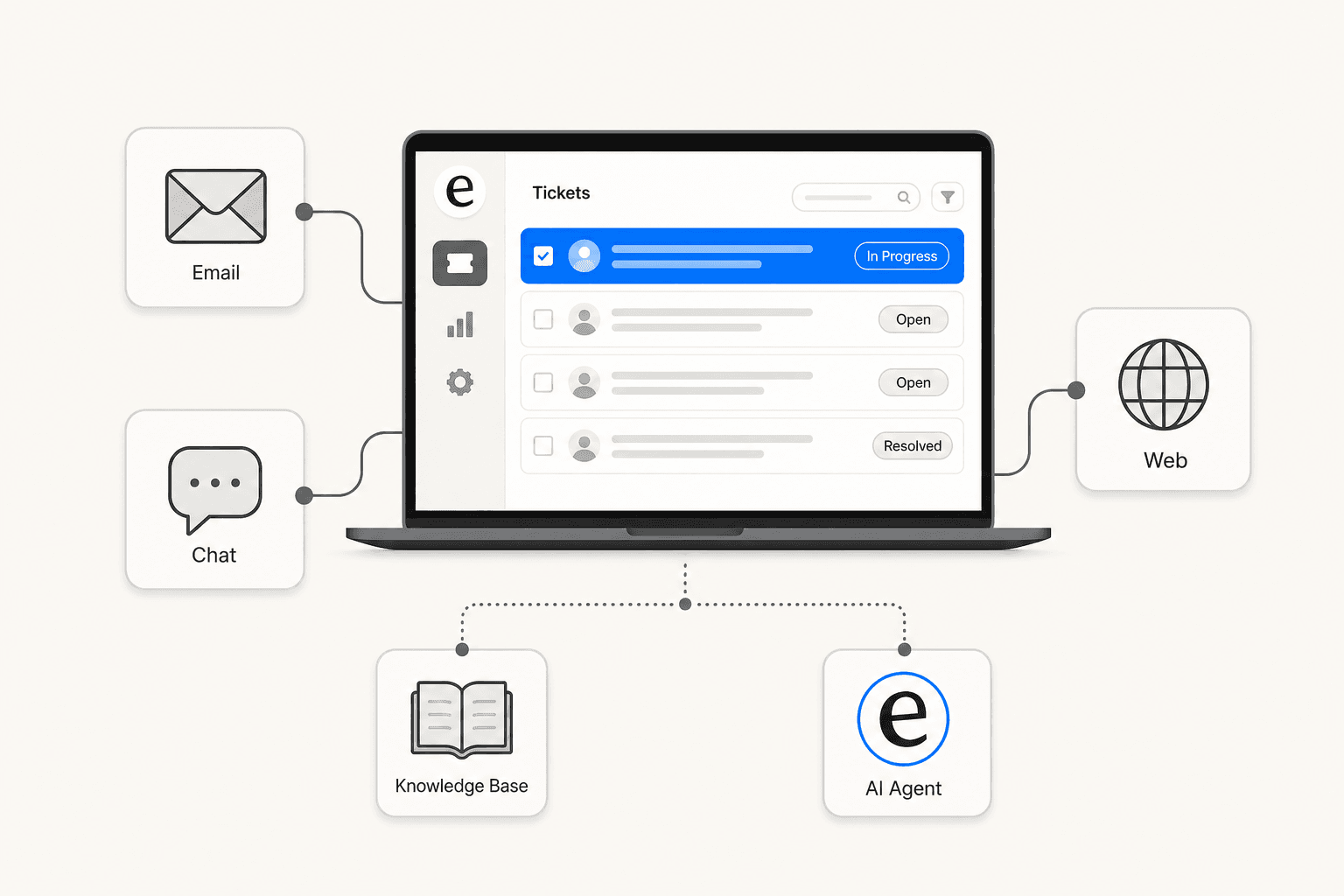
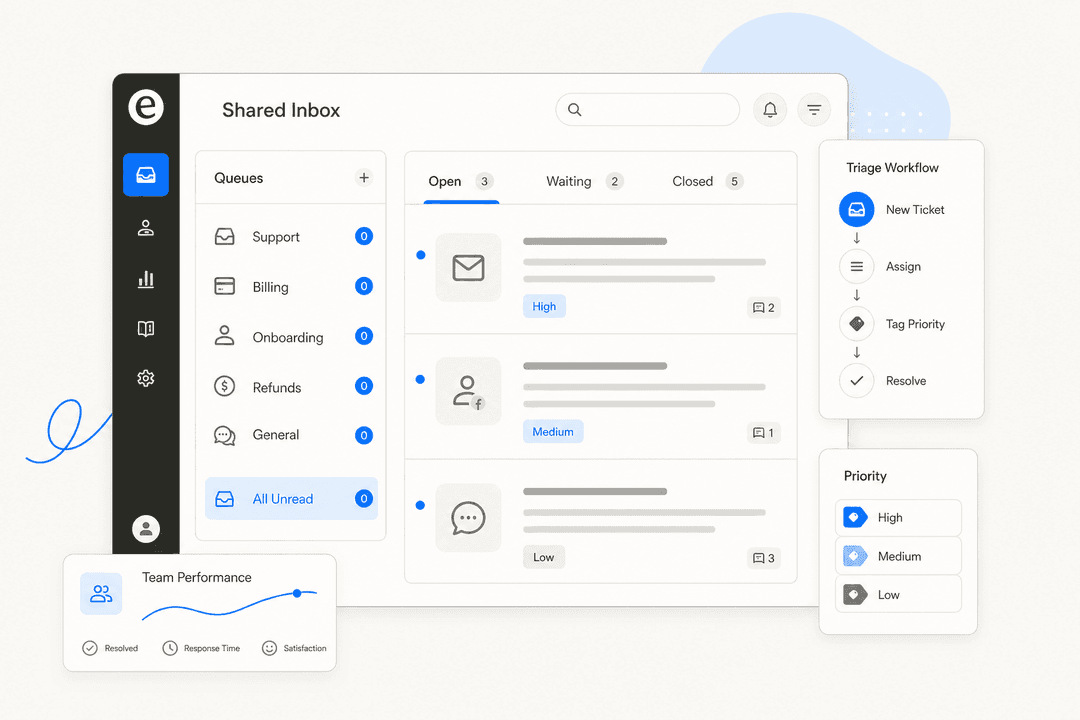
Most teams run customer support through a shared inbox for longer than they should. It works when there are five of you and ticket volume is low. Then it stops working - requests fall through the cracks, agents reply to the same ticket with different answers, and nobody can tell at a glance which emails have been handled and which haven't.
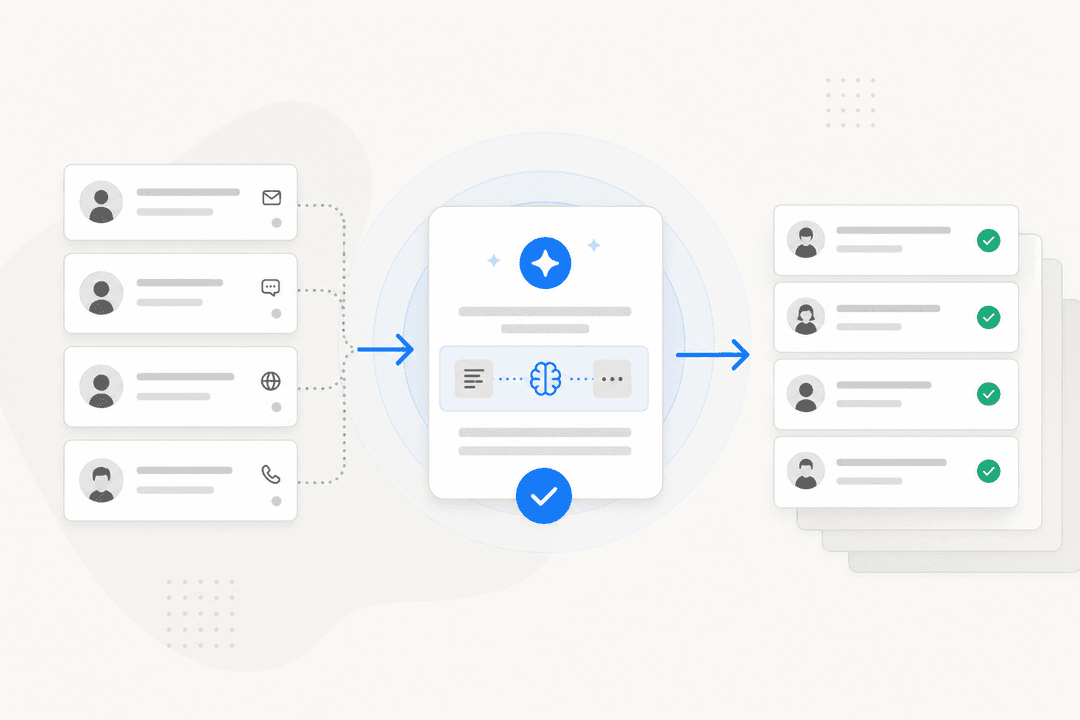
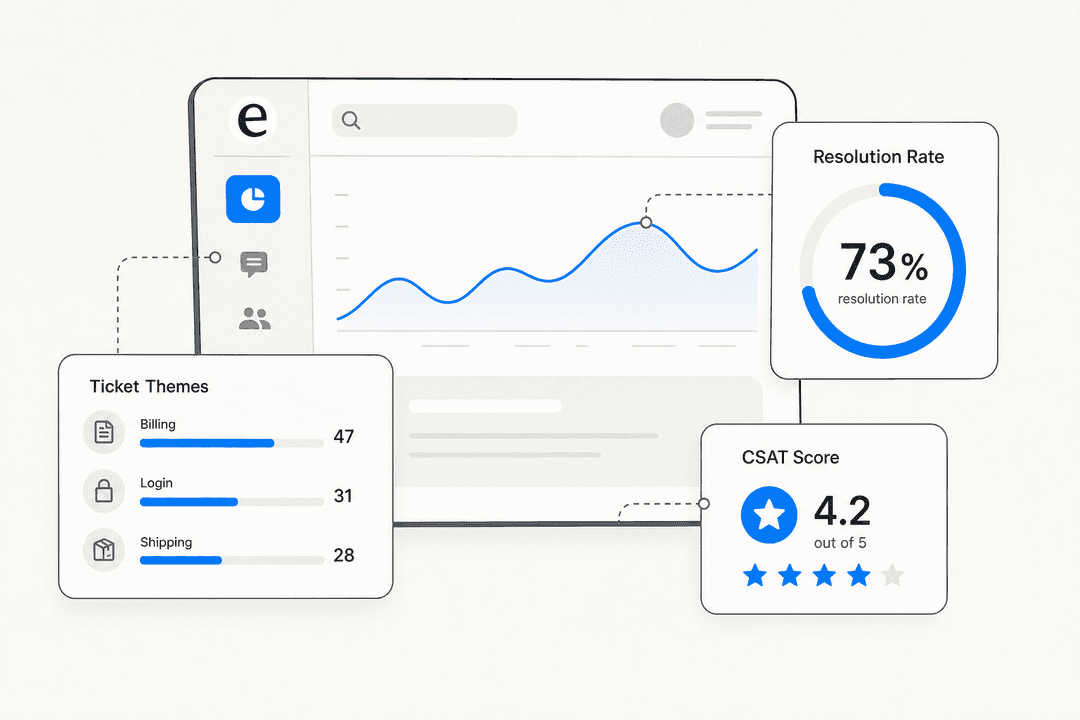
A proper helpdesk fixes this. It gives every request a home, gives agents a clear queue to work from, and - when configured well - handles a significant portion of tickets without anyone touching them. eesel AI, for example, typically resolves 73% of tier-1 requests within the first month of connecting to an existing helpdesk.
This guide covers the full setup process: defining scope, choosing a platform, configuring routing and SLAs, building a knowledge base, adding AI, and tracking the metrics that tell you whether it's actually working. For a small to mid-sized team, expect 2-4 weeks to go live.
Step 1: Define your channels and scope before touching any software
The channels you support - email, live chat, social, self-service portal - drive almost every other decision: which platform to choose, how many agents you need, what SLAs are realistic, and which automation tools make sense.
Before opening any software, write down three things:
Which channels you'll offer at launch. Email is non-negotiable - it creates trackable tickets automatically and customers expect it. After that, match channels to your customer base. B2C brands with high volume benefit from live chat; B2B SaaS companies often need only email and a self-service portal to start. Social media support is worth adding if you have an active public presence. Phone and SMS require more infrastructure - most teams add those later.
Expected monthly ticket volume. Under 100 tickets/month, a simple shared-inbox tool may be sufficient. From 100 to 500/month, a structured helpdesk with SLAs and routing starts paying off. Above 500/month, automation and AI stop being optional.
Who owns the helpdesk. Someone needs to be responsible for quarterly configuration reviews, routing updates, and knowledge base maintenance. Treat this as an ongoing role, not a one-time project.
Step 2: Choose a helpdesk platform
Platform choice comes down to team size, primary channel, and routing complexity. Here's where the four most common platforms fit - and who each one is actually for.
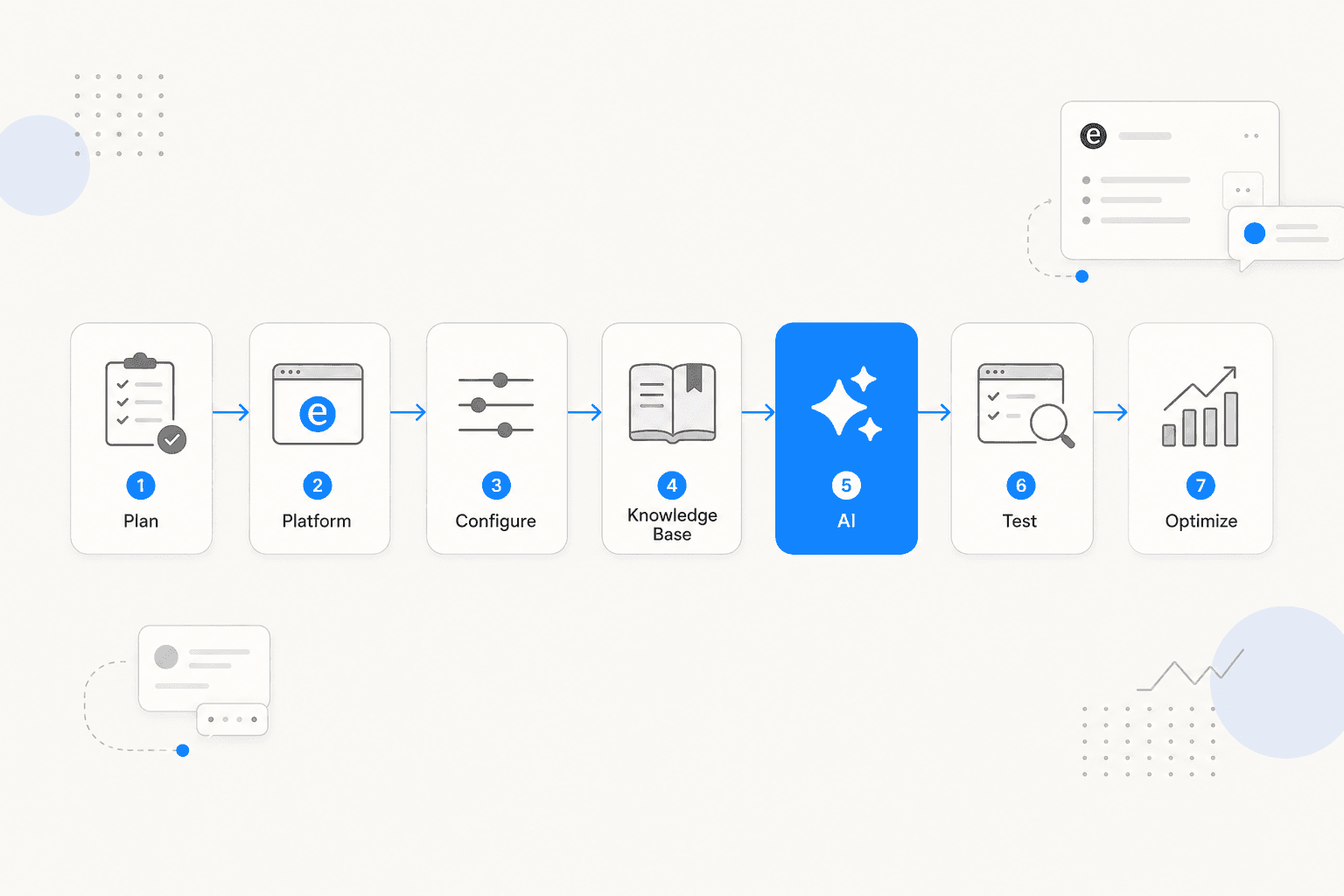
| Platform | Best for | Starting price | Setup time |
|---|---|---|---|
| Freshdesk | SMB/mid-market structured ticketing | $0 (2 agents) / $19/agent/mo | 1-2 weeks |
| Zendesk | Large teams, true omnichannel | $55/agent/mo (Suite Team) | 4-12 weeks |
| Help Scout | Email-first teams under 25 agents | $25/user/mo | 1-3 days |
| Gorgias | E-commerce (Shopify/BigCommerce) | $10/mo (50 tickets) | 1-3 days |
Freshdesk
Freshdesk is the go-to for most small and mid-market teams. Its free tier supports up to 2 agents with basic ticketing; paid plans start at $19/agent/month. Setup takes 1-2 weeks and doesn't require dedicated IT resources.
Freddy AI, Freshdesk's built-in AI, handles auto-triage and reply suggestions. If you want more advanced autonomous resolution on top, eesel AI's Freshdesk integration connects in minutes and immediately learns from your existing tickets and help center.
Zendesk
Zendesk is the market standard for large teams (100+ agents) that need genuinely unified omnichannel support - not email and chat bolted on separately, but a single workflow across every channel. Implementation takes 4-12 weeks and benefits from dedicated setup resources.
The cost is substantially higher than Freshdesk: roughly $2,280-$9,600 more per year for a 10-agent team at comparable tiers. For teams planning rapid scale, that infrastructure pays off. For most small operations, it's more than you need. See the eesel AI Zendesk integration page if you want to add AI resolution on top, or read the full Zendesk setup guide.
Help Scout
Help Scout is the right call for small email-first teams that don't want ticket numbers and queues - they want something that feels like email, but with shared visibility, assignments, and saved replies. G2 users rate Help Scout 4.4/5 for ease of use.
It doesn't scale past 50 agents and has no native phone support, but for teams under 25 agents it's the fastest way off shared Gmail without a steep onboarding curve.
Gorgias
Gorgias is purpose-built for e-commerce. It's the only platform that pulls full order data - purchase history, refund status, tracking numbers - directly into the ticket view from Shopify or BigCommerce without leaving the screen. Its AI agents can create discount codes, process refunds, and update orders autonomously.
If your support volume is mostly order-related queries, it's worth considering alongside our best helpdesk software for e-commerce guide. If you're not on Shopify or BigCommerce, look elsewhere.
Step 3: Configure your inbox, categories, and routing
Once the platform is live, get the core configuration right before adding agents to the system.
Unified inbox
Consolidate all customer-facing addresses - support@, returns@, billing@, help@ - into a single inbox. Configure email forwarding so every message generates a ticket automatically. Nothing else in the configuration matters until you have one place where all requests land.
Category structure
Structure your categories around who resolves the work, not your org chart. "Billing," "Technical Issues," "Account Management," "Returns," "Onboarding," "Feature Requests" is cleaner than categories that mirror internal team names. Each category needs a single owner and clear routing rules.
Create an "Other" category, but review it weekly and reassign everything into real categories - it's a useful pressure valve but a bad permanent home.
Roles and permissions
Set access levels before onboarding your team:
- Admins — full configuration access
- Managers — reporting and oversight access
- Agents — ticket view and reply access, limited to their assigned queues
Granting everyone admin access is one of the more common and painful misconfigurations to undo later.
Intake forms
Adding structured required fields to your intake form eliminates the most common delay: the "can you give me more details?" back-and-forth. For technical issues: affected users, error message, browser/OS. For billing: plan type, invoice number. For orders: order ID. Each field collected upfront saves 1-2 messages per ticket.
Routing automation
Configure automation to route tickets without human triage:
- Keyword detection: "refund," "cancel," "billing" routes to the Billing queue
- Incoming email address: billing@company.com routes to the Billing team
- Customer tier: Enterprise plan routes to a Senior Agent queue
- Time-based round-robin or load-balanced assignment
The five automations worth setting up first:
- Auto-acknowledge: confirmation email the moment a ticket is created
- Auto-assign: route to the right team without manual triage
- Auto-escalate: alert after X hours without a response
- Canned responses: pre-written replies for your top 10-15 most common questions
- Auto-close: close tickets after 48-72 hours of no customer response, with a warning email first
Step 4: Set SLAs and configure breach alerts
SLAs are only useful if agents know about breaches before they happen. Set the targets, then build the alert system around them.
| Channel | Priority | First response target | Resolution target |
|---|---|---|---|
| P1 Critical | 1 hour | 2-4 hours | |
| P2 High | 2-4 hours | 24 hours | |
| P3 Normal | 4-8 business hours | 2-3 business days | |
| P4 Low | 1 business day | Backlog-dependent | |
| Live chat | Any | 2 minutes | Same session |
| Social | Any | 1-2 hours | Same day |
Set automated alerts at 50%, 75%, and 100% of each SLA window. The 50% alert gives agents time to act; the 75% alert escalates to a manager; the 100% alert fires a breach notification. Manual monitoring alone will miss breaches consistently.
Two configuration details that matter:
Use business hours for P3/P4 SLAs, but calendar hours for P1/P2. Outages don't stop at 5 PM. For teams with enterprise customers, create separate SLA policies by customer tier - enterprise accounts typically have contractual SLA requirements distinct from standard users.
Publishing your SLAs to customers (in the help center or an onboarding email) is underrated. Transparency reduces frustration when delays happen because customers have an expectation rather than wondering if their email was read.
Step 5: Build your knowledge base
A knowledge base live at launch - even 10-15 articles - does two things: it deflects repetitive tickets and it powers your AI layer. The quality of your knowledge base directly determines the quality of AI answers. Outdated or thin KB articles produce outdated AI responses.
Structure
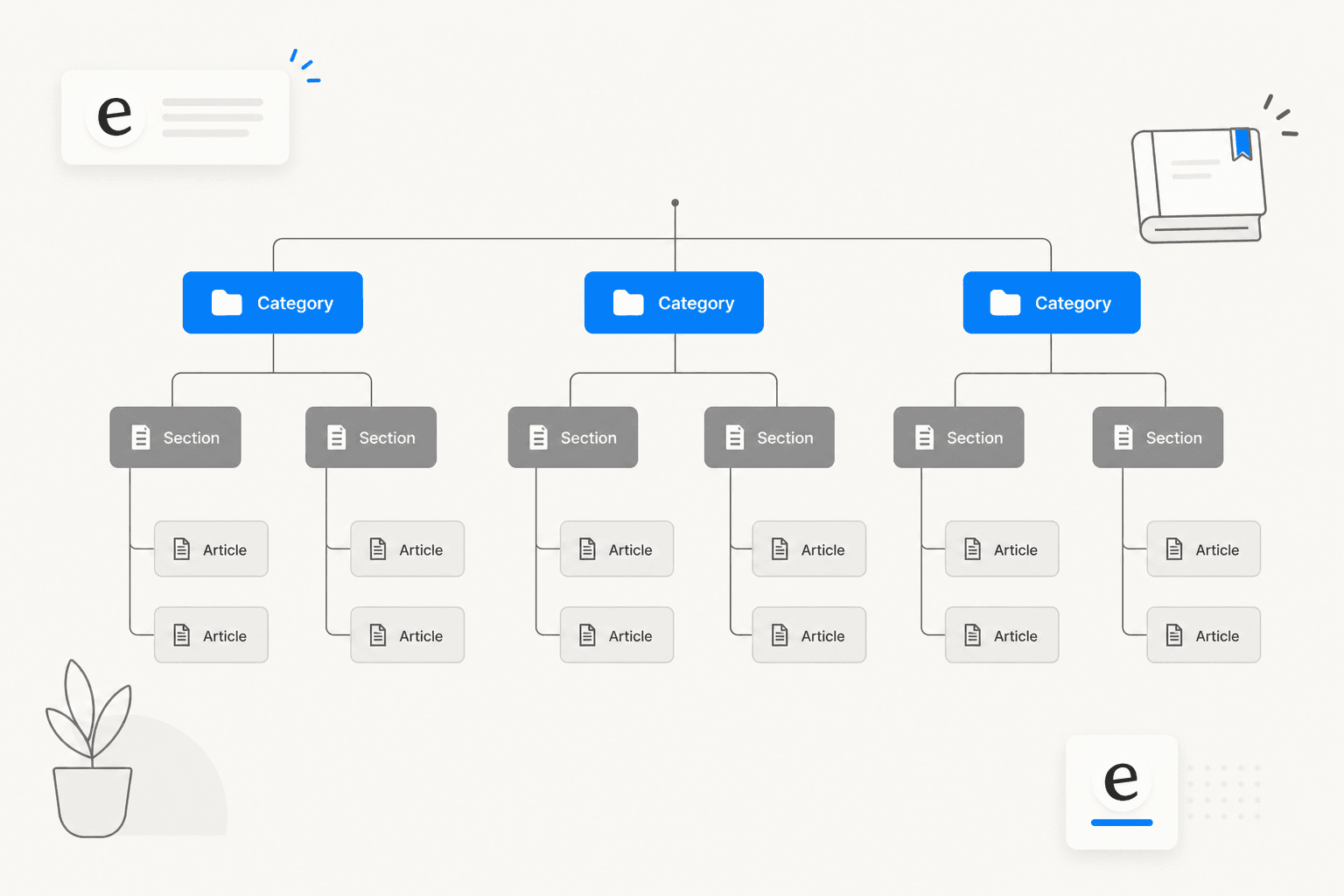
Use a three-level hierarchy: Categories (6-8 maximum), Sections (grouped topics within each category), Articles (individual help content). Base categories on the job customers are trying to do, not your internal team structure. "Getting Started," "Billing," "Account Settings," "Troubleshooting" is cleaner for customers than category names that mirror your org chart.
Article titles
Optimize for how frustrated customers actually search, not how you'd name internal documentation. "Why can't I log in?" outperforms "Authentication troubleshooting" because it matches the exact phrasing a customer types when stuck.
Content standards
Write for the least technical person who will need the article. Keep each article tightly scoped:
- One topic per article
- Aim for 80% of your original draft word count — if it feels long, split it
- Use screenshots and short screen recordings wherever you can; a single annotated screenshot replaces 200 words of step-by-step description
Maintenance
Assign a KB owner responsible for updates. A few practices that prevent knowledge base drift:
- Never let a product change ship without a corresponding KB update — add it to your release checklist
- Audit the full KB quarterly
- Monitor zero-result searches weekly: those are your highest-priority gaps, because someone searched for help and found nothing
A well-maintained knowledge base typically reduces incoming ticket volume by around 20%. Document360's research on knowledge base best practices found that teams with structured, regularly-updated KBs also see significantly higher FCR rates - agents answer faster when they can surface relevant articles in real time.
Step 6: Add AI to handle tier-1 tickets
AI in 2026 works as an overlay on your existing helpdesk, not a replacement for it. You keep Freshdesk or Zendesk for routing, SLA tracking, and reporting. The AI layer sits on top and handles the resolution side.
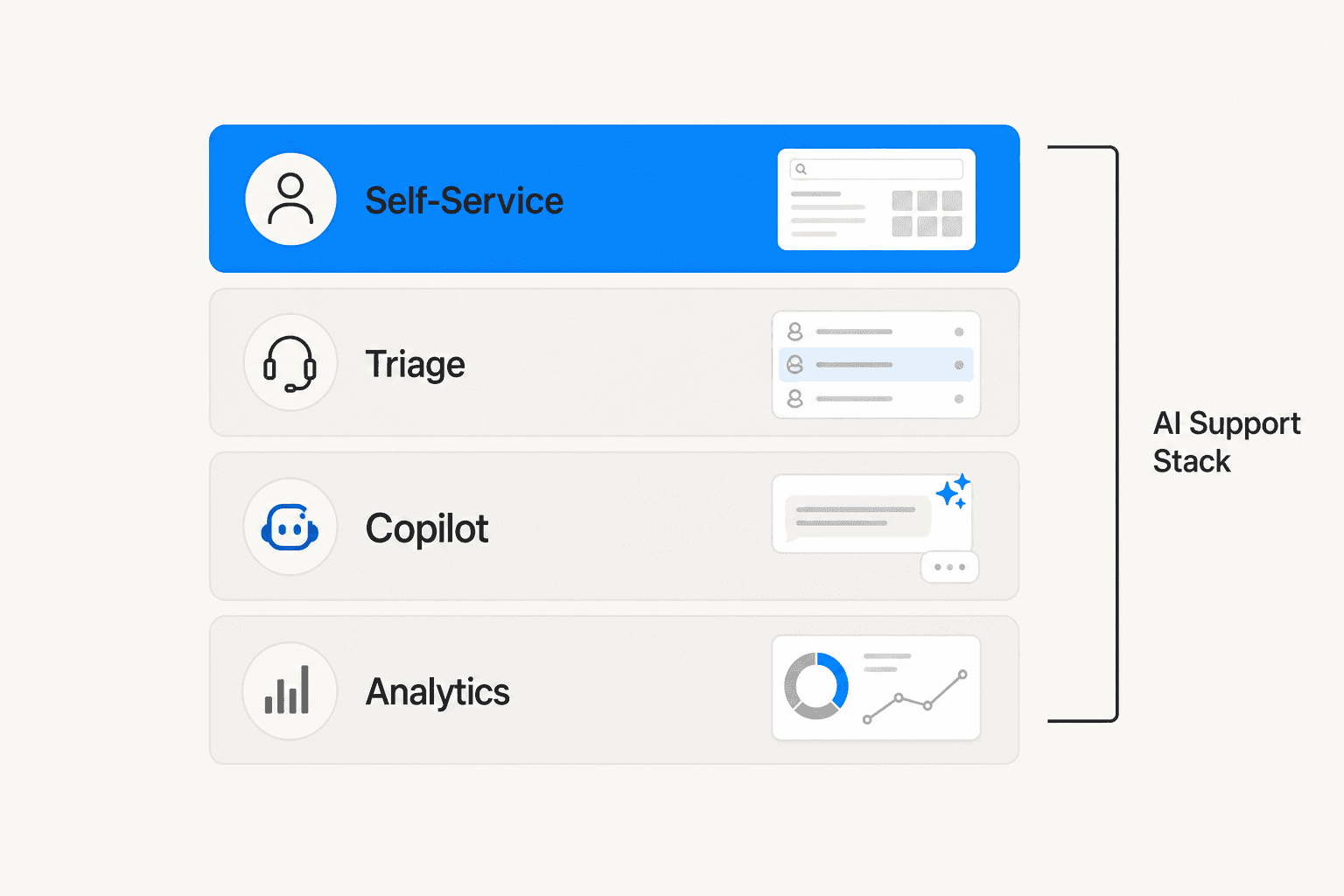
Four distinct layers where AI adds value:
Tier 0 - Self-service deflection. AI intercepts queries before they become tickets. A customer asks a question in a chat widget or email; the AI answers from the knowledge base and closes the interaction without human involvement. Resolution rates of 40-80% are achievable on high-volume, policy-driven query types (order status, password resets, billing questions, FAQs).
Tier 1 - Triage and routing. AI reads every incoming ticket, classifies intent, extracts structured data (order IDs, account types, error codes), and routes to the correct queue without a human triage agent reviewing it first.
Tier 2 - Agent copilot. AI drafts a suggested reply for every ticket, surfaces the relevant KB article, and pulls in relevant customer context. The agent reviews, edits, and sends. Handle time per ticket drops significantly without removing human judgment.
Tier 3 - Quality and analytics. AI monitors conversations across both AI-handled and human-handled tickets, surfacing sentiment trends, emerging patterns, and knowledge gaps the team can address proactively.
Connecting eesel AI to your helpdesk
eesel AI works as an AI agent on top of Freshdesk, Zendesk, and other platforms. Connect it, and it immediately learns from your existing tickets, help center articles, and connected documentation - Confluence, Google Docs, Notion, SharePoint. No manual training, no document uploads, no configuration wizards.
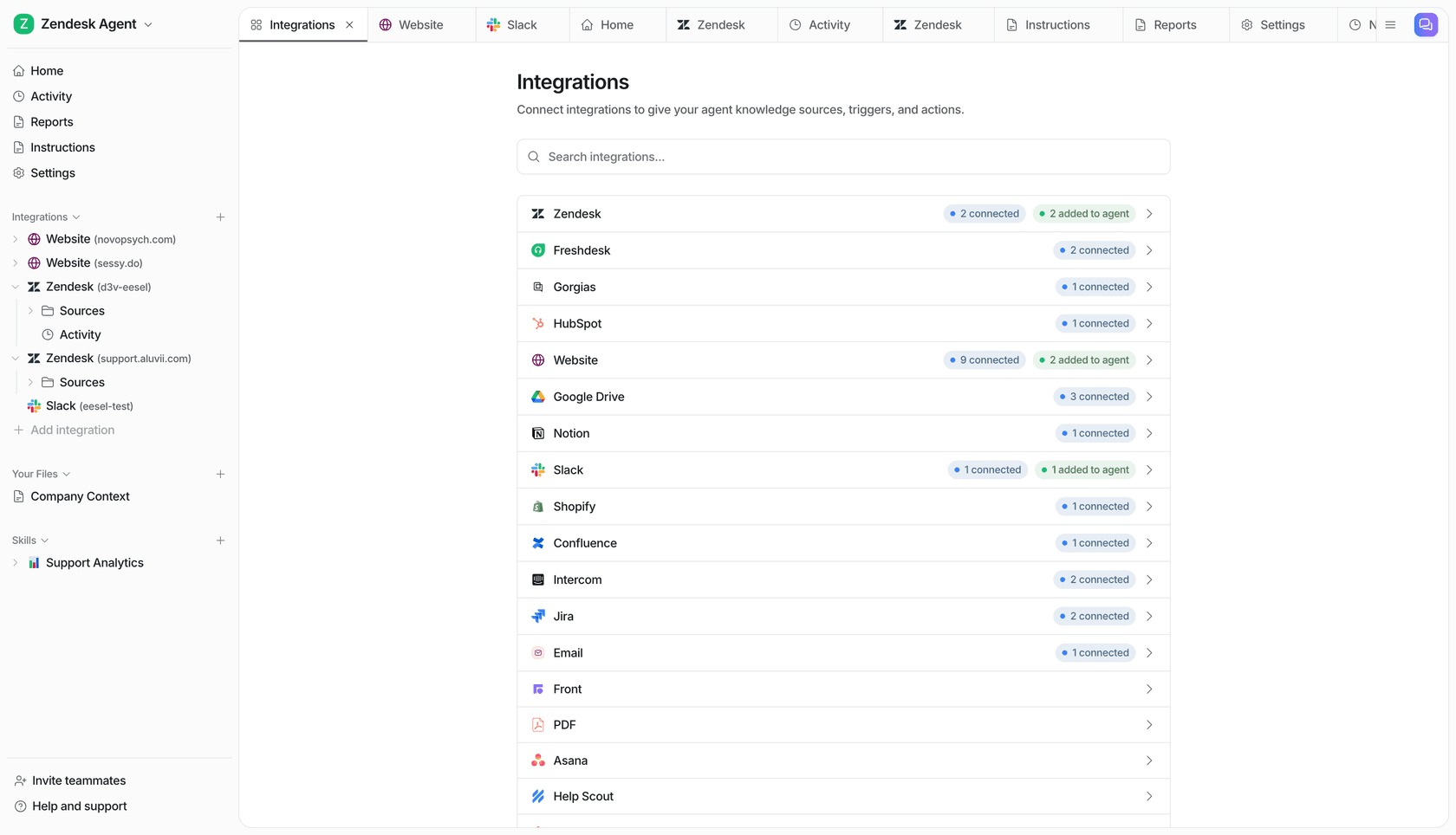
Once connected, you configure its behavior in plain English - the same way you'd explain a policy to a new hire:
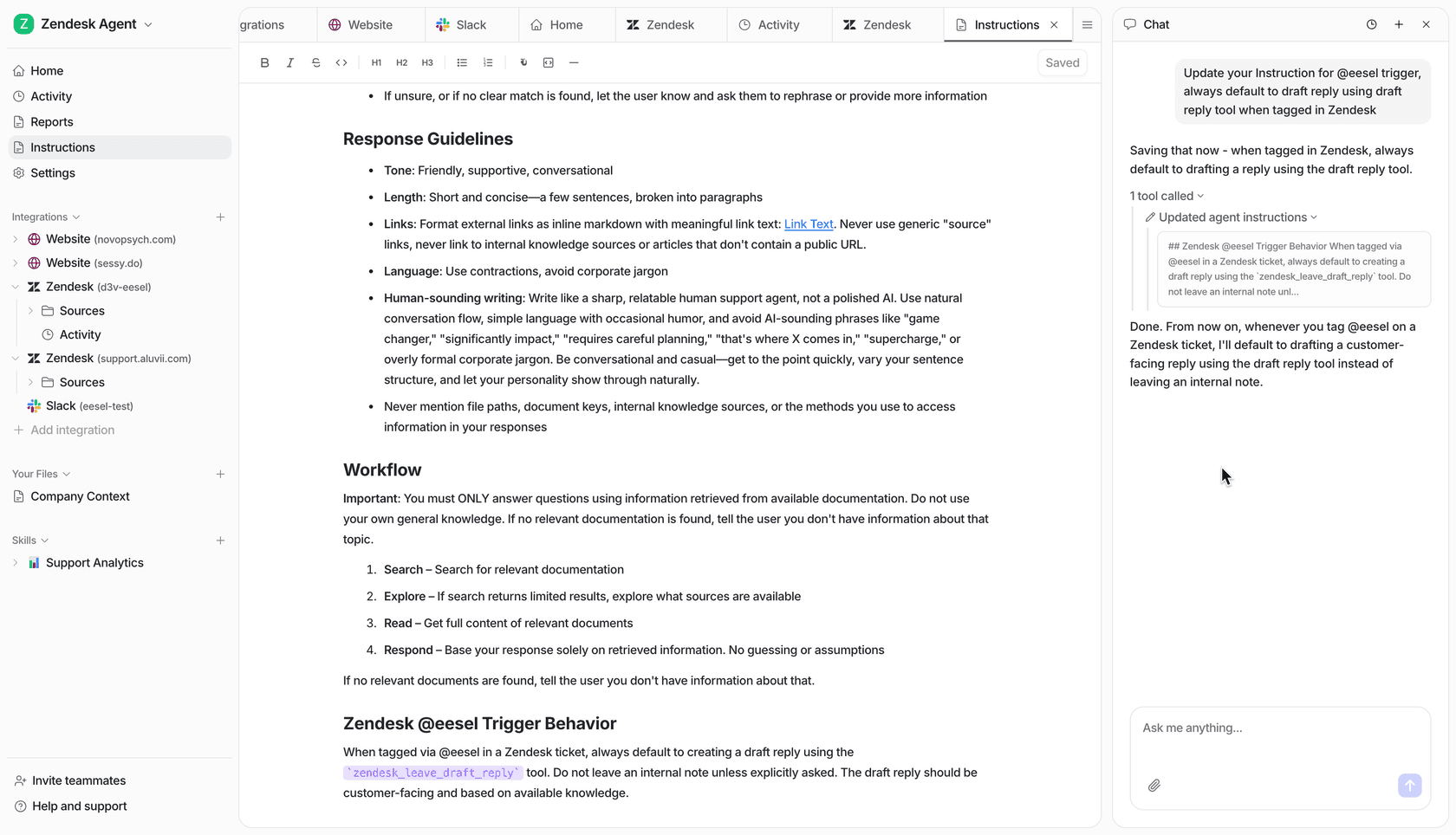
- "If the refund request is over 30 days, politely decline and offer store credit."
- "Always escalate billing disputes to a human."
- "For VIP customers, CC the account manager."
Start eesel AI in supervised mode: every response goes out as a draft for an agent to review before sending. As you see the quality, expand its autonomy. Most teams move eesel from draft-review to autonomous on their highest-volume, lowest-complexity ticket types within the first two to three weeks.
"In the first month, eesel is resolving 73% of our tier 1 requests. Easy Zendesk implementation."
Mature deployments typically reach up to 81% autonomous resolution. eesel uses task-based pricing - $0.40 per resolved ticket, with no per-seat fees. A team handling 500 tickets per month pays $200.
Step 7: Test before going live
Never redirect live customer traffic to a newly configured helpdesk without running end-to-end tests first. Routing rules that fire incorrectly, SLA timers that don't trigger, notifications that go to the wrong person - these are the failure modes that surface immediately in 20 test tickets.
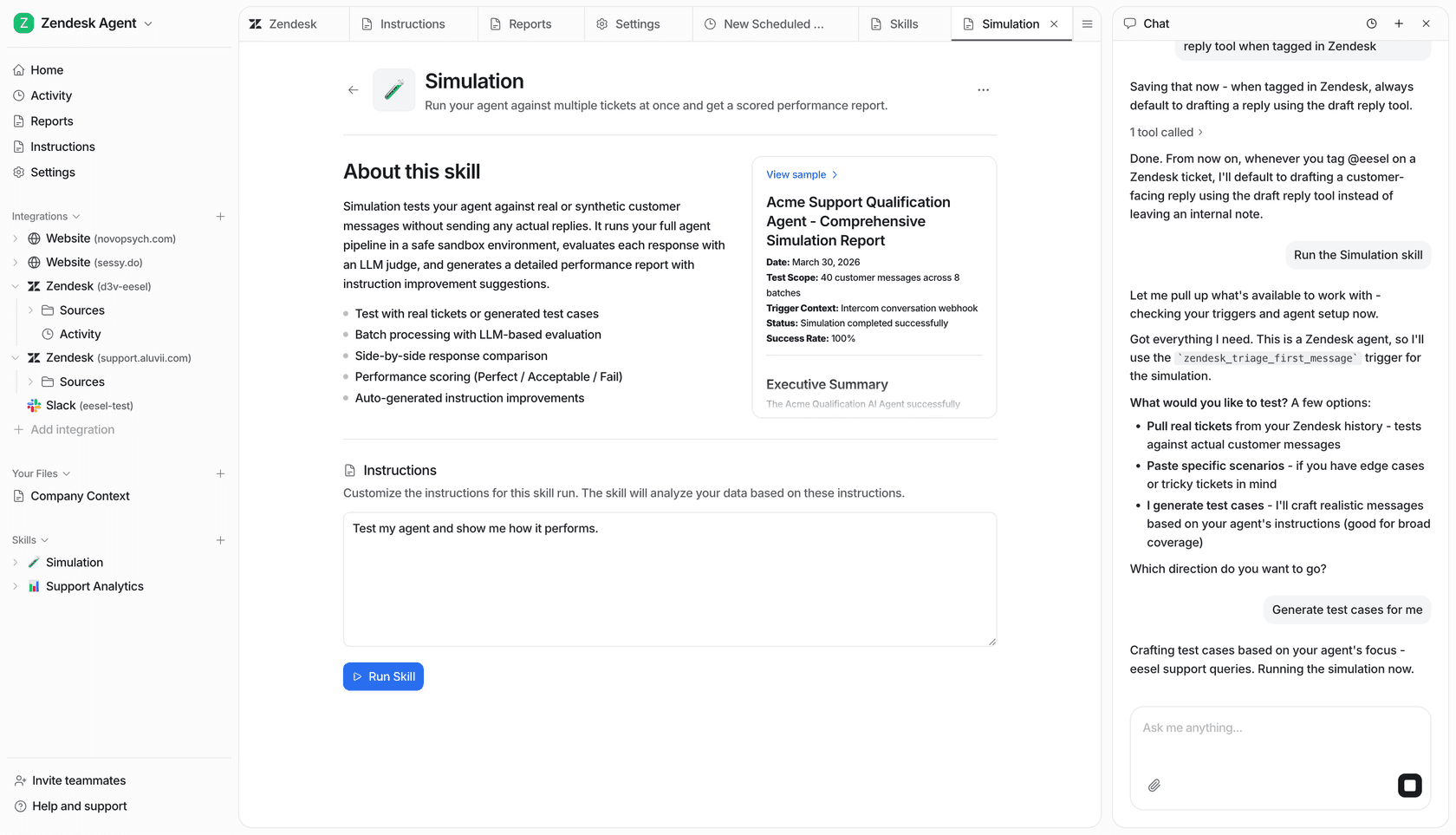
For the AI layer, eesel AI's simulation mode lets you test performance before any customers see it. It runs the AI against thousands of historical tickets and shows exactly how it would have responded - giving you a data-driven accuracy estimate before go-live.
For the base helpdesk, work through this checklist:
- Create sample tickets from each channel (email, chat, contact form)
- Verify routing rules assign tickets to the correct queue
- Confirm SLA timers trigger at the correct intervals
- Test that breach notifications fire to the right people
- Send a test canned response and confirm the formatting
- Validate that knowledge base search returns relevant results for your top 10 query types
- Test auto-close timing and the follow-up email wording
Run a soft launch internally first if possible - have your own team submit tickets through every channel and work through the resulting queue before opening to external customers.
Step 8: Track the metrics that matter
Set up reporting dashboards before going live, not after. The four metrics that carry the most signal in the first 90 days:
First Response Time (FRT)
Time from ticket creation to the first non-automated reply. Around 52% of customers expect an email response within one hour. This is the metric customers feel most immediately - it shapes their impression of your team before the issue is even close to resolved.
First Contact Resolution (FCR)
Percentage of tickets fully resolved in a single reply. The industry baseline target is 70-80% FCR. A low FCR usually points to a knowledge base gap or a routing problem rather than an individual agent skill issue.
CSAT
Send automated satisfaction surveys on ticket close - a rating question plus one optional open text field. Target 90%+.
Track it by agent, by category, and by channel. The breakdowns tell you where to focus coaching and process investment, not just the aggregate number.
SLA compliance rate
What percentage of tickets are meeting your FRT and resolution time targets, tracked weekly by priority tier. If compliance is below 80% in the first month, that's usually a routing problem or a staffing/volume mismatch, not an agent performance problem.
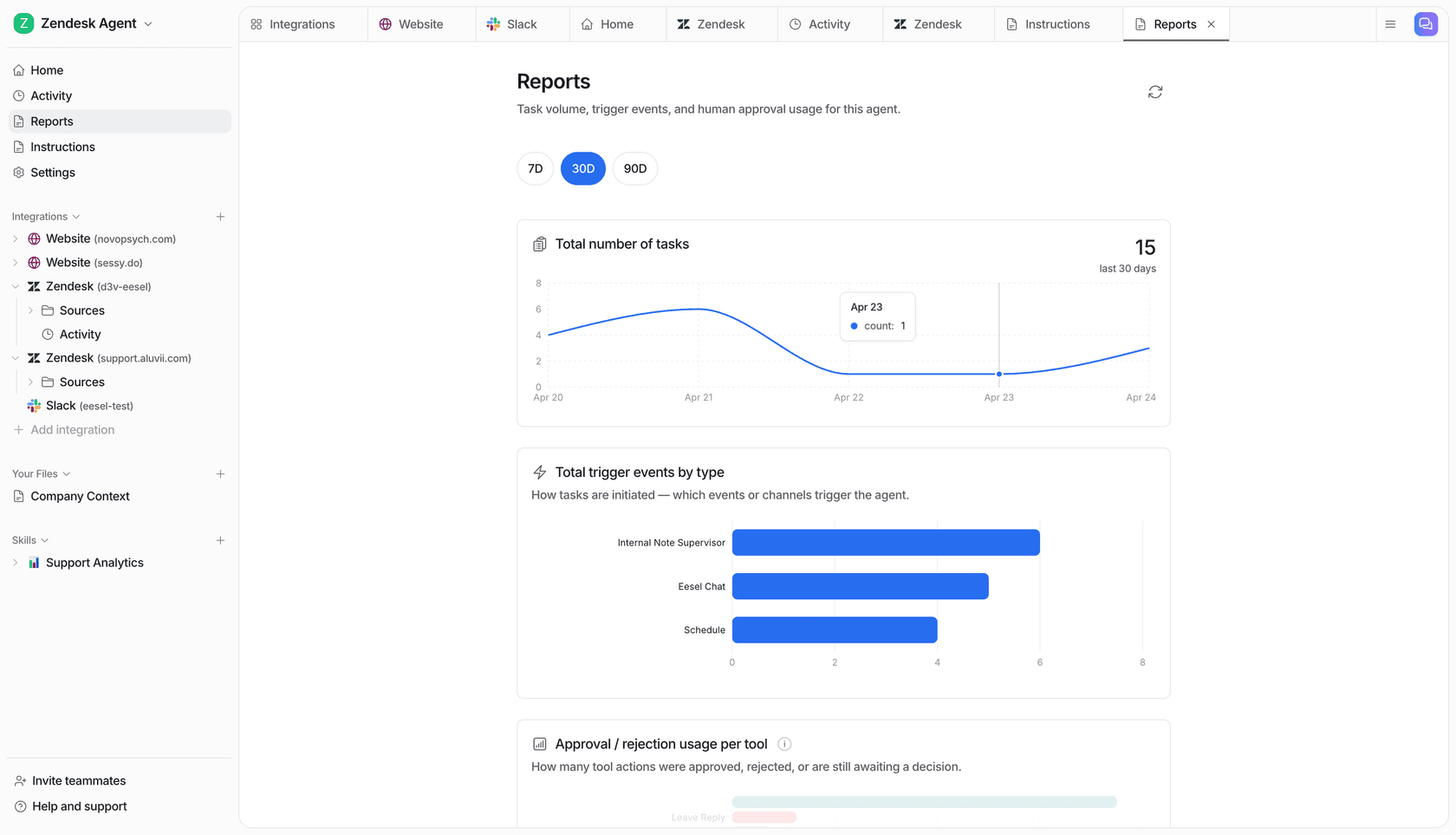
eesel AI surfaces these metrics automatically across both AI-handled and human-handled tickets, so you get a full picture of where resolution is happening and where it's stalling.
Run a weekly performance review for the first 90 days. Track volume by category, resolution time, SLA compliance, and backlog aging. Make one concrete change each week based on data - a routing rule tweak, a new KB article targeting a zero-result search query, a canned response for a recurring question type.
Common setup mistakes worth avoiding
A few patterns show up repeatedly in poorly configured helpdesks.
Going live without testing
Routing rules that fire incorrectly, SLA timers that don't trigger, notifications that reach the wrong person - all of these surface in the first 20 test tickets. Run the checklist before touching live traffic.
No written priority matrix
Without a published 4-tier priority framework with measurable criteria (affected user count, revenue impact, service availability), agents sort tickets by ease rather than urgency. Minor questions get handled first; customers with outages wait. Write it down and publish it internally.
Closing tickets without confirmation
Marking a ticket resolved the moment you send a fix - without confirming the customer's issue is actually resolved - produces reopened tickets and customers who have to re-explain their problem. Send an automated "is your issue resolved?" follow-up and wait 48-72 hours before auto-closing.
Skipping the knowledge base
Teams that delay the knowledge base end up with the same 15 questions arriving 100 times a month. Launch with 10-15 articles covering your most common question types and expand from ticket data.
Treating setup as a one-time project
Routing rules, SLAs, KB content, and automation need to evolve as the business does. Assign a helpdesk owner responsible for quarterly reviews - not just initial setup.
Try eesel AI
eesel AI is an AI helpdesk agent that connects to your existing Freshdesk, Zendesk, or other helpdesk, learns from your current tickets and documentation, and starts resolving tickets within minutes. Mature deployments reach up to 81% autonomous resolution, with a typical payback period under two months. Pricing is $0.40 per resolved ticket with no per-seat fees - start with a $50 free trial, no credit card required.

Frequently Asked Questions
Share this article

Article by
Stevia Putri
Stevia Putri is a marketing generalist at eesel AI, where she helps turn powerful AI tools into stories that resonate. She’s driven by curiosity, clarity, and the human side of technology.