


What counts as a frontend AI tool
Before the list, it's worth drawing the line clearly, because most "best AI tools for developers" roundups blur it and leave you comparing apples to landing pages.
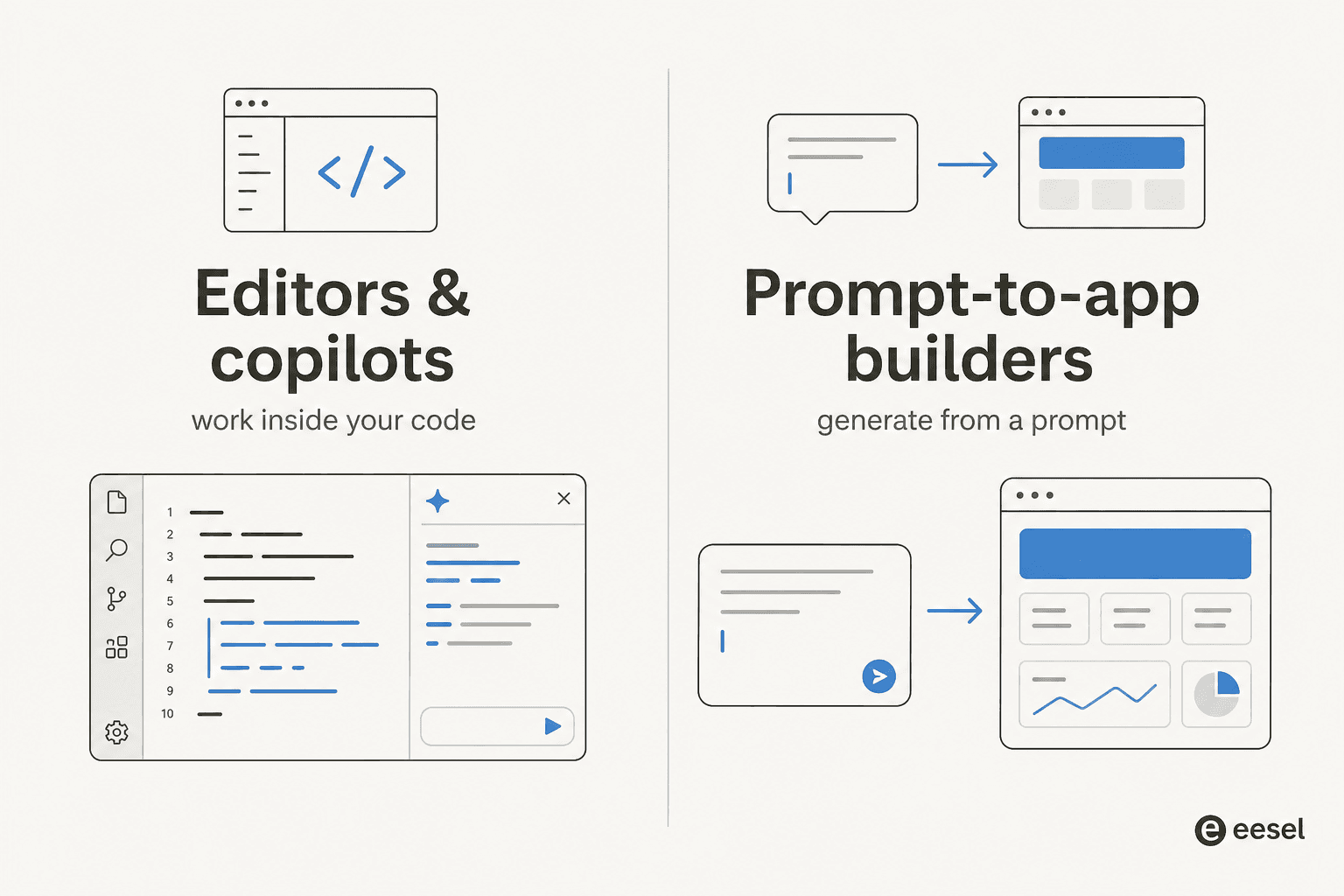
Editors and copilots assume you already have a codebase and want help moving through it faster: autocomplete, multi-file refactors, chat that knows your repo, and agents that can run tasks end to end. This is where AI code editors like Cursor and Windsurf live, alongside copilots like GitHub Copilot.
Prompt-to-app builders start from a blank page and a sentence. You describe the app, and the tool writes the frontend (and often a backend and a database), then deploys it. v0, Lovable, and bolt.new sit here.
The reason this matters: the builders are spectacular for the first prototype and frustrating for the last mile, while the editors are the opposite. Knowing which problem you actually have saves you a month of fighting the wrong tool.
How we picked
We focused on tools that a frontend developer would realistically reach for in 2026, and judged each on the same things a buyer cares about:
- Frontend output quality: does the generated React, HTML, and CSS hold up, or does it need a rewrite?
- Real pricing and limits: not the sticker, the actual cost once you're using it daily, including how fast free tiers and credits run out.
- Control vs speed: how much the tool hands you back versus does for you.
- Ecosystem fit: framework support (Next.js, Tailwind, shadcn/ui), Git integration, and deploy paths.
- What real users say: pulled from Reddit, Hacker News, G2, and X, not vendor copy.
A quick methodology note: the screenshots below are captured live from each product, and the takes lean on each tool's own docs and pricing pages plus community sentiment, not press releases.
The best frontend AI tools for developers at a glance
| Tool | Best for | Type | Free tier | Starts at (paid) | Billing model |
|---|---|---|---|---|---|
| Cursor | The default AI code editor | Editor | Yes (2,000 completions/mo) | $20/mo ($16 annual) | Flat + credit pool |
| GitHub Copilot | Best value copilot | Copilot | Yes (2,000 completions/mo) | $10/mo | Flat + AI credits |
| v0 by Vercel | Generating frontend UI | Prompt-to-app | Yes ($5 credits/mo) | $30/user/mo | Token-metered |
| Claude Code | Agentic, terminal-first work | Agent | No | $20/mo (in Claude Pro) | Subscription |
| Windsurf | Best in-IDE agent experience | Editor | Yes | $20/mo | Flat + usage allowance |
| Lovable | Full prototypes for non-coders | Prompt-to-app | Yes (~30 credits/mo) | $25/mo | Credit-metered |
| bolt.new | In-browser full-stack builds | Prompt-to-app | Yes (1M tokens/mo) | $25/mo | Token-metered |
| Gemini Code Assist | The most generous free tier | Copilot | Yes (180k completions/mo) | $19/user/mo | Flat per seat |
| OpenAI Codex | Delegating cloud tasks | Agent | Yes (limited) | $20/mo (in ChatGPT Plus) | Subscription + credits |
1. Cursor
Best for: developers who want one AI-native editor that does everything well.
Cursor is a VS Code fork from Anysphere that builds frontier AI models straight into the editor, so autocomplete, multi-file edits, and autonomous agents are first-class rather than bolted on through plugins. It's the closest thing the category has to a default, and the adoption backs that up: Cursor is now used by 64% of Fortune 500 companies and ships its own agentic model, Composer 2.5.
For frontend work specifically, the wins are the things you do constantly. Tab completion is genuinely fast, the editor indexes your whole repo so it understands your component structure without hand-holding, and Composer mode can carry out a multi-file change (say, threading a new prop through a component tree) in one pass. Every paid plan also gives you a single subscription across Claude, GPT-5.5, Gemini 3.1 Pro, and Composer, so you can pick a cheap model for boilerplate and a strong one for the gnarly refactor.
| Plan | Price | What you get |
|---|---|---|
| Hobby | Free | 2,000 Tab completions/mo, 50 slow premium requests/mo |
| Pro | $20/mo ($16 annual) | Unlimited Tab, $20/mo API credit pool, full Agent mode |
| Pro+ | $60/mo | $70/mo API credits |
| Ultra | $200/mo | $400/mo API credits |
| Teams | $40/user/mo | SSO, shared rules, pooled usage, Bugbot |
Pros:
- Friction-free migration from VS Code, with all your extensions intact.
- Multi-file Composer and Agent modes that genuinely outclass autocomplete-only tools.
- Strong free tier and a one-year free Pro deal for students.
Cons:
- Pro's included credit pool can run dry in a day of heavy agent use, then you're on pay-as-you-go.
- The Electron app is RAM-hungry, a frequent complaint among power users.
- Frequent UI changes from a fast release cadence can disrupt your shortcuts.
The community verdict skews strongly positive, with Cursor sitting at 4.7/5 on G2 across 205 reviews, and the recurring advice is to grab the $16/month annual rate.
Our take: if you only try one tool from this list, make it Cursor. The deciding factor against GitHub Copilot is multi-file agent editing, which is worth the extra $10/month for anyone doing real frontend refactors. Tab-only users can save the money and stick with Copilot.
2. GitHub Copilot
Best for: teams already living in GitHub who want the best value copilot.
GitHub Copilot is the most widely adopted AI coding tool there is, having crossed 20 million users per GitHub CEO Thomas Dohmke. It spans the IDE, GitHub.com, the terminal, and mobile, with inline completions, chat, a cloud agent that works issues into pull requests, and AI code review all under one subscription. You also get model choice across GPT-5.x, Claude 4.x, and Gemini 3.x.
For a frontend developer, Copilot's pitch is reach and price. It's everywhere you already work, the $10 Pro tier is half the cost of Cursor, and the cloud agent can take a "build this component" issue and open a PR while you do something else. Where it lags is depth: its in-editor multi-file editing isn't as strong as Cursor's Composer, which is the main reason power users pay up.
| Plan | Price | AI credits | Notes |
|---|---|---|---|
| Free | $0 | Limited | 2,000 completions/mo, Haiku 4.5 + GPT-5 mini |
| Pro | $10/mo | $15/mo | Unlimited completions, cloud agent, code review |
| Pro+ | $39/mo | $70/mo | Premium models including Opus, 4x+ Pro usage |
| Max | $100/mo | $200/mo | Priority new models, highest usage |
The catch worth knowing: in June 2026, GitHub moved Copilot to usage-based billing, replacing premium-request quotas with AI credits at $0.01 each, and the rollout was not popular. Tech commentator Ed Zitron summed up the mood:
"Day one of GitHub Copilot token-based billing and the customers LOVE IT! They're all celebrating the power and value of generative AI!"
Pros:
- The cheapest serious copilot at $10/month, with a usable free tier.
- Deep GitHub integration: issue-to-PR, code review, and CI all in one place.
- Multi-model choice and a massive extension ecosystem.
Cons:
- The new token-based billing drew real backlash and makes costs harder to predict.
- In-editor agent editing trails Cursor and Claude Code on complex tasks.
- Free and Pro inputs may train models unless you opt out.
Our take: Copilot is the best value pick and the right call if your work already orbits GitHub. For a deeper look at its tiers, our Copilot overview walks through each plan. If you need the strongest agentic editing, you'll still reach for Cursor.
3. v0 by Vercel
Best for: turning a prompt, screenshot, or Figma mockup into clean frontend code.
If the list has a true frontend specialist, it's v0. Vercel's docs describe it as "an AI agent that helps anyone create real code and full-stack apps", built natively around Next.js, Tailwind, and shadcn/ui, with one-click deploy to Vercel. You can feed it a text prompt, a screenshot, or a Figma file, and it returns components that drop straight into the stack most React teams already use.
The frontend output is the standout. Even critics concede the point: in one r/vercel thread, a user called v0's landing-page output "years ahead" of the competition. Where it gets shakier is on complex, multi-step builds, where users report the output turns generic and harder to customize.
| Plan | Price | Included credits |
|---|---|---|
| Free | $0/mo | $5/mo credits, 7 messages/day |
| Team | $30/user/mo | $30/mo credits + $2/day login credits |
| Business | $100/user/mo | Same credits, training opt-out by default |
| Enterprise | Custom | SAML SSO, RBAC, SLAs, no training |
Usage burns credits by token across four models (v0 Mini through v0 Max Fast), and that's where the friction is. The loudest complaint is pricing: users burn through credits in days and compare it unfavorably to Cursor's flat $20. The old Ultra plan has since been discontinued.
Pros:
- Best-in-class frontend and landing-page generation, fast and clean.
- Native Next.js, Tailwind, and shadcn/ui output, plus instant Vercel deploy.
- Multi-modal input: prompts, screenshots, and Figma all work.
Cons:
- Token metering means heavy use gets expensive quickly.
- Quality degrades on large, multi-step requests.
- Output can feel generic and need manual customization.
Our take: v0 is the one to reach for when you specifically need UI generated, and it's strongest as a starting point you then refine in a real editor. If you're price-sensitive and building all day, the metered model is the thing to watch.
4. Claude Code
Best for: developers who want to delegate whole tasks, not just autocomplete.
Claude Code is Anthropic's agentic coding tool, and it represents the "autopilot, not copilot" end of the spectrum. You describe what you want and Claude handles the implementation: writing code, running tests, creating commits, and opening pull requests. It runs across the terminal, VS Code, JetBrains, a desktop app, and Slack, and it's included in Claude's Pro, Max, and Team subscriptions rather than sold on its own. The traction is hard to ignore: Claude Code crossed $2.5B in ARR by February 2026 and the public repo has over 130,000 GitHub stars.
For frontend work, the value is repo-level reasoning. Community testing keeps landing on the same description, that Claude Code behaves like a senior engineer who already read your whole codebase, which makes it strong at coordinated multi-file changes and cleaner refactors. It's less about typing alongside you and more about handing off a chunk of work. Our Claude Code guide goes deeper on setup.
| Plan | Price | Claude Code |
|---|---|---|
| Pro | $17/mo (annual) / $20 monthly | Included |
| Max 5x | $100/mo | 5x usage vs Pro |
| Max 20x | ~$200/mo | 20x usage vs Pro |
| Team | $20/seat/mo (annual) | Included + Cowork |
Pros:
- Best-in-class context handling and multi-file refactors.
- Genuinely agentic: issue-to-PR, tests, and commits end to end.
- Works across terminal, IDEs, desktop, and Slack from one engine.
Cons:
- Rate limits on the $20 Pro plan bite fast in intensive sessions; heavy users need Max.
- No free tier.
- Generates duplicated code if you don't review it; treat it like a junior engineer.
Our take: Claude Code is the pick when your bottleneck is throughput, not typing. Pair it with Claude Code best practices and a Max plan if you're running it hard. For autocomplete-style flow, Cursor or Copilot still feel more natural.
5. Windsurf
Best for: developers who want the most polished in-IDE agent, and a Cursor alternative.
Windsurf is the AI-native editor formerly known as Codeium, and it comes with a plot twist: Cognition acquired it in July 2025 after an OpenAI deal fell through, and it's now rebranding to Devin Desktop, with its Cascade agent being succeeded by Devin Local. The product itself is a full VS Code-compatible IDE with a strong built-in agent and a new Agent Command Center that manages local and cloud agents from one Kanban view. It claims 1M+ users and 4000+ enterprise customers.
The reason it's on this list is the agent experience. Windsurf's context management and UI polish get cited constantly as better than Cursor's, and a developer in the r/windsurf community captured the 2026 switching story well:
"So I tried Copilot, Kiro and Windsurf and found Windsurf to be the best in terms of pricing and value... my workflow from Cursor is completely replaced by Windsurf... thank you for such fair and transparent pricing."
u/muhammadali_kazmi on r/windsurf

| Plan | Price | What you get |
|---|---|---|
| Free | $0 | Unlimited Tab + inline edits, light agent quota |
| Pro | $20/mo | Frontier OpenAI/Claude/Gemini models, Devin Cloud access |
| Max | $200/mo | Significantly higher quotas for power users |
| Teams | $80/mo + $40/seat | Unlimited members, admin dashboard, priority support |
Pros:
- Widely seen as the most polished UI and best in-IDE agent context management.
- Pro matches Cursor at $20/month, with unlimited Tab even on Free.
- Agent Client Protocol support lets you run Codex, Claude, and others inside it.
Cons:
- Mid-rebrand to Devin Desktop, so names and docs mix Windsurf, Cascade, and Devin.
- Pricing moved to an opaque refreshing allowance with no published credit counts.
- Setting up MCP servers and custom commands is hard to discover.
Our take: Windsurf is the strongest Cursor alternative for the in-editor agent experience, especially if you value a clean UI. The brand churn is the only real hesitation; if a stable name matters to you, that's a point for Cursor.
6. Lovable
Best for: non-technical founders and product teams building a full prototype fast.
Lovable is a Stockholm-based prompt-to-app builder that takes you from a plain-language description to a live, full-stack web app: React frontend, Tailwind styling, a database via Supabase, auth, and hosting, all from one chat interface. The numbers are staggering for how young it is, with a reported $300M+ ARR inside its first year and 8M+ registered users. It's aimed squarely at people who want a working product without writing the boilerplate.
Speed is its killer feature. The "6 months of work in 2 days" framing circulates widely on Reddit and is broadly true for first-prototype work like landing pages and internal tools. But the gap shows up later, and it's worth being honest about.
| Plan | Price | Credits |
|---|---|---|
| Free | $0 | ~30/mo (5/day cap) |
| Pro | $25/mo | 100+ monthly credits, custom domains, code mode |
| Business | $50/mo | Pro + SSO, team workspace, data opt-out |
| Enterprise | Custom | SCIM, audit logs, dedicated support |
The recurring frustration, cited in roughly 60% of negative G2 reviews, is the credit model: actions cost a variable, hard-to-predict number of credits, and fixing Lovable's own regressions can burn through a paid plan. The practitioner consensus that's emerged is telling: "Lovable for the first 80%, Cursor for the rest."
Pros:
- Genuinely fast from prompt to a live, full-stack app.
- Handles frontend, backend, auth, and hosting in one flow.
- Strong fit for non-coders and rapid MVPs; 4.6/5 on G2 across 280 reviews.
Cons:
- Credit costs are opaque and the "bug doom loop" can drain a plan quickly.
- The last 20% (production hardening, complex logic) needs real code.
- Sentiment drops sharply once projects grow past MVP complexity.
Our take: Lovable is excellent for getting to a live URL without a developer, and a poor fit for shipping a complex production app on its own. Prototype in Lovable, then export to GitHub and finish in a real editor. If you're comparing builders, our no-code AI tools roundup covers adjacent options.
7. bolt.new
Best for: in-browser, full-stack builds with nothing to install.
bolt.new is StackBlitz's browser-based answer to the prompt-to-app category. It markets itself as "the #1 professional vibe coding tool" and runs entirely on WebContainers, so the dev server and package installs execute client-side, with no remote VM or local setup. You describe an app, an agent scaffolds and iterates on it, and you can publish to a live .bolt.host URL in seconds. Databases get auto-provisioned when your app needs one.
Its sweet spot is the same as Lovable's: fast frontend and design output. The community split is also similar, with bolt praised for design and dinged for functional reliability and, above all, token consumption. One r/boltnewbuilders user put it memorably:
"the fastest token eating machine on Earth"
user on r/boltnewbuilders
| Plan | Price | Tokens |
|---|---|---|
| Free | $0 | 300K/day, 1M/mo, Standard agent, Bolt branding |
| Pro | $25/mo | From 10M/mo, no branding, custom domains, Max agent |
| Teams | $30/mo per member | Pro + admin controls, org sharing (tokens per member) |
| Enterprise | Custom | SSO, audit logs, SLAs, 24/7 support |
Pros:
- Zero setup: a full in-browser dev environment via WebContainers.
- Strong design output and instant hosting on every project, including Free.
- Figma, GitHub, Stripe, and Expo integrations built in.
Cons:
- Token burn is the dominant complaint; fixing regressions costs real money.
- Functionality lags the design quality on complex apps.
- The underlying model is undisclosed and there's no published uptime SLA.
Our take: bolt.new is a great way to get a designed, deployed prototype from a browser tab, and it competes head-to-head with Lovable. Watch the token meter, and plan to move complex projects into a proper editor before launch.
8. Gemini Code Assist
Best for: developers who want a serious free tier and Google Cloud integration.
Gemini Code Assist is Google's direct answer to GitHub Copilot, built on the Gemini model family. It lives in VS Code, JetBrains, Android Studio, and the terminal, with code completion, chat, an agent mode, and deep hooks into Google Cloud services like Firebase and BigQuery. Its headline is the free tier, which Google says offers up to 180,000 code completions a month, described as 90x more than other popular free coding assistants, plus 240 chat messages a day and a large context window.
For a frontend developer who doesn't want to pay yet, that free allowance is hard to beat, and the GitHub PR-review app is genuinely good at catching issues. The friction points are GCP account setup, which can get messy, and inline suggestions that sometimes clash with your existing architecture.
| Edition | Monthly | Annual |
|---|---|---|
| Individuals | $0 | $0 |
| Standard | $22.80/user | $19/user |
| Enterprise | $54/user | $45/user |
One thing to verify before committing: Google is migrating free and Google One users' Gemini CLI to Antigravity CLI on June 18, 2026, though paid Standard and Enterprise users aren't affected.
Pros:
- The most generous free tier in the category by a wide margin.
- Strong GitHub PR review and a 1M-token context window on paid tiers.
- Enterprise-grade security: IP indemnification, SOC and ISO certifications.
Cons:
- Google Cloud account integration can be fiddly.
- Inline suggestions sometimes conflict with your existing patterns.
- Free-tier prompts may be used to improve Google products.
Our take: if you're starting out, on a budget, or already in the Google Cloud ecosystem, Gemini Code Assist's free tier is the obvious first stop. Heavy professional users tend to prefer Cursor or Copilot for the in-editor experience.
9. OpenAI Codex
Best for: delegating cloud tasks and code review from your ChatGPT plan.
OpenAI Codex is OpenAI's agentic software-engineering product, bundled into ChatGPT subscriptions rather than sold separately. It runs on the web, a CLI, and an IDE extension, and the cloud version can take a task, work it in a sandboxed environment, and open a PR or review one, all powered by the GPT-5 family. For developers already paying for ChatGPT, it's effectively free capability you may not be using.
Its strength is delegation: hand Codex a well-scoped task and let it run in the cloud while you keep working locally. For frontend developers, that's useful for the chores (test coverage, refactors, dependency bumps) more than for pixel-level UI design, where v0 is the better fit. Codex's generous usage at the $20 tier also gets named repeatedly as a threat to the dedicated editors.
| Plan | Price | Codex access |
|---|---|---|
| Free | $0 | Limited trial access |
| Plus | $20/mo | Web, CLI, IDE, cloud code review + Slack |
| Pro 5x | $100/mo | 5x more Codex usage than Plus |
| Pro 20x | $200/mo | 20x more usage, Codex-Spark preview |
| Business | Per seat | Admin controls, SSO, no training by default |
Worth flagging: in April 2026, OpenAI switched Codex to token-based credit pricing, so a typical task consumes a variable 5 to 45 credits, and real-world cost lands around $100 to $200 per developer per month for heavy use.
Pros:
- Comes free with a ChatGPT subscription you may already pay for.
- Strong cloud delegation: run tasks and reviews while you work locally.
- Generous usage quotas at the $20 Plus tier.
Cons:
- Token-based pricing makes heavy use costs hard to predict.
- Less suited to interactive, in-editor frontend flow than Cursor or Windsurf.
- API-key access lags ChatGPT subscribers on new models.
Our take: Codex is the easy yes if you already have ChatGPT, especially for delegating backend-ish chores. As a primary frontend tool it's a complement to an editor, not a replacement. For more on agentic options, see our guide to Claude AI developer tools.
The pricing trap nobody warns you about
If you noticed a pattern in the verdicts above, you're not imagining it. The single most consistent complaint across this entire list isn't quality, it's billing. And the tools split cleanly into two camps.
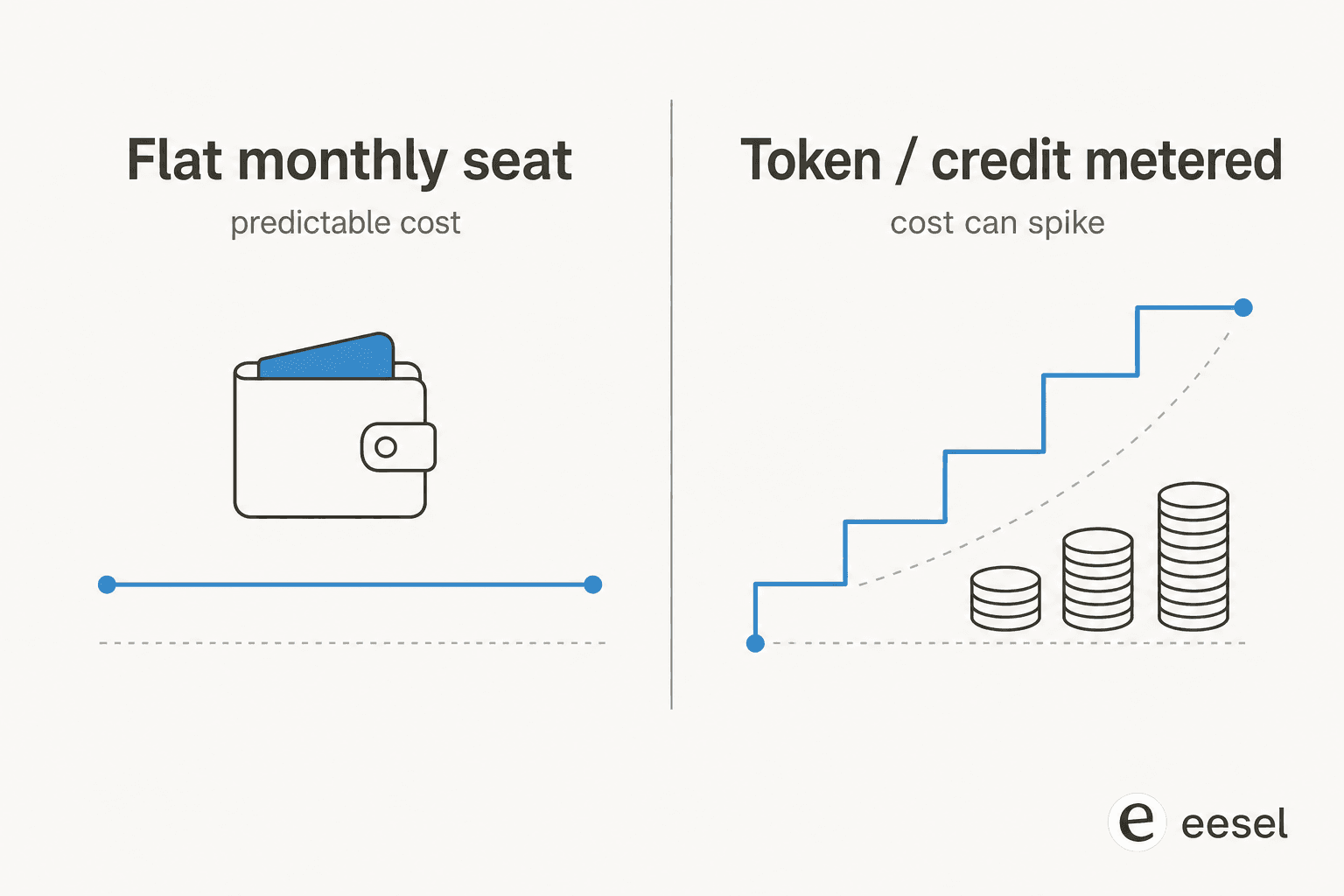
The flat-rate camp (Cursor, Windsurf, Claude Code, Copilot Pro at $10) charges a predictable monthly fee. You might hit a usage ceiling, but you won't get a surprise bill. The metered camp (v0, Lovable, bolt.new, and increasingly Copilot and Codex) charges by token or credit, and that's where the horror stories live: credits gone in days, money spent fixing the tool's own mistakes, "the fastest token eating machine on Earth."
The practical advice: if you build all day, default to a flat-rate tool, and treat the metered builders as something you dip into for a specific prototype rather than your daily driver. The metered model is fine for occasional bursts and brutal for sustained work. This is the same dynamic we see in support tooling, where per-resolution pricing can balloon unpredictably compared to a flat plan, and where the real cost savings come from a model you can forecast.
How these tools actually fit together
Here's the reframe that the "which is best" question misses: in practice, most teams don't pick one tool, they chain several across the lifecycle of a feature.
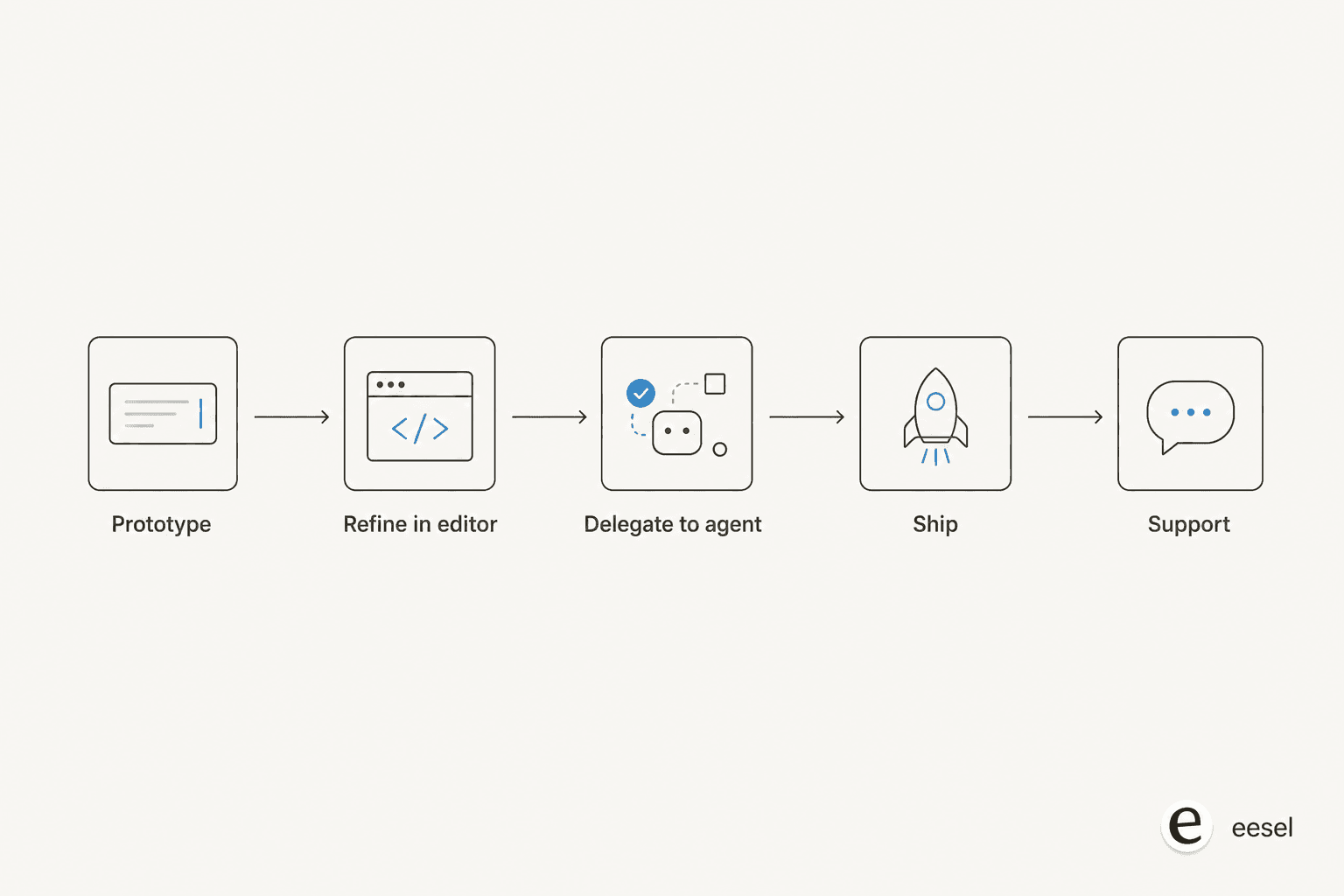
A realistic 2026 workflow looks like this: prototype the UI in v0 or Lovable, refine it in Cursor or Windsurf where you have real control, delegate the repetitive chores to Claude Code or Codex, then ship. Each tool does the job it's actually good at, and you stop fighting any one of them to do everything.
But notice the stage everyone forgets: support. Shipping faster doesn't just mean more features, it means more questions, more edge cases users hit, more "how does this work" questions that an AI knowledge base chatbot could field, landing in your inbox and your team's Slack. The build pipeline got faster; the support pipeline didn't. That's the gap worth closing next.
Try eesel
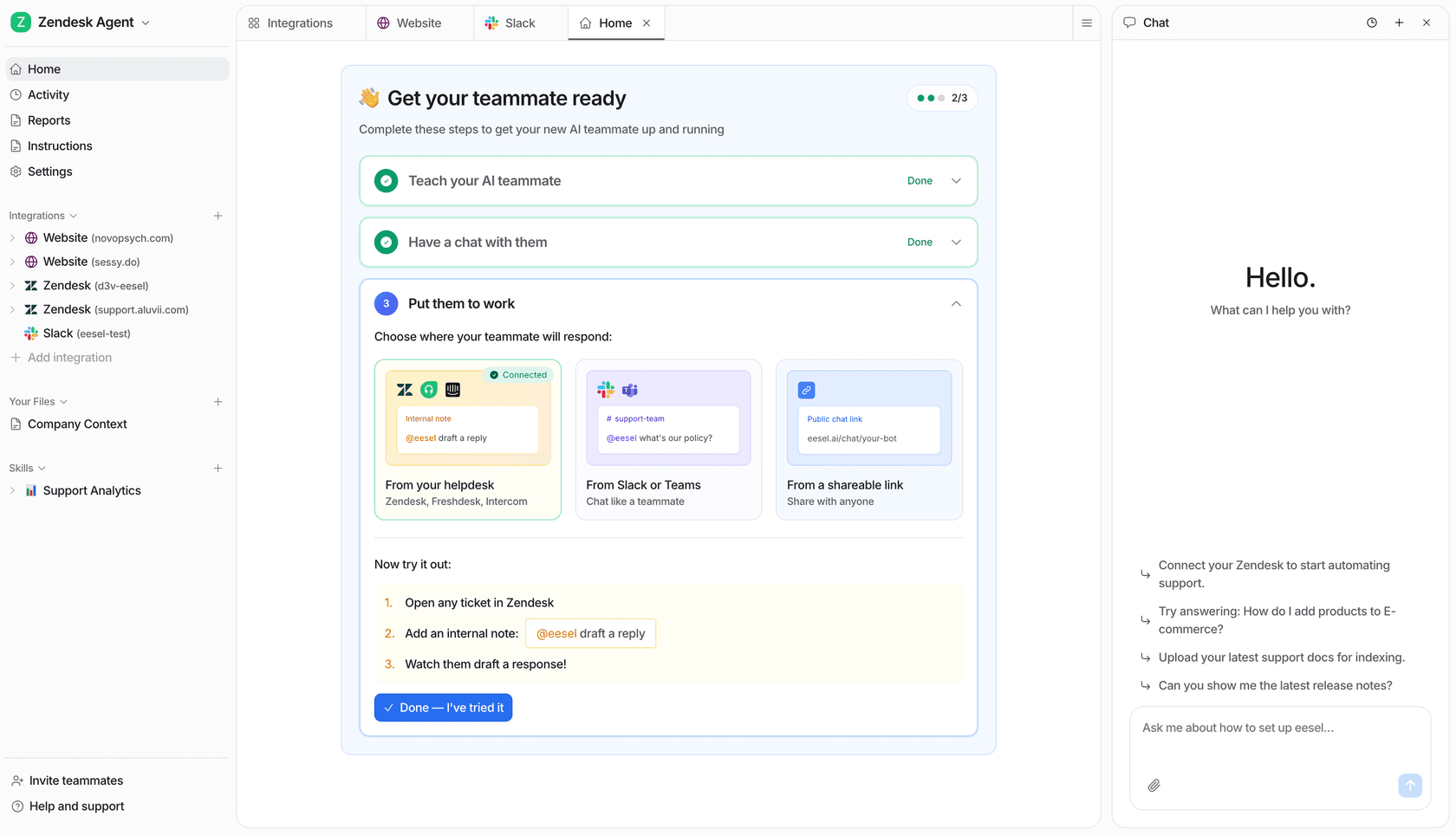
The frontend AI tools above help you build the product faster. eesel handles what happens after you ship it: the support tickets and internal questions that scale with every feature you release.
eesel is an AI agent that plugs into the tools your team already uses (your helpdesk, Slack, and your docs) and resolves questions on its own, drawing answers from your existing knowledge so it's accurate from day one. For an engineering team, that means internal knowledge-base questions and customer tickets get answered automatically instead of pulling developers out of flow. And unlike the metered tools in this list, eesel uses transparent, predictable pricing with no per-resolution surprises, so your support cost doesn't spike the moment a launch goes well. It's the same "ship fast" philosophy, applied to the part of the stack the build tools leave behind.
Frequently Asked Questions
What are the best frontend AI tools for developers in 2026?
For working in your own codebase, Cursor and GitHub Copilot are the default picks, with Windsurf and Claude Code close behind. For generating UI from a prompt, v0, Lovable, and bolt.new lead. We compare all nine in our roundup of the best AI coding assistant tools.
Are there free frontend AI tools for developers?
Yes. Cursor, GitHub Copilot, and Gemini Code Assist all have genuinely usable free tiers, and Gemini's is the most generous at 180,000 completions a month. v0 and bolt.new also have free plans, though their credit caps run out fast. We cover the trade-offs in our guide to artificial intelligence coding.
What is the difference between an AI code editor and a prompt-to-app builder?
An AI code editor (Cursor, Windsurf, Copilot) lives inside your existing code and helps you write and refactor it. A prompt-to-app builder (v0, Lovable, bolt.new) generates a working app from a plain-language description. Editors give you control; builders give you speed. Many teams use both, and pair them with an agentic coding CLI for delegation.
How much do these AI tools for developers cost?
Flat-rate editors like Cursor and Windsurf sit around $20 a month, and GitHub Copilot Pro is $10. Prompt-to-app builders and v0 use token or credit metering, where heavy use can climb past $100 a month. We break down the billing models in our Copilot pricing guide.
Can frontend AI tools replace developers?
Not yet. They compress the first 80% of a build, but the last 20%, the production hardening, security, and edge cases, still needs a developer. The same logic applies to support: shipping faster means more questions from users, which is where an AI helpdesk agent like eesel earns its place handling the tickets your new features generate.


Article by
Alicia Kirana Utomo
Kira is a writer at eesel AI with a Computer Science background and over a year of hands-on experience evaluating AI-powered customer service tools. She focuses on breaking down how helpdesk platforms and AI agents actually work so that support teams can make better buying decisions.