

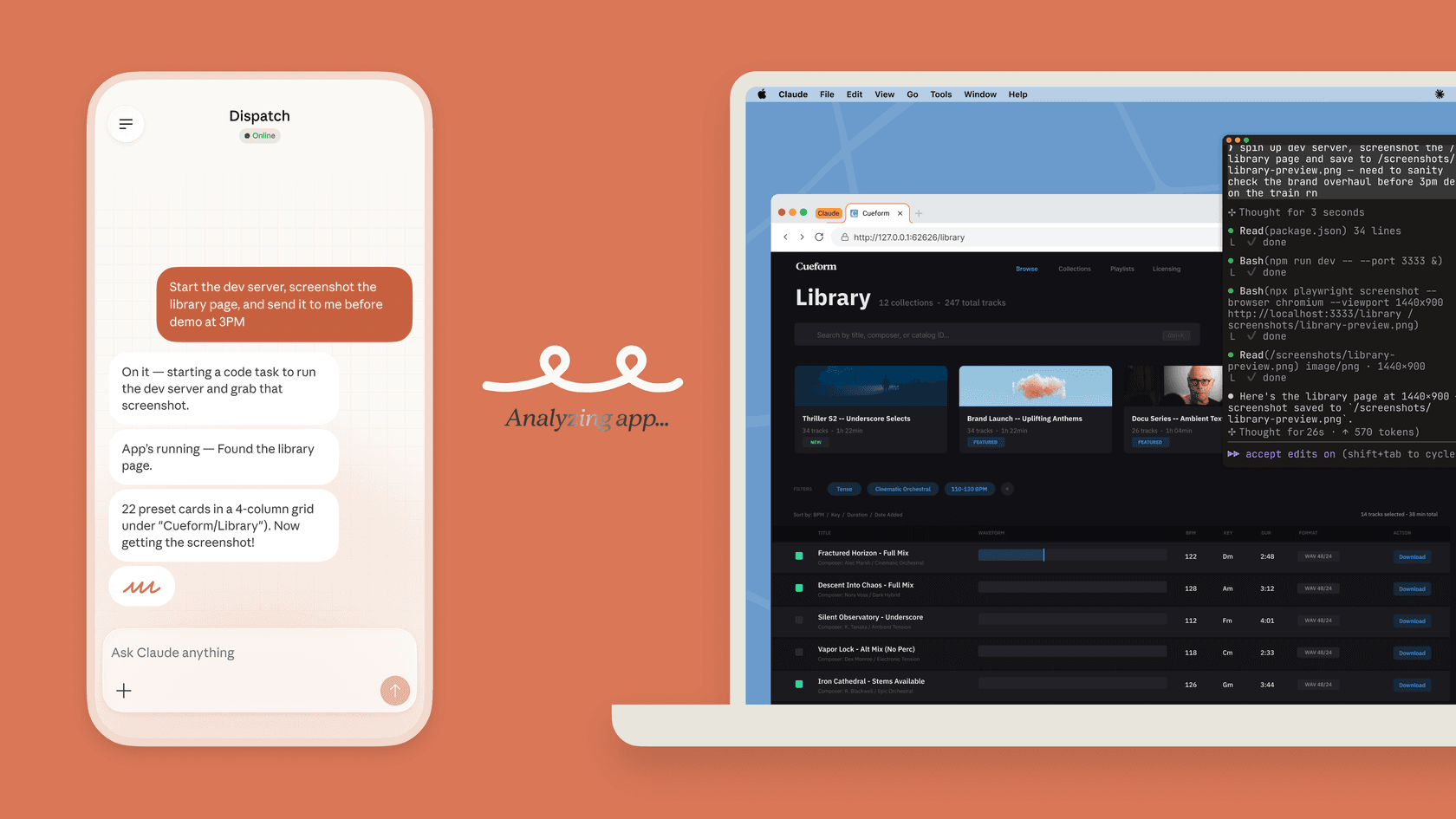
The three Claude Desktop surfaces
Chat: conversation and everyday work
Chat is the familiar Claude experience: ask questions, work with supplied files, draft a document, or analyze information. It is the right starting point when a person remains in the loop and the result is a conversation or draft. A polished answer is still not proof that a policy, number, or product claim is right.
The installation guide lists Chat on every plan and Code and Cowork on paid plans. Download the official app, install it, and sign in. On a managed account, check organization settings if a feature is unavailable.
Cowork: longer tasks with boundaries
Claude Cowork is for longer-running tasks in the Claude product. A cloud session can continue work, but local access requires the desktop app to be open. Treat that distinction seriously: a cloud task does not silently gain access to your laptop files just because it has the same name.
Cowork computer use is another boundary. Anthropic’s computer-use guide says it is available to Pro and Max users on macOS and Windows, not Linux. It can use a connector, browser, or screen depending on the setup. Before enabling it, decide which websites, accounts, and actions are in scope. “It can click” is not a sufficient permission model.
Code: folders, commands, and diffs
Claude Code is for development work. In the desktop app it can work with a local project folder, run commands when permitted, show changes, and support diff review. That makes it useful for tasks such as finding where a support integration stores its rules or preparing a proposed change. It does not remove the need to read the diff, run the relevant test, and decide whether the change should ship.
Local access is permissioned, not automatic
The old idea that Claude Desktop cannot touch local files is wrong. The safer current statement is narrower: local access depends on the surface, the app being available, and the permissions you grant. Code works in an explicitly chosen folder. Cowork’s cloud sessions need the desktop app open for local access. Linux has separate beta installation details, so do not copy a macOS or Windows workflow into Linux and assume the same behavior.
That is also why “computer use” needs careful language. The Claude product feature is not the same as building with Anthropic’s API. The API computer-use tool supports a developer-controlled action loop, but it has separate credentials, engineering, controls, and metered usage. A Claude subscription does not turn into API credit.
Set the permission mode before you start
Claude Code Desktop makes the approval decision visible. In Manual mode, it proposes an edit or command and waits for approval. In Accept edits mode, file edits can be applied and then reviewed in the diff view. Plan mode is useful when the first question is whether the approach is right; it asks Claude for an approach without editing. Use Manual or Plan for a new repository, a production-adjacent folder, or a task with unclear scope.
The same rule applies to local folders. Select only the project directory that belongs to the task. Do not give a coding session a broad home folder merely because it is convenient. On Windows, local Code sessions also require Git. A cloud, SSH, or WSL session is a different execution environment with different files and credentials. Check the selected environment before treating a file path or a command result as local evidence.
For Cowork, start with a task that has a clear input and a reviewable output. Good examples are a summary of approved documents, a draft checklist, or a list of missing information. Do not begin with a task that can send messages, update customer records, or publish content until the owner has decided exactly what is allowed and how an exception is handled. A screen action may look small, but it can have a permanent customer consequence.
Pricing: separate product plans from API billing
Claude Pro is $20 per month in the US; local pricing and taxes vary. It adds product-plan capacity and features to Claude, but it does not include Anthropic API usage. Max is a higher-capacity product plan with its own limits and price choices. Check the live plan page for current availability, because access to Cowork and computer use depends on plan, operating system, and rollout state.
For an API prototype, create a separate developer budget. Estimate the actual model, tool, and runtime use; add spending controls; and test a narrow case before connecting an account with customer or production access. Do not describe a Pro subscription as a shortcut around that work.
Use the eesel CLI from Claude Code to review a cancellation-policy gap
Here is a useful task: a support owner suspects the cancellation policy is missing from an eesel helpdesk teammate’s knowledge. A person in a terminal, a script, or a coding agent such as Claude Code, Codex, or Cursor can inspect the same teammate used in the dashboard. The owner checks its integrations and standing instructions against the approved cancellation policy. The desired result is a proposal and sample responses for review.
The owner signs into the existing workspace and replaces Support policy review with an existing non-production teammate’s actual name or ID. In the dashboard, confirm that consequential actions are unavailable or disabled for that reviewer. Approve the policy upload and check billing before authorizing paid chat. Include three sample cases in the file: a cancellation inside the normal window, one outside it, and a request with missing account details. Ask for the relevant policy section, a draft answer, missing information, and an escalation recommendation. A prompt does not create these permission controls.
npx @eesel/cli status --agent "Support policy review"
npx @eesel/cli integrations --agent "Support policy review"
npx @eesel/cli instructions --agent "Support policy review"
npx @eesel/cli files ls --agent "Support policy review"
npx @eesel/cli billing --agent "Support policy review"
npx @eesel/cli files upload ./approved-cancellation-policy.md --agent "Support policy review"
npx @eesel/cli files ls --agent "Support policy review"
npx @eesel/cli chat "Review the approved cancellation policy and the three dry test cases. Return cited draft-only answers, missing information, and escalation recommendations. Do not send, edit, tag, cancel, refund, contact anyone, or take external actions." --agent "Support policy review"
The eesel CLI requires Node.js 18.17 or newer and returns JSON, so Claude Code can inspect the result. The owner checks the cited policy and each sample answer, then separately approves any production knowledge change or live workflow. npx @eesel/cli approvals shows held actions; it does not mean every action pauses. --dry-run can preview a write without sending it, although reads still run for validation.
An official Dispatch example, not a test performed for this article.
Bring desktop work and support review together with eesel CLI
Choose Chat for a normal assisted conversation. Choose Cowork when a longer product task needs its defined access boundary. Choose Claude Code when the work is in a local project and a developer needs commands, files, and diffs. Choose the API only when you are building and operating an application integration.
The safe default is draft first, evidence second, action last. Make the access boundary explicit, test the failure cases, and leave the person responsible for the customer or system in charge of the final decision.
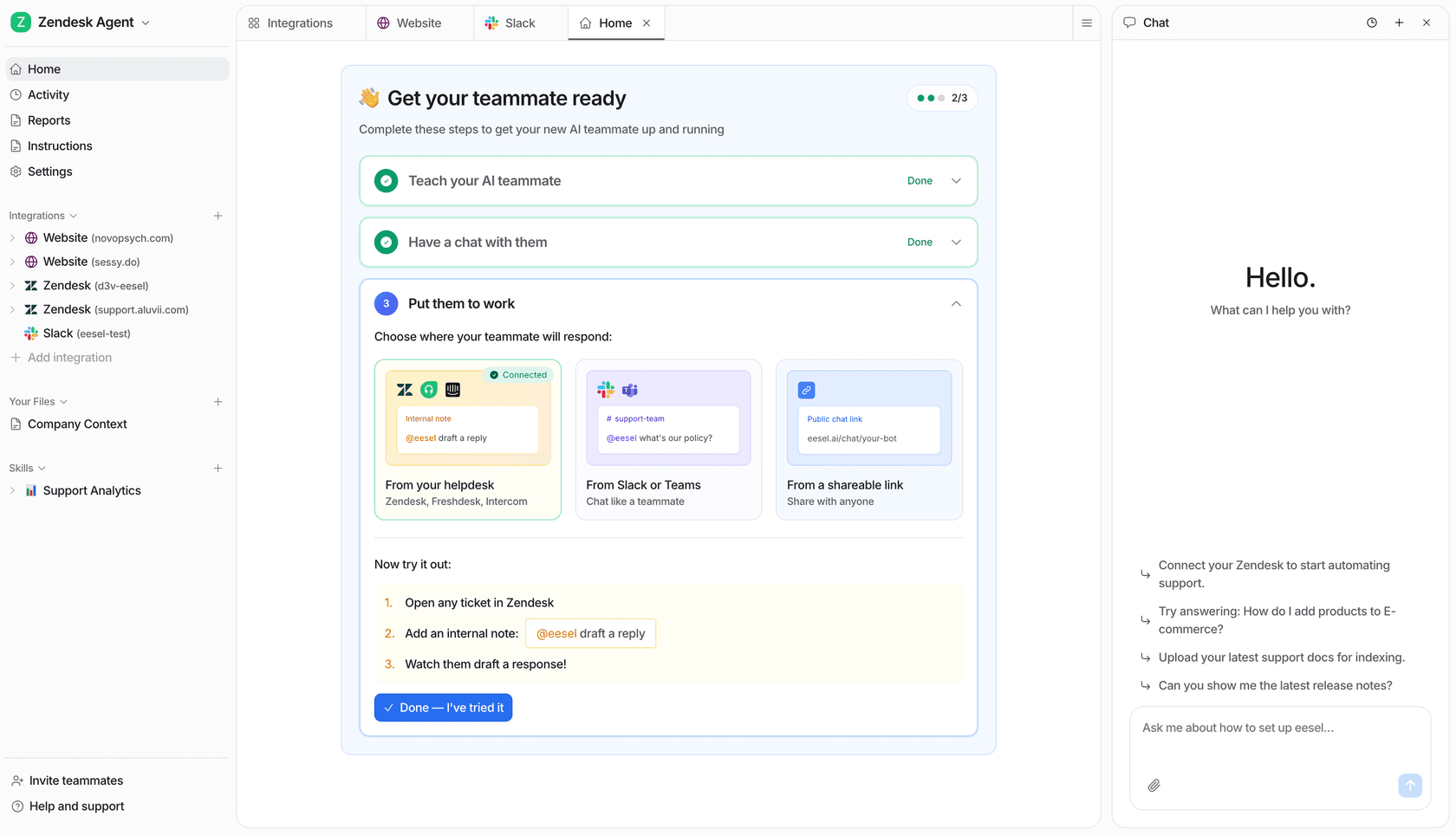
The eesel helpdesk interface. The CLI works with the same teammate and workspace, rather than a separate copy.
If you want the approved policy, review output, and owner decisions in one workspace, Try eesel.
Frequently asked questions
What is Claude Desktop?
Claude Desktop is Anthropic’s installed app. It includes Chat, Cowork, and Code surfaces, but they have different jobs and permissions. The app is available for supported macOS and Windows systems, with a separate beta Linux option.
Can Claude Desktop access local files?
Claude Code can work in a chosen local folder after you grant permission. Cowork can use local access when the desktop app is open; cloud sessions alone do not provide that local access.
Does Claude Pro include API credits?
No. Claude Pro is a subscription for Claude’s product experience. Anthropic API billing is separate and requires its own developer account and usage budget.
Which operating systems support Claude Desktop?
Anthropic lists macOS 11 or later and Windows 10 or later for Claude Desktop. Linux support is beta for Ubuntu 22.04+ and Debian 12+, with different installation and local-access details.
Who can use computer use in Cowork?
Anthropic currently lists Cowork computer use for Pro and Max users on macOS and Windows. It is not available on Linux, and it should be reviewed as a permissioned action rather than assumed to be enabled everywhere.