Getting your Zendesk web widget positioned correctly can make the difference between a helpful customer support channel and an annoying distraction. Whether you want it tucked neatly in the corner or prominently displayed, the positioning options vary depending on which widget type you're using.
Here's exactly how to customize the position and size for each Zendesk widget variant.
Which Zendesk widget do you have?
Before you can adjust positioning, you need to know which widget you're working with. Zendesk offers three main widget types, and each has different customization capabilities.
Web Widget (Messaging) is the current standard for accounts with Zendesk Suite or Support + Chat on Team plans and above with messaging enabled. It features a modern chat interface with conversation bubbles and supports persistent conversations across sessions.
Web Widget (Classic) is the legacy option for accounts that haven't enabled messaging. It combines help center search, contact forms, and optional live chat in a traditional interface. This version offers the most extensive JavaScript API for customization.
Chat-only Web Widget (Classic) appears if you only have the Chat product without Support. It's essentially the chat component without ticketing features.
To identify your widget, check your Admin Center. If you see Channels > Messaging and social > Messaging, you have the messaging Web Widget. If you see Channels > Classic > Web Widget, you're using the Classic version.
Source: Zendesk widget identification guide
Positioning the Web Widget (Messaging)
The messaging Web Widget offers straightforward positioning controls through the Admin Center interface.
To access position settings:
- Open Admin Center
- Click Channels in the sidebar
- Select Messaging and social > Messaging
- Click the channel name you want to edit
- Open the Style tab
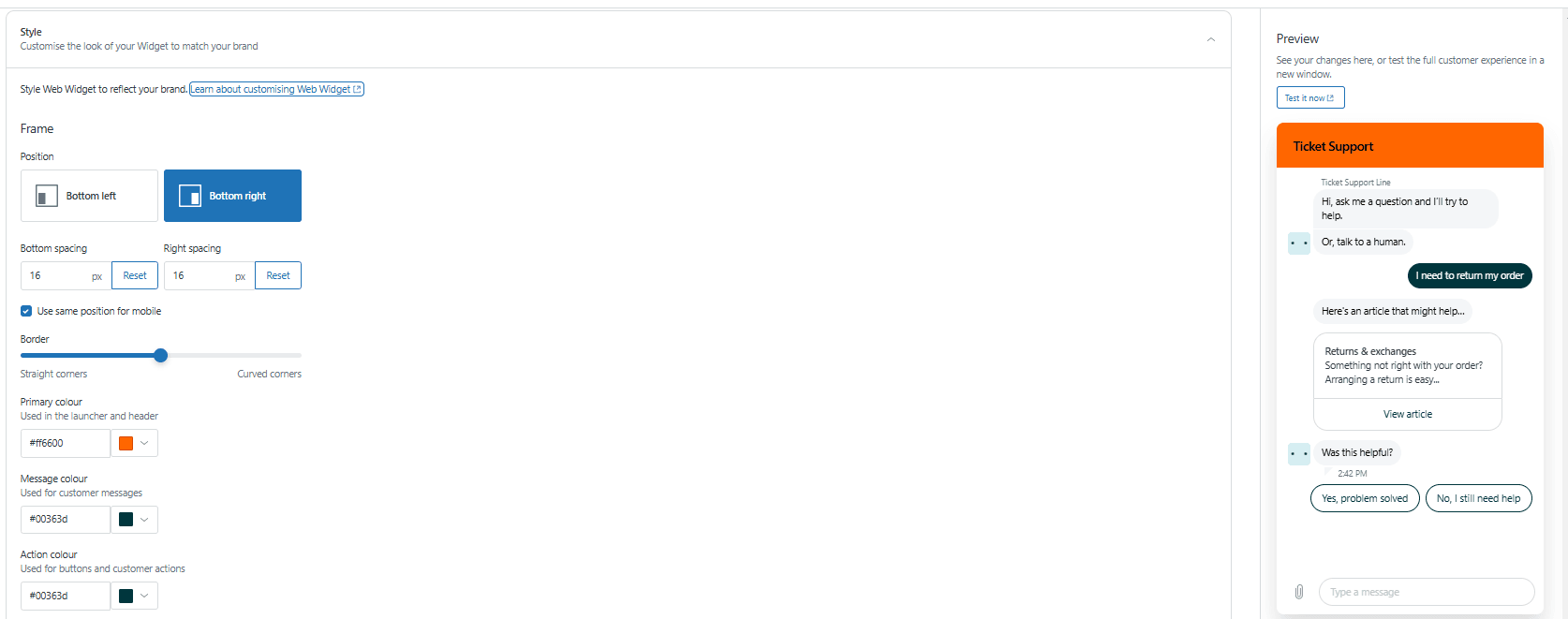
Position options:
The messaging widget supports two positions: Bottom right (default) or Bottom left. Unlike the Classic widget, you can't place it at the top of the page through the UI.
Offset configuration:
You can fine-tune the exact placement using offset values. The default is 16 pixels from your chosen edge. Increase these values to move the widget inward from the corner, or decrease them to bring it closer to the edge.
Appearance customization:
While not strictly positioning, these settings affect the widget's visual footprint:
- Border radius: Adjust from 0px (sharp corners) to 20px (fully rounded)
- Launcher shape: Choose Square (with adjustable curve), Circle, or Custom launcher
- Size elements: The launcher button size is fixed, but you can add optional text that increases its width
Mobile considerations:
Enable Show on mobile to display the launcher text in mobile SDKs. The widget automatically adapts its size for smaller screens, but the position remains anchored to your chosen corner.
Source: Configuring the Web Widget appearance
Positioning the Web Widget (Classic)
The Classic widget provides more positioning flexibility than its messaging counterpart, including the ability to place it in any corner of the screen.
To access position settings:
- Open Admin Center
- Click Channels in the sidebar
- Select Classic > Web Widget
- Locate the Position component
Four-corner positioning:
The Classic widget supports all four corners:
- Top left
- Top right
- Bottom left
- Bottom right
When positioned at the top, the widget expands downward when opened. When positioned at the bottom, it expands upward.
Basic offset adjustment:
The Position component includes offset controls to fine-tune placement from your selected corner. This is useful for avoiding conflicts with other fixed elements on your page.
Advanced JavaScript customization:
For precise control, the Classic widget accepts JavaScript configuration through window.zESettings. This approach lets you set exact pixel values and even change positioning dynamically based on page content.
Source: Repositioning the Web Widget
Positioning the legacy Chat widget
If you're using a legacy Chat-only account, your widget settings live in a different location.
To access position settings:
- Open your Chat dashboard
- Navigate to Settings > Widget
- Look for the Widget position dropdown
Available options:
The legacy Chat widget supports the same four corners as the Classic Web Widget. However, customization options are more limited. You won't have access to the extensive JavaScript API that the Classic widget offers.
Important note: Many accounts that previously used the standalone Chat widget now have their settings managed within the Web Widget (Classic) configuration in the Support product. If you don't see position settings in Chat, check Admin Center > Channels > Classic > Web Widget instead.
Source: Legacy Chat widget customization
Advanced positioning with JavaScript API
For developers who need precise control, the Web Widget (Classic) JavaScript API offers extensive positioning capabilities.
The foundation:
All customization happens through the window.zESettings object, which must be defined before the widget script loads:
window.zESettings = {
  webWidget: {
    position: {
      vertical: 'top',
      horizontal: 'right'
    },
    offset: {
      horizontal: '20px',
      vertical: '100px'
    }
  }
};
Position properties:
| Property | Values | Effect |
|---|---|---|
position.vertical | 'top' or 'bottom' | Which vertical edge to anchor to |
position.horizontal | 'left' or 'right' | Which horizontal edge to anchor to |
offset.horizontal | Pixel string (e.g., '50px') | Distance from left/right edge |
offset.vertical | Pixel string (e.g., '30px') | Distance from top/bottom edge |
Common positioning scenarios:
Top-right with breathing room:
window.zESettings = {
  webWidget: {
    position: { vertical: 'top', horizontal: 'right' },
    offset: { horizontal: '30px', vertical: '80px' }
  }
};
Bottom-left avoiding a footer:
window.zESettings = {
  webWidget: {
    position: { vertical: 'bottom', horizontal: 'left' },
    offset: { horizontal: '20px', vertical: '100px' }
  }
};
zIndex control:
If your widget appears behind other elements like navigation bars or modals, increase the zIndex value in your JavaScript settings:
window.zESettings = {
  webWidget: {
    zIndex: 999999
  }
};
Embedded mode:
For complete control over placement, you can embed the widget within a specific container on your page rather than having it float. This requires additional JavaScript and is typically used when you want the widget to appear as part of your page layout rather than an overlay.
Source: Web Widget API introduction
Best practices for widget positioning
Getting the position right is about more than just picking a corner. Here are practical guidelines for effective widget placement.
Consider your content layout:
Place the widget where it won't obstruct important navigation or content. Bottom-right is popular because most users are right-handed and many websites have less critical content in that area. However, if your site has a sticky footer or important CTAs in the bottom-right, consider bottom-left or top positioning.
Mobile responsiveness:
Test your chosen position on actual mobile devices, not just browser resizing. The widget launcher shouldn't cover navigation menus, cookie consent banners, or floating action buttons. On smaller screens, you might need larger offset values to avoid overlapping with native browser UI.
Accessibility considerations:
The widget automatically adjusts colors to meet WCAG contrast guidelines, but positioning matters for accessibility too. Ensure the launcher doesn't cover focus indicators or skip-to-content links. Users navigating by keyboard should be able to reach the widget without excessive tabbing.
When to use custom launcher:
Both widget types support hiding the default launcher and creating your own trigger. This is useful when you want the widget to open from a specific button in your navigation, or when the floating launcher conflicts with your design system. Remember that using a custom launcher requires additional development work to handle open/close states.
Testing recommendations:
- Check positioning across different screen sizes (320px mobile to 1920px desktop)
- Verify the widget doesn't overlap with cookie banners, age verification modals, or promotional popups
- Test with your actual website content, not just a blank page
- Consider how the position works with your site's scroll behavior
Troubleshooting common positioning issues
Even with clear settings, widget positioning sometimes doesn't work as expected. Here's how to fix the most common problems.
Widget not appearing in the expected position:
First, verify you're editing settings for the correct widget type. Changes to the messaging widget won't affect the Classic widget and vice versa. Clear your browser cache and check the widget in an incognito window to rule out cached JavaScript.
z-index conflicts:
If the widget appears behind other elements like navigation bars or modals, increase the zIndex value in your JavaScript settings. Start with 999999 and adjust downward if that causes other issues. Some third-party tools use extremely high z-index values, so you may need to experiment.
Mobile positioning problems:
Mobile browsers handle viewport units differently than desktop. If your offset values work on desktop but not mobile, try using percentage-based positioning or test different pixel values specifically for mobile viewports. The messaging widget has a dedicated mobile setting, but the Classic widget requires CSS media queries for mobile-specific positioning.
Changes not reflecting on your website:
Widget settings can take a few minutes to propagate. If you've waited and still don't see changes, check that you're looking at a page where the widget is actually installed. The widget snippet must be present on the page for any settings to take effect.
Cache and CDN considerations:
If you use a CDN or caching layer, your widget JavaScript might be cached. Purge your CDN cache after making positioning changes. For the Classic widget, changes to window.zESettings take effect immediately on page load, so caching is less of an issue than with Admin Center changes.
Enhance your Zendesk widget with AI
Once you've got your widget positioned perfectly, consider how AI can help you handle the conversations that come through it. While Zendesk offers built-in AI features, you might want more flexibility in how you automate responses and route conversations.

This is where an AI teammate can complement your widget strategy. Instead of just collecting tickets, you can have an AI agent that actually resolves common issues directly in the conversation. The AI learns from your past tickets and help center content, so responses match your brand voice and policies. eesel's AI agent for Zendesk is one option worth looking at if you want an AI layer that works alongside your existing Zendesk setup.
If you're looking to go beyond basic chatbot functionality, consider exploring AI-powered support options that integrate with Zendesk. The right AI setup can handle routine questions automatically while seamlessly escalating complex issues to your human team.
For teams wanting a complete AI solution, an AI chatbot trained on your specific knowledge base can provide more accurate responses than generic alternatives. Check out the pricing options to see what fits your support volume.