
The Zendesk web widget is one of the quickest ways to add customer support to your website. It's that small chat bubble you see in the corner of sites, letting visitors search your help center, start a conversation, or submit a ticket without leaving the page.
But before customers can use it, you need to get the embed code and add it to your site. This guide walks you through exactly how to do that, whether you're using the newer Messaging widget or the Classic version.

Understanding the two Zendesk web widget versions
Zendesk offers two different widget types, and knowing which one you have matters for installation.
Messaging Web Widget is the modern version. It supports continuous conversations (customers can leave and come back to the same chat), native AI agents, and real-time messaging. This is what Zendesk recommends for new setups. You can learn more in the Messaging installation guide.
Web Widget (Classic) is the legacy version. It uses session-based chats and offers more detailed form options. Some older Zendesk accounts still use this, and it's fully supported. See the Classic widget documentation for more details.
Here's how they compare:
| Feature | Messaging Web Widget | Web Widget (Classic) |
|---|---|---|
| Conversation style | Continuous across sessions | Session-based |
| AI agent support | Native integration | Limited |
| Live chat | Real-time | Real-time |
| Help center search | Yes | Yes |
| Contact forms | Streamlined | Full detailed forms |
| Where to configure | Admin Center > Channels > Messaging | Admin Center > Channels > Classic > Web Widget |
If you're unsure which you have, check your Admin Center. The navigation path tells you immediately. For more details, see Zendesk's developer documentation.
What you'll need before starting
Before grabbing your embed code, make sure you have:
- A Zendesk account with administrator access
- Access to your website's HTML or content management system
- An activated help center (required for the Messaging widget auto-embed option)
- Basic familiarity with where to place scripts on your site
If you're using WordPress, Shopify, or another platform, you'll need admin access to edit theme files or install plugins. For teams looking to add AI-powered responses to their widget, eesel AI offers a Zendesk integration that learns from your help center and past tickets.
Step 1: Access your widget settings in Zendesk
First, navigate to the right place in your Zendesk Admin Center.
For the Messaging Web Widget: Go to Admin Center > Channels > Messaging and social > Messaging.
For the Classic Web Widget: Go to Admin Center > Channels > Classic > Web Widget.
You'll see a list of widgets if you have multiple configured. Click the name of the widget you want to install. This opens the configuration panel where you can customize appearance and behavior before generating the code.

Step 2: Configure your widget appearance and features
Before generating the embed code, set up how you want the widget to look and function. This saves you from having to update it later.
Visual settings to configure:
- Colors: Set your brand's primary color for buttons and headers
- Position: Choose bottom-left or bottom-right corner
- Launcher style: Select the icon and text that appears on the button
- Logo: Upload your company logo (Enterprise plans can remove Zendesk branding)
Functional components to enable:
- Help Center search: Lets customers find articles before contacting you
- Contact form: Allows ticket submission directly from the widget
- Live chat: Enables real-time conversations with agents
- Callback requests: Lets customers request a phone call (requires Zendesk Talk)
Behavior settings:
- Business hours: Set when the widget appears or changes messaging
- Greetings: Configure automated welcome messages
- Mobile responsiveness: Ensure the widget works on phones and tablets
Take a moment to preview your changes. Zendesk provides a live preview so you can see exactly how the widget will appear to customers.
Step 3: Generate and copy your embed code
Once you're happy with the configuration, it's time to get the actual code.
Scroll down to the Installation section and click to expand it. You'll see a JavaScript snippet that looks something like this:
<!-- Start of Zendesk Widget script -->
<script id="ze-snippet" src="https://static.zdassets.com/ekr/snippet.js?key=YOUR_WIDGET_KEY"></script>
<!-- End of Zendesk Widget script -->
Click the Copy icon to copy the entire snippet to your clipboard. This code contains your unique widget key, which connects the widget to your specific Zendesk account. For more details on the installation process, see Zendesk's Messaging installation guide.
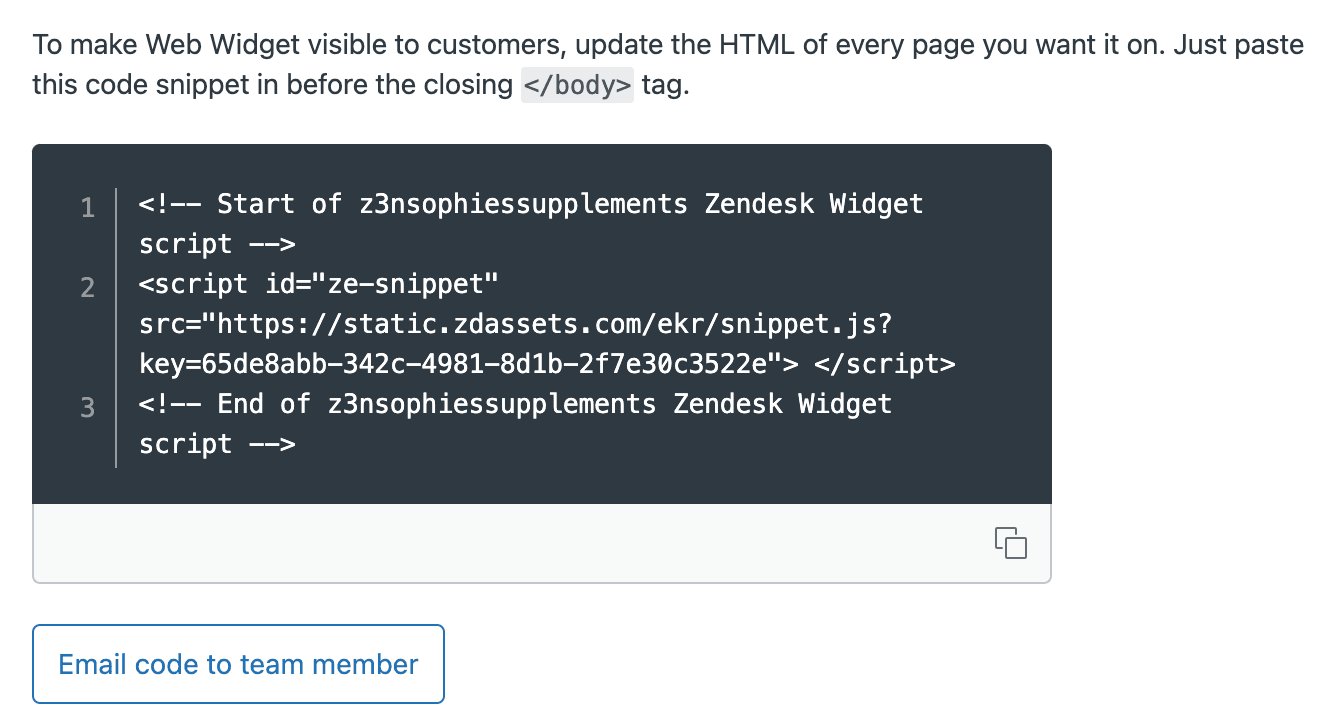
If you need to send this code to a developer, click Email code to a team member instead.
Step 4: Add the code to your website
Now you need to paste this code into your website's HTML. The placement matters: add it just before the closing </body> tag on every page where you want the widget to appear.
Standard HTML websites
Open your website's HTML files and paste the snippet before </body>. If you use a template system, add it to your base template so it appears on all pages.
WordPress
You have several options:
- Theme Editor: Go to Appearance > Theme File Editor, open
footer.php, and paste before</body> - Customizer: Some themes have a "Custom Scripts" or "Footer Code" section in Appearance > Customize
- Plugin: Use a plugin like "Insert Headers and Footers" to add code without editing theme files
Shopify
- Go to Online Store > Themes
- Click Actions > Edit code on your active theme
- Open
theme.liquidin the Layout folder - Paste the snippet before the closing
</body>tag - Save
Other platforms
Most content management systems have a way to add custom scripts:
- Wix: Settings > Custom Code
- Squarespace: Settings > Advanced > Code Injection
- Webflow: Project Settings > Custom Code
After adding the code, save your changes and clear any caches. For more platform-specific guidance, refer to Zendesk's developer documentation.
Step 5: Verify your installation
Don't just assume it worked. Take a minute to verify everything is functioning correctly.
Open your website in an incognito or private browsing window. This ensures you're seeing it as a new visitor would, without cached data interfering.
Check for these things:
- The widget launcher appears in your chosen corner
- Clicking it opens the widget interface
- Your branding (colors, logo) displays correctly
- Help center search works if enabled
- You can start a chat or submit a test ticket
Test on both desktop and mobile to ensure responsive behavior. The widget should adapt to smaller screens without breaking your site's layout.
If the widget doesn't appear, check your browser's developer console for JavaScript errors. Common issues include:
- The script being blocked by a content security policy
- Conflicts with other chat widgets
- The code being placed in the wrong location
Customizing your widget beyond basic settings
Once the basic widget is working, you can explore advanced customization options through the JavaScript API.
Programmatic control
You can control the widget's behavior with JavaScript commands:
// Open the widget
zE('webWidget', 'open');

// Set the visitor's name
zE('webWidget', 'prefill', {
  name: 'John Doe',
  email: 'john@example.com'
});
Embedded mode
For more control over placement, use embedded mode to place the widget inside a specific container:
window.zEMessenger = {
  autorender: false
};

zE('messenger', 'render', {
  mode: 'embedded',
  widget: {
    targetElement: '#support-container'
  }
});
This is useful for creating dedicated support pages or integrating the widget into dashboards. Learn more in the embedded mode documentation.
Authenticated visitors
If your users log into your website, you can authenticate them in the widget so they see their conversation history and don't need to re-enter contact details. This requires setting up JWT authentication in your Zendesk settings.
Troubleshooting common embed issues
Even with clear instructions, things sometimes go wrong. Here's how to fix common problems.
Widget not appearing
- Clear your cache: Browsers cache heavily; try a hard refresh (Ctrl+F5 or Cmd+Shift+R)
- Check for JavaScript errors: Open browser DevTools and look for red errors in the console
- Verify the script loaded: In DevTools Network tab, check if the Zendesk script request succeeded
- Firewall blocking: Ensure your firewall allows requests to
zdassets.comandzendesk.com
Code placement errors
- Make sure the code is before
</body>, not after - Don't place it inside
<head>(this can slow page loading) - Ensure you didn't accidentally break HTML structure when pasting
Conflicts with other tools
If you use other chat widgets (Intercom, Drift, etc.), they might conflict. Only use one chat widget per page to avoid confusion and technical issues.
Mobile display issues
- Check that your website's viewport meta tag is set correctly
- Ensure the widget's z-index isn't being overridden by your CSS
- Test on actual devices, not just browser emulators
Enhance your Zendesk widget with AI support
Once your web widget is running, you might notice it still requires significant manual work. Agents need to respond to every conversation, and simple questions take up valuable time.
This is where AI can help. eesel AI integrates directly with Zendesk to automate responses using your existing help center articles and past ticket data.

Here's how it works:
- Train on your content: eesel learns from your help center, macros, and resolved tickets
- Draft AI responses: When customers use your web widget, eesel suggests complete responses for agents to review
- Autonomous resolution: For common questions, eesel can respond directly without agent involvement
- Escalate intelligently: Complex issues automatically route to human agents with full context
The integration happens within your existing Zendesk setup. There's no need to replace your web widget or change how customers interact with you. eesel simply makes those interactions more efficient.
For teams looking to reduce response times while maintaining quality, eesel AI's AI Agent can be a practical next step after setting up the basic widget.